Have you ever plugged in your iPhone before bed, only to discover that it stopped charging at 80%?
At first, it can look like something is wrong. The cable is connected, the charging icon is there, but the battery percentage barely moves.
In many cases, that’s exactly what Apple intended.
If you’ve noticed the iPhone Optimized Battery Charging setting and aren’t sure whether to leave it enabled, here’s what it actually does, why charging sometimes pauses, and how to choose the best setting for your routine.
Quick Answer: What Is iPhone Optimized Battery Charging?
Optimized Battery Charging is an Apple feature that reduces the time your iPhone spends fully charged. It learns your usual charging routine and can delay charging past 80% until closer to the time you’re likely to unplug your phone.
For example, if you regularly charge overnight and unplug your iPhone around 7 a.m., it may pause at 80% for several hours before finishing the remaining charge closer to morning.
The purpose is to reduce long-term battery wear, not to make your phone charge faster.
Optimized Battery Charging is enabled by default on supported iPhones. On iPhone 15 and newer models, it is available when the Charge Limit is set to 100%.
Table of Contents
How Does Optimized Battery Charging Actually Work?
Think about how you charge your phone on a normal day.
Perhaps you connect it to a charger around 11 p.m., leave it on your bedside table, and disconnect it when you wake up.
Without an optimized charging pause, the battery might reach 100% well before morning and remain at a high charge level for several hours.
Apple designed Optimized Battery Charging to reduce the amount of time the battery spends in that fully charged state.
Your iPhone uses on-device learning to recognize patterns in when and where you typically charge.
When it predicts a long charging session, the process generally works like this:
- You connect your iPhone to a charger.
- The battery charges normally toward 80%.
- Charging may pause temporarily near 80%.
- Your iPhone estimates when you’ll disconnect the charger.
- Charging resumes so the battery can reach 100% closer to that time.
You may see a notification on the Lock Screen showing when charging is expected to finish.
This doesn’t happen during every charging session. Apple specifically designed the feature to activate when it can recognize a sufficiently consistent routine.
That’s why your iPhone might charge straight to 100% one day and pause at 80% on another.
Where to Find Optimized Battery Charging on iPhone
Apple uses slightly different charging settings depending on the iPhone model.
On iPhone 15, 16, 17, and 18 models
On iPhone 15 and newer:
- Open Settings.
- Tap Battery.
- Select Charging.
- Look at your current Charge Limit.
- If you select 100%, you can use the Optimized Battery Charging option.
If your limit is currently 80%, 85%, 90%, or 95%, you may not see the Optimized Battery Charging toggle.
That’s expected. A charge limit below 100% uses a different method to reduce battery wear.
You don’t have to change your existing charge limit just to enable Optimized Battery Charging.
On iPhone 14 and earlier
For earlier supported iPhones:
- Open Settings.
- Select Battery.
- Tap Battery Health & Charging.
- Find Optimized Battery Charging.
- Turn the setting on or off.
Depending on your iPhone and iOS version, some menu labels may look slightly different.
Apple generally recommends leaving charging optimization enabled because disabling it can increase battery wear over time.
Optimized Battery Charging vs. Charge Limit: What’s the Difference?
These two features have a similar goal, but they work differently.
Optimized Battery Charging
This feature is designed for people who generally want a full battery.
It can pause at 80% during long charging sessions and then continue charging to 100% before the phone is usually unplugged.
If your schedule is predictable, the iPhone learns when to delay the final part of charging.
You still get a full charge when the feature behaves as intended.
Charge Limit
On iPhone 15 and later, you can choose a maximum charging percentage between 80% and 100%, in 5% increments.
For example, you might set your iPhone to stop charging around 90%.
Instead of aiming for 100% every day, the phone normally stops when it reaches the selected limit.
Apple may occasionally charge your iPhone to 100%, even when you’ve chosen a lower limit, to maintain accurate battery charge estimates.
Here’s an easy way to understand the difference:
Optimized Battery Charging: “I want 100%, but I don’t need it until morning.”
Charge Limit: “I usually don’t need 100%, so stop charging earlier.”
Neither option is automatically the best for everyone.
The better choice depends on how you use your iPhone and how much battery life you need between charges.
Can Optimized Battery Charging Be Enabled With a 90% Charge Limit?
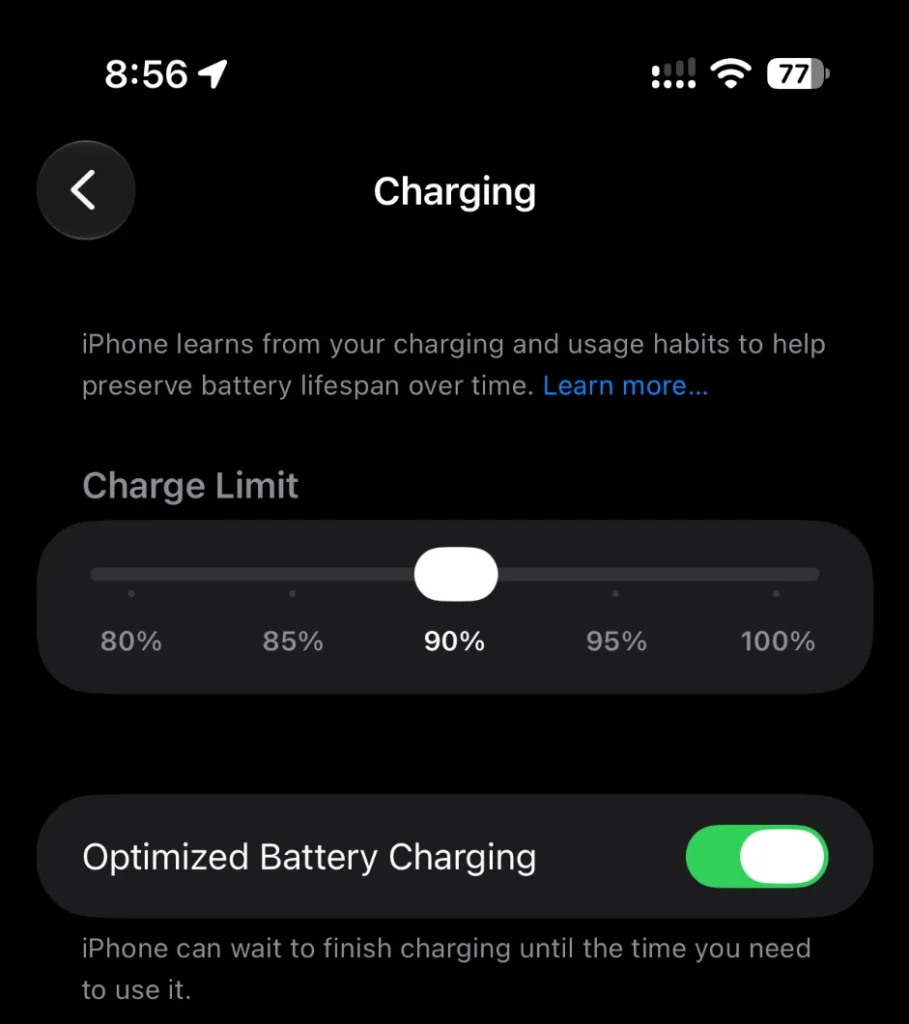
On some iPhone software versions, the Charging settings screen can show the Optimized Battery Charging switch enabled even when the Charge Limit is set below 100%.
However, seeing the switch enabled doesn’t necessarily mean the iPhone is actively using the familiar overnight charging delay.
Apple documents that predictive charging behavior for a 100% Charge Limit. When a lower limit is selected, the iPhone normally charges to around that selected percentage and stops.
For example, if you set a 90% limit, you should generally expect your iPhone to stop charging around 90%, rather than continue toward 100% every night.
The exact interface may vary by software version.
Should You Use 80%, 90%, or 100% Charging?
This is where people sometimes overcomplicate battery care.
You don’t need to spend the whole day watching your battery percentage.
The idea is to choose a setting that reduces unnecessary battery stress without making your phone inconvenient to use.
Choose 80% if you rarely need a full battery
An 80% charge limit may make sense if you:
- Spend much of the day near a charger.
- Use your phone lightly.
- Work from home or a desk.
- Usually finish the day with plenty of battery remaining.
The trade-off is straightforward: you start the day with less available charge.
If you’re constantly running out of battery by evening, the limit might be too restrictive for your routine.
Choose 90% or 95% for a middle ground
A 90% or 95% limit can be a practical compromise.
You keep more battery available during the day while reducing the time your iPhone spends at the highest charge levels.
This can be useful if an 80% limit feels inconvenient but you rarely need every last percentage point.
Choose 100% with Optimized Battery Charging if you need the full capacity
If you regularly spend long periods away from a charger, having 100% available may matter more than maintaining a strict charge limit.
Setting Charge Limit to 100% and keeping Optimized Battery Charging enabled allows the phone to delay the final part of charging when it recognizes your routine.
My practical suggestion: Choose a charge limit based on how much battery you actually use. A setting you can live with consistently is more useful than a restrictive one that forces you to recharge repeatedly throughout the day.
There isn’t a single percentage that guarantees the longest battery lifespan for every person.
Why Does My iPhone Stop Charging at 80%?
A pause at 80% doesn’t always mean Optimized Battery Charging is active.
There are several possible explanations.
1. Optimized Battery Charging is delaying the final charge
If your Charge Limit is set to 100% and your iPhone recognizes a long charging session, it may pause at 80%.
You may see a message such as Charging on Hold: Optimized Battery Charging, along with an estimated completion time.
In this situation, there’s usually nothing to fix.
2. You’ve set an 80% Charge Limit
On iPhone 15 and newer, check Settings → Battery → Charging.
If the Charge Limit is set to 80%, the phone is following your selected preference.
Changing the limit or temporarily allowing a full charge may be appropriate when you need more battery life.
3. Your iPhone is too warm
Heat can also affect charging.
Apple explains that iPhone may temporarily limit or pause charging when the battery temperature is outside its recommended range.
This is a protective response, not necessarily a problem with your optimized charging settings.
If your iPhone feels unusually warm, move it away from direct sunlight, stop demanding activities, and allow it to cool naturally.
Don’t place it in a refrigerator or freezer.
For temperature-related problems, see our iPhone overheating after iOS 27.2.1 troubleshooting guide.
4. There’s a separate charging problem
If your iPhone refuses to charge, repeatedly disconnects, or doesn’t recognize a charger at all, that’s different from a normal charging pause.
The cable, adapter, charging port, or battery may need attention.
Our iPhone not charging guide covers those situations in more detail.
Why Isn’t Optimized Battery Charging Working?
You might enable the feature, plug in your iPhone overnight, and still see it charge directly to 100%.
That doesn’t automatically mean anything is broken.
According to Apple, Optimized Battery Charging needs time and a reasonably consistent charging pattern before it activates reliably.
Your iPhone is still learning your routine
Apple says the feature needs at least 14 days to learn charging habits after the iPhone is set up.
It also requires at least nine charging sessions lasting five hours or longer in a given location.
If you recently purchased a new iPhone, reset it, or changed your routine, the feature may not engage immediately.
You don’t need to force the battery to reach 80% or repeatedly unplug the charger to train it.
Just use your iPhone normally.
Your charging schedule changes frequently
Suppose you charge at 10 p.m. one night, 2 a.m. the next, and then charge briefly at lunchtime.
Your phone may have difficulty predicting when you’ll unplug it.
Optimized Battery Charging works best when your charging routine is more predictable.
Travel can also affect whether the feature activates.
Your location settings may prevent activation
Apple uses certain location information to recognize places where you regularly charge for extended periods.
If the feature isn’t activating as expected, Apple recommends checking:
- Settings → Privacy & Security → Location Services: Ensure Location Services is enabled.
- Location Services → System Services: Check System Customization.
- System Services → Significant Locations: Check whether the feature is enabled.
The exact names can vary by software version.
Apple states that the location information used for Optimized Battery Charging isn’t sent to Apple.
These are optional troubleshooting checks. You should make your own decision about location permissions rather than enabling them without understanding their purpose.
You’re using a Charge Limit below 100%
This is an easy one to miss.
If your iPhone is configured to stop at 90%, don’t expect it to behave like Optimized Battery Charging that delays an eventual 100% charge.
They are different charging modes.
Check which option you selected before trying other fixes.
How to Make Your iPhone Charge to 100% Right Now
Sometimes you need to leave early, catch a flight, or spend a long day away from a charger.
You don’t have to permanently disable your battery settings just because you need a full charge once.
If Optimized Battery Charging has paused charging
When the charging pause is active, your iPhone may show a notification indicating when it expects to finish.
You can touch and hold the charging notification, then select Charge Now.
On supported versions of iOS, you can also open Settings → Battery and select Resume Charging when that control appears.
The exact option depends on your iOS version and what is causing the charging pause.
If you’ve set a lower Charge Limit
On iPhone 15 or newer:
- Open Settings.
- Tap Battery → Charging.
- Review your current Charge Limit.
- Use the available temporary override or Charge to 100% option when you need a full charge.
You can also adjust the charge limit directly.
Be aware that changing the limit to 100% may bring Optimized Battery Charging back into play, so charging might still be delayed during a recognized overnight session.
The important thing is that you can make an exception for an unusually busy day without abandoning your usual charging routine.
Is It Safe to Charge an iPhone Overnight?
For a properly functioning iPhone using suitable charging accessories, overnight charging is a normal use case Apple specifically accounts for.
Optimized Battery Charging exists partly because many people leave their phones connected to power while they sleep.
Once the iPhone reaches full charge, its charging system manages the battery rather than continuously forcing an unrestricted charge into it.
That doesn’t mean battery wear stops completely.
Rechargeable batteries naturally age over time, and temperature is an important factor.
A few sensible precautions help:
- Use a compatible, undamaged charging cable and adapter.
- Keep the iPhone and charger in a well-ventilated location.
- Avoid charging under a pillow or blanket.
- Don’t use a damaged charger or a phone that shows signs of battery swelling.
- Keep the phone away from excessive heat.
You shouldn’t need to wake up in the middle of the night just to disconnect your charger at a particular percentage.
7 Practical Tips for Better iPhone Charging Habits
You don’t need a complicated charging routine. A few small decisions can make battery care easier.
1. Keep charging optimization enabled when it suits your routine
If you frequently charge overnight and want a full battery in the morning, Optimized Battery Charging is worth keeping on.
2. Use Charge Limit when you don’t need 100%
On supported iPhones, a lower limit can reduce time spent at high charge levels.
Choose a percentage that leaves you enough battery for normal use.
3. Don’t panic when charging pauses at 80%
Check whether the pause comes from optimization, a chosen limit, or temperature protection before changing settings.
4. Allow the feature time to learn
If your iPhone is new, don’t judge the feature after only a few charging sessions.
It needs a consistent routine.
5. Avoid unnecessary heat
Charging on a hot dashboard, in direct sunlight, or under thick bedding is not a good habit.
Heat can be more important to battery health than obsessing over a difference of a few percentage points.
6. Make temporary exceptions when needed
If you’re traveling or know you’ll be away from power all day, charging to 100% can be perfectly reasonable.
Battery care shouldn’t prevent you from using your phone.
7. Pay attention to battery health over time
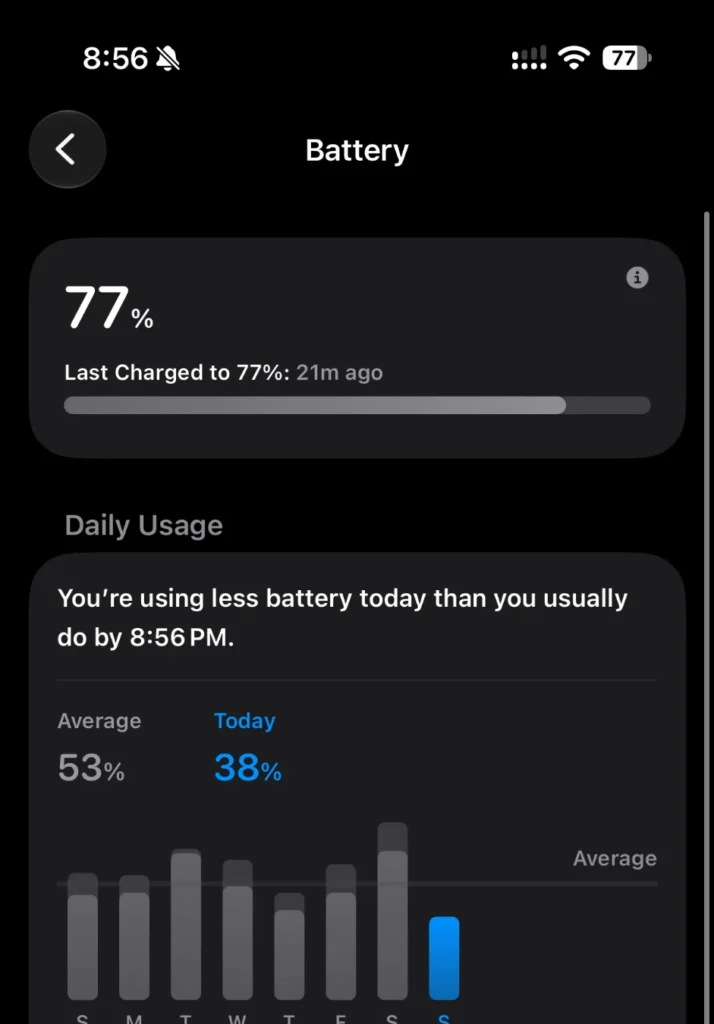
Check Settings → Battery → Battery Health or the equivalent menu on your model.
Battery health is affected by several factors, including chemical aging, temperature, and charging history.
If your battery is losing capacity unusually quickly, see our iOS 27 battery drain troubleshooting guide for related checks.
Is Optimized Battery Charging the Same as Clean Energy Charging?
No. These features can work together, but they have different goals.
Optimized Battery Charging is primarily intended to reduce battery aging by limiting how long the battery remains fully charged.
Clean Energy Charging is designed to reduce the carbon impact of charging when lower-emission electricity is available.
Apple introduced Clean Energy Charging for the United States, and it can affect charging timing when the feature is supported and enabled.
If you see a charging delay, it’s helpful to check which feature is responsible.
We explain the environmental charging feature separately in our Clean Energy Charging on iPhone guide.
Frequently Asked Questions
Is Optimized Battery Charging good for iPhone battery health?
Yes. Apple designed it to reduce the time the battery spends fully charged, which can help reduce long-term battery wear. It doesn’t prevent normal chemical aging.
Should I turn off Optimized Battery Charging?
For most people, there’s little reason to turn it off permanently. If you occasionally need a full charge sooner, use the temporary charging override instead.
Why is Optimized Battery Charging not showing on my iPhone?
On iPhone 15 and newer, the option is available when your Charge Limit is set to 100%. If you’ve selected 80%, 85%, 90%, or 95%, you may not see the same toggle.
Does Optimized Battery Charging always stop at 80%?
No. It activates only when your iPhone predicts a long charging session based on your routine. Your iPhone may charge directly to 100% at other times.
Will my iPhone eventually charge to 100%?
Yes, when Optimized Battery Charging is active with a 100% Charge Limit, it is designed to finish charging closer to your expected unplug time.
Is charging to 100% bad for my iPhone?
An occasional full charge isn’t something you need to fear. However, spending extended periods at a high charge level can contribute to battery aging. Apple’s charging features are intended to reduce that effect.
Why does my iPhone charge to 100% even with an 80% limit?
Apple states that iPhone may occasionally charge to 100% even when a lower limit is set. This helps maintain accurate battery state-of-charge estimates.
Does Optimized Battery Charging make an iPhone charge more slowly?
It can intentionally delay the last part of charging. That’s different from a slow charger or a hardware problem. The goal is to reduce time spent fully charged, not to improve charging speed.
Final Thoughts
Optimized Battery Charging is one of those iPhone features that works best when you don’t have to think about it too much.
If you charge overnight and usually unplug your phone around the same time, leaving the feature enabled makes sense.
If you rarely need a full battery, a lower Charge Limit on a supported iPhone may be a better fit.
And if your phone pauses at 80%, check its charging settings before assuming something is broken.
The goal isn’t to maintain a perfect battery percentage every day. It’s to develop a charging routine that protects your battery where practical while letting you use your iPhone normally.
Last reviewed: November 22, 2026
Sources
- Apple Support: About Charge Limit and Optimized Battery Charging on iPhone
- Apple Support: If Optimized Battery Charging doesn’t activate
- Apple iPhone User Guide: Set a charge limit on iPhone
- Apple Support: Charge and maintain your iPhone battery
- Apple Support: Use Clean Energy Charging on your iPhone