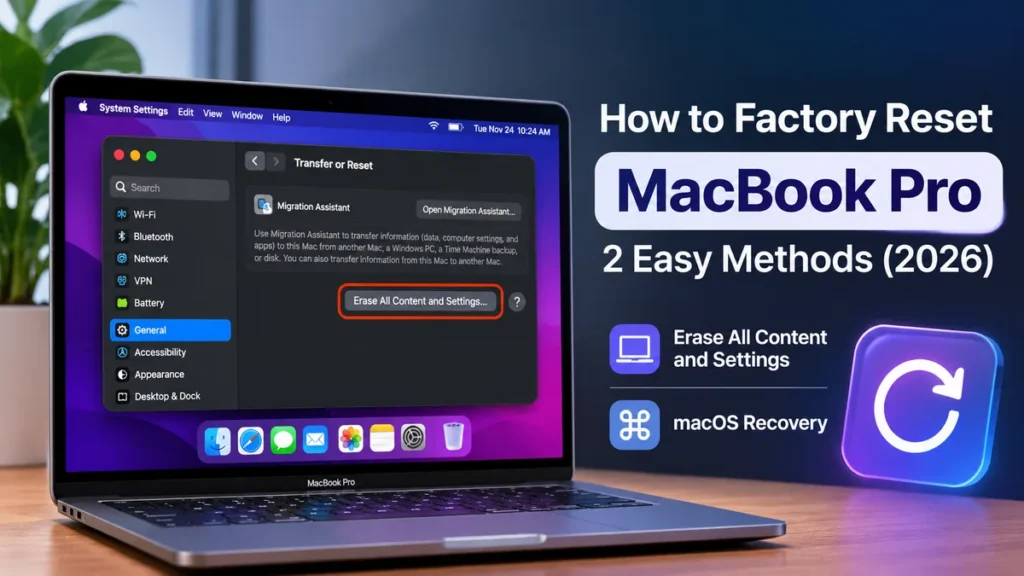
Knowing how to factory reset MacBook Pro correctly is essential if you’re selling your laptop, giving it away, preparing it for a trade-in, or starting fresh after persistent software problems.
However, the correct reset procedure depends on your MacBook Pro’s processor, security chip, and macOS version. Newer models offer a built-in reset feature, while older models may require macOS Recovery.
This guide covers both methods, including Intel and Apple silicon models, forgotten passwords, missing reset options, and important precautions before erasing your Mac.
Table of Contents
Quick Answer: How to Factory Reset MacBook Pro
On a compatible MacBook Pro running macOS Ventura or later:
- Open the Apple menu.
- Select System Settings.
- Go to General.
- Select Transfer or Reset.
- Click Erase All Content and Settings.
- Enter your administrator password.
- Follow the instructions to complete the reset.
If your MacBook Pro doesn’t offer Erase All Content and Settings, use macOS Recovery to erase its startup disk and reinstall macOS.
Warning: A factory reset permanently removes your personal files, applications, and user settings. Back up everything important before proceeding.
Which Factory Reset Method Should You Use?
Not every MacBook Pro supports the same reset process.
| MacBook Pro model | Reset method |
|---|---|
| Apple silicon M1 or newer | Erase All Content and Settings on supported macOS versions |
| Intel models with T2 chip, introduced from 2018 through 2020 | Erase All Content and Settings with macOS Monterey or later |
| Older Intel models without T2 chip | macOS Recovery |
| MacBook Pro running Big Sur or earlier | macOS Recovery |
| MacBook Pro that cannot start normally but can access Recovery | macOS Recovery |
The built-in Erase Assistant is generally the easiest option when available because it removes personal information while retaining the installed operating system.
Apple provides an official list of Mac computers with the T2 Security Chip if you’re unsure whether your Intel MacBook Pro is compatible.
Before You Factory Reset Your MacBook Pro
Completing these preparations can prevent unnecessary data loss and setup problems.
Back Up Your Important Files
Use Time Machine, an external storage device, or another reliable backup method to save your documents, photos, videos, and other important files.
Verify that the backup has completed successfully and that you can access the files before erasing your MacBook Pro.
If your backup is taking unusually long, read our guide on Time Machine stuck preparing backup.
Check Your Apple Account Credentials
Make sure you know your Mac login password and Apple Account password.
These credentials may be required to authorize the reset, disable Find My, or activate your Mac after erasing it.
Connect Your MacBook Pro to Power
Keep your MacBook connected to a reliable power adapter throughout the process.
Interrupting the reset or macOS installation because of a depleted battery can cause additional startup problems.
Check Your MacBook Pro Model
Open the Apple menu and select About This Mac.
Check whether the information lists an Apple chip or an Intel processor. Also note your installed macOS version.
On previously repaired Apple silicon Macs running macOS 26 or later, Apple recommends checking for unfinished repairs using Repair Assistant before erasing the computer.
Method 1: Factory Reset MacBook Pro Using Erase All Content and Settings
This is the recommended method for compatible Apple silicon and Intel T2 MacBook Pro models.
Step 1: Open System Settings
Click the Apple menu in the upper-left corner of your screen and select System Settings.
Step 2: Open General Settings
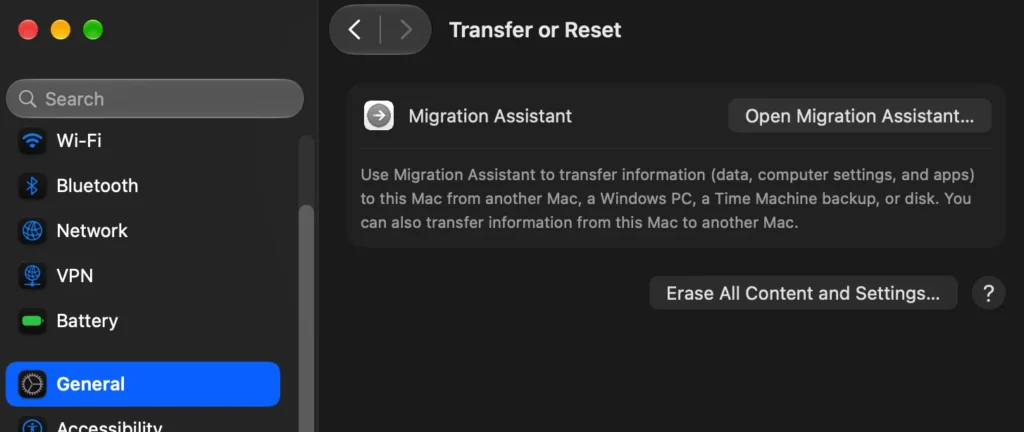
The screenshot above was captured on our MacBook Air M1. Compatible MacBook Pro models use the same macOS reset interface. No data was erased during verification.
Select General from the sidebar.
Scroll through the available options and select Transfer or Reset.
Step 3: Launch Erase Assistant
Click Erase All Content and Settings.
Enter your administrator password when requested.
Erase Assistant will display information about the accounts, applications, settings, and personal data that will be removed.
Step 4: Review the Reset Information
Confirm that you have backed up everything important.
Enter your Apple Account credentials if requested, then proceed with the final erase confirmation.
Do not continue unless you are ready to permanently remove your data.
Step 5: Allow Your MacBook Pro to Restart
Your Mac will restart during the reset process.
It may request a network connection to complete activation. Keep your charger connected and follow the onscreen prompts.
Step 6: Complete or Leave the Setup Assistant
Once the reset is complete, your MacBook Pro will display its initial setup screen.
If you’re keeping the computer, follow the setup instructions and restore your files if needed.
If you’re selling or giving away the computer, leave it at the initial setup stage and shut it down. The next owner can configure it with their own information.
For additional details, see Apple’s official Mac factory reset instructions.
How to Factory Reset MacBook Pro on macOS Monterey
macOS Monterey supports Erase All Content and Settings on eligible Mac computers, but the menu location differs from newer macOS releases.
To locate the feature:
- Open System Preferences from the Apple menu.
- Select the System Preferences menu in the menu bar.
- Choose Erase All Content and Settings.
- Authenticate and follow Erase Assistant.
If the option does not appear, check your hardware compatibility or use the Recovery method described below.
Method 2: Factory Reset MacBook Pro Using macOS Recovery
Use macOS Recovery when the built-in reset feature is unavailable or your Mac cannot start normally.
If you’re preparing a Mac for another owner and cannot use Erase Assistant, follow Apple’s Mac ownership-transfer checklist first. Depending on your macOS version, this includes signing out of iCloud, Messages, and older iTunes authorizations.
Enter macOS Recovery on Apple Silicon
For MacBook Pro models with Apple M-series processors:
- Shut down your Mac completely.
- Hold the power button until startup options appear.
- Select Options.
- Click Continue.
- Authenticate if prompted.
You should now see the available macOS Recovery utilities.
Enter macOS Recovery on Intel MacBook Pro
For Intel-based MacBook Pro models:
- Shut down your computer.
- Turn it on and immediately hold Command + R.
- Release the keys when the Apple logo or another startup screen appears.
- Follow any authentication prompts.
Some Intel models also support Internet Recovery.
| Keyboard shortcut | Recovery function |
|---|---|
| Command + R | Standard macOS Recovery |
| Option + Command + R | May install the newest compatible macOS |
| Shift + Option + Command + R | May install the original macOS or closest available version |
See Apple’s macOS Recovery startup guide for additional assistance.
Erase the Startup Disk Using Disk Utility
Once you enter Recovery, open Disk Utility.
Identify your internal startup volume, normally named Macintosh HD. Select it and choose the erase option.
Use APFS when appropriate for your macOS version. If Disk Utility offers Erase Volume Group, use that option when instructed for your model.
Older versions of macOS may require a different disk format.
Do not erase an external backup drive or an unfamiliar volume. If the disk structure differs from what you expect, stop and consult the instructions for your specific hardware:
Reinstall macOS
After erasing the appropriate startup volume:
- Close Disk Utility.
- Return to the macOS Recovery window.
- Select the macOS installation option.
- Choose the appropriate internal destination volume.
- Follow the installer until setup begins.
The installation requires a reliable internet connection in many cases. Keep the laptop connected to power and avoid interrupting the installation.
Consult Apple’s macOS reinstallation guide if you encounter errors.
How to Factory Reset MacBook Pro Without a Password
If you’ve forgotten your Mac login password, first attempt to recover your account using Apple’s supported password-reset options.
Depending on your Mac’s configuration, you may be able to reset your login password from the login screen or macOS Recovery using your Apple Account or recovery key.
If recovering the password is unsuccessful, erasing the Mac may still be possible through Apple’s supported recovery process. However, this permanently removes your files.
An Apple Account associated with Activation Lock may still be required after erasure.
A factory reset does not bypass Activation Lock or establish ownership of a locked computer.
If you purchased a used MacBook Pro that remains associated with someone else’s Apple Account, contact the previous owner. Apple may also assist eligible owners who can provide proof of purchase.
See Apple’s forgotten Mac password guide for legitimate recovery options.
Why Is Erase All Content and Settings Missing?
Several conditions can prevent the reset option from appearing.
| Possible cause | Recommended action |
|---|---|
| Unsupported Intel Mac | Use macOS Recovery |
| Outdated macOS version | Check compatibility with macOS Monterey or later |
| Incorrect menu location | Follow the instructions for your macOS version |
| Administrator access unavailable | Use an authorized administrator account |
| Organization-managed Mac | Contact your school or workplace administrator |
| Boot Camp Windows partition | Follow Apple’s supported Boot Camp removal procedure |
If your MacBook Pro is experiencing system instability, Recovery may provide another way to erase and reinstall macOS.
Factory Reset vs. Reinstall macOS: What’s the Difference?
These procedures are not interchangeable.
| Feature | Factory reset | Reinstall macOS without erasing |
|---|---|---|
| Removes personal files | Yes | Normally no |
| Removes installed applications | Yes | Normally no |
| Removes user accounts | Yes | Normally no |
| Replaces or retains macOS | Depends on method | Reinstalls macOS |
| Suitable before selling | Yes, when completed correctly | No |
| Useful for software problems | Sometimes | Often |
If your main concern is slow performance, unexpected restarts, or battery drain, consider less destructive troubleshooting before erasing your computer.
For example, our guides on macOS running slowly and MacBook keeps restarting cover problems that may not require a factory reset.
What to Check After Factory Resetting Your MacBook Pro
A successfully reset MacBook Pro should reach its initial setup screen without displaying your previous user account.
If you’re preparing it for another owner, confirm that:
- Your personal files and applications have been removed.
- The Mac is no longer unnecessarily associated with your Apple Account.
- The computer can activate and start normally.
- The next owner can complete the initial setup.
- You have retained your backup separately.
For an Intel Mac reset through the manual ownership-transfer procedure, also follow Apple’s instructions for resetting NVRAM where applicable.
If the computer displays an Activation Lock message, resolve the ownership issue before selling it.
Frequently Asked Questions
Can I factory reset my MacBook Pro without a USB drive?
Yes. Compatible models can use Erase Assistant, while other models can often use built-in macOS Recovery or Internet Recovery without a USB installer.
Does factory resetting a MacBook Pro delete everything?
A successful factory reset removes local user accounts, applications, personal files, and settings. Files stored separately in iCloud or external backups are not automatically deleted by resetting the Mac.
What keys do I press to factory reset an Intel MacBook Pro?
Hold Command + R immediately after switching on the Mac to enter macOS Recovery. You can then access the appropriate disk-erasure and installation utilities.
How do I factory reset an M1 MacBook Pro?
Use Erase All Content and Settings if your macOS version supports it. Alternatively, hold the power button while starting the Mac and enter Recovery through startup options.
How long does a MacBook Pro factory reset take?
Erase Assistant is generally faster than manually erasing the disk and downloading macOS. Recovery installation can take considerably longer depending on your hardware, internet connection, and software version.
Can I factory reset my MacBook Pro without losing data?
No. A factory reset is designed to remove personal data. Back up your files first. If preserving data is your priority, consider a non-erasing macOS reinstallation instead.
Does factory resetting remove Activation Lock?
Erase Assistant can remove Activation Lock when the legitimate owner completes the required authentication. Manually erasing the startup disk does not automatically bypass Activation Lock.
Should I factory reset my MacBook Pro before selling it?
Yes. Back up your data, complete the appropriate ownership-transfer procedure, erase your Mac securely, and leave it ready for the new owner to configure.
Final Thoughts
The easiest way to factory reset MacBook Pro models with compatible Apple silicon or T2 hardware is to use Erase All Content and Settings.
For older Intel models or computers that cannot use Erase Assistant, macOS Recovery provides an alternative way to erase the startup disk and reinstall macOS.
Always verify your backup, check your Apple Account credentials, and identify your MacBook Pro model before proceeding. Choosing the correct reset method can help prevent unnecessary complications and protect your personal information.
Editorial methodology: This guide is based on Apple’s official factory-reset, macOS Recovery, and device ownership-transfer documentation. Instructions are organized by hardware compatibility and macOS version. Destructive reset procedures have not been independently performed for this article.
Last reviewed: November 24, 2026.