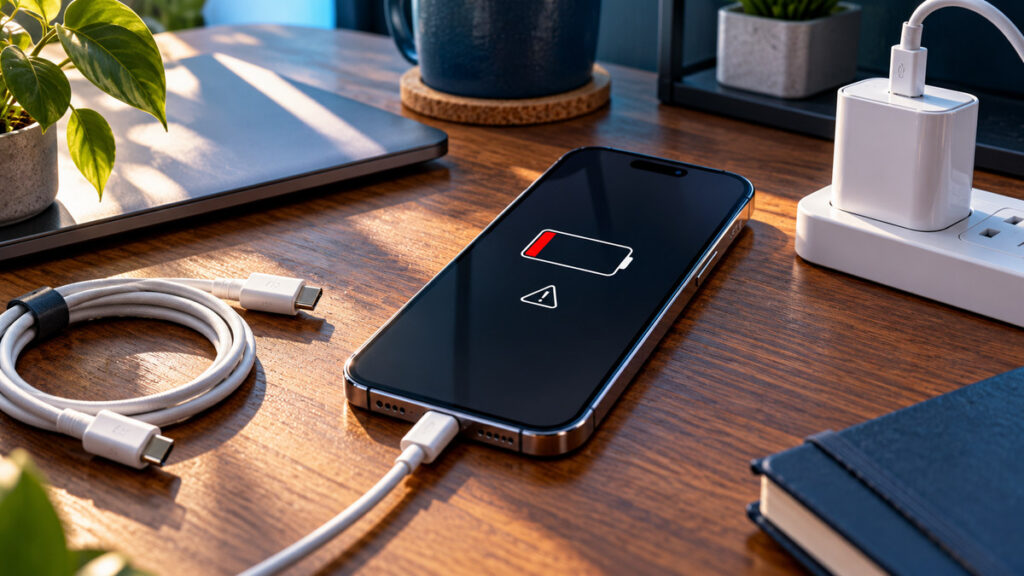
Is your iPhone not charging even though it’s plugged in? Maybe the battery icon appears but the percentage never increases, your phone charges only at a certain cable angle, wireless charging fails, or charging seems to stop at 80%.
These symptoms do not all mean your battery is broken. Sometimes the issue is a power outlet, cable, adapter, charging connector, temperature protection, or an intentional charging limit. In this guide, we’ll work from the simplest checks to the steps that may require professional help.
Safety first: If your charger is damaged, the connector is wet, or your iPhone is unusually hot or swollen, stop charging. Do not force a connection, use metal tools in the port, or try to open the phone.
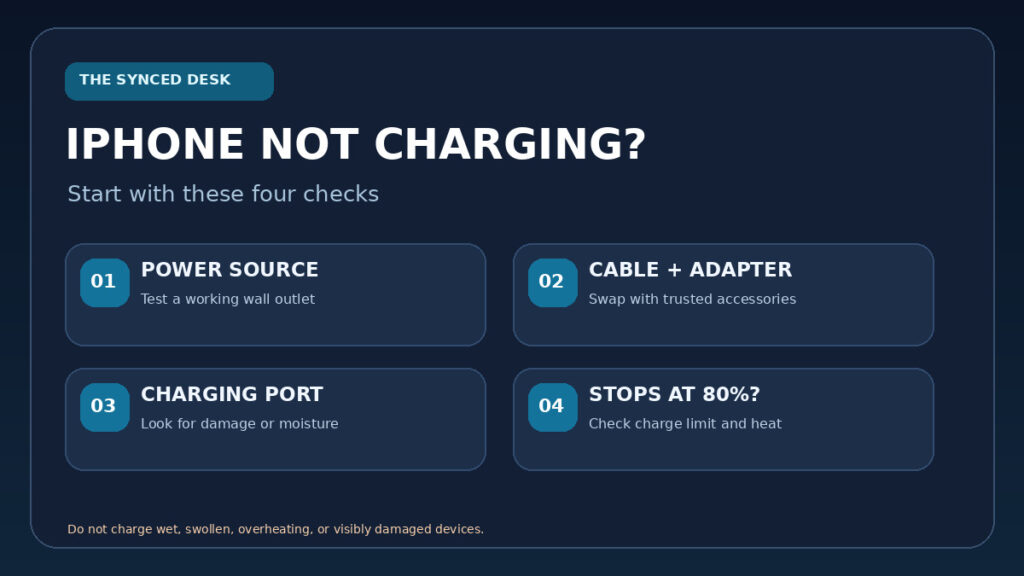
Quick Answer: How to Fix an iPhone That Won’t Charge
- Connect the iPhone directly to a known-working wall outlet using a compatible cable and power adapter.
- Inspect the cable and adapter for visible damage; replace damaged accessories.
- Try another compatible cable, adapter, and wall outlet.
- Check the phone’s charging connector for obvious debris or damage without inserting sharp objects.
- Leave the phone connected to power for at least 30 minutes if the battery is deeply discharged.
- Force-restart the iPhone if it stays unresponsive.
- If charging stops near 80%, check the charge limit and whether the phone is warm.
Below are 12 detailed fixes for iPhone not charging, including wired and wireless charging problems.
Why Is My iPhone Not Charging?
First, identify what is happening:
- No charging icon or response: The cable, power source, port, or phone may not be supplying or accepting power.
- Charging icon appears, but the percentage stays the same: The power source may be weak, the phone may be using power quickly, or charging may be restricted temporarily.
- Charging stops at 80%: A Charge Limit, Optimized Battery Charging, or temperature protection may explain the pause.
- Only wireless charging fails: Charger alignment, a case or object between the phone and pad, or the pad’s power source may be involved.
- A liquid-detection alert appears: Disconnect the cable and follow Apple’s drying guidance rather than treating it as an ordinary charging problem.
1. Check the Power Outlet and Adapter
A cable can fit securely without supplying enough power. Start with the easiest way to rule out a power-source issue.
- Plug the charger directly into a wall outlet instead of an unreliable USB hub or keyboard port.
- Confirm that the outlet works by testing an appropriate device.
- Make sure the USB plug is firmly connected to the power adapter.
- Check whether a switched outlet or power strip has been turned off.
- Reconnect the iPhone and watch for a charging indicator.
If your phone charges at one outlet but not another, the problem may be outside the iPhone. Do not use an outlet that sparks, feels loose, or appears damaged.
2. Try a Different Charging Cable
Worn, frayed, or internally damaged cables can cause intermittent charging. A cable may look fine but still have a failing connector.
Inspect the cable for cuts, bent plugs, exposed wires, discolouration, or signs of overheating. Stop using it if you find damage. Try another compatible, reliable cable that you know works with other devices.
Recent iPhones use USB-C, while many earlier models use Lightning. Use the connector required by your specific model. Some low-quality cables and adapters can cause inconsistent charging, so testing a trusted cable can save time.
If charging works with a replacement cable, there is no reason to reset your iPhone.
3. Test Another Compatible Power Adapter
A charger can fail even when its cable is good. Test another appropriate adapter and wall outlet.
For faster charging, use a compatible USB-C power adapter with sufficient output for your iPhone. Apple notes that weak charging sources may cause a Slow Charger indication on supported software and models. A weak charger is not necessarily defective; it may simply charge much more slowly.
Avoid damaged, counterfeit, or poorly specified adapters. Follow the accessory manufacturer’s instructions and relevant electrical safety standards. If the second adapter works, replace the first rather than continually troubleshooting your phone.
4. Inspect the Charging Port Carefully
Pocket lint or a damaged charging connector can prevent the cable from seating correctly. This is worth checking when the plug feels loose or works only at a particular angle.
Disconnect the charger and look into the port under good lighting. Check for visible debris, bent or damaged contacts, or evidence of moisture. Do not insert pins, metal objects, sharp tools, cotton swabs, or liquids into the port. Do not use compressed air, especially if moisture could be present.
If the connector is obstructed or damaged and the issue cannot be safely resolved, arrange professional cleaning or inspection. Forcing a plug into the port can make damage worse.
5. Leave a Deeply Discharged iPhone Charging for 30 Minutes
If the battery has been empty for a long time, the iPhone may not turn on immediately after you plug it in.
Connect it to a reliable wall charger and leave it alone for at least 30 minutes. Watch for the low-battery screen, charging icon, or Apple logo. Apple recommends allowing charging time before concluding that an unresponsive device has failed.
If the screen stays black, continue with a force restart while the iPhone is connected to power. If it still does not respond, try a known-working charging setup before seeking service.
6. Force-Restart an iPhone That Won’t Respond
A frozen iPhone may appear dead even when the battery and charger are functional.
On an iPhone 8 or later, including recent Face ID models:
- Quickly press and release Volume Up.
- Quickly press and release Volume Down.
- Press and hold the Side button.
- Release the button when the Apple logo appears.
This is different from erasing or resetting the phone: a force restart does not normally delete your personal content.
For an older iPhone model, follow Apple’s model-specific button instructions. After restarting, connect your charger and see whether the battery percentage rises.
7. Check Whether Your Charger Is Simply Too Slow
If the battery icon shows charging but the percentage barely increases, the source may provide too little power for your current activity.
Compare a low-power computer USB port with a compatible wall adapter. Lock the phone and leave it charging for 20 to 30 minutes without running demanding apps. If the percentage starts increasing, you may have been using power nearly as fast as the charger delivered it.
Charging also naturally slows as the battery approaches full capacity. On supported versions of iOS, the Battery screen may show a Slow Charger message. That message describes charging speed, not necessarily a hardware failure.
8. Let the iPhone Cool Down or Warm Up
Temperature can affect charging. Apple explains that iPhone may temporarily pause charging or limit charging above 80% when the battery is too warm or too cold.
If the phone feels unusually warm:
- Unplug it if necessary and stop demanding tasks such as gaming.
- Move it out of direct sunlight into a cooler, dry place.
- Remove a bulky case if it seems to trap heat during charging.
- Wait for the device to return to a normal temperature before retrying.
Do not put an iPhone in a refrigerator, freezer, or ice bath. Avoid charging it in an environment above 35°C (95°F), which Apple warns can harm battery lifespan.
If the charging pause was caused by temperature, charging should resume as conditions improve.
9. Check Charge Limit and Optimized Battery Charging
If your iPhone stops at 80%, 85%, or 90%, it may be working exactly as configured.
On iPhone 15 and later:
- Open Settings → Battery → Charging.
- Look for Charge Limit.
- Check whether a percentage below 100% has been selected.
- If you need a full charge, temporarily change the limit using the controls available on your iPhone.
When set to 100%, Optimized Battery Charging may still delay charging past 80% under certain conditions to reduce battery wear. You may see a notification indicating when charging will complete.
On iPhone 14 and earlier, charging optimization settings are typically found under Settings → Battery → Battery Health & Charging, although wording can vary by iOS version.
A deliberate charge limit is not a charging defect. There is no need to disable battery-health features permanently just to make a troubleshooting score look better.
10. Troubleshoot Wireless Charging Separately
If wired charging works but wireless charging does not, the problem may be the pad, alignment, case, or charger power supply.
- Place the iPhone centered on a compatible Qi or MagSafe charger as directed by its maker.
- Make sure the charging surface and back of the phone are clean and dry.
- Remove a thick case or any metallic object between the phone and the charger.
- Confirm the charger is connected to an appropriate power source.
- Try a different known-working wireless charger if available.
Do not place keys, coins, magnetic cards, or other metal objects between the phone and charging pad. They can interfere with charging and may become hot.
If wireless charging fails but cable charging succeeds, focus on the wireless accessory instead of immediately replacing your phone’s battery.
11. Handle a Liquid-Detection Alert Safely
A message such as Liquid Detected in USB-C Connector or Charging Not Available means this is no longer routine charger troubleshooting.
Unplug the cable immediately. Gently tap the phone with the connector facing down to help remove excess moisture, then place it in a dry, well-ventilated location. Apple’s liquid-alert guidance allows an initial retry after at least 30 minutes, but complete drying can take up to 24 hours. Other Apple handling guidance can recommend longer waiting periods after liquid exposure; do not reconnect until the connector is fully dry.
Never use a hair dryer, external heat, compressed air, cotton swab, or rice to dry the port. Avoid overriding liquid detection unless there is a genuine emergency; charging while wet can cause permanent damage.
A compatible wireless charger may be an option only if the back of the iPhone is dry and using it is otherwise safe.
12. Check Battery Health and Seek Service if Needed
If several known-working cables and chargers fail, the charging port appears damaged, or the battery behaves abnormally, professional assessment is the next step.
Check Settings → Battery → Battery Health or the battery-health menu available on your model. A battery-service message or very poor battery performance may support having it inspected, but Battery Health alone cannot diagnose every charging fault.
Arrange support through Apple Support or an authorized service provider. Do not attempt to open the battery or replace charging components without appropriate training and tools. If the phone is swollen, leaking, smoking, or excessively hot, discontinue use and seek appropriate professional help.
Why Is My iPhone Charging but the Percentage Isn’t Increasing?
There are several possibilities: the charger supplies insufficient power, the phone is running high-demand tasks, the connection is intermittent, the battery is too warm or cold, or the battery/charging hardware needs service.
Start by locking the screen and charging from a known-working wall adapter for 30 minutes. If the percentage remains unchanged, swap the cable and adapter and inspect the connector for damage. If charging stops at a specific level such as 80% or 90%, review the Charge Limit setting before assuming hardware failure.
If you notice that the battery drains rapidly after unplugging, that is a different symptom. See our related guide: iOS 27.0.1 Battery Drain? 9 Fixes to Try (2026).
Frequently Asked Questions
Why is my iPhone not charging even though the cable is connected?
The problem could be the outlet, power adapter, cable, charging port, a deeply discharged battery, or charging hardware. Test another known-working cable, adapter, and power source first.
Why is my iPhone stuck at 80% while charging?
A Charge Limit, Optimized Battery Charging, or temperature protection may be responsible. On iPhone 15 and later, check Settings → Battery → Charging. On earlier models, check battery-health and charging optimization settings.
Does an iPhone need to be turned off to charge?
No. An iPhone should charge while it is powered on when the battery, cable, connector, and power source are functioning. A restart can help if software is temporarily unresponsive.
Can a damaged cable harm an iPhone?
Yes. A damaged cable or charger can pose safety risks. Stop using frayed, bent, wet, overheating, or otherwise damaged charging accessories.
Why does wireless charging work but USB-C charging doesn’t?
The cable, adapter, USB-C port, or moisture protection may be involved. Test an alternate cable and adapter and check for alerts. Do not insert tools into a damaged or wet charging port.
Will Force Restart erase my data?
No. A normal force restart should not erase your photos, apps, or other personal files. It is different from factory resetting the phone.
Should I clean the iPhone port with a pin?
No. Sharp or metallic objects can damage connector contacts. If lint or debris is blocking the connector and cannot be safely addressed, seek professional cleaning.
Final Thoughts
An iPhone not charging does not automatically need a new battery. Start with safe checks: try a reliable wall outlet, cable and adapter, allow a depleted phone time to recharge, and restart it if unresponsive. For a charging pause around 80%, check temperature and charging limits. Treat moisture alerts and damaged charging hardware as safety issues rather than routine software glitches.
For model-specific instructions, see Apple’s official support articles on iPhone charging problems, Charge Limit and Optimized Battery Charging, and liquid-detection alerts.
The Synced Desk | Practical solutions for everyday technology problems.