Is iPhone Back Tap not working when you double-tap or triple-tap the back of your phone? You might have assigned it to take a screenshot, open Control Center, or run a Shortcut, only to find that nothing happens. Sometimes one gesture works while the other stops responding. Back Tap is an accessibility feature, not a physical button. It recognizes a specific tapping pattern, so an incorrect setting, a difficult-to-detect gesture, a bulky case, or a problem with the assigned action can make it seem broken. The good news is that you can test most of these causes in minutes without erasing your iPhone.
This guide covers 10 practical fixes for iPhone Back Tap not working, including how to check its settings, test double tap versus triple tap, troubleshoot Shortcuts, and decide when a wider iOS issue needs attention.
Table of Contents
Quick Answer: How to Fix iPhone Back Tap Not Working
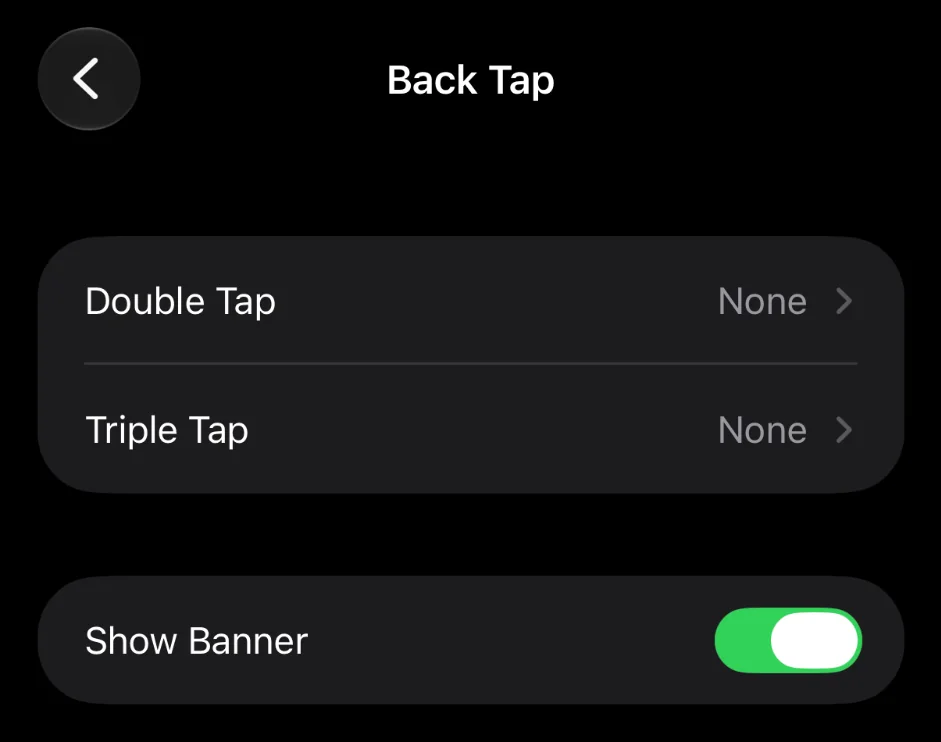
Go to Settings > Accessibility > Touch > Back Tap. Open Double Tap, choose Screenshot, and then tap twice in quick succession on the back of your iPhone while it is unlocked. If nothing happens, remove any thick case and try again. Next, test Triple Tap, restart the iPhone, and check for an iOS update. Apple supports Back Tap on iPhone 8 or later running iOS 14 or later.
Important: Choosing None disables that gesture. You must assign an action to Double Tap or Triple Tap before either will do anything.
Why Is Back Tap Not Working on My iPhone?
Back Tap problems generally fall into three groups: the gesture is not configured, iPhone is not consistently recognizing the taps, or the selected action is failing after the gesture is recognized. The fastest troubleshooting method is to assign an obvious built-in action such as Screenshot and compare the result with your usual shortcut.
| What you notice | Likely area to check | Start with |
|---|---|---|
| Neither double tap nor triple tap does anything | Compatibility, action assignment, or tapping technique | Fixes 1–3 |
| Back Tap works only without the case | Case thickness or how you hold the phone | Fix 4 |
| Double tap fails but triple tap works | Timing, gesture recognition, or assigned actions | Fixes 5–6 |
| Screenshot works but a Shortcut does not | Shortcut configuration or permissions | Fix 10 |
| It stopped after an update | Settings or temporary iOS behavior | Fixes 6, 8, and 9 |
1. Check Whether Your iPhone Supports Back Tap
Apple says Back Tap is available on iPhone 8 and later with iOS 14 or later. If you use an older iPhone, the feature may not appear in Settings at all.
- Open Settings > General > About to identify your iPhone and software version.
- Return to Settings > Accessibility > Touch.
- Scroll down and look for Back Tap.
If Back Tap is missing on a compatible device, restart the phone and check Settings > General > Software Update. Do not assume an older iPhone can run the newest major iOS version; update only to the version offered for your device.
2. Assign a Real Action to Double Tap or Triple Tap
Back Tap does not do anything by default until you select an action. It is easy to open its menu, look at the available choices, and forget to select one.
- Open Settings > Accessibility > Touch > Back Tap.
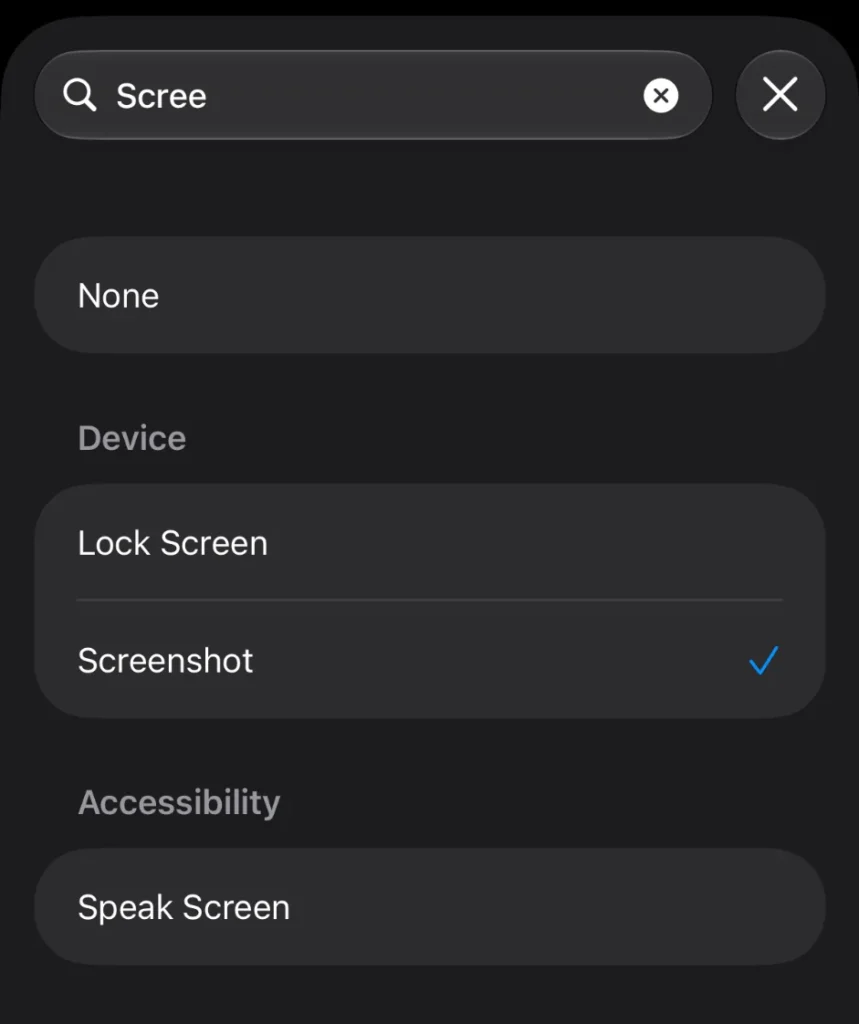
- Choose Double Tap.
- Select Screenshot rather than None.
- Return to the previous screen and verify that the selected action is listed next to Double Tap.
- Try two quick taps on the back of the phone.
Repeat with Triple Tap if you prefer three taps. The two gestures have separate assignments, so configuring one does not automatically configure the other.
3. Adjust Where and How You Tap the Back of the iPhone
Back Tap responds to a sequence of taps, not a long press. Try using the flat part of a finger and tapping twice or three times in a steady rhythm. A common starting position is the upper-middle area on the back of the phone, below the camera module.
- Hold the iPhone normally in one hand.
- Use a finger from your other hand for the test.
- Tap twice in quick succession rather than pausing between taps.
- Adjust your finger position slightly and test again.
You do not need to strike the phone hard. Avoid tapping directly on the camera lenses or forcefully hitting the back glass. If the feature responds only occasionally, consistency and timing matter more than strength.
4. Remove a Thick or Unusual Case Temporarily
Some rugged cases, bulky attachments, grips, or accessories may make it harder to reproduce a consistent tapping motion. This is a practical isolation test, not proof that every case interferes with Back Tap.
- Remove the case and any rear attachment that can be safely detached.
- Unlock your iPhone.
- Try Double Tap with the Screenshot action again.
- If the gesture now responds, reattach accessories one at a time to find the cause.
You should not need to replace a normal case if Back Tap works reliably with it. Use whichever tapping technique works consistently without risking damage to your phone.
5. Switch Between Double Tap and Triple Tap
If two taps do not register reliably, test whether the three-tap gesture behaves differently. This helps you distinguish a problem with one tapping pattern from a more general Back Tap issue.
- Go to Settings > Accessibility > Touch > Back Tap.
- Set Double Tap to Screenshot.
- Set Triple Tap to Control Center, if it appears among the available actions.
- Unlock the iPhone and try the gestures separately.
If one works and the other does not, revisit the timing and action assignment for the failing gesture. You can keep whichever option is more reliable for you.
6. Turn the Back Tap Assignment Off and Set It Up Again
When the current Back Tap action has stopped responding, reassigning it is a quick way to rule out an accidental setting or an action that is no longer appropriate.
- Open Back Tap settings and select the affected gesture.
- Choose None.
- Go back, then open the same gesture again.
- Select Screenshot or another basic built-in action.
- Test it before returning to a custom Shortcut.
This is a configuration reset only. It does not erase your data or reset iOS settings.
7. Test Back Tap While the iPhone Is Unlocked
If Back Tap seems to fail only while the phone is locked or inside a particular app, test it in a simpler situation first. Some selected actions depend on what the phone is currently allowed to do, and individual app behaviors can complicate troubleshooting.
- Unlock the iPhone and open the Home Screen.
- Make sure Double Tap is assigned to Screenshot.
- Try the gesture several times, pausing between tests.
- Then test in another app and compare the behavior.
If it works on the Home Screen but not in one specific context, the problem may involve the selected action or that context rather than Back Tap recognition itself. Avoid making broad conclusions from a single locked-screen test.
8. Restart Your iPhone
A restart is useful when Back Tap suddenly stops responding after hours of normal use or following a system change. It is safer and faster than resetting every iPhone setting.
- For iPhones with Face ID, hold the side button and either volume button until the power-off slider appears. On other models, use the appropriate power button.
- Slide to power off and allow the iPhone to shut down.
- Turn it back on.
- Return to Back Tap settings and test the Screenshot action again.
If your phone also has other touch-related problems, see our guide to fixing an iPhone touchscreen that is not working. That issue is different from Back Tap, but it can help identify a broader device problem.
9. Check for an Available iOS Update
Apple periodically delivers software fixes through iOS updates. If Back Tap began misbehaving after a recent update, check whether a newer compatible update is available rather than assuming the feature has been removed.
- Back up your iPhone using iCloud or a computer.
- Go to Settings > General > Software Update.
- If an update is offered for your device, review it and choose Download and Install or the applicable installation option.
- After the phone restarts, verify your Back Tap assignment and test it again.
Do not install beta software solely to troubleshoot Back Tap. If your issue affects several unrelated Settings features, our Apple ID greyed out in Settings guide addresses a separate example of iPhone settings restrictions and account issues.
10. Troubleshoot the Assigned Shortcut, Not Just Back Tap
Back Tap can run a Shortcut from Apple’s Shortcuts app, but the gesture and the Shortcut are two separate things. If Back Tap takes a screenshot correctly yet fails to start your chosen Shortcut, the gesture itself may be working.
- Open the Shortcuts app.
- Find the Shortcut you assigned to Back Tap and run it manually.
- Follow any permission prompts and check whether the Shortcut depends on an app, network, or unavailable action.
- Go to Settings > Accessibility > Touch > Back Tap.
- Open Double Tap or Triple Tap, scroll to the Shortcuts section, and select the desired Shortcut again.
- Test Back Tap on the Home Screen.
Only Shortcuts available in your collection can be assigned from the Back Tap action list. If the Shortcut fails when you launch it manually, fix that Shortcut first. If Siri-related actions are also failing, see our iPhone Siri not working troubleshooting guide for related checks.
Last Resort: Should You Reset All iPhone Settings?
Usually, no. Apple’s current guidance describes Reset All Settings as a rarely necessary troubleshooting step. It does not delete your photos, messages, apps, or documents, but it resets many important preferences, including Wi-Fi networks and passwords, privacy settings, accessibility settings, Apple Pay cards, and other device configurations.
If Back Tap still fails with built-in actions, without a case, after a restart and a supported iOS update, consider contacting Apple Support first. If you decide to reset all settings, back up your iPhone and understand the inconvenience before going to Settings > General > Transfer or Reset iPhone > Reset > Reset All Settings. Do not choose Erase All Content and Settings for this problem.
If the back glass is cracked, the phone suffered a hard impact, or other device functions have also become unreliable, ask a qualified Apple service provider to assess it. There is no separate Back Tap button to replace.
Back Tap Screenshot Not Working: A Quick Separate Check
If your assigned action is Screenshot, first confirm that the screen visibly flashes or produces a screenshot preview after Back Tap. If it does, open the Photos app and look for the captured image. If it does not, test the ordinary iPhone screenshot button combination for your model. This helps distinguish a failed Back Tap gesture from a more general screenshot problem.
Remember that Back Tap is different from tapping the display. If you have problems with on-screen touch or rotation as well, check our separate iPhone screen not rotating guide for a related but distinct troubleshooting workflow.
Frequently Asked Questions
How do I enable Back Tap on my iPhone?
Open Settings > Accessibility > Touch > Back Tap, choose Double Tap or Triple Tap, and assign an action such as Screenshot. There is no separate main on/off switch; assigning an action enables that gesture.
Which iPhones support Back Tap?
According to Apple, Back Tap is supported on iPhone 8 or later running iOS 14 or later. A compatible device does not have to be running the newest major iOS version to use the original feature.
Does an iPhone case stop Back Tap from working?
Not necessarily. If your taps are inconsistent, temporarily removing a bulky case or rear accessory is a practical way to check whether it affects your tapping technique or detection.
Why does Back Tap work unlocked but not when the iPhone is locked?
Try the same simple built-in action while unlocked to establish whether the gesture is being detected. Some actions have context-dependent behavior, so a locked-screen failure does not automatically mean the feature is broken.
Why does Back Tap take screenshots but not run my Shortcut?
That often points to the assigned Shortcut rather than the tapping gesture. Run the Shortcut directly, check any required permissions or app dependencies, then assign it to Back Tap again.
Is Triple Tap more reliable than Double Tap?
It depends on how you tap and hold the phone. Assign different visible actions to both gestures and test them. Keep the pattern that works most consistently for you.
Final Thoughts
When iPhone Back Tap is not working, start by assigning Screenshot to Double Tap and testing on an unlocked phone. That one test quickly separates configuration issues from Shortcut problems. If you still get no response, change your tapping technique, remove a bulky case, compare Triple Tap, restart the phone, and install any compatible update.
Most readers should not need a full settings reset. Work through the simpler checks first, and seek professional help if several device functions are failing after physical damage.