Apple Watch sleep tracking not working even though you wore your watch overnight? Maybe the Sleep app shows no data, your iPhone’s Health app has a blank sleep chart, or you see hours slept but no REM, Core, or Deep sleep stages.
Before resetting anything, check three basics: Track Sleep with Apple Watch must be enabled, the watch should be charged to at least 30% before bed, and you need to wear it for at least one hour. Apple lists all three as requirements for reliable sleep tracking.
Below are ten practical checks, starting with the quickest and safest. The instructions apply to compatible Apple Watch models paired with an iPhone, although menu wording may vary slightly by watchOS and iOS version.
Quick Answer: Fix Apple Watch Sleep Tracking Not Working
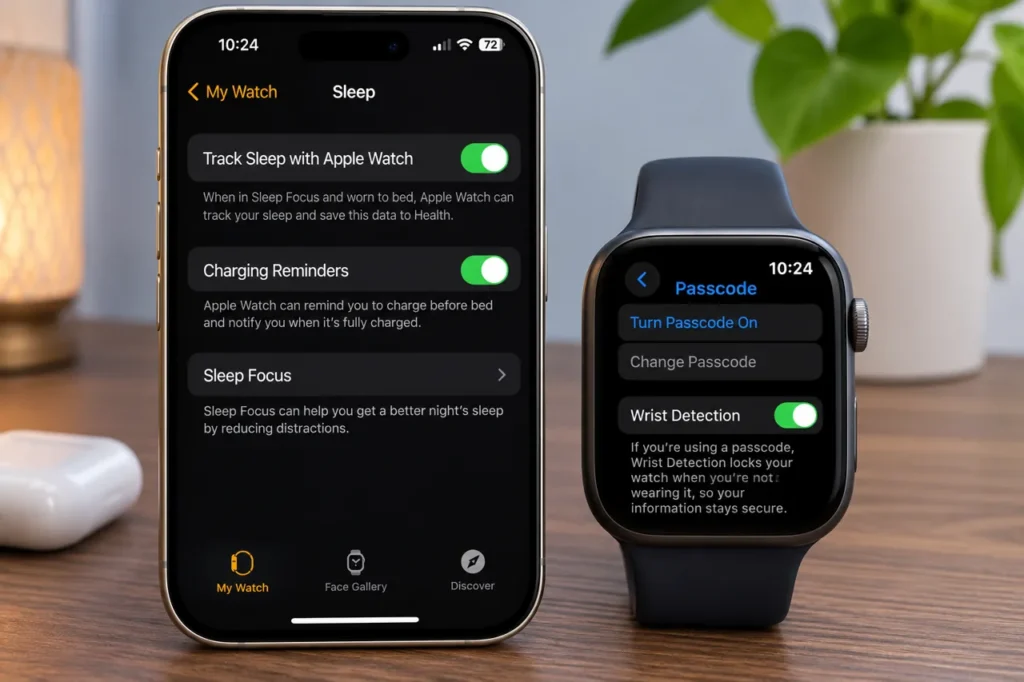
- On your iPhone, open the Watch app > My Watch > Sleep and enable Track Sleep with Apple Watch, if the option is shown.
- Charge your watch to at least 30% before bed.
- Wear the watch snugly, with the sensors against your skin, for at least one hour.
- Keep Wrist Detection enabled in Apple Watch Settings > Passcode.
- Check your results in Health > Sleep on the paired iPhone, then restart the watch and iPhone if data still does not appear.
Important: Sleep Focus is useful for a bedtime routine, but switching it on is not a universal repair for missing sleep tracking. Check the tracking setting itself first.
Table of Contents
Why Apple Watch Sleep Data Goes Missing
Different symptoms suggest different causes. Use this table to narrow down the issue before trying every fix.
| What you see | What to check first |
|---|---|
| No sleep recorded at all | Track Sleep setting, minimum wear time, battery, and Wrist Detection |
| Sleep on Apple Watch but not iPhone | Paired iPhone connection, Health app display, and data sources |
| Hours slept but no sleep stages | Whether the data came from Apple Watch, watch fit, and length of recorded sleep |
| Sleep tracking works some nights | Battery level before bed, loose band, watch removed overnight, and charging routine |
| Data appears in a third-party app only | Health data permissions and the source selected in the Health app |
1. Turn On Track Sleep with Apple Watch
This is the first setting to verify. Having a sleep schedule or the Sleep app installed does not necessarily mean your watch is configured to record sleep.
- Open the Watch app on your paired iPhone.
- Choose My Watch, then open Sleep.
- Turn on Track Sleep with Apple Watch, if available.
- Alternatively, open Settings > Sleep on Apple Watch and check its Sleep Tracking option.
- Wear your watch for a full night, then review the Sleep app or Health app in the morning.
Apple says that enabling Sleep Tracking allows sleep data from the watch to be added to Health on the paired iPhone. If this was off, it explains why earlier nights may not have been recorded.
2. Wear the Watch for at Least One Hour
For Apple’s sleep-tracking data to appear, wear your Apple Watch to sleep for at least an hour. A short nap or wearing it for only part of the night may not provide the data you expect.
Make sure the back of the watch stays in contact with your skin. A band that slides around can make motion and sensor readings less reliable. The fit should be snug but comfortable, not tight enough to cause discomfort.
Try one consistent overnight session after adjusting your band. If your watch repeatedly locks while you wear it, see our guide to Apple Watch keeps locking, as fit and wrist-detection issues can overlap.
3. Charge Apple Watch to at Least 30% Before Bed
A watch that runs out of power overnight cannot record a complete night of sleep. Apple advises having at least 30% battery before bedtime.
- Check your Apple Watch battery level before sleeping.
- Charge it if it is below 30%; aim for more if you know it normally drains quickly.
- In the iPhone Watch app, open My Watch > Sleep and enable Charging Reminders, if offered.
- Check the next morning whether battery drain interrupted recording.
If the watch cannot last through the night, see our separate guide on Apple Watch battery draining fast. You do not need to change unrelated battery settings before testing the Sleep Tracking toggle and charge level.
4. Make Sure Wrist Detection Is Enabled
Wrist Detection is a key setting that can affect sleep tracking. Apple explicitly lists sleep tracking as unavailable when Wrist Detection is turned off.
- On your Apple Watch, open Settings.
- Tap Passcode.
- Find Wrist Detection and make sure it is enabled.
- Enter your passcode if the watch requests it.
If your watch has trouble sensing your wrist even with the setting on, check that the band fits correctly and that nothing is covering the back sensors. Skin markings and other factors can sometimes interfere with contact detection. Do not turn Wrist Detection off as a sleep-tracking fix.
5. Check Your Sleep Schedule and Sleep Focus Settings
Sleep schedules can help keep bedtime and wake-up times consistent. They are also helpful if the issue is that your expected Sleep Focus or wake-up routine is not starting, rather than that the watch never records sleep.
- Open the Health app on your iPhone.
- Find Sleep using the Search or Browse tab, depending on your iOS version.
- Review the active sleep schedule, days of the week, bedtime, and wake-up time.
- If you want Sleep Focus to start automatically, check the Wind Down and Sleep Focus options.
- For a controlled test, follow your normal schedule and wear your watch overnight.
Do not confuse a missed Sleep Focus with a failed sleep recording. They are related features, but the sleep-tracking option, battery, wear time, and Wrist Detection are more direct places to look when sleep data is blank.
6. Look in the Correct Health App Sleep View
Sometimes tracking exists, but the expected summary is elsewhere. Check both devices before assuming no sleep was recorded.
- On Apple Watch, open the Sleep app and review the latest night or recent history.
- On iPhone, open Health > Sleep using the current Search or Browse navigation.
- Switch between daily, weekly, or monthly views to make sure you’re viewing the intended date.
- Look for Sleep Stages and Time Asleep rather than relying on one summary number.
The watch’s Sleep app can show recent sleep information, while Health provides longer history and additional details on your iPhone. If your watch shows a recent night but your iPhone does not, move to the next fix.
7. Check Health Data Sources and App Permissions
If you use more than one watch, sleep app, or manually entered sleep record, Health may show data from several sources. This can make it look as if the watch recorded the wrong information.
- Open Health on your iPhone and go to Sleep.
- Scroll down and look for Data Sources & Access where available.
- Confirm that your Apple Watch appears among the contributing devices for the relevant sleep category.
- If you use another sleep app, inspect its Health permissions in Health > Profile > Apps.
- Compare the source and dates of records instead of deleting older Health data.
Apple lets you review and prioritize data sources. A manually entered session or third-party app record might not match sleep stages recorded by Apple Watch. Changing the source order does not create sleep data that was never recorded.
8. Restart Apple Watch and the Paired iPhone
When the tracking settings are right but results seem delayed or inconsistent, a normal restart is a reasonable software check.
- Remove Apple Watch from its charger before restarting.
- Press and hold the watch’s side button, select the power control, and turn the watch off.
- Turn it back on by holding the side button until the Apple logo appears.
- Restart the paired iPhone as well.
- Keep the devices near each other and reopen the Health app after they reconnect.
Do not force-restart a watch that turns off normally. A restart is a troubleshooting test, not a guarantee that previously missing sleep sessions will appear.
9. Update watchOS and iOS
Keeping the paired devices up to date can resolve compatibility or syncing problems. Check updates only after the simpler settings and battery fixes.
- On iPhone, open the Watch app.
- Go to My Watch > General > Software Update.
- If an update is available and supported by your watch, follow the onscreen instructions.
- Keep the devices nearby, connect the iPhone to Wi-Fi, and follow Apple’s battery and charging prompts for installation.
- Also check iPhone Settings > General > Software Update.
Updating Apple Watch typically requires at least 50% battery, which is different from the 30% Apple recommends before sleep. If updates repeatedly fail, use our separate Apple Watch not updating guide rather than repeatedly retrying without checking the cause.
10. Check Model Limitations, Then Seek Support if Nothing Works
Some missing features are expected on certain watch models, configurations, or operating-system versions. For example, Apple Watch For Your Kids setups do not offer the normal Sleep feature. Sleep stages, sleep scores, and specialized nighttime health features may also depend on supported hardware, software, age, and region.
If the watch consistently fails to record sleep after multiple properly charged nights with Sleep Tracking and Wrist Detection turned on, contact Apple Support. Explain the watch model, software version, the dates affected, and whether the Sleep app and iPhone Health app disagree.
Last resort only: Apple Watch can be unpaired and set up again, but unpairing erases the watch. Do not do this before checking backups and Apple’s instructions. If you decide to proceed, Apple documents how to unpair and erase Apple Watch and restore it afterward.
Apple Watch Tracks Hours but Not REM, Core, or Deep Sleep?
First confirm that the sleep record actually came from Apple Watch and not a manually entered block or another app. Then try a full night with a secure fit and enough charge. The watch estimates stages using sensor data; it does not measure brain waves like a clinical sleep study.
If your sleep stages disappear only for certain nights, check for interrupted wear, the watch switching off, or incomplete data. Avoid promising that any one settings toggle will recover historical stage data.
Why Is My Apple Watch Sleep Data Inaccurate?
Sleep estimates are based on signals from a device worn on the wrist, so they can differ from how rested you feel or from another wearable. A loose band, long periods without wearing the watch, short sleep periods, and multiple competing Health sources can all affect what you see.
The best test is a consistent routine for two or three nights: charge before bed, wear the watch comfortably, verify sleep tracking and Wrist Detection, and compare the watch’s Sleep app with the Health app afterward.
Frequently Asked Questions
Why is my Apple Watch not tracking sleep at all?
Start with Track Sleep with Apple Watch, battery level, one hour of wear, and Wrist Detection. These are more useful first checks than resetting the watch.
Do I have to turn on Sleep Focus for Apple Watch to track sleep?
Sleep Focus is a bedtime and distraction-control feature. If sleep data is missing, first confirm the actual Sleep Tracking setting and wear requirements. Sleep Focus alone is not proof that tracking is enabled.
How much charge does Apple Watch need to track sleep?
Apple recommends at least 30% charge before bed. A watch that shuts down overnight cannot capture a complete session.
How long do I need to wear Apple Watch for sleep data?
Apple says to wear it to sleep for at least one hour for sleep data. A longer, continuous overnight session is better for reviewing a complete night’s pattern.
Why does Apple Watch show sleep on the watch but not on my iPhone?
Check the Health app’s Sleep view and the date selected, then make sure the watch is still paired and connected. Review Health data sources and restart both devices if needed.
Will resetting Apple Watch restore old missing sleep data?
Not necessarily. Resetting cannot recreate measurements that were never recorded. Unpairing also erases the watch, so treat it as a last resort.
Final Thoughts
If Apple Watch sleep tracking is not working, focus on enabling Track Sleep, keeping Wrist Detection on, charging above 30% before bed, and wearing the watch for at least an hour. Those steps address the most common setup problems without putting your data at risk.
If nothing changes after a few nights, check the Health data source, software updates, and whether your model supports the specific sleep metric you’re trying to view. For other watch-related sensor problems, our guide to Apple Watch not counting steps may also help.
Official Apple References
- Apple Support: Track your sleep on Apple Watch and use Sleep on iPhone
- Apple Watch User Guide: Track your sleep
- Apple Support: If Apple Watch locks unexpectedly
- Apple Support: Manage Health data and data sources
- Apple Support: Update Apple Watch
Updated November 2026. Menu names may differ by device model and software version. Sleep estimates are for personal wellness and are not a medical diagnosis.