Android Auto not connecting to your car, even though your phone charges or Bluetooth calls work? Your car display may stay on its usual home screen, show a connection error, or disconnect as soon as you plug in the USB cable. Wireless Android Auto can fail differently: your phone pairs over Bluetooth, but the Android Auto interface never opens.
The right fix depends on whether you connect by USB or wirelessly. Start with the cable or pairing checks that match your setup. You do not need to factory-reset your phone or infotainment system as your first step.
This guide walks through 12 practical fixes for compatible Android phones and cars. Setting names can vary across Samsung Galaxy, Google Pixel, other Android devices, and car manufacturers.
Quick Answer: Fix Android Auto Not Connecting
- Park safely and confirm that both your car display and phone support your intended wired or wireless Android Auto connection.
- For a wired connection, replace the cable with a short, high-quality data-capable USB cable and try the car’s Android Auto-capable USB port.
- For wireless Android Auto, turn on Bluetooth, Wi-Fi, and Location during initial pairing and remove any failed pairing before trying again.
- Check that Android Auto is enabled on the car display and restart the infotainment system if needed.
- Update Android Auto, Google Play services, your phone software, and the car’s infotainment firmware when updates are available.
- If it still fails, test a different phone or compatible car to pinpoint which side is responsible.
Safety: Perform setup and troubleshooting while parked. Never explore the car’s menus, unplug equipment, or change phone settings while driving.
Table of Contents
- Identify the Connection Problem First
- 1. Confirm Your Car and Phone Support Android Auto
- 2. Replace the USB Cable With a Short Data Cable
- 3. Use the Correct USB Port and Check Both Connectors
- 4. Enable Android Auto on the Car Display
- 5. Fix Wireless Android Auto Bluetooth and Wi-Fi Pairing
- 6. Forget Failed Pairings and Connect Again
- 7. Restart the Phone and Infotainment System
- 8. Update Android Auto, Google Play Services, and the Car Software
- 9. Clear the Android Auto Cache, Not Everything at Once
- 10. Review Connection Prompts, Battery Restrictions, and Profiles
- 11. Isolate the Problem With Another Phone or Connection Method
- 12. Contact the Car Manufacturer or Submit an Android Auto Bug Report
- Android Auto Not Connecting Via USB vs. Wirelessly
- Frequently Asked Questions
- Final Thoughts
Identify the Connection Problem First
Before changing settings, note exactly what happens when you connect. This can save time and keep you from troubleshooting the wrong feature.
| What you see | Most useful first check |
|---|---|
| Phone charges but Android Auto never launches | Try a data-capable cable and the correct vehicle USB port |
| Wireless Bluetooth pairing succeeds but no Android Auto screen | Verify wireless support, Wi-Fi, and car-side Android Auto settings |
| Android Auto connects, then disconnects over bumps | Inspect cable fit, USB ports, and cable condition |
| Only one car fails to connect | Check that car’s Android Auto setup and saved pairing |
| It worked until a recent update | Check for newer patches and restart both devices |
A regular Bluetooth connection for calls or music is not the same thing as an Android Auto projection connection. Likewise, a USB port that supplies power does not necessarily support Android Auto data.
1. Confirm Your Car and Phone Support Android Auto
Not every car equipped with Bluetooth or USB is Android Auto-compatible. Some trims support Android Auto only through a wired connection, even if the same manufacturer offers wireless support on a newer model.
- Check your vehicle manual or the manufacturer’s compatibility information.
- Confirm whether your particular model and trim supports wired, wireless, or both.
- Check Google’s Android Auto requirements for compatible phone software and wireless capabilities.
- If you have an aftermarket head unit, confirm its Android Auto support separately from the car itself.
Wireless Android Auto additionally requires a compatible phone and a compatible wireless-capable car receiver; support for ordinary Bluetooth audio does not guarantee wireless Android Auto. If your car only supports a wired connection, no Bluetooth setting will turn it into a wireless Android Auto system.
Expected result: You know which connection method your car actually supports and can follow the correct fixes below.
2. Replace the USB Cable With a Short Data Cable
A worn or charge-only USB cable is one of the most common reasons Android Auto is not connecting via USB. The phone might display a charging indicator even though the car cannot establish a reliable data connection.
- Unplug the cable while parked.
- Try a good-quality USB cable that can transfer data, ideally the cable supplied with your phone.
- Keep the cable shorter than 3 feet (1 meter) where practical.
- Connect directly rather than through a hub, extension, or adapter chain.
- Reconnect the phone and follow any onscreen permission or setup prompts.
Google specifically recommends a high-quality cable, avoiding hubs and extensions, and trying a replacement if Android Auto previously worked but suddenly stopped. See Google’s USB troubleshooting advice.
If the connection works with a different cable, replace the old cable rather than making unrelated software changes. Avoid forcing a loose connector into the phone.
3. Use the Correct USB Port and Check Both Connectors
A vehicle may have several USB ports but support Android Auto through only one of them. Another port might be intended for charging or media storage.
- Look in the vehicle manual for the Android Auto-capable USB port.
- Disconnect other USB accessories while testing.
- Inspect the phone connector and car port for visible damage, bent pins, or debris.
- Try the designated port using the known-good cable from Fix 2.
- If your phone displays a USB access prompt, review and allow the connection necessary for Android Auto.
Do not insert sharp objects into USB ports or spray cleaning liquid inside them. If a port is damaged or intermittently loses power, arrange inspection rather than continuing to force the connector.
Diagnostic clue: If the phone charges but Android Auto never appears, the problem may be the data path, not battery charging.
4. Enable Android Auto on the Car Display
Many infotainment systems allow drivers to disable phone projection or choose which connected phone can launch Android Auto. Your phone cannot fix a feature that the car has switched off.
- Park the vehicle and turn on the infotainment system.
- Open the car’s phone, connectivity, projection, or smartphone integration settings.
- Look for Android Auto and confirm it is enabled.
- If your car remembers more than one phone, select the correct one.
- Restart the infotainment system using your manufacturer’s recommended procedure, then reconnect.
On some cars, Android Auto must also be selected manually from the home screen after the first connection. The name and location of these controls vary by automaker; rely on your vehicle’s manual rather than instructions for a different model.
Google also recommends checking whether Android Auto is enabled on the vehicle display and restarting the infotainment system when necessary.
5. Fix Wireless Android Auto Bluetooth and Wi-Fi Pairing
For Android Auto not connecting wirelessly, Bluetooth pairing often starts the connection, while Wi-Fi handles the projection link. A phone can be paired for hands-free calls without completing Android Auto setup.
- Confirm that your car specifically supports wireless Android Auto.
- On your phone, enable Bluetooth, Wi-Fi, and Location Services during the first setup.
- Keep the car parked with the infotainment display turned on.
- Open the car’s menu for adding a phone or wireless Android Auto connection.
- Pair the phone via Bluetooth and follow both screens until Android Auto starts.
- If the car does not launch it automatically, look for an Android Auto tile or phone projection menu.
Wireless support generally depends on a compatible 5 GHz Wi-Fi-capable phone, as well as vehicle support. Google’s official wireless setup instructions explain the initial Bluetooth pairing process.
Do not disable Wi-Fi immediately after successful Bluetooth pairing. The wireless projection may need it even when your phone uses cellular data for online services.
6. Forget Failed Pairings and Connect Again
Old saved car records can confuse reconnection, especially if you have changed phones, rented another car, or connected the same phone to several vehicles.
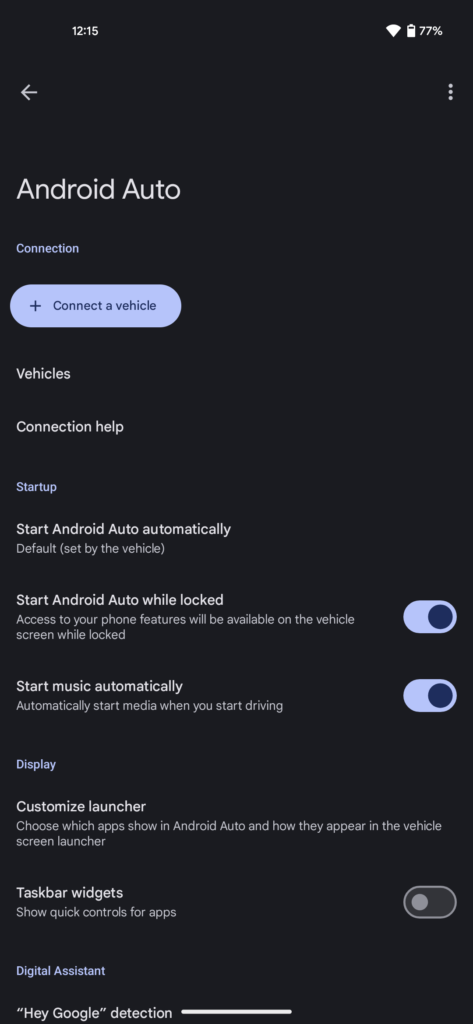
- On your Android phone, search Settings for Android Auto.
- Open its Previously connected cars section if available.
- Remove the affected vehicle or use Forget all cars if appropriate. This clears saved Android Auto vehicle associations.
- For a wireless connection, also remove the corresponding Bluetooth pairing from both phone and car.
- Restart the phone, then pair or connect again from the beginning.
Google documents this process for trouble connecting to a second car. Menu paths often look like Settings → Connected devices → Connection preferences → Android Auto, but Android brands can arrange them differently.
Before deleting: If multiple people use the same car, removing pairings may also require them to pair their phones again. Use the least disruptive reset that addresses the problem.
7. Restart the Phone and Infotainment System
Sometimes neither the cable nor pairing settings are wrong. The phone or car display may simply be stuck in a failed connection state.
- Disconnect the phone from USB or wireless Android Auto.
- Restart the Android phone normally.
- Turn off the vehicle or restart the infotainment system by its documented method.
- Wait for the car display to finish booting.
- Reconnect while parked, then check whether the Android Auto screen appears.
Do not assume that briefly turning the ignition off fully restarts every infotainment unit. Some stay in standby. Consult the car manual for the correct restart procedure. Avoid factory-resetting the infotainment system at this stage.
If Android Auto returns immediately, monitor whether the issue repeats with one cable, one phone, or after a particular app launches.
8. Update Android Auto, Google Play Services, and the Car Software
A connection can fail after a phone update, app change, or infotainment firmware change. Fixes may arrive through either side of the connection, not just the Android Auto component.
- Open Google Play Store and check for updates to Android Auto and Google Play services where offered.
- Go to Settings → System → Software update, or your manufacturer’s equivalent, and install an available stable Android update.
- Check the vehicle manufacturer’s site or dealer instructions for infotainment updates.
- Back up important phone data and follow your vehicle manufacturer’s precautions before applying updates.
- Restart both systems and retest.
Android Auto is integrated into supported modern Android phones, so you generally do not need to find and install a separate traditional Android Auto launcher. If an update is not available in the Play Store, that is not by itself a fault.
Avoid untrusted APK downloads claiming to provide a special Android Auto fix. If your car has a software issue, contact the vehicle or receiver manufacturer.
9. Clear the Android Auto Cache, Not Everything at Once
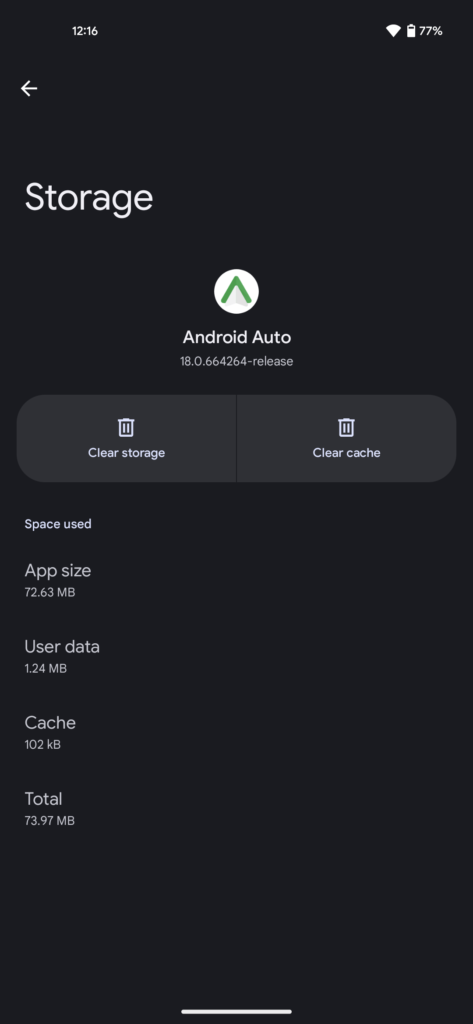
If Android Auto opens on the phone but connection setup repeatedly stalls, removing temporary app cache is a reasonable next step. It is less disruptive than clearing all stored app data.
- Open your phone’s Settings → Apps.
- Find Android Auto; on some phones, you may need to show system apps.
- Open Storage or Storage & cache.
- Tap Clear cache if offered.
- Restart the phone and try connecting again.
If the menu does not expose a cache control, skip this step. There is no need to install a cleaner app. Clearing storage/data is a different action that may remove settings and pairing information; consider it only after simpler fixes and only if you are prepared to reconfigure Android Auto.
10. Review Connection Prompts, Battery Restrictions, and Profiles
A missed connection prompt or an aggressive power-management setting can interrupt setup on some devices. Settings vary substantially across Android versions and phone makers.
- Unlock the phone during initial setup and check for permissions or “use Android Auto†prompts.
- Confirm Google Play services and Android Auto are enabled in the phone’s app settings.
- If your device has a strict Battery Saver or background-app restriction, temporarily relax it for testing.
- Test without a work profile restriction or company policy only if your administrator permits changes.
- Reconnect and see whether the issue improves.
Do not permanently disable privacy or security protections just to make an app work. If battery settings make no difference, restore your previous preferences. If the phone is managed by your organization, ask its administrator about Android Auto permissions.
11. Isolate the Problem With Another Phone or Connection Method
If you have tried multiple cables and a clean setup, a comparison test can tell you whether the issue is mainly on the phone or car side.
- If your car supports both methods, compare a wired connection with a wireless connection.
- If possible, test a second compatible Android phone in the same car.
- If possible, test your phone in another Android Auto-compatible car.
- Note whether the problem follows a specific cable, phone, USB port, or vehicle.
For example, if two phones fail with the same car USB port but work elsewhere, inspect the car-side hardware or firmware. If only one phone fails in multiple cars, focus on its software, connector, and connection settings.
A similar USB recognition problem with a computer is a separate issue. Our Android Phone Not Showing Up on Mac guide covers data-cable and device-detection checks on macOS.
12. Contact the Car Manufacturer or Submit an Android Auto Bug Report
When Android Auto still fails after compatibility, cable, pairing, software, and comparison tests, you may be dealing with an infotainment defect, a phone-specific bug, or an unsupported combination.
- Write down your car’s make, model, model year, and infotainment software version.
- Record your phone model, Android version, and whether the connection is wired or wireless.
- Describe the exact symptom: never opens, shows an error, disconnects, or stops after an update.
- Contact the vehicle manufacturer or aftermarket receiver maker if car-side settings and firmware appear responsible.
- For repeatable software issues, use Google’s Android Auto bug-report instructions.
If the car display or USB port malfunctions with several devices, professional inspection may be more useful than continuing to reset your phone. Do not troubleshoot while driving.
Android Auto Not Connecting Via USB vs. Wirelessly
| Wired Android Auto | Wireless Android Auto |
|---|---|
| Requires a compatible USB data connection | Requires car and phone wireless compatibility |
| First checks: cable length, data support, USB port | First checks: Bluetooth pairing, Wi-Fi, car projection setup |
| Charging does not prove data connection works | Bluetooth calls do not prove Android Auto projection works |
| Intermittent bumps suggest cable/port issues | Connection fails after pairing suggests wireless setup issues |
These paths overlap in software, permissions, and car-side settings, but the initial diagnostic tests should be different. This is why replacing a USB cable is irrelevant to a purely wireless connection, while resetting Bluetooth is not the first step for a wired USB failure.
Frequently Asked Questions
Why is Android Auto not connecting even though my phone is charging?
Charging only confirms that the USB port is supplying power. Android Auto also requires a compatible car interface and a working data connection. Try the correct car USB port and a short cable that supports data transfer.
Why does Android Auto connect via Bluetooth but not appear on the car screen?
Bluetooth may be handling hands-free calls, while Android Auto projection has not completed. Confirm wireless Android Auto support on the car, keep Wi-Fi enabled, and complete the pairing prompts on both screens.
Can I use Android Auto wirelessly in any car with Bluetooth?
No. Wireless Android Auto needs a specifically compatible car receiver and phone. Ordinary Bluetooth audio does not add wireless projection to a car that only supports wired Android Auto.
Why did Android Auto stop connecting after a software update?
An update may coincide with changed permissions, app behavior, saved pairings, or compatibility issues. Restart both devices, check for subsequent updates, and re-pair only if necessary. The update itself is not automatically the cause.
Is it safe to clear Android Auto cache?
Clearing temporary cache is normally less disruptive than clearing the app’s storage. Do not confuse Clear cache with Clear storage/data, which can require reconfiguration. The exact options depend on the phone.
Does Android Auto require mobile data?
Google lists an active data plan in its Android Auto requirements. Some connected apps need internet access for live maps, searches, or streaming. A lack of internet may affect those features even if the local phone-to-car connection starts.
Should I factory-reset my phone or car to fix Android Auto?
Not as an early troubleshooting step. Test compatibility, ports, cables, settings, pairings, and updates first. Factory resets can erase important settings and may not repair a defective USB port or incompatible car receiver.
Related Troubleshooting Guides
If you are troubleshooting connections across different devices, these guides cover distinct problems: Android phone not showing up on Mac, Apple CarPlay not working (for iPhone users), and iPhone connected to Wi-Fi but no internet. These are different symptoms and operating systems, not alternate fixes for Android Auto.
Final Thoughts
When Android Auto is not connecting, begin with the connection type. For USB, check the data cable and the car’s designated USB port. For wireless projection, check compatibility, Bluetooth pairing, Wi-Fi, and the infotainment system’s Android Auto setting.
Only after these quick checks should you spend time clearing app cache, updating firmware, or gathering detailed diagnostics. Testing one change at a time will help identify the real cause without unnecessary resets.
Last reviewed: November 9, 2026. Exact menu labels and available features vary by car, receiver, and Android phone.