Are your Apple Music songs not downloading on your iPhone, even though your internet connection seems fine?
You might see a download stuck in progress, a song that keeps waiting to download, or an album that refuses to save for offline listening. Sometimes Apple Music plays songs online without any problems but won’t download them.
The good news is that you can often solve these issues without deleting your entire music library.
In this guide, we’ll explain 10 practical ways to fix Apple Music download problems on iPhone, including issues related to Wi-Fi, cellular data, storage, Sync Library, and music availability.
Why Are Apple Music Songs Not Downloading?
Apple Music downloads can fail for several reasons.
Common causes include:
- An unstable Wi-Fi or cellular connection.
- Cellular downloads being disabled in Music settings.
- Not enough available iPhone storage.
- Sync Library being turned off.
- An inactive Apple Music subscription.
- Temporary problems with the Music app.
- Songs that are no longer available in your region.
- Download quality settings that require more storage or bandwidth.
If Apple Music songs are not downloading even though streaming works, start by checking your download settings and available storage.
Table of Contents
Fix 1: Check Your Internet Connection
A weak or unstable internet connection can prevent Apple Music from downloading songs.
Streaming might still work because the app can buffer smaller portions of music, while a full download needs a connection long enough to complete.
Try these steps:
- Open Safari on your iPhone.
- Visit a website to confirm your connection works.
- Open Settings → Wi-Fi.
- Disconnect and reconnect to your network.
- Return to Apple Music.
- Try downloading a single song instead of an entire album.
If you’re using cellular data, test the download on a reliable Wi-Fi network.
Quick tip: If your connection is unstable, try moving closer to your router before restarting a large album download.
Fix 2: Enable Download Over Cellular
If Apple Music downloads work on Wi-Fi but stop when you’re using mobile data, cellular downloads may be disabled.
To check:
- Open Settings.
- Tap Apps → Music.
- Enable Cellular Data.
- Turn on Download over Cellular.
- Return to Apple Music and retry the download.
On older iOS versions, Music settings may appear directly in the main Settings list.
If your iPhone uses a limited mobile data plan, remember that downloading albums can consume significant data.
This is particularly important if you’ve enabled Lossless Audio.
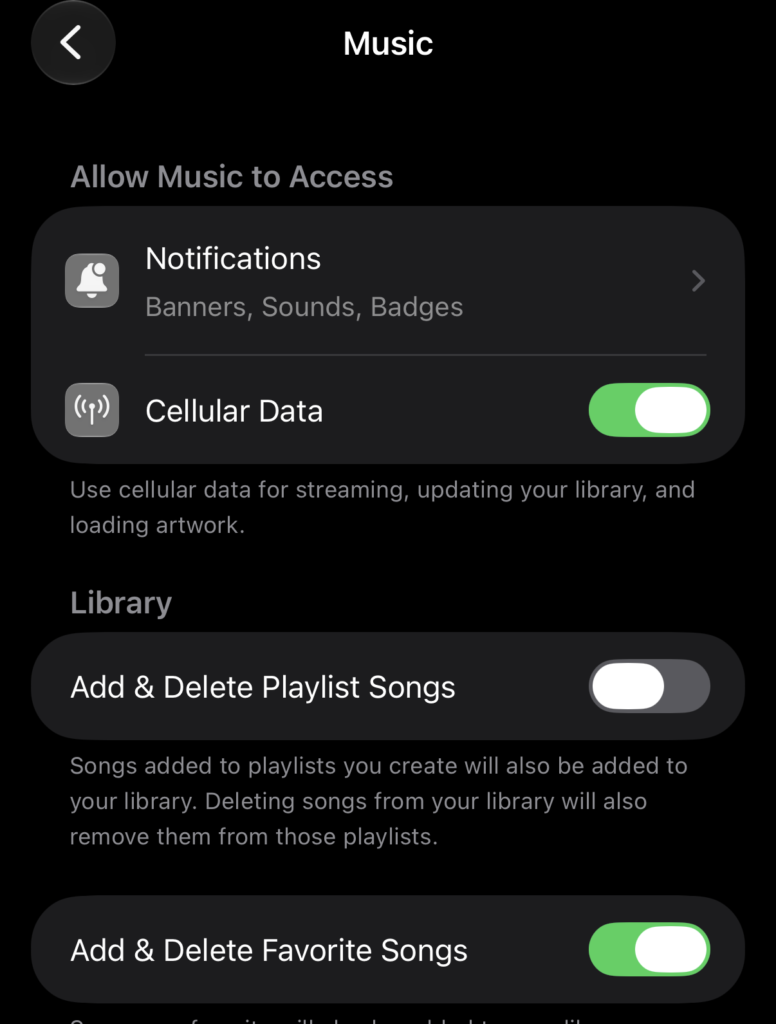
If you’re dealing with Apple Music songs not downloading over cellular data, checking these settings can save you from changing unrelated iPhone options. For additional information about cellular downloads, Sync Library, and offline music, see Apple’s iPhone Music user guide.
Fix 3: Check Your iPhone’s Available Storage
If your iPhone is running low on storage, Apple Music might not have enough space to download new songs.
To check:
- Open Settings.
- Tap General.
- Select iPhone Storage.
- Check how much available space remains.
- Remove unnecessary files or apps if your storage is nearly full.
You can also manage downloaded music directly.
Go to Settings → Apps → Music → Downloaded Music to review and remove existing downloads.
Removing a downloaded song is different from deleting it from your music library.
If you want to keep the song in your Apple Music library but free up device storage, use Remove Download instead of Delete from Library.
Tip: Leave some free space beyond the size of the album you want to download. Your iPhone also needs storage for normal system operations.
Apple Music songs not downloading despite a strong internet connection can sometimes indicate that your iPhone is running out of available storage.
Fix 4: Enable Sync Library
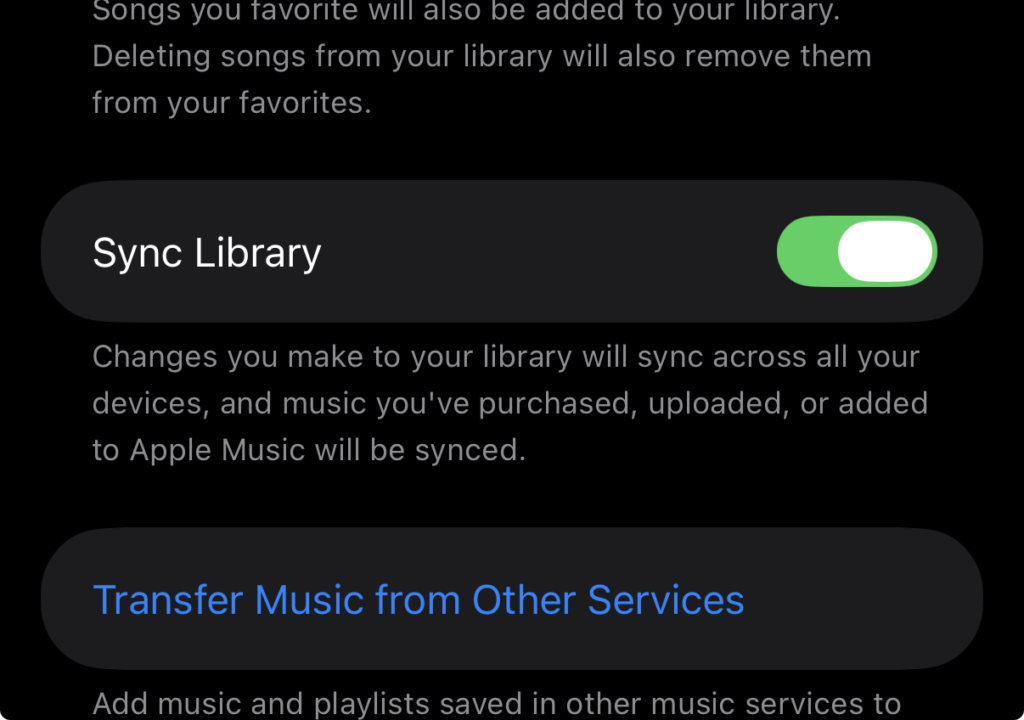
Sync Library helps Apple Music keep your music collection available across devices.
If this option is disabled, you may have problems accessing or downloading music added through your Apple Music subscription.
Here’s how to check:
- Open Settings.
- Select Apps → Music.
- Find Sync Library.
- Make sure it’s enabled.
- Open Apple Music and try downloading the song again.
Make sure you’re signed in with the Apple Account associated with your Apple Music subscription.
Important: If Sync Library is already enabled, don’t immediately turn it off. Disabling it removes downloaded Apple Music tracks from your iPhone, and you may need to download them again.
Fix 5: Add the Song to Your Library Before Downloading
Sometimes the problem is simply that a song hasn’t been added to your library.
Apple Music generally requires you to add music to your library before saving it for offline listening.
Follow these steps:
- Open Apple Music.
- Search for the song or album.
- Add it to your library.
- Open the song or album in your library.
- Tap the Download button.
- Check whether the download begins.
You can also touch and hold an item in your library and choose Download when that option is available.
To check ongoing downloads, open the Library tab and look for Downloaded → Downloading on supported recent iOS versions.
If Apple Music songs are not downloading after you’ve added them to your library, continue with the next fix.
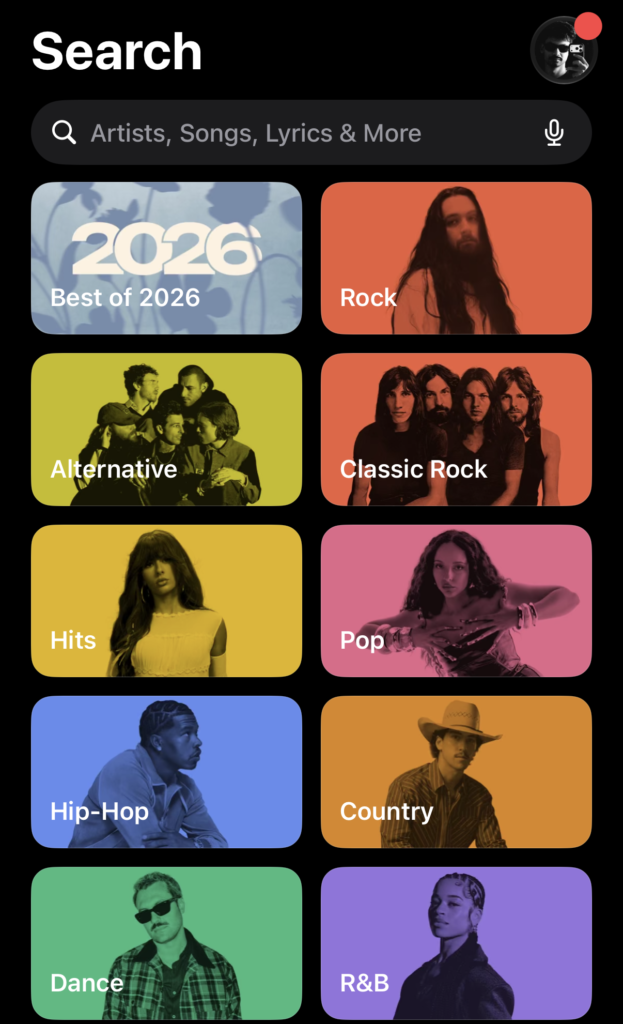
Apple explains the correct process for adding music to your library and saving it offline in its official Apple Music download guide.
Fix 6: Restart the Music App and Your iPhone
Temporary app or system glitches can sometimes interrupt downloads.
First, close and reopen Apple Music.
- Swipe up from the bottom of your iPhone and pause to open the App Switcher.
- Find the Music app.
- Swipe up on its preview to close it.
- Reopen Apple Music.
- Try downloading one song.
If that doesn’t help, restart your iPhone.
For an iPhone with Face ID:
- Hold the side button and either volume button.
- Drag the power-off slider.
- Wait approximately 30 seconds.
- Hold the side button until the Apple logo appears.
Once your iPhone restarts, open Apple Music and test the download again.
This is worth trying when Apple Music suddenly stops downloading songs after working normally.
When Apple Music songs are not downloading after switching networks or updating iOS, restarting the app can help clear temporary glitches.
Fix 7: Check Your Apple Music Subscription
Apple Music subscription downloads require an active subscription.
If your subscription has expired or there’s a billing problem, you might lose access to downloaded Apple Music catalog tracks.
To verify your subscription:
- Open Settings.
- Tap your name at the top.
- Select Subscriptions.
- Find Apple Music.
- Check whether your subscription is active.
If you’re part of a Family Sharing plan, check whether you still have access to the shared Apple Music subscription.
Also verify that you’re using the correct Apple Account.
Purchased music from the iTunes Store is handled differently from music downloaded through the Apple Music subscription.
Fix 8: Check Download Quality and Lossless Audio
Apple Music supports different audio quality settings, including Lossless Audio.
Higher-quality downloads require more storage space and generally take longer to complete.
If large albums are downloading slowly or failing on a weak connection, temporarily test a lower download quality.
- Open Settings.
- Tap Apps → Music.
- Select Audio Quality.
- Check your download quality settings.
- If Lossless Audio is enabled, try downloading in a lower-quality format.
- Test a song again.
You can also check whether Download in Dolby Atmos is enabled in Music settings.
Changing quality settings affects future downloads. Already downloaded tracks may need to be removed and downloaded again to use a different quality.
If Apple Music songs are not downloading only when Lossless Audio is enabled, available storage and connection stability are worth investigating.
Fix 9: Remove a Failed Download and Try Again
If only one particular song or album is stuck, the download itself may need to be restarted.
Try this:
- Open Apple Music.
- Go to your Library.
- Find the affected song or album.
- If a download exists, touch and hold the item.
- Choose Remove Download if available.
- Keep the item in your library.
- Tap Download again.
If no download has been saved yet, check the Downloading section for an available cancellation control, then retry.
Avoid deleting the entire playlist or removing songs from your library unnecessarily.
Important: If a song is marked as unavailable in your country or region, retrying the download may not help. Search the Apple Music catalog to see whether another available version exists.
Fix 10: Update iOS and Check for Apple Music Issues
If the previous fixes haven’t worked, check whether your iPhone has a software update available.
- Open Settings.
- Select General.
- Tap Software Update.
- Check for an available update.
- Back up your iPhone before a major update.
- Install the update if appropriate.
Apple occasionally addresses app and system problems through software updates, although an update isn’t guaranteed to resolve every music download issue.
You can also check Apple’s official System Status page for reported service problems.
If Apple Music is experiencing a service interruption, the problem may not be related to your iPhone.
Rather than repeatedly changing your settings, test the service again once the reported issue is resolved.
If downloads suddenly stop working across multiple devices, check the Apple System Status page for a possible service interruption.
Apple Music Songs Stuck on Waiting or Downloading?
If your songs remain stuck on Waiting or Downloading, try diagnosing the issue based on what you’re seeing.
If every song fails to download: Check your connection, cellular download permissions, subscription, available storage, and Sync Library.
If only one song fails: Search for another version of the song, check whether it’s still available, and retry the individual download.
If downloads work on Wi-Fi but not cellular: Check Download over Cellular and your mobile data connection.
If downloads complete but disappear later: Review Optimize Storage, Sync Library, and your subscription status.
If downloads work on another device: Compare the Apple Account, storage, and Music settings on both devices.
This approach can help you identify the cause without resetting unrelated iPhone settings.
How to Prevent Apple Music Download Problems
You can reduce the likelihood of future download problems by checking a few settings.
- Keep enough free storage on your iPhone.
- Download large playlists over a reliable Wi-Fi connection.
- Keep Sync Library enabled when using Apple Music across devices.
- Check whether Optimize Storage is removing infrequently played downloads.
- Keep your Apple Music subscription active.
- Use a download quality that suits your connection and storage.
- Download important playlists ahead of travel rather than relying on last-minute downloads.
You can also enable Automatic Downloads under Settings → Apps → Music if you want newly added music to download automatically.
Remember that automatic downloads will consume storage and may use cellular data according to your settings.
Frequently Asked Questions
Why are my Apple Music songs not downloading on my iPhone?
The most common things to check are your internet connection, download permissions, available storage, Sync Library, and Apple Music subscription. Start by downloading one song over Wi-Fi.
Why does Apple Music say Waiting to Download?
A song may be waiting because of a connection problem, an interrupted download, or a library synchronization issue. Check your connection and Music settings, then retry the affected item.
Why won’t Apple Music download songs over cellular data?
Go to Settings → Apps → Music and check that Cellular Data and Download over Cellular are enabled. Your carrier’s data restrictions or connection problems may also affect downloads.
Can I download Apple Music songs without Wi-Fi?
Yes. Apple Music supports downloads using cellular data when the relevant settings are enabled. Data charges may apply.
Will I lose downloaded songs if I turn off Sync Library?
Yes. Turning off Sync Library removes downloaded Apple Music tracks from your iPhone. You may need to download them again after enabling it.
Why did my downloaded Apple Music songs disappear?
Possible causes include Optimize Storage removing older downloads, changes to Sync Library, a subscription issue, or music becoming unavailable in the Apple Music catalog.
Final Thoughts
When Apple Music songs are not downloading, start with your Wi-Fi connection, cellular download permissions, and available iPhone storage.
Next, check Sync Library, your Apple Music subscription, and the download quality settings.
If only one song is affected, remove the failed download and try again rather than changing settings across your entire library.
Most importantly, avoid disabling Sync Library or deleting large parts of your music collection until you’ve checked the simpler causes.
With these troubleshooting steps, you can usually narrow down the problem and get back to listening to your favorite songs offline.