Is your iPhone automation not working, even though you’ve created it correctly in the Shortcuts app?
Maybe your automation doesn’t run at its scheduled time, fails when you connect to Wi-Fi, or displays a confirmation notification instead of running automatically.
Sometimes an automation works when you run its actions manually but fails when its trigger activates.
Fortunately, these problems often have straightforward explanations. Incorrect automation settings, permissions, trigger conditions, or actions requiring user interaction can prevent Shortcuts from working as expected.
In this guide, we’ll explain 10 practical fixes for iPhone automations not running on recent versions of iOS, including the different settings used in iOS 26 and iOS 27.
Quick answer: Open the Shortcuts app and check that your automation is enabled, its trigger is correctly configured, and it doesn’t require confirmation. If it still fails, test the actions manually and review any permissions or Lock Screen restrictions.
Table of Contents
Why Is My iPhone Automation Not Working?
Apple’s Shortcuts app allows you to automate tasks based on events such as the time of day, connecting to Wi-Fi, opening an app, or reaching a location.
A personal automation is different from a regular shortcut because an automation starts when a configured event occurs.
If your iPhone automation is not working, common causes include:
- The automation is disabled.
- It is configured to run only after confirmation.
- The selected trigger conditions aren’t being met.
- One or more actions require additional permissions.
- The automation needs interaction while the iPhone is locked.
- An action fails even though the automation starts.
- Location Services or another required feature is unavailable.
- A temporary Shortcuts or iOS software issue is interfering.
Apple explains the basic differences in its official personal automation guide.
The quickest way to troubleshoot is to determine whether the trigger never activates or the automation starts but fails during execution.
Fix 1: Make Sure Your Automation Is Enabled
The first step is checking whether your automation has accidentally been turned off.
The interface depends on your iOS version.
On iOS 26
- Open the Shortcuts app.
- Tap Automation.
- Select the automation that isn’t working.
- Review its automation setting.
- If it says Don’t Run, change it to Run Immediately or Run After Confirmation, as appropriate.
- Save the changes.
On iOS 27
Apple introduced a revised automation interface.
- Open Shortcuts.
- Find the shortcut containing your automation.
- Open its editor.
- Locate the configured automation trigger.
- Check whether the trigger is enabled.
- Turn it on if necessary.
You can also use the Automation section to find shortcuts with automation triggers on supported versions.
Apple describes this newer approach in its iOS 27 Shortcuts automation guide.
If your iPhone automation is not working because it was disabled, enabling the trigger may resolve the problem immediately.
Fix 2: Set the Automation to Run Without Confirmation
One of the most common causes of automation problems is a confirmation requirement.
When confirmation is enabled, an automation may wait for you to approve it instead of running independently.
On iOS 26
- Open Shortcuts → Automation.
- Select the automation.
- Find its execution setting.
- Choose Run Immediately when supported.
- Save the automation.
Some older versions display Ask Before Running instead. In that case, turn it off if the automation supports automatic execution.
On iOS 27
- Open the shortcut containing the automation.
- Tap Edit.
- Open the automation trigger.
- Review whether confirmation is required.
- Disable Confirm Before Run, when offered.
- Save the changes.
Apple’s documentation confirms that many personal automation triggers can run automatically, although individual actions may still need user interaction.
See Apple’s Shortcuts automation settings.
Important: Turning off confirmation doesn’t guarantee that every action can execute while the phone is locked.
Fix 3: Check Whether the Trigger Conditions Are Correct
If your iPhone automation is not triggering, its event conditions may not be matching what actually happens.
For example, a Wi-Fi automation can be configured for a particular network.
A location automation may depend on entering or leaving a specific area.
To investigate:
- Open the affected automation in Shortcuts.
- Review the selected trigger.
- Check its conditions.
- Confirm the specified Wi-Fi network, location, time, or connected device is correct.
- Save any changes.
- Reproduce the event and test again.
For a Wi-Fi automation, connecting to a different network may not activate the rule.
For a Bluetooth automation, confirm that the intended device is selected.
For a time-based automation, check its scheduled time, repetition, and your iPhone’s time-zone settings.
Apple explains these conditions in its Shortcuts setting triggers guide.
Tip: A trigger designed to run when you connect to Wi-Fi may not activate simply because your iPhone is already connected.
Disconnect and reconnect to the selected network when testing.
Fix 4: Test the Shortcut Actions Manually
Sometimes the automation trigger works, but one of its actions fails.
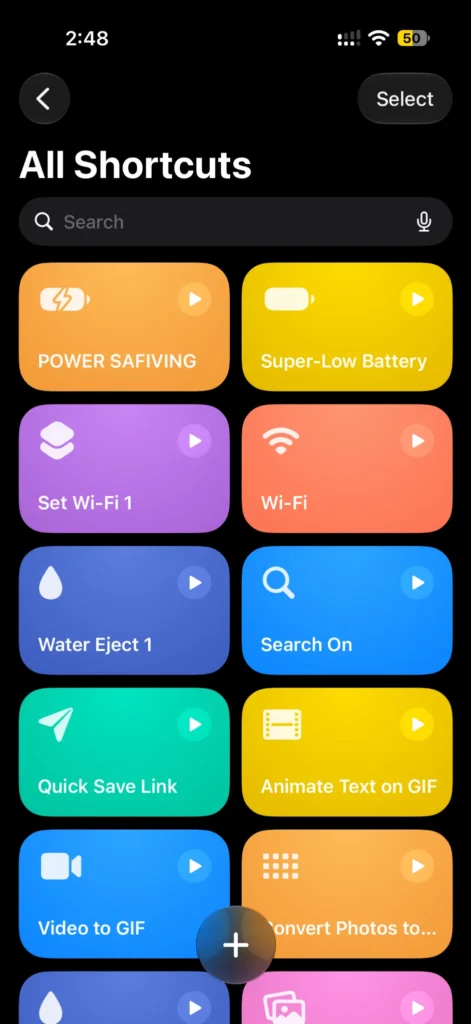
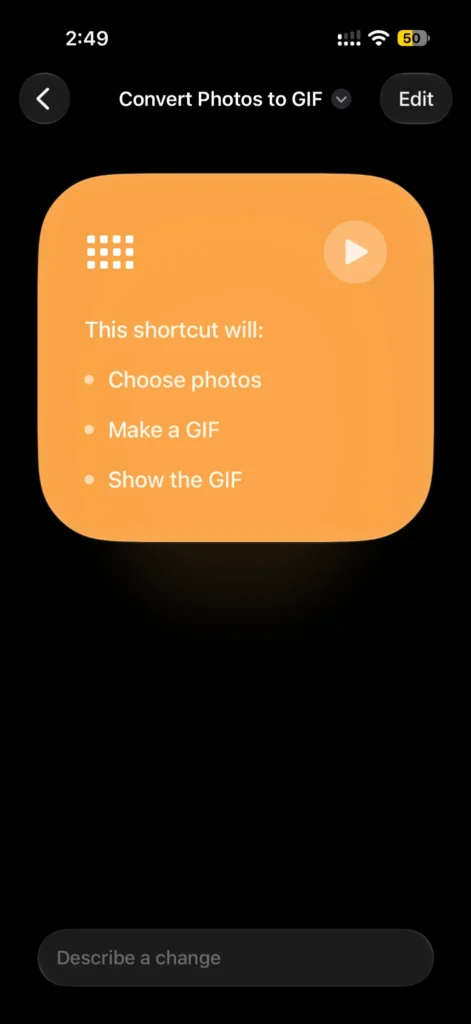
The easiest way to separate these problems is to run the underlying shortcut manually.
- Open Shortcuts.
- Find the shortcut used by the automation.
- Run it manually.
- Check whether each action completes successfully.
- Look for error messages or permission prompts.
- Fix any failing action before testing the automation again.
If the shortcut works manually but fails automatically, focus on its trigger, confirmation settings, and permissions.
If it fails manually too, the problem is probably within the shortcut’s actions or the app they depend on.
On supported versions, the shortcut editor provides a way to test its actions.
If your iPhone automation is not working after you add a particular action, try temporarily simplifying the shortcut.
For example, create a test automation that displays a notification when a specific event occurs.
This helps determine whether the trigger itself works before you add more complicated actions.
Fix 5: Allow the Automation to Run While Your iPhone Is Locked
Some Shortcuts actions require interaction, access to protected information, or permission to continue while the iPhone is locked.
This is particularly relevant when your automation runs successfully after unlocking the iPhone but fails while the screen is locked.
On iOS 27
Apple documents a specific privacy setting for supported automation shortcuts.
- Open the shortcut containing the automation.
- Tap Edit.
- Open the shortcut’s Info settings.
- Select Privacy.
- Look for Allow Running When Locked.
- Enable it if appropriate.
You should also review any actions that ask for input, display a selection menu, or require you to open another app.
Even with Lock Screen permission enabled, an action requiring direct user interaction may not complete unattended.
For more information, see Apple’s iOS 27 automation documentation.
Security note: Only allow unattended execution for automations you trust. Avoid removing confirmation from actions involving sensitive information or consequential changes unless necessary.
Fix 6: Check Location and App Permissions
If your iPhone automation is not working for location-based events, permissions are a good place to investigate.
Automations that depend on location need access to suitable location information.
Try the following:
- Open Settings.
- Tap Privacy & Security.
- Select Location Services.
- Confirm Location Services is enabled.
- Review relevant system or app location permissions.
- Return to Shortcuts and test the location trigger.
Location-based triggers may also depend on the size of the geographic area and whether iOS detects the relevant arrival or departure event.
Don’t expect every location automation to run at the exact moment you cross a boundary.
For other actions, open the affected shortcut and respond to legitimate permission prompts.
Some actions require permission to access Contacts, Photos, files, or another application.
If you’re having broader location problems, our Find My iPhone Not Working guide explains how to check iPhone connectivity and Location Services.
Remember that fixing Find My isn’t the same as repairing a Shortcuts automation. The internal guide is useful specifically for diagnosing related location settings.
Fix 7: Check Wi-Fi, Cellular Data, and Online Services
Some automation actions require access to the internet.
An automation that sends a request to a website, retrieves weather information, or communicates with an online service may fail when connectivity is unavailable.
To test:
- Open Safari.
- Visit a website.
- Check whether the page loads.
- Switch between Wi-Fi and cellular data if available.
- Test the shortcut manually.
- Review the specific network-dependent action.
If the shortcut depends on a third-party service, check whether that service is responding normally.
An automation may still trigger at the correct time even when its network-dependent action fails afterward.
If Safari also experiences connection problems, read our iPhone Safari Not Loading Websites guide for additional troubleshooting.
Important: Not every automation needs the internet. Simple local actions can often run without a network connection.
Fix 8: Restart the Shortcuts App and Your iPhone
Temporary software problems can sometimes interfere with Shortcuts.
If your automation was working previously but stopped without an obvious settings change, restart the app and your device.
First, close Shortcuts:
- Open the App Switcher.
- Find the Shortcuts app.
- Swipe up on its preview.
- Reopen Shortcuts.
- Check the automation settings again.
If necessary, restart the iPhone.
On iPhones with Face ID:
- Hold the side button and either volume button.
- Drag the power-off slider.
- Wait approximately 30 seconds.
- Hold the side button until the Apple logo appears.
Unlock the iPhone once after restarting, particularly before testing automations that use protected information or stored credentials.
Restarting won’t fix an incorrect trigger or missing permission, but it can rule out a temporary software issue.
Fix 9: Update iOS and Check Shortcut Compatibility
If your iPhone automation is not working after an iOS update, review the automation’s current settings before assuming the update caused a bug.
Apple changed the automation editing experience between iOS 26 and iOS 27.
As a result, older tutorials may refer to controls that have moved or been renamed.
To check for updates:
- Open Settings.
- Tap General.
- Select Software Update.
- Check whether an update is available.
- Back up important data before a major update.
- Install a compatible update if appropriate.
After updating, open Shortcuts and inspect the affected automation.
Check whether the trigger and actions are still configured correctly.
If a third-party app supplies one of the shortcut actions, check whether that app also has an update available.
Avoid deleting the Shortcuts app or resetting your entire iPhone as an early troubleshooting step.
Fix 10: Recreate the Automation If It Still Fails
If one specific automation consistently fails while others work, rebuilding it may help.
Before deleting anything, preserve its configuration.
- Open the affected automation.
- Record its trigger conditions.
- Review and save the actions it uses.
- Create a new automation with the same intended behavior.
- Start with a simple test action.
- Confirm the trigger works.
- Add the remaining actions gradually.
- Test again.
If the new automation works, compare it with the original to identify the difference.
On iOS 27, Apple provides controls for removing automation triggers from shortcuts.
On earlier versions, automations may be managed separately under the Automation tab.
Don’t delete a complex shortcut until you’ve confirmed that its actions and configuration can be recovered.
Tip: Rebuilding a complicated automation one action at a time is often more informative than recreating all of its actions at once.
iPhone Automation Not Running at the Scheduled Time
Time-based automations depend on their configured schedule.
If your iPhone automation is not running at the expected time, check:
- The correct hour and minute.
- Whether it repeats daily, weekly, or monthly.
- The selected days of the week.
- Your iPhone’s date and time settings.
- Whether the automation is enabled.
- Whether confirmation is required.
- Whether an action needs the device to be unlocked.
For time-zone-related concerns, open Settings → General → Date & Time and review your configuration.
You can also create a simple test automation scheduled a few minutes ahead.
Use an uncomplicated action, then observe whether the automation starts when expected.
This is a useful way to separate scheduling problems from complicated shortcut actions.
iPhone Automation Not Working When Locked
If an automation runs correctly while your iPhone is unlocked but fails while locked, inspect the actions it contains.
Actions that open an app, require text input, or present a selection menu may need user interaction.
On iOS 27, also check the shortcut’s Allow Running When Locked setting.
For supported actions, remove unnecessary prompts or configure unattended execution where appropriate.
Avoid assuming that every action can run silently.
Some actions intentionally require interaction for privacy or security reasons.
iPhone Automation Not Working After iOS 27 Update
If your automation stopped working after upgrading from iOS 26 to iOS 27, remember that the Shortcuts interface changed.
On iOS 26, personal automations were managed primarily through the Automation tab and options such as Run Immediately.
On iOS 27, automations can be configured as triggers attached to shortcuts, with additional settings available through the shortcut editor.
Start by opening the affected shortcut and inspecting its trigger and privacy settings.
Don’t follow an older screenshot tutorial if the controls no longer match your version.
Refer to the current Apple Shortcuts User Guide for iOS 27.
Frequently Asked Questions
Why is my iPhone automation not working?
The automation may be disabled, require confirmation, have incorrect trigger conditions, or contain an action that fails. Check the trigger and run the shortcut manually to isolate the problem.
How do I make an iPhone automation run automatically?
On iOS 26, select Run Immediately for a supported personal automation. On iOS 27, review the automation trigger’s confirmation settings and the shortcut’s applicable privacy permissions.
Why does my iPhone automation ask for confirmation?
Your automation may be configured to require confirmation, or one of its actions may need user interaction. Review both settings.
Why won’t my automation run when my iPhone is locked?
Some actions require the iPhone to be unlocked or need user input. On iOS 27, check Allow Running When Locked where available, and remove unnecessary prompts from supported actions.
Why is my automation not triggering when I connect to Wi-Fi?
Check whether the correct Wi-Fi network is selected in the trigger. Disconnect and reconnect to that network to test the connection event.
Do iPhone automations sync between devices?
Apple states that personal automations are device-specific. They may be included in iCloud backups but don’t automatically sync to other devices like ordinary shortcuts.
Should I reset my iPhone if Shortcuts automations stop working?
Not as an initial troubleshooting step. First check execution settings, trigger conditions, app permissions, and individual actions. A full device reset is rarely justified for one failing automation.
Final Thoughts
If your iPhone automation is not working, start by confirming that it’s enabled and configured to run when its trigger occurs.
Next, check confirmation settings, action permissions, and whether the shortcut works when launched manually.
For automations that fail while the phone is locked, review the supported Lock Screen execution settings and any actions requiring user input.
Finally, remember that the automation interface differs between iOS 26 and iOS 27.
By troubleshooting the trigger and actions separately, you can identify the real cause without unnecessarily resetting your iPhone or rebuilding every shortcut.