Is your iPhone overheating after iOS 27.2.1? Maybe your iPhone feels unusually warm, the battery drains quickly, or the screen dims while you’re using it.
This can happen for several reasons. After an iOS update, your iPhone may need time to finish background tasks. Heavy apps, charging, poor cellular signal, and high screen brightness can also increase its temperature.
Some warmth is normal during demanding tasks. However, repeated overheating or an iPhone temperature warning deserves attention.
Before changing advanced settings, remove the phone from direct sunlight, pause demanding apps, and allow it to cool naturally.
In this guide, we’ll explain 9 practical fixes for iPhone overheating after iOS 27.2.1, starting with simple checks and moving to more detailed troubleshooting.
Quick answer: If your iPhone is mildly warm after updating, check for ongoing update activity, review Battery Usage, and reduce demanding tasks. If it becomes excessively hot or displays a temperature warning, stop using it, disconnect charging accessories, and let it cool naturally in a safe environment.
Table of Contents
Why Is My iPhone Overheating After iOS 27.2.1?
An iPhone can become warmer when its processor, battery, display, or wireless radios are working harder than usual.
Possible explanations include:
- Background processing following a software update.
- Apps consuming unusually high amounts of power.
- iCloud Photos synchronization or other background tasks.
- Gaming, video recording, or prolonged navigation.
- Wireless charging combined with demanding activities.
- Poor cellular reception or frequent network switching.
- High screen brightness or direct sunlight.
- A charging accessory or battery problem.
Apple confirms that an iPhone may become warm during software updates, device setup, and processor-intensive activities.
However, warmth by itself doesn’t prove that the iOS 27.2.1 update caused a software defect.
You can review Apple’s explanation in its official iPhone temperature management guide.
Before troubleshooting, determine whether your iPhone feels slightly warm or genuinely overheated.
Fix 1: Check Whether Your iPhone Is Actually Overheating
Not every increase in temperature indicates a problem.
It’s normal for an iPhone to become somewhat warm while charging, installing software, playing demanding games, or performing intensive background tasks.
However, excessive heat deserves immediate attention.
Look for these signs:
- The iPhone becomes too hot to hold comfortably.
- A temperature warning appears.
- Charging repeatedly pauses because of temperature.
- The display dims unexpectedly while the phone is very warm.
- The camera or flash temporarily becomes unavailable.
- Performance drops significantly during otherwise ordinary use.
Apple explains that iOS can temporarily restrict certain features to protect internal components when the temperature becomes excessive.
If your phone is extremely hot:
- Stop using demanding apps.
- Disconnect charging accessories.
- Move the phone away from sunlight and other heat sources.
- Turn it off if a temperature warning appears.
- Allow it to cool naturally before resuming use.
Important: Never place your iPhone in a refrigerator, freezer, ice bath, or against an ice pack. Rapid cooling and condensation can damage electronic components.
Apple specifies an operating ambient temperature range of 32°F to 95°F (0°C to 35°C) for iPhone.
If the device remains excessively hot during light use, don’t simply wait several days for it to improve.
Fix 2: Allow Post-Update Processing to Finish
If your iPhone overheating after iOS 27.2.1 began shortly after installation, background update activity is one of the first possibilities to check.
Apple explains that some software-update tasks continue even after the iPhone becomes usable again.
These activities can temporarily affect battery life and thermal performance.
To check:
- Open Settings.
- Tap Battery.
- Look for any battery-related insights.
- Check whether Ongoing iOS Update appears.
- If the insight is visible and the phone is only mildly warm, allow the update tasks to complete.
- Reassess battery behavior after a few days.
Not every iPhone displays an Ongoing iOS Update insight.
If the message isn’t visible, it doesn’t necessarily mean there is a software problem.
What you should do: Keep your iPhone in a comfortable environment, avoid unnecessary intensive workloads, and allow ordinary background processing to finish.
If the phone produces a temperature warning or becomes excessively hot, follow the cooling guidance in Fix 1 instead of continuing to use it.
For additional information, see Apple’s battery usage and post-update guidance.
Fix 3: Cool Your iPhone Safely
If your iPhone is warmer than expected, reduce the activities and environmental conditions contributing to the heat.
Try the following:
- Stop gaming, video recording, or other demanding activities.
- Pause charging if the device feels unusually hot.
- Move your iPhone away from direct sunlight.
- Place it on a dry, hard surface with adequate ventilation.
- Remove a thick case temporarily if it appears to retain heat.
- Lock the screen and allow the phone to cool.
Avoid placing the phone on a bed, pillow, blanket, or another surface that may trap heat.
Do not use a freezer or apply liquids to the device.
If the iPhone displays a temperature warning, Apple’s recommendation is to turn it off, move it to a cooler environment, and allow it to cool.
Why this matters: Heat protection can temporarily slow charging, dim the display, reduce performance, or disable certain camera features.
Once the device returns to a normal temperature, those restrictions generally clear automatically.
If your screen continues dimming even when the phone is cool, our iPhone Screen Keeps Dimming troubleshooting guide covers brightness and display settings separately.
Fix 4: Check Which Apps Are Using the Most Power
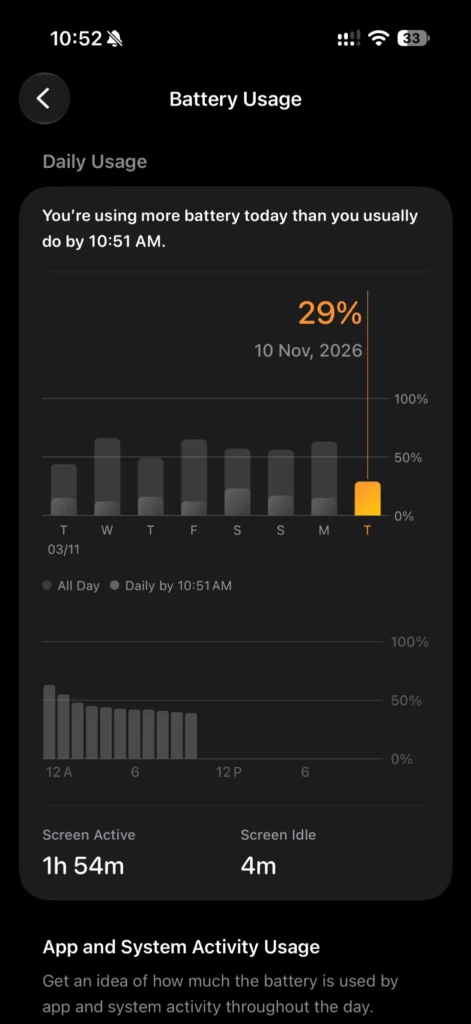
When you’re investigating iPhone overheating after iOS 27.2.1, Battery Usage can help identify unusually active applications.
While the Battery screen doesn’t directly measure the phone’s temperature, it provides useful information about energy consumption.
Here’s how to investigate:
- Open Settings → Battery.
- Review the Daily Usage chart.
- Tap View All Battery Usage.
- Choose the relevant day.
- Scroll to App and System Activity Usage.
- Look for unusually active apps.
- Check whether their activity occurred on screen or in the background.
For example, using the camera for an extended recording session naturally consumes more power than reading a message.
An app appearing at the top of the Battery Usage list isn’t automatically defective.
What matters is whether it shows unexpected activity compared with how you normally use your phone.
If an app appears unusually active, check for updates or review its background permissions.
You can learn more about interpreting these statistics in Apple’s iPhone Battery Usage documentation.
Fix 5: Check Whether Your iPhone Gets Hot While Charging
An iPhone can become slightly warm while charging, particularly when using wireless charging.
However, sustained excessive heat shouldn’t be ignored.
If you notice your iPhone overheating after iOS 27.2.1 mainly while charging, investigate the charging environment and accessories.
Try these checks:
- Disconnect your iPhone if it becomes unusually hot.
- Check whether the cable or charger appears damaged.
- Move the charging setup to a well-ventilated location.
- Remove a thick case temporarily if appropriate.
- Avoid gaming or recording long videos while charging.
- After the phone cools, test a compatible, known-working charging accessory.
If you use MagSafe or another wireless charger, ensure that no metallic objects are between the phone and charging surface.
What does Charging On Hold mean?
If your iPhone displays Charging On Hold, it may have temporarily paused charging to protect the battery because the temperature is outside the acceptable range.
You cannot safely override this thermal protection.
Charging should resume when the device returns to a suitable temperature.
Apple explains this behavior in its Thermally Limited Charging guide.
If your iPhone still refuses to charge after cooling, see our iPhone Not Charging guide for cable, adapter, port, and charging-limit troubleshooting.
Fix 6: Reduce Processor-Intensive Activities Temporarily
Some iPhone applications place substantial demands on the processor and graphics hardware.
Common examples include:
- High-resolution video recording.
- Graphics-intensive games.
- Extended video calls.
- Navigation while using mobile data.
- Video streaming at high brightness.
- Photo or video editing.
These activities may produce noticeable warmth even on a properly functioning iPhone.
If your phone feels hotter than usual, temporarily stop the activity and see whether its temperature returns to normal.
You can also reduce display brightness:
- Open Control Center.
- Lower the brightness slider.
- Close any demanding application you’re finished using.
- Lock the phone when you’re not actively using it.
You don’t need to force-close every background app repeatedly. Focus on activities that are actually using substantial resources.
Tip: If the device becomes hot only during a particular game or recording application, investigate that application rather than assuming the entire operating system is responsible.
Fix 7: Review Background Activity and Cellular Reception
If your iPhone overheating after iOS 27.2.1 occurs while the phone is mostly idle, investigate its background activity and network conditions.
An iPhone may continue processing information while you’re not actively using it.
Examples include synchronizing photos, fetching data, or handling location-dependent tasks.
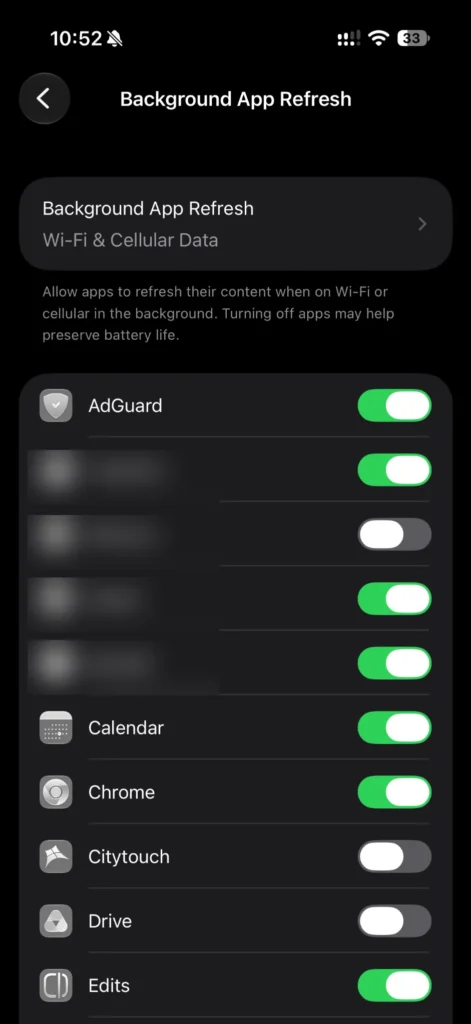
Check Background App Refresh
- Open Settings.
- Tap General.
- Select Background App Refresh.
- Review the applications listed.
- Consider disabling background refresh for apps that don’t need it.
Avoid disabling background functionality required for important messaging, navigation, or other services.
Background App Refresh also doesn’t control every background process.
Check cellular reception
Poor network reception can increase energy usage.
If your iPhone frequently switches networks or struggles to maintain cellular service, compare its behavior in areas with stronger reception.
You can also test the phone on a reliable Wi-Fi connection.
If unusual warmth happens mainly in areas with weak signal, connectivity may be contributing.
Don’t turn off essential network features permanently without identifying a clear benefit.
Fix 8: Restart Your iPhone and Update Affected Apps
If the phone is at a normal, safe temperature but continues behaving unexpectedly, a normal restart is a reasonable troubleshooting step.
For an iPhone with Face ID:
- Press and hold the side button and either volume button.
- Wait for the power-off slider.
- Drag the slider to shut down.
- Wait approximately 30 seconds.
- Hold the side button until the Apple logo appears.
After restarting, check the App Store for application updates.
An app may receive compatibility or performance improvements following an iOS release.
To check:
- Open the App Store.
- Tap your profile picture.
- Review available updates.
- Update any app that has been behaving unusually.
- Monitor its activity again.
If iPhone overheating after iOS 27.2.1 continues despite restarting, don’t repeatedly force-restart the device or erase its contents without a clear reason.
A restart may resolve temporary software problems, but it won’t repair battery damage or persistent hardware faults.
Fix 9: Check Battery Health and Seek Service if Needed
If your iPhone remains unusually hot after background update activity has finished, review its battery condition.
On iPhone 15 and later:
Settings → Battery → Battery Health
On older supported models:
Settings → Battery → Battery Health & Charging
Look for information about maximum battery capacity, battery condition, and service recommendations.
An aging battery may contribute to poor battery performance, although Battery Health alone cannot diagnose every overheating problem.
Also, avoid attributing every temperature problem to iOS.
Persistent excessive heat may involve a faulty charging accessory, battery damage, internal hardware problems, or an application that isn’t behaving correctly.
Seek professional service if:
- The phone repeatedly displays temperature warnings during light use.
- It remains excessively hot without charging or running demanding apps.
- Charging repeatedly stops because of heat in an ordinary environment.
- It shuts down unexpectedly while very warm.
- You notice swelling, leaking, or physical battery damage.
If the battery appears swollen or damaged, stop using and charging the phone and arrange professional assistance.
iPhone Overheating After iOS 27.2.1 During the First Few Days
Apple recommends allowing time for background tasks to finish following a software update.
During the first few days, mild warmth may gradually improve as update-related activity completes.
However, there is no guaranteed timeline for every iPhone.
If your device only becomes slightly warm during setup or intensive activities, monitor whether the behavior improves.
If it becomes excessively hot during light use, don’t wait several days before investigating.
The presence of a temperature warning, repeated thermal charging pauses, or unusual shutdowns is more concerning than mild warmth alone.
iPhone Hot While Charging After iOS 27.2.1
If the iPhone becomes warm only while charging, focus first on the charging setup.
Check whether the phone is receiving power through a compatible accessory, whether its case retains heat, and whether intensive activities are running at the same time.
Wireless charging may produce some warmth under normal circumstances.
However, excessive heat can cause iOS to slow or pause charging automatically.
If you notice a Charging On Hold notification, allow the device to cool naturally instead of attempting to bypass the protection.
If a known-working charger produces the same problem repeatedly, professional evaluation may be appropriate.
iOS 27.2.1 Overheating vs. Battery Drain: What’s the Difference?
Overheating and battery drain can occur together, but they’re different symptoms.
Battery drain means the iPhone is using energy more quickly than expected.
Overheating means the device’s temperature has risen enough to cause discomfort, unusual behavior, or protective restrictions.
High processor activity can contribute to both symptoms, but one doesn’t necessarily prove the other.
If your main complaint is reduced battery life without unusual heat, read our iOS 27.0.1 Battery Drain troubleshooting guide for general battery analysis techniques that apply across compatible iOS versions.
For temperature problems, focus on thermal conditions, charging behavior, background processing, and temperature warnings.
Frequently Asked Questions
Is iPhone overheating after iOS 27.2.1 normal?
Mild warmth shortly after an update can be normal because background processing may continue. Excessive heat, persistent temperature warnings, or repeated thermal shutdowns are not something to ignore.
How long will my iPhone stay warm after updating?
There is no fixed duration. Apple recommends allowing a few days for post-update activity to finish before reassessing battery life. Severe overheating should be investigated immediately rather than waiting.
Why is my iPhone hot even when I’m not using it?
Possible explanations include background synchronization, location activity, poor cellular reception, charging, or a malfunctioning application. Check Battery Usage to identify unusual activity.
Can iOS 27.2.1 cause an iPhone to stop charging?
Charging may slow or pause when the device becomes too hot or too cold. However, that doesn’t prove iOS 27.2.1 contains a charging bug. Apple’s thermal protection operates automatically.
Should I reset my iPhone to fix overheating?
Not as an initial step. First check background processing, charging accessories, Battery Usage, environmental conditions, and app activity.
Can overheating damage iPhone battery health?
Prolonged exposure to excessive heat can shorten battery lifespan. Apple recommends using iPhone within its specified operating temperature range.
Should I turn off my iPhone if it gets too hot?
If the device displays a temperature warning or becomes excessively hot, stop using it. Apple recommends turning it off and moving it to a cooler environment while it cools naturally.
Final Thoughts
Final Thoughts
If your iPhone is overheating after iOS 27.2.1, first distinguish temporary warmth from excessive heat.
Check Battery Usage, background processing, demanding applications, and charging conditions.
Mild warmth after an update may improve as background tasks finish. However, repeated temperature warnings, severe overheating, or physical battery damage require prompt attention.
Don’t ignore excessive heat or attempt risky cooling methods. Contact Apple Support if the problem persists during ordinary use.Last reviewed: November 10, 2026. Apple has not confirmed a widespread overheating defect specific to iOS 27.2.1. This guide explains recognized causes of iPhone heat and safe troubleshooting methods.