Is macOS 27.2.1 running slow on your MacBook Air, MacBook Pro, or iMac after installing the latest update?
Maybe applications take longer to open, Finder feels unresponsive, your Mac freezes occasionally, or Activity Monitor shows unusually high CPU usage.
These problems can be frustrating, particularly when your Mac was working normally before updating.
Apple released macOS Golden Gate 27.2.1 on November 9, 2026. Although Apple has not confirmed a widespread slowdown caused by this release, some Macs may temporarily feel slower after an update while background tasks finish.
The important thing is to distinguish normal post-update activity from a persistent performance problem.
In this guide, we’ll explain nine practical fixes for slow performance after installing macOS 27.2.1, without unnecessarily resetting your Mac or deleting important files.
Quick answer: Start by checking Spotlight indexing and CPU activity. Then review Memory Pressure, available storage, login items, and app updates. If performance remains poor, use Safe Mode to investigate software conflicts.
Table of Contents
Why Is macOS 27.2.1 Running Slow After Updating?
Several factors can make a Mac feel slower following a software update.
Possible causes include:
- Spotlight rebuilding or updating its search index.
- Background processes consuming CPU resources.
- Insufficient available memory or high swap usage.
- Limited free space on the startup disk.
- Outdated applications or incompatible extensions.
- Too many apps opening automatically at login.
- Cloud synchronization or large file operations.
- Temporary software problems following installation.
- Storage or hardware issues unrelated to the update.
Apple confirms that Spotlight indexing can occur after a software update and may take hours or even days, depending on the amount of data.
However, the timing alone doesn’t prove that macOS 27.2.1 introduced a performance bug.
For Apple’s general guidance, see its official article about a Mac running slowly.
Start with the simplest checks below.
Fix 1: Check Whether Spotlight Is Still Indexing
Spotlight is macOS’s system-wide search feature. It indexes files, applications, emails, messages, and other searchable content.
After an update, Spotlight may need to update its index.
During this process, your Mac might use additional system resources, especially if you have a large number of files.
How to check
- Press Command + Space to open Spotlight.
- Look for an indexing progress indicator.
- Open Activity Monitor using Applications → Utilities.
- Select the CPU tab.
- Look for Spotlight-related processes such as
mdsormds_stores. - Check whether they are using significant CPU resources.
These processes are involved in macOS metadata indexing.
High activity shortly after updating does not automatically indicate a malfunction.
If Spotlight is actively indexing, allow it to continue where practical.
For a MacBook, connecting the charger and leaving the computer idle for a while may help indexing complete.
Apple explains this behavior in its Spotlight indexing guide.
Important: Avoid repeatedly force-quitting Spotlight processes or disabling Spotlight just to reduce CPU usage. Doing so may interrupt legitimate indexing work.
If Spotlight has finished indexing but search results remain incorrect, read our Mac Spotlight Search Not Working guide for targeted troubleshooting.
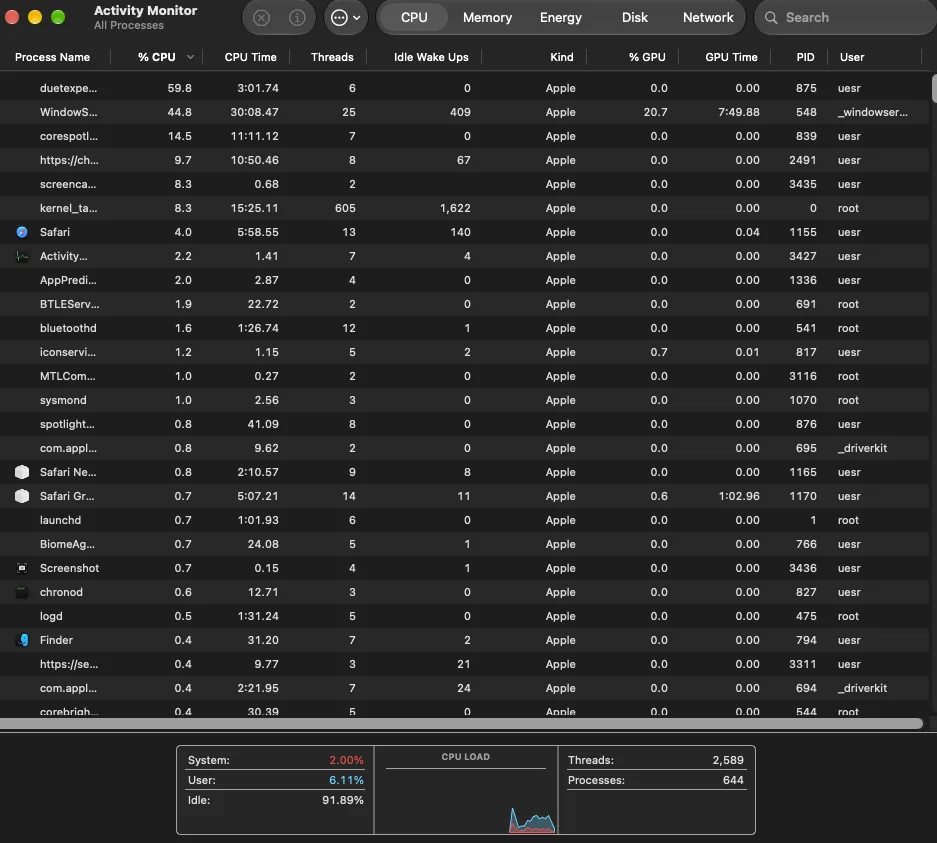
Fix 2: Find Apps Using Too Much CPU
If macOS 27.2.1 is running slow, Activity Monitor can help identify what’s consuming processing power.
CPU usage represents the processing work performed by applications and background processes.
An application using substantial CPU resources may make other activities feel sluggish.
To investigate:
- Open Finder → Applications → Utilities.
- Launch Activity Monitor.
- Select the CPU tab.
- Click the % CPU column to sort processes by CPU usage.
- Observe which processes remain near the top.
- Check whether the activity corresponds to something you’re currently doing.
- If an ordinary app is consuming excessive CPU without responding, save your work and quit it normally.
For example, video editing, browser tabs, large file transfers, and indexing can legitimately use substantial processing resources.
A momentary CPU spike isn’t necessarily a problem.
Look for activity that remains unexpectedly high while the Mac is otherwise idle.
Apple explains how to interpret processor activity in its Activity Monitor CPU guide.
Caution: Don’t force-quit unfamiliar macOS system processes simply because their CPU usage appears high. Identify their purpose first.
If one particular third-party application consistently causes slowdowns, check for an update or temporarily stop using it to compare performance.
Fix 3: Check Memory Pressure and Swap Usage
A Mac can feel slow even when its processor isn’t particularly busy.
One possible cause is memory pressure.
When applications require more memory than is readily available, macOS may compress memory or use storage space as swap.
This can affect responsiveness, especially on Macs with limited RAM.
Check your memory usage
- Open Activity Monitor.
- Select the Memory tab.
- Find the Memory Pressure graph at the bottom.
- Check whether it stays green or frequently turns yellow or red.
- Review the Swap Used value.
- Identify applications consuming unusually large amounts of memory.
- Close unnecessary applications or browser tabs and observe whether responsiveness improves.
Memory Pressure is usually more informative than simply looking at how much RAM appears to be used.
A Mac using most of its RAM isn’t automatically experiencing a memory problem.
macOS deliberately uses available memory to improve performance.
However, consistently high memory pressure combined with substantial swap activity can indicate that your workload is demanding more memory than the system can comfortably provide.
See Apple’s official Memory Usage guide.
Tip: If your Mac becomes slow only when dozens of browser tabs or multiple demanding applications are open, reducing simultaneous workloads may help.
Fix 4: Check Available Storage Space
Low storage space can affect Mac performance.
macOS needs available space for temporary files, system operations, application data, and memory swapping.
If the startup disk is nearly full, your Mac may have difficulty performing these tasks efficiently.
To check:
- Click the Apple menu.
- Open System Settings.
- Select General.
- Click Storage.
- Review the available capacity.
- Identify large files or applications you no longer need.
- Remove unnecessary content carefully.
Start with downloaded installers, duplicate files you’ve verified, and applications you no longer use.
You can also move large personal files to external storage after ensuring that you have a reliable copy.
Don’t delete unknown folders inside macOS system locations.
Important: Avoid deleting files from the System or Library folders merely because they appear large. Doing so can break applications or macOS features.
Apple provides storage-management recommendations in its Mac performance troubleshooting documentation.
If your storage is already healthy, continue to the next fix instead of deleting files unnecessarily.
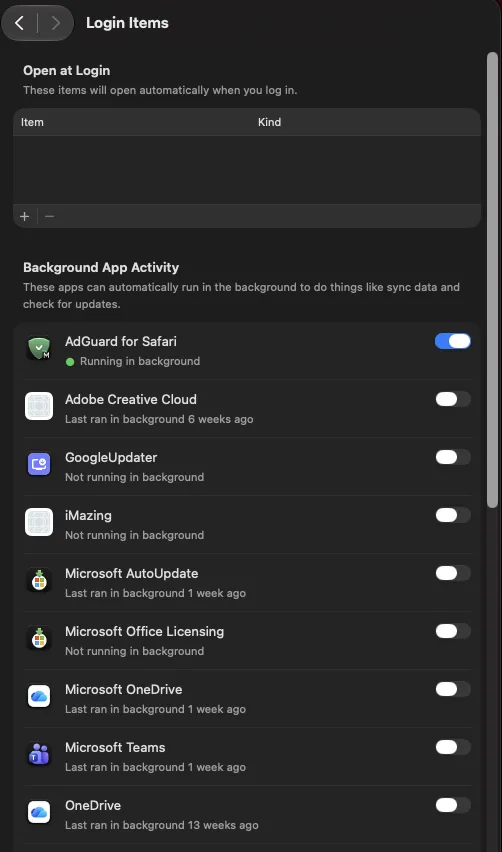
Fix 5: Review Login Items and Background Apps
Some applications open automatically every time you sign in to your Mac.
Others continue running background tasks even when their main windows are closed.
These processes can affect startup time and overall responsiveness.
If your Mac has become noticeably slower after updating, review its login items.
How to check
- Open System Settings.
- Select General.
- Click Login Items & Extensions.
- Review the Open at Login list.
- Select applications you don’t need to open automatically.
- Click the remove button to remove them from the login list.
- Review App Background Activity below.
- Adjust optional background permissions only when appropriate.
Removing an item from Open at Login doesn’t normally uninstall the application.
It simply prevents that item from opening automatically when you sign in.
Be careful with background services used for cloud storage, security applications, backups, or other important functions.
Apple explains these controls in its Login Items & Extensions guide.
Helpful test: Restart your Mac after making a small, reversible change and see whether login or app performance improves.
Avoid disabling every background item at once, because you may interrupt software you rely on.
Fix 6: Restart Your Mac and Update Installed Applications
Some performance problems can result from temporary software issues.
Restarting your Mac may resolve a process that has stopped responding or allow an application to initialize correctly.
First, save your work.
Then:
- Click the Apple menu.
- Select Restart.
- Allow the Mac to start normally.
- Open the applications you regularly use.
- Check whether performance has improved.
Next, review application updates.
For applications installed through the App Store:
- Open the App Store.
- Select Updates.
- Install available updates for applications you use.
- Relaunch the updated applications.
For applications installed directly from developers, use their built-in update tools or official websites.
Some applications may require compatibility updates following a new macOS release.
If one application is slow while everything else works normally, investigate that application before changing system-wide settings.
Avoid: Using unfamiliar third-party Mac cleaner or optimizer applications that promise to fix every performance problem. They may make unnecessary changes without addressing the real cause.
Fix 7: Check Cloud Syncing, Background Tasks, and Power Settings
Your Mac may perform several background operations after an update.
Possible examples include:
- Synchronizing iCloud Drive files.
- Updating Photos libraries.
- Downloading cloud content.
- Processing a large number of files.
- Running backup or security software.
These tasks can temporarily increase disk and CPU activity.
To investigate:
- Open Activity Monitor.
- Review the CPU and Disk tabs.
- Look for unusually sustained activity.
- Open any cloud-storage application you use.
- Check whether a large synchronization task is running.
- Allow legitimate background operations to finish where practical.
If your MacBook is running in Low Power Mode, consider whether power-saving settings are affecting performance.
Open System Settings → Battery and review the available power options.
Low Power Mode reduces energy usage and may affect some workloads. Test normal power settings when appropriate, preferably while connected to a charger.
If your MacBook also loses battery unusually quickly, our MacBook Battery Draining Fast guide explains energy-related troubleshooting separately.
Note: Don’t assume every background process is harmful. Some processes need to run to keep files and applications working correctly.
Fix 8: Test Your Mac in Safe Mode
If macOS 27.2.1 is running slow even after restarting and checking applications, Safe Mode can help isolate software-related problems.
Safe Mode performs certain startup checks and limits some software that normally loads during startup.
Apple provides different instructions for Apple silicon and Intel Macs.
For Apple silicon Macs
- Open the Apple menu.
- Select Shut Down.
- Wait for the Mac to turn off completely.
- Press and hold the power button.
- Release it when Loading startup options appears.
- Select your startup disk.
- Press and hold the Shift key.
- Click Continue in Safe Mode.
This applies to compatible Macs with Apple M-series chips.
For Intel Macs
- Restart or turn on your Mac.
- Immediately press and hold the Shift key.
- Release the key when the login screen appears.
- Log in.
Safe Mode may feel slower than normal in some respects because it operates differently from a normal startup.
Instead of judging speed alone, check whether the particular problem still occurs.
For example, if your Mac previously froze whenever you opened a particular app, test whether that behavior changes.
If the problem disappears in Safe Mode, a startup extension, login item, or other third-party software may be contributing.
Restart normally afterward.
For the exact steps, consult Apple’s Safe Mode instructions.
Fix 9: Check Disk Health if Performance Remains Poor
If your Mac continues freezing, producing file errors, or behaving abnormally, its storage system may need attention.
Disk Utility First Aid can check and repair certain file system problems.
However, this is a more advanced troubleshooting step and isn’t necessary for every Mac that feels temporarily slower after updating.
Before you begin
Back up important files.
If you suspect a problem with your startup disk, Apple recommends performing the repair from macOS Recovery.
Basic inspection
- Open Applications → Utilities → Disk Utility.
- Select View → Show All Devices.
- Review the startup disk and its volumes.
- Check for available diagnostic information.
- If you need to repair the startup disk, use macOS Recovery and follow Apple’s instructions.
- Run First Aid on the relevant volumes, containers, and device in the recommended order.
- Restart normally after completing the checks.
First Aid can identify some disk-related problems, but it cannot repair every hardware fault.
Do not click Erase. Erasing the startup disk removes data and is not an appropriate routine speed optimization.
See Apple’s official Disk Utility repair guide.
If Disk Utility reports serious errors or your Mac continues crashing, consider professional assistance.
macOS 27.2.1 Running Slow Immediately After Updating: Should You Wait?
If you installed macOS 27.2.1 only recently, it may be reasonable to allow some time for background tasks to finish.
Apple confirms that Spotlight indexing can occur following an update.
Depending on the amount of information involved, the process may continue for hours or even days.
However, there is no guaranteed recovery time for every Mac.
Here’s how to interpret the situation:
If performance is gradually improving: Continue monitoring Spotlight, CPU usage, and background tasks.
If only one application is slow: Check that application’s updates, compatibility, and resource usage.
If the entire Mac repeatedly freezes: Investigate memory pressure, startup software, storage, and possible disk problems rather than assuming indexing is responsible.
If the Mac cannot start or repeatedly crashes: Prioritize backups and appropriate recovery or professional diagnostics.
MacBook Air Slow After macOS 27.2.1 Update
MacBook Air models can experience the same general causes of slow performance as other Macs.
However, fanless models depend on passive cooling rather than internal fans.
During sustained processor-intensive work, a MacBook Air may reduce performance to manage temperature.
This doesn’t necessarily indicate a problem with macOS 27.2.1.
If your MacBook Air feels sluggish:
- Review Activity Monitor’s CPU tab.
- Check Memory Pressure.
- Investigate running Spotlight or cloud-syncing tasks.
- Ensure the Mac isn’t exposed to excessive heat.
- Review available storage and login items.
- Compare performance after background tasks finish.
If your Mac also experiences Finder freezes, see our MacBook Finder Not Responding guide.
Finder-specific failures and overall system slowdowns are related but different issues.
macOS 27.2.1 High CPU Usage: Which Processes Matter?
Activity Monitor can reveal which processes use substantial processing resources.
You may encounter names such as:
- mds or mds_stores: Associated with Spotlight metadata indexing.
- WindowServer: Involved in displaying windows and graphics.
- kernel_task: A macOS system process that can reflect system-level activity, including thermal management.
- Third-party app names: Applications and their supporting processes.
These names are not automatically signs of a problem.
For example, mds_stores may legitimately be active after a software update.
The useful question is whether CPU usage remains unexpectedly high for an extended period and whether it matches the symptoms you’re observing.
Don’t force-quit system processes without understanding their roles.
If the Mac becomes responsive after a particular workload completes, no additional intervention may be necessary.
Frequently Asked Questions
Why is macOS 27.2.1 running slow after updating?
Possible causes include Spotlight indexing, background applications, high CPU usage, memory pressure, limited storage, or incompatible software. The release itself has not been confirmed by Apple to cause a widespread slowdown.
How long does macOS indexing take after an update?
Apple says Spotlight indexing can take hours or even days, depending on the amount of data. Incremental indexing after that is generally quicker.
Does macOS 27.2.1 make older Macs slower?
There is no confirmed evidence that this specific release makes all older compatible Macs slower. Performance depends on hardware, available resources, installed software, and ongoing background tasks.
Why is my MacBook Air M1 slow after updating?
Possible causes include indexing, memory pressure, cloud synchronization, application compatibility, and intensive workloads. Activity Monitor can help identify which resources are being used.
Should I clear the cache to speed up my Mac?
Not automatically. macOS manages many caches itself, and indiscriminately deleting cache or system files can create unnecessary problems. Investigate the specific cause before deleting anything.
Does restarting a Mac improve performance after an update?
A restart can resolve temporary software problems and restart unresponsive applications, but it won’t permanently solve insufficient memory or storage hardware problems.
Will Safe Mode delete my files?
No. Safe Mode isn’t designed to erase personal files. It starts macOS with a limited set of startup components to help troubleshoot software issues.
Should I reinstall macOS 27.2.1 if my Mac is slow?
Not as an initial step. First investigate indexing, CPU activity, memory pressure, storage, login items, and application compatibility. Reinstallation is a more advanced option.
Final Thoughts
If macOS 27.2.1 is running slow, start by checking Spotlight indexing and Activity Monitor before changing system settings.
Next, review Memory Pressure, available storage, login items, and application updates.
If performance doesn’t improve, Safe Mode can help identify software conflicts.
For persistent freezing, disk errors, or unusual crashes, consider more advanced diagnostics.
Most importantly, don’t delete system files, disable essential macOS processes, or reset your Mac without evidence that doing so will address the problem.
The best approach is to identify which resource or process is causing the slowdown, rather than assume every performance problem comes from the update.
Last reviewed: November 10, 2026. This guide addresses slow performance noticed after installing macOS Golden Gate 27.2.1. Apple has not confirmed a widespread performance defect specific to this release.