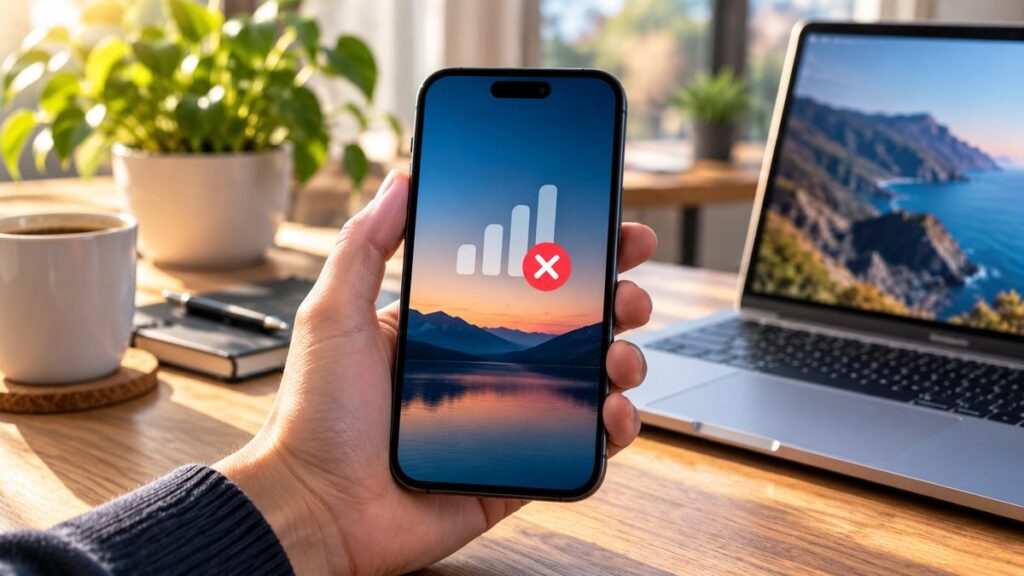
iPhone cellular data not working? Maybe your iPhone shows 5G or LTE signal bars, but Safari won’t load websites, WhatsApp messages won’t send, or apps say there’s no internet connection.
Sometimes cellular data stops working after an iOS update, a SIM or eSIM change, or a temporary carrier problem. In other cases, your iPhone may have strong signal bars but still fail to access the internet.
Fortunately, you don’t always need to reset your iPhone or replace your SIM to fix the problem.
In this guide, we’ll explain 12 practical fixes for iPhone cellular data not working, starting with simple settings and moving toward more advanced network troubleshooting.
Quick Answer: How to Fix iPhone Cellular Data Not Working
If mobile internet isn’t working on your iPhone, start with these checks:
- Open Settings → Cellular and make sure Cellular Data is enabled.
- Turn off Wi-Fi temporarily to test the cellular connection.
- Turn Airplane Mode on for at least 15 seconds, then turn it off.
- Check your signal strength and whether your carrier has an outage.
- Confirm that your mobile data plan is active.
- If you use two SIMs or eSIMs, check which line is selected for cellular data.
- Restart your iPhone and try loading a website.
If these steps don’t work, continue with the detailed solutions below.
Table of Contents
Why Is My iPhone Cellular Data Not Working?
Before changing multiple settings, identify the type of connection problem.
Cellular data is enabled but there’s no internet: Your iPhone may be connected to the carrier network without receiving a usable data connection. Account restrictions, network outages, or network configuration problems may be responsible.
5G or LTE appears but apps won’t load: The phone may show network connectivity even when data service is temporarily unavailable or an individual app is restricted.
No Service, SOS, or Searching appears: Your iPhone may not be connected to its normal cellular network. Coverage, SIM activation, carrier service, or device problems should be investigated.
Only one app cannot use cellular data: The app may have cellular access disabled, or the problem may be specific to that application.
These situations have different causes, so start with the fixes that match your symptoms.
1. Check Whether Cellular Data Is Enabled
The simplest solution is to make sure cellular data is actually turned on.
To check:
- Open Settings.
- Tap Cellular or Mobile Data.
- Find the Cellular Data or Mobile Data switch.
- Turn it on if disabled.
- Wait a few seconds for your iPhone to connect.
Some iPhones use different labels depending on the country, carrier, or software version.
If you use multiple SIMs, you may need to open the Cellular Data section and select the line you want to use.
Now turn off Wi-Fi temporarily and open Safari.
Try visiting a reliable website.
If the page loads using cellular data, your mobile connection is functioning.
If the website still doesn’t load, continue with the next fix.
2. Turn Airplane Mode On and Off
Airplane Mode is one of the quickest ways to test a temporary cellular connection problem.
Turning it on disconnects your iPhone from cellular radio service. Turning it off allows the phone to reconnect to an available network.
To try it:
- Open Settings.
- Turn on Airplane Mode.
- Wait at least 15 seconds.
- Turn Airplane Mode off.
- Allow the iPhone to reconnect to the carrier.
You can also use Control Center.
After reconnecting, check the cellular indicator and try accessing the internet.
Apple recommends toggling Airplane Mode when troubleshooting cellular network connection problems.
However, this won’t solve an inactive data plan, a carrier outage, or a damaged SIM.
If the problem continues, investigate your coverage and account status.
3. Check Your Cellular Signal and Network Coverage
A weak or unavailable cellular signal can prevent your iPhone from accessing mobile internet.
Look at the signal indicator in the status bar or Control Center.
If you see No Service or Searching, the phone may not be connected to a cellular network.
If you see SOS, emergency calling may still be possible in supported regions, but normal cellular service through your carrier isn’t available.
Try these checks:
- Move to an area with better cellular coverage.
- If you’re indoors, test near a window or outside.
- Check whether other phones using the same carrier have service.
- Review any network-outage announcements from your carrier.
- Return to your original location and test again when coverage improves.
Signal bars alone don’t guarantee that the mobile internet is working correctly.
A carrier can experience temporary data-service problems even when a phone appears connected to its network.
If several nearby users on the same carrier are experiencing the same problem, a network outage becomes more likely.
Wait for the provider to restore service rather than repeatedly resetting your iPhone.
4. Confirm Your Data Plan and Carrier Account Are Active
Sometimes the problem isn’t with your iPhone at all.
Your mobile data plan may have expired, your allowance may have been exhausted, or your carrier may have restricted service.
To investigate:
- Check your carrier’s official app or account website.
- Confirm that your SIM or eSIM is active.
- Review your data balance and plan validity.
- Check for restrictions or unpaid balances.
- Contact your carrier if the account status is unclear.
Some carriers slow data speeds after an allowance is exhausted, while others stop data access until the plan is renewed.
The exact behavior depends on your provider and package.
If your phone can make calls but cannot use mobile internet, ask your carrier to verify that cellular data service is enabled on your account.
Also confirm whether there are any outages in your area.
Important: Avoid entering random APN settings or installing unofficial carrier configuration profiles to solve an account problem.
Carrier-related settings should come from your mobile network provider. If your cellular connection works but your phone number remains stuck during iMessage activation, check our iMessage Phone Number Spinning troubleshooting guide.
5. Select the Correct SIM or eSIM for Cellular Data
If your iPhone supports Dual SIM, it may be using a different line for mobile data than you intended.
For example, you might have one SIM for calls and another eSIM for internet access.
If the wrong line is selected, cellular data may not work as expected.
To check:
- Open Settings.
- Tap Cellular or Mobile Data.
- Select Cellular Data.
- Review the available phone numbers or SIM labels.
- Choose the line with the active data plan.
Also check whether the relevant line is turned on.
Some iPhones offer an Allow Cellular Data Switching option.
This allows the phone to switch between available lines in certain circumstances, depending on carrier support and call activity.
It doesn’t mean the iPhone continuously combines both mobile data plans.
If you recently transferred an eSIM or changed carriers, check that the new line has completed activation.
Contact your carrier if the eSIM isn’t active or its settings appear incomplete.
If your iPhone uses an eSIM and cellular data stopped working after setting up a new mobile plan, follow our iPhone eSIM Not Activating guide to troubleshoot activation errors and carrier-related issues.
6. Check Cellular Data Permissions for Individual Apps
If Safari works using cellular data but one app doesn’t, the issue may be specific to that application.
iOS allows you to control which applications can use mobile data.
To review permissions:
- Open Settings.
- Select Cellular.
- Scroll down to the list of applications.
- Find the affected app.
- Check whether cellular data access is enabled.
For example, if Google Maps works on Wi-Fi but won’t load maps using mobile data, check whether Google Maps is allowed to use cellular data.
If an app’s cellular data switch is off, it may be restricted to Wi-Fi access.
Turn on cellular access if appropriate and test again.
If the app still fails but other apps work normally, check for application updates or temporary problems with the app’s service.
Avoid resetting your entire network when the issue is isolated to a single application.
If your cellular data works in other apps but Safari still cannot open websites, the problem may be related to Safari settings rather than your mobile connection. Read our guide, iPhone Safari Not Loading Websites? 12 Fixes to Try (2026), for detailed troubleshooting steps.
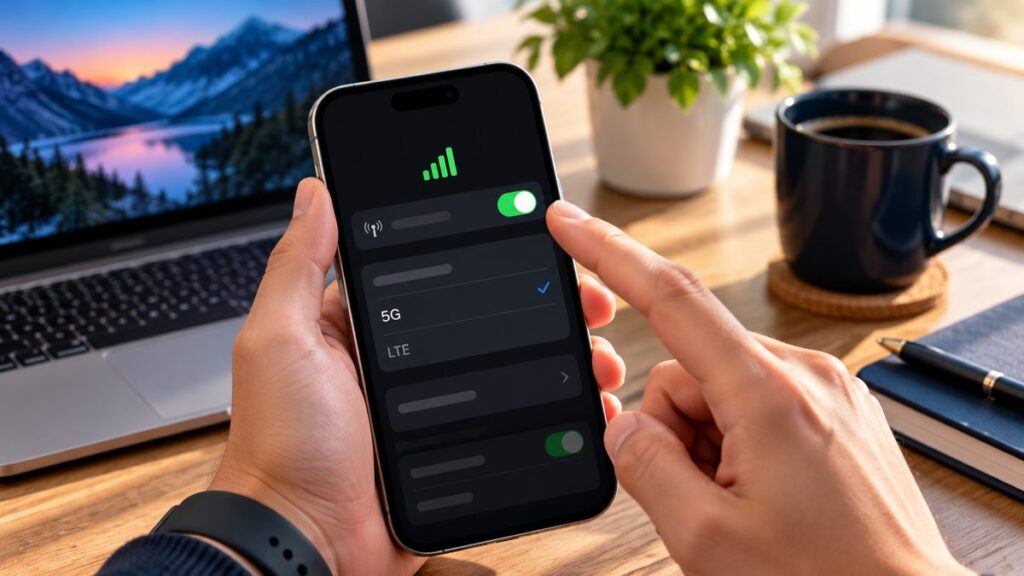
7. Try Switching Between 5G and LTE
If your iPhone shows 5G but the connection is unstable, switching to LTE can be a useful troubleshooting test.
This doesn’t guarantee better speeds, but it can help determine whether the problem is related to a particular cellular network type.
On supported iPhones:
- Open Settings.
- Select Cellular.
- Tap Cellular Data Options or select your cellular line first.
- Open Voice & Data.
- Review the available network options.
Depending on the device and carrier, you may see:
- 5G Auto: Allows iPhone to use 5G when appropriate while managing battery usage.
- 5G On: Uses 5G when available, subject to carrier and device support.
- LTE: Uses an LTE connection rather than 5G.
If you’re experiencing unstable 5G performance, select LTE temporarily and test Safari.
If LTE works but 5G doesn’t, the issue may be related to coverage, carrier settings, or network compatibility.
You can return to your preferred setting after testing.
Not every carrier or iPhone model provides the same network choices.
Also review Data Roaming if you’re traveling outside your carrier’s normal coverage area.
Roaming may be necessary when using a supported travel plan, but additional charges can apply. Confirm the charges with your provider before enabling it.
8. Restart Your iPhone
Restarting can resolve some temporary software and network connection problems.
For iPhones with Face ID:
- Press and hold the Side button and either Volume button.
- Wait for the power-off slider.
- Slide to turn off the device.
- Wait approximately 30 seconds.
- Turn the iPhone back on.
After restarting, wait for the cellular network to reconnect.
Turn off Wi-Fi temporarily and try using Safari again.
If you use a physical SIM and your iPhone reports a SIM error, you can check whether the card is properly seated, provided your model has a SIM tray.
Never insert objects into the SIM opening other than an appropriate SIM-eject tool used according to the manufacturer’s instructions.
If the SIM is damaged or no longer works reliably, contact your carrier for a replacement.
For eSIM-only devices, use the cellular settings and your carrier’s official support process rather than attempting a physical SIM-related fix.
9. Check for a Carrier Settings Update
Your iPhone uses carrier settings to connect properly to your mobile network provider.
Carrier updates can improve network compatibility, connectivity, and support for certain services.
To check:
- Connect your iPhone to a working Wi-Fi or cellular network.
- Open Settings.
- Tap General.
- Select About.
- Wait briefly to see whether a carrier settings update appears.
- If prompted, follow the instructions.
You can also review the carrier settings version on the About screen.
Not every visit to the About screen results in an update prompt.
If your provider hasn’t released a new update, there may be nothing to install.
Carrier settings updates are especially worth checking after changing SIM cards, setting up an eSIM, or switching providers.
If cellular data still doesn’t work, continue with the next step.
10. Update iOS
An outdated or incompatible software configuration may contribute to mobile network problems.
Installing an appropriate iOS update can help when the update includes a relevant fix.
To check:
- Open Settings.
- Tap General.
- Select Software Update.
- Check whether an update is available.
- Back up important data before installing.
Use a reliable Wi-Fi connection if cellular data isn’t working.
After updating, allow your iPhone to reconnect to the carrier network.
Then test mobile internet again.
An iOS update won’t automatically fix every cellular problem. Coverage issues, inactive plans, and carrier account restrictions must still be handled separately.
If mobile data stopped working immediately after an update, record your iOS version and carrier settings version before contacting support.
This information may help identify a compatibility problem.
11. Check VPN and APN Settings Carefully
VPN services and carrier configuration settings can affect how an iPhone connects to the internet.
If cellular data stopped working after installing a VPN or network filtering application, investigate that software.
To check your VPN configuration:
- Open Settings.
- Select General.
- Tap VPN & Device Management.
- Review any connected VPN or installed configuration profiles.
If you control the VPN, temporarily disconnect it for testing.
If the connection starts working after disconnecting the VPN, check the VPN provider’s official troubleshooting instructions.
For work or school-managed devices, contact the administrator before changing VPN or profile settings.
What about APN settings?
An Access Point Name, or APN, helps define how the iPhone connects to the carrier’s data network.
Some carriers permit APN settings to be viewed or edited, while others manage them automatically.
Apple warns that incorrect APN information can interrupt cellular connectivity.
For this reason, don’t replace APN values with random settings found online.
If you suspect an APN problem, contact your carrier and follow its official instructions.
12. Reset Network Settings as a Last Resort
If none of the earlier steps work, resetting network settings may help with certain persistent configuration problems.
However, this should be a last resort, not the first fix.
A network reset removes saved network settings, including Wi-Fi networks and passwords, cellular settings, and relevant VPN or APN configurations.
It doesn’t normally delete your photos, messages, or ordinary application files.
Before proceeding, make sure you have the passwords and configuration details needed to reconnect afterward.
To reset network settings:
- Open Settings.
- Tap General.
- Select Transfer or Reset iPhone.
- Tap Reset.
- Choose Reset Network Settings.
- Follow the confirmation instructions.
After the reset, allow the device to reconnect to the cellular network.
Check that cellular data is enabled and test Safari.
If your phone is managed by an employer or school, consult the administrator before resetting network settings.
If the problem continues even after a network reset, contact your carrier before considering more extensive device troubleshooting.
iPhone Shows 5G or LTE but Has No Internet: What Does It Mean?
Seeing a 5G or LTE indicator means your iPhone is connected to, or recognizes, a cellular network of that type.
It doesn’t guarantee that your data service is functioning properly.
A mobile internet connection can fail because of account problems, network outages, weak data performance, or service configuration errors.
To narrow down the cause:
- Turn off Wi-Fi and test Safari.
- Check whether every internet-based app fails.
- Confirm that your data plan is active.
- Test another location if possible.
- Ask your carrier whether there is a local service problem.
If the phone displays network bars but has no usable internet across multiple locations, carrier support may be necessary.
iPhone Cellular Data Not Working After an iOS Update?
If the issue started immediately after an iOS update, first check the basic cellular settings.
Confirm that the correct line is selected for data, that Airplane Mode is off, and that your carrier account is active.
Then check for a carrier settings update under Settings → General → About.
If the issue affects only certain applications, review their individual cellular permissions.
Avoid repeatedly resetting the device without first checking whether your carrier is experiencing an outage.
If you contact Apple or your carrier, provide the iPhone model, iOS version, carrier name, and a clear description of when the problem began.
Cellular Data vs. Personal Hotspot: What’s the Difference?
Cellular data allows your iPhone itself to connect to the internet through a mobile network.
Personal Hotspot lets your iPhone share an eligible cellular internet connection with another device, such as a laptop or tablet.
If cellular data isn’t working directly on the iPhone, Personal Hotspot may also fail to provide usable internet.
However, if Safari works over cellular data but your laptop cannot connect to the hotspot, the problem may involve hotspot configuration rather than the carrier connection.
Related Reading: iPhone Personal Hotspot Not Working? 12 Fixes to Try (2026).
If your iPhone’s Wi-Fi connection is the issue instead, see our guide: iPhone Connected to Wi-Fi but No Internet? 10 Fixes to Try (2026).
These related guides address different types of connection problems and can help you choose the right solution.
Frequently Asked Questions
Why is my iPhone cellular data not working even with full signal?
Strong signal bars don’t guarantee working data service. The problem may involve a carrier outage, exhausted data plan, account restriction, or network configuration issue.
Why does my iPhone show 5G but have no internet?
Your iPhone may recognize the 5G network even when usable data service is unavailable. Try LTE temporarily, check coverage, and verify your plan with the carrier.
Can Airplane Mode fix cellular data problems?
Sometimes. Turning Airplane Mode on and off can help the iPhone reconnect to the network. It won’t resolve an inactive plan or a network outage.
Why does cellular data work for Safari but not one app?
The affected app may have cellular access disabled in Settings, or the issue may be specific to that application.
Does resetting network settings delete my photos?
No. Reset Network Settings doesn’t normally erase photos or ordinary personal files, but it removes saved Wi-Fi networks and passwords and other network configurations.
Can a VPN stop cellular data from working?
A malfunctioning VPN or filtering service can interfere with network access. If you control the VPN, disconnect it temporarily to test whether it is contributing to the problem.
Should I enable Data Roaming?
Only when appropriate for your mobile plan and location. Roaming can cause additional charges, especially during international travel. Confirm the terms with your carrier.
What should I do if my iPhone says No Service?
Try Airplane Mode and restarting the device, then check coverage and account status with your carrier. If service remains unavailable despite a working account and network, further support may be needed.
Final Thoughts
If iPhone cellular data is not working, start with the simplest checks before changing advanced settings.
Make sure Cellular Data is enabled, confirm that the correct SIM or eSIM is selected, and verify that your carrier account has an active data plan.
If you see a cellular signal but can’t access the internet, check for outages, test LTE instead of 5G when available, and review carrier updates.
For problems affecting only one application, investigate its cellular permissions rather than resetting the entire iPhone.
If none of the standard fixes work, contact your carrier to confirm that your service and network configuration are functioning correctly.
For official guidance, see:
- Apple: View or change cellular data settings
- Apple: If you see SOS, No Service, or Searching
- Apple: Manually update carrier settings
- Apple: View and edit APN settings
The Synced Desk | Practical solutions for everyday technology problems.