Want to hide text message previews on iPhone without turning off notifications completely? Whether you’re concerned about someone reading private messages on your Lock Screen or simply want more privacy, Apple provides several built-in settings to keep your message content hidden.
Fortunately, Apple provides several privacy controls.
If you’re wondering how to hide text messages on iPhone, the simplest approach is to turn off notification previews for Messages.
Open Settings → Notifications → Messages → Show Previews and choose Never.
Your iPhone can continue notifying you about incoming messages without showing the actual message text in supported notification previews.
You can also choose When Unlocked, which hides previews while your iPhone is locked and allows them to appear after unlocking.
In this guide, we’ll explain how to hide text message previews on iPhone, customize Lock Screen notifications, mute individual conversations, and troubleshoot previews that still appear.
These instructions apply to recent iPhones, including the iPhone 17 Pro, with some variation in menu layout depending on your iOS version.
Quick Answer: How to Hide Text Message Previews on iPhone
To hide message contents from notifications:
- Open Settings on your iPhone.
- Tap Notifications.
- Select Messages from the application list.
- Find Show Previews.
- Select Never.
- Return to your Home Screen.
If Show Previews isn’t immediately visible, look in the Messages notification settings or the Lock Screen Appearance section.
With Never selected, your iPhone should no longer display message text in supported Messages notification previews.
You may still see a notification indicating that a message has arrived.
Important: Hiding notification previews does not delete, encrypt, or remove conversations from the Messages app. Anyone who can access your unlocked Messages app may still be able to read them.
For the official settings, see Apple’s notification customization guide.
Table of Contents
What Are Text Message Previews on iPhone?
A text message preview is the information displayed inside a notification when someone sends you a message.
Depending on your settings, a notification may contain:
- The Messages app icon
- The sender’s name or phone number
- Part or all of the message text
- A timestamp
- Other notification details
For example, you might receive a message saying:
“Can we meet at 3 PM tomorrow?”
If notification previews are enabled, someone looking at your iPhone’s screen might be able to read that sentence without opening Messages.
That’s why controlling previews is useful for privacy.
However, the exact details shown depend on the notification layout, iOS version, and whether your device is unlocked.
Method 1: Hide Text Message Previews Only
This is the recommended method if you want to continue receiving Messages notifications without displaying their contents.
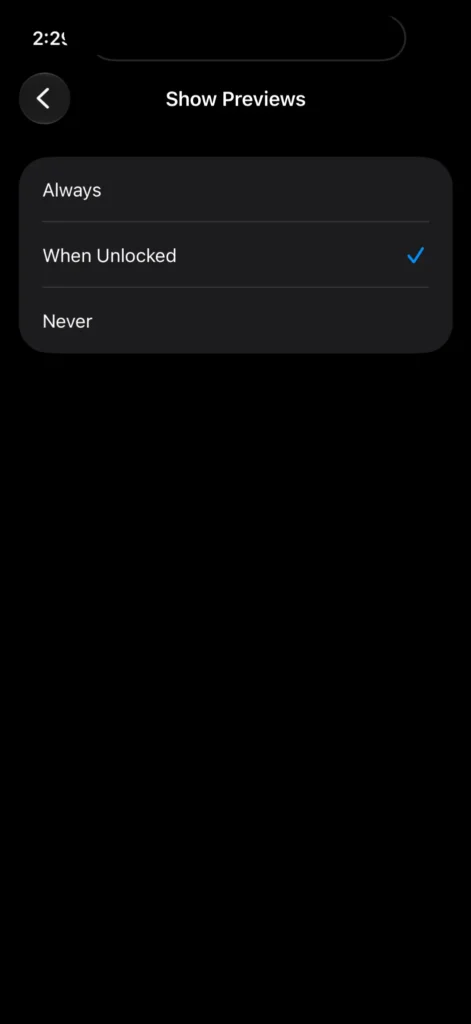
Steps
- Open Settings.
- Tap Notifications.
- Scroll down and select Messages.
- Find Show Previews.
- Tap it.
- Select Never.
- Return to the previous screen.
You don’t need to restart your iPhone.
Your new preference should apply to subsequent supported message notifications.
Insert genuine Screenshot 2 here: Messages Show Previews set to Never.
What Happens After Selecting Never?
You can still receive incoming messages.
Messages notifications can still appear in locations you’ve enabled, such as the Lock Screen, Notification Center, or banners.
However, the actual message text should be concealed in supported notification previews.
The notification may still reveal the app identity or certain sender details.
If you want to hide notifications from the Lock Screen entirely, use Method 3 below.
What Do Always, When Unlocked, and Never Mean?
Apple provides three main preview settings.
Choosing the right one depends on how much privacy you want.
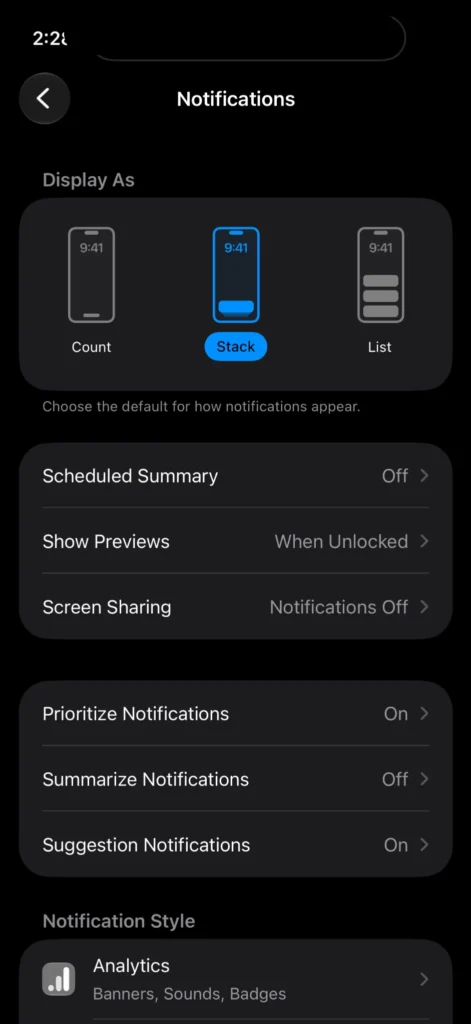
Always
Message previews can appear even while the iPhone is locked.
This is convenient if you want to read messages immediately without unlocking the device.
However, it offers less privacy when other people can see your screen.
When Unlocked
Message previews remain concealed while the iPhone is locked.
Once the device is unlocked, the preview can become visible.
This offers a compromise between privacy and convenience.
Important for Face ID users: Your iPhone may recognize your face and unlock while you’re looking at it, even before you swipe to open the Home Screen. As a result, previews can become visible while you’re still viewing the Lock Screen.
If you want message text to remain hidden even after your phone is unlocked, choose Never.
Never
Supported notification previews don’t display the message’s contents.
This is the stronger privacy setting for people who don’t want incoming text visible in notification banners or on the Lock Screen.
It does not make your Messages conversations invisible inside the actual app.
Insert genuine Screenshot 1 here: Always, When Unlocked, and Never options.
For a complete explanation, see Apple’s Lock Screen notification preview documentation.
Method 2: Hide Notification Previews for Every App
If your goal is broader privacy, you can change the default preview setting for all supported applications.
This can be useful if you don’t want sensitive information appearing from Messages, Mail, or other apps.
Steps
- Open Settings.
- Tap Notifications.
- Select Show Previews.
- Choose Never.
This sets a system-wide preference for supported notification previews.
However, individual applications may have their own notification configurations that override the general setting.
If one app continues showing content, inspect that app’s notification preferences separately.
Should You Use Global or Messages-Only Settings?
Choose the global setting when your goal is to reduce notification previews across your phone.
Choose the Messages-only setting when you still want to see previews from other apps.
For example, you might want to hide private messages but continue reading Calendar reminders or delivery notifications.
Method 3: Remove Message Notifications from the Lock Screen
Sometimes hiding the message text isn’t enough.
You may prefer that Messages notifications don’t appear on your Lock Screen at all.
Apple lets you choose where app notifications are displayed.
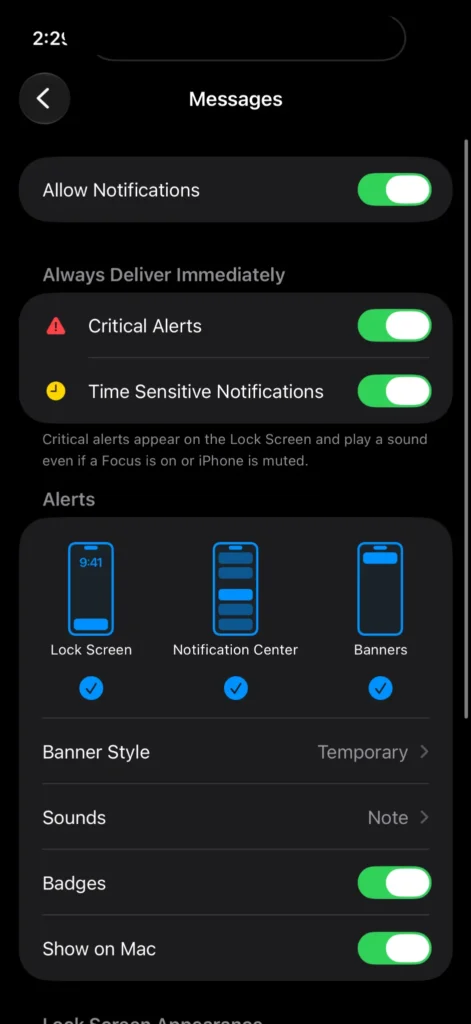
Steps
- Open Settings → Notifications.
- Tap Messages.
- Locate the Alerts section.
- Turn off the Lock Screen alert location.
- Leave Notification Center or Banners enabled if you still want those notification types.
Insert genuine Screenshot 3 here: Messages notification alert locations.
What Does This Change?
Your iPhone should no longer display ordinary Messages alerts on the Lock Screen.
However, you can continue receiving Messages notifications through other enabled locations.
For example, banners may still appear while you’re using the phone.
If you want notification text hidden in those locations too, choose Show Previews → Never.
Disabling Lock Screen alerts and hiding previews are separate settings.
Method 4: Mute Notifications From One Conversation
What if you want to silence messages from just one person or group?
Apple provides Hide Alerts for individual conversations.
This feature is different from hiding message previews.
How to Enable Hide Alerts
- Open the Messages app.
- Select the conversation.
- Tap the contact name or participant icons at the top.
- Find Hide Alerts.
- Turn it on.
You can also swipe left on a conversation from the Messages list and use the available mute control.
The conversation continues receiving messages, but ordinary alerts for that thread are silenced.
Does Hide Alerts Hide the Conversation?
No.
The conversation remains visible in Messages.
Hide Alerts is a notification-management feature, not a private vault or conversation-hiding mechanism.
If your main goal is preventing message text from appearing on the Lock Screen, use Show Previews instead.
Apple explains these controls in its Messages notification settings guide.
Method 5: Stop All Messages Notifications
You can also disable notifications from Messages completely.
This is more restrictive than hiding previews.
Steps
- Open Settings.
- Tap Notifications.
- Select Messages.
- Turn off Allow Notifications.
Messages should stop displaying ordinary notifications.
However, your iPhone can continue receiving messages in the background when the necessary messaging services are functioning.
You can read them by opening the Messages app.
Should You Turn Off All Notifications?
Only if you don’t need immediate message alerts.
For most people, hiding previews is preferable because it preserves awareness of incoming messages.
If your iPhone is missing notifications unexpectedly, see our iPhone Notifications Not Working troubleshooting guide.
How to Hide Message Content but Still See Who Texted
You may want to know who sent a message without exposing the contents.
The best starting point is:
Settings → Notifications → Messages → Show Previews → Never
This hides supported message text previews while allowing normal notification indicators where enabled.
Depending on your iOS version and notification layout, the alert may still show the sender’s name or phone number, or it may identify the notification more generically.
Apple doesn’t provide a universal guarantee that the sender’s identity will remain visible while the message text is hidden.
If you need stronger privacy, disable Lock Screen alerts for Messages entirely.
How to Test Whether Message Previews Are Hidden
After changing your settings, it’s worth checking the result.
Run a Simple Test
- Open Settings → Notifications → Messages.
- Confirm Show Previews is set to Never.
- Lock your iPhone.
- Ask someone you trust to send a harmless test message.
- Wake the Lock Screen.
- Review the notification.
The message’s content should remain hidden in the notification preview.
You may still see a notification indicator.
Insert genuine Screenshot 4 here if available: A real Messages notification with its contents hidden.
What If You Selected When Unlocked?
If you’re using an iPhone with Face ID, remember that looking at the phone can unlock it and reveal previews.
For a reliable comparison, use Never when testing whether previews stay concealed.
Don’t use a private conversation as your screenshot example.
Can You Hide Text Messages on iPhone Without Deleting Them?
Yes, but it’s important to distinguish hiding notifications from hiding conversations.
Hiding Notification Content
You can conceal text message previews without deleting your messages.
This prevents certain information from appearing in notifications while keeping your conversation history intact.
Hiding the Conversation Itself
Changing Show Previews does not remove conversations from your Messages list.
An unlocked iPhone can still display the conversation normally.
If you need to protect the contents of your phone from unauthorized access, use a strong device passcode, Face ID where supported, and appropriate device privacy settings.
Don’t assume that hiding previews alone protects conversations from someone who knows your passcode.
What About Deleting Messages?
Deleting messages is a separate action.
It can remove conversation content from your device, subject to Apple’s deletion and synchronization behavior.
You don’t need to delete messages simply to keep their notification previews private.
How to Hide Messages on iPhone Lock Screen Without Muting Them
If you want to continue hearing notification sounds while concealing message text, use this setup:
- Open Settings → Notifications → Messages.
- Keep Allow Notifications enabled.
- Keep your preferred alert locations enabled.
- Select Show Previews → Never.
- Keep your desired notification sound enabled.
This allows ordinary notifications while preventing supported previews from revealing the message content.
It is a useful configuration for people who rely on incoming messages but don’t want nearby people reading private texts.
Does Notification Layout Affect Message Privacy?
Apple also allows you to change how notifications are organized on the Lock Screen.
Open:
Settings → Notifications
Under Display As, you may see:
- Count
- Stack
- List
Count
Shows a notification count rather than immediately presenting every alert in a full list.
Stack
Groups notifications into a stack.
List
Displays notifications in a more traditional list layout.
These settings affect organization and presentation.
They are not substitutes for Show Previews → Never.
If you choose Stack or List, message content may still appear according to your preview settings.
For privacy, control the previews directly.
Can You Hide Messages While Screen Sharing?
If you share your iPhone screen during a call or use a supported screen-sharing feature, incoming notifications can be distracting or reveal information.
On supported iOS versions, Apple provides a Screen Sharing notification setting.
To review it:
- Open Settings → Notifications.
- Tap Screen Sharing.
- Find Allow Notifications.
- Turn it off if you don’t want notifications displayed during supported sharing sessions.
This is separate from the normal Lock Screen preview controls.
Also review any application’s own screen-sharing or presentation settings before displaying sensitive information.
Apple documents this option in its notification settings guide.
Why Are My Text Message Previews Still Showing?
If you’ve selected Never but message contents still appear somewhere, identify where they’re appearing before making more changes.
1. Check the Messages-Specific Preview Setting
Open Settings → Notifications → Messages.
Make sure Show Previews is set to Never if the option is available.
An app-specific setting may override the general notification configuration.
2. Determine Whether You’re Seeing a Notification or an Open Conversation
Show Previews affects notifications.
It doesn’t hide content when you open Messages itself.
If you can see the conversation because the app is open, that’s expected.
3. Check Whether the Notification Comes From Another App
WhatsApp, Telegram, Messenger, and other messaging applications have their own notification settings.
Changing the Messages preview setting doesn’t necessarily change how those apps display incoming messages.
Review their notification and privacy settings individually.
4. Check Your Mac or Other Apple Devices
If you also use Messages on a Mac, notification previews on that computer are controlled separately.
On your Mac, open System Settings → Notifications → Messages and review its preview and alert settings.
Changing the iPhone’s Lock Screen preferences doesn’t automatically establish identical privacy settings on every device.
If your message conversations aren’t syncing correctly between devices, see our iPhone Messages Not Syncing with Mac guide.
5. Review Notification Summaries
If your iPhone uses notification summary features, review how those features present incoming information.
Settings involving summaries and prioritization can affect how notifications are presented.
Don’t assume a visually shortened notification is equivalent to a disabled text preview.
6. Check for an Available iOS Update
If a notification setting behaves inconsistently, check:
Settings → General → Software Update
Install a compatible update when appropriate.
Avoid resetting your entire iPhone or deleting Messages just to change preview behavior.
Does Hiding Previews Affect iMessage, SMS, MMS, and RCS?
The Messages notification settings generally apply to notifications generated by Apple’s Messages app.
That app supports multiple messaging technologies, including iMessage and compatible carrier messaging services.
The availability of features within a conversation can differ by messaging type.
However, hiding a Messages notification preview is primarily an app-notification setting.
It does not require deleting a conversation or disabling iMessage.
If your messages aren’t arriving at all, that’s a different issue. See our iPhone Not Receiving Text Messages guide.
Extra Privacy Tips for iPhone Lock Screen
Hiding previews is a useful step, but it’s only one part of protecting private information.
Use a Strong Passcode
A strong passcode protects access to your device when locked.
Avoid sharing it unnecessarily.
Review Lock Screen Access
Under Settings → Face ID & Passcode, you can review certain features available while the iPhone is locked.
Adjust these based on your needs.
Review Other Lock Screen Information
Widgets and other Lock Screen elements can show information from apps.
If a widget displays details you would rather keep private, review that widget’s settings or remove it.
Our iPhone Lock Screen Widgets Not Updating guide covers Lock Screen widget configuration and troubleshooting.
Be Careful With Screenshots
If you’re documenting your notification settings, don’t publish a screenshot containing real private messages.
Use harmless test content and redact identifying details.
Frequently Asked Questions
How do I hide text message previews on iPhone?
Open Settings → Notifications → Messages → Show Previews and select Never. This hides supported message text previews without requiring you to delete conversations.
Can I hide text messages on my iPhone Lock Screen?
Yes. You can hide the contents using Show Previews → Never, or prevent ordinary Messages alerts from appearing on the Lock Screen by disabling the Lock Screen alert location.
What is the difference between When Unlocked and Never?
When Unlocked allows previews after your iPhone unlocks. Never keeps supported notification previews concealed even when the device is unlocked.
Will I still receive messages if I hide previews?
Yes. Hiding previews doesn’t prevent messages from being delivered. It changes how their contents appear in notifications.
Can I hide text messages from one person?
You can mute alerts from an individual conversation using Hide Alerts. However, that is different from a per-conversation private preview setting. To hide message contents in notifications, use the Messages preview controls.
Will hiding previews delete old messages?
No. Changing notification previews doesn’t erase your conversation history.
Can I hide only the message text and still show the sender?
Setting Messages previews to Never is the best starting point. The remaining visible sender details can vary according to iOS version and notification layout.
Does Hide Alerts hide messages on the Lock Screen?
Hide Alerts mutes notifications for a selected conversation. It doesn’t hide the conversation in Messages. For general notification-content privacy, use Show Previews.
Why do message previews appear when I look at my iPhone?
If your setting is When Unlocked, Face ID may unlock the device while you’re looking at it, allowing previews to become visible. Use Never if you want notification text concealed regardless of the unlock state.
Does this work on iPhone 17 Pro?
Yes. The iPhone 17 Pro supports Apple’s notification preview settings. Open Settings → Notifications and configure the Messages app or global previews.
Final Thoughts
If you’re trying to hide text messages on iPhone, start by deciding what you want to protect.
If you want notifications without exposing private message contents, choose Settings → Notifications → Messages → Show Previews → Never.
If you want messages hidden only while the phone is locked, use When Unlocked.
If you don’t want Messages notifications on the Lock Screen at all, disable that alert location.
For one noisy conversation, use Hide Alerts instead.
Most importantly, remember that hiding notification previews doesn’t hide or delete the conversations themselves.
With these settings, you can keep receiving messages while controlling how much information appears on your iPhone’s screen.