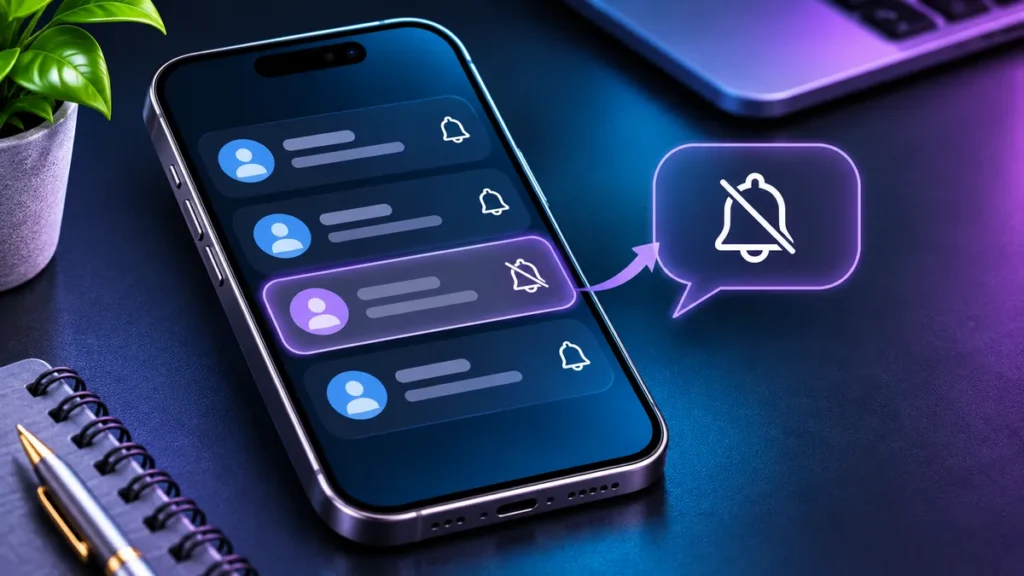
What does Hide Alerts mean on iPhone? If you’ve noticed this option in the Messages app or spotted a crossed-out bell beside a conversation, you might wonder whether it blocks someone, stops incoming texts, or prevents notifications from appearing.
The answer is simple: Hide Alerts mutes notifications from one specific conversation without stopping the messages themselves.
You can continue receiving and reading messages normally. The difference is that your iPhone stops sending ordinary notifications for that conversation.
This is particularly useful when a group chat becomes too active, someone sends frequent messages, or you want fewer interruptions without blocking anybody.
However, Hide Alerts isn’t the same as blocking a contact, deleting messages, using Do Not Disturb, or hiding message previews.
In this guide, you’ll learn exactly what Hide Alerts does, whether the other person can tell, how to turn it on or off, and what to check if messages remain silent afterward.
Quick Answer: What Does Hide Alerts Mean on iPhone?
Hide Alerts means you have muted notifications for a particular Messages conversation.
When you enable it:
- Messages from that conversation can still arrive.
- Your existing messages remain available.
- The conversation isn’t deleted.
- The sender isn’t blocked.
- Ordinary notifications for that conversation are silenced.
- Notifications from other conversations continue according to their own settings.
- You can turn alerts back on whenever you want.
To enable it, open Messages, select a conversation, tap the contact or group name at the top, and turn on Hide Alerts.
You can also swipe left on a conversation in the Messages list and tap the mute button.
Apple explains the feature in its official Messages notification guide.
Table of Contents
What Does Hide Alerts Mean on iPhone? 7 Essential Facts
Before changing your settings, it’s worth understanding what actually happens when a conversation is muted.
1. Hide Alerts Silences One Conversation
The feature is designed to reduce interruptions from a particular person or group.
For example, imagine you’re part of a group chat containing several friends.
Throughout the day, everyone sends messages, photos, links, and reactions.
If you don’t want constant notifications but still want access to the conversation, Hide Alerts lets you mute it.
Other conversations can continue notifying you normally.
This is different from disabling notifications for the entire Messages app.
2. You Still Receive Messages
Enabling Hide Alerts doesn’t stop message delivery.
Incoming texts can still appear inside the conversation when you open Messages.
For example, if someone sends you five messages while the conversation is muted, you can open the thread later and read them.
The feature changes notification behavior, not the underlying messaging service.
If messages aren’t arriving at all, that is a different problem.
See our iPhone Not Receiving Text Messages troubleshooting guide for help identifying delivery problems.
3. Hide Alerts Doesn’t Block the Sender
Muting a conversation is not the same as blocking a phone number.
With Hide Alerts enabled, the other person can continue sending you messages.
You can also reply whenever you want.
Blocking is a separate action that restricts communication from a particular contact or number.
If your goal is simply to stop notification interruptions, muting is generally less disruptive.
4. Your Conversation History Remains Available
Hide Alerts doesn’t delete messages.
Photos, links, previous conversations, and other existing message content remain available according to your normal Messages settings.
The conversation also remains in your Messages list unless you separately delete it.
This makes Hide Alerts useful when you want to preserve a conversation without being interrupted by every new message.
5. Other Messages Continue Working Normally
Hide Alerts applies to the conversation you select.
It doesn’t automatically mute every conversation or disable all notifications on your iPhone.
For example:
You might mute a busy study group while keeping notifications enabled for family members.
You can also mute multiple conversations individually.
If notifications disappear across your entire phone, investigate global notification settings or Focus rather than assuming Hide Alerts caused the problem.
6. A Crossed-Out Bell Identifies Muted Conversations
When Hide Alerts is enabled, Messages generally displays a crossed-out bell icon beside the muted thread.
This helps you identify conversations that aren’t producing ordinary notifications.
If you see this symbol beside a conversation you didn’t intentionally mute, you may have activated Hide Alerts accidentally.
We’ll explain how to reverse it below.
7. You Can Unmute the Conversation Anytime
Hide Alerts isn’t permanent.
You can return to the same conversation and switch the setting off.
Once unmuted, new messages should generate notifications according to your other Messages, Focus, and device settings.
You don’t need to restart your iPhone or ask the sender to do anything.
How to Turn On Hide Alerts on iPhone
There are two straightforward methods.
Both work through the Messages app.
Method 1: Swipe Left on a Conversation
This is usually the fastest method.
- Open Messages.
- Find the conversation you want to mute.
- Swipe left on the conversation.
- Locate the bell-shaped mute control.
- Tap it to enable Hide Alerts.
A muted notification symbol should appear beside the conversation.

This method is useful when you want to mute a conversation without opening it.
Apple demonstrates the swipe action in its guide to using Messages on iPhone.
Method 2: Use the Conversation Settings
You can also enable the feature from inside a conversation.
- Open Messages.
- Select the conversation.
- Tap the contact name, photo, or group icons at the top.
- Find Hide Alerts.
- Turn on the switch.
- Return to the conversation.
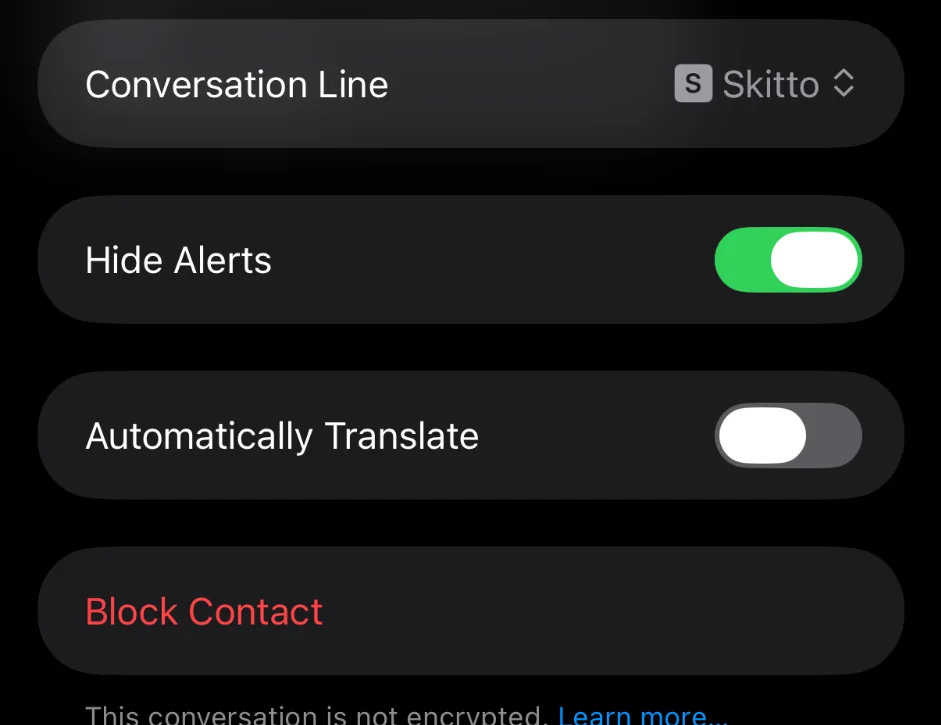
This method is particularly convenient when you’re already reading a chat.
The option can appear in both individual and group conversations.
What Does the Bell with a Line Through It Mean on iPhone?
The crossed-out bell is a visual indicator that alerts have been muted for a specific conversation.
When you see the symbol beside a chat in Messages, it generally means Hide Alerts is enabled.

Does the Bell Mean Someone Blocked You?
No.
The icon describes a notification setting on your device.
It isn’t proof that anyone blocked you or changed their own messaging settings.
Why Do Some Older iPhones Show a Crescent Moon?
Older iOS versions used a crescent moon icon to identify muted conversations.
Apple changed the visual indicator in later versions.
If you see tutorials describing a moon symbol instead of a bell, they may refer to an older Messages interface.
On current supported iOS versions, look for the muted-bell indicator.
How to Turn Off Hide Alerts on iPhone
If you want to receive notifications from a muted conversation again, turn off Hide Alerts.
Method 1: From Conversation Details
- Open Messages.
- Select the muted conversation.
- Tap the contact or group name at the top.
- Find Hide Alerts.
- Turn it off.
The conversation should no longer be muted by that setting.
Method 2: From the Messages List
- Open Messages.
- Find the muted conversation.
- Swipe left.
- Tap the available mute/unmute control.
The icon may change according to the current state.
After disabling Hide Alerts, you can ask a trusted contact to send a harmless test message.
If alerts don’t return, check the troubleshooting section later in this guide.
Does Hide Alerts Notify the Other Person?
This question deserves a careful answer.
Hide Alerts doesn’t send an ordinary text message saying that you’ve muted someone. However, Apple documents that senders can receive an indication that notifications are silenced.
The exact indication can depend on the messaging experience and settings.
Therefore, don’t assume muting a conversation is guaranteed to be invisible to the other person.
What About Share Focus Status?
Focus Status is a related but separate feature.
When Focus is active and status sharing is enabled, supported Messages conversations may display an indication that you have notifications silenced.
You can review Focus Status sharing through the relevant Focus settings and, where supported, individual conversation options.
This doesn’t mean that muting someone automatically sends a conventional message or reveals all your notification preferences.
Can the Sender Still See Delivered?
Hide Alerts is a notification setting.
It doesn’t independently disable iMessage delivery indicators.
If a message is successfully delivered, the sender may still see the normal delivery status.
If messages show Not Delivered, the cause is not necessarily related to muting.
Our iMessage Not Delivered troubleshooting guide covers connection, activation, and delivery failures.
Does Hide Alerts Turn Off Read Receipts?
No.
Read Receipts is a separate Messages setting.
Whether someone can see that you’ve read a message depends on your existing Read Receipts configuration and the messaging service being used.
Muting notifications doesn’t automatically change that preference.
Does Hide Alerts Stop Phone Calls?
Hide Alerts in Messages is primarily a conversation-notification control.
It doesn’t automatically block the sender’s phone number or turn off all incoming calls.
If someone calls you through the ordinary Phone app, call notifications are managed through your iPhone’s calling, Focus, and other relevant settings.
Don’t rely on Hide Alerts to silence all communications from a person.
If you want to reduce calls as well as messages, review the appropriate Phone or Focus controls separately.
Does Hide Alerts Work for Group Text Messages?
Yes.
You can use Hide Alerts for supported group conversations in Apple’s Messages app.
This is useful when a group sends frequent messages but you still want to remain a member.
How to Mute a Group Text
- Open Messages.
- Select the group conversation.
- Tap the group name or participant icons.
- Find Hide Alerts.
- Turn it on.
You can also swipe left on the group conversation in the Messages list and use the mute control.
The conversation remains available.
New messages can continue arriving without producing ordinary alerts for that thread.
Does Muting Remove You From the Group?
No.
Muting doesn’t change group membership.
Other participants can continue messaging you as part of that group.
If you want to leave an eligible iMessage group, that’s a separate action with specific requirements.
If your group uses SMS, MMS, or RCS, your available options may differ from an iMessage group.
Can Mentions Still Produce Alerts?
Group-message mentions and notification behavior can depend on the software and settings involved.
Some supported messaging experiences can notify users when they’re mentioned even if ordinary conversation alerts are muted.
If you’re still receiving notifications from a muted group, check whether they’re related to mentions, another device, or notification settings before assuming the feature is broken.
Hide Alerts vs Do Not Disturb vs Silent Mode
These features are often confused, but they serve different purposes.
Hide Alerts
Purpose: Mute notifications from one particular conversation.
Use it when a specific chat becomes distracting but you still want other notifications.
Do Not Disturb
Purpose: Reduce interruptions more broadly through Focus settings.
Depending on your configuration, Do Not Disturb can silence notifications from multiple apps or people while allowing selected exceptions.
It can also operate on a schedule.
Silent Mode
Purpose: Silence ordinary notification and ringtone sounds across the phone.
Silent Mode doesn’t selectively mute one Messages conversation.
On supported iPhones, it can be controlled through the Action button, Control Center, or other system settings.
Which Should You Choose?
Use Hide Alerts when one conversation is too noisy.
Use Do Not Disturb or another Focus when you want fewer interruptions during work, study, or sleep.
Use Silent Mode when you want the phone’s ordinary notification sounds silenced more broadly.
For Apple’s explanation of Silent Mode, see its official iPhone sound controls guide.
Hide Alerts vs Hide Message Previews
This is another important difference.
Hide Alerts controls whether a selected conversation generates ordinary notifications.
Show Previews controls how much message content appears within supported notifications.
For example, you can receive a notification without displaying the actual message text.
Or you can mute one conversation while keeping notifications from other people visible.
If your goal is to keep message contents private on the Lock Screen, you should adjust notification previews rather than relying on Hide Alerts alone.
You can review these settings through:
Settings → Notifications → Messages → Show Previews
Depending on the available controls, choose Always, When Unlocked, or Never.
Hide Alerts doesn’t create a hidden or password-protected conversation.
Why Am I Still Getting Notifications After Turning On Hide Alerts?
If notifications continue appearing from a conversation you’ve muted, investigate where they’re coming from.
1. Check the Correct Conversation
Make sure you muted the intended thread.
You may have several conversations involving the same people.
An individual chat and a group chat are separate conversations.
Muting one doesn’t automatically mute the other.
2. Verify That Hide Alerts Is Enabled
Open the conversation.
Tap the contact or group details.
Check whether Hide Alerts is turned on.
If necessary, turn it off and on again.
3. Check Your Other Apple Devices
If you use Messages on a Mac, notifications can be managed separately on that device.
An alert you hear on your Mac doesn’t necessarily mean the iPhone’s Hide Alerts setting is being ignored.
Open Messages on your Mac, select the conversation, and review its notification controls.
If messages themselves aren’t appearing consistently across devices, see our iPhone Messages Not Syncing with Mac guide.
4. Check for Mention Notifications
Some messaging configurations treat direct mentions differently from ordinary group activity.
If you’re in a group conversation, check the nature of the alert and your available notification preferences.
5. Identify the Actual App
Messages, WhatsApp, Telegram, Messenger, and other services have separate settings.
Turning on Hide Alerts inside Apple’s Messages app doesn’t mute conversations in unrelated messaging apps.
Use the corresponding application’s notification settings instead.
Hide Alerts Is Off but Messages Still Don’t Notify Me
The opposite problem can happen too.
You might disable Hide Alerts but still receive no notification sounds or banners.
Try these checks.
Check Global Messages Notifications
Open:
Settings → Notifications → Messages
Make sure Allow Notifications is enabled if you want ordinary alerts.
Review your selected alert locations, sounds, and other preferences.
Check Focus
Open Settings → Focus.
Review whether Do Not Disturb, Sleep, or another Focus is active.
Check any scheduled Focus automations and permitted contacts.
Check Silent Mode and Alert Volume
If messages appear silently, inspect the device’s sound settings.
Silent Mode, alert volume, and notification sounds affect whether you hear incoming messages.
Check Your Apple Watch
If you wear an Apple Watch, notification routing may direct supported alerts to the watch rather than your iPhone.
This is expected behavior in some configurations.
Check Message Filtering
On supported iOS versions, Messages filtering can affect how notifications from unknown senders and spam are handled.
Review Messages filters if the problem occurs mainly with unknown numbers.
For broader troubleshooting, see our iPhone Notifications Not Working guide.
Apple also explains these checks in its official guide for missing Messages notifications.
Should You Use Hide Alerts on iPhone?
Hide Alerts is useful when you want to remain available without being interrupted by every message.
It can be appropriate for:
- Busy group discussions
- Nonurgent conversations
- Large family chats
- Community groups
- Work-related threads outside active working hours
- Temporary situations where you want to reduce distractions
However, be careful about muting conversations that regularly contain urgent information.
For example, if you rely on a family member to contact you about emergencies, muting that conversation may cause you to miss an important alert.
In those cases, consider adjusting your broader notification preferences rather than muting the conversation completely.
The best choice depends on how urgently you need to know about new messages.
Frequently Asked Questions
What does Hide Alerts mean on iPhone Messages?
It means notifications from the selected conversation are muted while messages continue to arrive. The sender isn’t blocked, and the conversation remains available.
Will I still receive texts if Hide Alerts is on?
Yes. You can continue receiving messages and reading them inside the Messages app.
Can someone tell if I hide alerts for them?
Apple documents that senders can see a notifications-silenced indication in supported circumstances. Hide Alerts doesn’t send a normal text announcing the change, but you shouldn’t assume the setting is invisible.
Does Hide Alerts block phone calls?
No. It primarily controls notifications from the selected Messages conversation. Ordinary calls are managed separately.
Does Hide Alerts delete messages?
No. Muting a conversation doesn’t delete the messages or remove the conversation.
What does the crossed-out bell mean next to a text message?
It indicates that alerts for that conversation have been muted.
Does Hide Alerts stop messages from showing as Delivered?
No. Hide Alerts doesn’t independently change iMessage delivery status.
Does Hide Alerts turn off read receipts?
No. Read Receipts is a separate setting and must be managed independently.
Can I turn off Hide Alerts later?
Yes. Open the conversation details and disable Hide Alerts, or use the available unmute control from the Messages list.
Does Hide Alerts work on group chats?
Yes. You can mute supported group conversations without leaving them. The messages remain available for you to read later.
Is Hide Alerts the same as Do Not Disturb?
No. Hide Alerts mutes an individual conversation, while Do Not Disturb is a broader Focus feature with its own notification rules and exceptions.
Does Hide Alerts hide messages from the Lock Screen?
It suppresses ordinary notifications for the selected conversation, but it doesn’t hide the conversation itself or change the contents of messages stored in the app.
Final Thoughts
Now you know what Hide Alerts means on iPhone and when to use it.
The feature allows you to mute notifications from a particular Messages conversation without blocking the sender, deleting the chat, or preventing messages from arriving.
You can enable it by swiping left on a conversation or using the Hide Alerts switch in its details.
A crossed-out bell identifies muted threads, and you can turn notifications back on whenever needed.
Remember that Hide Alerts differs from Do Not Disturb, Silent Mode, blocking contacts, and hiding message previews.
If your goal is fewer interruptions from one conversation while keeping your messages available, Hide Alerts is a simple and useful option.