Gmail not working on iPhone? Maybe your inbox suddenly stopped updating, new emails aren’t arriving, notifications have disappeared, or the Gmail app keeps loading without showing your messages.
Sometimes Gmail works normally on your computer but refuses to sync on your iPhone. In other situations, emails remain stuck in the Outbox, your Google Account asks you to sign in again, or the app crashes when you open it.
Fortunately, these problems don’t always mean something is wrong with your Google Account.
A weak internet connection, outdated app, restricted background activity, incorrect notification settings, or full Google Account storage can interfere with Gmail.
The important thing is to identify whether the problem affects the Gmail app, Apple’s Mail app, or your Google Account itself.
In this guide, we’ll explain 11 practical fixes for Gmail not working on iPhone, starting with simple checks and moving toward more advanced troubleshooting.
These instructions apply to recent iPhones, including the iPhone 17 Pro, although menu labels may vary depending on your iOS and Gmail app versions.
Quick Answer: How to Fix Gmail Not Working on iPhone
If Gmail isn’t working, follow these steps in order:
- Check your iPhone’s Wi-Fi or cellular internet connection.
- Open Gmail in Safari to determine whether the problem affects your account or only the app.
- Refresh the Gmail inbox manually.
- Update the Gmail app and restart your iPhone.
- Enable Background App Refresh and check Low Power Mode.
- Review Gmail’s synchronization settings.
- Check Gmail and iPhone notification permissions.
- Check Google Account storage and missing-message folders.
- Resolve Google Account sign-in or authentication problems.
- Check Apple Mail account settings if you use Gmail through Apple’s Mail app.
- Reinstall Gmail or reconnect the account only after confirming your messages and important drafts are safely stored.
Important: Don’t immediately delete your Gmail account or erase your iPhone. Most synchronization and notification problems can be investigated without removing accounts or personal data.
Google provides an official Gmail synchronization troubleshooting guide for iPhone and iPad.
Table of Contents
Why Is Gmail Not Working on iPhone?
Several different issues can prevent Gmail from functioning normally.
Common causes include:
- An unstable Wi-Fi or cellular connection
- A temporary Gmail service problem
- An outdated Gmail app
- Background App Refresh restrictions
- Low Power Mode limiting background activity
- Incorrect Gmail notification preferences
- An expired Google Account sign-in session
- Google Account storage reaching its limit
- Messages being filtered into Spam or another category
- Problems with an account configured in Apple Mail
- Temporary app or iOS software errors
However, these problems don’t all produce the same symptoms.
For example, an inbox that updates only when you open Gmail is different from an account that can’t receive emails even in a web browser.
Before changing settings, identify exactly what’s failing.
Fix 1: Check Your iPhone’s Internet Connection
Gmail needs a working internet connection to synchronize new messages, send emails, and download attachments.
Your iPhone may show a Wi-Fi symbol even when the connected network doesn’t provide internet access.
How to Test Your Connection
- Open Safari.
- Visit a reliable website.
- Check whether it loads normally.
- Open Gmail again.
- Try refreshing your inbox.
If Safari also fails to load websites, the problem may involve your connection rather than Gmail.
Switch Between Wi-Fi and Cellular Data
Try another available network.
For example:
- Open Settings → Wi-Fi.
- Temporarily disconnect from Wi-Fi.
- Confirm that cellular data is available.
- Open Safari and test your connection.
- Return to Gmail.
If Gmail works over cellular data but not Wi-Fi, investigate the wireless network.
Our iPhone Connected to Wi-Fi but No Internet guide explains how to troubleshoot that situation.
What If Gmail Works on Wi-Fi but Not Cellular Data?
Open Settings → Cellular or Mobile Data.
Scroll to the app list and check whether Gmail is allowed to use cellular data, if that control is available.
If cellular internet doesn’t work in any application, see our iPhone Cellular Data Not Working guide.
Don’t reset your entire network configuration when the problem affects only Gmail.
Fix 2: Check Gmail in Safari to Identify an Account or App Problem
Before changing anything inside the Gmail app, determine whether your Google Account is functioning normally.
Open Gmail in a Browser
- Open Safari on your iPhone.
- Visit mail.google.com.
- Sign in if necessary.
- Check whether your inbox loads.
- Look for recent messages.
- If appropriate, send a harmless test email to another address you control.
What Do the Results Mean?
Gmail works in Safari but not in the app: The issue is more likely related to the Gmail app, its local configuration, or device settings.
Gmail fails in both places: Investigate your internet connection, Google Account status, storage, or a possible service disruption.
Gmail works on your Mac but not your iPhone: Focus on the iPhone’s application, network, and sign-in settings.
Could Gmail Be Experiencing an Outage?
Yes, temporary service problems can occur.
If Gmail fails across multiple devices and networks, review the Google Workspace Status Dashboard for reported Gmail incidents.
The dashboard is useful, but it doesn’t diagnose every individual account problem.
Avoid repeatedly reinstalling Gmail while a confirmed service disruption is underway.
Fix 3: Manually Refresh Your Gmail Inbox
Sometimes Gmail doesn’t display recent messages until the inbox is refreshed.
Google specifically recommends manually syncing the Gmail app as an early troubleshooting step.
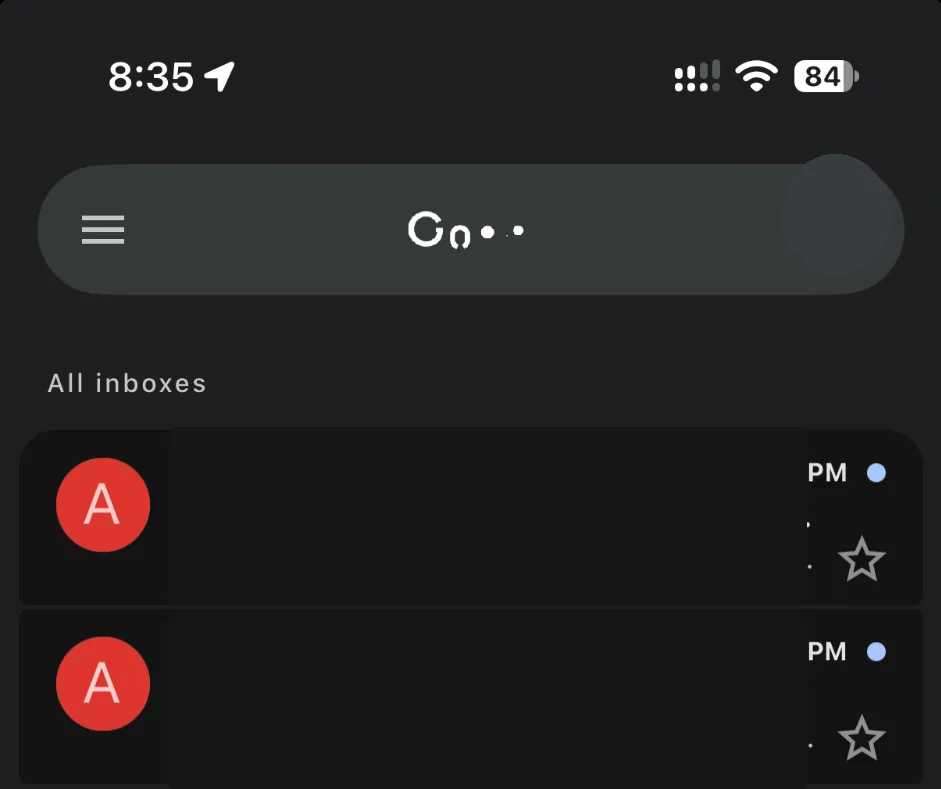
How to Refresh Gmail on iPhone
- Open the Gmail app.
- Go to your Inbox.
- Place your finger near the top of the message list.
- Swipe downward.
- Release when the refresh indicator appears.
- Allow the app to update.
- Check for new messages.
What If New Emails Appear Only After Refreshing?
This suggests Gmail can retrieve messages when actively opened, but background updating or notifications may not be functioning as expected.
Possible contributors include:
- Background App Refresh restrictions
- Low Power Mode
- Gmail synchronization preferences
- Notification settings
- Temporary app problems
Continue with the background and notification checks below.
Does Pull-to-Refresh Download Every Missing Email?
Not necessarily.
Refreshing requests updated information, but it won’t recover permanently deleted messages or override account restrictions.
If emails are missing from Gmail itself, check the Spam, Trash, All Mail, and account-storage sections later in this guide.
Fix 4: Update the Gmail App and Restart Your iPhone
An outdated application can contain bugs or compatibility problems that have already been addressed in a newer version.
Updating Gmail is a straightforward troubleshooting step.
Update Gmail Through the App Store
- Open the App Store.
- Search for Gmail.
- Open the official Gmail app listing from Google.
- Tap Update if an update is available.
- Reopen Gmail.
- Check whether the problem persists.
If the App Store shows Open instead of Update, there may be no newer version currently offered to your device.
Restart Your iPhone
On an iPhone 17 Pro or another Face ID model:
- Press and hold the Side button and either Volume button.
- Wait for the power-off slider.
- Drag the slider to shut down.
- Wait approximately 30 seconds.
- Press and hold the Side button until the Apple logo appears.
- Open Gmail again.
Restarting can resolve temporary software problems without deleting your email account.
Should You Update iOS Too?
If Gmail continues crashing or behaving abnormally, check Settings → General → Software Update.
Install a suitable update if appropriate.
However, don’t assume that every Gmail problem is caused by your iOS version.
Check the network, app, and account first.
Fix 5: Enable Background App Refresh and Check Low Power Mode
This is one of the most important fixes when Gmail works while open but doesn’t update as expected in the background.
Google recommends checking Background App Refresh on iPhone.
Enable Background App Refresh for Gmail
- Open Settings.
- Select General.
- Tap Background App Refresh.
- Check whether the feature is enabled globally.
- Scroll to Gmail.
- Enable Background App Refresh for Gmail if available.
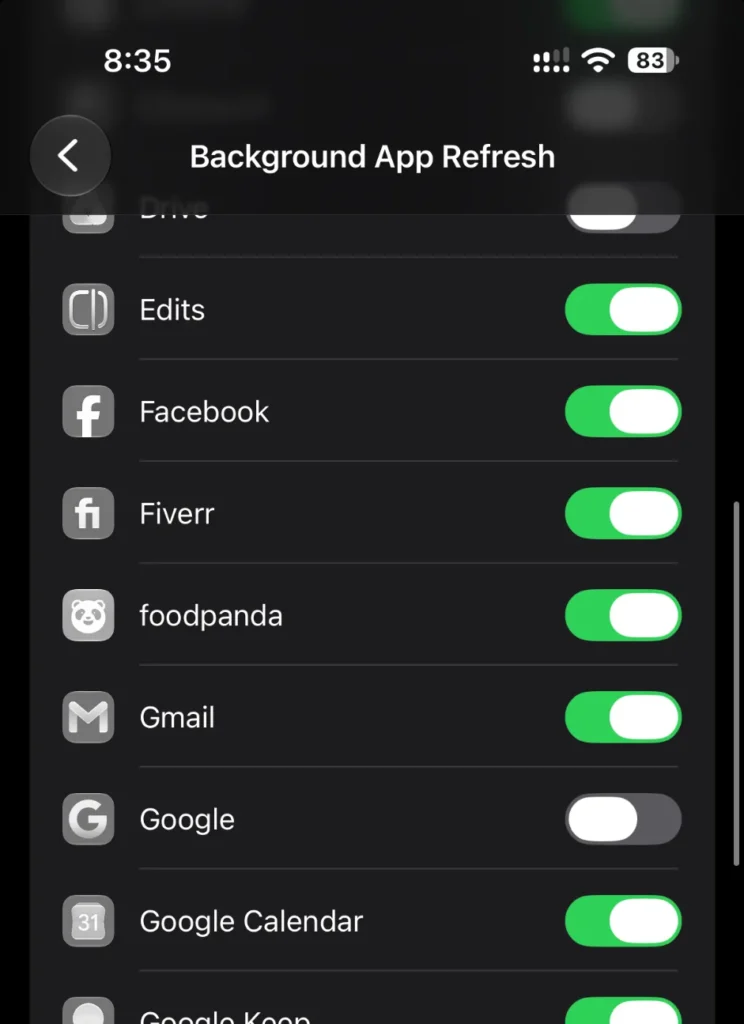
If the Gmail switch is unavailable or grayed out, check whether Low Power Mode or another device restriction is affecting it.
Check Low Power Mode
Low Power Mode reduces certain background activities to conserve battery power.
On an iPhone 15 or later:
- Open Settings.
- Tap Battery.
- Select Power Mode.
- Review Low Power Mode.
- Temporarily turn it off for testing if appropriate.
On older iPhones, the control may appear directly under Battery.
Does Low Power Mode Stop All Gmail Notifications?
Not necessarily.
Low Power Mode restricts certain background activities, but it doesn’t guarantee that all push notifications stop.
Background App Refresh and push notifications are also separate mechanisms.
If Gmail receives messages but notifications don’t appear, inspect the notification settings in Fix 7.
What About Adaptive Power?
Newer supported iPhones, including iPhone 17 Pro, have additional Adaptive Power controls.
These can make battery-saving adjustments depending on usage.
For Gmail troubleshooting, check the actual Low Power Mode and app settings instead of assuming Adaptive Power is automatically responsible.
Fix 6: Check Gmail Synchronization Settings
Google allows supported versions of the Gmail app to control how many days of email are synchronized.
If older messages aren’t appearing, review this setting.
How to Check Gmail Sync Settings
- Open Gmail.
- Tap the Menu icon.
- Select Settings.
- Under General, look for Data usage.
- Open Sync settings, if available.
- Review the number of days of mail selected.
- Choose an appropriate synchronization period.
Insert optional genuine Screenshot 5 here: Gmail sync settings.
Google documents this setting in its official iPhone synchronization guide.
What Does the Sync Duration Mean?
The synchronization period affects how much email history the app keeps available locally.
For example, a shorter period may limit which older messages are readily available without additional loading.
It doesn’t mean Google has deleted messages outside that period.
What If You Cannot Find Sync Settings?
Gmail’s settings interface can change, and account types may expose different options.
Don’t change unrelated settings to match an old tutorial.
Continue checking your connection, notifications, account storage, and Gmail web inbox.
Why Aren’t New Emails Syncing?
If recent messages fail to appear even after manually refreshing, check whether they exist in Gmail on the web.
If they don’t appear there either, the problem may not be the iPhone’s synchronization window.
Fix 7: Fix Missing Gmail Notifications on iPhone
Sometimes Gmail receives emails normally, but your iPhone doesn’t alert you.
This is a notification problem rather than a complete Gmail synchronization failure.
You need to check both Gmail’s preferences and iOS notification permissions.
Check Gmail’s Own Notification Settings
- Open Gmail.
- Tap Menu.
- Select Settings.
- Find Email notifications under Notifications.
- Review the available notification levels.
- Choose the level you want.
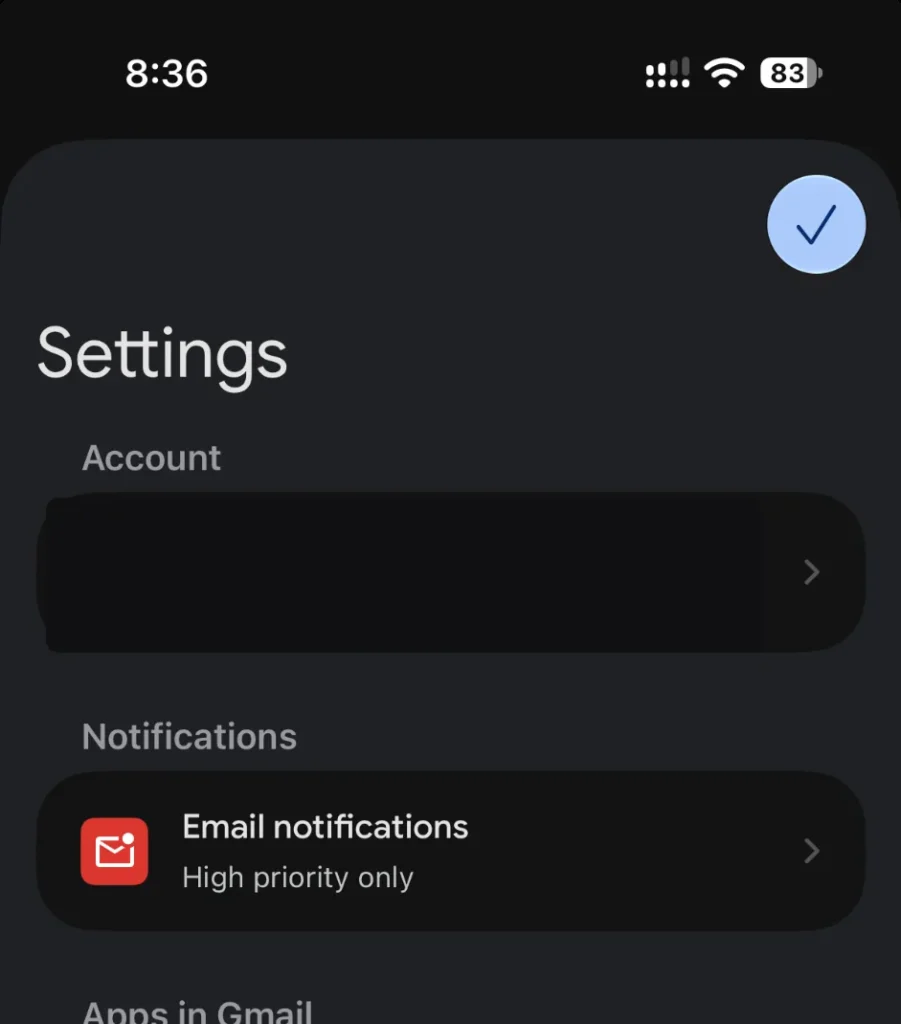
Google explains that Gmail’s default notification behavior can focus on messages in the Primary category.
If you’re expecting alerts for other mail categories, review the options available in your Gmail version.
Check iPhone Notification Permissions
- Open Settings.
- Select Notifications.
- Find Gmail.
- Turn on Allow Notifications if disabled.
- Review Lock Screen, Notification Center, and Banner options.
- Check Sounds and Badges.
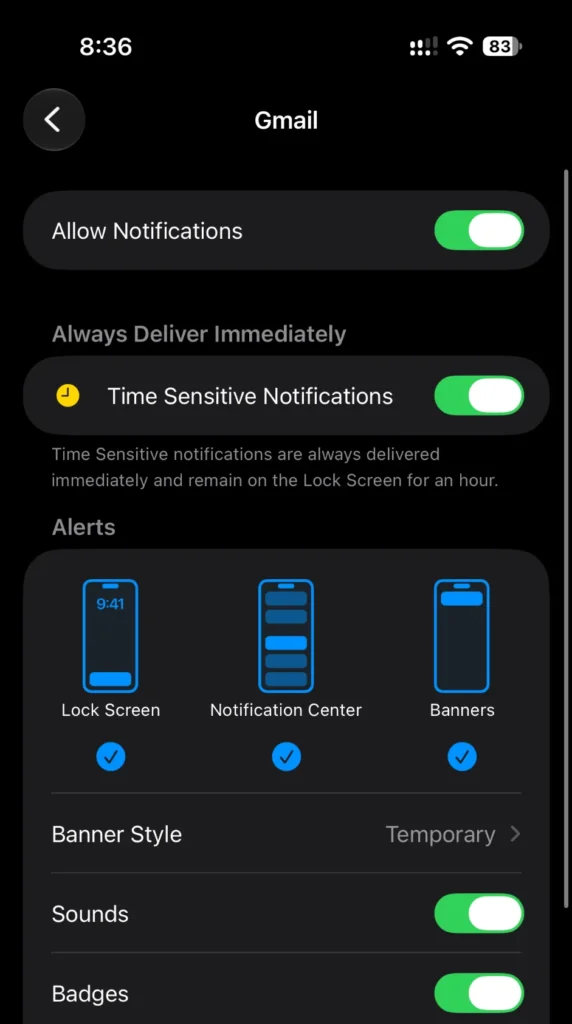
Check Focus and Scheduled Summary
Open Settings → Focus.
Review whether Do Not Disturb, Sleep, or another Focus is silencing Gmail notifications.
Also check whether Gmail is included in a scheduled notification summary.
Scheduled delivery can delay when alerts are displayed.
What If Only One Gmail Account Doesn’t Notify You?
Gmail supports multiple accounts.
Notification preferences may need to be reviewed separately for each account.
Make sure you’re adjusting the correct inbox.
For broader iOS notification issues, read our iPhone Notifications Not Working troubleshooting guide.
Google also provides an official Gmail notification settings guide.
Fix 8: Check Google Account Storage and Missing Emails
A full Google Account can prevent Gmail from sending or receiving messages.
Google Account storage is shared across services including Gmail, Google Drive, and Google Photos.
How to Check Storage
- Open Gmail or visit your Google Account’s storage information.
- Check how much space is available.
- Review whether the account is at its storage limit.
- Remove unnecessary files or emails only when you no longer need them.
- Empty Trash and Spam if you’re certain their contents can be permanently deleted.
You can review your usage through Google’s storage manager.
What Happens When Google Storage Is Full?
According to Google, reaching the storage limit can prevent you from sending or receiving Gmail messages.
Incoming messages may be returned to the sender.
In that case, changing iPhone notification settings won’t resolve the underlying issue.
You need to free up sufficient account storage or otherwise address the storage limit.
Check Spam, Trash, and All Mail
Sometimes an expected email isn’t missing. It may be outside the Primary inbox.
Look in:
- Spam
- Trash
- All Mail
- Promotions
- Social
- Drafts, when relevant
You can also use Gmail search.
For example, Google supports the search operator in:anywhere to search more broadly across your mail.
If you suspect a missing message, search for its sender or subject instead of assuming it was never delivered.
For more information, see Google’s guide to finding missing Gmail messages.
Fix 9: Check Google Account Sign-In and Authentication
If Gmail repeatedly asks for your password, displays an authentication error, or refuses to open the inbox, the problem may involve your Google Account’s sign-in session.
Start by Checking Your Account
- Open Safari.
- Visit accounts.google.com.
- Try signing in.
- Complete any legitimate verification requests.
- Check whether Google reports an account security issue.
- Return to Gmail once the sign-in problem is resolved.
What If Two-Step Verification Is Blocking Sign-In?
Google may ask you to approve a sign-in prompt on a device already associated with your account.
Make sure the device receiving the prompt has an internet connection.
If the prompt doesn’t arrive, use the available Try another way option.
Don’t disable account security protections just to bypass an ordinary sign-in problem.
Avoid Repeatedly Entering Passwords Into Unfamiliar Pages
Always use Google’s official sign-in interface.
Never share verification codes, passwords, or recovery information with someone claiming they can repair Gmail.
For official help, see Google’s account sign-in troubleshooting instructions.
What If Gmail Is Managed by Your Workplace?
A Google Workspace administrator may control account security and access.
If the account is managed by an employer or school, contact the administrator before removing security profiles or changing managed configurations.
Fix 10: Check Apple Mail Settings If You Use Gmail Through Apple’s Mail App
This fix is for a different situation.
You may use your Gmail address in Apple Mail, not Google’s standalone Gmail application.
Although both applications access Gmail, their settings are different.
If Gmail works in Google’s app or Safari but fails only in Apple Mail, investigate Apple’s account configuration.
Verify That Your Gmail Account Is Enabled
- Open Settings.
- Tap Apps → Mail.
- Select Mail Accounts.
- Choose your Gmail account.
- Check whether Mail syncing is enabled, if the switch is available.
Check Fetch New Data
- Return to Mail Accounts.
- Tap Fetch New Data.
- Review the available fetching options.
- Choose a schedule appropriate for your needs.
Apple explains that the default Automatically behavior for accounts that use Fetch may depend on the iPhone charging and being connected to Wi-Fi.
What If Apple Mail Still Doesn’t Work?
Check whether the same Gmail account works in Safari.
If it does, Apple Mail’s settings or local account session may be responsible.
For more detailed troubleshooting, follow our Mail App Not Working on iPhone guide.
That article covers Apple’s built-in email application and its separate account, notification, and synchronization controls.
Don’t remove your Gmail account from Apple Mail unless you’ve confirmed that important messages and any locally stored data are protected.
Apple explains the relevant settings in its official email account management guide.
Fix 11: Reinstall Gmail or Reconnect Your Google Account
If Gmail still fails after checking the connection, storage, synchronization, permissions, and account security, you may consider reinstalling the application.
Treat this as a later troubleshooting step, not the first one.
Before Reinstalling Gmail
Confirm that:
- You know your Google Account credentials.
- You can complete two-step verification.
- Important email messages are available through Gmail on the web.
- You have reviewed any unsent or locally stored drafts.
- You have access to any work-account authentication requirements.
How to Reinstall Gmail
- Open the Gmail app and review any unsent messages.
- Confirm that important information is saved.
- Remove the Gmail app through the normal iOS app-deletion process.
- Open the App Store.
- Install the official Gmail app from Google.
- Sign in again.
- Complete the required authentication.
- Test your inbox and notifications.
Will Reinstalling Gmail Delete My Emails?
Messages stored in your Google Account are generally not deleted merely because you uninstall the Gmail app.
However, locally stored information and unsynchronized data can be lost when removing an application.
That’s why checking your messages and drafts on the web beforehand is important.
What If Reinstalling Doesn’t Help?
If Gmail fails on multiple devices, review your account or a possible service problem.
If it fails only on your iPhone after these checks, gather the app version, iOS version, exact error message, and steps required to reproduce the issue.
You can then consult Google’s official Help Center or your Workspace administrator.
Gmail Not Sending Emails on iPhone? Check These First
An outgoing message that fails to send isn’t necessarily caused by the same issue as an inbox that won’t refresh.
Check Your Connection
Try opening Safari.
If the connection is unavailable, Gmail may be unable to deliver the message immediately.
Check Sent, Drafts, and Outbox
Look for the message in the available mail folders or labels.
If it’s already in Sent, the message may have left your account successfully.
If it remains unsent, check for errors before attempting to send it again.
Check the Recipient Address
A typing mistake in the recipient’s address can prevent successful delivery.
Review the complete email address.
Check Attachments
Large attachments or unstable connectivity can interfere with sending.
If appropriate, try sending a short email without attachments to an address you control.
Check Google Storage
A full Google Account can prevent outgoing messages.
If you suspect a storage problem, review the storage information before changing app settings.
Google provides additional information in its guide to sending Gmail messages on iPhone.
Gmail Not Receiving Emails but Can Send Them
If outgoing messages work but incoming messages are missing, focus on delivery and filtering.
First, check the Gmail web inbox.
Then review Spam, Trash, All Mail, and the available inbox categories.
Also check your Google Account storage.
If the problem involves only one sender, ask them to verify the recipient address and check whether they received a delivery failure message.
Could Gmail Filters Be Responsible?
Yes.
Gmail filters can automatically archive, label, forward, or delete messages according to configured rules.
Some filtering and forwarding settings are easier to manage from Gmail on a desktop browser.
If messages consistently disappear from the inbox, review any existing filters.
If you notice unfamiliar forwarding destinations or suspicious account changes, review your Google Account security.
Gmail Notifications Delayed Until I Open the App
This is a common variation of the problem.
Your inbox may contain new messages, but you don’t get notifications until you open Gmail manually.
Try this sequence:
- Check Gmail’s notification settings.
- Check iPhone notification permissions.
- Review Focus and Scheduled Summary.
- Enable Background App Refresh.
- Temporarily test with Low Power Mode off.
- Confirm that Gmail is updated.
- Restart your iPhone.
If notifications remain delayed but the inbox synchronizes correctly when opened, avoid deleting your Google Account without further evidence.
The issue may involve notification delivery rather than mailbox data.
Gmail Works on Wi-Fi but Not Cellular Data
If Gmail works over Wi-Fi but not mobile internet, investigate the cellular connection.
Open Settings → Cellular and check whether the Gmail app has access to mobile data.
Also test Safari using cellular data with Wi-Fi switched off.
If all internet applications fail over cellular, troubleshoot your carrier connection.
If only Gmail fails, check its app configuration and update status.
A full network reset is not justified as an early step when most other internet functions are working.
Gmail App Keeps Crashing on iPhone
If Gmail closes immediately after opening or repeatedly becomes unresponsive:
- Check the App Store for an available Gmail update.
- Restart the iPhone.
- Confirm that other apps are working normally.
- Check for a compatible iOS update.
- Verify that your Gmail account is accessible through the web.
- Consider reinstalling Gmail after protecting important local information.
If the problem begins after a particular app update, record the Gmail version and iOS version.
This information may be useful when reporting the problem through Google’s official support channels.
Frequently Asked Questions
Why is Gmail not working on my iPhone?
Possible causes include internet connectivity problems, outdated app software, background restrictions, incorrect notifications, account authentication errors, or full Google Account storage.
How do I refresh Gmail on iPhone?
Open Gmail, go to the Inbox, and swipe downward from the top of the message list.
Why is Gmail not syncing automatically?
Background App Refresh restrictions, Low Power Mode, connection problems, or account-specific synchronization issues may contribute. Google recommends checking Background App Refresh and Gmail sync settings.
Why am I not receiving Gmail notifications on iPhone?
Check both Gmail’s Email notifications settings and iOS Settings → Notifications → Gmail. Also review Focus and Scheduled Summary.
Why does Gmail work in Safari but not in the Gmail app?
If your account works on the web, the problem may be specific to the app, its local settings, or the iPhone’s configuration.
Does Low Power Mode stop Gmail from working?
Low Power Mode restricts some background activity, but it doesn’t automatically disable all Gmail functions. The app should still be usable while you have a working connection.
Why is Gmail not sending emails?
Check your internet connection, recipient address, attachment size, Google Account storage, and any available sending errors.
Why isn’t Gmail receiving new messages?
Check your account through Gmail on the web, then review storage, Spam, Trash, filters, and synchronization settings.
Will reinstalling Gmail delete my emails?
Messages stored on Google’s servers generally remain in your account. However, removing the app may erase locally stored or unsynchronized information.
How do I fix Gmail in Apple Mail?
Open Settings → Apps → Mail → Mail Accounts and review your Gmail account. You may also need to inspect Fetch New Data.
Does Gmail need Background App Refresh enabled?
Google recommends enabling Background App Refresh to support Gmail background updating on iPhone. However, the behavior of push notifications is not identical to ordinary app refresh.
Should I reset network settings to fix Gmail?
Not as an early step. First confirm whether the problem is limited to Gmail or affects the device’s internet connection more broadly.
Final Thoughts
If Gmail is not working on iPhone, start by identifying whether the issue affects your account, the Gmail app, or Apple’s Mail app.
Check your internet connection, try Gmail in Safari, and manually refresh the inbox.
If messages update only while Gmail is open, review Background App Refresh and Low Power Mode.
For missing alerts, inspect both Gmail’s notification preferences and your iPhone’s notification settings.
If messages aren’t arriving anywhere, check Google Account storage, filters, and account status.
Only consider reinstalling the application or reconnecting the account after protecting your important data.
Most Gmail problems can be investigated systematically without resetting your iPhone or deleting your Google Account.