
If you’re wondering how to close an app that won’t close on Mac, you’re probably dealing with a frozen window, an unresponsive application, or the spinning beach ball. Fortunately, macOS offers several safe ways to quit stubborn apps without restarting your computer.
Sometimes Safari, Chrome, Microsoft Word, or another app stops responding while the rest of your Mac continues working. Other times, the entire computer seems frozen.
Fortunately, macOS provides several ways to close an unresponsive application, including the Force Quit window, keyboard shortcuts, Dock controls, and Activity Monitor.
This guide explains how to close an app that won’t close on Mac using nine practical methods, starting with the safest options.
Important: Force quitting can cause unsaved changes to be lost. Whenever possible, save your work before proceeding.
How to Close an App That Won’t Close on Mac: Quick Answer
If an app is frozen and won’t close normally, try this first:
- Press Option + Command + Esc together.
- Wait for the Force Quit Applications window.
- Select the unresponsive app.
- Click Force Quit.
- Confirm your choice if prompted.
- Reopen the app if needed.
This is the standard macOS method recommended by Apple for closing an app that isn’t responding.
You can also open the same window from Apple menu → Force Quit.
For Apple’s official instructions, see How to force an app to quit on Mac.
If the shortcut doesn’t work, continue with the alternatives below.
Table of Contents
Why Won’t an App Close on Mac?
Before troubleshooting, it helps to understand what is happening.
An app can refuse to close for several reasons.
The app is frozen: Its process may have stopped responding to keyboard or mouse input.
An operation is still running: The app may be exporting a video, saving a document, or completing another task.
A hidden dialog is waiting: A confirmation window may be asking whether to save changes.
A software conflict exists: An extension, plugin, or outdated app version may be causing problems.
Your Mac is under heavy load: High memory or CPU usage can make apps slow to respond.
You closed only the window: On macOS, clicking the red close button doesn’t always quit the application.
That last point is particularly important.
On a Mac, closing an application window and quitting the application are not necessarily the same thing.
1. Try Quitting the App Normally
Before using Force Quit, try closing the application normally.
This gives it an opportunity to save files, complete background tasks, and exit properly.
Steps
- Click the application you want to close.
- Check whether an unsaved-document dialog is open.
- Save your work if the app still responds.
- Press Command + Q.
- Alternatively, click the application’s name in the menu bar and choose Quit.
For example, Safari users can select Safari → Quit Safari.
If the application closes, no further troubleshooting is necessary.
What if clicking the red button doesn’t quit the app?
That can be normal macOS behavior. Many applications remain running after their windows close.
Use Command + Q when you want to quit the actual application.
2. Force Quit Using Option + Command + Esc
This is usually the fastest way to close an app that isn’t responding.
macOS includes a dedicated Force Quit Applications window for this purpose.
Steps
- Press Option + Command + Esc simultaneously.
- Locate the frozen application in the list.
- Click its name.
- Select Force Quit.
- Confirm if macOS asks.
The unresponsive app should close if the system can terminate its process.
You can then reopen the application from Applications, Spotlight, or the Dock.
Remember: Documents or changes that were not saved may be lost.
Apple confirms this shortcut in its official Force Quit instructions.
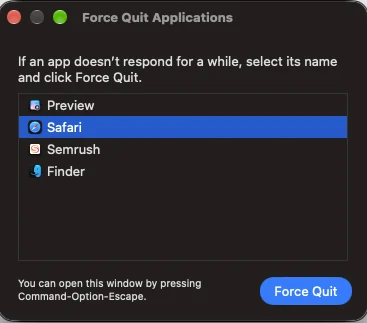
3. Use the Apple Menu to Force Quit
If you prefer using the mouse, you can open the Force Quit window without a keyboard shortcut.
This is useful when a particular keyboard shortcut isn’t working.
Steps
- Click the Apple logo in the top-left corner.
- Select Force Quit.
- Choose the application that won’t close.
- Click Force Quit.
- Confirm the action.
This opens the same Force Quit Applications interface described in the previous method.
If the Apple menu doesn’t respond either, the problem may involve more than one application.
Continue to the remaining methods.
4. Force Quit an App From the Dock
The Dock offers another convenient way to close a troublesome application.
Normally, right-clicking an open application’s icon displays a Quit option.
Holding Option can change that option to Force Quit.
Steps
- Locate the application’s icon in the Dock.
- Control-click or right-click the icon.
- Hold the Option key.
- Look for Force Quit in the shortcut menu.
- Select it.
This can be particularly convenient when you already know which application is frozen.
If the Dock itself is unresponsive, try the keyboard shortcut or Activity Monitor instead.
5. Close the Frozen App Using Activity Monitor
Another way to close an app that won’t close on Mac is to use Activity Monitor, which lets you inspect running processes and stop an unresponsive application.If the usual Force Quit window doesn’t solve the problem, try Activity Monitor.
Activity Monitor displays running applications and processes, including those that are not responding.
It also lets you request that an individual process quit.
Steps
- Open Finder.
- Go to Applications → Utilities.
- Open Activity Monitor.
- Select the CPU tab if necessary.
- Locate the frozen application in the process list.
- Select the application.
- Click the Stop button near the top of the window.
- Choose Quit first, or Force Quit if it will not respond.
Apple explains that Quit attempts a normal exit, while Force Quit terminates the process immediately.
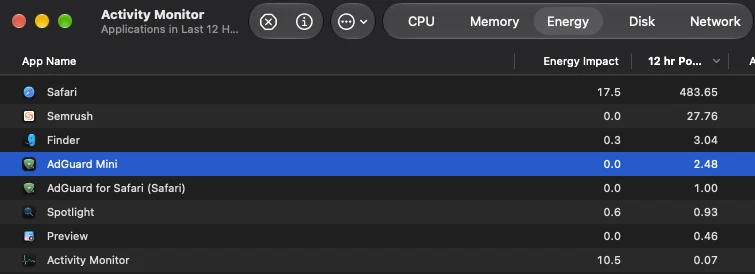
Force quitting can cause unsaved information to be lost.
Read Apple’s Activity Monitor instructions.
Important Safety Tip
Only terminate the application you recognize.
Avoid force quitting unfamiliar system processes, especially services required by macOS or other running applications.
Terminating the wrong process can disrupt other software or your current session.
6. Relaunch Finder if Finder Is the Frozen App
Finder behaves differently from many other Mac applications.
It provides access to your desktop, folders, files, and many essential interface features.
Finder normally remains running in macOS.
If Finder is the application that won’t respond, use Relaunch rather than trying to quit it permanently.
Steps
- Press Option + Command + Esc.
- Select Finder.
- Click Relaunch.
- Confirm if prompted.
- Wait for Finder to restart.
Your Finder windows and desktop may refresh.
For more detailed Finder-specific troubleshooting, see our MacBook Finder Not Responding guide.
That guide covers situations where Finder repeatedly freezes, files become inaccessible, or Finder stops responding after opening folders.
7. Restart Your Mac
If an application still refuses to close, a normal restart is a reasonable next step.
Restarting macOS closes running applications and starts a new session.
How to Restart
- Save work in any other applications that still respond.
- Open the Apple menu.
- Choose Restart.
- Follow any prompts about unsaved documents.
- Allow your Mac to start again.
- Reopen the troublesome application and test it.
If one application consistently freezes after restarting, investigate that application rather than repeatedly restarting your computer.
What if Your Mac Keeps Freezing?
If your computer also experiences unexpected restarts, the problem may be broader than a single frozen app.
Read our MacBook Keeps Restarting troubleshooting guide for those symptoms.
8. Force Shut Down Only if Your Mac Is Completely Frozen
Sometimes the entire Mac stops responding.
The pointer may stop moving, keyboard shortcuts may fail, and even the Apple menu may be inaccessible.
In that situation, a forced shutdown may be necessary.
Warning: This is a last-resort method. Any unsaved information in open applications may be lost.
Steps
- First, give the Mac time to complete any ongoing operation if it appears to be making progress.
- Try the Force Quit shortcut again.
- If the system remains completely unresponsive, press and hold the Mac’s power button for up to 10 seconds until it shuts down.
- Wait briefly.
- Press the power button to start the Mac again.
On MacBooks with Touch ID, the Touch ID button is also the power button.
Apple includes this procedure in its Force Quit support article.
Do not routinely shut down your Mac this way.
Repeated forced shutdowns are not a substitute for investigating the underlying software problem.
9. Update or Troubleshoot the Problematic App
If you can close the application but it repeatedly freezes after reopening, the problem may involve that particular app.
An outdated version, incompatible extension, damaged document, or software conflict may be responsible.
Check for App Updates
For applications installed from the Mac App Store:
- Open App Store.
- Select Updates.
- Install any available update for the affected application.
- Reopen it and test again.
For applications downloaded directly from a developer, use the application’s built-in update option or its official website.
Check for macOS Updates
- Open System Settings.
- Select General → Software Update.
- Review available updates.
- Back up important files before a significant macOS update.
- Install appropriate updates.
Test Without Extensions
If the problem affects an application with third-party plugins or extensions, temporarily disable recently added extensions.
Then reopen the application and check whether it behaves normally.
Apple also recommends trying a different file when a specific document causes an application to freeze.
For official troubleshooting recommendations, see Apple’s guide to apps that stop responding.
What if Force Quit Is Not Working on Mac?
If you cannot close an app even after trying Force Quit, use the following troubleshooting order:
- Confirm that the correct application is selected.
- Try Activity Monitor.
- Check whether other Mac applications still respond.
- Restart macOS normally if possible.
- Use a forced shutdown only if the entire system is unresponsive.
- Investigate recurring app crashes after restarting.
If your Mac remains very slow even after the affected application has closed, the app may not be the only source of the problem.
Our macOS 27.2.1 Running Slow guide covers performance problems specifically affecting that version.
How to Prevent Mac Apps From Freezing Repeatedly
A single frozen application does not necessarily indicate a serious system problem.
However, repeated freezes deserve attention.
A few practical habits can help:
- Keep macOS and frequently used applications updated.
- Install application updates from trusted sources.
- Remove incompatible or unnecessary extensions.
- Avoid running more demanding applications than your Mac can comfortably handle.
- Maintain sufficient free storage for normal operations.
- Restart your Mac occasionally when troubleshooting persistent software behavior.
- Investigate applications that repeatedly become unresponsive.
If only one application freezes, focus on that app first.
If many unrelated applications freeze, investigate overall system performance, startup software, and macOS itself.
Frequently Asked Questions
What is the shortcut to force quit an app on Mac?
Press Option + Command + Esc, select the unresponsive application, and click Force Quit.
Why won’t an app close when I click the red button?
The red button usually closes the current application window. It does not necessarily quit the entire application. Press Command + Q to quit an app normally.
How do I close a frozen app without restarting my Mac?
Use the Force Quit Applications window or Activity Monitor. These methods can terminate an unresponsive application without restarting the entire computer.
Does force quitting an app delete its files?
Force quitting does not normally delete the application’s installed files or saved documents. However, changes that have not been saved may be lost.
Can I force quit Finder on Mac?
You can select Finder in the Force Quit Applications window and choose Relaunch. Finder normally restarts rather than remaining closed.
What should I do if the Force Quit window won’t open?
Try Activity Monitor if it is accessible. If the entire Mac is frozen, attempt a normal restart before considering a forced shutdown.
Is it safe to force quit an app?
Force quitting is a supported macOS troubleshooting method, but it can result in lost unsaved work. Try quitting normally whenever possible.
Final Thoughts
Knowing how to close an app that won’t close on Mac can save time when an application freezes or stops responding.
For most situations, start with Command + Q and then try Option + Command + Esc if the app won’t quit normally.
Activity Monitor provides another way to terminate an unresponsive application, while restarting macOS can help when the usual options fail.
Reserve forced shutdowns for situations where the entire Mac becomes unresponsive.
If the same application repeatedly freezes, focus on updates, compatibility, and software conflicts rather than relying on Force Quit every time.