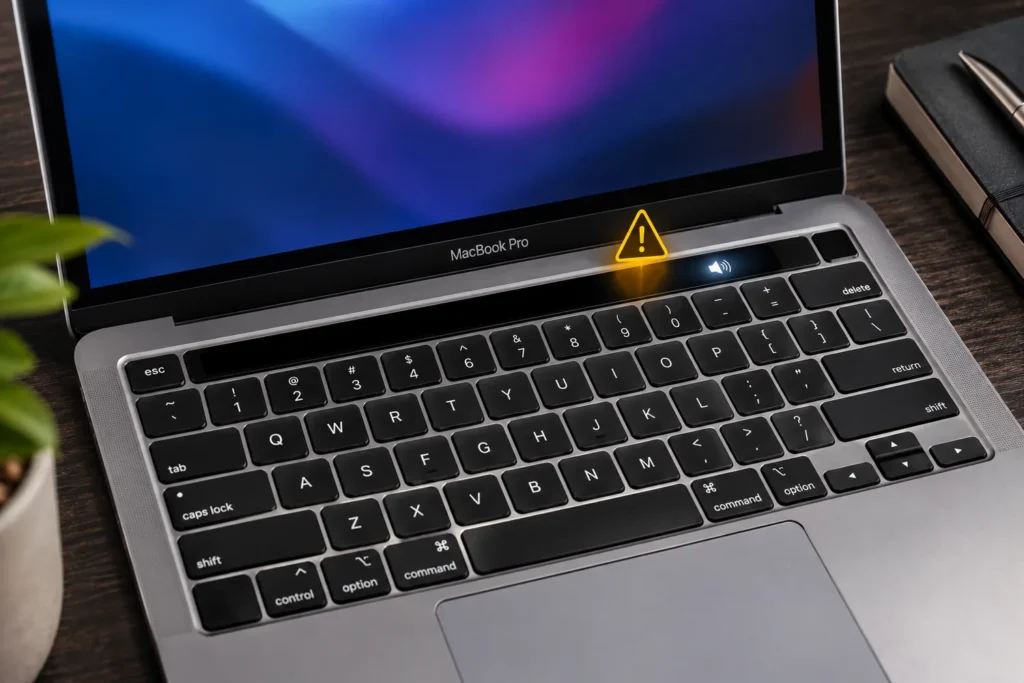
MacBook Pro Touch Bar not working? Maybe the touch-sensitive strip above your keyboard has gone completely black, frozen on the same icons, stopped responding to taps, or started flickering unexpectedly.
A broken Touch Bar can be particularly frustrating when you rely on it for brightness controls, volume adjustments, function keys, or application shortcuts.
Fortunately, a Touch Bar that stops responding does not automatically mean your MacBook Pro needs expensive hardware repairs.
The problem may involve a temporary macOS issue, incorrect Touch Bar settings, an unresponsive application, or a background process that isn’t working correctly.
In this guide, we’ll walk through 9 practical fixes for MacBook Pro Touch Bar not working, including safe troubleshooting methods for compatible Intel and Apple silicon MacBook Pro models.
We’ll also explain how to distinguish software issues from possible hardware damage.
MacBook Pro Touch Bar Not Working: Quick Fixes
If your MacBook Pro’s Touch Bar has stopped responding, try these steps first:
- Confirm that your MacBook Pro actually has a Touch Bar.
- Restart the MacBook normally.
- Check Touch Bar settings under System Settings → Keyboard.
- Test whether the Touch Bar works in different applications.
- Close any frozen or resource-intensive applications.
- Restart the Touch Bar’s background process if necessary.
- Check for compatible macOS updates.
- Test the MacBook in Safe Mode.
- Run Apple Diagnostics or seek qualified repair assistance.
Start with a normal restart and the keyboard settings. You don’t need to reinstall macOS, erase your files, or reset your entire Mac as an initial troubleshooting step.
Apple provides official instructions for managing the Touch Bar and Control Strip in its Touch Bar settings guide.
Table of Contents
Why Is My MacBook Pro Touch Bar Not Working?
The Touch Bar is a narrow, touch-sensitive display located above the keyboard on certain older MacBook Pro models.
Unlike a standard row of physical function keys, the Touch Bar changes its displayed controls depending on the application and macOS settings.
For example, it may display brightness and volume adjustments, playback controls, typing suggestions, or application-specific shortcuts.
There are several possible reasons why it stops working.
Temporary macOS problems: A background process may become unresponsive and stop updating the Touch Bar.
Application conflicts: A frozen application may prevent its Touch Bar controls from updating correctly.
Incorrect settings: macOS may be configured to show different controls from those you expect.
Software update issues: An incompatibility or problem following an update may affect Touch Bar behavior.
Background utilities: Some keyboard remapping tools, customization apps, or system extensions may interfere with the Touch Bar.
Hardware problems: Physical damage, liquid exposure, or failure of internal components can also prevent normal operation.
The symptoms can help identify where to start.
- Touch Bar completely black: Investigate settings, software processes, and possible hardware failure.
- Touch Bar frozen: Restart the affected app or MacBook and check the supporting process.
- Brightness or volume controls missing: Review Control Strip settings.
- Touch Bar flickering: Check whether the behavior persists after restarting and in Safe Mode.
- Touch Bar fails in one application: Investigate that application before changing system-wide settings.
These symptoms are clues, not definitive diagnoses.
1. Confirm That Your MacBook Pro Has a Touch Bar
Before troubleshooting, make sure your MacBook Pro model includes the Touch Bar hardware.
Apple introduced the feature in 2016 and eventually discontinued it.
The final Touch Bar-equipped MacBook Pro was the 13-inch MacBook Pro with the M2 chip, released in 2022.
Newer MacBook Pro models use physical function keys instead.
How to Identify Your MacBook
- Click the Apple menu in the top-left corner.
- Select About This Mac.
- Check the model name and year.
- Compare your model with Apple’s official specifications.
See Apple’s MacBook Pro identification guide.
If your MacBook Pro has physical function keys above the number row instead of a narrow touch-sensitive display, it does not have a Touch Bar.
In that situation, missing Touch Bar controls are normal and not a hardware malfunction.
If your MacBook has the feature but it has stopped responding, continue below.
2. Restart Your MacBook Pro
One of the simplest ways to fix a MacBook Pro Touch Bar that isn’t working is to restart macOS.
Restarting closes applications and reloads system processes that may be experiencing temporary problems.
How to Restart
- Save your open documents.
- Click the Apple menu.
- Select Restart.
- Confirm the restart if prompted.
- Wait for macOS to load completely.
- Sign in and test the Touch Bar.
Try adjusting the volume or opening an application that normally displays Touch Bar controls.
What if the Touch Bar Remains Black?
If the Touch Bar doesn’t return after a normal restart, try shutting down your MacBook completely.
Choose Apple menu → Shut Down, wait briefly after it powers off, and then turn it back on.
Avoid repeatedly forcing shutdowns when the Mac is responding normally.
If other macOS interface elements are also behaving unexpectedly, such as a disappearing Dock, see our Mac Dock Is Missing troubleshooting guide.
3. Check Touch Bar Settings in System Settings
Sometimes the Touch Bar is working, but macOS is displaying different controls from those you expect.
Apple lets you configure the Touch Bar to show application controls, function keys, or an expanded Control Strip.
How to Check Touch Bar Settings
On supported recent macOS versions:
- Click the Apple menu.
- Open System Settings.
- Select Keyboard in the sidebar.
- Click Touch Bar Settings.
- Find Touch Bar shows.
- Try selecting App Controls or Expanded Control Strip.
- Enable Show Control Strip when that option is available.
- Close Settings and test the Touch Bar again.
The available options depend on your Mac model and macOS version.
For example, when the Touch Bar is configured to show function keys, you may not see the brightness or application shortcuts you normally expect.
What Does Show Control Strip Mean?
The Control Strip is the section of the Touch Bar that provides quick access to commonly used controls.
Depending on your configuration, it may include:
- Screen brightness.
- Volume adjustment.
- Mute.
- Siri.
- Other customizable controls.
Apple explains these options in its official Touch Bar customization instructions.
Important: If Touch Bar Settings is missing entirely on a Mac that definitely has a Touch Bar, don’t assume the hardware is broken. Continue with the software checks.
4. Test the Touch Bar in Different Applications
The Touch Bar changes depending on the application you’re using.
Sometimes a particular application may stop updating the Touch Bar even though the feature works normally elsewhere.
Testing multiple applications can help distinguish an app-specific issue from a system-wide problem.
How to Test It
- Open Safari.
- Check whether the Touch Bar displays any relevant controls.
- Open Notes or another compatible application.
- Compare the controls.
- Return to the desktop.
- Check whether the Control Strip responds to taps.
You can also test supported function-key behavior using the Fn or Globe key, depending on your configuration.
Apple explains how these controls work in its Use the Touch Bar on Mac guide.
How to Interpret the Result
If the Touch Bar works in Safari but not another application, investigate that application first.
If the entire Touch Bar stays black or frozen regardless of which application is open, continue with system-level troubleshooting.
A failure in one application does not necessarily mean the Touch Bar hardware is defective.
5. Close Frozen or Resource-Intensive Applications
A frozen application or system under heavy load can make parts of macOS appear unresponsive.
If the Touch Bar stops updating while you’re running a demanding application, check whether that application is working normally.
How to Force Quit a Frozen App
- Press Option + Command + Esc.
- Select the application that isn’t responding.
- Click Force Quit.
- Confirm if prompted.
- Wait briefly and test the Touch Bar again.
Force quitting can cause unsaved work to be lost.
For additional methods, read our How to Close an App That Won’t Close on Mac guide.
Check Activity Monitor
If the Touch Bar becomes unresponsive during heavy workloads:
- Open Applications → Utilities → Activity Monitor.
- Select the CPU tab.
- Look for applications using unusually high CPU resources.
- Determine whether the resource usage is expected.
- Close an unnecessary application normally when possible.
Don’t terminate unfamiliar macOS system processes simply because they appear in Activity Monitor.
If overall performance is consistently poor, investigate the broader issue rather than assuming the Touch Bar alone is responsible.
For version-specific performance troubleshooting, see our macOS 27.2.1 Running Slow guide.
6. Restart the Touch Bar Background Process
If the Touch Bar is still frozen after restarting your Mac and checking settings, a background process may be involved.
macOS uses software components to manage Touch Bar controls, including processes commonly known as TouchBarServer and ControlStrip.
Restarting the relevant process may restore missing or frozen controls.
This is an advanced troubleshooting method. The process names and behavior can differ by macOS version.
Option A: Check Activity Monitor
- Open Applications → Utilities → Activity Monitor.
- Use the search field to look for
ControlStrip. - If the process appears, select it.
- Click the Stop button.
- Choose Quit.
- Check whether macOS relaunches the process and restores the controls.
If ControlStrip isn’t listed, don’t assume you have a hardware failure.
Some macOS versions handle Touch Bar services differently.
Option B: Restart ControlStrip Using Terminal
If you’re comfortable with Terminal, you can attempt to restart the user-level Control Strip process.
- Open Applications → Utilities → Terminal.
- Enter the following command:
killall ControlStrip
- Press Return.
- Check whether the Touch Bar controls reload.
This is a commonly used troubleshooting command rather than an Apple-published repair procedure.
It may not work on every macOS version. If Terminal reports that no matching process was found, stop and proceed to the next method.
Do not use arbitrary commands that delete macOS preference files, modify security protections, or change system services.
Note: Repeatedly restarting software processes cannot repair a physically damaged Touch Bar.
7. Check for Compatible macOS Updates
A macOS update may address compatibility issues or software problems affecting supported hardware.
However, an update is not a guaranteed fix for every Touch Bar malfunction.
If your Touch Bar stopped working immediately after an update, document which macOS version you’re using before making additional changes.
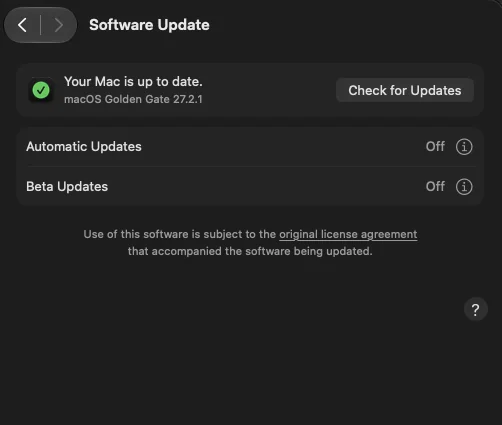
How to Check for Updates
- Open System Settings.
- Select General.
- Click Software Update.
- Check for available compatible updates.
- Back up important files before a significant update.
- Install an appropriate update if available.
- Restart the MacBook and test the Touch Bar.
Avoid installing experimental software simply to repair an unresponsive Touch Bar.
What if the Problem Started After an Update?
If the Touch Bar went black or became unresponsive immediately after updating macOS, try the earlier fixes first.
Check whether Touch Bar settings are available and whether the problem occurs across multiple applications.
If the issue continues, Safe Mode can help determine whether third-party software is contributing.
8. Start Your MacBook Pro in Safe Mode
Safe Mode helps identify certain problems caused by software that loads when your Mac starts.
It is a diagnostic tool, not a permanent operating mode.
The startup procedure depends on whether your MacBook Pro uses Apple silicon or an Intel processor.
For Apple Silicon MacBook Pro Models
This includes the 13-inch M1 and M2 MacBook Pro models with Touch Bar.
- Shut down the Mac completely.
- Press and hold the power button until startup options appear.
- Select your startup disk.
- Hold the Shift key.
- Click Continue in Safe Mode.
- Sign in.
- Check whether the Touch Bar works.
For Intel MacBook Pro Models
- Shut down or restart the Mac.
- Turn it on and immediately hold Shift.
- Release Shift when the login window appears.
- Sign in.
- Check the Touch Bar.
You may see Safe Boot on the login screen or in the menu bar.
For both procedures, refer to Apple’s official Safe Mode guide.
What Does the Result Mean?
Touch Bar works in Safe Mode: A third-party application, login item, or software component loaded during normal startup may be contributing.
Touch Bar still doesn’t work: The issue may involve system software or hardware, but this result alone doesn’t prove hardware failure.
Restart normally to leave Safe Mode.
If Safe Mode resolves the problem, review recently installed utilities and login items instead of immediately resetting the computer.
9. Run Apple Diagnostics and Check for Hardware Problems
If your MacBook Pro Touch Bar is still not working after software troubleshooting, it may be time to investigate hardware.
Apple Diagnostics is built into supported Macs and can help identify certain hardware problems.
It does not guarantee detection of every Touch Bar fault.
How to Run Apple Diagnostics on Apple Silicon
- Shut down your MacBook Pro.
- Disconnect unnecessary accessories.
- Connect the computer to power.
- Hold the power button until startup options appear.
- Release the button when the options appear.
- Press and hold Command + D until the Mac restarts into Diagnostics.
- Follow the onscreen instructions.
How to Run Apple Diagnostics on Intel MacBooks
- Shut down the MacBook.
- Turn it on.
- Immediately hold D.
- Release the key when the diagnostic interface appears.
- Follow the instructions.
If D doesn’t work, Apple documents Option + D as an alternative on supported Intel Macs.
Read Apple’s official Diagnostics instructions.
When Should You Seek Professional Repair?
Arrange an assessment if:
- The Touch Bar remains completely black after appropriate software troubleshooting.
- Touch controls do not respond even when icons appear.
- The Touch Bar repeatedly flickers or displays abnormal visual artifacts.
- The MacBook has experienced liquid damage.
- Apple Diagnostics reports a relevant hardware problem.
- Other keyboard, charging, or hardware functions have also stopped working.
Do not open the MacBook or attempt to disconnect internal display cables without suitable training.
Because Touch Bar-equipped MacBook models are older, compare the estimated repair cost with the Mac’s remaining practical value.
MacBook Pro Touch Bar Not Working After a macOS Update
If the problem began immediately after a macOS update, focus on the following:
- Restart the MacBook normally.
- Check Keyboard → Touch Bar Settings.
- Test Touch Bar controls in multiple applications.
- Check whether the ControlStrip process is running.
- Test the MacBook in Safe Mode.
- Look for any compatible follow-up macOS updates.
If the Touch Bar works in Safe Mode but not during normal startup, investigate recently installed utilities and login items.
Avoid disabling macOS security features or erasing your startup disk to fix a problem that may be caused by a background application.
MacBook Pro Touch Bar Black but Touch ID Works
On many Touch Bar-equipped MacBook Pro models, Touch ID is a separate sensor located beside the Touch Bar.
Therefore, Touch ID may continue working even if the Touch Bar display is black.
This doesn’t automatically indicate which component has failed.
Start with a restart, Touch Bar settings, and the application-specific checks.
If the Touch Bar remains completely blank, continue with Safe Mode and hardware diagnostics.
MacBook Pro Touch Bar Flickering or Showing White Lines
Flickering, intermittent brightness, or persistent lines can suggest a different problem from missing application controls.
First, restart your MacBook and check whether the behavior changes.
Then test whether the Touch Bar behaves differently in Safe Mode.
If the same physical area continuously flickers, shows distorted graphics, or fails to recognize touch, a hardware assessment may be appropriate.
Do not press hard on the Touch Bar or attempt to warm it using external heat.
Frequently Asked Questions
Why is my MacBook Pro Touch Bar not working?
Possible reasons include temporary macOS problems, incorrect Touch Bar settings, an unresponsive application, a background-process issue, or hardware damage.
Start by restarting the MacBook and checking Keyboard → Touch Bar Settings.
How do I restart the Touch Bar on my MacBook Pro?
Restart the MacBook normally first. If the Touch Bar remains frozen, advanced users may investigate the ControlStrip process using Activity Monitor or Terminal.
Why did my MacBook Pro Touch Bar go completely black?
A black Touch Bar may be caused by a software issue or hardware malfunction. Test whether the problem changes after restarting, adjusting settings, and starting in Safe Mode.
Does the M1 MacBook Pro have a Touch Bar?
Yes. The 13-inch MacBook Pro with the M1 chip released in 2020 includes a Touch Bar.
Not every Apple silicon MacBook Pro has this feature.
Does the M2 MacBook Pro have a Touch Bar?
The 13-inch MacBook Pro with M2 released in 2022 includes a Touch Bar. Other M2 MacBook Pro models may have physical function keys instead.
Can I use my MacBook Pro without the Touch Bar?
You can usually continue using ordinary applications if the computer itself works, although you may lose convenient Touch Bar controls and require alternate shortcuts.
Will resetting the Touch Bar delete my files?
Restarting a Touch Bar-related process does not normally delete personal files. However, avoid running unverified Terminal commands or deleting system preferences.
Can a macOS update fix a frozen Touch Bar?
A compatible update may resolve certain software or compatibility issues. It will not repair physical hardware damage.
When should I replace a MacBook Pro Touch Bar?
Consider professional repair if the Touch Bar remains nonfunctional after appropriate software testing, particularly when there are signs of physical damage or persistent display artifacts.
Obtain a repair estimate before deciding whether replacement is worthwhile.
Final Thoughts
If your MacBook Pro Touch Bar is not working, don’t assume the hardware needs replacing immediately.
Start by restarting macOS, checking Touch Bar settings, and testing the controls in different applications.
If those steps don’t work, investigate software processes, compatible updates, and Safe Mode.
For persistent black screens, flickering, or touch-response failures, Apple Diagnostics and professional hardware evaluation are sensible next steps.
Most importantly, avoid deleting system files, disabling security protections, or reinstalling macOS without a clear reason.
A careful troubleshooting process can help identify whether you’re dealing with a temporary software problem or something that requires repair.