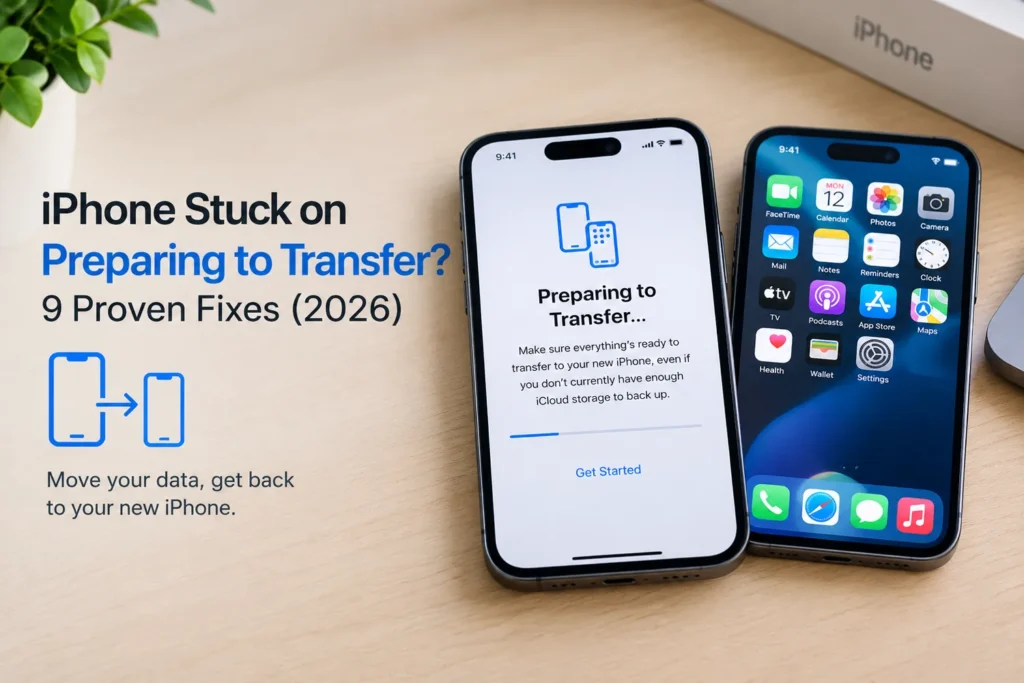
iPhone stuck on Preparing to Transfer while setting up a new device? You may see the same message on your old or new iPhone, with no obvious progress even after several minutes.
This often happens during Apple’s Quick Start process, which lets you move data from your existing iPhone to a new one.
When the process doesn’t move forward, you might worry about losing your photos, messages, contacts, and other important information.
Fortunately, a stalled transfer doesn’t necessarily mean your iPhone is damaged or that your data has been lost.
In this guide, we’ll explain 9 practical fixes for an iPhone stuck on Preparing to Transfer, including wireless connection checks, restarting Quick Start, using iCloud, and switching to a wired transfer.
We’ll also explain which steps are safe and when you should avoid interrupting an active transfer.
iPhone Stuck on Preparing to Transfer: Quick Answer
If your iPhone is stuck on Preparing to Transfer during Quick Start, begin with these checks:
- Allow more time if the setup process still appears active.
- Keep both iPhones near each other and connected to power.
- Make sure Wi-Fi and Bluetooth are enabled on the old iPhone.
- Check the wireless connection before restarting the transfer.
- Review iOS versions and available storage.
- Restart Quick Start if the setup process genuinely stops responding.
- Force restart an unresponsive iPhone only when necessary.
- Try restoring your data from an iCloud backup.
- Use a wired transfer or computer backup if wireless migration repeatedly fails.
Important: Don’t erase your old iPhone, delete its backup, or interrupt a transfer that is still progressing.
Apple’s official Quick Start instructions recommend keeping both devices close together and plugged into power until migration finishes.
Table of Contents
Why Is My iPhone Stuck on Preparing to Transfer?
When you move data from one iPhone to another, Quick Start must prepare the devices for migration and coordinate the setup process.
A screen that appears to be stuck can have several possible explanations.
Wireless connectivity problems: Unstable Wi-Fi or interrupted communication between devices may prevent setup from proceeding normally.
Bluetooth issues: Quick Start relies on Bluetooth during device discovery and setup.
Temporary software problems: Either iPhone may become unresponsive during preparation.
Large amounts of data: The overall transfer can take longer when the source device contains substantial data.
Outdated software: Older software or an unfinished update may complicate setup.
Storage limitations: A destination device without enough capacity for the intended transfer may encounter problems.
An interrupted Quick Start session: Moving devices apart, losing power, or restarting setup can disrupt the process.
However, none of these causes can be confirmed from the message alone.
The first step is determining whether your iPhone is genuinely frozen or simply taking time to prepare.
1. Give the Transfer Time to Prepare
If your iPhone displays Preparing to Transfer, don’t immediately restart it.
The process may still be working, particularly when you’re moving a substantial amount of information to a new device.
What to Do
- Leave both iPhones connected to power.
- Keep them next to each other.
- Avoid switching wireless networks or changing setup settings.
- Watch for changes to the screen or progress information.
- Allow additional time if the process still appears active.
Apple doesn’t publish one fixed time limit after which Preparing to Transfer should be considered frozen.
The duration of the overall migration depends on factors such as the amount of data and network conditions.
How Do You Know It’s Really Stuck?
Consider troubleshooting when the preparation screen remains unchanged for an unusually long time, neither device appears to respond normally, or the same step repeatedly fails.
There is an important distinction between a screen that looks unchanged and a transfer that has definitely stopped.
Never force restart an iPhone simply because a progress indicator is moving slowly.
2. Keep Both iPhones Close Together and Connected to Power
Quick Start requires the old and new devices to communicate during setup.
Apple recommends keeping them close together until the migration is complete.
Moving one device to another room, interrupting the connection, or allowing either battery to run out can interfere with the process.
What to Do
- Place the old and new iPhones beside each other.
- Connect both to reliable power sources.
- Make sure neither device is overheating.
- Avoid moving them apart during setup.
- Continue monitoring the transfer.
If the transfer is already in progress, avoid changing settings unnecessarily.
If the process repeatedly fails, check the charging arrangement and physical placement before starting another attempt.
Can You Use Your Old iPhone During Transfer?
Apple explains that Quick Start occupies both devices.
During direct device-to-device migration, you generally need to wait until the transfer completes before using either iPhone normally.
Plan the transfer for a time when you won’t need your old phone for important calls or messages.
3. Check Wi-Fi and Bluetooth Before Retrying Quick Start
If your iPhone is stuck on Preparing to Transfer and you need to restart setup, check the wireless settings on your existing iPhone first.
Apple requires the current device to have Wi-Fi connectivity and Bluetooth enabled for wireless Quick Start.
Check Wi-Fi
On your old iPhone:
- Open Settings.
- Select Wi-Fi.
- Confirm that Wi-Fi is enabled.
- Connect to a reliable network.
- Verify that the connection works.
Check Bluetooth
- Open Settings.
- Tap Bluetooth.
- Make sure Bluetooth is enabled.
- Return to the Home Screen before beginning Quick Start again.
You don’t need to pair the two iPhones manually from the Bluetooth device list.
Quick Start manages the necessary device discovery through its setup process.
What if the Quick Start Prompt Disappears?
Apple specifically recommends restarting both devices if the Quick Start setup prompt disappears from the existing device.
After restarting, unlock the old iPhone, return to its Home Screen, and bring the two devices close together again.
See Apple’s Quick Start support guide.
4. Check for an Unstable Wi-Fi Connection
A reliable network is important during the initial setup and activation stages of a new iPhone.
If Wi-Fi repeatedly disconnects, the new device may have trouble continuing through its setup process.
What to Check
Before retrying a failed transfer:
- Confirm that the old iPhone can access the internet.
- Check whether your Wi-Fi connection is dropping.
- Move closer to the router if the signal is weak.
- Restart the router if other devices also have connection problems.
- Reconnect the old iPhone to a stable network.
- Begin Quick Start again when the connection is working.
You don’t need to assume that both iPhones must be manually connected to an identical Wi-Fi network throughout every phase of Quick Start.
Follow the setup instructions displayed on each device.
If Wi-Fi repeatedly disconnects on your existing phone, see our iPhone Wi-Fi Keeps Disconnecting troubleshooting guide.
Tip: Avoid turning Wi-Fi or Bluetooth off and on while an apparently active transfer is still progressing.
5. Check iOS Versions and Available Storage
Before repeatedly restarting the transfer, review the software and storage situation on the old iPhone.
Apple recommends updating your devices to compatible current software before using Quick Start.
Check for an iOS Update
On your existing iPhone:
- Open Settings.
- Tap General.
- Select Software Update.
- Review any available compatible update.
- Back up important data before a significant update.
- Install an appropriate update if needed.
If your new iPhone requests an update during setup, follow its onscreen instructions.
Don’t interrupt an iOS installation just because the progress indicator appears slow.
Check Available Storage
On the old iPhone:
- Open Settings.
- Select General.
- Tap iPhone Storage.
- Review how much space is being used.
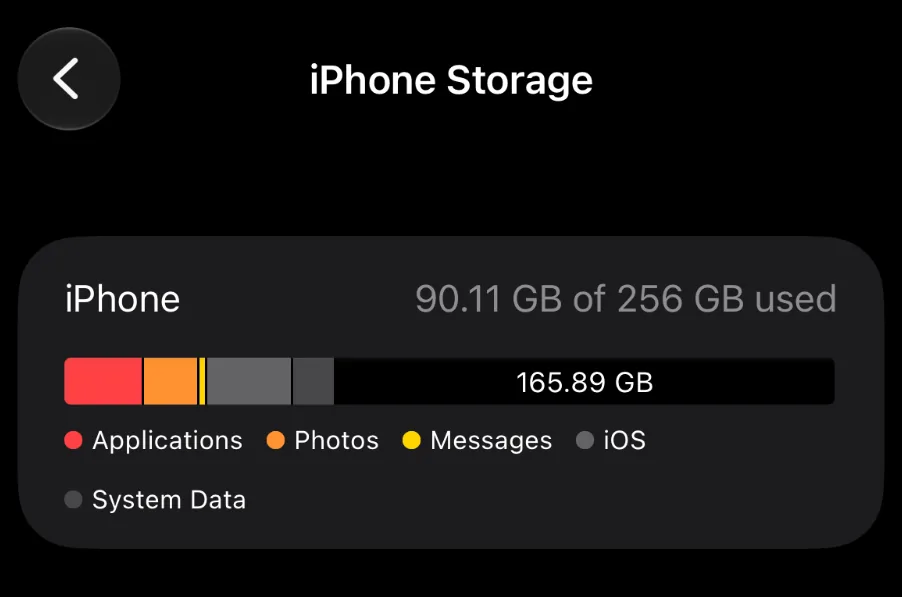
Compare your intended data migration with the new iPhone’s capacity.
For example, transferring a large collection of locally stored videos and applications to a new iPhone with substantially less available capacity may require reviewing what you intend to move.
The storage figures alone don’t prove why Quick Start is stuck, but they can help identify a potential limitation.
Important: Do not delete important photos, messages, or documents from the old device just to troubleshoot. Verify that they are backed up before removing anything.
6. Restart Quick Start if Preparation Has Genuinely Failed
If the Preparing to Transfer screen has stopped responding and repeated attempts don’t progress, restarting the setup process may help.
However, this is different from interrupting a transfer that’s actively migrating data.
Before Restarting
Check that:
- Neither iPhone shows meaningful progress.
- You’ve allowed time for preparation.
- Both devices have sufficient power.
- Your important source data remains on the old iPhone.
- You understand that you may need to begin setup again on the new device.
Retry the Setup
- Restart the affected devices normally if they still respond.
- Unlock the old iPhone.
- Connect it to Wi-Fi and enable Bluetooth.
- Return to its Home Screen.
- Bring the new iPhone close to the old one.
- Follow the Quick Start prompts again if the new iPhone is still at the appropriate setup stage.
- Select your preferred data transfer method.
If the new iPhone is already fully set up, starting over with Quick Start may require erasing that new device first.
Erasing removes information stored on that device. Never erase it unless you’re certain the information is backed up and you have identified the correct iPhone.
Do not erase your old iPhone as part of this troubleshooting step.
7. Force Restart an iPhone That Is Completely Unresponsive
If the new iPhone becomes completely frozen and doesn’t respond to ordinary controls, a force restart may be appropriate.
This is a last-resort step for an unresponsive device, not a routine way to speed up migration.
Force Restart iPhone 8 or Later
These steps apply to iPhone 8 and later models, including modern Face ID iPhones:
- Press and quickly release Volume Up.
- Press and quickly release Volume Down.
- Press and hold the Side button.
- Keep holding until the Apple logo appears.
- Release the Side button.
- Allow the iPhone to restart.
Older iPhones use different button combinations.
A force restart does not normally erase personal data, but interrupting an ongoing migration may leave the new device’s setup incomplete.
If the button combination doesn’t work, see our iPhone Force Restart Not Working guide.
What Should You Do After Restarting?
If the device returns to the Hello screen or another setup stage, follow its prompts.
If Quick Start becomes available again, you can retry it once the old iPhone’s data and backup are secure.
Avoid repeatedly force restarting either device without investigating why setup keeps failing.
8. Use an iCloud Backup Instead of Direct Transfer
If direct iPhone-to-iPhone migration repeatedly gets stuck, you don’t necessarily need to keep using the same method.
Apple supports restoring a new iPhone from an iCloud backup.
This can be useful when the old iPhone works normally but direct migration isn’t completing.
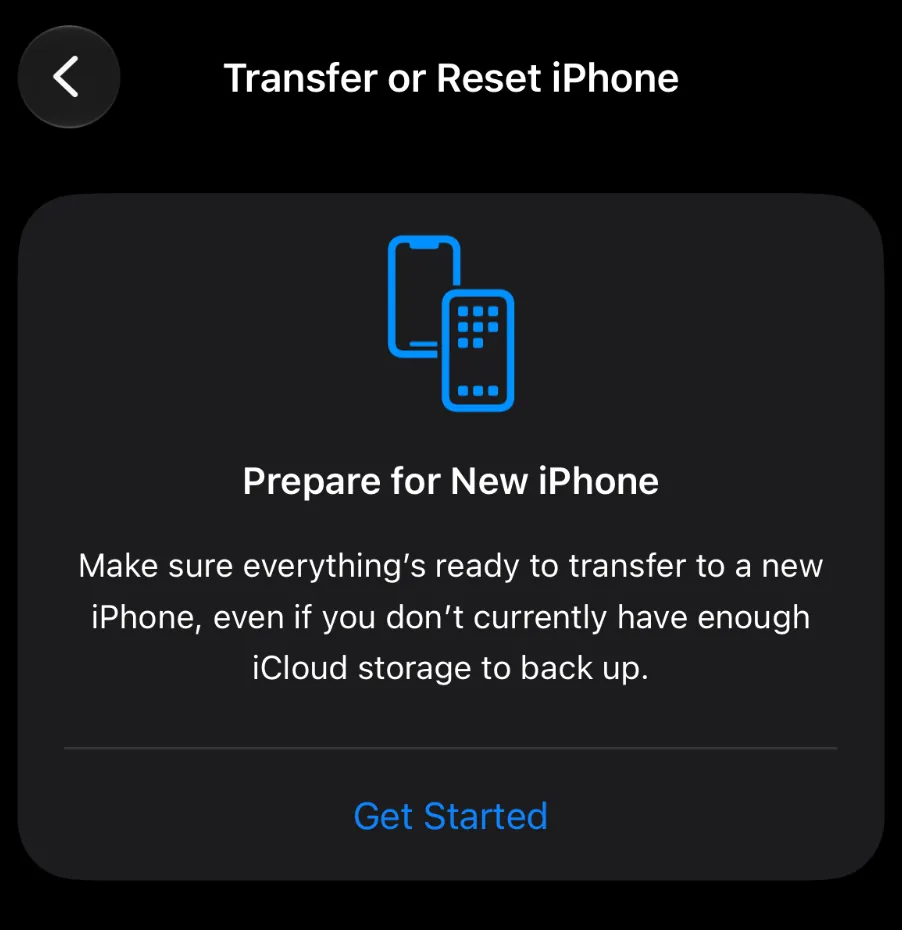
Back Up Your Old iPhone
On the existing iPhone:
- Open Settings.
- Tap your name.
- Select iCloud.
- Tap iCloud Backup.
- Enable Back Up This iPhone if needed.
- Select Back Up Now.
- Keep the device connected until the backup completes.
- Check the date of the last successful backup.
If the backup itself gets stuck, see our iCloud Backup Stuck on Estimating Time Remaining guide.
Restore the Backup to Your New iPhone
During the new iPhone’s setup process:
- Follow the setup instructions.
- Connect to a reliable network.
- Reach the data transfer options.
- Choose the option to download or restore from iCloud.
- Sign in with the appropriate Apple Account.
- Select the correct backup.
- Continue following the onscreen instructions.
The wording may vary by iOS version and setup path.
Apps and other content may continue downloading after the initial setup is complete.
See Apple’s iCloud transfer instructions.
What if You Don’t Have Enough iCloud Storage?
Apple offers temporary iCloud storage to eligible customers moving data to a newly purchased iPhone or iPad.
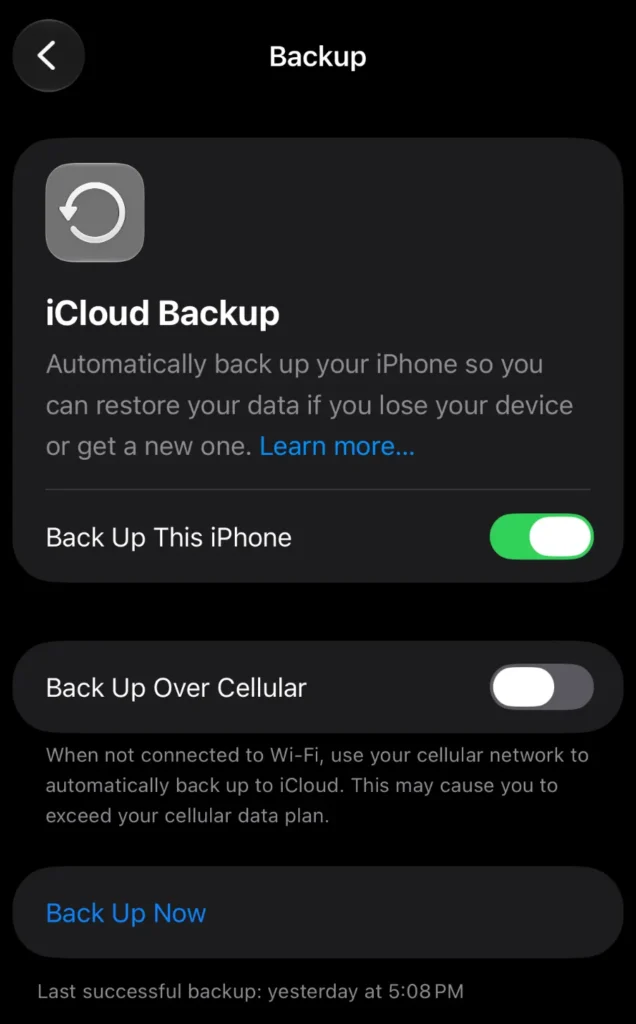
On the old iPhone, open:
Settings → General → Transfer or Reset iPhone → Get Started
Follow the instructions under Prepare for New iPhone if the option appears.
Eligibility and availability depend on Apple’s requirements. Read Apple’s temporary iCloud storage instructions before relying on this method.
Warning: The Transfer or Reset iPhone screen also contains options for erasing the device. Do not select Erase All Content and Settings merely to create a backup.
9. Try a Wired Transfer or Restore From a Mac Backup
If wireless Quick Start repeatedly fails, Apple also supports transferring data through a wired connection or restoring from a computer backup.
Option A: Wired iPhone-to-iPhone Migration
The required cable depends on your device models.
- iPhone 15 or later to another iPhone 15 or later: A suitable USB-C charge cable.
- iPhone 14 or earlier to iPhone 15 or later: A USB-C to Lightning cable.
- Older Lightning-to-Lightning combinations: Consult Apple’s instructions for the appropriate adapter and cable arrangement.
Connect the two iPhones using the supported cable configuration, turn them on, and follow the onscreen setup instructions.
Wait for the transfer to complete on both devices.
For exact model-specific requirements, see Apple’s wired data transfer guide.
Option B: Back Up Your Old iPhone to a Mac
If you have a Mac, you can create a local backup using Finder.
- Connect your old iPhone to your Mac.
- Open Finder.
- Select the iPhone in the sidebar.
- Click General.
- Choose Back up all of the data on your iPhone to this Mac.
- Consider enabling Encrypt local backup to preserve supported sensitive backup data.
- Save the encryption password securely.
- Click Back Up Now.
- Wait for the backup to finish.
You can then restore the backup to the new iPhone during its setup process.
Apple notes that an unencrypted computer backup does not transfer certain Health and Activity information.
See Apple’s iPhone backup guide.
Which Alternative Is Better?
An iCloud restore can be convenient when you have a reliable internet connection and a suitable backup.
A wired transfer is useful when you have compatible hardware and prefer a direct cable connection.
A Mac backup gives you a separate local copy of your device data before trying another migration.
Choose the option that fits your devices and available backup.
What if Your New iPhone Is Already Set Up?
Some people complete the new iPhone’s initial setup to bypass the stalled transfer screen.
They later discover that Quick Start no longer appears.
Apple explains that restoring a full backup through the normal setup process generally requires a new or erased destination iPhone.
However, erasing an already configured iPhone destroys information currently stored on that device.
Before proceeding:
- Verify which phone is the old device and which is the new one.
- Check that the old iPhone still contains your original information.
- Make a verified backup.
- Save any new data created on the destination iPhone.
- Review your cellular and eSIM arrangements.
- Follow Apple’s setup or restoration guidance.
Do not erase either device until you’ve confirmed that doing so will not destroy important information.
What if Preparing to Transfer Keeps Appearing?
Repeated failure at the same stage may indicate a persistent network, setup, software, or device-specific issue.
Before attempting another migration, review what you’ve already tested.
If the wireless connection is stable and both devices have compatible software, consider switching transfer methods instead of restarting Quick Start indefinitely.
You can also contact Apple Support for device-specific assistance.
If the new iPhone is stuck on Apple Account authentication rather than preparing migration data, the problem is different. See our New iPhone Stuck on Signing In guide.
Similarly, a device stuck on Verifying Update is dealing with iOS installation rather than data migration.
Frequently Asked Questions
Why is my new iPhone stuck on Preparing to Transfer?
Possible causes include an interrupted Quick Start session, wireless connection problems, a temporary software issue, or a transfer that is taking longer than expected. The message alone doesn’t identify the exact cause.
How long should Preparing to Transfer take?
There isn’t one guaranteed duration for every iPhone. Apple’s transfer guidance notes that migration time varies with network conditions and the amount of data involved. If the process remains unchanged for an unusually long time, check whether either device is actually unresponsive before restarting.
Will restarting Quick Start delete my photos?
Restarting Quick Start doesn’t normally delete photos stored on your old iPhone. However, avoid erasing either device, and verify that you have a current backup before repeating setup or restoration.
Do both iPhones need Wi-Fi and Bluetooth?
Apple instructs users to connect the current iPhone to Wi-Fi and enable Bluetooth for wireless Quick Start. Follow the connection prompts on the new device as setup proceeds.
Can I transfer data without Quick Start?
Yes. Apple also supports restoring from iCloud, a Finder or computer backup, and compatible wired migration methods.
Can I use my old iPhone while data is transferring?
Direct device-to-device migration occupies both phones until the transfer is complete. If you restore from iCloud, some content can download in the background after initial setup.
Should I erase my new iPhone to fix the problem?
Not as an initial troubleshooting step. Erasing may be necessary to restart certain setup or full-backup restoration workflows after the new phone has already been configured, but it removes data stored on that phone.
Does this guide apply when moving from Android to iPhone?
Not directly. Quick Start is primarily intended for setup using another compatible Apple device. Migrating from Android uses a different process, including Apple’s Move to iOS workflow.
Final Thoughts
If your iPhone is stuck on Preparing to Transfer, start by determining whether the migration is still working or has genuinely become unresponsive.
Keep both devices close together, connected to power, and prepared for the wireless transfer.
If Quick Start repeatedly fails, check Wi-Fi, Bluetooth, software compatibility, and available storage before attempting another setup session.
You can also move your information through an iCloud backup, compatible wired connection, or computer backup.
Most importantly, protect the data on your old iPhone. Don’t erase it simply because the new device is stuck during setup.
Using a verified backup and switching transfer methods when necessary is safer than repeatedly interrupting an uncertain migration.