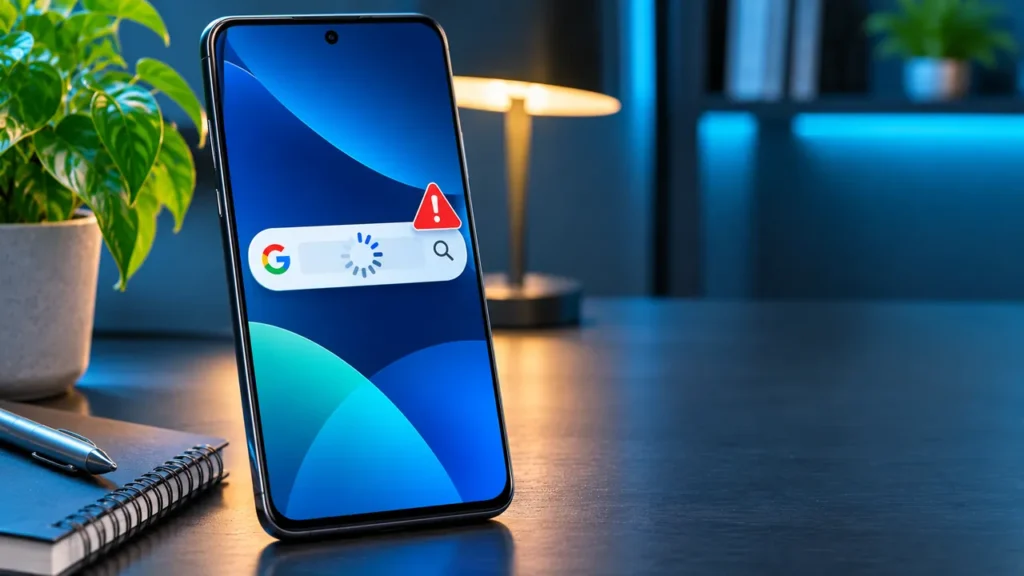
Is your Google widget not working on Android, even though the rest of your phone seems normal? Maybe the Google Search bar has disappeared from your home screen, tapping it does nothing, or the widget stays blank or frozen.
This problem can affect Google Pixel, Samsung Galaxy, Motorola, OnePlus, and other Android devices.
Sometimes the issue begins after a Google app update or Android system update. In other cases, the widget itself has become unresponsive while the Google app continues working normally.
Fortunately, you usually don’t need to factory reset your phone or install an alternative launcher.
In this guide, we’ll explain 10 practical fixes for the Google Search widget not working on Android, including how to restore a missing widget, repair an unresponsive search bar, and fix common home-screen issues.
These instructions focus on the Google Search widget. Other Google widgets, such as Calendar, Maps, and At a Glance, may need different troubleshooting steps.
Quick Fix: Google Widget Not Working on Android
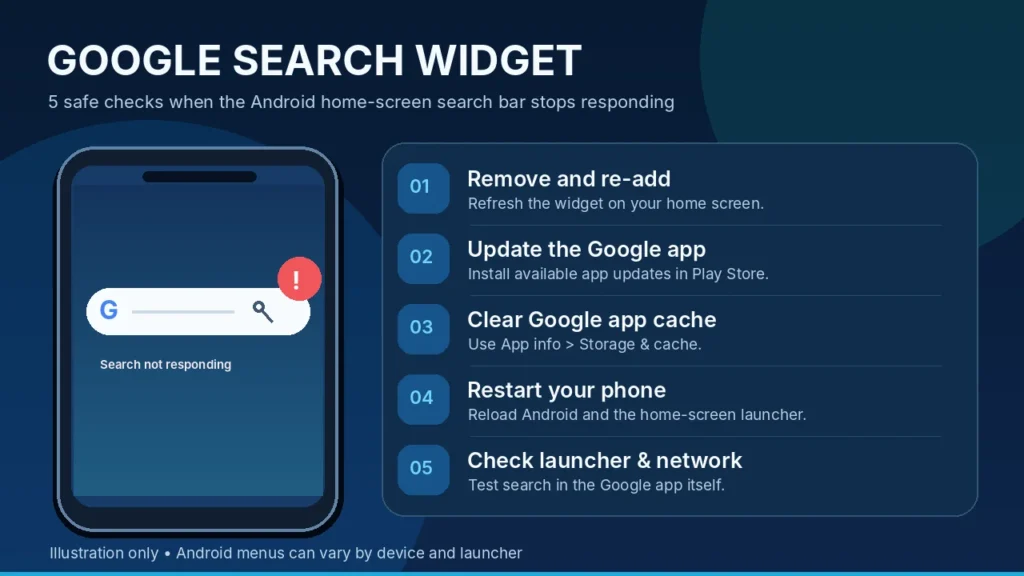
If the Google Search widget is missing, frozen, or unresponsive, try these steps first:
- Restart your Android phone.
- Remove the Google Search widget from your home screen, if your launcher allows it.
- Touch and hold an empty area of the home screen.
- Select Widgets → Google.
- Drag the Google Search widget back onto your home screen.
- Open the Google app directly to check whether Search works.
- Update the Google app through the Play Store.
- Clear the Google app’s temporary cache if the problem continues.
For many temporary widget problems, restarting the phone or adding the widget again is a reasonable first step.
If your Google widget is still not working, continue with the fixes below.
Table of Contents
Why Is the Google Widget Not Working on Android?
The Google Search widget provides quick access to Google Search directly from the Android home screen.
It relies on the Google app and your phone’s home-screen launcher to display and handle interactions.
A problem affecting either component can make the widget behave unexpectedly.
Common possibilities include:
Temporary Google app problems: The app may become unresponsive or stop handling search requests correctly.
Widget configuration issues: A home-screen widget may fail to load or refresh.
Outdated Google app: An app update might be required to address a bug or compatibility problem.
Launcher problems: The home-screen application may not be displaying widgets correctly.
Network problems: The search interface may open, but results might fail to load because the internet connection is unavailable.
Recent software changes: A Google app, Android, or launcher update may coincide with the problem.
Disabled Google app: If the Google app is disabled, its normal functionality may be unavailable.
Before troubleshooting, determine whether the Google Search bar is missing entirely or is still visible but doesn’t respond.
These symptoms have different possible causes.
Fix 1: Remove and Re-Add the Google Search Widget
If the Google widget is visible but doesn’t respond, removing and re-adding it may help refresh the home-screen component.
This is also the first method to try if the widget has disappeared.
How to Add Google Search Widget on Android
- Go to your Android home screen.
- Touch and hold an empty area.
- Select Widgets.
- Scroll or search for Google.
- Expand the available Google widgets.
- Touch and hold the Search widget.
- Drag it to an available space on your home screen.
- Release your finger to place it.
- Tap the widget to test it.
Google documents this method in its official Search widget setup guide.
If the Existing Widget Is Frozen
On devices where the widget can be removed:
- Touch and hold the existing Google Search widget.
- Drag it to Remove.
- Return to the Widgets menu.
- Find Google Search.
- Add a new instance.
Removing a widget from the home screen is not the same as uninstalling the Google app.
Important for Google Pixel Users
Some Google Pixel home-screen search bars are integrated into the Pixel Launcher.
Google notes that certain built-in search bars cannot be removed like ordinary widgets.
If your Pixel doesn’t provide a Remove option, skip that step and continue with the other troubleshooting methods.
Fix 2: Restart Your Android Phone
A temporary problem with the Google app or home-screen launcher can sometimes cause a widget to stop responding.
Restarting your device reloads Android processes and may restore normal behavior.
Steps
- Save any unfinished work.
- Open your phone’s power menu.
- Tap Restart.
- Wait for Android to restart completely.
- Unlock your phone.
- Return to the home screen.
- Tap the Google Search widget.
The exact power-menu shortcut varies by manufacturer.
On some recent Pixels, press Power + Volume Up.
On Samsung Galaxy devices, you can usually access the power menu through Quick Settings.
What if Restarting Doesn’t Work?
If the widget remains unresponsive after restarting, check whether the Google app works independently.
That’s the next important diagnostic step.
Google includes restarting the device among its official Android app troubleshooting recommendations.
Fix 3: Check Whether the Google App Works Normally
A broken Search widget doesn’t necessarily mean Google Search itself is unavailable.
You can determine whether the problem affects the Google app or only the home-screen shortcut.
Steps
- Open your app drawer.
- Find the Google app.
- Tap its icon.
- Enter a simple search query.
- Check whether the search results load normally.
- Return to the home screen.
- Try the Google Search widget again.
Understanding the Results
Google app works, but widget doesn’t: The problem may involve the widget or home-screen launcher.
Google app opens but searches don’t load: Check your internet connection and app behavior.
Google app crashes or refuses to open: Focus on updating the app, force stopping it, and clearing temporary cache.
Other home-screen widgets also fail: Investigate your launcher or a broader Android software problem.
This simple comparison helps you avoid changing unrelated settings.
Fix 4: Update the Google App Through Play Store
An outdated Google app may contain bugs that have already been addressed in newer releases.
Google recommends updating Android apps when they become unresponsive or behave incorrectly.
How to Update the Google App
- Open Google Play Store.
- Tap your profile picture.
- Select Manage apps & device.
- Open Updates available.
- Find the Google app.
- Tap Update, if an update is available.
- Wait for the installation to finish.
- Restart the Google app and test the widget.
You can also search for the Google app directly in Play Store.
If the button says Open instead of Update, the currently available version may already be installed.
What if the Google App Won’t Update?
Check your internet connection and available storage.
If Play Store itself refuses to open, follow our Google Play Store Not Opening troubleshooting guide.
If the download gets stuck or installation fails, see our Google Play Store Can’t Install App guide.
For official app-update instructions, see Google’s guide to updating Android apps.
Avoid downloading modified Google app APKs from unknown websites.
Fix 5: Force Stop the Google App and Clear Its Cache
If the Google app opens but behaves unpredictably, force stopping it may help.
You can also clear temporary cached data if the problem continues.
Step 1: Force Stop the Google App
- Open Settings.
- Tap Apps.
- Select See all apps if necessary.
- Find Google.
- Open its app information.
- Tap Force stop.
- Confirm if prompted.
- Reopen the Google app.
- Test the Search widget.
This closes the running app process.
It does not normally delete photos, documents, or other personal files.
Step 2: Clear the Google App Cache
If force stopping doesn’t help:
- Open Settings → Apps.
- Find the Google app.
- Tap Storage & cache.
- Select Clear cache.
- Return to your home screen.
- Test the Search widget again.
On Samsung devices, the equivalent setting may simply be named Storage.
Should You Clear Google App Storage?
Not immediately.
Clear storage or Clear data is more disruptive than clearing cache.
It may reset local application preferences and stored information.
Only consider it after trying safer fixes, reviewing the warning, and understanding what information may be affected.
Google’s Android app repair documentation distinguishes cache clearing from app-data clearing.
Fix 6: Check Your Wi-Fi or Mobile Data Connection
If tapping the Google widget opens Search but results never load, the internet connection may be the problem.
A connected Wi-Fi icon doesn’t always mean your phone has working internet access.
Test Your Connection
- Open Chrome or another browser.
- Visit a website you haven’t recently opened.
- Check whether it loads.
- Switch from Wi-Fi to mobile data if available.
- Try the same search again.
- Return to the Google Search widget.
If Google Search works on mobile data but not Wi-Fi, investigate your Wi-Fi network.
Additional Checks
If appropriate, you can temporarily disable a VPN and test Search again.
You can also toggle Airplane mode on and off to refresh your mobile connection.
Don’t reset your entire network configuration unless the problem continues and other troubleshooting supports that step.
Important: A missing Google Search widget isn’t normally caused by a weak internet connection. Network troubleshooting is most relevant when the search interface opens but cannot retrieve results.
Fix 7: Reset Google Search Widget Customization
Google allows users to customize the Search widget’s appearance and shortcuts.
If the widget appears incorrectly or its layout has changed, reviewing these settings may help.
Steps
- Open the Google app.
- Tap your profile picture.
- Select Settings.
- Tap Customize Search widget.
- Review the available customization options.
- Tap Reset if the option is available.
- Exit Settings.
- Return to your home screen.
Google’s Search widget customization options can include shortcuts, color, and transparency.
The settings available on your phone may vary.
Add the Widget From the Google App
Google also documents another method for adding its Search widget:
- Open the Google app.
- Select your profile picture.
- Go to Settings → Customize Search widget.
- Tap Add at the top of the screen, if available.
This may help when you cannot easily find the Google widget in your launcher’s Widgets menu.
See Google’s official widget customization instructions.
Fix 8: Check Whether the Google App Is Enabled
On some Android devices, certain preinstalled applications can be disabled.
If the Google app has been disabled, its Search widget may no longer be available or function normally.
Check Google App Status
- Open Settings.
- Tap Apps.
- Select See all apps.
- Find Google.
- Open its app information.
- Check whether an Enable button appears.
- If the app is disabled and you want to use it, select Enable.
- Return to the home screen and test Search.
If the button says Disable, the app is already enabled.
Don’t disable unrelated Android system applications.
What if Google Isn’t Listed?
Your device may use a different app-management layout, or the application may be hidden in the system-app list.
Search for Google within Settings.
If it still doesn’t appear, check whether the Google app is available through Play Store for your device.
Fix 9: Update Android and Check Your Home-Screen Launcher
The home-screen launcher controls how widgets appear and respond.
If several widgets stop working together, the problem may involve the launcher rather than the Google Search app alone.
Check for Android Updates
- Open Settings.
- Select System or About phone, depending on your device.
- Open Software update.
- Check for available updates.
- Install an appropriate supported update.
- Restart when required.
- Test the Google widget.
Check Launcher Updates
If you use a third-party launcher, such as Nova Launcher or Microsoft Launcher, check whether an update is available.
A launcher compatibility problem can sometimes affect widgets.
To isolate the issue, you can temporarily switch to your phone’s original launcher where that option is available.
On many Android devices:
- Open Settings → Apps.
- Find Default apps.
- Select Home app, if available.
- Choose your device’s original launcher.
- Return to the home screen.
- Test whether Google Search works.
Launcher menu names vary by Android manufacturer.
What About Clearing Launcher Data?
Avoid clearing your launcher’s storage as an early troubleshooting step.
Doing so can remove customized home-screen layouts, widget placements, folders, or preferences.
Try updates, restarting, and normal launcher settings first.
Fix 10: Check for Third-Party App Conflicts
If the Google widget keeps freezing despite the previous fixes, consider whether a third-party application is interfering.
Some launcher customization tools, overlays, or system modification utilities can affect home-screen behavior.
Android Safe Mode can help investigate app-related problems on supported devices.
Test Using Safe Mode
- Save your work.
- Open your phone manufacturer’s official Safe Mode instructions.
- Restart the phone into Safe Mode.
- Check whether the Google app itself works.
- Compare general home-screen behavior.
- Restart normally to exit Safe Mode.
Important: Safe Mode can disable third-party launchers and other downloaded apps. Your normal home-screen layout and widgets may not appear exactly as they do during ordinary operation.
Therefore, don’t treat a missing widget in Safe Mode as proof that Google Search is broken.
If the issue began after installing a launcher, widget customization application, or other utility, consider removing that application temporarily and testing again.
If the problem persists even with the stock launcher and updated Google app, consult Google Support or your device manufacturer’s support service.
Avoid factory resetting the entire phone solely because a single Search widget isn’t responding.
Google Search Bar Missing From Android Home Screen
If your Google Search bar disappeared completely, the fix may be simpler than troubleshooting an application crash.
First, open the home-screen Widgets menu and search for Google.
If the widget is listed, add it again.
On supported devices, you can also add it through the Google app’s Customize Search widget screen.
Why Might the Search Bar Disappear?
A widget can disappear after a home-screen layout change, launcher switch, or manual removal.
Some Android versions also change how Search appears in Google Discover.
Google notes that certain Discover versions no longer display a search bar, which doesn’t necessarily indicate a malfunction.
If the search bar is missing only from Discover, add a separate Search widget to your home screen.
Google Widget Not Working After an Android Update
If the Google widget stopped working after an Android update, start with the Google app and launcher.
An update may coincide with compatibility changes, temporary app issues, or a home-screen layout problem.
Try the following sequence:
- Restart your phone.
- Open the Google app directly.
- Check Google Play for an app update.
- Remove and re-add the widget if possible.
- Clear the Google app’s cache.
- Check whether the launcher needs an update.
Don’t assume that every problem appearing after an update was caused by that update.
If the issue is widespread, Google or your phone manufacturer may release an additional fix.
Google Widget Not Working on Samsung Galaxy
Samsung Galaxy phones use One UI Home as their standard launcher.
If Google Search stops responding:
- Open the Google app to check Search.
- Update Google through Play Store.
- Touch and hold an empty home-screen area.
- Select Widgets.
- Find the Google Search widget.
- Add it to your home screen.
- Test the widget.
If other widgets are also malfunctioning, investigate One UI Home updates and launcher behavior.
Don’t clear One UI Home storage without considering the effect on your layout.
Google Widget Not Working on Google Pixel
On Google Pixel, the Search bar may be part of the Pixel Launcher itself.
That means some Search controls don’t behave like ordinary removable widgets.
Google documents Pixel-specific search-bar customization through the home screen.
Check Pixel Search Bar Settings
- Touch and hold the Search bar on the home screen.
- Tap Widget settings, if available.
- Review the available customization options.
- Return to the home screen.
- Test Search again.
If the bar is visible but doesn’t respond, update the Google app and restart the phone.
If other Pixel Launcher features are also malfunctioning, investigate Android and launcher updates.
Google’s Pixel home-screen customization guide explains the supported options.
Google Search Widget Is Blank or White
A blank or white widget can indicate a display or loading problem.
First, open the Google app directly.
If it works, try removing and re-adding the widget where supported.
Next, check whether your phone uses a custom launcher or has recently received an update.
If the widget remains blank, clear the Google app’s cache and restart the phone.
Avoid changing several settings at once. Testing one change at a time makes the cause easier to identify.
Google Widget Microphone Not Working
If the Google Search bar opens normally but its microphone shortcut doesn’t work, the problem may involve microphone permissions rather than the widget itself.
Check Microphone Permission
- Open Settings.
- Select Apps → Google.
- Tap Permissions.
- Open Microphone.
- Check whether access is allowed when using the app.
- Review Android’s system-wide microphone access control.
- Test voice search in the Google app.
If voice search also fails within the Google app, troubleshoot microphone access or the app’s voice features.
Don’t reset the entire home screen for a microphone-only problem.
Google Widget Keeps Disappearing After Restart
If you add Google Search to the home screen but it disappears again after restarting, investigate the launcher.
Check whether the original home-screen layout is being restored, whether you’re using a third-party launcher, or whether a launcher update is available.
If the widget disappears only after switching between launchers, review each launcher’s saved layout.
Avoid clearing launcher storage unless you’ve backed up or documented the arrangement you want to preserve.
Frequently Asked Questions
Why is my Google widget not working on Android?
The Google app or home-screen launcher may be unresponsive, outdated, or experiencing a temporary software problem. Start by restarting the phone, checking Google Search directly, and re-adding the widget if supported.
How do I restore my Google Search bar on Android?
Touch and hold an empty home-screen area, select Widgets, find Google, and drag the Search widget onto your home screen. You may also be able to add it through the Google app’s Customize Search widget settings.
Why does my Google Search widget keep freezing?
Possible causes include temporary app problems, outdated software, launcher conflicts, or a broader Android issue. Updating the Google app and clearing temporary cache are reasonable troubleshooting steps.
Does clearing the Google app cache delete my data?
Clearing cache normally removes temporary files rather than personal photos or documents. Clearing all app storage is a different and more disruptive operation.
Why can’t I remove the Google Search bar on Pixel?
On some Pixel configurations, the Search bar is integrated into the Pixel Launcher and cannot be removed like an ordinary widget.
Why is my Google widget missing from the Widgets menu?
The Google app may be disabled, your launcher may not expose the same widgets, or the device may use a built-in search bar. Check the Google app’s status and launcher settings.
Can I reinstall the Google Search widget?
You can remove and re-add the widget on supported Android launchers. This normally doesn’t require reinstalling the entire Google app.
Is the Google widget the same as the Google app?
No. The widget is a home-screen interface that provides convenient access to features of the Google app. The Google app itself can work even when the widget is unresponsive.
Why does my Google widget open but show no results?
Check your internet connection and test Google Search directly in the Google app or browser. A connection problem can prevent search results from loading.
Should I reset Android to fix the Google widget?
A factory reset is not an appropriate first step for a single broken widget. Try the less disruptive troubleshooting methods and seek device-specific support if the issue continues.
Final Thoughts
If your Google widget is not working on Android, start by identifying whether the Search bar is missing, frozen, or simply unable to load search results.
A missing widget may only need to be added again through the home-screen Widgets menu.
If the widget is visible but unresponsive, restart the phone, update the Google app, and clear temporary cache.
If multiple widgets malfunction, investigate your launcher and Android software rather than focusing exclusively on Google Search.
Most importantly, avoid deleting Google app storage, clearing launcher data, or factory resetting the phone without understanding the consequences.
With a few targeted checks, you can often restore the Google Search widget without losing your home-screen layout or personal information.
Last reviewed: November 13, 2026.