Google Play Store can’t install app on your Android phone? You tap Install, but the download stays on Pending, stops before reaching 100%, or displays an error saying the app couldn’t be installed.
Sometimes Google Play downloads an app successfully but fails during installation. Other times, only one particular app refuses to install while everything else works normally.
These problems can affect Google Pixel, Samsung Galaxy, Motorola, OnePlus, and other Android devices.
Fortunately, you usually don’t need to reset your phone to solve a Play Store installation problem.
In this guide, we’ll explain 10 practical fixes when Google Play Store can’t install an app, including compatibility checks, stuck downloads, insufficient storage, and Play Store troubleshooting.
We’ll also explain which settings are safe to change and which advanced troubleshooting steps require extra caution.
Google Play Store Can’t Install App: Quick Answer
If Google Play Store opens normally but won’t download or install an app, follow this order:
- Check whether the app supports your Android phone.
- Test your Wi-Fi or mobile data connection.
- Make sure your phone has sufficient free storage.
- Check whether other downloads or updates are pending.
- Restart Google Play Store and your phone.
- Correct your device’s date and time settings.
- Clear Google Play Store’s cache.
- Clear Play Store app storage if necessary.
- Uninstall and reinstall Google Play Store updates.
- Check Android updates and troubleshoot the affected app.
Start by checking whether one app or multiple apps are affected. This distinction can save you from unnecessarily resetting Play Store settings when the actual problem is app compatibility.
Google provides separate troubleshooting procedures for problems downloading one app and problems downloading multiple apps.
Table of Contents
Why Can’t Google Play Store Install Apps?
Several conditions can prevent a Google Play Store installation from completing.
Insufficient storage: Your phone may not have enough room to download and install the application.
Internet connection problems: An unstable Wi-Fi or cellular connection may interrupt downloads.
Device incompatibility: The application may require a different Android version, hardware capability, or device configuration.
Pending downloads: Other app downloads or updates may be occupying the download queue.
Play Store data problems: Cached files or locally stored information may interfere with downloads.
Regional restrictions: Some applications are unavailable in certain countries or regions.
Parental controls: Content restrictions may prevent an app from being downloaded.
Software problems: An outdated Play Store version or broader Android issue may affect installation.
The message displayed by Google Play doesn’t always reveal which cause applies.
Identify Your Installation Problem
Only one app won’t install: Check compatibility, regional availability, and restrictions first.
Every app fails to download: Prioritize internet connectivity, storage, and Play Store troubleshooting.
Download stuck on Pending: Review active downloads and updates before resetting the app.
Download reaches 100% but installation fails: Investigate storage, compatibility, software updates, and the affected app.
Google Play Store won’t open at all: That’s a different issue. Follow our Google Play Store Not Opening guideinstead.
Now let’s work through the fixes.
1. Check Whether the App Is Compatible With Your Phone
Before changing system settings, confirm that the application supports your device.
Not every Android app is available for every phone.
Some developers restrict their apps based on Android version, device model, screen configuration, country, or hardware capabilities.
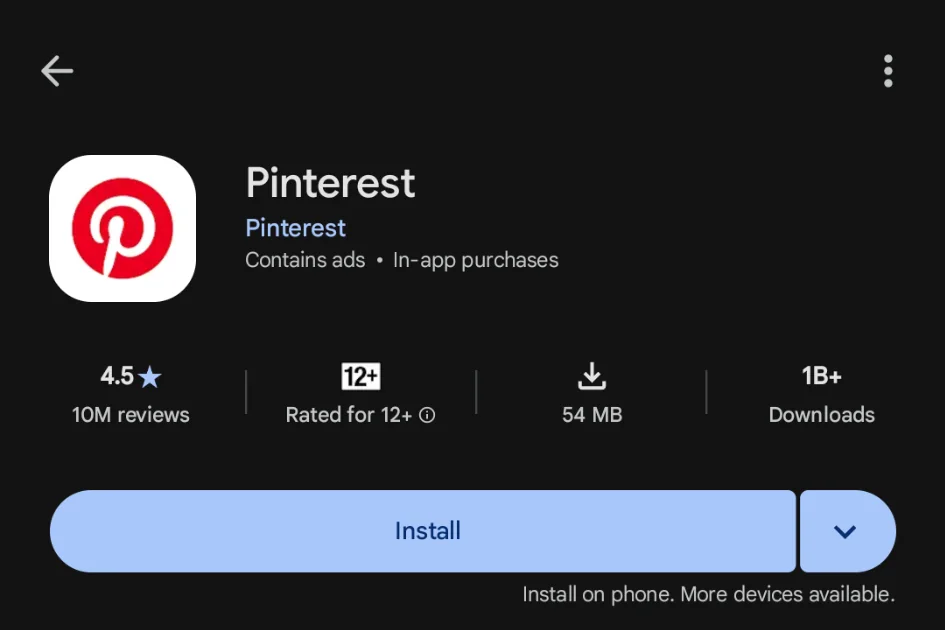
How to Check App Compatibility
- Open Google Play Store.
- Search for the application that won’t install.
- Open its Play Store listing.
- Look for a message indicating whether the app is available for your device.
- Open About this app if you need additional information.
- Review the available compatibility details.
If Google Play says the app isn’t available for your device, repeatedly clearing cache is unlikely to solve the underlying restriction.
Google explains that developers determine which devices their applications support.
Read Google’s app compatibility documentation.
Check Regional Availability
Some applications are restricted to particular countries.
If the app is unavailable in your Google Play country, you may not be able to install it through Google Play.
Avoid downloading unofficial APKs from unfamiliar websites as a workaround.
Check Parental Controls
If the device uses parental controls or managed account restrictions, review whether the application is permitted.
On supported Play Store configurations, these settings are available through the profile menu under Settings → Family → Parental controls.
If the device is managed by a parent, school, or employer, the appropriate account administrator may need to approve the app.
2. Check Your Wi-Fi or Mobile Data Connection
Google Play Store may open normally even when your connection isn’t stable enough to download an application.
A partially functioning internet connection can make installation problems confusing.
How to Test Your Connection
- Open Chrome or another browser.
- Visit a website you haven’t recently opened.
- Confirm that it loads normally.
- Return to Google Play Store.
- Retry the app download.
- If possible, switch from Wi-Fi to mobile data or vice versa.
Google recommends a strong internet connection when downloading apps.
Wi-Fi is generally preferable for large downloads, although a reliable cellular connection can also work.
What if Downloads Work on Mobile Data but Not Wi-Fi?
Your Wi-Fi connection may be contributing to the problem.
Try moving closer to your router or restarting the router if other devices are also experiencing connection issues.
If you use a VPN or network-filtering application, consider whether it may be affecting access to Google services. Temporarily disable it for testing only when appropriate.
If your Android phone also has problems sharing mobile internet with other devices, see our Android Hotspot Not Working guide.
Expected result: Once the connection works reliably, retry the installation and check whether the download progresses.
3. Make Sure Your Android Phone Has Enough Storage
Low storage is one of the common reasons applications fail to download or install.
Apps may require additional temporary space during installation, not just the space occupied by the final installed application.
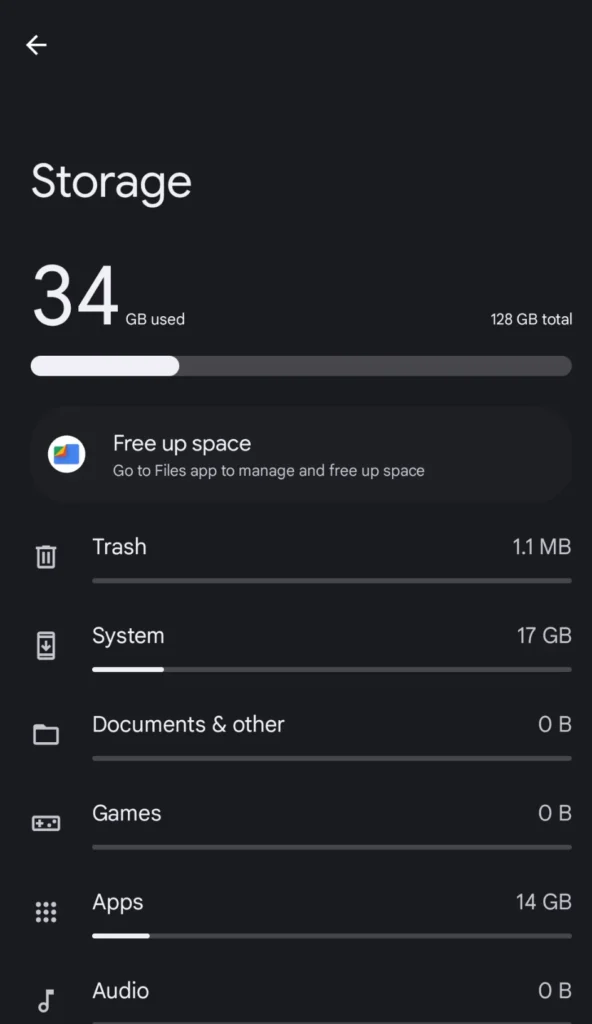
How to Check Available Storage
On Google Pixel and many Android devices:
- Open Settings.
- Tap Storage.
- Review your remaining available space.
- Check for any low-storage warning.
- Free some space if your phone is nearly full.
- Retry the installation.
On Samsung Galaxy devices, storage information is generally available through Settings → Device care → Storage, although the exact navigation varies by model.
How Much Free Space Do You Need?
Google identifies less than 1 GB of available storage as a possible reason app downloads and installations may fail.
This doesn’t mean that 1 GB is sufficient for every application.
Large games and applications may need considerably more space.
See Google’s basic app download troubleshooting instructions.
Safe Ways to Free Up Storage
Start with files you recognize and no longer need, such as old downloads, duplicate videos, or unused applications.
Don’t delete important photos, messages, or app data without checking whether they’re backed up.
Important: If you’re updating an existing app, uninstalling it to free space could remove locally stored information. Confirm the app’s backup or synchronization status before removing it.
4. Check for Pending Downloads and App Updates
If your Play Store download stays on Pending, another installation or update may be occupying the queue.
This is worth checking before changing any system settings.
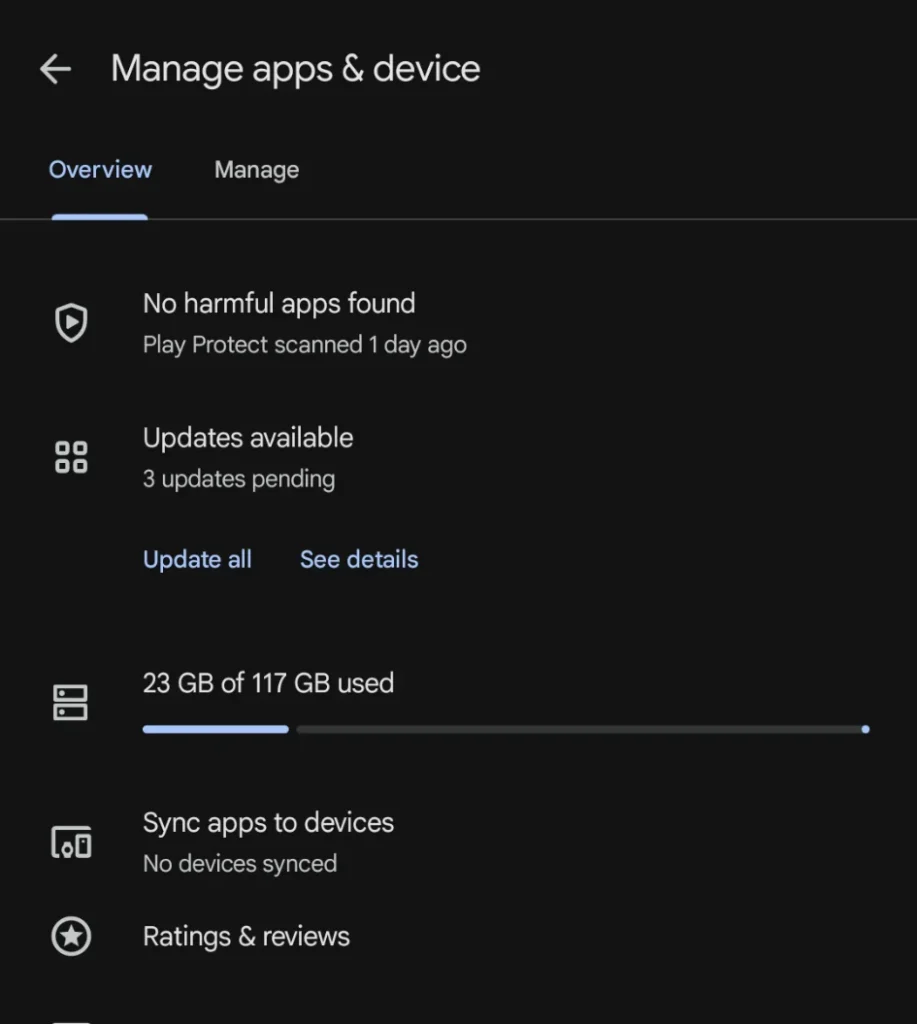
How to Review Your Download Queue
- Open Google Play Store.
- Tap your profile picture.
- Select Manage apps & device.
- Check whether updates or downloads are in progress.
- Open the available updates section if necessary.
- Review the applications waiting to download.
- Pause or cancel an unnecessary pending update if the interface allows it.
- Return to the app you originally wanted and retry.
The exact interface varies by Play Store version.
Why Does Google Play Say Download Pending?
A pending status means the requested download hasn’t started or completed yet.
Other downloads, connectivity issues, or device conditions may be contributing.
Don’t repeatedly tap Install or restart the phone while another application is visibly completing an update.
Expected result: Once the queue is no longer blocked, the requested app should begin downloading if no other issue is present.
5. Restart Google Play Store and Your Android Phone
A temporary Play Store or Android process problem may prevent installations from finishing.
Restarting the app is a simple, reversible troubleshooting step.
Close and Reopen Google Play Store
- Open Android’s recent-apps screen.
- Find Google Play Store.
- Swipe the application away to close it.
- Reopen Google Play Store.
- Retry the installation.
If the problem remains, restart the phone normally.
Restart Your Android Device
- Save any important work.
- Open your phone’s power menu.
- Choose Restart.
- Wait until Android starts normally.
- Unlock your phone.
- Reopen Google Play Store and try installing the app.
On some newer Pixel phones, pressing Power + Volume Up opens the power menu.
Samsung and other Android manufacturers may use different shortcuts.
A normal restart can help with temporary system problems, but it isn’t guaranteed to resolve compatibility or storage restrictions.
6. Check Automatic Date and Time Settings
Incorrect date or time settings can interfere with communication between Android applications and online services.
If your phone’s clock is significantly incorrect, review its automatic time settings.
On Google Pixel and Many Android Phones
- Open Settings.
- Select System.
- Tap Date & time.
- Turn on Set time automatically.
- Enable automatic time-zone settings when available.
- Wait briefly.
- Retry the Play Store download.
On Samsung phones, the equivalent settings are commonly located under General management → Date and time.
Google includes date and time checks in its official download troubleshooting instructions.
If your phone already displays the correct date and time, don’t repeatedly change the settings without a reason.
7. Clear Google Play Store Cache
If several applications won’t download or installations repeatedly fail, clearing Google Play Store’s temporary cache may help.
The cache contains temporary data used by the application.
Over time, this data may become problematic.
How to Clear the Cache
- Open Settings.
- Tap Apps.
- Select Google Play Store.
- Open Storage & cache.
- Tap Clear cache.
- Reopen Google Play Store.
- Retry the installation.
On some Samsung devices, the menu may be labelled simply Storage.
Will Clearing Cache Delete Installed Apps?
No. Clearing the Play Store’s cache does not normally remove installed applications or personal photos.
It is different from clearing the Play Store’s complete app storage.
Google identifies clearing the cache as a common solution for download problems in its advanced troubleshooting guide.
Tip: Try clearing the cache first. Don’t proceed directly to Clear storage unless necessary.
8. Clear Google Play Store Storage if the Problem Continues
If clearing the cache doesn’t help, you can consider resetting Google Play Store’s locally stored data.
This is a more significant step because it can reset Play Store preferences.
Before Clearing Storage
Google warns that clearing Play Store data can remove settings related to parental controls and purchase authentication.
You may also need to accept the Terms of Service again.
Make sure you know how to restore your important settings afterward.
How to Clear Google Play Store Storage
- Open Settings.
- Select Apps → Google Play Store.
- Tap Storage & cache.
- Choose Clear storage or Clear data.
- Read the confirmation message.
- Confirm if you wish to proceed.
- Open Google Play Store again.
- Retry installing the affected application.
Clearing Play Store data doesn’t normally uninstall the other apps on your phone.
However, it may reset locally stored preferences within the Play Store.
What Should You Check Afterwards?
Review parental controls and purchase authentication settings, especially if you previously enabled them.
This helps ensure the Play Store remains configured the way you intended.
9. Uninstall and Reinstall Google Play Store Updates
If an installation problem continues after the basic troubleshooting steps, consider reverting Play Store updates.
On many Google-certified Android devices, the Play Store is a preinstalled system application.
You can often uninstall its updates without uninstalling the underlying system app.
How to Uninstall Play Store Updates
- Find the Google Play Store icon.
- Touch and hold it.
- Select App info.
- Tap the three-dot menu, if available.
- Select Uninstall updates.
- Review the confirmation prompt.
- Confirm if appropriate.
- Open Google Play Store again.
Not every Android device presents the same options.
How to Update Play Store Again
Once the Play Store opens:
- Tap your profile picture.
- Select Settings.
- Expand About.
- Find Play Store version.
- Select Update Play Store.
The application may update or tell you that the current version is already installed.
These steps are documented in Google’s single-app download troubleshooting guide.
Avoid downloading unofficial Play Store installers from unfamiliar sources.
10. Check Android Updates and Troubleshoot the Affected App
If the previous fixes don’t work, determine whether the problem involves Android itself or one particular application.
Check for Android Updates
On many Android devices:
- Open Settings.
- Tap System.
- Select Software updates or System update.
- Check whether an update is available.
- Review the update details.
- Back up important information before a significant update.
- Install an appropriate update if necessary.
On Samsung Galaxy phones, check Settings → Software update → Download and install.
System updates can address certain compatibility or software problems.
They won’t override deliberate app restrictions imposed by developers.
If Only One App Refuses to Update
Google recommends checking the individual app when other downloads work normally.
If the application is already installed and an update fails, uninstalling and reinstalling it may be an option.
However, uninstalling an app may erase local app data.
Before doing so:
- Check whether the app stores important information locally.
- Confirm that essential information is backed up or synchronized.
- Verify that you can sign in again.
- Uninstall only if you’re prepared to lose any data that is not backed up.
- Reinstall the application from Google Play.
For paid apps, make sure you’re using the correct Google Account associated with your purchase.
If a developer has made an application incompatible with your phone, reinstalling won’t necessarily solve the problem.
Google Play Store Download Stuck on Pending
If the app stays on Pending rather than progressing, start with the download queue.
Check whether other apps are updating, verify the internet connection, and confirm that the phone has enough storage.
If these conditions are normal, restart the Play Store and try again.
Clear the cache only when the simpler checks don’t resolve the issue.
Repeatedly changing settings without checking the queue may make troubleshooting more complicated than necessary.
Google Play Store Downloads an App but Won’t Install It
A download reaching 100% doesn’t guarantee successful installation.
The phone may still need to complete installation steps.
If the process repeatedly fails after downloading:
- Check whether there’s enough available storage.
- Confirm that the app supports your Android version.
- Restart the device.
- Check for compatible Android software updates.
- Clear Play Store cache if the problem persists.
- Investigate whether other applications are affected.
Avoid manually installing APK files from untrusted websites to bypass an installation failure.
Google Play Store Can’t Install One Specific App
If other applications install successfully, focus on the affected app.
Check its Play Store listing for compatibility information.
Also review availability in your country and whether parental controls or device management restrictions apply.
If the app is already installed but won’t update, check whether its important data is backed up before considering a reinstall.
Google’s single-app troubleshooting instructions explain these additional options.
Google Play Store Can’t Install Any Apps
If every app fails, the problem is less likely to involve one developer’s compatibility requirements.
Start with:
- Wi-Fi or mobile data connectivity.
- Available device storage.
- Pending downloads and updates.
- Play Store cache and local data.
- Android system updates.
If every app continues failing, use Google’s advanced download troubleshooting guidance or contact the device manufacturer.
Avoid clearing Google Play services data casually.
Google warns that doing so can remove information associated with payment methods, saved credentials, and other services, and may require reauthentication.
Account removal and factory resets should be treated as last-resort procedures after backups and appropriate troubleshooting.
What if an App Installs but Doesn’t Work?
An app that installs successfully but fails afterward is a different problem.
For example, if you successfully install Android Auto but can’t connect it to your vehicle, the issue involves connectivity rather than Play Store installation.
Our Android Auto Not Connecting guide covers the relevant Bluetooth, USB, wireless, and vehicle compatibility checks.
Likewise, if an app installs but doesn’t send notifications, review our Android Notifications Not Showing guide for application notification settings and background restrictions.
Keeping these issues separate helps you avoid repeatedly resetting the Play Store when the actual problem is elsewhere.
Frequently Asked Questions
Why does Google Play Store say Can’t install app?
Possible causes include insufficient storage, incompatible software, an unstable connection, app restrictions, or temporary Play Store problems. The exact cause depends on the device and error message.
Why is my Play Store download stuck on Pending?
Other downloads or updates may be waiting or running. Connection problems and limited storage can also contribute. Check the download queue before restarting the app.
Why does Play Store download an app but not install it?
The download may finish while installation remains incomplete or fails. Check storage, device compatibility, and software updates.
Does clearing Google Play Store cache delete my apps?
No. Clearing Play Store cache does not normally uninstall apps or remove personal files. Clearing app storage is more disruptive and may reset Play Store preferences.
How much free storage do I need to install apps?
Google identifies less than 1 GB of available storage as a potential problem. Larger applications may require substantially more free space.
Why can’t I install one app when other apps work?
The specific app may be incompatible with your Android version, restricted in your country, or affected by account or parental controls.
Should I uninstall Google Play Store?
Generally, no. On supported devices, uninstalling Play Store updates may be an option, but removing the underlying system application is not a routine troubleshooting step.
Should I clear Google Play services data?
Not as an early fix. Google recommends reserving that step for advanced troubleshooting because it may affect payment methods, credentials, and other locally stored information.
Can a factory reset fix Play Store installation problems?
It may resolve certain persistent device-level problems, but it erases personal data and should not be your first solution. Back up your information and consider device-specific support before proceeding.
Final Thoughts
If Google Play Store can’t install app on your Android phone, begin by identifying whether one application or every application is affected.
Check device compatibility, your internet connection, available storage, and the download queue.
If those checks don’t resolve the issue, restart the Play Store, clear its cache, and consider more advanced troubleshooting carefully.
Google Play Store data resets, account removal, and clearing Google Play services storage have different consequences, so don’t treat them as interchangeable fixes.
Most importantly, avoid unnecessary factory resets and preserve any important app data before uninstalling applications.
A systematic approach can help you identify the problem without making additional changes you don’t need.