Want to customize your Google Pixel but aren’t sure where to start? This Google Pixel home screen setup guide will help you organize apps, change wallpaper, add widgets, adjust icon layouts, and make your phone easier to use.
Whether you’ve just purchased a Pixel or have been using one for years, you can change much of the default home screen without downloading a third-party launcher.
Google Pixel phones include built-in customization features through Pixel Launcher, Wallpaper & style, and Home settings.
You can create app folders, resize widgets, personalize colors, and choose which apps appear in your favorites row.
However, a few Pixel-specific features, such as the built-in Search bar and At a Glance, work differently from ordinary Android widgets.
In this guide, we’ll walk through 10 easy ways to customize your Google Pixel home screen, including features available in newer Android releases.
Some options vary depending on your Pixel model, Android version, and region.
Quick Answer: Google Pixel Home Screen Setup
To customize your Pixel home screen:
- Touch and hold an empty area of the home screen.
- Tap Wallpaper & style to change your background and colors.
- Open Layout to adjust the app grid.
- Return to the home screen and open Widgets.
- Drag useful widgets into position.
- Swipe up to open your app drawer.
- Drag frequently used apps onto the home screen.
- Organize related apps into folders.
- Customize your favorites row and app suggestions.
- Adjust At a Glance and Search bar settings.
For most users, these built-in options are enough to create a clean, functional home screen.
Google explains the underlying controls in its official Pixel home-screen customization guide.
Table of Contents
What Can You Customize on a Google Pixel Home Screen?
Your Pixel home screen is more than a collection of app icons.
It’s the main place where you access everyday applications, information, and shortcuts.
Depending on your Android version, you can customize:
- Wallpapers and background effects.
- App icon colors, shapes, and styles.
- Home-screen layout and grid size.
- App shortcuts and folders.
- Widgets for weather, calendar, and other apps.
- The bottom favorites row.
- Suggested applications.
- At a Glance information.
- Google Search bar appearance and shortcuts.
- Additional home-screen pages.
The default Pixel Launcher handles these features automatically, so you don’t normally need to install a separate customization application.
Let’s set everything up one step at a time.
Step 1: Open Google Pixel Home Screen Settings
The first part of your Google Pixel home screen setup is finding the correct customization menu.
You can access most home-screen options directly from the launcher.
How to Open Home Settings
- Unlock your Google Pixel.
- Go to the main home screen.
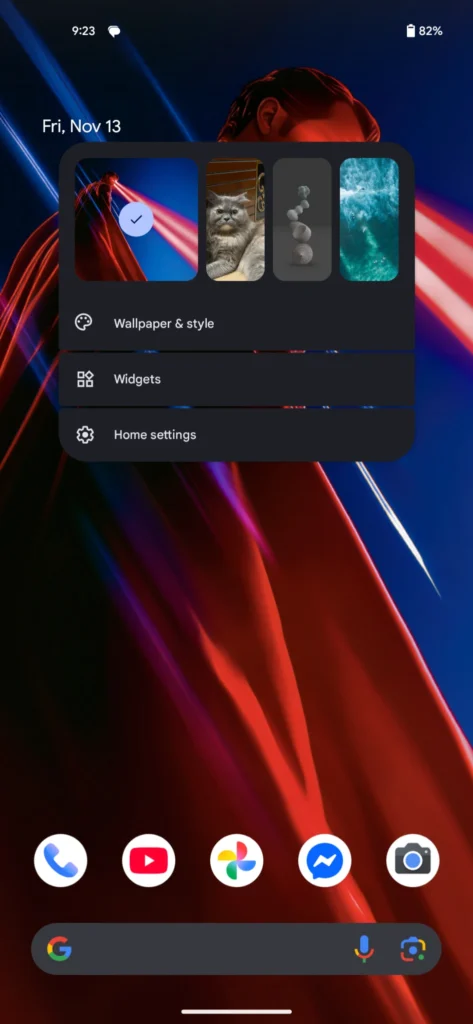
- Find an empty area without icons or widgets.
- Touch and hold that empty space.
- Wait for the home-screen customization menu.
- Tap Home settings.
You’ll find controls related to the Pixel Launcher, including app suggestions and other supported home-screen behavior.
Where Is Wallpaper & Style?
From the same long-press menu, choose Wallpaper & style.
This section manages your wallpaper, layout, colors, and other visual settings.
If you don’t see exactly the same menu, check whether you’re using a third-party launcher or an older Android version.
Some options are available only on newer Pixel software.
Tip: Home settings and Wallpaper & style are separate areas. Home settings controls launcher behavior, while Wallpaper & style handles much of the visual appearance.
Step 2: Change Your Google Pixel Home Screen Wallpaper
Changing the wallpaper is an easy way to personalize your Pixel.
You can select one of Google’s included backgrounds or use a photo stored on your phone.
How to Change Wallpaper
- Touch and hold an empty area of your home screen.
- Tap Wallpaper & style.
- Select the home-screen wallpaper options.
- Tap Change wallpaper or More wallpapers, depending on your version.
- Choose an available wallpaper category.
- Alternatively, select one of your own photos.
- Preview the wallpaper.
- Tap Apply or the equivalent confirmation button.
Your Pixel may allow you to use the same wallpaper on both your home screen and lock screen or choose separate images.
Try Google’s Advanced Wallpaper Features
Certain Pixel models also offer special wallpaper tools.
These can include:
Emoji wallpapers: Create backgrounds using selected emojis, patterns, and colors.
AI-generated wallpapers: Supported Pixel models can create wallpapers using Google’s predefined generative AI options.
Cinematic and live effects: Certain devices can apply additional visual effects to photos.
Availability depends on hardware, software, and region.
Google documents these tools in its Pixel wallpaper customization guide.
Best Wallpaper Tips
Choose an image that doesn’t make your app icons difficult to read.
If you prefer a minimal setup, use a simple background with relatively little detail behind important widgets.
A wallpaper with a darker or less detailed lower section can help icons remain visible.
Step 3: Customize Pixel App Icon Colors and Shapes
Recent Pixel software offers more appearance customization than simply changing wallpaper.
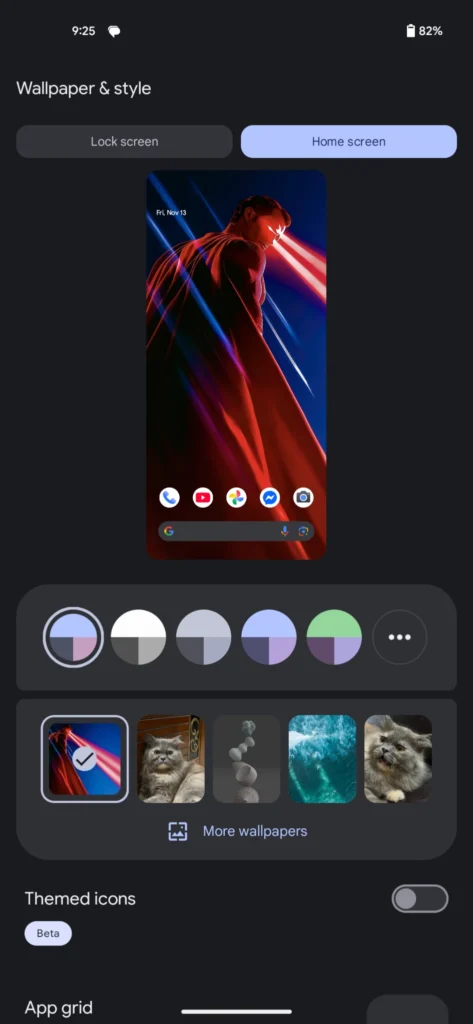
Through Wallpaper & style, you can adjust colors and, on supported versions, icon appearance.
Change Home Screen Colors
- Touch and hold an empty home-screen area.
- Select Wallpaper & style.
- Open Colors.
- Review the available palettes.
- Select a color combination you prefer.
- Tap Apply.
Some palettes are based on colors from your wallpaper.
You may also be able to select other colors manually.
Change Icon Shapes and Styles
On Pixel versions offering the newer icon controls:
- Open Wallpaper & style.
- Select Icons.
- Open Shape or Style, depending on the option you want.
- Choose a supported icon appearance.
- Preview your selection.
- Apply the changes.
Google also documents custom icon styles on supported recent software.
Some configurations offer a Create your own option for generating additional icon appearances.
What About Themed Icons?
Older Pixel versions may show a Themed icons toggle instead of the newer icon customization interface.
That option attempts to make supported app icons match your chosen theme colors.
Not all app icons necessarily support the same customization.
Important: Don’t assume that every app icon can be fully customized on every Pixel model. The options depend on the launcher, Android version, and individual applications.
Step 4: Change the Google Pixel Home Screen Layout
If your Pixel home screen feels too crowded or the app icons seem too large, adjusting the layout can help.
Google Pixel includes a built-in app grid setting.
How to Change the Pixel Home Screen Grid
- Touch and hold an empty part of the home screen.
- Tap Wallpaper & style.
- Select the Home screen view if the editor separates it from the lock screen.
- Scroll to Layout.
- Review the available layout or icon-size options.
- Select your preferred configuration.
- Tap Apply.
The exact layout choices vary by Android version.
Some versions describe the setting using grid dimensions, while newer interfaces can present icon-size or layout choices.
Which Layout Should You Choose?
A layout with fewer icons per row may make app icons easier to tap.
A denser layout may be better if you want more shortcuts visible without switching pages.
Neither option is universally better.
Choose the configuration that makes your most-used apps easy to reach.
You can change the layout again if you don’t like the result.
Google explains the supported grid controls in its Pixel wallpaper and layout documentation.
Step 5: Add Apps and Shortcuts to Your Pixel Home Screen
Your Pixel app drawer contains installed applications, but you don’t need to keep every app on your home screen.
A better setup is to place frequently used apps where they’re easy to reach.
How to Add an App to the Home Screen
- Go to the home screen.
- Swipe up from the bottom to open the app drawer.
- Find the application you want.
- Touch and hold its icon.
- Drag the app toward the desired home-screen location.
- Release your finger to place it.
Repeat this for other apps.
Add an App Shortcut
Some Android applications provide shortcuts that open specific features directly.
For example, a supported app might offer a shortcut for starting a new message or opening a particular screen.
To add one:
- Touch and hold the app icon.
- Review the shortcut menu, if available.
- Touch and hold the desired shortcut.
- Drag it onto the home screen.
- Release it.
The shortcut is separate from the ordinary app icon.
How to Remove Apps From Your Home Screen
- Touch and hold the app.
- Drag it toward Remove.
- Release the icon.
Remove is not the same as Uninstall.
Removing an icon from the home screen normally leaves the application installed in your app drawer.
Uninstalling removes the application from the device.
Review the option carefully before releasing an icon.
Step 6: Organize Apps Into Folders and Create More Home Screens
If you have several apps for work, communication, banking, or entertainment, folders can make your home screen easier to navigate.
Create an App Folder
- Touch and hold an app icon.
- Drag it directly over another app.
- Release your finger.
- The Pixel Launcher creates a group.
- Tap the folder to open it.
- Select the folder name.
- Enter a descriptive name.
You can then drag additional apps into the folder.
For example, you could create folders for Productivity, Finance, Photography, or Entertainment.
Move Apps Between Screens
- Touch and hold an app icon or folder.
- Drag it toward the left or right edge.
- Wait for the adjacent page to appear.
- Place the item where you want it.
Create Another Home Screen
To add another page:
- Touch and hold an app, shortcut, or folder.
- Drag it toward the far-right side.
- Continue until a blank home-screen page appears.
- Release the item.
Your Pixel creates the additional page as needed.
Remove an Unnecessary Home Screen
Move all its apps, widgets, shortcuts, and folders to another page or remove them.
When the page is empty, Pixel Launcher can remove it automatically.
Tip: Keep your primary home screen focused on frequently used apps. Store less frequently used shortcuts on secondary pages or in the app drawer.
Step 7: Customize the Bottom Favorites Row
The bottom row of your Pixel home screen is designed for quick access to frequently used applications.
This area is often called the favorites row or dock.
It’s useful because the selected apps remain easily accessible while you move between home-screen pages.
How to Change Favorite Apps
- Go to your Pixel home screen.
- Touch and hold an app in the favorites row.
- Drag it to another part of your home screen.
- Open the app drawer.
- Touch and hold the application you want to add.
- Drag it into an available favorites position.
Some Pixels also show suggested applications in this area.
Suggested icons may have a distinct visual indicator.
Turn Off Suggested Apps
If the favorites row keeps changing and you prefer fixed shortcuts:
- Touch and hold an empty home-screen area.
- Tap Home settings.
- Open Suggestions.
- Find Suggestions on Home screen.
- Turn it off if you don’t want automatically suggested apps.
You may also see a separate control for suggestions in the complete app list.
Can You Pin Suggested Apps?
On supported Pixel software, touch and hold a suggested app and choose Pin.
Pinned apps remain in the favorites row rather than being replaced by later suggestions.
If you have difficulty replacing a suggested icon, try disabling home-screen suggestions first.
This is useful when you want a consistent app arrangement.
Step 8: Add and Resize Google Pixel Home Screen Widgets
Widgets make the Pixel home screen more useful by displaying information without opening an application.
For example, a calendar widget can show upcoming events, while a weather widget can display forecasts.
How to Add Widgets
- Touch and hold an empty area of the home screen.
- Tap Widgets.
- Find the application that offers the widget.
- Expand the app’s available widgets.
- Touch and hold your preferred widget.
- Drag it onto the home screen.
- Release your finger.
Some apps let you open their widget collection directly by touching and holding the app icon.
How to Resize a Widget
- Touch and hold the widget.
- Release your finger.
- Look for resizing handles around the widget.
- Drag the handles to adjust its size.
- Tap outside the widget when finished.
Not all widgets support resizing.
What If Your Google Search Widget Stops Working?
If the Google Search widget freezes, disappears, or refuses to open, follow our Google Widget Not Working on Android troubleshooting guide.
That guide covers restoring the widget, updating the Google app, and clearing temporary cache.
Tip: Don’t overcrowd the first home screen with large widgets. Leave enough space for the shortcuts you use most frequently.
Step 9: Customize At a Glance on Your Google Pixel
At a Glance is one of the most recognizable Pixel home-screen features.
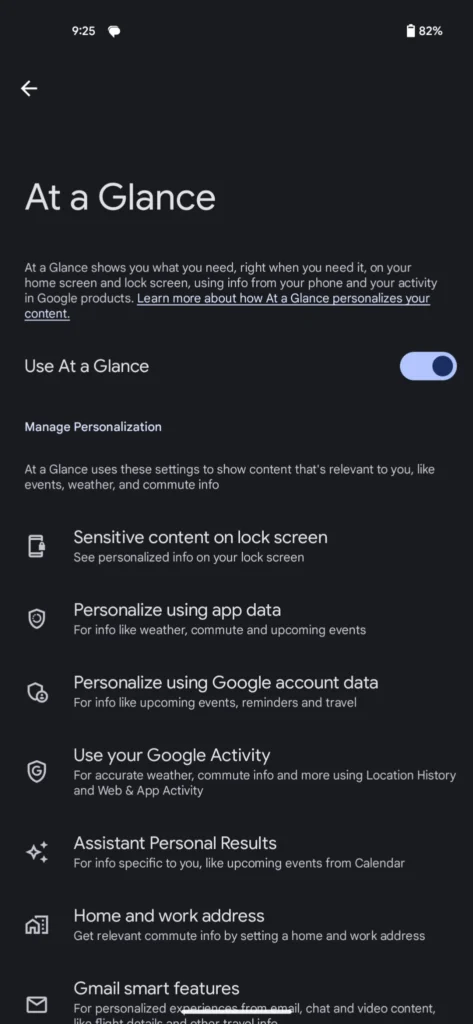
It can display useful information near the top of the home screen, such as the date, weather, calendar updates, and other timely information.
How to Open At a Glance Settings
- Go to the main home screen.
- Touch and hold the displayed date or At a Glance area.
- Open the available customization or settings option.
- Find At a Glance settings.
- Review the categories.
- Enable or disable the information you want.
The exact content available depends on language, region, permissions, and supported features.
Can You Turn Off At a Glance?
Yes, supported Pixel versions provide settings for controlling At a Glance information.
Google also documents a Show on home screen option on supported software.
Depending on the Android version, turning off At a Glance may stop its cards while the date remains visible.
Can You Move At a Glance?
On the standard Pixel Launcher, At a Glance isn’t an ordinary draggable widget.
Its placement is managed by Pixel Launcher rather than by the same move-and-resize controls used for most other widgets.
If your goal is to change its contents, use the customization settings instead.
Check Sensitive Information
At a Glance can display calendar events and other personalized updates.
Review its privacy controls if you don’t want sensitive information appearing on the lock screen.
For more general notification problems, see our Android Notifications Not Showing guide.
Google explains the available options in its official At a Glance guide.
Step 10: Customize the Google Search Bar and Home Settings
Another important feature of the Google Pixel home screen setup is the built-in Google Search bar.
On the standard Pixel Launcher, Search is generally integrated into the home-screen layout.
It doesn’t necessarily behave like an ordinary widget.
Change Search Bar Appearance
- Go to your Pixel home screen.
- Touch and hold the Search bar.
- Tap Widget settings, if available.
- Review the available customization options.
- Change the Search bar’s appearance or shortcuts where supported.
- Return to the home screen.
Depending on your Google app and Android version, customization can include appearance and shortcut options.
Can You Remove the Google Search Bar?
The standard Pixel Launcher generally doesn’t let you remove its built-in Search bar like an ordinary home-screen widget.
You may be able to customize it, but that isn’t the same as completely removing it.
If you want a fundamentally different layout, Android supports alternative home applications.
However, third-party launchers can behave differently from Pixel Launcher and may not support every Pixel-specific feature.
Check Other Home Settings
Touch and hold an empty home-screen area, then open Home settings.
Review the available options for suggestions and other launcher behavior.
Don’t change unfamiliar settings solely to make the home screen look different.
Google Pixel Home Screen Setup for a Minimal Layout
If you prefer a simple, uncluttered home screen, you don’t need to use every available widget.
A practical setup is to keep only a few important elements on the first page.
For example:
- One simple wallpaper.
- A compact weather or calendar widget.
- Four or five frequently used applications.
- A small folder for related apps.
- The standard Google Search bar.
- At a Glance information only when useful.
Move less important apps to the app drawer or additional home-screen pages.
You can also disable suggested apps if you prefer the favorites row to remain consistent.
A minimal layout is about making the phone easier to use, not removing as many features as possible.
How to Restore the Default Google Pixel Home Screen
If you dislike your changes, most home-screen customization can be reversed individually.
You can restore a default wallpaper, remove widgets, rearrange apps, and change the icon layout again.
Start With These Reversible Changes
- Open Wallpaper & style.
- Choose a preferred default wallpaper.
- Review your colors and icon styles.
- Change the layout to a comfortable configuration.
- Remove unwanted widgets.
- Reorganize apps and folders.
- Review suggested apps in Home settings.
Should You Clear Pixel Launcher Storage?
Not as a normal reset method.
Clearing the Pixel Launcher’s app storage can reset home-screen arrangements, folders, and customization preferences.
It is significantly more disruptive than simply changing wallpaper or removing widgets.
Avoid clearing launcher storage unless you’re troubleshooting a specific problem and understand the consequences.
A factory reset isn’t necessary to reorganize your Pixel home screen.
Google Pixel Home Screen Settings Missing
If you touch and hold your home screen but don’t see the expected options, consider whether you’re using a different launcher.
Check Your Default Home App
- Open Settings.
- Select Apps.
- Open Default apps.
- Find Home app, if available.
- Check which launcher is selected.
If you use a third-party launcher, its customization menu may be different.
Some Android versions and device configurations also place personalization options in different locations.
If you’re using the standard Pixel Launcher, update the device’s software if an appropriate update is available.
Don’t install unknown launcher apps simply to recover a missing settings menu.
Google Pixel Home Screen Setup After Switching From iPhone
If you’ve recently switched from an iPhone, the Pixel Launcher may feel unfamiliar.
One important difference is the app drawer.
You can keep most installed applications in the drawer and place only important shortcuts on your home screen.
Folders and widgets are available on both platforms, but their setup methods are different.
For example, on Pixel you can swipe up to open the complete app list and drag shortcuts onto the home screen.
You can also change the home-screen grid, color palette, and supported app-icon styles through Wallpaper & style.
This makes it possible to create a compact layout without copying your previous iPhone arrangement exactly.
Google Pixel Home Screen vs. Lock Screen
The home screen and lock screen are different areas.
Your home screen contains app icons, folders, widgets, and shortcuts used after unlocking your phone.
Your lock screen is shown before the device is unlocked.
Pixel provides separate customization controls for certain lock-screen elements, including clock appearance, notifications, and shortcuts.
If you want to change the lock-screen clock, open Wallpaper & style and select the lock-screen customization options.
Don’t confuse lock-screen controls with the app grid or home-screen dock.
Frequently Asked Questions
How do I set up my Google Pixel home screen?
Touch and hold an empty area of your home screen, then use Wallpaper & style, Widgets, and Home settings to personalize the layout. Swipe up to add apps from the app drawer.
How do I change the home screen layout on Google Pixel?
Open Wallpaper & style, select the home-screen settings, and find Layout. Choose your preferred grid or icon-size option and apply it.
Can I customize Google Pixel app icons?
Yes. Supported Pixel versions offer colors, icon styles, and shapes through Wallpaper & style. The available customization options vary by Android version.
How do I add widgets to my Pixel home screen?
Touch and hold an empty area, select Widgets, expand the relevant application, and drag a widget into position.
Can I remove At a Glance from Google Pixel?
Supported Pixel versions provide options for managing its display and information. However, At a Glance isn’t an ordinary movable widget, and behavior varies by version.
How do I remove apps from the Pixel home screen without uninstalling them?
Touch and hold the icon and drag it to Remove. Avoid choosing Uninstall unless you want to remove the application from your device.
How do I create folders on Google Pixel?
Touch and hold one app, drag it over another app, and release. Tap the resulting folder to rename it or add more applications.
Can I change the Google Pixel home screen search bar?
You can customize supported Search bar settings by touching and holding the built-in Search bar and opening Widget settings. Complete removal isn’t generally supported in the standard Pixel Launcher.
Why do my favorite apps keep changing?
Pixel Launcher can display suggested apps based on usage. Open Home settings → Suggestions to review or turn off Home screen suggestions.
Can I add more home screens on Google Pixel?
Yes. Drag an app or folder toward the right edge until a new blank page appears, then release it.
Do I need a third-party launcher for Pixel customization?
No. Pixel Launcher provides built-in wallpaper, color, grid, widget, app, folder, and favorites customization. Alternative launchers are optional.
Does customizing the home screen delete my data?
Ordinary home-screen changes don’t delete your personal files. Removing a shortcut is different from uninstalling an app, and clearing launcher storage is more disruptive.
Final Thoughts
A good Google Pixel home screen setup should make your phone more convenient to use.
Start with a wallpaper and layout you like, then add your most important applications.
Organize related apps into folders and use widgets for information you want to see at a glance.
Customize colors, icon styles, and the favorites row to make the interface consistent.
Finally, review At a Glance and Search bar settings so those Pixel-specific features work the way you prefer.
Most of these changes are reversible, so you can experiment without resetting your phone.
With a little organization, you can create a Google Pixel home screen that looks clean and gives you quick access to the features you use most.
Last reviewed: November 13, 2026.