Want your MacBook screen saver to start sooner or stay off for longer? Learning how to change screen saver time on Mac is straightforward, but the setting can be difficult to find if you’ve recently updated macOS.
On macOS 27 and macOS Tahoe, the screen saver timer is located under System Settings → Wallpaper → Screen Saver.
Older macOS versions use different menus, which explains why some tutorials still direct users to Lock Screen or System Preferences.
You may also notice that your Mac’s display turns black before the screen saver appears. This happens when the display-off timer is shorter than the screen saver timer.
In this guide, we’ll walk through seven easy steps to change your Mac screen saver time, explain how to adjust display sleep, and fix common screen saver timing problems.
These instructions cover MacBook Air, MacBook Pro, iMac, Mac mini, and compatible macOS versions.
Quick Answer: How to Change Screen Saver Time on Mac
To change your screen saver time on macOS 27:
- Click the Apple menu ().
- Open System Settings.
- Select Wallpaper in the sidebar.
- Click Screen Saver.
- Find Start Screen Saver.
- Choose your preferred inactivity time.
- Close the settings panel and test the new timing.
For example, selecting After 5 minutes means the screen saver should begin after approximately five minutes of inactivity, provided your display hasn’t already turned off.
Important: If your display goes black before the screen saver appears, open System Settings → Lock Screen and review the display-off timer.
Apple documents the current controls in its official macOS screen saver settings guide.
Table of Contents
How to Change Screen Saver Time on Mac in 7 Steps
Let’s go through the process on a recent Mac.
Step 1: Open the Apple Menu
Move your pointer to the top-left corner of the screen.
Click the Apple logo to open the system menu.
This menu provides access to System Settings, sleep controls, and other macOS functions.
Step 2: Select System Settings
Click System Settings.
Wait for the settings application to open.
If you’re using macOS Monterey or earlier, the equivalent application is called System Preferences.
We’ll cover the older interface later.
Step 3: Open Wallpaper
In the System Settings sidebar, find Wallpaper.
You may need to scroll down.
Click Wallpaper to open the personalization controls.
On macOS 27, this area contains wallpaper options along with access to screen saver settings.
Step 4: Click Screen Saver
Find and select Screen Saver.
The screen saver configuration panel will open.
Depending on your macOS version, you may see a preview, an inactivity timer, and several screen saver customization options.
This is where you’ll configure how long your Mac waits before starting the screen saver.
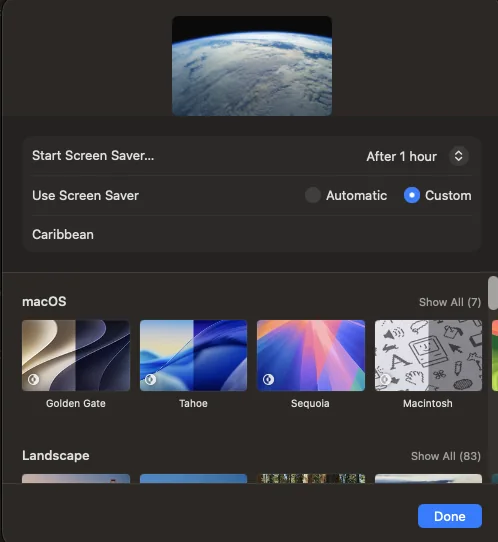
Step 5: Find Start Screen Saver
Locate the setting labeled Start Screen Saver.
Apple’s macOS 27 guide describes this control as the amount of time your Mac can remain inactive before the screen saver begins.
Click the current time setting to review the available choices.
Step 6: Choose Your Preferred Time
Select a suitable inactivity period.
For example, you might choose:
- After 2 minutes for a short delay.
- After 5 minutes for a relatively quick screen saver.
- After 10 minutes for a longer delay.
- After 20 minutes when you prefer fewer interruptions.
The exact choices depend on your macOS version.
If Never is available and you don’t want an automatic screen saver, you can select it.
Step 7: Save and Test the Setting
After selecting your preferred time, finish the change using the displayed controls.
Close System Settings.
Leave your Mac idle for the selected period.
If the display stays on long enough, the screen saver should appear.
You don’t normally need to restart your Mac after changing the timer.
If the display turns off first, check the next section.
Screen Saver Time vs. Display Sleep: What’s the Difference?
Your Mac has separate controls for the screen saver and display inactivity.
These settings are related, but they don’t perform the same job.
Screen Saver Timer
This determines how long your Mac waits before displaying the selected screen saver.
On macOS 27, find it under:
System Settings → Wallpaper → Screen Saver → Start Screen Saver
Display-Off Timer
This determines how long your Mac can remain inactive before the display turns off.
Find it under:
System Settings → Lock Screen
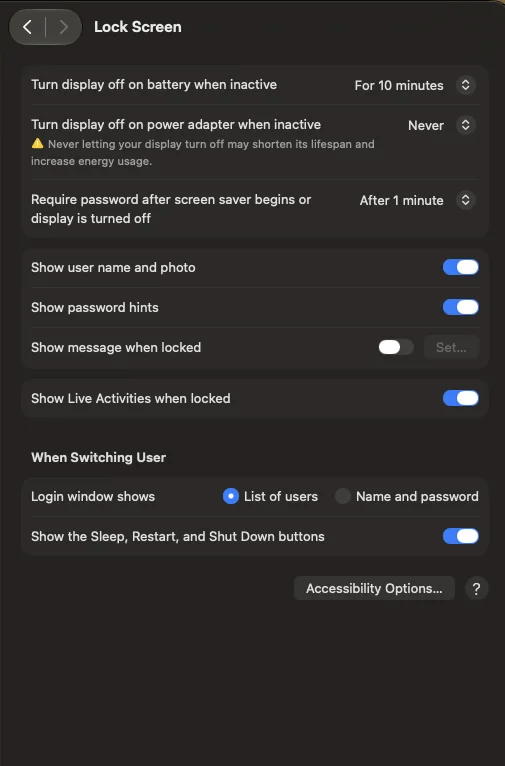
On MacBook models, you may see separate controls for:
- Turn display off on battery when inactive.
- Turn display off on power adapter when inactive.
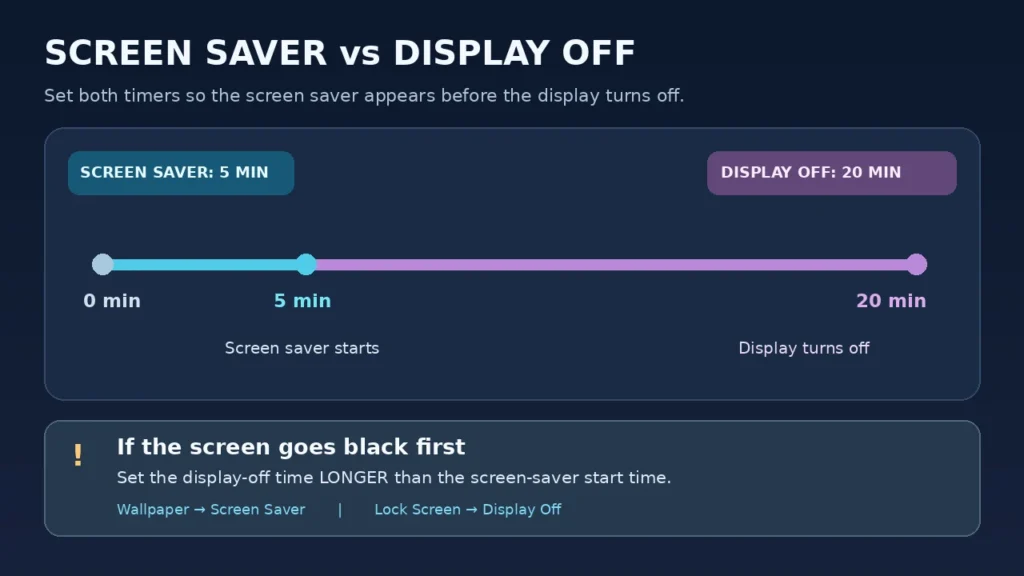
Example: Five-Minute Screen Saver and Twenty-Minute Display Timer
Imagine you configure:
Start Screen Saver: After 5 minutes
Turn display off: After 20 minutes
If your Mac remains inactive, the screen saver can start after five minutes.
The display can then turn off after twenty minutes of total inactivity.
That gives the screen saver approximately fifteen minutes to appear before the screen turns off.
What if the Display Timer Is Shorter?
Suppose you choose:
Start Screen Saver: After 10 minutes
Turn display off: After 5 minutes
The display may turn off before the screen saver has a chance to appear.
This doesn’t necessarily indicate a screen saver malfunction.
To see the screen saver, set the relevant display-off time longer than the screen saver start time.
Apple explains display-off behavior in its Mac energy-saving guide.
How to Change Mac Display Sleep Time
If you want your screen saver to remain visible longer, review the display-off settings.
Steps
- Open the Apple menu.
- Select System Settings.
- Click Lock Screen.
- Find the display-off setting for your current power source.
- Choose a longer inactivity period.
- Check the other power-source setting if you’re using a MacBook.
- Return to Screen Saver settings to confirm your preferred start time.
For example, you could choose a five-minute screen saver start time and a twenty-minute display-off time.
Why Are There Two Settings on MacBook?
MacBook Air and MacBook Pro can behave differently when operating on battery power versus a power adapter.
A shorter display-off time on battery can help conserve energy.
A longer display-off time while plugged in may be appropriate when you want the screen saver visible during desk use.
However, keeping the display active longer can increase power consumption.
If your MacBook has unusually high battery consumption, see our MacBook Battery Draining Fast troubleshooting guide.
How to Change Screen Saver Time on Older macOS Versions
Apple has moved screen saver settings between different locations over the years.
That’s why a tutorial written for an older macOS release may not match your current Mac.
macOS Tahoe 26 and macOS 27
Open:
System Settings → Wallpaper → Screen Saver
Find Start Screen Saver and choose the desired inactivity period.
This is the current interface described by Apple’s macOS 27 documentation.
macOS Sequoia, Sonoma, and Ventura
On many earlier macOS releases, you can adjust the timer through:
System Settings → Lock Screen
Look for Start Screen Saver when inactive, where available.
Some releases also provide separate Screen Saver controls for selecting the visual effect.
macOS Monterey and Earlier
Older Macs generally use:
Apple menu → System Preferences → Desktop & Screen Saver → Screen Saver
Find the Start after control.
Choose the desired delay.
If you cannot find the setting shown in an online tutorial, first check which macOS version you’re running under Apple menu → About This Mac.
How to Turn Off Screen Saver on Mac
If you don’t want a screen saver to activate automatically, you can disable its timer when your macOS version provides that option.
Steps
- Open System Settings.
- Select Wallpaper.
- Click Screen Saver.
- Find Start Screen Saver.
- Choose Never, if available.
- Finish the change.
Your Mac can still turn off its display according to its separate Lock Screen settings.
Does Turning Off the Screen Saver Disable Display Sleep?
No.
The screen saver and display-off settings are separate.
Disabling the automatic screen saver doesn’t necessarily prevent your Mac from turning off the display or going to sleep.
If your goal is to change when the screen turns off, adjust the Lock Screen timer instead.
How to Start the Mac Screen Saver Immediately
You don’t always have to wait for the inactivity timer.
macOS supports starting a screen saver using Hot Corners.
A Hot Corner activates a selected action when you move the pointer into a particular corner of the screen.

Set Up a Screen Saver Hot Corner
- Open System Settings.
- Select Desktop & Dock.
- Scroll to the bottom.
- Click Hot Corners.
- Choose a corner.
- Select Start Screen Saver as its action.
- Confirm the setting.
Move your pointer to the configured corner to test it.
Why Use Hot Corners?
Hot Corners can be useful when you want to start a screen saver immediately without changing the normal inactivity timer.
For example, you might start it manually when stepping away from your desk.
However, don’t confuse starting a screen saver with securely locking your Mac.
If your purpose is to prevent unauthorized access, use a password-protected lock screen.
Apple documents Hot Corners in its screen saver settings guide.
How to Change the Screen Saver Style on Mac
Changing the timer doesn’t automatically change which screen saver appears.
You can customize its appearance separately.
Steps
- Open System Settings → Wallpaper → Screen Saver.
- Find the available screen saver options.
- Choose Automatic or Custom, where available.
- Review the available categories.
- Select your preferred screen saver.
- Adjust any supported options.
- Preview the result.
Recent macOS versions offer choices such as:
macOS: Slow-motion scenic or system-themed screen savers.
Landscape, Cityscape, Underwater, and Earth: Aerial views and other scenery.
Shuffle Aerials: Rotate through available aerial screen savers.
Other: Additional choices, potentially including your own photos.
Some aerials require downloading before use.
Options may differ by macOS release and hardware.
Preview Your Screen Saver
Move the pointer over the current screen saver preview and click Preview when available.
You can view the effect without waiting for the normal inactivity timer.
Move the pointer or press a key to end the preview.
How to Use Photos as Your Mac Screen Saver
You can also use photos instead of Apple’s built-in animations.
On supported macOS versions:
- Open System Settings → Wallpaper → Screen Saver.
- Choose Custom.
- Find Other.
- Select a supported photo-based screen saver.
- Choose the available photo source.
- Configure its display options.
- Preview the result.
Depending on the selected screen saver, you may be able to control how photos transition or appear.
If you use personal photos, consider whether other people can see your screen while the computer is unattended.
Avoid displaying sensitive documents or private images on a shared or public-facing computer.
Mac Screen Saver Not Starting After the Selected Time
If the screen saver doesn’t appear even after the selected period, check the settings systematically.
Fix 1: Confirm the Timer
Open Wallpaper → Screen Saver.
Check the Start Screen Saver value.
Make sure a suitable time is selected.
Fix 2: Check the Display-Off Timer
Open System Settings → Lock Screen.
If your display is configured to turn off before the screen saver starts, extend the appropriate display-off interval.
This is one of the first things to check when the screen simply goes black.
Fix 3: Check Whether the Mac Is Actually Idle
Certain applications or system activities can prevent expected idle behavior.
For example, media playback or applications that intentionally keep the display awake may affect when the screen saver starts.
Close unnecessary apps and test again without interrupting active work.
Fix 4: Restart the Mac
Save your work and restart normally.
Then test the timer again.
A restart may resolve a temporary software problem, although it won’t fix an incorrectly configured timer.
Fix 5: Check for macOS Updates
Open System Settings → General → Software Update.
Review available supported updates.
Don’t install an unrelated beta or perform a full macOS reinstall just to troubleshoot the screen saver.
If the problem appears after an update, check the current settings before assuming the update caused it.
For broader power-management issues, read our MacBook Not Sleeping When Lid Closed guide.
Mac Screen Saver Starts Too Quickly
If your screen saver starts earlier than expected, inspect the configured timer.
For example, if Start Screen Saver is set to two minutes, it may activate after a short period without keyboard or pointer activity.
To increase the delay:
- Open System Settings → Wallpaper → Screen Saver.
- Find Start Screen Saver.
- Select a longer time.
- Finish the change.
- Test the new delay.
Also check whether a Hot Corner is configured.
If you accidentally move the pointer to a Hot Corner assigned to Start Screen Saver, it can activate immediately even when the timer is set to a longer interval.
You can change or disable that Hot Corner under Desktop & Dock.
Mac Screen Saver Turns Off Too Quickly
If the screen saver appears and then the display goes black soon afterward, check the display-off settings.
For example, if the screen saver starts after ten minutes but the display turns off after twelve minutes, the animation may remain visible for only about two minutes.
Increase the display-off time if you want it visible longer.
Remember that longer display-on periods can consume additional power.
How to Require a Password After the Mac Screen Saver Starts
A screen saver isn’t automatically the same thing as a secure lock screen.
You can configure macOS to require authentication after the screen saver begins or the display turns off.
Steps
- Open System Settings.
- Select Lock Screen.
- Find Require password after screen saver begins or display is turned off.
- Choose your preferred delay.
- Authenticate if requested.
For better privacy, especially on a portable MacBook, consider requiring a password immediately.
This helps protect your files if someone approaches your computer while you’re away.
Avoid choosing a long password delay on a computer used in a shared or public environment.
If you need to update the login password itself, see our How to Change Password on Mac guide.
Frequently Asked Questions
How do I change screen saver time on Mac?
On macOS 27, open System Settings → Wallpaper → Screen Saver and change the Start Screen Saver setting to your preferred inactivity period.
Where is the screen saver timer on macOS 27?
It is under System Settings → Wallpaper → Screen Saver, rather than on the Lock Screen page.
How do I make my Mac screen saver start after five minutes?
Open the Screen Saver settings and choose After 5 minutes if that option is available. Make sure the display-off time is longer than five minutes.
Why does my Mac screen turn black instead of showing the screen saver?
The display may be turning off before the screen saver starts. Check the timer under Lock Screen and set it later than the screen saver start time.
Can I turn off the Mac screen saver completely?
On supported macOS versions, set Start Screen Saver to Never. Display sleep remains controlled separately.
Does changing the screen saver time affect battery life?
It can indirectly affect power use, particularly if you also extend the display-off time. Keeping the display active longer may consume more energy.
How do I keep the Mac screen saver on longer?
Set the display-off timer to a later time than the screen saver start time under System Settings → Lock Screen.
Can I start a Mac screen saver without waiting?
Yes. Configure a Hot Corner under Desktop & Dock to start the screen saver immediately.
Is a Mac screen saver the same as sleep mode?
No. A screen saver displays visual content while the display remains on. Sleep is a separate power-management state.
Why can’t I find Start Screen Saver on my Mac?
The setting’s location depends on the macOS version. Newer releases use Wallpaper → Screen Saver; some older releases use Lock Screen or Desktop & Screen Saver.
Will changing the Mac screen saver time delete files?
No. Adjusting the timer is an ordinary system preference and doesn’t remove documents, photos, or applications.
Does my Mac need to restart after changing the timer?
Normally, no. The new setting should take effect without restarting.
Final Thoughts
Learning how to change screen saver time on Mac is straightforward once you know which setting to use.
On macOS 27 and Tahoe, open System Settings → Wallpaper → Screen Saver and adjust Start Screen Saver.
If the display turns off too soon, review the separate inactivity settings under Lock Screen.
You can also customize your screen saver, preview it, or use Hot Corners to activate it manually.
For privacy, remember to configure the password requirement after the screen saver starts.
With the screen saver and display-off timers set appropriately, you can control how your Mac behaves while inactive without changing unrelated power or account settings.
Last reviewed: November 13, 2026.