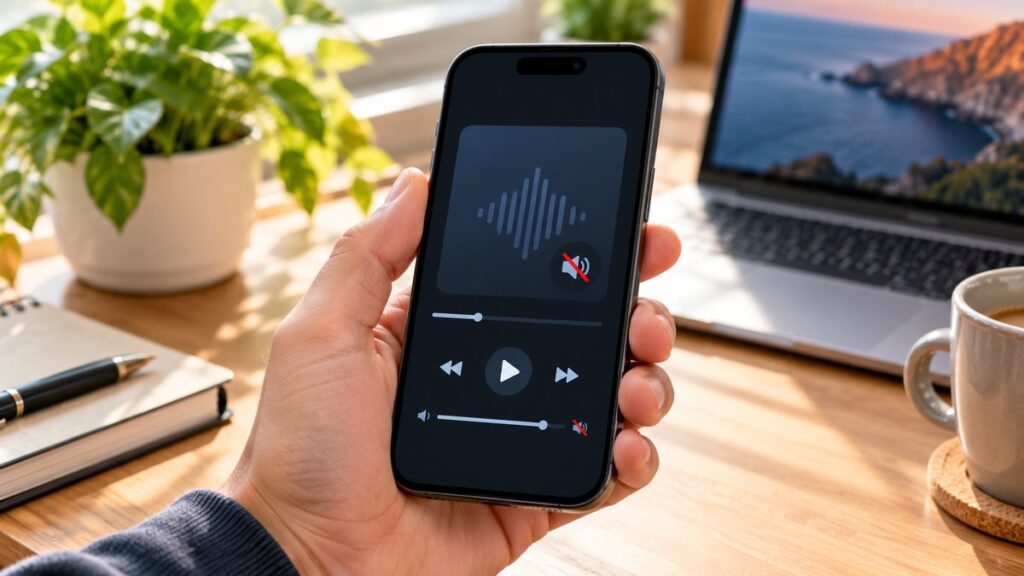
iPhone speaker not working? Maybe your iPhone suddenly stopped playing sound, videos are completely silent, or you can barely hear people during phone calls. In some cases, the sound is muffled, distorted, or crackling rather than completely missing.
This can be frustrating when you’re trying to listen to music, watch a video, join a call, or hear an important notification.
Fortunately, a sound problem doesn’t always mean the iPhone’s speaker is damaged. The cause could be incorrect volume settings, audio playing through Bluetooth headphones, a blocked speaker opening, or a temporary software issue.
In this guide, we’ll explain 12 practical fixes for an iPhone speaker not working, including how to test different types of audio, safely clean the speaker, check Bluetooth connections, and decide when professional repair may be needed.
Quick Answer: How to Fix iPhone Speaker Not Working
If your iPhone speaker has no sound, start with these checks:
- Play a video or song and press Volume Up.
- Check Silent mode if calls or notifications aren’t ringing.
- Disconnect Bluetooth headphones or external speakers.
- Try another app to determine whether the issue is app-specific.
- Remove any case or screen protector covering the speaker.
- Inspect the speaker opening for dust or debris.
- Test the Ringtone and Alerts slider in Settings.
- Restart your iPhone.
If the problem continues, follow the detailed troubleshooting steps below.
Important: Silent mode normally affects ringtones, alerts, and certain system sounds. It does not automatically mute music, videos, or all other media. If music is silent, investigate media volume and audio output first.
Why Is My iPhone Speaker Not Working?
Several different issues can make an iPhone appear to have a broken speaker.
Low media volume: The volume for a video or song may be turned down.
Silent mode or Focus: Ringtones and notifications may be silenced even though the speaker works.
Bluetooth audio routing: Music or call audio may be playing through connected headphones, a car stereo, or another device.
Blocked speaker openings: A case, protective film, or accumulated debris may interfere with sound.
Application problems: One particular app may fail to play sound while others continue working.
Software issues: A temporary iOS problem can sometimes affect audio playback.
Hardware damage: Impact, liquid exposure, or a malfunctioning component can lead to persistent sound problems.
Before attempting repairs, identify exactly when sound is missing. A silent ringtone and a speaker that won’t play music aren’t necessarily the same issue.
1. Check Your iPhone’s Media Volume
Start by checking the volume while audio is actively playing.
iPhone volume controls behave differently depending on what you’re doing. During music, movies, and other media playback, the side buttons generally control media volume.
To test:
- Open Music, Safari, or another app that plays audio.
- Start playing a song or video.
- Press the Volume Up button several times.
- Open Control Center.
- Check the volume slider.
- Increase the volume to a comfortable listening level.
Make sure the video or player itself isn’t muted.
Some applications also have separate playback volume controls.
If sound returns after raising the media volume, the speaker probably wasn’t damaged.
Tip: Keep the volume moderate while testing. There’s no need to play extremely loud audio to check whether the speaker works.
If the volume appears normal but you still hear nothing, continue with the next fix.
2. Check Silent Mode and Focus Settings
If your iPhone doesn’t ring when someone calls, or notifications arrive without sound, check Silent mode and Focus.
On models with a Ring/Silent switch, make sure the switch isn’t positioned to show orange when you want audible alerts.
On models with an Action button, check the assigned Silent mode controls.
You can also review Silent mode in Settings → Sounds & Haptics on supported models.
Next, check Focus:
- Open Settings.
- Tap Focus.
- Select Do Not Disturb.
- Check whether it is active.
- Turn it off temporarily for testing.
- Review other active Focus modes if necessary.
Alternatively, open Control Center and inspect the Focus control.
Important: These settings mainly affect calls, alerts, and notifications. They are not a general solution for music or video playback being silent.
If your only problem is missing alerts, you may also find our guide iPhone Notifications Not Working? 12 Fixes to Try (2026) useful.
3. Check Bluetooth and AirPlay Audio Output
Your iPhone may be working normally but sending sound to another device.
This commonly happens when Bluetooth headphones, earbuds, car audio, or external speakers remain connected.
To investigate:
- Play a song or video.
- Open Control Center.
- Find the audio playback controls.
- Tap the playback destination or AirPlay icon.
- Check the selected audio device.
- Select your iPhone as the playback destination if available.
You can also open Settings → Bluetooth and disconnect connected audio accessories.
Then play the same audio again.
If the iPhone speaker begins working, the sound was likely being directed to another device.
Note: Disabling Bluetooth from Control Center can disconnect accessories temporarily, but it does not necessarily turn Bluetooth off completely. Use Settings → Bluetooth if you need to switch it off for testing.
If your iPhone cannot discover a wireless audio device, see our separate guide iPhone Bluetooth Not Finding Devices? 11 Fixes to Try (2026).
4. Test Sound in More Than One Application
Before assuming the speaker is faulty, determine whether the issue occurs everywhere.
For example, a video may be muted in one application even while other audio works normally.
Try this:
- Play music or a podcast.
- Open Safari and play another video with sound.
- Check the video’s mute button.
- Open a different audio app.
- Compare the results.
If sound works in most apps but not one particular application, the issue may involve that app’s settings or software.
Close and reopen the affected app.
Then check the App Store for available updates.
Avoid deleting an app immediately if it contains important local files or information that may be lost.
If sound remains absent across multiple applications, continue troubleshooting the iPhone itself.
5. Remove Your Case and Screen Protector
Some accessories can partially obstruct speaker or receiver openings.
Apple recommends removing cases, protective films, and screen protectors when investigating sound problems.
Follow these steps:
- Remove the phone case.
- Inspect the bottom speaker openings.
- Check the receiver opening near the top of the display.
- Look for protective film covering either opening.
- Play audio again without the accessories.
The exact speaker and receiver layout varies between iPhone models.
Do not assume every opening along the bottom edge is a speaker. Some openings may serve other functions.
If removing an accessory improves the sound, replace or adjust that accessory rather than trying to modify the phone.
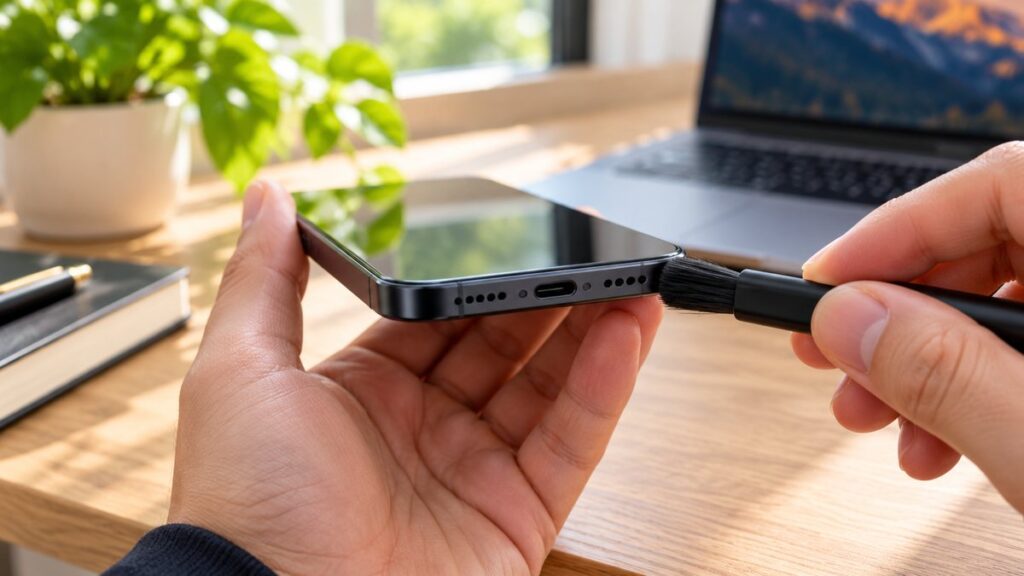
6. Carefully Clean the Speaker Opening
Dust or debris around a speaker grille can make audio seem quieter or muffled.
Apple recommends checking the openings and, if cleaning is needed, using a small, clean, dry, soft-bristled brush.
To clean safely:
- Turn off the iPhone.
- Remove its case.
- Inspect the visible speaker openings.
- Use a clean, dry, soft-bristled brush.
- Gently brush away loose debris.
- Avoid pushing material deeper into the openings.
- Turn the phone back on and test sound again.
Do not insert needles, pins, toothpicks, or other sharp objects into the speaker grille.
Avoid spraying water, cleaning liquids, or compressed air into the openings.
Do not attempt to dismantle the speaker.
If the openings are badly clogged or the phone has sustained liquid damage, seek professional help.
7. Test the Ringtone and Alerts Slider
Apple includes a useful sound test in the iPhone’s settings.
This can help determine whether the speaker produces a ringtone or alert sound.
To test:
- Open Settings.
- Tap Sounds & Haptics.
- Find Ringtone and Alerts.
- Move the volume slider back and forth.
- Listen for the sound.
If sound plays normally, at least some speaker output is working.
If there’s no sound at all, Apple advises that the speaker may need service, especially if the speaker control is unavailable or dimmed.
The result is useful, but it doesn’t provide a complete hardware diagnosis.
If the ringtone works but music doesn’t, return to media volume, playback destinations, and application settings.
If no test produces sound, the problem may be broader.
8. Compare Normal Calls and Speakerphone
If the problem occurs mainly during phone calls, compare audio from the earpiece receiver and loudspeaker.
Make a test call with someone who agrees to help.
Then:
- Hold the phone normally to your ear.
- Listen to the other person’s voice.
- Adjust the in-call volume.
- Turn on Speaker during the call.
- Compare the sound quality.
- Record which mode works.
If the person sounds clear on speakerphone but not through the earpiece, the issue may be associated with the receiver or its opening.
If the earpiece works but speakerphone does not, the loudspeaker or audio routing deserves further investigation.
If both modes produce crackling or interruptions only during cellular calls, network reception may also be involved.
Try another location or call again later.
Related Reading: iPhone Calls Going Straight to Voicemail? 12 Fixes to Try (2026).
That guide addresses incoming-call handling rather than speaker hardware.
If other people cannot hear you during calls, the problem may involve the microphone instead. See Phone Microphone Not Working on Calls? 10 Fixes to Try (2026).
A microphone problem and a speaker problem require different troubleshooting.
9. Restart Your iPhone
A restart can resolve temporary software problems affecting audio playback.
For iPhones with Face ID:
- Press and hold the Side button and either Volume button.
- Wait for the power-off slider.
- Drag the slider to turn the device off.
- Wait approximately 30 seconds.
- Press and hold the Side button to start it again.
On models with a Home button, the shutdown method may differ.
After restarting, play audio using the built-in speaker.
Then test a ringtone and, if necessary, a call.
A normal restart does not erase your photos or installed apps.
However, restarting cannot repair a physically damaged speaker.
If the sound problem continues, proceed to the next step.
10. Install a Compatible iOS Update
Keeping iOS up to date can resolve some software issues.
If your iPhone speaker problem began unexpectedly, check for a compatible update.
To check:
- Open Settings.
- Tap General.
- Select Software Update.
- Wait for the update check.
- Review any available update.
- Back up important data before installing.
- Follow the on-screen instructions.
Once the update is complete, test the speaker again.
If the sound issue appeared immediately after an update, note the iOS version and when the symptoms started.
This information may help Apple Support investigate the problem.
An issue that begins after an update is not automatically proof that the update damaged the speaker.
Avoid installing unofficial firmware or attempting unsupported downgrades.
11. Review Accessibility and Volume Limit Settings
Some audio settings may affect how sound is heard.
Check Settings → Accessibility → Audio & Visual.
Look for the left-right stereo balance control.
If it has been moved significantly away from the middle, return it to the center for testing.
You can also review Mono Audio if you have a specific reason to use it.
These settings can change how stereo content is distributed. They won’t generally repair a speaker that produces no sound in any situation.
On supported iOS versions and models, you may also find built-in speaker volume limiting options under Settings → Sounds & Haptics.
If these controls are available, check whether they are intentionally restricting loudspeaker volume.
Do not remove safe-listening limits unnecessarily. Adjust settings only enough to determine whether they explain the problem.
If audio remains completely silent, these settings are unlikely to be the only cause.
12. Contact Apple Support if the Speaker Still Doesn’t Work
If none of the previous checks restores audio, professional diagnosis may be necessary.
Apple advises seeking service when speaker problems remain unresolved.
Before contacting support, collect the following details:
- Your iPhone model.
- Your current iOS version.
- Whether music and videos have sound.
- Whether ringtones play in Settings.
- Whether audio works through headphones.
- Whether the earpiece receiver works.
- Whether speakerphone works during calls.
- Whether sound is completely absent, muffled, or distorted.
- Whether the phone was recently dropped or exposed to liquid.
These details can help distinguish possible speaker hardware problems from playback routing and software issues.
Back up your important data before arranging repair, when possible.
Do not attempt to open the iPhone or replace internal components without suitable expertise.
Contact Apple Support or an Apple Authorized Service Provider for assistance.
iPhone Speaker Not Working on Calls but Music Works?
If music plays normally but you cannot hear a caller, investigate the call’s audio path.
Make sure the in-call volume is raised.
Check whether audio is being sent to Bluetooth headphones or another device.
Compare the earpiece receiver and speakerphone.
Try another call and, if necessary, another location.
A problem that occurs only on cellular calls may relate to call routing, the receiver, or network conditions rather than all speaker output.
Why Is My iPhone Speaker So Quiet?
Low volume can result from a low playback setting, an obstructed speaker opening, or other audio settings.
Start by playing media and adjusting its volume.
Then remove the phone case and check for dirt around the speaker grille.
If the sound is muffled or distorted across different applications, follow Apple’s safe cleaning guidance.
If the sound remains unusually quiet after basic troubleshooting, professional inspection may be appropriate.
Why Is My iPhone Speaker Crackling or Distorted?
Crackling and static can arise from different causes.
If the issue occurs only during telephone calls, test another call and location to rule out poor reception.
If crackling occurs during locally played music and videos as well, inspect the speaker opening, remove accessories, and restart the device.
If the sound is consistently distorted, especially after physical damage or liquid exposure, arrange professional evaluation.
Avoid playing extremely loud test sounds or using unofficial cleaning methods.
Frequently Asked Questions
Why is my iPhone speaker not working?
Possible causes include low volume, Bluetooth audio routing, a blocked speaker, a temporary software issue, or hardware damage.
How do I get sound back on my iPhone?
Play media while raising the volume, choose the iPhone as the audio output, remove obstructive accessories, and restart the device.
Does Silent mode turn off the iPhone speaker?
No. Silent mode usually silences ringtones, notifications, and certain system sounds, not all media audio.
Why is my iPhone speaker not working during calls?
Check the in-call volume, Bluetooth routing, earpiece receiver, and speakerphone. If the problem happens only on calls, network conditions may also play a role.
How do I clean an iPhone speaker?
Apple recommends a small, clean, dry, soft-bristled brush for the speaker or receiver opening when cleaning is necessary. Avoid sharp tools or spraying liquids into the grille.
Why is my iPhone connected to Bluetooth but making no sound?
Audio may be playing through a connected accessory. Check the playback destination in Control Center and select the intended output device.
Can restarting an iPhone fix speaker problems?
Restarting may resolve temporary software issues but cannot repair physical speaker damage.
Why does my iPhone have sound through headphones but not through its speaker?
The issue may involve playback routing, sound settings, the built-in speaker, or other hardware. Disconnect headphones and test ringtone and media sound separately.
Can an iOS update fix an iPhone speaker?
A compatible update may resolve certain software-related sound problems. It will not fix a physically damaged speaker.
Should I reset my iPhone to fix the speaker?
A factory reset is not a recommended first step. Complete the basic checks and consider contacting Apple Support before making major changes.
How do I know whether my iPhone speaker is damaged?
Persistent silence or distortion across multiple apps after checking output, volume, cleaning, and restarting may indicate a hardware problem. A professional diagnosis is needed to confirm the cause.
When should I contact Apple Support?
Contact Apple Support if sound remains absent or distorted after the basic checks, particularly following a drop, liquid exposure, or consistently unsuccessful speaker tests.
Final Thoughts
If your iPhone speaker is not working, begin by determining which sound is missing.
For music or video problems, check media volume and Bluetooth audio output.
For missing ringtones or notification sounds, inspect Silent mode, Focus, and alert volume.
For quiet or muffled sound, remove obstructive accessories and carefully inspect the speaker grille.
If sound disappears only during phone calls, compare the earpiece receiver and speakerphone.
Restarting your device and checking compatible software updates may help with temporary software problems.
If the speaker remains silent or distorted despite these checks, Apple Support can help determine whether service is necessary.
Official Apple Resources
- Apple: If you hear no sound or distorted sound from your iPhone speaker
- Apple: Adjust the volume on iPhone
- Apple: Adjust audio settings on iPhone
- Apple: Play audio through a Bluetooth accessory
The Synced Desk | Practical solutions for everyday technology problems.