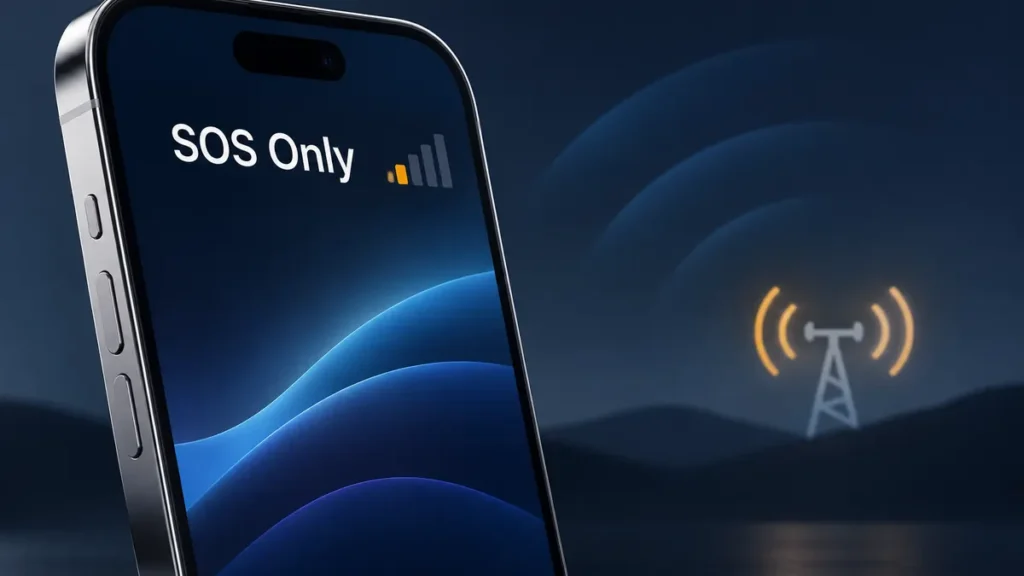
If you searched for “sos means in iphone,” you probably noticed SOS or SOS Only appearing where your cellular signal normally appears. It can be confusing, especially when your iPhone suddenly stops making regular calls or connecting to mobile data.
The good news is that SOS Only does not automatically mean your iPhone is damaged.
Quick answer: SOS means your iPhone cannot connect to your regular cellular carrier, but emergency calls may still be possible through another available carrier network in supported countries.
In this guide, we’ll explain what SOS means on an iPhone, why it appears, what still works, and seven practical ways to restore normal service.
Table of Contents
What SOS Means in iPhone
When you see SOS or SOS Only in your iPhone’s status bar, your device is not connected to its normal cellular carrier network.
However, the phone may still detect another compatible network capable of handling emergency calls.
For example, imagine you normally use Carrier A. If Carrier A loses coverage but Carrier B’s network is available, your iPhone may be able to route an emergency call through Carrier B.
That does not mean you can automatically use Carrier B for everyday calls, texts, or mobile internet.
According to Apple’s official SOS and No Service guidance, the SOS Only status feature is available in the United States, Canada, and Australia.
The availability of emergency calling depends on the country, local networks, and circumstances.
Importantly, seeing SOS does not mean an emergency call has been placed or that your phone has automatically contacted emergency responders.
7 Essential Facts About SOS Only on iPhone
1. SOS Only Means Regular Cellular Service Is Unavailable
Your iPhone normally connects to your wireless provider using nearby cellular towers.
When that connection is unavailable, the cellular status indicator may change to SOS or SOS Only.
Possible reasons include weak coverage, a temporary carrier outage, an inactive cellular line, or a SIM-related problem.
The SOS indicator describes a network connectivity condition. By itself, it is not a diagnosis of a damaged iPhone.
2. SOS Only Does Not Mean Your iPhone Is Broken
If SOS appeared suddenly, avoid assuming there is a hardware problem.
Sometimes the issue is temporary.
For example, you might experience SOS Only when:
- Entering an underground parking garage.
- Traveling through an area with weak cellular coverage.
- Experiencing a carrier network outage.
- Switching to a newly activated SIM or eSIM.
- Returning from international travel with incorrect roaming settings.
In these situations, restoring your normal cellular connection may resolve the problem without repairing the device.
3. Wi-Fi May Still Work Normally
One of the most useful facts about SOS Only is that it does not automatically disable Wi-Fi.
If you can connect to a working Wi-Fi network, you may still be able to:
- Browse websites using Safari.
- Use internet-based messaging apps.
- Send and receive iMessages.
- Make FaceTime audio or video calls.
- Download apps and receive online notifications.
However, regular cellular calls and traditional SMS messaging may not work without an appropriate carrier connection.
Wi-Fi Calling can sometimes provide additional calling and messaging functionality if your carrier supports it and it is correctly configured.
This is why your iPhone can display SOS Only while internet-based applications continue working.
4. Emergency Calls May Still Be Possible
The SOS indicator is designed to communicate that emergency calling may remain available even though your usual carrier is unavailable.
In supported locations, your iPhone may attempt to use another available cellular carrier network to place an emergency call.
This is different from having normal cellular service.
Do not place a test call to an emergency number simply to check whether SOS Only is working.
In a genuine emergency, follow your iPhone’s available emergency-calling instructions and your local emergency service procedures.
5. SOS Only Is Different From Emergency SOS via Satellite
These two features are easy to confuse.
SOS Only is primarily a cellular network status indicating that normal carrier service is unavailable but emergency calling may be possible through another network.
Emergency SOS via satellite is a separate feature on supported iPhone 14 and later models.
In supported countries, satellite emergency messaging may help you contact emergency services when cellular and Wi-Fi connections are unavailable.
Satellite communication requires compatible hardware, regional availability, and appropriate outdoor conditions.
Seeing SOS Only does not automatically mean your iPhone is connected to a satellite.
You can learn more from Apple’s Emergency SOS via satellite documentation.
6. SOS Only and No Service Are Not Identical
SOS Only and No Service both indicate problems with normal cellular connectivity, but they communicate different information.
SOS Only: Your regular carrier is unavailable, but emergency calling may still be possible through another available network.
No Service: Your iPhone is not currently connected to a cellular network. Emergency calling availability depends on your location and available networks.
Searching: Your iPhone is attempting to find or connect to a cellular network.
The exact indicators can vary by region, carrier, and iPhone configuration.
You can find additional explanations in Apple’s iPhone status icon guide.
7. SOS Only Can Disappear Automatically
You cannot normally remove SOS Only simply by changing how the status bar looks.
The indicator reflects your cellular connection.
If your normal carrier becomes available again and your iPhone reconnects successfully, the SOS label should disappear and your regular cellular signal indicator should return.
This can happen automatically when you move back into coverage or your carrier restores service.
If the indicator persists despite normal coverage, troubleshooting is appropriate.
Why Does My iPhone Suddenly Say SOS?
Several situations can explain why SOS appears unexpectedly.
Poor network coverage: Buildings, tunnels, remote areas, and geographical obstacles can interfere with cellular connections.
Carrier outages: Maintenance, equipment failures, and temporary service interruptions may prevent your iPhone from connecting.
SIM or eSIM problems: An inactive, improperly configured, or damaged SIM can prevent normal service.
Cellular line disabled: On an iPhone with Dual SIM, a particular line may be turned off.
Roaming restrictions: An international plan or roaming configuration may prevent the expected connection while traveling.
Software or carrier configuration issues: Occasionally, outdated carrier settings or temporary software problems may interfere with registration on the mobile network.
The correct next step depends on whether the problem affects only your phone, other users on the same carrier, or everyone in a particular area.
How to Fix SOS Only on iPhone: 7 Safe Checks
If your iPhone says SOS Only and you want to restore normal service, start with these checks.
1. Move to an Area With Better Cellular Coverage
First, determine whether the problem is caused by your location.
Try moving near a window or going outside.
If you are in a basement, elevator, or underground parking area, return to ground level.
You can also compare the connection with another phone using the same carrier.
If both devices lose service in the same location, a coverage problem or carrier outage becomes more likely.
2. Turn Airplane Mode On and Off
Airplane Mode can help your iPhone attempt to reconnect to a cellular network.
Follow these steps:
- Open Settings.
- Turn on Airplane Mode.
- Wait at least 15 seconds.
- Turn off Airplane Mode.
- Allow your iPhone to reconnect.
Check whether the SOS indicator disappears.
Apple recommends this step when investigating cellular network connectivity problems.
If the issue is caused by a carrier outage or inactive account, Airplane Mode alone will not restore service.
3. Restart Your iPhone
A restart can sometimes resolve a temporary connection problem.
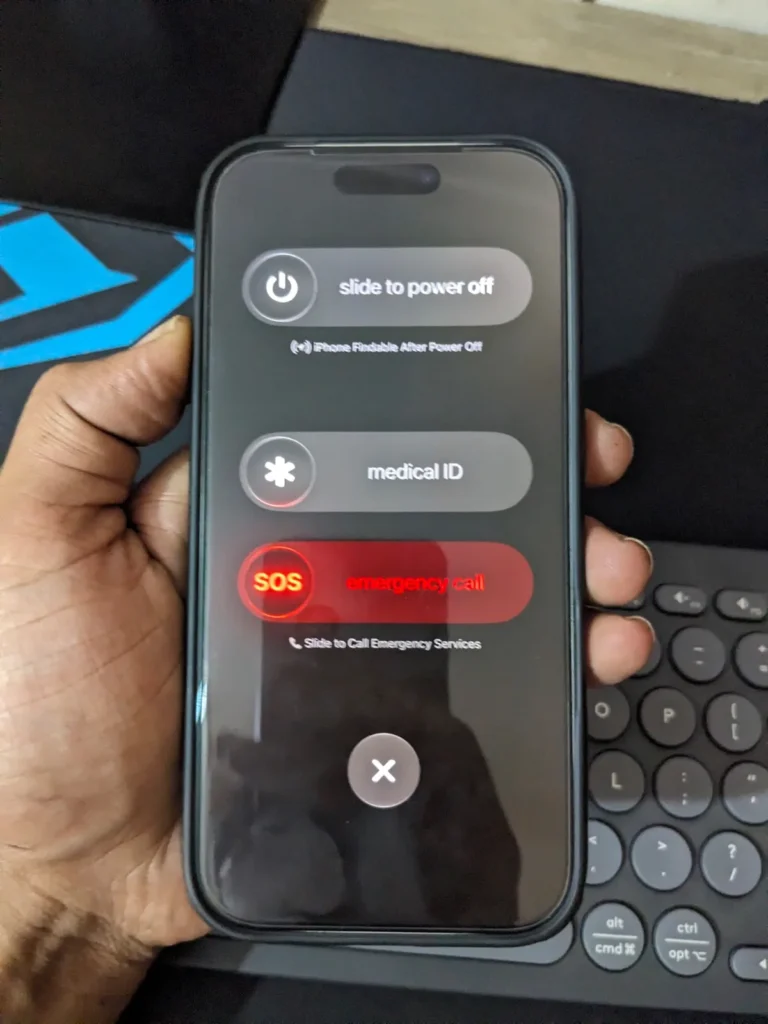
On an iPhone with Face ID:
- Press and hold the Side button and either Volume button.
- Drag the power-off slider.
- Wait until the phone shuts down.
- Turn the iPhone back on.
- Check whether cellular service returns.
If SOS Only remains, continue investigating your cellular line and carrier.
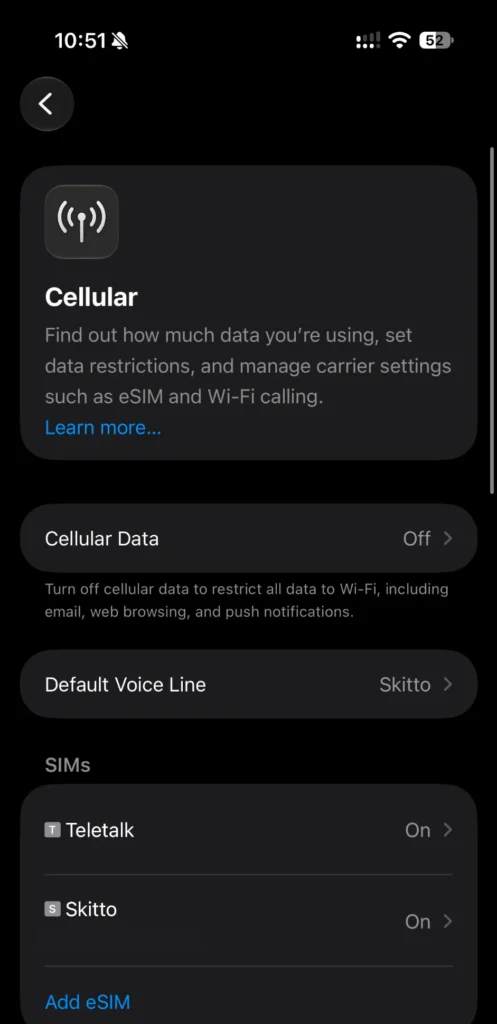
4. Make Sure Your Cellular Line Is Turned On
If you use a physical SIM or eSIM, check that your cellular line is enabled.
- Open Settings.
- Tap Cellular or Mobile Data.
- Find your SIM or eSIM under the available cellular lines.
- Select the relevant line.
- Confirm that Turn On This Line is enabled, if the option appears.
If you have two lines, inspect the one you expect to use for regular calls and mobile data.
If your cellular line is missing or still activating, contact your carrier rather than deleting the eSIM.
For activation problems, read our related guide: iPhone eSIM Not Activating? 10 Fixes to Try.
5. Check Whether Your Carrier Has an Outage
A carrier outage is another possible explanation for SOS Only.
Connect to Wi-Fi and visit your provider’s official website or support application.
Check whether the carrier has announced service interruptions in your area.
If possible, ask another person using the same carrier whether their phone has service.
You should also confirm that your account is active and that the carrier has not restricted your line.
If the provider confirms a network outage, repeatedly resetting your iPhone is unlikely to help.
6. Check for a Carrier Settings Update
Carrier settings help your iPhone communicate with its cellular provider.
To check for an update:
- Connect your iPhone to Wi-Fi.
- Open Settings.
- Tap General.
- Select About.
- Wait briefly.
- If a carrier settings update appears, follow the onscreen instructions.
If no update is available, you may already have the latest carrier configuration.
If your iPhone is traveling internationally, also confirm that your plan supports roaming and that the appropriate Data Roaming option is enabled. Be aware that roaming charges may apply.
7. Check for iOS Updates and Contact Your Carrier
If SOS Only continues even where your provider normally has coverage, check for a software update.
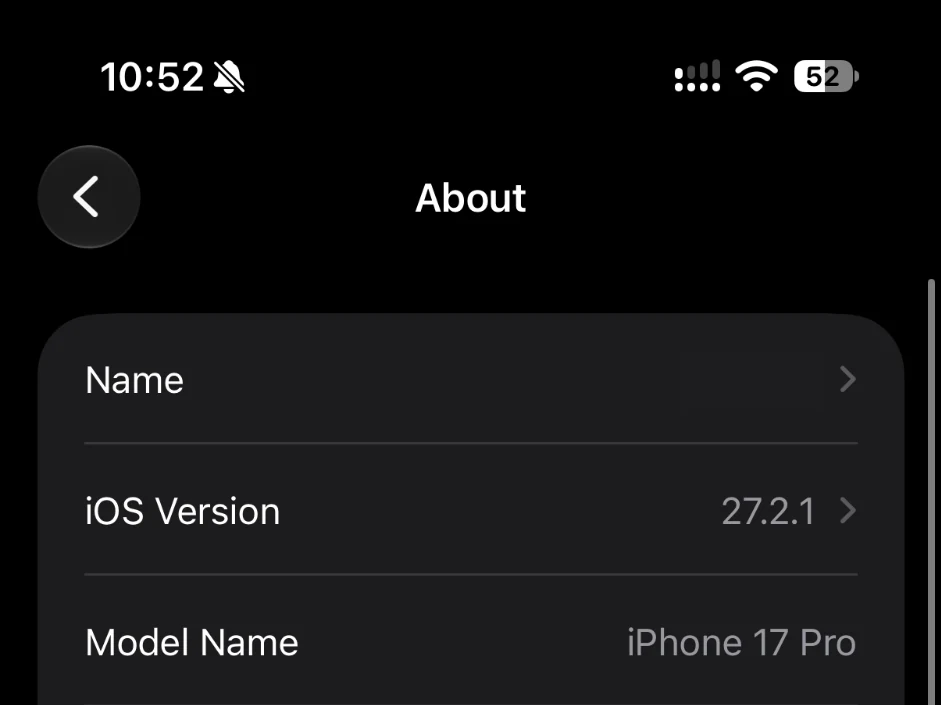
Open Settings → General → Software Update.
Install an appropriate available update after backing up your device and ensuring adequate battery power.
If updating does not help, contact your carrier.
Ask the provider to confirm:
- Your cellular account is active.
- Your SIM or eSIM is correctly provisioned.
- There are no network outages in your area.
- Your device is not blocked from cellular service.
- Your account supports the network and roaming services you need.
If your carrier confirms everything is functioning correctly, Apple Support can help determine whether further device diagnostics are appropriate.
Should You Reset Network Settings?
Resetting network settings should generally be a later troubleshooting step, not your first response to SOS Only.
If you have ruled out coverage, carrier account, SIM, and software problems, you can consider:
Settings → General → Transfer or Reset iPhone → Reset → Reset Network Settings
This resets saved Wi-Fi networks and passwords, cellular settings, and certain VPN and APN settings.
It does not perform a complete factory erase, but it can require you to configure network connections again.
If your iPhone is managed by your employer or school, consult the administrator before resetting.
Do not select Delete All eSIMs, and avoid erasing a working cellular plan during troubleshooting unless your carrier gives specific instructions.
If cellular signal returns but mobile internet still does not work, see our separate article: iPhone Cellular Data Not Working? 12 Fixes to Try.
That guide focuses on mobile internet problems after cellular service is available.
SOS Only vs. No Service vs. Emergency SOS via Satellite
Understanding the difference helps you decide what to do next.
SOS Only
Your normal cellular carrier is unavailable. Emergency calling through another network may be possible in supported locations.
No Service
Your iPhone is not connected to a cellular network. You need to investigate signal coverage, carrier availability, and device configuration.
Emergency SOS via Satellite
A separate satellite-based emergency communication feature available on supported iPhone models in eligible countries or regions.
Satellite access is not guaranteed everywhere, and availability is subject to local requirements.
These indicators and features should not be treated as interchangeable.
Frequently Asked Questions
What does SOS mean on an iPhone?
SOS means your normal cellular carrier is unavailable, but emergency calls may still be possible through another available network in supported regions.
Why does my iPhone say SOS Only when I have Wi-Fi?
Wi-Fi and cellular networks operate separately. Your iPhone can remain connected to Wi-Fi while losing its normal cellular connection.
Can I receive text messages when my iPhone says SOS?
Traditional SMS messages may not work through your normal cellular service while SOS Only is displayed. However, iMessages can still work over a functioning Wi-Fi connection. Carrier-supported Wi-Fi Calling and messaging features may provide additional functionality.
Does SOS Only mean my iPhone is being tracked or hacked?
No. SOS Only is a cellular connection indicator, not evidence that someone is tracking or controlling your phone.
Can I turn off the SOS Only message?
There is no ordinary setting dedicated to hiding SOS Only while leaving the underlying cellular problem unchanged. Restoring regular carrier connectivity should remove the status indicator.
Will SOS Only go away on its own?
Yes, it can disappear automatically when your iPhone reconnects to its normal carrier. If it persists, investigate coverage, cellular account status, and SIM configuration.
Does SOS Only mean my iPhone has satellite service?
No. SOS Only does not automatically indicate a satellite connection. Emergency SOS via satellite is a separate capability with its own device and regional requirements.
Final Thoughts
Understanding what SOS means in iPhone is important because the indicator does not necessarily point to a serious device problem.
In most cases, the first things to investigate are cellular coverage, the carrier network, and your active SIM or eSIM.
Start by checking your location, toggling Airplane Mode, and confirming that your cellular line is enabled.
If the problem continues, check for carrier settings updates and contact your mobile provider before attempting more disruptive troubleshooting.
Remember that SOS Only does not automatically mean your phone is broken, but it does mean your normal cellular service is unavailable.
For official guidance, refer to Apple’s SOS, No Service, and Searching troubleshooting article.