Want to make your iPhone Home Screen look more personal? Whether you prefer matching app colors, transparent-looking icons, or completely custom pictures, there are several ways to change how your apps appear.
If you’ve been searching for how to customize app icons iPhone, the easiest method is already built into iOS. You can change icon colors, choose dark or clear designs, and adjust icon sizes without installing anything.
For something more personalized, Apple’s Shortcuts app lets you create Home Screen icons using your own photos or designs.
In this guide, you’ll learn three practical ways to customize iPhone app icons, how each method works, and what to do if your customized icons don’t behave as expected.
Table of Contents
Quick Answer: How to Customize App Icons on iPhone
There are three main methods:
- Use built-in iOS customization: Change app icons to Light, Dark, Clear, or Tinted and adjust their size.
- Use Apple Shortcuts: Add Home Screen shortcuts with your own pictures and names.
- Use an app’s alternate icons: Some apps provide additional icon designs inside their own settings.
For most people, the first method is easiest because it changes the appearance of supported app icons without creating extra shortcuts.
If you want completely different images for individual apps, Shortcuts offers more flexibility.
Method 1: Customize App Icons Using Built-In iPhone Settings
Apple allows you to personalize the appearance of app icons directly from the Home Screen.
This method is useful if you want a coordinated design without installing third-party icon packs.
Step 1: Open the Home Screen Customization Menu
- Unlock your iPhone.
- Go to any Home Screen page.
- Touch and hold an empty area until the icons start jiggling.
- Tap Edit near the top of the screen.
- Select Customize.
A customization panel should appear, showing the available icon appearance and size options.
The exact appearance of this menu can vary slightly by iOS version.
Step 2: Choose an App Icon Appearance
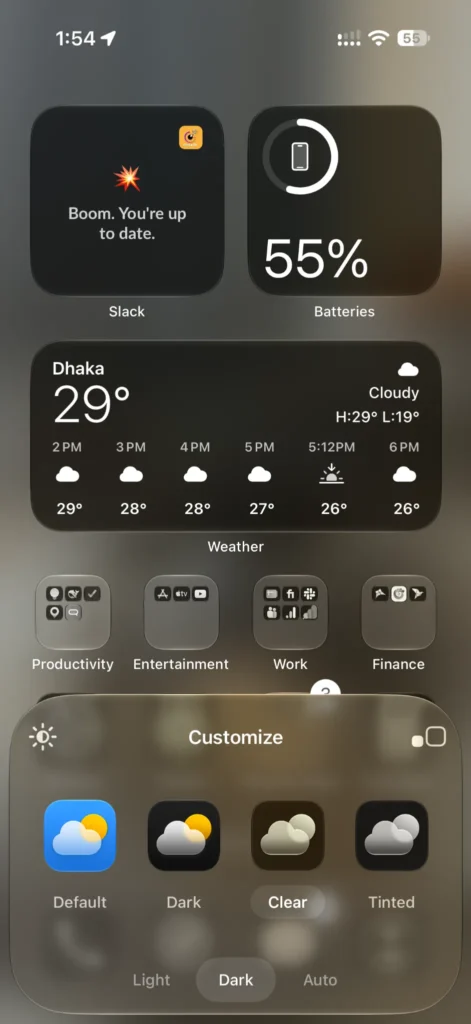
Your iPhone provides several built-in styles.
Light
Uses the normal light appearance for app icons. This is a good choice if you prefer familiar colors and a traditional Home Screen.
Dark
Displays compatible app icons using a darker appearance.
Dark icons can look particularly good with black, navy, or dark gray wallpapers.
Auto
Allows the appearance to adjust automatically between light and dark styles based on the device’s appearance settings.
Clear
Gives supported icons a translucent, glass-like appearance.
Clear icons work especially well with wallpapers where you want the background to remain visible.
Tinted
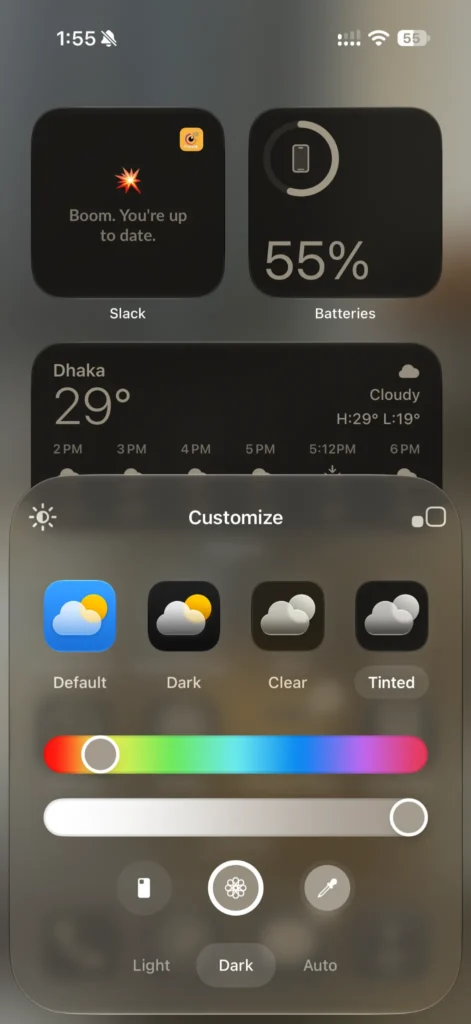
Applies a coordinated color treatment to app icons and widgets.
You can use the available sliders to choose a color and saturation level. On supported versions, an eyedropper tool lets you select a color from your wallpaper.
For example, you might choose purple icons to match a lavender wallpaper or blue icons for a minimalist ocean theme.
Apple explains these controls in its official iPhone Home Screen customization guide.
Step 3: Change the Size of App Icons
You can also make your app icons larger.
- Open the same Home Screen customization panel.
- Select Large to increase the icon size.
- Select Small to return to the standard size.
When you choose Large, the app names disappear from the Home Screen.
This can create a cleaner appearance, especially if you recognize your apps by their icons.
However, keeping the labels visible may be more convenient when several apps have similar designs.
Which Appearance Should You Choose?
The best option depends on how much customization you want.
- Light: Familiar colors and readability.
- Dark: A coordinated darker Home Screen.
- Clear: A translucent appearance that emphasizes your wallpaper.
- Tinted: A consistent color theme.
- Large: Bigger icons with fewer visible labels.
You can experiment with these options without deleting apps or modifying their stored data.
Method 2: Create Custom App Icons Using Apple Shortcuts
What if you want your Photos app to have a pastel icon, Safari to use a minimalist symbol, or your favorite app to display a custom picture?
The built-in color options may not be enough.
Apple’s Shortcuts app lets you create Home Screen shortcuts that launch selected applications using custom icon images.
This is one of the most flexible ways to customize individual iPhone Home Screen icons.
Important: The Shortcuts method creates a launcher. It doesn’t permanently replace the actual app’s original icon.
Step 1: Open the Shortcuts App
- Open the Shortcuts app on your iPhone.
- Tap the + button to create a new shortcut.
- Select the option to add an action.
- Search for Open App.
- Add the Open App action.
This action tells your shortcut to launch an application when you tap it.
Step 2: Choose the App
- Tap the App field in the Open App action.
- Choose the application you want to customize.
- Confirm that the selected app appears in the action.
For example, you could select Safari, Notes, Photos, or another installed application.
You can rename the shortcut to make it easier to identify inside the Shortcuts app.
Step 3: Add a Custom Icon Image
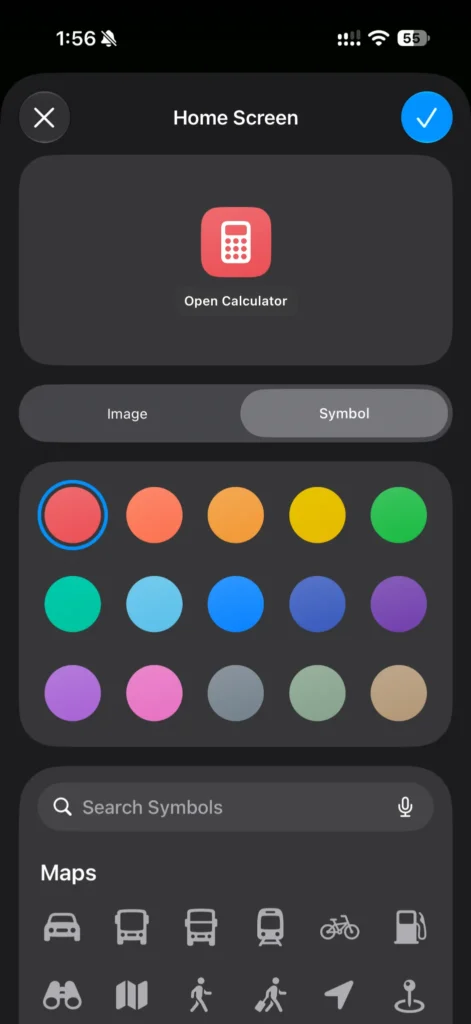
Now create the customized Home Screen icon.
- Open the shortcut’s details or shortcut menu.
- Choose Add to Home Screen.
- Find the Home Screen Name and Icon section.
- Tap the icon preview.
- Choose Choose Photo or Choose File.
- Select the image you want to use.
- Enter the name you want displayed beneath the icon.
- Tap Add.
Your custom icon should now appear on the Home Screen.
The new icon launches the application selected in your shortcut.
Apple documents this process in its Shortcuts Home Screen guide.
Step 4: Test Your New Icon
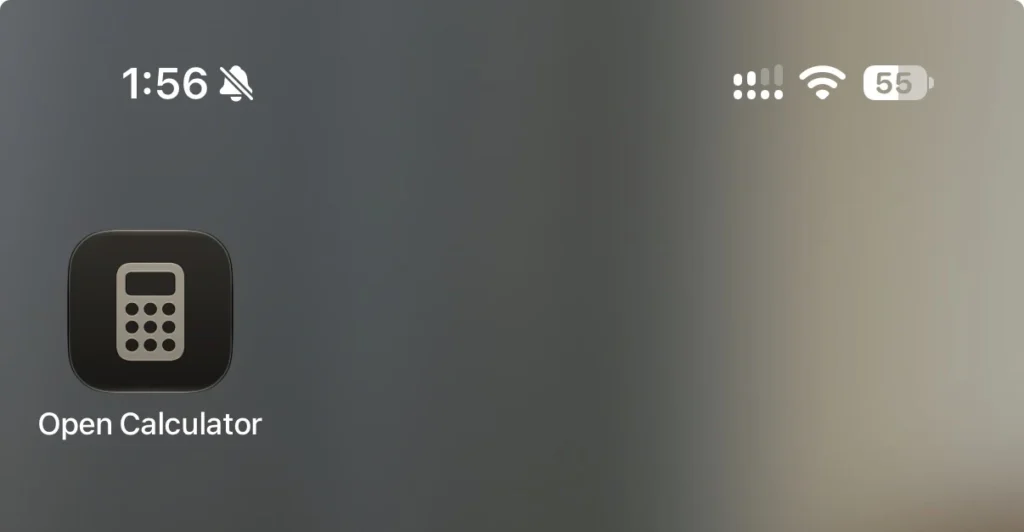
Return to your Home Screen and tap the customized icon.
Check that it opens the correct application.
If it launches the wrong app, open the shortcut in Shortcuts and inspect the Open App action.
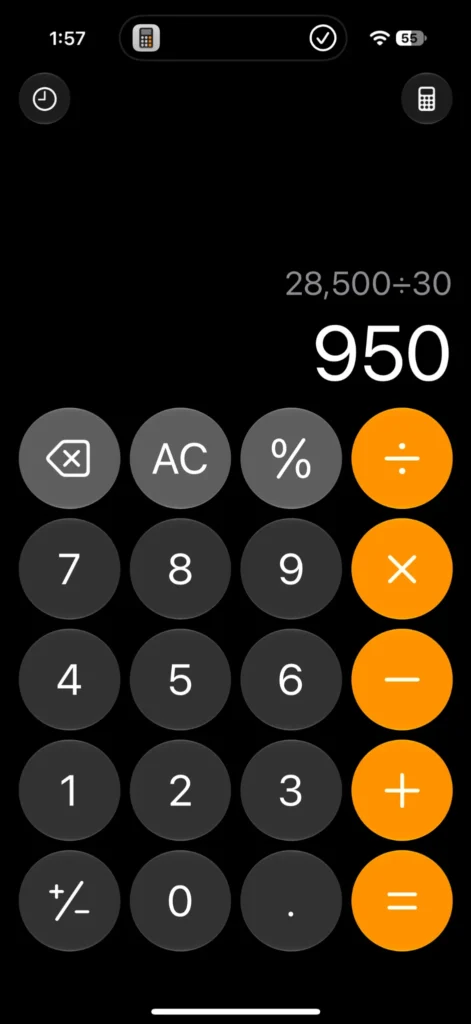
If tapping the icon opens the Shortcuts interface briefly or displays a transition, this may be part of the shortcut-launching behavior.
Shortcut icons can also behave differently from original app icons in certain situations, including notification badges and long-press options.
Step 5: Remove the Duplicate Original Icon
After adding your custom icon, you may notice that the original app icon is still visible.
That’s normal.
To remove the original icon from your Home Screen without uninstalling the app:
- Touch and hold the original app icon.
- Tap Remove App.
- Select Remove from Home Screen.
The installed app remains accessible through the App Library.
Do not select Delete App unless you actually want to uninstall the application.
If your original icon disappears unexpectedly, see our related guide:
iPhone Apps Disappeared from Home Screen? 12 Fixes
Best Image Size for Custom iPhone App Icons
A square image generally works best.
For example, you can prepare a 1024 × 1024-pixel image and let iOS display it within the Home Screen icon shape.
PNG or JPG images are convenient choices.
When creating your own designs:
- Use a square canvas.
- Keep the main symbol centered.
- Avoid tiny text.
- Use sufficient contrast.
- Leave some space around the edges.
- Test the appearance at actual Home Screen size.
Very detailed images may look good when enlarged but become difficult to recognize as small app icons.
You don’t need to pay for a third-party icon service to create custom shortcut icons.
Method 3: Use an App’s Built-In Alternate Icons
Some iPhone applications offer additional icon designs within their own settings.
When an app supports this option, you may be able to choose an alternate appearance without creating a shortcut.
The process varies by developer.
A typical workflow is:
- Open the application.
- Visit its Settings, Preferences, or Appearance section.
- Look for an option named App Icon, Change Icon, or Appearance.
- Review the available designs.
- Select your preferred icon if the app supports it.
Not every application provides this feature.
Some developers may offer alternate icons only in certain app versions or paid plans.
Unlike a Home Screen shortcut, an app-supported alternate icon is provided through the application itself.
If you can’t find the option, check the app developer’s official documentation rather than assuming it exists.
How to Make Your iPhone Home Screen Look Aesthetic
Changing icon colors is only part of creating a well-designed Home Screen.
A consistent theme usually works better than mixing unrelated icon packs and wallpapers.
Choose a Color Theme
Start with two or three colors.
For example:
Minimalist black: Dark wallpaper, dark icons, and a simple layout.
Pastel purple: Lavender wallpaper, purple-tinted icons, and matching widgets.
Clean white: Light wallpaper, subtle icons, and large app labels.
Nature-inspired: Green or earthy wallpaper with coordinated tinted icons.
If you prefer a consistent appearance across most apps, use iOS’s built-in Tinted option.
If you want each icon to look different, create selected icons through Shortcuts.
Match Your Wallpaper
Your wallpaper influences how app icons look.
A busy photograph can make translucent icons difficult to distinguish.
Try using a wallpaper with relatively simple areas behind app icons.
If necessary, adjust the icon tint or choose a darker appearance to improve visibility.
Arrange Apps into Groups
Place your most frequently used apps where they’re easy to reach.
For example, you might keep communication apps together and group productivity apps on another row.
To move an app:
- Touch and hold the Home Screen.
- Wait for the icons to jiggle.
- Drag an app to the desired position.
- Release it.
- Tap Done or the empty Home Screen background when finished.
You can also organize apps into folders to reduce clutter.
Add Matching Widgets
Widgets can make your customized Home Screen more practical.
You might add a calendar, weather forecast, battery widget, or reminders widget.
To add a widget:
- Touch and hold an empty area of the Home Screen.
- Tap Edit.
- Select Add Widget.
- Choose an available widget.
- Select the size.
- Add it to the Home Screen.
Keep in mind that widget appearance and sizing depend on what the app supports.
If your existing widgets aren’t refreshing properly, read our iPhone Lock Screen Widgets Not Updating guide for troubleshooting that separate issue.
How to Change App Icons Back to Normal
If you don’t like your customized design, you can return to a standard appearance.
Restore Normal Icon Colors
- Touch and hold an empty area on the Home Screen.
- Tap Edit.
- Choose Customize.
- Select Light or another preferred standard appearance.
- Choose Small if you want the regular icon size with app names.
The supported apps should return to the selected system appearance.
Remove Custom Shortcuts
If you created customized icons using Shortcuts, you can remove the Home Screen shortcut without deleting the installed application.
Touch and hold the custom shortcut icon, then choose the option to remove it from the Home Screen.
If you previously removed the original app icon from the Home Screen, find the application in App Library and add it back.
Remember that removing a shortcut icon is different from deleting the actual app.
Troubleshooting: Custom iPhone App Icons Not Working
If something goes wrong while customizing your icons, check these common issues.
1. The Custom Icon Opens the Wrong App
Open the shortcut in the Shortcuts app.
Find the Open App action and verify that the correct application is selected.
Edit the action if necessary, then test the shortcut again.
2. The Custom Icon Doesn’t Show Notification Badges
A custom Shortcuts launcher is not identical to the original application icon.
You may not see the same notification badge behavior on the shortcut.
If notification badges are important, consider using the original app icon with iOS’s built-in color customization instead.
3. The Original App Icon Is Still Visible
Creating a Home Screen shortcut does not automatically remove the original icon.
You can remove the original from the Home Screen while keeping the app installed and available in App Library.
Do not delete the app by mistake.
4. The Tinted Option Doesn’t Match Every Icon Perfectly
Different applications use different icon artwork.
As a result, the same system color treatment may look slightly different across apps.
Try adjusting the tint color, saturation, or wallpaper to create a more balanced appearance.
5. The App Icon Image Looks Blurry
This can happen when you use a very small or low-resolution image.
Choose a clear square image with a recognizable design.
Avoid enlarging an image that was originally only a few pixels wide.
6. A Shortcut Stopped Opening Its App
Check that the target app is still installed and that the shortcut’s Open App action still points to the correct application.
You can test the shortcut directly from the Shortcuts app.
If the underlying shortcut doesn’t work there either, review its actions before creating another Home Screen icon.
For more general shortcut issues, see our iPhone Automation Not Working guide. Note that personal automations and Home Screen shortcuts are different features.
Built-In Customization vs. Shortcuts: Which Is Better?
Both methods are useful, but they solve different problems.
Choose built-in customization when you want:
- A quick, coordinated color theme.
- Standard app-launching behavior.
- Fewer duplicate icons.
- Minimal setup.
- The familiar appearance of installed applications.
Choose Shortcuts when you want:
- Your own images or artwork.
- Different icons for individual applications.
- Customized Home Screen labels.
- A more personalized visual design.
The easiest approach is usually to start with the built-in options and use Shortcuts only for apps that need completely different artwork.
Frequently Asked Questions
Can you customize app icons on iPhone without Shortcuts?
Yes. Supported iOS versions include built-in Home Screen customization controls for changing icon appearance, tint, and size. You don’t need Shortcuts for these standard options.
Can you use your own photos as iPhone app icons?
Yes. You can create a shortcut that opens an application, then choose a photo or image as its Home Screen icon.
The shortcut launches the app but does not replace its original installed icon.
Does changing app icons delete app data?
No. Changing the built-in icon appearance or adding a Shortcuts launcher does not ordinarily delete application data.
However, uninstalling an app is different and can remove locally stored information.
Can you make all iPhone app icons the same color?
The built-in Tinted option applies a coordinated color treatment to supported Home Screen icons and widgets.
Individual artwork can still affect the appearance.
Why are my customized iPhone icons missing notification badges?
Home Screen shortcuts do not always provide the same badge and interaction behavior as the original application icons.
If badges matter to you, using the original icons with system tinting is generally the better choice.
Can you make iPhone app icons transparent?
The built-in Clear appearance provides translucent-looking app icons on compatible iOS versions.
If you want a specific transparent design for a shortcut icon, results may vary depending on your image and how iOS renders it.
Can you change app icons individually without Shortcuts?
Some applications provide alternate icon choices within their own settings.
However, iOS’s standard Home Screen appearance controls are designed primarily for coordinated changes rather than assigning arbitrary custom pictures to individual installed apps.
Final Thoughts
Learning how to customize app icons on iPhone is easier once you understand the difference between Apple’s built-in appearance settings and custom Home Screen shortcuts.
If you want matching colors, larger icons, or a clear appearance, start with the built-in Customize menu.
If you want custom photos or artwork, use the Shortcuts app to create personalized launchers.
For the best experience, keep your Home Screen organized, choose a consistent wallpaper, and remember that shortcut icons do not always behave exactly like the original application icons.
You can create a personalized iPhone Home Screen without spending money on icon packs or using risky system modifications.
Last reviewed: November 18, 2026.