Quick Answer: How to Share WiFi Password on iPhone
Wondering how to share wifi password on iphone without typing a long password? The easiest method is to connect your iPhone to Wi-Fi, unlock it, and keep it near another Apple device. When the other person selects the same network, tap Share Password on your iPhone.
You can also copy a saved password or show a Wi-Fi QR code. This is particularly useful when sharing your connection with an Android phone or another device that does not support Apple’s automatic sharing feature.
This guide explains four practical methods, their requirements, and what to do when sharing does not work.
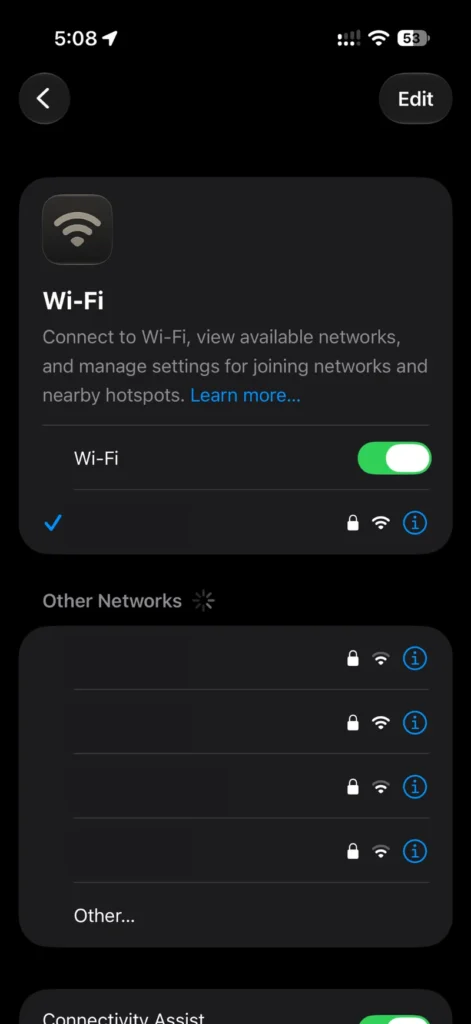
Table of Contents
Before You Share a Wi-Fi Password on iPhone
Apple’s automatic Wi-Fi password sharing feature works between compatible Apple devices, including iPhone, iPad, and Mac.
Before trying it, check these requirements:
- Both devices should have Wi-Fi and Bluetooth enabled.
- Each person should be signed in to their own Apple Account.
- Both devices should be running compatible, updated software.
- Personal Hotspot should be turned off.
- The devices must be near each other.
- Each person should have the other’s Apple Account email address or phone number saved in Contacts.
- Your iPhone must already be connected to the network you want to share.
These requirements are especially important when you want the automatic Share Password notification to appear.
You do not need all these conditions simply to reveal a saved password manually.
Method 1: Share Wi-Fi Password From iPhone to iPhone
This is usually the easiest method because the recipient can connect without seeing or manually entering the password.
Step-by-step instructions
- On your iPhone, open Settings > Wi-Fi.
- Confirm your iPhone is connected to the Wi-Fi network you want to share.
- Unlock your iPhone.
- Ask the other person to open Settings > Wi-Fi on their iPhone.
- Have them tap the name of your Wi-Fi network.
- Keep both iPhones close together.
- Wait for the Share Password notification to appear on your iPhone.
- Tap Share Password.
- When the other device connects, tap Done.
That’s it. The receiving iPhone should connect without manually entering the network password.
Why is this method useful?
Apple’s built-in sharing feature provides a convenient way to share access without reading the password aloud or displaying it on your screen.
It’s especially helpful when your home Wi-Fi password contains complicated characters, numbers, or symbols.
Important: This feature does not automatically share every network with every nearby device. The account, contact, and proximity requirements still apply.
Method 2: Share Wi-Fi Password From iPhone to Mac
You can also share a Wi-Fi password with a compatible Mac.
The process is similar to sharing between two iPhones.
Steps to follow
- Connect your iPhone to the desired Wi-Fi network.
- Unlock the iPhone and keep it near the Mac.
- Make sure Wi-Fi and Bluetooth are enabled on both devices.
- On your Mac, open the Wi-Fi menu.
- Select the same network your iPhone is using.
- Watch for the Share Password prompt on your iPhone.
- Tap Share Password to allow the Mac to join.
The Mac should connect after accepting the shared network credentials.
If the prompt doesn’t appear, verify the Apple Account contact details and restart the sharing process.
For an alternative, you can reveal the password using Method 3 and enter it manually on the Mac.
Method 3: View and Copy Your Saved Wi-Fi Password
Sometimes you need the actual Wi-Fi password instead of Apple’s automatic sharing prompt.
For example, you may be connecting a Windows laptop, Android phone, smart TV, printer, or gaming console.
On iPhones running iOS 16 or later, you can reveal a saved Wi-Fi password after authenticating.
How to view the current Wi-Fi password
- Open Settings.
- Tap Wi-Fi.
- Find the network currently connected to your iPhone.
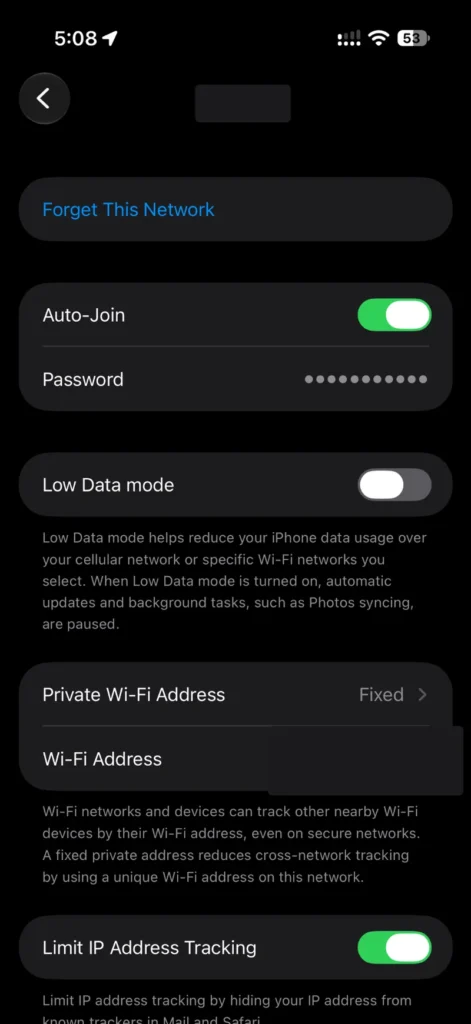
- Tap the information (i) button next to its name.
- Tap Password.
- Authenticate using Face ID, Touch ID, or your device passcode.
- Copy the password if necessary.
You can now enter that password on another device.
Find previously saved Wi-Fi passwords
If you need the password for a network you joined in the past:
- Open Settings > Wi-Fi.
- Tap Edit, where available.
- Authenticate to view your saved networks.
- Select the relevant network.
- Tap its password field.
For iPhones running iOS 18 or later, you can also use Apple’s dedicated Passwords app.
Use the Passwords app
- Open the Passwords app.
- Authenticate with Face ID or your passcode.
- Tap Wi-Fi.
- Select your saved network.
- Tap the password field.
- Choose Copy Password if needed.
The Passwords app offers a convenient way to locate credentials for networks your iPhone remembers.
Security tip
Avoid sending your main home Wi-Fi password through public messages or unfamiliar group chats.
If your router supports a guest Wi-Fi network, consider using that for visitors.
A guest network can provide internet access without giving everyone access to your primary home network.
Method 4: Share a Wi-Fi Password Using a QR Code
A QR code is another convenient way to share Wi-Fi access.
Instead of manually typing a password, the other person scans a code using a compatible phone or tablet.
How to generate a Wi-Fi QR code on iPhone
On supported iOS versions:
- Open the Passwords app.
- Unlock it using Face ID, Touch ID, or your passcode.
- Select Wi-Fi.
- Choose the network you want to share.
- Tap Show Network QR Code.
- Ask the other person to scan the code with their device’s camera.
- Follow the connection prompt on their device.
This method is particularly useful when sharing Wi-Fi between iPhone and Android.
Can an Android phone scan an iPhone Wi-Fi QR code?
Yes. Compatible Android phones can scan standard Wi-Fi QR codes using their camera or built-in QR scanner.
The exact joining process depends on the Android model and software version.
If scanning does not work, you can always reveal the network password using Method 3 and enter it manually.
Is it safe to share a Wi-Fi QR code?
A Wi-Fi QR code can contain the network credentials needed to connect.
Anyone with access to the code may be able to use it.
Avoid posting a QR code for your private network publicly. For frequent guests, consider creating a separate guest network instead.
What If the Share Password Option Doesn’t Appear?
Sometimes the sharing notification fails to appear even when both devices are nearby.
Common causes include:
- Bluetooth or Wi-Fi is disabled.
- Personal Hotspot is enabled.
- One device is locked.
- The devices are too far apart.
- The necessary Apple Account contact information is missing.
- The sharing device is connected to a different Wi-Fi network.
- The devices have a temporary connectivity or software problem.
Quick troubleshooting steps
First, confirm the sharing iPhone is connected to the correct network.
Next, enable Wi-Fi and Bluetooth on both devices.
Make sure each person is signed in to their own Apple Account and that the relevant contact information is saved.
Keep both devices close and try selecting the network again.
If the prompt still doesn’t appear, restart both devices and repeat the process.
For more detailed troubleshooting, see our iPhone Wi-Fi Password Sharing Not Working guide.
That article focuses specifically on fixing failed sharing attempts.
Which Wi-Fi Sharing Method Should You Use?
The best option depends on the receiving device.
Another iPhone or iPad: Use the automatic Share Password prompt.
A Mac: Try nearby sharing first, then enter the saved password manually if necessary.
An Android phone: Share a Wi-Fi QR code or copy the password.
A Windows laptop: Reveal the saved password and enter it manually.
Guests visiting frequently: Use a separate guest Wi-Fi network if your router supports one.
If another device successfully joins Wi-Fi but cannot access websites, the problem may involve the connection rather than the password.
Our iPhone Connected to Wi-Fi but No Internet guide explains how to troubleshoot that situation.
Frequently Asked Questions
Can I share my Wi-Fi password from iPhone to Android?
Yes. You can reveal and copy your saved Wi-Fi password or display a compatible Wi-Fi QR code using the Passwords app. Apple’s automatic Share Password notification is designed primarily for compatible Apple devices.
Why is Share Password not showing on my iPhone?
Check that both devices have Wi-Fi and Bluetooth enabled, Personal Hotspot is turned off, the devices are nearby, and the required Apple Account contact information is saved. Restarting both devices may also help.
Can I share a Wi-Fi password without knowing it?
Yes, if your iPhone is already connected to the network and Apple’s automatic sharing requirements are met. You may also be able to view the saved password after authenticating.
Can I see the password of an old Wi-Fi network?
Yes, provided your iPhone still has that network’s credentials saved. You can find previously joined networks through Wi-Fi settings or the Passwords app on supported iOS versions.
Do both iPhones need the same Apple Account?
No. Each person should use their own Apple Account. Apple’s nearby sharing feature relies on compatible devices and the appropriate contact information, not both devices being signed into the same account.
Can I share Wi-Fi using a QR code?
Yes. On supported iOS versions, the Passwords app includes a Show Network QR Code option for saved Wi-Fi networks.
Final Thoughts
Learning how to share Wi-Fi password on iPhone can save time whenever a friend, family member, or another device needs to join your network.
For nearby Apple devices, the automatic Share Password prompt is usually the simplest choice.
For Android phones and other devices, viewing a saved password or sharing a QR code may be more practical.
Whichever method you choose, protect your primary Wi-Fi credentials and use a guest network when appropriate.
Official Apple Resources
- How to share your Wi-Fi password from iPhone or iPad
- Find saved Wi-Fi passwords on iPhone or iPad
- Find and share a Wi-Fi password on iPhone
Last updated: November 20, 2026. Menu labels and available features may differ by iOS version.