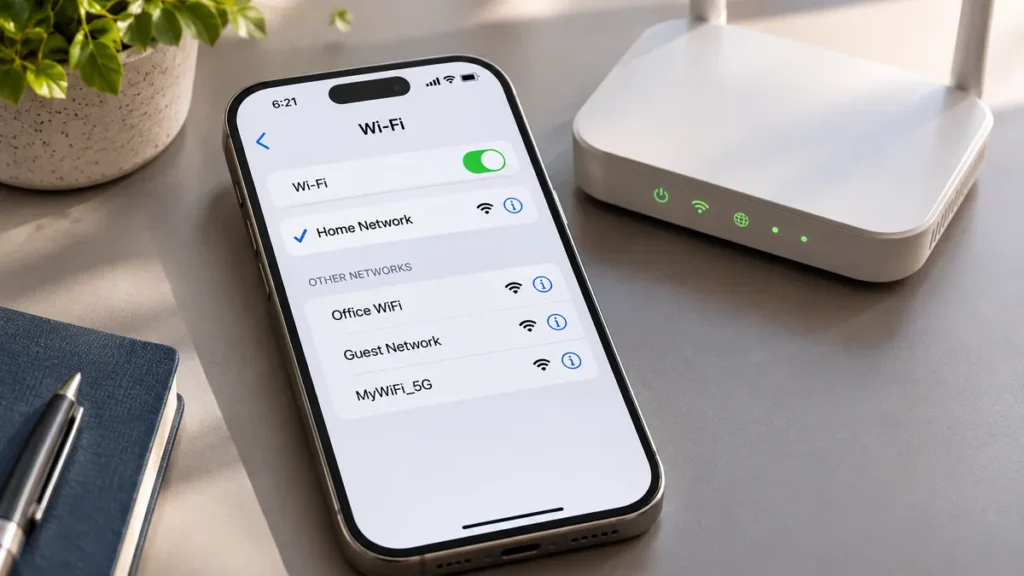
Wondering how to find WiFi SSID on iPhone? Maybe you’re setting up a printer, connecting a smart-home device, or trying to figure out which network your phone is using. Whatever the reason, you can find the network name right in your iPhone’s settings.
The good news is that you don’t need any extra apps. It only takes a few taps to see your connected Wi-Fi network, and you can also check nearby networks or ones you’ve connected to before.
Quick answer: To find your Wi-Fi SSID on an iPhone, open Settings > Wi-Fi and look for the network name with a blue checkmark beside it. That’s the SSID of the Wi-Fi network you’re currently connected to.
If you’re looking for a network you used previously or the name of your iPhone’s Personal Hotspot, the steps are slightly different.
Table of Contents
What Is a Wi-Fi SSID on iPhone?
SSID stands for Service Set Identifier. It’s simply the name of a Wi-Fi network.
For example, suppose you open your iPhone’s Wi-Fi settings and see these networks:
- HomeNetwork
- NETGEAR_5G
- Guest_WiFi
Those are all SSIDs.
Your router broadcasts its network name so nearby devices can identify it and connect.
There’s an important distinction here: your SSID isn’t your Wi-Fi password. The SSID identifies the network, while the password helps protect access to it.
You might need your SSID when setting up a wireless printer, connecting a smart TV, configuring a security camera, or sharing network details with someone else.
1. How to Find WiFi SSID on iPhone (Connected Network)
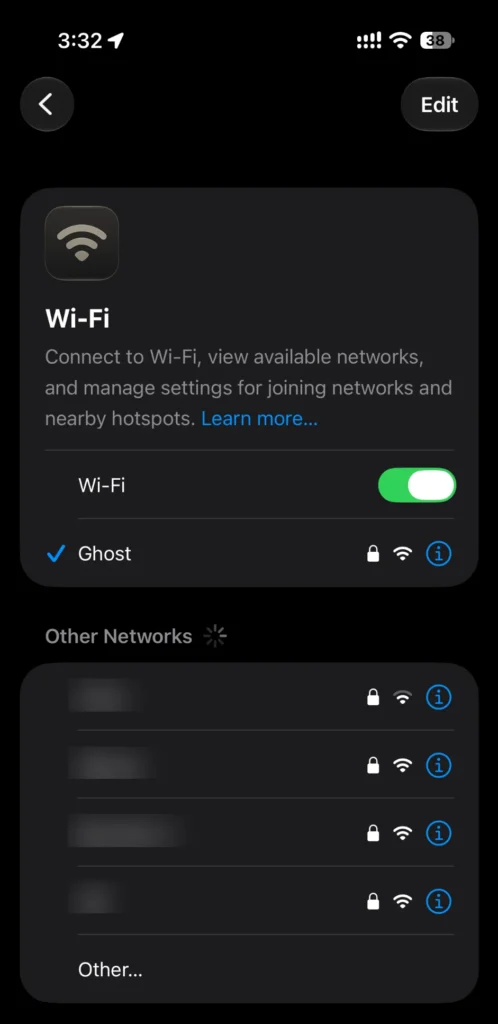
This is the easiest method, and it works on recent iPhone models.
- Open Settings on your iPhone.
- Tap Wi-Fi.
- Make sure Wi-Fi is turned on.
- Look for the network with a blue checkmark beside its name.
- Read the network name. That’s your current SSID.
For example, if the blue checkmark appears next to HomeNetwork, your iPhone is connected to a Wi-Fi network called HomeNetwork.
You don’t need to tap the information button or open advanced settings just to see the SSID.
What if there’s no checkmark?
Your iPhone might not be connected to a wireless network. You can still see available networks, but you won’t have a current connected Wi-Fi SSID until you join one.
Apple confirms that the blue checkmark identifies a connected network in its official Wi-Fi connection guide.
2. Find SSIDs of Nearby Wi-Fi Networks
You don’t have to connect to a Wi-Fi network to see its name.
Open Settings > Wi-Fi and wait for your iPhone to scan the area.
You’ll normally see nearby networks listed below your current connection.
These might include your neighbor’s router, a guest network, or the Wi-Fi provided by a nearby business.
Each name in the list is an SSID.
If you’re trying to connect a device to your home Wi-Fi, make sure you choose the correct network. Some routers broadcast similar names for their different Wi-Fi bands.
For instance, you might see HomeWiFi and HomeWiFi_5G.
Those could be separate network names created by the same router, but the naming convention alone doesn’t guarantee which band each network uses.
If you’re unsure about the frequency, see our guide on how to check your Wi-Fi GHz on iPhone.
3. Find the SSID of a Previously Connected Wi-Fi Network
What if you need the name of a network you used last week?
You may not be near that router anymore, but your iPhone can still have its details saved.
Using Wi-Fi settings
- Open Settings > Wi-Fi.
- Tap Edit, if available.
- Authenticate with Face ID, Touch ID, or your passcode.
- Look through the list of previously joined networks.
- Find the network name you’re looking for.
You can tap the information button beside a network to review available details.
Using the Passwords app
On iPhones running iOS 18 or later, you can also check saved Wi-Fi networks through Apple’s Passwords app.
- Open Passwords.
- Unlock it using your usual authentication method.
- Tap Wi-Fi.
- Browse the saved networks.
- Tap a network to view its information.
This method is useful when you’re away from home but need to remember the exact name of a previously used network.
It can also help when you’re setting up another device and want to check which network your iPhone has used before.
Remember that a saved network isn’t necessarily the network your iPhone is connected to right now.
4. Find Your iPhone Personal Hotspot SSID
Your iPhone can also act as a wireless hotspot, allowing other devices to use its cellular internet connection.
When another device searches for your hotspot, it needs to recognize the hotspot’s name.
That name is normally the same as your iPhone’s device name.
To find it:
- Open Settings.
- Tap General.
- Select About.
- Look for Name.
- The name shown there is also used to identify your iPhone’s Personal Hotspot.
For example, if your device is named Alex's iPhone, that is the name another device will generally look for when connecting to your hotspot.
To check the hotspot itself, open Settings > Personal Hotspot.
Personal Hotspot availability depends on your carrier and cellular plan.
If other devices can’t discover your hotspot, our iPhone Personal Hotspot troubleshooting guide covers the most common connection problems.
Why Can’t I Find My Wi-Fi SSID on iPhone?
Usually, the problem isn’t the SSID itself. Your iPhone simply isn’t detecting the network you’re looking for.
Here are the things worth checking before changing more advanced settings.
Your Wi-Fi Is Turned Off
Open Settings > Wi-Fi and make sure the switch is enabled.
Give your iPhone a few moments to discover nearby networks.
You’re Too Far From the Router
If you’re in another room or outside the building, the network may not appear.
Try moving closer to the router.
If the network becomes visible, the problem may be related to coverage rather than your iPhone settings.
The Network Name Is Hidden
Some routers are configured not to broadcast their SSID.
In that situation, the network might not appear in the normal list even when you’re within range.
If you know the exact name, security type, and password, you can try joining it manually:
- Open Settings > Wi-Fi.
- Tap Other, if shown.
- Enter the network’s exact name.
- Select the appropriate security settings.
- Enter the password and try connecting.
A hidden SSID isn’t automatically more secure than a visible one. Proper wireless security and a strong password matter much more.
The Router Isn’t Broadcasting
A router that’s powered off, restarting, or experiencing a wireless problem may not appear in your iPhone’s network list.
Check whether another device can see the same SSID.
If neither device detects it, investigate the router before resetting your iPhone.
Your iPhone Connects but Has No Internet
Finding the SSID and having a working internet connection are two different things.
Your iPhone can recognize a network and connect to it even when the router isn’t providing internet access.
If that’s what’s happening, follow our guide for an iPhone connected to Wi-Fi but showing no internet.
Is an SSID the Same as a Wi-Fi Password or BSSID?
No. These terms refer to different parts of your network.
SSID: The name of your wireless network, such as HomeWiFi.
Wi-Fi password: The credential required to join a protected network.
BSSID: An identifier associated with a specific wireless access point or radio.
IP address: An address assigned to a device on a network.
Most people only need the SSID and Wi-Fi password when connecting a new device.
If you also need to give someone the password, see how to share your Wi-Fi password on iPhone.
If you’re looking for how to find WiFi SSID on iPhone after leaving a particular location, checking your saved networks is usually the best place to start. Your iPhone may still remember the network name even when you’re no longer within range of that router.
Can You Change Your Wi-Fi SSID From an iPhone?
Yes, potentially, but not through the regular Wi-Fi network list.
If you own or manage the router, you can usually change its network name through the router manufacturer’s app or administration page.
The exact process depends on the router.
Changing your SSID may disconnect devices that were using the old name. You might need to reconnect them afterward.
Apple recommends using a consistent network name across supported Wi-Fi bands where appropriate. You can read more in its recommended router settings.
Also, changing your iPhone’s device name doesn’t change the SSID of your home router. It changes the name associated with the iPhone itself, including its Personal Hotspot.
Frequently Asked Questions
Where is the SSID on iPhone 17 or iPhone 18?
Open Settings > Wi-Fi. The name with the blue checkmark is your current Wi-Fi SSID. The steps are essentially the same on recent iPhone models.
Can I find a Wi-Fi SSID without knowing the password?
Yes. Most Wi-Fi networks broadcast their names publicly, so you can see the SSID without knowing the password. You may still need the password to connect.
How do I find my SSID if I’m not connected to Wi-Fi?
Open Settings > Wi-Fi and check the available networks. You can also look in saved networks for SSIDs you’ve used before.
Why does my iPhone show two Wi-Fi names for the same router?
Some routers use different SSIDs for their 2.4 GHz and 5 GHz bands. Others combine multiple bands under one network name.
Can I see a hidden SSID on my iPhone?
A hidden network won’t normally appear by name in the standard available networks list. You’ll generally need the exact SSID and security details to join it manually.
Does my Wi-Fi SSID change when I restart my iPhone?
No. Restarting your iPhone doesn’t rename your router’s Wi-Fi network. Your SSID stays the same unless it’s changed through the router’s configuration or the network administrator changes it.
Final Thoughts
If someone asks for your Wi-Fi SSID, don’t overthink it. Open Settings > Wi-Fi and look for the network name with the blue checkmark.
For previously used networks, check the saved networks list or the Passwords app. And if you’re setting up your iPhone’s hotspot, look at its device name under Settings > General > About.
Most of the time, the information you need is already on your phone. You just need to know where to look.
Last reviewed: November 23, 2026.