iPhone keyboard not working? Maybe the keyboard does not appear when you tap a text field, typing freezes, letters appear seconds late, or the phone enters the wrong words. You might notice the problem in Messages, Notes, Safari, or only one particular app.
These symptoms do not all have the same cause. An app can temporarily stop responding, predictive typing can behave unexpectedly, a third-party keyboard can malfunction, or a touchscreen problem can make it seem as though the keyboard is broken.
Fortunately, many issues can be checked without deleting your data. In this guide, we explain 12 practical fixes for iPhone keyboard not working, including keyboard settings, lag, Auto-Correction, unwanted text replacements, and situations where the keyboard never appears.
Quick Answer: How to Fix iPhone Keyboard Not Working
If your iPhone keyboard is frozen, missing, slow, or typing incorrectly, try these checks in order:
- Test the keyboard in Notes and another app.
- Close and reopen the app where typing fails.
- Restart your iPhone if multiple apps are affected.
- Check for screen-protector, charging, or touch-response problems.
- Switch back to Apple’s built-in keyboard for comparison.
- Review language and keyboard layouts.
- Turn off Predictive Text temporarily if suggestions cause trouble.
- Check Auto-Correction and Text Replacement for unexpected words.
- Review iPhone storage and performance.
- Update the affected app and iOS.
- Reset the keyboard dictionary only if learned words are the problem.
- Seek support if the onscreen keyboard still fails everywhere.
Important: Reset Keyboard Dictionary deletes learned words and custom text shortcuts. It is not the same as a factory reset, and it should not be your first troubleshooting step.
Why Is My iPhone Keyboard Not Working?
Start by identifying the symptom rather than changing every setting at once.
Keyboard not appearing: The current app or text field may be unresponsive. An external keyboard may also change what appears onscreen.
Keyboard lagging: The app or overall iPhone may be running slowly. Very low free storage can contribute to device-wide performance issues.
Wrong letters or missed taps: Check whether the touchscreen responds normally, especially outside the keyboard area.
Words changing automatically: Auto-Correction, predictive typing, or saved Text Replacement shortcuts may explain the changes.
Only one app is affected: That suggests a problem with the specific app more than with the iPhone keyboard itself.
Only a third-party keyboard fails: The keyboard extension may need an app update or reconfiguration.
A short test in the Notes app is a useful first step because it helps distinguish these possibilities.
1. Test the Keyboard in Notes and Another App
Open Notes, create a new note, and tap inside the blank page. Type a short phrase such as “Keyboard test 123.” Check whether each letter appears promptly and in the correct order.
Now try the search field in Settings or another trusted app. If the keyboard works in Notes but not in one particular app, the issue may be limited to that app. If the same failure happens in several apps, investigate the keyboard settings or the device itself.
When comparing apps, avoid typing passwords, financial details, or private messages just to run a test. Ordinary sample text is sufficient.
2. Close and Reopen the App Where Typing Fails
Apple recommends closing and reopening an app when it does not respond correctly.
- On an iPhone with Face ID, swipe up from the bottom and pause to open the app switcher.
- Find the affected app.
- Swipe its preview upward to close it.
- Reopen the app and tap its text field.
- Try typing again.
Do this for an affected app, not as a routine way to close every app on your phone. If the keyboard works normally elsewhere, also check whether the affected app has an update available.
3. Restart Your iPhone
If typing freezes in Messages, Notes, and other apps, a normal restart is a reasonable next step.
On an iPhone with Face ID:
- Press and hold the Side button and either Volume button.
- Drag the power-off slider.
- Wait about 30 seconds.
- Hold the Side button to start the iPhone again.
- Open Notes and run your keyboard test.
A normal restart should not erase your photos, messages, or installed apps. If the phone is completely unresponsive and cannot be shut down normally, Apple provides separate force-restart instructions, but try the regular restart first whenever possible.
4. Check Whether the Touchscreen Is Responding Properly
Sometimes a keyboard appears broken because the touchscreen misses taps or responds incorrectly. Apple recommends checking for debris, water, accessories, and screen protectors when touch input is intermittent.
- Use a clean, dry, lint-free cloth to wipe the screen gently.
- Remove moisture from your fingers and display.
- Disconnect a charging cable or USB-C accessory and test again.
- If safe, temporarily test without a poorly fitted screen protector or case.
- Tap ordinary buttons outside the keyboard to compare touch response.
If the same area of the screen repeatedly fails to recognize taps, the problem may be the display rather than the keyboard app. Seek qualified service rather than repeatedly tapping harder or pressing on the glass.
5. Switch Back to the Built-In Apple Keyboard
Third-party keyboards can offer custom layouts and themes, but they add another possible source of problems. If you use a third-party keyboard, compare it with Apple’s standard keyboard.
- Open a text field where you can type safely.
- Touch and hold the globe or keyboard-switch key, if available.
- Select your regular Apple language keyboard.
- Type a short sentence in Notes.
- Compare its responsiveness with the third-party keyboard.
If the Apple keyboard works but a third-party keyboard does not, update that keyboard’s app and review its support instructions. You can also check installed keyboards under Settings → General → Keyboard → Keyboards.
Don’t delete an unfamiliar keyboard configuration on a managed or shared device without understanding what it is used for.
6. Check Keyboard Language and Layout
An unexpected language or layout can make letters appear in different places or change how text suggestions work.
To review installed keyboards:
- Open Settings.
- Tap General → Keyboard → Keyboards.
- Check which languages and layouts are installed.
- Add a preferred keyboard if needed.
- Remove an unused keyboard only if you’re sure it is not needed.
When typing, you can often touch and hold the globe key to switch languages. Some multilingual keyboards offer predictions for multiple languages. Supported features vary by language and region.
If the keyboard is narrower than normal, check whether a one-handed keyboard layout is enabled. Touch and hold the globe or emoji key and choose the centered layout to restore its usual width.
7. Test Predictive Text and Inline Suggestions
If typing feels distracting or laggy because suggestions appear and change, try temporarily turning off prediction features to isolate the issue.
- Open Settings → General → Keyboard.
- Find Predictive Text (or Predictive, depending on iOS).
- Turn it off temporarily.
- If shown, also review Show Predictions Inline.
- Type several sentences in Notes and compare the result.
Apple explains that predictive typing suggests words and can offer inline completions. These features are not available for every language. Switching them off is a preference and diagnostic test, not a guaranteed speed fix.
If there is no difference, restore your preferred settings and investigate the next cause.
8. Review Auto-Correction and Text Replacement
If the keyboard types a different word from the one you entered, the problem may be correction behavior rather than missed touchscreen input.
For Auto-Correction:
- Open Settings → General → Keyboard.
- Find Auto-Correction.
- Temporarily switch it off if unwanted corrections are frequent.
- Try typing the same words again.
On newer iOS versions, corrected words may be underlined so you can tap and change the correction.
Also check Settings → General → Keyboard → Text Replacement. A saved shortcut can automatically expand into a longer phrase. Review any unexpected shortcuts carefully before deleting them.
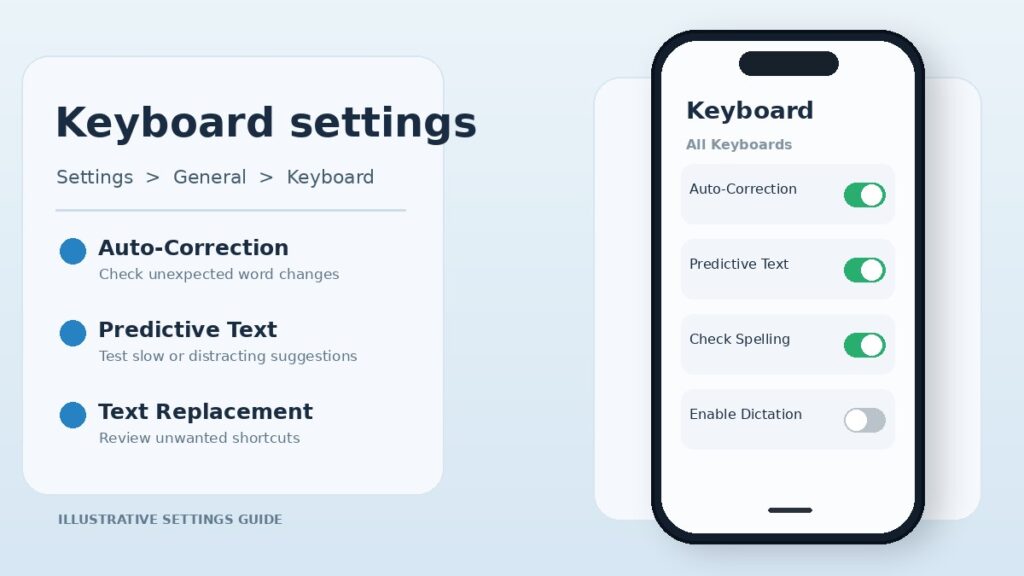
If corrections and shortcuts behave normally, turn your preferred typing assistance back on.
9. Check Storage and General iPhone Performance
A keyboard that responds slowly alongside slow app opening, stuttering, and system-wide delays may indicate a broader performance problem.
Open Settings → General → iPhone Storage. Review the available free space and storage recommendations. Apple advises maintaining at least about 1 GB of free space to avoid slowdowns, though additional free space may be useful for updates and normal usage.
If space is very low, remove unnecessary downloads or offload an app that you do not need frequently. Back up important media before deleting anything. Don’t delete personal photos simply to fix a keyboard problem without confirming your backup is safe.
If the device is unusually hot or cold, allow it to return to a normal operating temperature before testing again.
10. Update the Affected App and iOS
If the keyboard fails only inside one app, an app update may help. Apple recommends checking for updates when an app behaves unexpectedly.
- Open the App Store.
- Tap your account photo.
- Review available app updates.
- Update the affected app when an update is available.
- If the issue affects multiple apps, also open Settings → General → Software Update.
- Back up important information before installing a major iOS update.
Don’t assume every software update is responsible for a typing problem. First determine when the problem started and whether it occurs in more than one app.
If the affected app is Safari and typing fails only in website fields, review our related guide: iPhone Safari Not Loading Websites? 12 Fixes to Try (2026). Browser and website issues are separate from a broken iPhone keyboard.
11. Reset the Keyboard Dictionary Only If Needed
Over time, the keyboard learns words and may suggest phrases that you no longer want. Apple offers a specific reset for the personal keyboard dictionary.
Use this only when persistent learned words or unwanted corrections are the problem, not when a touchscreen area is physically unresponsive.
- Open Settings → General.
- Select Transfer or Reset iPhone.
- Tap Reset.
- Choose Reset Keyboard Dictionary.
- Enter your passcode if requested.
- Confirm the reset.
Important: Apple states that this action deletes learned custom words and text shortcuts and returns the keyboard dictionary to its default state. It does not normally erase photos or messages, but you cannot rely on those saved keyboard customizations remaining afterward.
If typing is simply slow, investigate storage, apps, or the touchscreen first.
12. Seek Support If the Keyboard Still Fails Everywhere
If the Apple keyboard does not respond properly in Notes and other apps after basic troubleshooting, compare the issue with general touch input. Try buttons outside the keyboard area and check whether the problem consistently affects the same part of the display.
If touch input is unreliable throughout the iPhone, Apple recommends seeking service when cleaning, restarting, disconnecting accessories, and removing interfering protectors do not resolve it.
If only one third-party app fails, contact its developer. For an iOS-wide software issue, contact Apple Support and record your iPhone model, iOS version, and examples of which apps are affected.
If you need to show the problem to support, a short non-sensitive screen recording may help when recording itself works. Our guide iPhone Screen Recording Not Working? 12 Fixes to Try (2026) explains that separate feature.
Don’t factory-reset the phone just because a keyboard lags once or twice.
iPhone Keyboard Not Showing Up: What Should You Do?
When the keyboard doesn’t appear at all, first tap a text field in Notes and then in another app. If the keyboard appears elsewhere, close and reopen the affected app and check for updates.
If you use a connected physical keyboard, temporarily disconnect it and test the onscreen keyboard again. If no apps show the keyboard, restart the iPhone and check for iOS updates.
A missing keyboard in one website’s form can be a site-specific issue rather than a device-wide keyboard failure.
iPhone Keyboard Lagging or Typing Slowly
If letters take several seconds to appear, try Notes and one other app to see whether the slowdown is widespread. Restart the iPhone, check storage, and let an overheated device cool down naturally.
Testing with a built-in Apple keyboard can help you identify third-party keyboard extension problems. You can also compare typing with Predictive Text temporarily disabled, but that change does not necessarily improve performance on every iPhone.
If all apps remain slow, focus on general device performance rather than repeatedly deleting keyboard settings.
iPhone Keyboard Typing Wrong Letters
First confirm the selected keyboard language and layout. Check for one-handed mode if the keyboard appears shifted toward the edge of the screen.
Next, determine whether your taps register at the wrong location. If the same screen area fails outside the keyboard too, it may be a touchscreen problem. Clean the screen, remove interfering accessories, and seek service if touch response remains unreliable.
If words change only after you finish typing them, investigate Auto-Correction and Text Replacement instead.
Frequently Asked Questions
Why is my iPhone keyboard not working?
The cause may be an unresponsive app, a third-party keyboard, unusual keyboard settings, slow device performance, or a touchscreen issue. Test the keyboard in Notes and another app first.
How do I fix an iPhone keyboard that will not appear?
Tap a text field in another app, close and reopen the affected app, check connected external keyboards, and restart the iPhone if needed.
Why is my iPhone keyboard lagging after an update?
A temporary app or device performance issue may contribute. Check whether all apps are affected, review free storage, and install any available compatible updates. Don’t assume the update alone is the cause.
How do I reset my iPhone keyboard?
To reset learned words and shortcuts, go to Settings → General → Transfer or Reset iPhone → Reset → Reset Keyboard Dictionary. This is not a fix for physical touchscreen damage.
Will resetting the keyboard dictionary delete photos?
No, a keyboard-dictionary reset does not normally erase photos or messages. It does remove learned words and custom keyboard shortcuts.
Why does my iPhone keep changing words I type?
Auto-Correction, Predictive Text, or Text Replacement can change what appears. Review Settings → General → Keyboard and the Text Replacement list.
Why does the keyboard work in Messages but not in another app?
The issue may be limited to the second app. Close and reopen that app, check for app updates, and contact the developer if the problem persists.
Can a screen protector interfere with the keyboard?
A poorly fitted protector or dirt and moisture on the screen can affect touch response. Apple’s display troubleshooting includes removing problematic cases or screen protectors as a test.
Does changing Predictive Text make the keyboard faster?
Not necessarily. Disabling suggestions is a useful comparison test if they seem disruptive, but slow typing can also reflect app, storage, or touchscreen problems.
Can I remove a third-party keyboard?
Yes, you can manage installed keyboards under Settings → General → Keyboard → Keyboards. Keep at least one keyboard that you can use, and avoid removing managed configurations without permission.
Why is my keyboard shifted to one side?
One-handed keyboard mode may be active. Touch and hold the globe or emoji key and select the centered keyboard layout.
When should I contact Apple Support?
If the built-in keyboard fails across several apps and the touchscreen remains unreliable despite restarting and checking accessories, contact Apple Support or arrange an assessment.
Final Thoughts
If your iPhone keyboard is not working, first find out whether the problem affects one app or the whole device. Test in Notes, restart when necessary, and check whether the touchscreen itself responds correctly.
For typing errors, focus on language layouts, Auto-Correction, Predictive Text, and saved shortcuts. For slow performance, review storage and app updates. Reset Keyboard Dictionary only when you are comfortable losing learned words and custom shortcuts.
Most importantly, don’t reset your entire iPhone or assume hardware damage before running these simple comparisons.
Official Apple Support Resources
- Apple: Type with the onscreen keyboard on iPhone
- Apple: Use Auto-Correction and predictive text
- Apple: Set up text replacements and reset the keyboard dictionary
- Apple: If the screen isn’t working on iPhone
- Apple: If an app stops responding
The Synced Desk | Practical solutions for everyday technology problems.