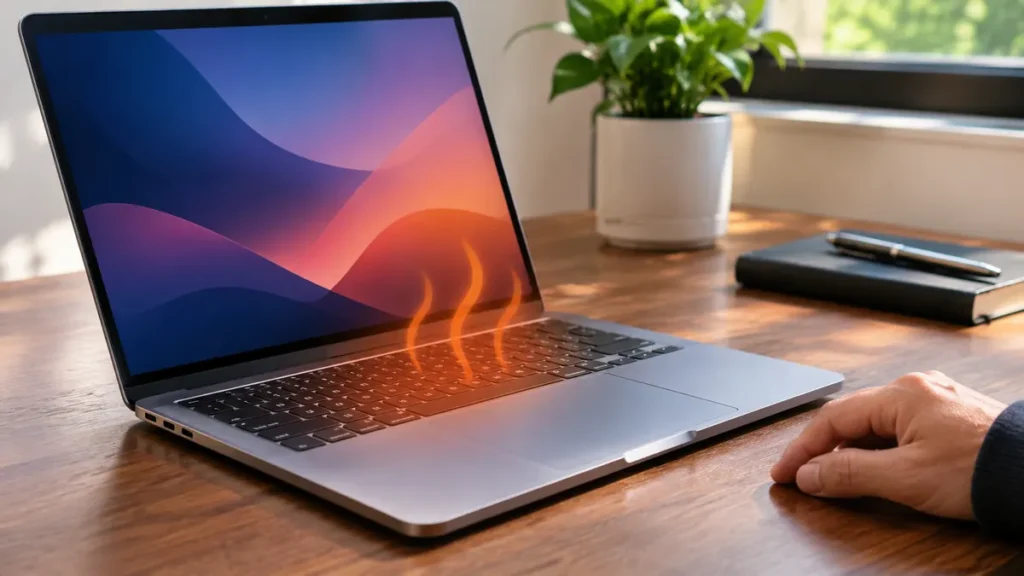
A MacBook that feels slightly warm after a long video call isn’t necessarily overheating. But when the keyboard becomes uncomfortable to touch, the fans run continuously, or performance suddenly drops during simple tasks, something deserves a closer look.
If you’re wondering why is my MacBook overheating, the answer could be as simple as a demanding browser tab or as complicated as a hardware problem.
Before buying a cooling pad or paying for repairs, it helps to understand when the heat occurs and what your MacBook is doing at the time.
This guide explains how to identify the cause and reduce excessive heat on both MacBook Air and MacBook Pro models.
Table of Contents
Quick Answer: Why Is My MacBook Overheating?
A MacBook may overheat because of excessive CPU usage, demanding applications, background processes, restricted ventilation, high room temperatures, software issues or hardware faults.
To reduce excessive heat, place your MacBook on a hard, ventilated surface, check Activity Monitor for demanding processes, close unnecessary applications and restart the computer.
If it remains unusually hot during light use, investigate the battery, cooling system or other hardware components with professional assistance when necessary.
Is Your MacBook Actually Overheating?
A metal laptop can feel surprisingly warm because its enclosure helps transfer heat away from internal components.
The temperature you feel with your hand does not necessarily reflect the temperature of the processor.
The circumstances surrounding the heat are often more informative than the temperature alone.
| Situation | What it may mean |
|---|---|
| Warm during video editing | Expected under heavy processing loads |
| Warm while charging | Can be normal |
| Hot during simple document editing | Possible background activity or cooling issue |
| Fans running continuously while idle | Worth investigating on fan-equipped models |
| Performance drops during demanding tasks | Possible thermal throttling |
| MacBook becomes hot inside a closed bag | Possible sleep or background activity issue |
| Battery swelling or unusual burning smell | Potential hardware safety issue |
Apple recommends using Mac laptops in an environment between 50°F and 95°F (10°C and 35°C).
This is the recommended surrounding air temperature, not the maximum internal processor temperature.
You can find additional safety information in Apple’s official MacBook operating temperature guide.
1. Find Heat-Producing Applications in Activity Monitor
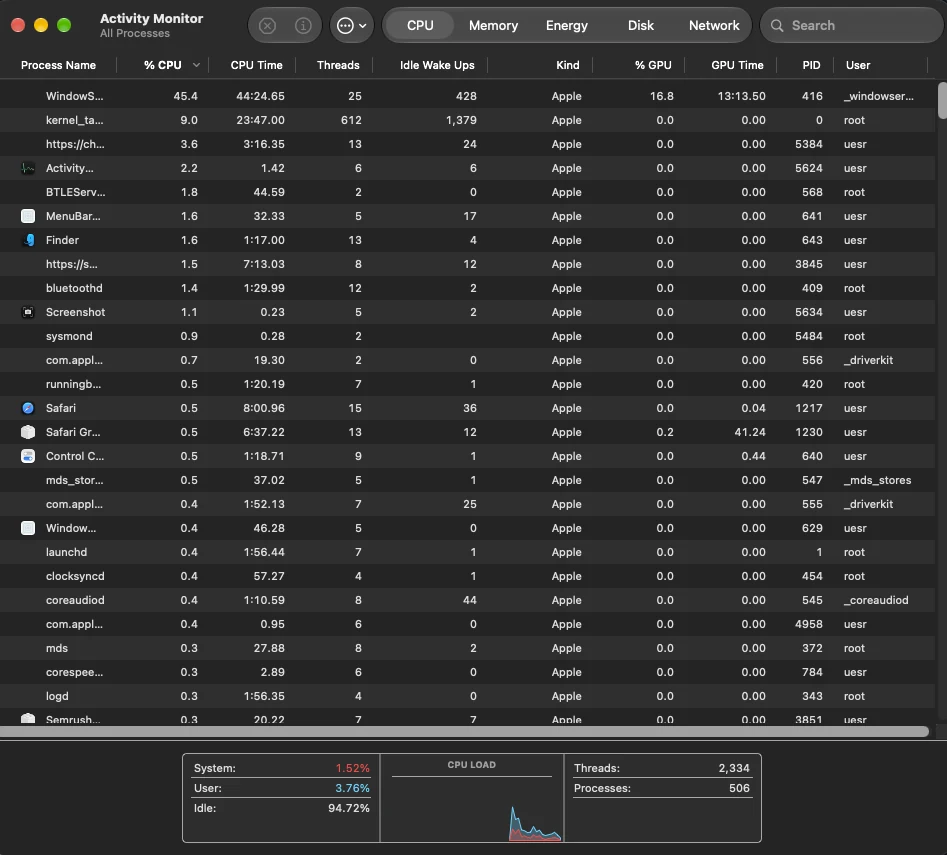
In our MacBook Air M1 screenshot, WindowServer shows 45.4% CPU usage, while overall CPU idle capacity remains at 94.72%. This illustrates why a single process’s CPU percentage should not be confused with total processor utilization. High usage by an individual process does not necessarily indicate overheating.
If your MacBook becomes hot while you’re doing something relatively simple, start with Activity Monitor.
An application doesn’t need to be visible on your screen to consume processing power. Background synchronization, browser processes and malfunctioning applications can continue running even when you’re not actively using them.
How to check CPU usage on a MacBook
- Press Command + Space to open Spotlight.
- Search for Activity Monitor.
- Open the application.
- Select the CPU tab.
- Click the % CPU column to sort processes by usage.
- Observe the processes at the top of the list for a short period.
Look for applications that consistently consume substantial CPU resources without an obvious reason.
For example, a browser using considerable processing power while playing high-resolution video is understandable. The same browser maintaining high CPU usage after you’ve closed its active tabs deserves further investigation.
What does CPU usage above 100% mean?
Activity Monitor can display an individual process using more than 100% CPU because macOS measures process usage across multiple processor cores.
A reading above 100% does not automatically indicate a fault.
Instead, consider whether the process remains demanding over time and whether that activity corresponds with the heat you’re experiencing.
Save your work before quitting a demanding application. Try closing it normally before using Force Quit.
Avoid terminating unfamiliar system processes.
Apple explains these measurements in its Activity Monitor CPU guide.
2. Reduce Browser Workload
Modern web browsers can consume considerable processing power, particularly when running web applications, video streams and several resource-intensive extensions.
The number of tabs isn’t the only factor. One demanding website can use more resources than several ordinary pages.
Try closing unnecessary tabs, pausing background videos and disabling extensions you no longer need.
If Activity Monitor identifies a browser as a major source of CPU usage, repeat your normal tasks with fewer tabs and compare the results.
You can also try the same websites in Safari or another browser to see whether the behavior changes.
There is no need to switch browsers permanently unless the comparison reveals a meaningful improvement.
3. Improve Airflow Around Your MacBook
Where you place your laptop can make a noticeable difference.
A MacBook used on a bed, pillow or thick blanket may have more difficulty dissipating heat than one sitting on an open desk.
Move your MacBook to a firm, level surface with sufficient space around it.
Keep it away from direct sunlight, heaters and other heat sources. Remove anything covering the keyboard or ventilation openings.
If you’re using a stand, make sure it does not obstruct the computer’s vents.
Do you need a laptop cooling pad?
Not necessarily.
Start by improving airflow and reducing unnecessary background activity. A cooling pad cannot fix a malfunctioning application, damaged battery or internal hardware fault.
4. Check What Happens When Your MacBook Is Charging
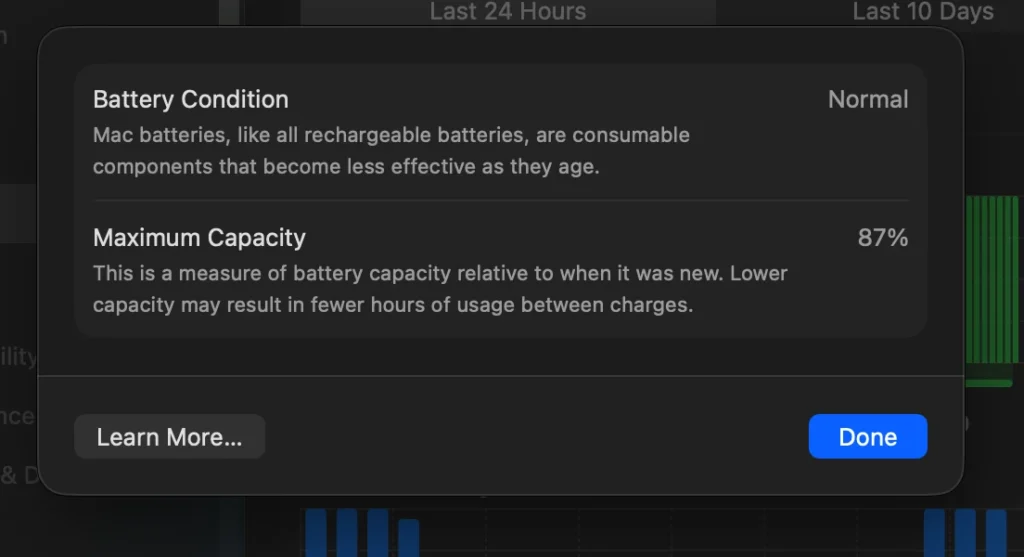
Our MacBook Air M1 reports a normal battery condition despite its maximum capacity having declined to 87%. Reduced battery capacity is a natural part of battery aging and does not, by itself, establish that a MacBook is overheating.
Charging generates some heat, particularly when the computer is also performing demanding tasks.
For example, exporting a video while charging a nearly empty battery combines two sources of heat.
If your MacBook becomes unusually hot while connected to power, check whether the problem also occurs when running on battery.
Inspect the charging cable and use an appropriate Apple-authorized power adapter.
If the charging connector becomes excessively hot, shows visible damage or produces an unusual smell, stop using it and arrange an inspection.
For charging-related problems, see our guide on MacBook not charging.
Check battery health
Open System Settings, select Battery and look for Battery Health.
If macOS reports that battery service is recommended, arrange an assessment, especially if the MacBook also experiences unexpected shutdowns or unusually short battery life.
A battery service recommendation does not establish that the battery is causing the heat, but it is worth investigating.
Our MacBook battery draining fast guide covers additional battery-related troubleshooting.
5. Reduce Background Activity After a macOS Update
Your MacBook may temporarily run warmer after installing a major macOS update.
Spotlight indexing, photo analysis, cloud synchronization and other maintenance tasks can increase system activity.
If the heat started immediately after an update, open Activity Monitor and check which processes are consuming resources.
Give legitimate background tasks an opportunity to finish while the MacBook is connected to power and positioned on a suitable surface.
Avoid disabling system services simply because they temporarily appear near the top of Activity Monitor.
If excessive heat continues long after the initial background activity has settled, check for additional software updates and investigate the specific applications involved.
If you’re also experiencing sluggish performance, follow our macOS running slow troubleshooting guide.
6. Review Your Login Items and Background Applications
Some applications launch automatically whenever you sign in to your MacBook.
Over time, these can accumulate and contribute to unnecessary background activity.
To review them:
- Open System Settings.
- Select General.
- Open Login Items & Extensions, or the equivalent Login Items section on your macOS version.
- Review applications that open automatically.
- Remove unnecessary login items.
- Review background activity permissions for applications you recognize.
Don’t disable security software, workplace management tools or essential synchronization services without understanding their purpose.
After making changes, restart your MacBook and observe whether its behavior improves.
7. Understand the Difference Between MacBook Air and MacBook Pro Cooling
Not every MacBook has a cooling fan.
This distinction is important because advice intended for an Intel MacBook Pro may be irrelevant to an Apple silicon MacBook Air.
| MacBook type | Cooling design |
|---|---|
| M1 and subsequent Apple silicon MacBook Air models | Generally fanless cooling |
| Apple silicon MacBook Pro | Active cooling with fans |
| Older Intel MacBook Air | Model-dependent; generally fan-equipped |
| Intel MacBook Pro | Active cooling with fans |
The M1 MacBook Air, for example, was specifically designed without a cooling fan, as confirmed in Apple’s original M1 Mac announcement.
Its silent operation is normal, even during demanding tasks.
However, a fanless MacBook may reduce processing performance during sustained heavy workloads to help manage internal temperatures.
Why is my MacBook Pro fan so loud?
A fan-equipped MacBook Pro increases cooling activity when internal components become warmer.
Hearing the fans during video editing, gaming or other demanding tasks does not automatically indicate a problem.
If the fans remain unusually loud during light use, check Activity Monitor, ambient temperature and ventilation.
Apple provides further details in its guide to fan operation and noise.
8. Restart Your MacBook and Check for Software Updates
If excessive heat began unexpectedly, save your work and perform a normal restart.
This can resolve temporary application faults or abnormal background activity.
After restarting, avoid reopening every application immediately. Observe whether the MacBook remains unusually warm during light use.
Then reopen your normal applications individually.
This simple comparison can help distinguish a system-wide problem from an application-specific one.
Check for macOS updates under System Settings > General > Software Update.
Should you reset the SMC?
An SMC reset can help address certain power and cooling problems on Intel Macs.
Apple silicon MacBooks do not require the traditional Intel SMC reset procedure.
If you own an older Intel MacBook, follow the model-specific reset instructions rather than using a random keyboard combination.
9. Run Apple Diagnostics if Overheating Persists
If your MacBook continues overheating despite reasonable CPU usage, adequate ventilation and updated software, consider running Apple Diagnostics.
This built-in utility can help identify certain hardware problems.
Apple silicon MacBook
Shut down the computer, then hold the power button until the startup options appear. Release the power button and hold Command + D to enter diagnostics.
Intel MacBook
Turn on the computer while holding the D key. If necessary, try Option + D.
Follow the onscreen instructions and record any reference codes.
Consult Apple’s official Apple Diagnostics instructions for the complete procedure.
A successful diagnostic test does not guarantee that every component is functioning perfectly. Intermittent problems may require further assessment.
Why Is kernel_task Using So Much CPU?
You might open Activity Monitor and discover that a process called kernel_task appears to be using a large amount of CPU.
Although it can look like the cause of overheating, kernel_task may actually be responding to elevated temperatures.
Apple explains that this process helps regulate processor temperature by limiting the resources available to demanding applications.
Attempting to disable kernel_task is not an appropriate overheating solution.
Instead, reduce demanding workloads, improve ventilation and allow the MacBook to cool.
Read Apple’s explanation of high kernel_task CPU usage for more information.
A Simple Five-Minute MacBook Heat Investigation
If you aren’t sure which of the previous fixes to try, use this observation routine.
| Time | What to do |
|---|---|
| Minute 1 | Save your work and move the MacBook to a ventilated desk |
| Minute 2 | Open Activity Monitor and sort by CPU usage |
| Minute 3 | Close a recognized, unnecessarily demanding application |
| Minute 4 | Pause unnecessary background downloads or browser activity |
| Minute 5 | Check whether CPU activity is settling |
The purpose is to identify changes in workload, not to guarantee that the laptop will cool completely within five minutes.
The aluminum enclosure can remain warm for some time after processing activity decreases.
If the MacBook remains unusually hot when very little processing is taking place, a deeper investigation may be appropriate.
Why Does My MacBook Get So Hot When Closed?
A closed MacBook normally enters sleep unless its configuration or connected accessories allow it to remain active.
External displays, docking stations, background activity and power settings can affect this behavior.
If you frequently discover that your MacBook is warm after carrying it inside a bag, check whether it is actually sleeping.
Disconnect unnecessary accessories and review applications that may prevent sleep.
If the problem continues, shut down your MacBook before transporting it in an enclosed bag.
Never place a noticeably hot, running laptop inside a tightly packed bag.
What Not to Do When Your MacBook Overheats
Some commonly suggested solutions can create more problems than they solve.
Avoid:
- Putting your MacBook inside a refrigerator or freezer.
- Placing ice packs directly against the enclosure.
- Blocking or manually interfering with cooling fans.
- Disabling macOS thermal protection.
- Opening the battery compartment without appropriate repair experience.
- Installing software that claims to fix every overheating problem.
Rapid cooling can introduce condensation, while interfering with thermal management may put hardware at risk.
Use normal room-temperature air, reduce the workload and allow the computer to cool safely.
When Should You Contact Apple Support?
Arrange professional inspection if your MacBook repeatedly becomes unusually hot while idle, unexpectedly shuts down, or produces abnormal fan noise.
If you notice battery swelling, enclosure deformation, smoke, hissing or a burning smell, stop using and charging the computer immediately if it is safe to do so. Seek professional assistance. If there is smoke or fire, move away and contact emergency services.
If your MacBook is repeatedly shutting down or restarting, our MacBook keeps restarting guide covers that symptom separately.
Don’t wait for a potential battery safety issue to become more serious.
Frequently Asked Questions
Is it normal for a MacBook to get hot?
Some warmth is normal during charging and demanding workloads. Persistent excessive heat during light use, unexpected shutdowns or abnormal battery behavior deserve further investigation.
Why is my MacBook Air M1 overheating without making fan noise?
The M1 MacBook Air has no cooling fan. Its silence is normal. Check CPU usage, workload, ambient temperature and ventilation if it becomes excessively warm.
Does overheating damage a MacBook battery?
Prolonged exposure to excessive heat can accelerate battery degradation. Keeping your MacBook within its recommended operating conditions helps protect battery health.
Can Google Chrome cause my MacBook to overheat?
Resource-intensive websites, browser extensions and media playback can increase CPU usage and heat. Activity Monitor can help establish whether Chrome or one of its processes is contributing to the problem.
Why is my MacBook hot when I’m not using it?
Background indexing, cloud synchronization, software updates, applications preventing sleep or malfunctioning processes may continue using system resources. Check Activity Monitor and your sleep configuration.
What is a safe MacBook temperature?
Apple recommends an ambient operating environment of 50°F to 95°F (10°C to 35°C). Internal component temperatures vary by hardware and workload, so a single universal processor temperature is not a reliable diagnosis.
Can I use my MacBook while charging?
Yes. Using a MacBook while charging is normal. However, demanding workloads combined with charging may increase heat. Unusual connector temperatures or battery swelling require attention.
Will a factory reset fix MacBook overheating?
Only potentially when a software problem is responsible. A factory reset cannot repair faulty cooling hardware or a damaged battery. It should not be your first troubleshooting step.
Final Thoughts
The next time your MacBook becomes unusually hot, resist the temptation to assume the worst.
Start with Activity Monitor. Find out what the computer is doing, reduce unnecessary workloads and make sure it has adequate ventilation.
Pay attention to patterns. A laptop that warms up during video editing is different from one that remains excessively hot while sitting idle.
Understanding that distinction can save you time, unnecessary purchases and potentially expensive repairs.
The Activity Monitor and Battery Health screenshots were captured on our own MacBook Air M1 on November 24, 2026, during ordinary use. They demonstrate how to interpret CPU activity and battery condition without deliberately causing an overheating event.
Editorial methodology: This guide follows Apple’s published operating temperature, Activity Monitor, cooling and hardware diagnostics documentation. The troubleshooting sequence is designed to isolate common causes without immediately resorting to destructive software changes or hardware repairs. No overheating fault or thermal stress test was deliberately reproduced for this article.
Last reviewed: November 24, 2026.