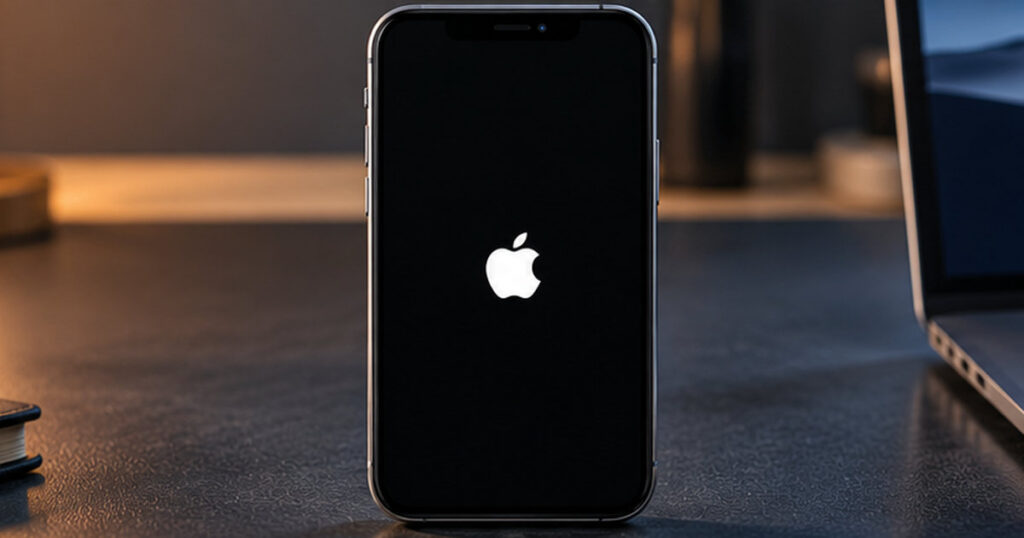
Is your iPhone stuck on Apple logo and refusing to start normally? Maybe the white Apple logo stays on a black screen, your iPhone keeps restarting, or a progress bar has stopped moving after an iOS update.
This can be worrying, especially when your iPhone contains important photos, messages, documents, and other personal information.
Fortunately, a frozen startup screen does not always mean your iPhone is permanently damaged. Some problems can be resolved through a force restart, Apple’s recovery tools, or a computer-assisted iOS update.
The important thing is to follow the right troubleshooting order.
In this guide, we’ll explain 10 practical fixes for an iPhone stuck on Apple logo, including boot-loop problems, failed iOS updates, and the recovery features available with iOS 27.
We’ll also explain which actions can erase your data, so you can make an informed decision before trying anything risky.
Table of Contents
Quick Answer
If your iPhone is stuck on the Apple logo, start with these steps:
- Check whether the screen shows a progress bar.
- Allow an active update or restoration to finish.
- Check whether your iPhone is repeatedly restarting.
- Make sure the battery has sufficient charge.
- Disconnect unnecessary accessories.
- Try the correct force-restart procedure.
- Check the available iOS 27 recovery options.
- Connect your iPhone to a Mac or Windows PC if needed.
- Enter recovery mode and choose Update before considering Restore.
- Contact Apple Support if the problem continues.
Important: Choosing Restore in computer recovery mode erases your iPhone. If you haven’t tried Update, try that first.
Why Is My iPhone Stuck on Apple Logo?
Several things can interrupt the normal iPhone startup process.
When you turn on your iPhone, the device must load its operating system and initialize essential services before showing the Lock Screen.
If something prevents that process from finishing, the Apple logo may remain visible.
Possible causes include:
- An interrupted iOS software update.
- A failed attempt to restore a backup.
- Problems during migration from an older iPhone.
- A temporary operating-system failure.
- Insufficient power during startup.
- A software problem causing repeated restarts.
- A hardware fault affecting the device.
However, the Apple logo alone does not tell you exactly what caused the failure.
There are three particularly important situations.
Apple logo with a moving progress bar: Your iPhone may still be completing an update or restoring information. Avoid interrupting it unnecessarily.
Apple logo without a progress bar: The operating system may be unable to finish starting. If the screen remains unchanged for several minutes, further troubleshooting may be appropriate.
Apple logo repeatedly appearing and disappearing: Your iPhone may be experiencing a boot loop. This is different from a single frozen screen.
Identifying your situation first will help you avoid unnecessary changes.
1. Wait for the Progress Bar
If your iPhone is stuck on Apple logo immediately after installing an update or restoring a backup, look carefully at the screen.
Do you see a horizontal progress bar underneath the logo?
If you do, your iPhone may still be processing the update or transferring data.
According to Apple, the progress bar can move very slowly. Sometimes it may appear stationary even though the process is still active.
During a migration or restoration, Apple recommends confirming that the progress bar has not moved for at least one hour before proceeding with recovery troubleshooting.
Here’s what to do:
- Keep the iPhone connected to reliable power if it is completing an over-the-air update.
- Observe whether the progress bar changes.
- Avoid repeatedly pressing buttons.
- Do not disconnect the iPhone from a computer during an active update or restore.
- If the bar remains completely unchanged for at least an hour, follow Apple’s recovery instructions.
This is particularly important if the problem began while transferring information from another iPhone.
Interrupting an update unnecessarily may complicate the recovery process.
2. Check for a Boot Loop
Not every iPhone startup problem looks the same.
If your device displays the Apple logo, turns black, and shows the logo again, you may be experiencing a boot loop.
A boot loop means the device repeatedly attempts to start but does not successfully reach the normal operating system.
Typical symptoms include:
- The Apple logo appears for a short period.
- The screen suddenly goes black.
- The logo returns automatically.
- The same sequence repeats several times.
- The Lock Screen never appears.
If your iPhone repeatedly restarts, observe whether the pattern is consistent.
Also consider when the problem began.
Did it happen immediately after an iOS update? Did the phone recently fall, suffer liquid exposure, or require a repair?
These details can help identify whether software recovery or professional hardware diagnosis is more appropriate.
Avoid downloading unknown repair utilities that promise guaranteed recovery. They may require powerful device access, charge unnecessary fees, or perform operations you do not understand.
Start with Apple’s official recovery methods instead.
If your iPhone repeatedly shuts down and restarts rather than remaining on the Apple logo, see our iPhone Keeps Restarting guide for more targeted troubleshooting.
3. Check Battery and Charging
An iPhone with an extremely low battery may fail to start reliably.
Although low battery power does not explain every frozen Apple logo, checking your charging setup is a reasonable early step.
If the phone is not currently updating or restoring, try the following:
- Connect the iPhone to a reliable charger.
- Use a compatible charging cable.
- Connect directly to a working power outlet.
- Allow the device time to charge.
- Check whether it begins starting normally.
Apple recommends allowing up to one hour of charging when an iPhone will not turn on.
If you notice a low-battery symbol, keep charging and check the cable and adapter.
However, don’t assume that every frozen startup screen is caused by an empty battery.
If your iPhone has sufficient power but remains stuck on the Apple logo, continue with the next fix.
For additional charging troubleshooting, see our iPhone Not Charging guide.
Safety note: If your iPhone is unusually hot, physically damaged, or has a swollen battery, stop using or charging it and seek professional support.
4. Disconnect Accessories
Sometimes connected accessories complicate troubleshooting.
A USB accessory, adapter, external storage device, or damaged connection may interfere with normal operation.
This does not mean accessories are a common cause of Apple logo freezes. However, temporarily removing nonessential connections is a simple diagnostic step.
Try this:
- Disconnect any external USB accessories.
- Remove unnecessary adapters or hubs.
- Disconnect external storage devices.
- Leave only essential charging equipment connected, if needed.
- Attempt a normal startup or force restart.
Do not unplug the device while it is actively updating or restoring through a computer.
If your iPhone starts normally after disconnecting an accessory, reconnect accessories individually later to identify whether one causes another problem.
If nothing changes, move to the force-restart procedure.
5. Force Restart Your iPhone
A force restart is one of the most useful steps when an iPhone is stuck on Apple logo without a progressing update.
It attempts to restart an unresponsive iPhone without performing a factory reset.
A force restart does not normally erase your photos, messages, apps, or other personal data.
However, the correct procedure depends on the iPhone model.
iPhone 8 and Later
This includes modern Face ID iPhones and the iPhone SE (2nd generation and later).
- Press and quickly release Volume Up.
- Press and quickly release Volume Down.
- Press and hold the Side button.
- Keep holding until the Apple logo appears.
- Release the button and allow the iPhone to start.
The Side button may need to be held for longer than ten seconds.
Make sure the first two button presses are quick rather than prolonged.
iPhone 7 and 7 Plus
- Press and hold the Side button and Volume Down simultaneously.
- Continue holding until the Apple logo appears.
- Release the buttons.
- Allow the phone to restart.
iPhone 6s and Earlier
- Press and hold the Home button and Side or Top button simultaneously.
- Keep holding until the Apple logo appears.
- Release the buttons.
- Check whether the phone starts normally.
If the iPhone starts successfully, you may not need to do anything else.
If it returns to the same frozen logo or boot loop, further recovery troubleshooting may be required.
Avoid repeatedly force restarting a device that is actively completing a software installation.
6. Try iOS 27 Recovery
One important development in 2026 is Apple’s iOS Recovery feature, available on iOS 27.
It provides on-device tools that may help resolve certain operating-system startup and stability problems.
Depending on the situation, iOS Recovery may open automatically when your iPhone detects a software issue.
If your device supports the feature, Apple’s recovery interface can offer several options.
These include:
- Recovery Assistant: Attempts to resolve certain operating-system launch or stability problems.
- Software Update: Can use a nearby compatible Apple device to update the software.
- Diagnostics Mode: Provides access to diagnostic tools.
- Recovery Mode: Allows traditional recovery through a connected computer.
Some options require Wi-Fi, your device passcode, or another Apple device.
How to Open iOS Recovery
Apple provides the following procedure for a supported iPhone:
- Turn off the iPhone.
- Disconnect it from its power source.
- Press and hold the Side button.
- Continue holding until the recovery prompt appears.
- Wait for the recovery options to load.
If your device is frozen and cannot be powered off normally, follow Apple’s force-restart and recovery instructions rather than repeatedly experimenting with buttons.
The available interface depends on your device and software state.
Important: Recovery Assistant is not the same as Erase All Content and Settings.
Do not select an erase option unless you understand that it deletes local data.
If on-device recovery cannot resolve the problem, computer recovery may be necessary.
You can review Apple’s official explanation here: How to start up from iOS Recovery.
7. Prepare Your Computer
If your iPhone is stuck on Apple logo even after the earlier checks, a computer-assisted update may help.
You’ll need a Mac or Windows PC with a suitable USB connection.
On a Mac running macOS Catalina 10.15 or later, use Finder.
On a modern Windows PC, use Apple’s Apple Devices application.
Older Macs may use iTunes.
Before starting:
- Make sure your computer is working normally.
- Install available relevant system or application updates.
- Use a reliable USB cable that supports data transfer.
- Connect directly to the computer when possible.
- Avoid loose or damaged ports.
- Keep the computer connected to power when appropriate.
If the connection fails, try a different compatible cable or port.
A charging-only cable may not provide the data connection needed for computer recovery.
Do not use a random third-party program simply because it promises to repair every iPhone error.
Apple’s own recovery tools should be your starting point.
8. Enter Recovery Mode
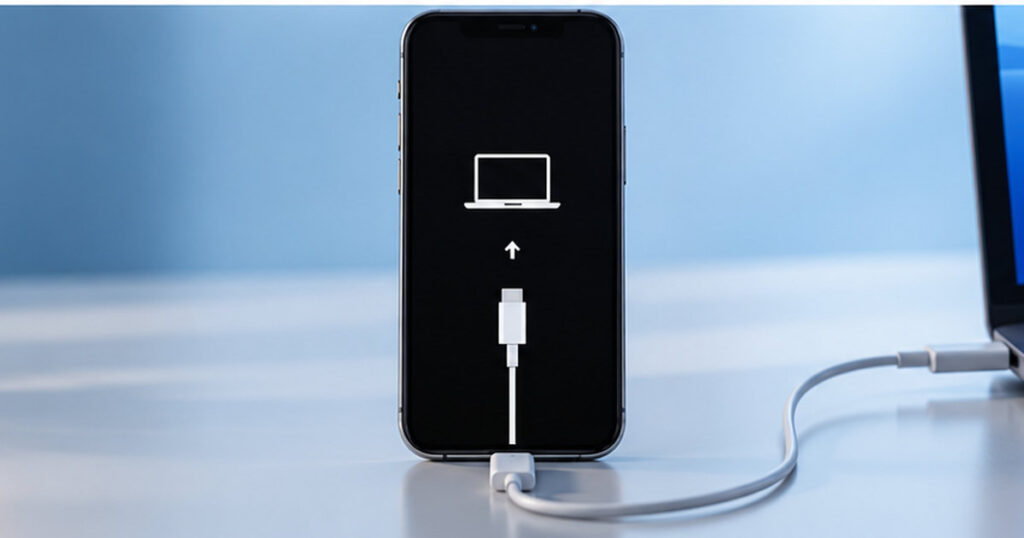
Recovery Mode allows a computer to communicate with an iPhone that cannot start normally.
When your iPhone is stuck on the Apple logo and the normal restart procedure fails, Recovery Mode is an important next step.
First, connect your iPhone to your computer using a suitable USB cable.
Open Finder, Apple Devices, or the appropriate version of iTunes.
Then follow the procedure for your device.
iPhone 8 and Later
- Keep your iPhone connected to the computer.
- Press and quickly release Volume Up.
- Press and quickly release Volume Down.
- Press and hold the Side button.
- Continue holding even when the Apple logo appears.
- Release only when you see the computer-and-cable recovery screen.
The key difference from a force restart is that you keep holding until Recovery Mode appears.
iPhone 7 and 7 Plus
- Connect your iPhone to the computer.
- Press and hold the Side or Top button and Volume Down.
- Continue holding until the recovery screen appears.
- Follow the instructions displayed on your computer.
iPhone 6s and Earlier
- Connect your iPhone to the computer.
- Press and hold the Home button and Side or Top button.
- Continue holding until the recovery screen appears.
- Follow the instructions on your computer.
If your iPhone’s physical buttons are damaged or do not respond, you may need professional assistance.
Entering Recovery Mode does not itself erase your iPhone. The action you select afterward determines what happens to the software and data.
9. Choose Update Before Restore
This may be the most important step for protecting your information.
After your computer recognizes the iPhone in Recovery Mode, you may see two options:
Update and Restore.
These options have different consequences.
What Update Does
The Update option attempts to reinstall or update iOS without intentionally erasing your personal data.
It may resolve certain operating-system problems that prevent the iPhone from starting normally.
To proceed:
- Select Update when prompted.
- Read the instructions shown by Finder or Apple Devices.
- Allow the computer to download the required software.
- Keep the connection stable.
- Wait for the process to complete.
- Check whether your iPhone restarts normally.
Update is the appropriate option to try before a destructive restore when your goal is preserving existing data.
However, successful data preservation cannot be guaranteed if the device already has serious software corruption or hardware damage.
What Restore Does
Restore reinstalls iOS and erases local information from the iPhone.
Afterward, you may be able to recover information from a previous iCloud or computer backup.
But if no backup exists, locally stored information may be permanently lost.
For that reason, don’t select Restore simply because a troubleshooting website recommends it.
If your photos, messages, or other local data are important and not backed up, consider professional advice before proceeding with an erase or restore.
10. Handle Failed Updates
Sometimes Recovery Mode does not resolve the problem immediately.
Your computer may show an error message, fail to download the required software, or lose its connection to the iPhone.
Apple explains that a software download can take longer than 15 minutes.
If the iPhone exits the recovery screen while the computer is still downloading the software, allow the download to finish and then repeat the necessary recovery-mode steps.
Other troubleshooting checks include:
- Make sure Finder, macOS, or Apple Devices is up to date.
- Check the computer’s internet connection.
- Try another compatible USB cable.
- Try a different USB port.
- Note any error code shown on the computer.
- Consult Apple’s official instructions for that specific error.
- Contact Apple Support if recovery continues to fail.
If your device has a damaged button, charging port, or another hardware problem, software troubleshooting may not be sufficient.
Avoid experimenting with undocumented repair procedures.
If the iPhone still cannot complete startup, an authorized service provider can help assess whether hardware repair is necessary.
Stuck After an iOS Update?
If your iPhone is stuck on Apple logo immediately after updating iOS, avoid assuming the update permanently damaged your device.
The phone may still be processing system changes.
First, check for a progress bar.
If it is moving, allow the process to continue.
If it has not moved for at least one hour during restoration or migration, follow Apple’s recovery guidance.
If there is no progress bar and the iPhone remains unresponsive, a force restart or computer recovery may be appropriate.
Once the device starts normally again, check available storage and software updates.
Extremely limited free storage can complicate ordinary software maintenance and updates.
Our related iPhone System Data Taking Up Storage guide explains how to examine storage usage without deleting important information unnecessarily.
Apple Logo Keeps Flashing?
A flashing or repeatedly appearing Apple logo often indicates that the phone cannot complete its startup sequence.
This behavior is commonly described as a boot loop.
The first useful step is to determine whether the problem followed an update, data migration, physical damage, or another identifiable event.
Try one appropriate force restart.
If the iPhone continues restarting, consider the available iOS Recovery features or computer-assisted recovery.
If the problem persists after recovery attempts, a hardware assessment may be necessary.
Repeatedly restarting the device without investigating the cause is unlikely to provide additional useful information.
Can You Fix It Without Losing Data?
Sometimes, yes.
The safest troubleshooting order generally begins with actions that do not intentionally erase your information.
These include observing the progress bar, checking power, disconnecting accessories, and performing a force restart when appropriate.
Apple’s on-device recovery tools may also help with certain software problems.
If computer recovery becomes necessary, choosing Update before Restore provides an opportunity to reinstall or update iOS without intentionally erasing personal information.
However, no troubleshooting process can guarantee that all data will survive a serious device failure.
If your iPhone starts normally again, create a backup as soon as practical.
You can use iCloud or an appropriate computer backup method.
If you experience other software stability problems after startup is restored, see our iPhone Apps Keep Crashing guide.
When to Seek Apple Support
Not every frozen Apple logo can be resolved at home.
Professional support is particularly appropriate when:
- The iPhone has recently suffered significant physical damage.
- The device has been exposed to liquid.
- A button required for Recovery Mode is damaged.
- Finder or Apple Devices repeatedly reports recovery errors.
- An Update attempt fails and important information is not backed up.
- The phone remains stuck after appropriate software troubleshooting.
If you contact support, provide the iPhone model, software version if known, and a clear description of when the issue began.
Include any recovery error codes displayed on the computer.
This information can help technicians identify the next appropriate diagnostic step.
Frequently Asked Questions
Why is my iPhone stuck on the Apple logo?
An iPhone may remain on the Apple logo because an update, restoration, or normal startup process cannot finish. The cause may involve software, power, or hardware. Check whether a progress bar is moving before attempting recovery.
Will a force restart delete photos?
No. A force restart does not normally erase your photos, messages, apps, or other personal data. It is different from restoring or factory resetting the iPhone.
How long should I wait?
If your iPhone is restoring data or migrating information and displays a progress bar, Apple recommends confirming that the bar has not moved for at least one hour before proceeding with recovery troubleshooting. Other startup problems may require a different approach.
Can Recovery Mode save my data?
Recovery Mode itself does not automatically erase your iPhone. Choosing Update attempts to reinstall or update iOS without intentionally erasing personal data. Choosing Restore erases the device.
Can I fix the Apple logo without a computer?
Sometimes. A force restart or compatible iOS 27 on-device recovery feature may resolve the problem. If those methods fail, traditional computer-assisted recovery may be necessary.
Why does the Apple logo keep disappearing?
Your iPhone may be experiencing a boot loop. It repeatedly starts, fails to complete startup, and restarts. Software recovery may help, but persistent boot loops can also require hardware diagnosis.
Should I use third-party repair software?
Start with Apple’s official tools. Third-party repair utilities vary in reliability, cost, privacy practices, and data-loss risks. Do not assume any tool guarantees recovery without erasing information.
What if Update fails?
Check the computer software, internet connection, cable, and error messages. Follow Apple’s instructions for the displayed error. If the device still cannot update, seek professional advice before choosing a destructive restore, especially if you lack a backup.
Final Thoughts
An iPhone stuck on Apple logo does not automatically mean that your phone needs to be erased or replaced.
Start by identifying whether the device is still updating, frozen on one screen, or repeatedly restarting.
Then follow the appropriate troubleshooting steps.
A force restart may be enough for a temporary software problem. On supported devices, iOS 27 offers additional on-device recovery options.
For more persistent problems, computer recovery provides another route.
The most important precaution is to understand the difference between Update and Restore.
Try non-destructive recovery options first, especially if your iPhone contains information that you cannot replace.
If your device starts working again, create a current backup and review its software and storage condition.
Official References
- Apple Support: If your iPhone freezes on the Apple logo
- Apple Support: If your iPhone won’t turn on or the screen is black
- Apple Support: If you can’t update or restore your iPhone
- Apple Support: How to start up from iOS Recovery
- Apple Support: Apple logo with progress bar after updating or restoring