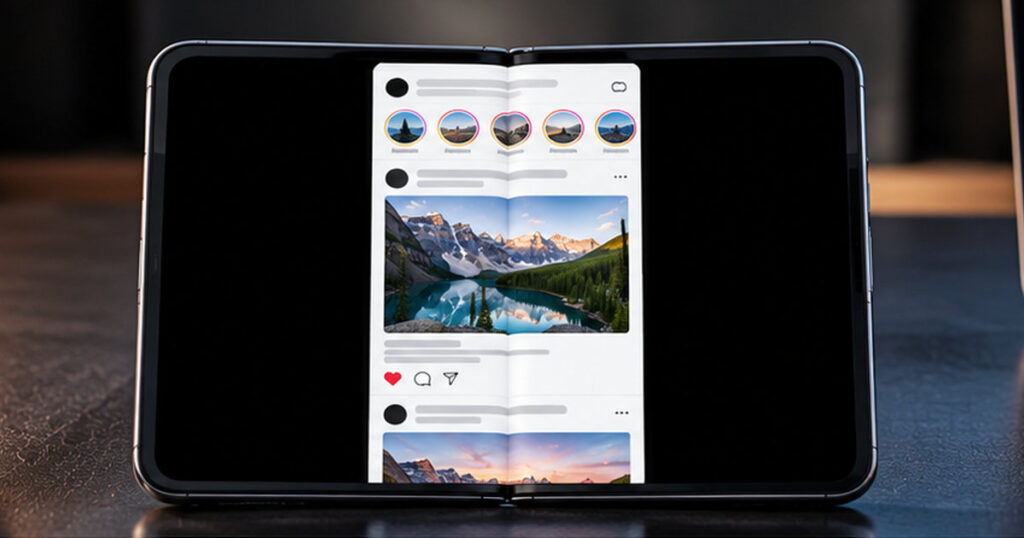
Are your iPhone Duo apps not full screen when you unfold your new iPhone? Maybe Instagram appears in a narrow window, your favorite app has thick black bars on both sides, or certain buttons don’t fit properly on the large inner display.
You’re not necessarily dealing with a broken phone.
Apple’s first foldable iPhone introduces a new screen layout that some third-party applications have not fully adopted. While many apps already take advantage of the larger display, others still use layouts designed for older iPhone screens.
This can leave unused space around apps, create awkward interfaces, or make an app look smaller than expected.
Fortunately, there are several things worth checking before assuming something is wrong with your device.
In this guide, we’ll explain 9 practical fixes for iPhone Duo apps not full screen, why black bars appear, and when the solution depends on an update from the app developer.
Table of Contents
Quick Answer
If an app doesn’t fill your iPhone Duo’s inner display, try these steps:
- Check whether the app is running in compatibility mode.
- Update the affected app through the App Store.
- Install available iOS updates.
- Close and reopen an app that is displaying incorrectly.
- Test the app with the phone open, closed, and rotated.
- Check whether Split View is limiting the available space.
- Compare the behavior with Apple’s built-in apps.
- Reinstall the app only when appropriate.
- Contact the developer or wait for an optimized update.
Important: Some black borders are a normal result of an older app’s compatibility layout. There may be no user-controlled setting that forces such an app to fill the entire display.
Why Are iPhone Duo Apps Not Full Screen?
The iPhone Duo has two different screens.
Its outer display measures 5.4 inches, while its inner display measures 7.6 inches.
Unlike a traditional iPhone, the Duo must adapt applications to different screen sizes, orientations, and folding positions.
This presents a challenge for older applications.
Developers have historically designed iPhone apps around familiar portrait-oriented screens. Some applications also use fixed screen dimensions or layouts that do not adapt well when the available viewing area changes.
According to Apple’s developer documentation, the way an app uses the iPhone Duo’s display depends partly on the software development kit used to build it.
There are three important compatibility levels.
Apps Built With the iOS 26 SDK
Applications built using the iOS 26 SDK or earlier can run on iPhone Duo, but they may not use the full inner display.
Apple explains that these applications appear in a centered window with unused space surrounding them.
This can create large black borders on either side.
The app may otherwise function normally.
Apps Built With the iOS 27 SDK
Applications built using the iOS 27 SDK can take advantage of more space.
They can expand across much of the inner display, although some space remains reserved for system interface elements.
The result is generally better than older compatibility layouts.
Apps Built With the iOS 27.1 SDK
Applications updated using the iOS 27.1 SDK or later can take fuller advantage of the iPhone Duo display.
This allows content to extend farther toward the edges while interface controls adapt to the phone’s unusual screen layout.
For users, this means that updating the app itself is often more important than repeatedly changing display settings.
Apple explains these differences in its official iPhone Duo developer preparation guide.
1. Check App Compatibility
Before making any changes, determine whether the issue affects one application or every application.
Open several apps on your iPhone Duo.
For example, compare an Apple app such as Photos or Safari with a third-party app that displays black borders.
Look for these differences:
- Does one application fill most of the inner screen?
- Does another remain centered with empty space around it?
- Do its buttons work even though the app looks unusually small?
- Does the app display correctly on the outer screen?
- Does its layout change when you unfold the phone?
If Apple’s built-in apps work normally while a particular third-party app appears smaller, the problem may simply be incomplete compatibility support.
This distinction matters.
A compatibility layout is not the same as a malfunctioning inner display.
If the entire screen is black, touch input fails, or multiple system apps cannot render correctly, investigate a broader device or display issue instead.
2. Update the Affected App
When iPhone Duo apps are not full screen, installing the latest app version is one of the most useful steps.
Developers are updating applications to support Apple’s new foldable design.
An app update may introduce improved layouts, better scaling, or support for the larger inner display.
To check for updates:
- Open the App Store.
- Tap your profile picture in the upper-right corner.
- Select App Updates.
- Look for the affected application.
- Tap Update if one is available.
- Reopen the app after installation.
You can also search for the app in the App Store and check its listing.
Read the release notes when available.
Some developers specifically mention iPhone Duo compatibility, display optimization, or interface improvements.
However, don’t assume that every new update includes these changes.
An app must actually support the relevant layout behavior.
If no compatible update exists yet, the app may continue using its older layout.
If the App Store itself isn’t installing updates, see our iPhone App Store Not Downloading Apps guide.

3. Update Your iPhone
Keeping iOS updated helps ensure that your phone has the latest available compatibility improvements and bug fixes.
The iPhone Duo launches with iOS 27.1, which includes software designed for its foldable display.
If Apple releases a newer compatible version, it may address system-level display or application behavior.
To check:
- Open Settings.
- Tap General.
- Select Software Update.
- Wait while your iPhone checks for updates.
- Review any available update.
- Back up important information before installation.
- Follow the onscreen instructions.
A stable Wi-Fi connection and sufficient battery power are recommended.
After updating, check whether the affected app displays differently.
Remember that an iOS update cannot automatically give an older third-party application a completely redesigned interface.
Developers may still need to update their own apps.
Avoid installing beta software solely to fix black borders. Beta releases can introduce additional problems and are unnecessary for ordinary troubleshooting.
4. Close and Reopen the App
Sometimes an application doesn’t adjust correctly after the iPhone Duo changes from one display to another.
For example, an app might open on the outer display and then behave unexpectedly when the phone is unfolded.
If the layout appears frozen, clipped, or incorrect, try closing and reopening the affected application.
- Open the App Switcher.
- Find the affected app.
- Swipe its preview upward to close it.
- Return to the Home Screen.
- Unfold your iPhone Duo.
- Open the application again.
Check whether its layout adjusts correctly.
This step can help when an application becomes temporarily unresponsive during a display transition.
However, closing and reopening will not remove the compatibility borders from an app that has not been optimized for the Duo.
You don’t need to force-close all your apps regularly.
If the application also freezes or crashes, read our iPhone Apps Keep Crashing guide.
5. Test Different Orientations
The iPhone Duo introduces new ways to use a smartphone.
You can interact with the outer screen, unfold the larger inner display, rotate the device, or position it at different angles.
Apple has designed iOS to adapt to these configurations.
However, third-party applications may not behave consistently in every position.
If your iPhone Duo apps are not full screen, compare how the affected app behaves when the phone is:
- Closed and using the outer display.
- Fully open in its normal position.
- Open and rotated.
- Positioned for hands-free viewing.
You can also review Orientation Lock in Control Center.
If rotation is locked, disable the lock and check whether the application supports another orientation.
Not every application supports rotation, even when the device itself can rotate.
If another app responds correctly but the affected app does not, the issue is more likely to involve application design or compatibility.
Don’t repeatedly force the hinge or push against the display when changing positions.
Operate the device normally and stop if you encounter unusual resistance.
6. Check Split View
One of the major features of iPhone Duo is Split View multitasking.
It allows compatible app experiences to share the large inner display.
For example, you might have Safari on one side while another application appears beside it.
This means an application may occupy only part of the available screen by design.
Before assuming the app isn’t displaying correctly, check whether you’re using a multitasking layout.
Look for:
- Two applications visible simultaneously.
- A divided workspace.
- App controls associated with multitasking.
- Content that changes size when another application opens.
If you’re using Split View, return to a single-app view using the available multitasking controls or reopen the app on its own.
Then compare the layout again.
If the application occupies a larger area afterward, Split View was responsible for some of the reduced viewing space.
If it still appears centered with black borders, an older compatibility layout may be responsible.
Important: Exiting Split View cannot force an unoptimized app to provide true edge-to-edge support.
7. Compare Built-In Apps
A useful troubleshooting method is comparing the problematic app with an application Apple has optimized for the Duo.
Apple’s own applications are designed to work with the foldable layout.
Try opening:
- Safari.
- Photos.
- Settings.
- Mail.
- Another available Apple app.
Compare their appearance with the affected third-party application.
If built-in apps use the inner display normally while one particular app remains narrow, that suggests a software compatibility limitation.
If several unrelated applications have serious graphical problems, investigate iOS and the device more broadly.
Pay particular attention to the difference between unused black borders and actual display failure.
A black border around an app is not evidence that the corresponding part of the screen is broken.
However, persistent black regions across all applications, especially with unresponsive touch areas, deserve additional attention.
8. Reinstall the App Carefully
Reinstalling an application can sometimes help with corrupted installations or app-specific problems.
However, this is not a reliable fix for the normal compatibility borders associated with older iPhone applications.
Only consider reinstalling when the affected app is behaving incorrectly beyond its expected layout.
Examples include:
- The interface suddenly becomes distorted.
- The app freezes when changing displays.
- Buttons appear in the wrong location.
- The app crashes whenever the phone unfolds.
- A previously working layout stops functioning.
Before deleting anything, check whether the application stores important data locally.
Messaging apps, banking apps, password managers, games, and authenticator apps may contain information that is difficult to recover.
If your data is protected:
- Touch and hold the affected app.
- Select Remove App.
- Choose Delete App.
- Confirm deletion.
- Open the App Store.
- Download the application again.
- Sign in and check whether the problem remains.
Deleting an app can remove locally stored information.
If you’re uncertain about your backups, don’t delete it.
You may also review the Offload App option under Settings → General → iPhone Storage. Offloading normally preserves the app’s documents and data while removing the installed application.
Again, neither reinstalling nor offloading guarantees full-screen support if the developer has not updated the app.
9. Contact the App Developer
If an older app continues showing black borders after all available updates, you may need to wait for its developer.
Apple has provided development tools specifically for the iPhone Duo.
These tools allow developers to create interfaces that adapt to different displays, folding positions, and window sizes.
But users cannot normally make an app adopt a newer SDK through a setting on their iPhone.
If you want to report the issue:
- Open the App Store.
- Search for the affected app.
- Open its listing.
- Look for App Support.
- Follow the developer’s support instructions.
Explain that you’re using an iPhone Duo and describe the display problem.
Include:
- The application name.
- Its installed version.
- Your iOS version.
- Whether the issue happens on the inner or outer display.
- Whether the app shows black bars or has actual rendering problems.
- Whether the behavior changes after rotating or unfolding.
- A screenshot, if helpful and safe to share.
A clear report gives the developer useful information.
If the app is simply using the documented compatibility layout, the lasting solution is generally an updated version from its developer.
Why Are There Black Bars?
Black bars on the iPhone Duo can have more than one explanation.
The first is app compatibility.
An application built for an older iOS SDK may appear in a smaller window rather than stretching across the entire inner display.
The second is content aspect ratio.
Videos, photographs, and games are created in different shapes.
A video may naturally display empty space around the picture when its proportions don’t match the device’s screen.
This is not necessarily a software problem.
For example, a widescreen video may show black space above and below the image depending on the viewing orientation and playback app.
Using a fill or zoom option in an app that provides one might remove some empty space, but it may crop part of the picture.
Don’t confuse normal video letterboxing with incomplete app optimization.
The third possibility is a genuine display or rendering malfunction.
If black regions appear across the Home Screen, Settings, or other system interfaces, you should investigate the device separately.
Apps Look Stretched or Cropped
Not every iPhone Duo display issue involves black bars.
Some applications may display controls that overlap, text that is cut off, or interface elements that appear in unexpected locations.
Apple’s developer documentation identifies fixed dimensions and incorrect layout assumptions as possible sources of these problems.
Try updating the application first.
Then close and reopen it if the interface is frozen or misplaced.
Compare the app’s behavior in different screen positions.
You can also check whether unusually large text or accessibility display settings are contributing to a cramped interface.
However, changing text size should not be considered a universal fix for an app that hasn’t been adapted to the device.
If the problem persists, report the issue to the developer.
Don’t repeatedly reset your entire iPhone to solve a problem affecting one unoptimized application.
Will All Apps Support Full Screen?
Not necessarily immediately.
Apple has provided the tools needed to support the Duo’s foldable display, but individual developers decide when to update their applications.
Some popular apps may receive updates quickly.
Others may continue using compatibility layouts for longer.
Applications that are no longer actively maintained might never receive a fully optimized interface.
An existing app can remain usable even if it doesn’t fill the screen.
If you depend heavily on a particular application, it may be worth checking the developer’s update notes before relying on it for your daily workflow.
Frequently Asked Questions
Why are my iPhone Duo apps not full screen?
Some apps use older layouts that don’t fully support the Duo’s foldable display. Apple documents compatibility modes for applications built using earlier iOS SDKs. Updating the application may improve its display behavior.
Can I remove black bars?
Sometimes. If an updated version of the app supports the Duo’s screen, installing it may remove unnecessary borders. However, older apps can continue showing black space until their developers provide suitable support.
Why does Instagram look small?
If Instagram or another social app appears in a narrow window, check whether an updated version is available. A smaller layout can be caused by incomplete compatibility with the larger display rather than a broken screen.
Does iOS 27.1 fix full-screen apps?
iOS 27.1 provides the platform capabilities for optimized Duo applications, but developers still need to build and release compatible app versions. Updating iOS alone does not guarantee every app will fill the screen.
Is my inner display broken?
Not necessarily. If the display works normally in Apple’s system apps but one third-party app shows black borders, compatibility is a more likely explanation. Persistent screen defects or touch failures across the system require separate investigation.
Can I force an app to fill the display?
There is no universal iPhone setting that guarantees full-screen rendering for every older app. Proper support often requires an application update.
Will resetting my iPhone help?
A full reset is generally unnecessary for ordinary compatibility borders. It won’t make an older app automatically support the newest layout tools. Start with app updates and non-destructive troubleshooting instead.
Do all apps work on iPhone Duo?
Apple explains that older apps can run through compatibility layouts. However, how well each app adapts to the inner display depends on its implementation and compatibility updates.
Final Thoughts
If your iPhone Duo apps are not full screen, the problem may have more to do with application compatibility than the iPhone itself.
The Duo introduces an unusually large inner display and new layout behavior that developers are still adapting to.
Start by updating the affected app and installing available iOS updates.
If the application looks distorted or becomes unresponsive, test reopening it and changing between supported display positions.
Compare the results with Apple’s built-in apps to help distinguish an application issue from a broader display problem.
Most importantly, remember that black borders do not automatically indicate a damaged screen.
For applications running an older compatibility layout, the proper long-term solution is an update from the developer, not repeated resets or risky system modifications.
As more developers optimize their apps for iPhone Duo, the full-screen experience should improve.