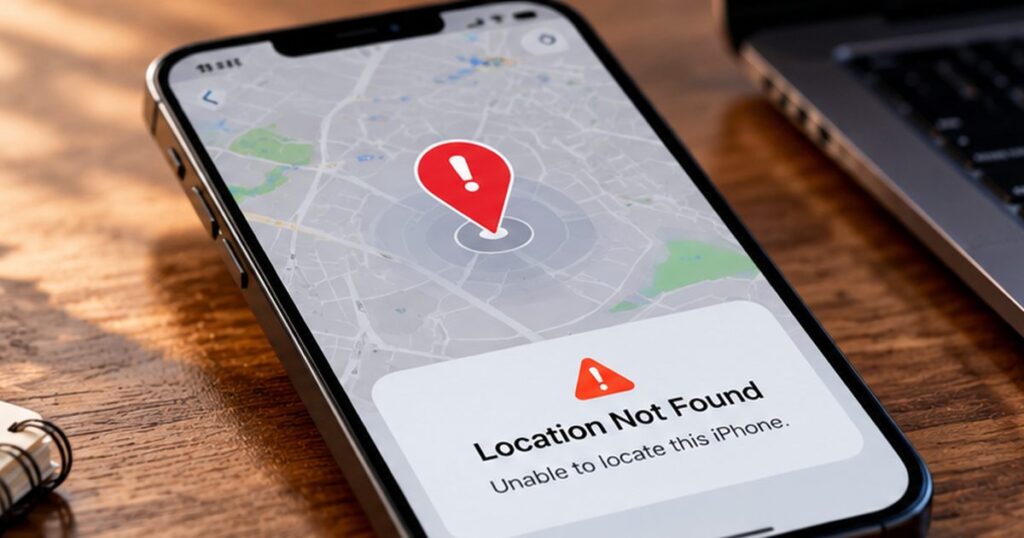
Is Find My iPhone not working when you need it most? Maybe your iPhone shows “No Location Found,” a family member’s location isn’t updating, or your missing device keeps appearing as offline.
Sometimes Find My stops updating after an iOS update. In other situations, the app opens normally, but it cannot locate a particular person or device.
These problems don’t always mean your iPhone is broken.
Find My depends on several features, including location services, your Apple Account, device connectivity, the Find My network, and location-sharing permissions.
Fortunately, you can investigate many of these problems without resetting your phone or deleting important information.
In this guide, we’ll explain 12 practical fixes for Find My iPhone not working, including location unavailable errors, devices showing offline, location sharing problems, and issues involving just one person.
Table of Contents
Quick Answer
If Find My isn’t working on your iPhone, start with these checks:
- Identify whether the problem affects a device or a person’s location.
- Check your internet connection and Apple’s System Status page.
- Confirm Location Services is enabled.
- Make sure Find My iPhone and Find My network are turned on.
- Review Share My Location settings.
- Check which device is sharing your location.
- Verify location sharing with the affected person.
- Check your Apple Account.
- Review automatic date and time settings.
- Restart Find My and your iPhone if it’s accessible.
- Check for an available iOS update.
- Use iCloud Find Devices or contact Apple Support when necessary.
Important: If your iPhone is genuinely missing or stolen, don’t wait to try ordinary troubleshooting on that device. Visit iCloud Find Devices from another device and consider marking the missing iPhone as lost.
Why Is Find My iPhone Not Working?
Apple’s Find My system serves two related but different purposes.
The first is locating your own Apple devices, such as an iPhone, iPad, Mac, or supported AirPods.
The second is sharing your location with people who have permission to see it.
Understanding the difference is important because the solutions are not always the same.
For example:
Your own iPhone shows Offline: The device may not currently have a usable connection, or the Find My network may not have provided a recent location.
A friend’s location says No Location Found: The other person’s device may be offline, location sharing may be disabled, or another location-related issue may be preventing an update.
Find My opens but shows old information: Your connection, location services, or the affected device’s availability may be involved.
Find My doesn’t show a device at all: It may be signed in to a different Apple Account or may never have been added to Find My.
Common causes include disabled settings, weak connectivity, outdated location information, interrupted software processes, and account-related problems.
Start by determining which situation applies before changing multiple settings.
1. Identify the Find My Problem
The first fix is actually a diagnostic step.
Open the Find My app and determine which section isn’t working.
Apple organizes Find My into separate areas for people, devices, and supported items.
Check Devices
Tap Devices and select the iPhone or other Apple product you want to locate.
Look for a location on the map, an offline status, or a message indicating that the device cannot currently be located.
Check People
Tap People and select a person who has agreed to share their location.
Check whether their location appears normally, is outdated, or cannot be found.
Check Items
If the problem concerns an AirTag or another Find My-compatible item, use the Items section.
These features have different requirements.
An AirTag problem, for example, isn’t necessarily caused by the same settings as iPhone location sharing.
What to do next: If every section has problems, start with connectivity and system settings. If only one person or device is affected, focus on that specific source.
2. Check Your Internet Connection
Find My uses online services to communicate location information between devices and accounts.
A poor internet connection can prevent the app from displaying updated locations.
Start with these checks:
- Open Safari.
- Visit a trusted website.
- Confirm the page loads normally.
- Switch to another reliable Wi-Fi network if possible.
- If you have cellular data, compare the results using that connection.
- Return to Find My and check whether the information updates.
If Safari and other online apps also fail, the problem may not be specific to Find My.
Our iPhone Cellular Data Not Working guide explains how to investigate mobile internet problems.
You can also read our iPhone Safari Not Loading Websites guide if browser connectivity is affected.
Check Apple’s System Status
Apple provides a public page showing the availability of its online services.
Visit the Apple System Status page and look for Find My.
If Apple reports a service disruption, changing your local iPhone settings may not resolve it.
Remember: A missing device with no internet connection can sometimes still be located through Apple’s Find My network, but offline finding depends on supported devices and available network reports.
3. Turn On Location Services
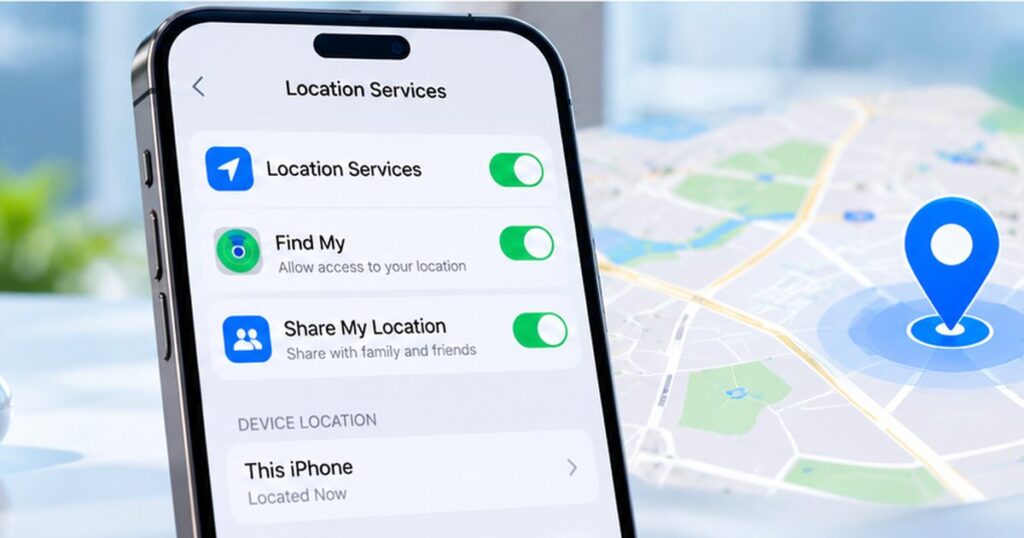
One of the most important settings to check when Find My iPhone is not working is Location Services.
Apple uses Location Services to determine and share location information with authorized apps and features.
If the setting is disabled, some Find My features may stop working properly.
To check:
- Open Settings.
- Tap Privacy & Security.
- Select Location Services.
- Make sure Location Services is turned on.
- Find Find My in the list of apps.
- Review its location-access settings.
If Find My needs your precise position, review the Precise Location option where available.
Precise Location allows supported features to access more specific location information.
However, you don’t need to give every application precise location access.
Only change the permissions necessary for the service you’re troubleshooting.
If location problems also affect navigation, our iPhone Maps Not Working guide covers location accuracy, connectivity, and map-loading problems.
Why This Matters
An iPhone may have working internet access while its location permissions prevent accurate location sharing.
This can result in incomplete or unavailable location information.
If Location Services was already enabled, don’t repeatedly turn it off and on without a reason.
Proceed to the Find My-specific settings.
4. Enable Find My iPhone
Find My iPhone must be configured for your own device to participate in Apple’s device-finding system.
If you’ve recently purchased an iPhone, restored it, or changed Apple Account settings, checking this configuration is especially important.
To review the setting:
- Open Settings.
- Tap your Apple Account name.
- Select Find My.
- Tap Find My iPhone.
- Confirm that Find My iPhone is enabled.
- Review Find My network.
- Review Send Last Location.
Find My Network
Apple’s Find My network allows supported Apple devices to be located even when they don’t have a direct internet connection.
Nearby participating Apple devices can help report a missing device’s approximate location.
This doesn’t guarantee continuous tracking.
Offline location updates depend on the device, its condition, and whether the network can detect it.
Send Last Location
This feature can send your iPhone’s last known location to Apple when its battery reaches a critically low level.
It may be helpful if your device runs out of power while you’re away from it.
Important: Find My must have been enabled before a device was lost. You cannot remotely activate Find My for a device that was never set up with it.
If your phone is already missing, skip configuration steps that require physically accessing it.
5. Check Share My Location
This step is especially useful when your friends or family cannot see your location.
Find My iPhone and Share My Location are related features, but they serve different purposes.
Find My iPhone helps you locate your devices.
Share My Location allows you to share your own location with selected people.
To review location sharing:
- Open the Find My app.
- Tap Me.
- Check whether Share My Location is enabled.
- Turn it on if you intend to share your location.
- Confirm the device shown under your location-sharing information.
You can also review sharing settings under Settings → [your name] → Find My.
If Share My Location is disabled, people who previously depended on your shared location may be unable to see updated information.
However, sharing your location is a personal choice.
Only enable it if you want the selected people to have access.
A Useful Privacy Reminder
You don’t need to share your location with other people simply to locate your own missing devices.
Avoid enabling unnecessary sharing while investigating a device-only problem.
6. Choose the Correct Location Device
If you own multiple Apple devices, Find My may be sharing your location from a different one than you expect.
For example, you might use an iPhone and an iPad signed in to the same Apple Account.
If location sharing is associated with another device, people may see information that doesn’t reflect where your current iPhone is.
To investigate:
- Open the Find My app.
- Tap Me.
- Look for the device listed under Sharing From.
- Confirm whether it is the iPhone you’re currently using.
- If necessary, select Use This iPhone as My Location.
Apple also provides location-sharing controls under Settings → [your name] → Find My.
After selecting the correct device, check whether your shared location updates.
What If You Use an Apple Watch?
Certain Apple Watch configurations can share location information when the watch is away from its paired iPhone.
This can be expected behavior depending on how your devices are configured.
If the location shown in Find My seems unusual, verify which device is sharing it before assuming there’s a GPS failure.
7. Check Location Sharing With One Person
One of the phrases in our keyword research was Find My iPhone not working for one person.
This is a separate troubleshooting scenario from a missing device.
If other friends appear normally but one person’s location is unavailable, investigate that particular sharing relationship.
Open Find My → People and select the affected contact.
Check whether:
- The person appears in your People list.
- Their location has stopped updating.
- The app reports No Location Found.
- You can see that the person is allowed to view your location.
- You need to request permission to view their location.
If the other person wants to share their location with you, ask them to review their settings.
They can check Find My → Me → Share My Location and Settings → Privacy & Security → Location Services.
Apple explains that someone may appear in your People list even when you’re not currently following their location.
In that situation, you can use Ask To Follow Location, where available.
The other person must accept the request.
Important: Find My cannot override someone else’s choice not to share their location.
If the person has intentionally stopped sharing, there is no legitimate troubleshooting method that should bypass that decision.
8. Review Your Apple Account
Apple Account settings are another important part of Find My.
Your devices are associated with the Apple Account used during setup.
If you’re signed in to a different account, you may not see the devices you expect.
To review:
- Open Settings.
- Tap your name at the top.
- Confirm the Apple Account displayed.
- Review the devices associated with your account.
- Open Find My again and check the Devices list.
For example, a device originally configured using a different Apple Account may not appear in the account you’re currently viewing.
This isn’t necessarily a problem with GPS or location permissions.
Should You Sign Out?
Don’t sign out of your Apple Account as an early troubleshooting step.
Signing out can affect access to iCloud services and synced information, and it may complicate a device-recovery situation.
If you believe the wrong account is involved, investigate the account setup carefully.
For a missing device, use the account that was originally associated with it.
If you cannot access the account, follow Apple’s official account-recovery procedures rather than attempting unofficial bypass methods.
9. Check Date and Time
Incorrect date, time, or time-zone settings can sometimes interfere with online services.
Location services and secure connections may also depend on accurate device configuration.
Checking the clock is a simple step that doesn’t require deleting any data.
To review:
- Open Settings.
- Select General.
- Tap Date & Time.
- Review the displayed time and time zone.
- Enable Set Automatically if available and appropriate.
After confirming the settings, reopen Find My and compare the displayed location timestamps.
Don’t manually adjust your clock to make a location appear current.
An outdated location timestamp generally means the device hasn’t provided a newer location report, not that the clock necessarily needs changing.
10. Restart Find My and Your iPhone
Sometimes an application becomes temporarily unresponsive even when its settings are correct.
If you still have your iPhone and Find My isn’t displaying information normally, try closing and reopening the app.
To do this on a modern iPhone:
- Swipe up from the bottom and pause to open the App Switcher.
- Find the Find My app.
- Swipe its preview upward.
- Return to the Home Screen.
- Reopen Find My.
Check whether the map loads normally.
If the issue continues, consider restarting the iPhone.
For a typical Face ID iPhone:
- Hold the Side button and either Volume button.
- Drag the power-off slider.
- Wait approximately 30 seconds.
- Press and hold the Side button to restart.
- Reconnect to Wi-Fi or cellular service.
- Open Find My again.
A normal restart doesn’t erase your personal information.
However, restarting won’t restore another person’s location sharing or make a genuinely missing device reconnect immediately.
Do not remotely erase or remove a missing device as a troubleshooting shortcut.
11. Check for iOS Updates
If Find My iPhone is not working after an update, you may suspect a software problem.
Sometimes temporary software behavior changes appear after installing a new iOS version.
However, a recent update doesn’t automatically prove that Apple introduced a Find My bug.
First, check the settings and network conditions described above.
Then review whether a compatible iOS update is available.
- Open Settings.
- Tap General.
- Select Software Update.
- Wait while your iPhone checks for available updates.
- Read the release information.
- Back up important information before installing a major update.
- Install the update if appropriate.
You should also check whether the Find My problem affects every device or just one.
If multiple Apple devices experience an identical issue, checking Apple’s System Status is especially useful.
Should You Reset Network Settings?
Not immediately.
Resetting network settings removes saved Wi-Fi and other connection configurations.
It isn’t a reliable fix for someone who stopped sharing their location or a lost device that is offline.
Only consider network-related resets when you have evidence of a broader connectivity issue and have reviewed the consequences.
Avoid factory resetting your iPhone to address a single Find My error.
12. Use iCloud or Apple Support
If Find My isn’t working on the iPhone you’re using, try accessing Apple’s device-finding service through another trusted device.
Visit:
Sign in with the Apple Account associated with the missing device.
Then select the device you want to locate.
Depending on its status and configuration, you may be able to:
- View its current or last reported location.
- Play a sound when the device is available.
- Receive a notification when it is found.
- Mark the device as lost.
- Access other device-protection options.
If your iPhone is offline, you may not be able to get an immediate new location.
Apple may display an earlier location when one is available.
If Your iPhone Was Lost or Stolen
Use Mark As Lost when appropriate.
This helps protect your device and information.
If you believe the device was stolen, don’t visit an unfamiliar or unsafe location to confront someone.
Contact local authorities when necessary.
Don’t remove the missing device from your Apple Account simply because Find My isn’t currently locating it.
Removing a device can affect security protections such as Activation Lock.
Contact Apple Support
If Find My continues failing on an accessible iPhone, contact Apple Support.
Explain whether the issue affects device finding, people sharing, or the Find My app itself.
Include any error messages, your iPhone model, and the iOS version when possible.
Find My Shows No Location Found
The message No Location Found generally indicates that Find My cannot currently provide a usable location for the selected person or device.
Possible explanations include:
- The device is offline.
- The relevant location permission is disabled.
- Location sharing is not available.
- A recent location report hasn’t been received.
- A temporary connectivity or service issue is involved.
If the message concerns your own device, review whether Find My was enabled before it became unavailable.
If it concerns someone else, their sharing settings and device status matter.
Don’t assume that No Location Found means the person has intentionally stopped sharing.
The message alone doesn’t establish why their location is unavailable.
Find My iPhone Shows Offline
Offline means Find My cannot currently communicate with the device in the expected way.
A device may be powered off, disconnected from cellular service, or unable to access a network.
However, Apple’s Find My network can sometimes locate supported devices without a direct internet connection.
This depends on whether the feature was enabled and whether nearby participating devices detect the missing product.
To investigate an offline device:
- Open Find My.
- Tap Devices.
- Select the affected device.
- Review its displayed location or status.
- Enable Notify When Found, if offered.
Avoid repeatedly removing and re-adding the device.
If it is genuinely lost, keep the existing association with your Apple Account and consider Lost Mode.
Find My Not Updating for One Person
If only one person’s location isn’t updating, begin with consent and device availability.
Open Find My → People and select their name.
If their location is unavailable, check whether you’re still following their location.
The person may need to enable Share My Location, select the correct device, or reconnect to a usable network.
However, you cannot change someone else’s privacy settings remotely.
If they decide not to share their location, respect that choice.
If your goal is meeting someone nearby, you can ask them to send a fresh location through Messages or another method they choose.
Find My Not Working on a New iPhone
A new iPhone may require configuration before all Find My features work as expected.
Check the Apple Account and whether Find My iPhone is enabled.
If you transferred information from another device, also review Sharing From in Find My’s Me section.
You may still be sharing your location from an older iPhone or another Apple device.
Selecting Use This iPhone as My Location can address that particular configuration problem.
Don’t immediately erase the old device or remove it from your account just to test location sharing.
Confirm that the new iPhone works normally first.
Frequently Asked Questions
Why is Find My iPhone not working?
Possible causes include disabled location settings, poor connectivity, Apple Account problems, an offline device, or unavailable location-sharing permission. Start by identifying whether the problem concerns your devices or another person’s location.
Why does Find My say No Location Found?
Find My may not have a current location report. This can happen when a device is offline, location services are unavailable, or location sharing is interrupted. The message does not identify one specific cause.
Can Find My work without Wi-Fi?
Yes, in some situations. Cellular connectivity can provide location updates, while Apple’s Find My network can help locate supported offline devices. Availability depends on device settings and network conditions.
Why is Find My not working for one person?
The other person’s location sharing may be disabled, their device may be offline, or you may no longer have permission to view their location. Check the People tab and ask the person to review their settings if they want to share.
Does Find My work when an iPhone is turned off?
Supported iPhone models can sometimes remain findable for a limited period after powering off when Find My network is enabled. This does not guarantee an updated location in every situation.
Why is my iPhone showing the wrong location?
Location accuracy can be affected by connectivity, GPS conditions, available location data, and the selected location-sharing device. Check whether the displayed information is current and whether your iPhone is the device sharing your location.
Can I enable Find My after losing my iPhone?
No. Find My generally must be set up before the device is lost. You cannot remotely turn it on for a missing iPhone that was never configured with the feature.
Will restarting my iPhone delete my data?
No. A normal restart does not ordinarily delete photos, apps, messages, or other personal information. A factory reset is different and should not be used as an early Find My troubleshooting step.
Is Find My free?
Yes. Apple’s Find My service is built into compatible Apple devices. However, cellular data usage, connectivity requirements, and device compatibility may affect how some features work.
Final Thoughts
If Find My iPhone is not working, the most important step is identifying exactly what isn’t working.
Device finding and people location sharing require different checks.
If your own device is offline, investigate its Find My configuration, network availability, and most recent reported location.
If another person’s location is missing, consider their device availability and whether they have chosen to share their location with you.
For problems on an accessible iPhone, check Location Services, Find My settings, the Apple Account, and available software updates.
Avoid unnecessary resets or removing devices from your account.
And if your iPhone is actually missing, prioritize protecting the device through Find My and Lost Mode rather than experimenting with settings.
Using the right troubleshooting steps can help you understand the problem without compromising your information or location privacy.
Official References
- Apple Support: Add Your iPhone to Find My
- Apple Support: Locate a Device in Find My
- Apple Support: Share Your Location in Find My
- Apple Support: Locate a Friend in Find My
- Apple Support: Find Your Lost iPhone or iPad
- Apple System Status
Last reviewed: October 22, 2026. Some menu labels and features may differ by iPhone model, region, and iOS version.