Is the volume on iPhone not working, even when you press the side buttons? Maybe your volume slider moves but the sound stays the same, your ringtone is too quiet, or the Volume Up and Volume Down buttons suddenly stop responding.
Sometimes music plays normally, but notifications are silent. Other times, the volume buttons work during videos but won’t change your ringtone volume.
These problems can be confusing because iPhones use different volume controls for different kinds of sound.
Fortunately, a volume problem doesn’t always mean your buttons or speakers are damaged. Incorrect settings, Bluetooth connections, sound limits, and temporary software issues can sometimes explain the behavior.
In this guide, we’ll explain 11 practical fixes for volume on iPhone not working, including volume button problems, unresponsive sliders, low media volume, and iOS 27 sound settings.
We’ll start with simple checks and avoid unnecessary resets.
Table of Contents
Quick Answer
If your iPhone volume isn’t working correctly, try these steps:
- Identify whether the problem affects buttons, media, calls, or alerts.
- Test the volume slider in Control Center.
- Check Change with Buttons under Sounds & Haptics.
- Review separate ringtone, alarm, and alert volume settings.
- Check Silent mode and Focus.
- Remove the case and inspect the physical buttons.
- Check Bluetooth and AirPlay audio output.
- Review speaker and headphone volume limits.
- Use AssistiveTouch to test volume without the buttons.
- Restart your iPhone and check for updates.
- Test the speaker and seek service if necessary.
Important: If the volume buttons don’t respond but the Control Center slider works, the issue may involve the buttons rather than the speaker.
Why Is Volume on iPhone Not Working?
Your iPhone doesn’t use one volume setting for every situation.
Apple separates several kinds of audio, including media playback, ringtones, alerts, alarms, and phone calls.
Understanding these differences is important.
For example, pressing Volume Up while watching a video normally changes media volume.
Pressing the same button when nothing is playing may affect ringtone or alert volume, depending on your settings.
During a phone call, the volume buttons adjust the call audio.
On iOS 27, Apple also provides separate settings for alarms, timers, alerts, and system sounds.
This means a button can appear to work in one situation but not another.
Common causes include:
- The wrong volume category being adjusted.
- Change with Buttons being disabled.
- Media playing through Bluetooth headphones.
- Silent mode or an active Focus.
- A low speaker or headphone volume limit.
- Physical buttons blocked by a case.
- Dirt or damage around the volume buttons.
- An application with its own audio settings.
- A temporary software problem.
Before changing anything, identify what isn’t responding.
This simple distinction makes troubleshooting much easier.
1. Identify the Volume Problem
The first step is finding out exactly which volume control is failing.
Open an application that plays audio, such as Music or a video in Safari.
Start playing something at a comfortable listening level.
Then press Volume Up and Volume Down.
Watch the volume indicator and listen for changes.
Next, stop playback and check the ringtone volume under Settings → Sounds & Haptics.
Finally, if needed, compare volume during a normal phone call.
Look for these patterns:
Buttons don’t respond anywhere: The physical buttons, an obstructing case, or a software problem may be involved.
Buttons work during videos but not for ringtones: Check Change with Buttons.
The slider moves but sound doesn’t change: Review audio output, application settings, and speaker behavior.
Only phone calls are quiet: Check the volume during an active call and compare speakerphone with the earpiece.
Only notifications are silent: Review Silent mode, Focus, and alert settings.
These symptoms point toward different solutions.
Don’t factory reset your phone before completing these basic tests.
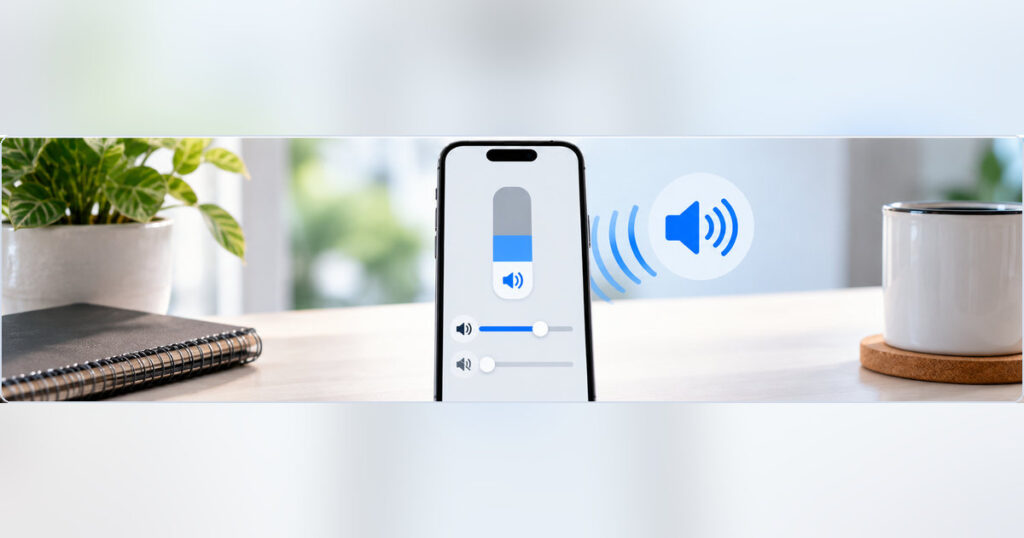
2. Test the Control Center Slider
If the volume on iPhone is not working through the physical buttons, try adjusting it using Control Center.
Apple provides an onscreen volume slider that works independently of the side buttons.
To test:
- Open an application that plays audio.
- Start a song, podcast, or video.
- Open Control Center.
- Find the volume slider.
- Drag it upward slowly.
- Listen for a change in volume.
- Drag it downward and compare the result.
On Face ID iPhones, open Control Center by swiping down from the upper-right corner.
On older iPhones with a Home button, swipe up from the bottom.
What If the Slider Works?
If the onscreen control changes the sound normally but the physical buttons don’t, the issue is more likely related to button input.
Check your phone case and the physical buttons in Fix 6.
What If Nothing Changes?
Check whether the sound is playing through headphones, Bluetooth, or another device.
Also verify that the application itself isn’t muted.
Some media players have additional audio controls.
Tip: Keep the sound at a comfortable level while testing. You don’t need maximum volume to diagnose the problem.
3. Check Change with Buttons
One common reason the volume buttons behave unexpectedly is Apple’s Change with Buttons setting.
This setting determines whether the physical volume buttons can change ringtone and alert volume.
If it is disabled, the buttons can still adjust media volume, but they won’t necessarily change the ringtone volume as you expect.
To check:
- Open Settings.
- Tap Sounds & Haptics.
- Find Change with Buttons.
- Review whether it is enabled.
- Turn it on if you want the buttons to adjust ringtone and alert volume.
- Return to the Home Screen.
- Test the buttons when no media is playing.
This setting is particularly useful when the volume buttons work during videos but appear ineffective when you want to make your phone ring louder.
However, it doesn’t fix a physically damaged button.
If the buttons never respond in any situation, continue troubleshooting.
Also remember that changing ringtone behavior does not automatically control the volume of every application.
4. Review iOS 27 Sound Settings
Apple provides more detailed sound controls in iOS 27.
On compatible devices, you can configure separate volume levels for alarms and timers, and for alerts and system sounds.
This is useful when your ringtone sounds normal but your alarm or notification volume seems incorrect.
To review the settings:
- Open Settings.
- Tap Sounds & Haptics.
- Locate the Alarms and Timers section.
- Check whether Match Ringtone Volume is enabled.
- If you prefer separate control, disable Match Ringtone Volume.
- Adjust the available volume slider.
- Repeat the process for Alerts and System Sounds if necessary.
When Match Ringtone Volume is enabled, those sounds follow the ringtone volume.
When it is disabled, you can adjust their volumes separately.
Why This Matters
Suppose your ringtone is loud enough, but a timer sounds much quieter.
You might repeatedly press Volume Up without realizing that a separate volume setting is controlling the timer.
Checking Sounds & Haptics can solve that confusion.
If your alarm fails to sound at all, read our related guide: iPhone Alarm Not Going Off? 12 Fixes to Try (2026).
That article covers alarm-specific problems in detail.
5. Check Silent Mode and Focus
Sometimes people think the iPhone volume isn’t working when the actual issue is that calls or notifications are silenced.
Apple’s Silent mode affects ringtones, notifications, and certain system sounds.
It does not ordinarily mute music, videos, or every application.
Check Silent Mode
On iPhones with a Ring/Silent switch, check whether the switch shows orange.
If you want audible ringing, move it to the ring position.
On models with an Action button, check whether the button is configured to toggle Silent mode.
You can also review Silent mode under Sounds & Haptics on supported models.
Check Focus
- Open Control Center.
- Tap Focus.
- See whether Do Not Disturb, Sleep, or another Focus is active.
- Temporarily turn it off for testing.
- Trigger a new notification.
- Check whether the expected sound returns.
If alerts work normally after turning off Focus, review the Focus configuration rather than disabling it permanently.
Important: Silent mode and Focus are not universal fixes for video or music volume.
If your video remains silent with its volume slider raised, investigate audio output and speaker behavior instead.
For more notification-specific troubleshooting, see our iPhone Notifications Not Working guide.
6. Check the Physical Buttons
If the volume on iPhone is not working only when you press the side buttons, inspect them carefully.
A tight case, accumulated debris, or physical damage may prevent the buttons from responding normally.
Apple recommends removing accessories that interfere with buttons and checking for dirt or debris.
Try these steps:
- Remove your iPhone case.
- Check whether the case was pressing against a button.
- Press Volume Up and Volume Down gently.
- See whether each button moves normally.
- Inspect the visible area around the buttons.
- If necessary, clean the exterior with a soft cloth.
- Test the buttons again.
Do not insert pins, blades, or other sharp objects around the buttons.
Avoid spraying cleaning liquid into button openings.
What If a Button Feels Stuck?
If one button is physically stuck, works only intermittently, or doesn’t move normally, stop forcing it.
Repeated hard pressing can make physical damage worse.
If the button remains unresponsive after removing the case and checking for debris, Apple recommends arranging service.
What If Both Buttons Work Without the Case?
The case may be interfering with them.
Consider using a properly fitting replacement case rather than modifying the phone or its buttons.
7. Check Bluetooth Audio Output
Your iPhone may appear to have a volume problem when sound is actually being sent to another device.
This can happen with AirPods, Bluetooth headphones, wireless speakers, car audio systems, and AirPlay devices.
For example, you might increase the volume on your iPhone while the sound continues playing through connected earbuds.
To check:
- Play a song or video.
- Open Control Center.
- Find the audio playback controls.
- Tap the playback destination or AirPlay icon.
- Review the selected audio device.
- Choose your iPhone as the output if available.
- Test the volume again.
You can also open Settings → Bluetooth to disconnect a connected audio accessory temporarily.
If the built-in speaker starts responding normally, the issue may have involved audio routing.
What If Bluetooth Volume Is Too Low?
Some Bluetooth accessories have their own volume controls.
Check the accessory’s settings and connection status.
Avoid immediately forgetting or resetting every Bluetooth connection.
If your phone cannot discover the accessory at all, read our iPhone Bluetooth Not Finding Devices guide.
8. Review Volume Limits
Some iPhone settings are designed to limit loud audio.
These settings can make the sound quieter than expected, particularly through headphones or the built-in speaker.
Apple’s iOS 27 documentation describes separate controls for headphone safety and built-in speaker volume.
Check the Speaker Limit
- Open Settings.
- Tap Sounds & Haptics.
- Look under Built-In Speaker.
- Select Volume Limit if available.
- Review whether a maximum-volume limit is enabled.
- Adjust it only if appropriate.
You may also find an option to reduce loud sounds.
These features can help protect your hearing.
Don’t disable safety limits unnecessarily.
Check Headphone Safety
- Open Settings.
- Tap Sounds & Haptics.
- Select Headphone Safety.
- Review Reduce Loud Audio.
- Check the configured sound limit.
If headphones are quieter than expected, this setting may be relevant.
However, a headphone limit does not explain every speaker or ringtone problem.
Also check the volume controls inside individual applications.
For example, some video players can mute playback independently of the iPhone’s main volume slider.
9. Try AssistiveTouch
If the physical volume buttons are not responding, Apple’s AssistiveTouch feature provides an alternative way to control your iPhone.
This is especially useful when the onscreen slider works but a side button may be damaged.
To enable AssistiveTouch:
- Open Settings.
- Tap Accessibility.
- Select Touch.
- Tap AssistiveTouch.
- Turn it on.
- Look for the floating AssistiveTouch button.
- Open its menu.
- Use the available device controls to adjust volume.
AssistiveTouch can help you manage several common iPhone functions without relying on physical buttons.
What Does This Test Tell You?
If AssistiveTouch changes volume normally while the physical buttons don’t, the problem may involve button input.
However, AssistiveTouch is not a physical repair.
If the buttons are damaged, you may still need service.
You can keep AssistiveTouch enabled if it makes your phone easier to use.
There’s no need to install a third-party volume-control application for this basic function.
10. Restart and Update iOS
A temporary software problem can sometimes affect volume controls.
If your settings look correct and the hardware buttons move normally, try a restart.
Restart Your iPhone
For modern Face ID iPhones:
- Press and hold the Side button and either Volume button.
- Wait for the power-off slider.
- Drag the slider to turn off your iPhone.
- Wait approximately 30 seconds.
- Press and hold the Side button to restart it.
If a volume button is physically stuck or damaged, you can use Settings → General → Shut Down to turn off a responsive iPhone instead.
After restarting, play audio and test the volume.
Check for an Update
- Open Settings.
- Tap General.
- Select Software Update.
- Check for an available compatible release.
- Back up important information before major updates.
- Follow Apple’s installation instructions if you choose to update.
An update may resolve certain software-related problems.
However, it cannot repair a broken volume button.
If the problem began immediately after an update, record your iOS version and describe which controls stopped responding.
That information may help Apple Support.
Avoid factory resetting your iPhone as an early troubleshooting step.
11. Test the Speaker and Get Support
If none of the previous steps resolves the problem, investigate whether the issue is actually related to sound output.
Apple recommends testing the iPhone’s speaker through Sounds & Haptics.
To check:
- Open Settings.
- Tap Sounds & Haptics.
- Find the ringtone volume control.
- Move the volume slider back and forth.
- Listen for the ringtone preview.
- Compare the result with ordinary media playback.
If you hear normal ringtone audio, the built-in speaker is producing sound.
If the ringtone and media are both silent, even after checking playback destinations and settings, the speaker may require further diagnosis.
Apple advises seeking service when the speaker cannot produce sound or the relevant sound control is unavailable.
When to Contact Apple
Consider Apple Support if:
- A volume button is physically stuck.
- The buttons work only intermittently.
- Both physical buttons remain unresponsive.
- AssistiveTouch works but hardware buttons don’t.
- Sound remains absent across several applications.
- Volume problems began after a drop or liquid exposure.
- The speaker makes persistent distorted or crackling sounds.
Before arranging service, back up important information when possible.
Don’t attempt to open the device or repair internal buttons without suitable equipment and experience.
For detailed speaker troubleshooting, see our iPhone Speaker Not Working guide.
You can also visit Apple Support to review service options.
Volume Buttons Not Working?
If your Volume Up and Volume Down buttons don’t respond, begin by checking whether they are physically obstructed.
Remove your case and test both buttons.
Next, play a video and use the Control Center volume slider.
If the slider works but neither button responds, try AssistiveTouch.
You can also perform a normal restart when appropriate.
If the physical buttons remain completely unresponsive, especially after a drop, consider professional inspection.
A settings change cannot reliably repair damaged button hardware.
Volume Slider Moves but Sound Doesn’t Change?
This is different from a broken button.
If the volume indicator moves but the sound stays unchanged, first check the audio playback destination.
Your iPhone may be sending audio to Bluetooth headphones or another accessory.
Next, try a different application.
If only one app is affected, check its sound controls and available updates.
If all applications are affected, test the ringtone preview under Sounds & Haptics.
Compare those results before deciding whether the issue involves the speaker.
Video Volume Not Working?
If volume problems occur only while watching videos, investigate media playback rather than ringtone settings.
Try these checks:
- Make sure the video itself isn’t muted.
- Play audio in another app.
- Adjust volume while the video is actively playing.
- Open Control Center and increase media volume.
- Check the playback destination.
- Disconnect external audio accessories temporarily.
If videos have no audio anywhere but ringtones play normally, an application or audio-routing issue may be involved.
If nothing produces sound, follow Apple’s speaker troubleshooting guidance.
Volume Keeps Changing Automatically?
Sometimes iPhone owners report volume that unexpectedly increases or decreases.
Start by checking whether a case is pressing on a volume button.
Remove the case and see whether the problem stops.
Next, check connected headphones or speakers.
Some accessories have independent controls that can change playback volume.
Also review whether the issue occurs in one application or across the entire system.
If volume moves unexpectedly while a physical button feels stuck, don’t repeatedly press it.
Arrange professional support if the behavior continues.
Alarm Volume Not Working?
Alarm volume is not always controlled in the same way as media playback.
On iOS 27, compatible devices can use separate alarm and timer volume settings under Sounds & Haptics.
Check whether alarms are set to match the ringtone volume or use an independent level.
Also make sure the selected alarm has an audible sound.
Silent mode and Do Not Disturb generally don’t mute standard Clock alarms.
If your alarm fails to play at the expected time, investigate the alarm configuration rather than only adjusting media volume.
Our separate iPhone Alarm Not Going Off guide explains this in detail.
Frequently Asked Questions
Why is volume on iPhone not working?
Possible causes include incorrect volume settings, Change with Buttons being disabled, Bluetooth audio routing, speaker or headphone limits, physical button problems, and temporary software issues.
Why do my iPhone volume buttons not work?
A protective case may obstruct them, the buttons may be dirty or physically damaged, or a temporary software problem may affect their response. Test the onscreen volume slider and remove the case before considering repair.
Why does my volume work for videos but not ringtones?
Media and ringtone volume are different. Check Settings → Sounds & Haptics and review Change with Buttons and the relevant ringtone settings.
Why is my iPhone volume slider not changing the sound?
Check whether audio is playing through headphones, Bluetooth, AirPlay, or another output. Also make sure the application itself isn’t muted.
Can Silent mode stop video sound?
Normally, no. Silent mode primarily affects calls, alerts, and system sounds. Music and video playback generally remain available.
Can I change iPhone volume without buttons?
Yes. You can adjust volume through Control Center, use Siri for supported commands, or enable AssistiveTouch.
Does Low Power Mode disable volume buttons?
No. Low Power Mode is designed to reduce energy consumption and does not normally disable the physical volume controls.
Will restarting my iPhone delete data?
No. A normal restart does not ordinarily delete photos, applications, messages, or other personal information.
Should I reset all settings to fix volume?
Not as a first step. Check the relevant sound settings, physical buttons, audio output, and available updates before considering broader changes.
Can an iOS update fix volume problems?
Sometimes. Updates may resolve software-related problems, but they cannot repair damaged buttons or a defective speaker.
When should I contact Apple Support?
Seek support if buttons are physically damaged, remain intermittently unresponsive, or sound continues failing after appropriate software and playback checks.
Final Thoughts
If the volume on iPhone is not working, the most important step is determining which control has stopped responding.
Physical volume buttons, media playback, ringtones, alarms, and notification sounds don’t always use identical settings.
Start by testing the buttons while audio is playing.
Then check the Control Center slider and Change with Buttons.
If volume remains unusually low, investigate Bluetooth audio routing and the available sound limits.
For physical button problems, remove the case and test AssistiveTouch before arranging service.
If audio itself remains absent, use Apple’s speaker diagnostic steps.
Don’t reset your iPhone or replace its hardware without identifying the actual problem first.
A careful troubleshooting process can help you restore normal volume controls while avoiding unnecessary changes to your personal information and device settings.
Official Apple References
- Apple: Adjust the Volume on iPhone
- Apple: Change iPhone Sounds and Vibrations
- Apple: If an iPhone Button Isn’t Working
- Apple: If You Hear No Sound From Your iPhone Speaker
- Apple: Use the Buttons and Controls on iPhone
- Apple: Play Audio Through Bluetooth Accessories
Last reviewed: October 22, 2026. Exact settings may vary with your iPhone model and iOS version.