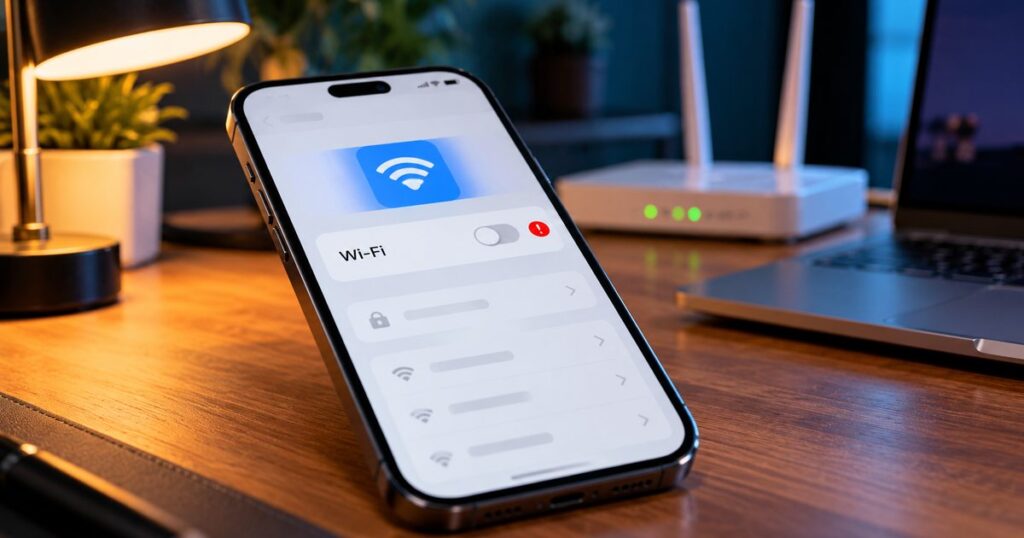
Is your iPhone Wi-Fi greyed out in Settings, leaving you unable to turn on wireless connectivity? Maybe the Wi-Fi switch appears disabled, tapping it does nothing, or your iPhone suddenly refuses to show nearby wireless networks.
This problem can be particularly frustrating because you can’t reconnect to your home router, download apps over Wi-Fi, or use wireless features normally.
Fortunately, a greyed-out Wi-Fi switch doesn’t always mean your iPhone needs repair.
Temporary iOS problems, unusual network configurations, or device-management settings may contribute to Wi-Fi issues. In some cases, persistent failures may indicate a hardware problem that needs professional attention.
Apple specifically recommends restarting an iPhone when its Wi-Fi setting appears greyed out.
In this guide, we’ll explain 9 practical fixes for iPhone Wi-Fi greyed out, including disabled Wi-Fi controls, problems after an iOS update, network-setting resets, and signs that your device may need service.
We’ll start with simple steps that won’t erase your personal information.
Table of Contents
Quick Answer
If the Wi-Fi switch on your iPhone is greyed out, try these steps:
- Confirm the Wi-Fi switch is actually disabled in Settings.
- Check Airplane Mode.
- Restart your iPhone normally.
- Force restart only if the device is unresponsive.
- Check for an available iOS update.
- Review VPN and device-management configurations.
- Reset Network Settings if simpler checks fail.
- Consider Reset All Settings only if necessary.
- Contact Apple Support if Wi-Fi remains unavailable.
Important: Don’t factory reset your iPhone, put it in a freezer, or attempt hardware repairs to fix a greyed-out Wi-Fi switch.
If the Wi-Fi button works but your connection keeps dropping, that is a different problem. See our iPhone Wi-Fi Keeps Disconnecting guide instead.
Why Is iPhone Wi-Fi Greyed Out?
Your iPhone normally allows you to enable and disable Wi-Fi from the Settings app.
When Wi-Fi is functioning correctly, turning on the switch makes your iPhone search for nearby wireless networks.
If the switch becomes greyed out and unresponsive, the phone may be unable to activate Wi-Fi normally.
There are several possible explanations.
Temporary iOS Problems
Software occasionally becomes unresponsive or fails to initialize a device feature correctly.
Restarting the phone may resolve some temporary problems.
Configuration Problems
Certain network configurations, VPN software, or management settings may affect wireless behavior.
However, these are not proven causes of every disabled Wi-Fi switch.
Software Update Issues
Sometimes users first notice Wi-Fi problems after installing an iOS update.
The timing is useful diagnostic information, but it doesn’t prove the update caused the failure.
Possible Hardware Failure
If Wi-Fi remains unavailable after appropriate software troubleshooting, an internal hardware problem becomes a possibility.
A recent drop, liquid exposure, or another physical incident makes professional diagnosis especially important.
Before attempting more complicated fixes, verify that the Wi-Fi setting itself is actually disabled.
1. Check the Wi-Fi Switch
This is the most important first step because there is a difference between a grey Wi-Fi button in Control Center and a greyed-out Wi-Fi switch in Settings.
Apple explains that tapping the Wi-Fi button in Control Center can disconnect the iPhone from nearby Wi-Fi networks without completely disabling its wireless capabilities.
In that situation, the Control Center icon may appear grey even though Wi-Fi remains available.
Check in Settings
- Open Settings.
- Tap Wi-Fi.
- Find the switch at the top.
- Try turning it on.
- Check whether nearby network names appear.
If the switch responds normally, your Wi-Fi hardware is at least able to activate.
If it turns on but your phone cannot join a network, investigate the connection rather than the switch.
What If the Switch Is Unresponsive?
If the Wi-Fi switch appears dimmed and cannot be enabled, continue with the following steps.
Remember: A grey Control Center icon is not automatically evidence of a malfunctioning Wi-Fi system.
Use Settings to confirm the actual problem.
For additional information, see Apple’s explanation of Wi-Fi in Control Center.
2. Check Airplane Mode
Airplane Mode changes how your iPhone uses wireless connections.
When enabled, it normally turns off cellular connectivity and may affect Wi-Fi and Bluetooth depending on your settings.
If your iPhone Wi-Fi is greyed out, checking Airplane Mode is a reasonable early step.
To investigate:
- Open Settings.
- Find Airplane Mode.
- Check whether it is enabled.
- Turn it off if you don’t need it.
- Wait briefly.
- Return to Settings → Wi-Fi.
- Try enabling Wi-Fi.
You can also check Airplane Mode through Control Center.
Will This Always Fix Wi-Fi?
No.
Apple allows Wi-Fi to be used while Airplane Mode is active, so Airplane Mode alone does not explain every disabled Wi-Fi switch.
If turning it off restores normal operation, you may not need further troubleshooting.
However, if the Settings switch remains completely unresponsive, move to the next step.
Avoid repeatedly switching Airplane Mode on and off without checking whether anything changes.
3. Restart Your iPhone
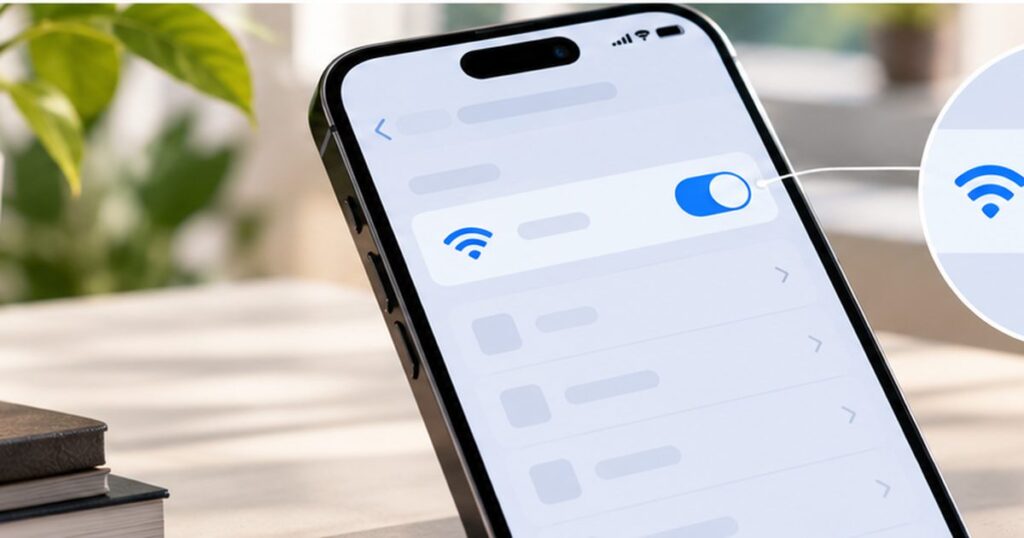
Apple specifically recommends restarting your device when the Wi-Fi setting appears dimmed or greyed out.
A restart gives iOS an opportunity to initialize its system functions again.
It does not normally delete your photographs, messages, applications, or other personal information.
Restart Face ID iPhones
For most recent iPhone models:
- Press and hold the Side button and either Volume button.
- Wait for the power-off slider.
- Drag the slider to switch off your iPhone.
- Wait approximately 30 seconds.
- Press and hold the Side button until the Apple logo appears.
- Wait for startup to complete.
Then open Settings → Wi-Fi.
Check whether the switch is available.
Restart Older iPhones
If your iPhone has a Home button, use the appropriate Side or Top power button to bring up the shutdown slider.
Turn the device off, wait briefly, and restart it.
What If Wi-Fi Works After Restarting?
If the Wi-Fi switch works normally, connect to a known wireless network.
Use your iPhone for a while and check whether the issue returns.
If the problem repeatedly reappears, record when it happens.
For example, note whether it occurs after restarting, using a particular application, or installing an update.
This information may help identify a recurring software problem.
4. Try a Force Restart
A force restart is different from an ordinary restart.
Apple recommends a force restart when an iPhone becomes unresponsive and cannot be turned off through the normal controls.
If your device responds normally, use the ordinary restart procedure first.
For an iPhone 8 or later, including newer Face ID models:
- Press and quickly release Volume Up.
- Press and quickly release Volume Down.
- Press and hold the Side button.
- Continue holding until the Apple logo appears.
- Release the button.
- Allow the phone to restart.
The Side button may need to be held for longer than ten seconds.
For older iPhones, the button combination differs by model. Follow Apple’s official instructions for your specific device.
Does a Force Restart Delete Data?
A force restart does not normally erase personal information.
However, it isn’t a guaranteed fix for Wi-Fi problems.
If the iPhone Wi-Fi greyed out problem remains after restarting, repeated force restarts are unlikely to provide additional useful information.
Proceed to checking your software version.
5. Check for iOS Updates
Software updates can address bugs, security issues, and compatibility problems.
If Wi-Fi became unavailable after installing iOS or changing device settings, checking for an available update may be useful.
To investigate:
- Open Settings.
- Tap General.
- Select Software Update.
- Wait while your iPhone checks for available updates.
- Review any compatible software release.
- Back up your important information before updating.
- Follow Apple’s installation instructions if you proceed.
What If Wi-Fi Doesn’t Work?
If the Wi-Fi switch is disabled, you may not be able to download a software update through Wi-Fi.
Depending on your iPhone, network plan, and update requirements, cellular downloading may be available.
You can also use a compatible Mac or Windows computer with Apple’s official update tools.
On a modern Mac, Finder can manage iPhone software updates.
On Windows, Apple Devices provides similar functionality.
Use a suitable USB cable and a stable internet connection on the computer.
Should You Install a Beta?
Avoid installing beta iOS software solely to fix a greyed-out Wi-Fi switch.
Beta software may contain unfinished features or additional bugs.
Use a stable, compatible update unless you have a specific reason to do otherwise.
An iOS update may help when the cause is software-related, but it cannot physically repair faulty wireless hardware.
6. Review VPN and Management
VPN software, security applications, and device-management configurations can affect network behavior.
Apple recommends investigating VPN and security software when troubleshooting certain Wi-Fi problems.
However, it’s important to make a distinction.
A VPN that prevents internet access is not necessarily responsible for a Wi-Fi switch that cannot be turned on.
If you use a VPN or security application, check whether it is causing a broader connectivity problem.
Check VPN Settings
- Open Settings.
- Select General.
- Open VPN & Device Management, if available.
- Review the VPN configurations.
- Identify any third-party network or filtering applications.
If your own VPN is active, you can temporarily disconnect it for a controlled test, provided doing so is appropriate.
If this changes your network behavior, investigate the VPN application’s configuration.
Don’t remove an unfamiliar configuration without understanding what it does.
Check Managed Devices
Some iPhones are managed by employers, schools, or organizations.
Management profiles may control network configurations and restrict certain user actions.
If your phone belongs to an organization, contact its IT administrator before removing profiles or resetting settings.
Deleting management information without permission can disrupt access to work applications, accounts, certificates, and secure networks.
If your iPhone has no VPN software or management profile, skip this step.
7. Reset Network Settings
If the iPhone Wi-Fi greyed out issue persists, resetting network settings is a more advanced troubleshooting option.
Apple documents this procedure for persistent network problems when simpler fixes haven’t worked.
However, you should understand the consequences first.
What Does This Reset Remove?
Reset Network Settings removes saved Wi-Fi networks and passwords and resets certain cellular, VPN, and APN configurations.
You may need to reconnect to your usual wireless networks afterward.
The reset doesn’t ordinarily erase your photos, messages, or installed applications.
How to Reset Network Settings
- Open Settings.
- Tap General.
- Select Transfer or Reset iPhone.
- Tap Reset.
- Choose Reset Network Settings.
- Enter your passcode if requested.
- Confirm the action.
- Allow the process to finish.
Afterward, return to Settings → Wi-Fi.
Check whether the switch can now be enabled.
If it works, reconnect to your network using the correct password.
Important Precautions
Before resetting, make sure you have any network passwords or configuration information you need.
If your phone is managed by an employer or school, consult the administrator first.
Do not select Erase All Content and Settings.
That is a different procedure that removes your personal information.
Also remember that resetting network settings is not guaranteed to resolve a hardware failure.
8. Consider Reset All Settings
If resetting network settings doesn’t help, Apple also offers a broader option called Reset All Settings.
This is more disruptive, so it should not be your first troubleshooting step.
Apple describes it as a rarely necessary option for persistent problems.
What Does Reset All Settings Do?
It returns many iPhone preferences to their default values without ordinarily deleting personal files.
However, it can remove or reset important configurations, including:
- Wi-Fi networks and saved passwords.
- Bluetooth pairings.
- Apple Pay cards.
- Face ID or Touch ID settings.
- Some privacy and accessibility preferences.
- Display and notification settings.
- Certain VPN configurations.
You may need to set up several features again afterward.
How to Use It
If you’ve backed up your iPhone and understand the consequences:
- Open Settings.
- Tap General.
- Select Transfer or Reset iPhone.
- Tap Reset.
- Choose Reset All Settings.
- Follow the onscreen instructions.
Consider discussing this option with Apple Support first, particularly if your iPhone contains important work configurations.
Will This Repair Wi-Fi Hardware?
No.
Reset All Settings may help with certain software or configuration problems.
It cannot fix a damaged Wi-Fi component.
If the Wi-Fi switch remains unavailable afterward, professional diagnosis may be more useful than additional resets.
9. Contact Apple Support
If your Wi-Fi switch remains disabled after appropriate troubleshooting, contact Apple Support.
A persistent greyed-out switch can indicate a problem that isn’t easily resolved through ordinary settings.
Apple recommends contacting support when an iPhone cannot connect to Wi-Fi despite troubleshooting.
Professional diagnosis becomes particularly important if you also notice:
- Bluetooth controls are unavailable.
- Wi-Fi has stopped working after a physical impact.
- The phone recently suffered liquid exposure.
- The Wi-Fi switch stays disabled after restarting.
- Software updates fail or cannot complete.
- The device experiences additional unexplained hardware symptoms.
These signs do not prove a particular component is defective.
They simply indicate that further examination may be necessary.
What to Tell Apple
When seeking support, provide:
- Your iPhone model.
- The installed iOS version.
- Whether the Wi-Fi switch is greyed out in Settings.
- Whether Bluetooth still works.
- Whether the problem appeared after an update or physical incident.
- Which troubleshooting steps you’ve completed.
You can start with Apple’s official iPhone support page.
If your iPhone is covered by warranty or AppleCare, ask about the applicable service options.
Do not assume that every repair will be free. Coverage depends on the circumstances and Apple’s assessment.
Wi-Fi Greyed Out After iOS Update?
If the Wi-Fi switch stopped working immediately after a software update, begin with a normal restart.
Apple specifically recommends restarting when Wi-Fi is greyed out.
Next, check whether a newer stable iOS version is available.
If Wi-Fi cannot be enabled, consider using a compatible computer for an official update.
Avoid treating the update itself as the confirmed cause without further evidence.
If the problem persists after appropriate troubleshooting, Apple Support can help determine whether the issue is software-related or requires hardware examination.
Wi-Fi and Bluetooth Both Greyed Out?
If both Wi-Fi and Bluetooth become unavailable, record the exact symptoms.
Open Settings → Wi-Fi and Settings → Bluetooth separately.
Check whether both switches are disabled or whether one is simply disconnected.
Try a normal restart if the device is responsive.
If neither wireless feature can be enabled afterward, professional diagnosis may be appropriate.
Although Wi-Fi and Bluetooth use related wireless technologies, simultaneous failure does not identify the exact damaged component.
Avoid assuming you need a particular replacement part without an inspection.
If Bluetooth turns on normally but cannot detect accessories, see our iPhone Bluetooth Not Finding Devices guide.
Wi-Fi Button Grey in Control Center?
A grey Wi-Fi icon in Control Center may be normal.
Apple explains that tapping the Wi-Fi button in Control Center disconnects the iPhone from current Wi-Fi networks rather than necessarily switching the wireless radio completely off.
That means the icon can become grey while some wireless features remain available.
To confirm the actual status:
- Open Settings.
- Tap Wi-Fi.
- Check whether the switch is available.
- Turn it on if necessary.
- Look for nearby network names.
If the switch works, you don’t have the same problem as someone whose Wi-Fi setting is truly disabled.
This distinction prevents unnecessary resets.
Wi-Fi Switch Works but No Internet?
If your Wi-Fi switch turns on normally and you can connect to your router, but websites don’t load, the issue is probably different.
Your router may have lost its internet connection, the network may require a login, or a VPN or DNS configuration may interfere.
A working Wi-Fi switch doesn’t guarantee a working internet connection.
Instead of following disabled-switch troubleshooting, use our dedicated guide:
iPhone Connected to Wi-Fi but No Internet? 10 Fixes to Try (2026)
It explains how to distinguish iPhone connection problems from router and internet-provider problems.
Can a Router Cause a Greyed-Out Wi-Fi Switch?
A router can cause connection problems, but it does not normally control whether the iPhone’s Wi-Fi switch is available in Settings.
If the switch itself is disabled, restarting your home router is unlikely to be the most useful first step.
Focus on the iPhone and its software or configuration state.
Once the Wi-Fi switch works, router troubleshooting becomes relevant if the device still cannot join a network.
This is why identifying the exact symptom matters.
What Not to Do
Some online advice recommends extreme methods to restore Wi-Fi functionality.
These may include placing the phone in a freezer, heating the device, bending it, or applying pressure near internal components.
Avoid those methods.
Extreme temperatures and physical pressure can damage an iPhone.
Similarly, do not attempt to open the phone or reconnect internal hardware components without appropriate professional expertise.
Don’t download unknown repair utilities promising guaranteed fixes.
And don’t erase all your personal data merely because the Wi-Fi switch is greyed out.
Start with official Apple troubleshooting steps and escalate when necessary.
Frequently Asked Questions
Why is my iPhone Wi-Fi greyed out?
A greyed-out Wi-Fi switch may result from a temporary software problem, a configuration issue, or a possible hardware fault. Apple recommends restarting the iPhone when the Wi-Fi setting is dimmed.
How do I fix a greyed-out Wi-Fi button?
First, check whether the switch is actually disabled in Settings. Then restart your iPhone, review available updates, and consider network-setting troubleshooting if necessary.
Why can’t I turn on Wi-Fi on my iPhone?
If the switch doesn’t respond in Settings, the device may be unable to enable Wi-Fi normally. Restarting is a recommended first step. Persistent failure may require further diagnosis.
Can Airplane Mode make Wi-Fi greyed out?
Airplane Mode can affect wireless connections, but Wi-Fi can also be enabled while Airplane Mode is active. A permanently unresponsive Wi-Fi switch should not automatically be blamed on Airplane Mode.
Will resetting network settings delete photos?
No. Reset Network Settings does not ordinarily delete personal photos, messages, or installed applications. It does remove saved Wi-Fi connections and resets certain network configurations.
Will updating iOS fix disabled Wi-Fi?
An update may help if the cause is software-related. However, it cannot repair physically damaged wireless hardware.
Why are Wi-Fi and Bluetooth both unavailable?
Both features may be affected by a broader software or hardware issue. Restart your device and check their settings separately. If neither works, contact Apple Support.
Does a grey Wi-Fi icon mean Wi-Fi is broken?
No. A grey Wi-Fi icon in Control Center can simply mean that your iPhone has disconnected from nearby networks. Check the actual Wi-Fi switch in Settings.
Can I fix Wi-Fi without factory resetting?
Sometimes. A restart, compatible software update, or carefully chosen settings reset may help. A full factory reset is not recommended as an early troubleshooting step.
Is a greyed-out Wi-Fi switch a hardware problem?
It can be, but not always. The symptom alone does not establish the cause. If Wi-Fi remains unavailable after appropriate troubleshooting, professional diagnosis is recommended.
Final Thoughts
If your iPhone Wi-Fi is greyed out, the most important step is determining whether the Settings switch is genuinely disabled.
Don’t confuse a grey Control Center icon with a malfunctioning Wi-Fi control.
If the switch is unresponsive, begin with Apple’s recommended restart procedure.
Then check the available iOS updates and investigate relevant network configurations.
Only consider network resets after simpler troubleshooting has failed, and understand which settings they remove.
If the Wi-Fi switch remains completely disabled, especially alongside other wireless problems, contact Apple Support.
A careful, non-destructive troubleshooting process is safer than repeated factory resets or risky hardware experiments.
Official Apple References
- Apple Support: If You Can’t Connect to Wi-Fi on Your iPhone or iPad
- Apple Support: Use Bluetooth and Wi-Fi in Control Center
- Apple Support: Reset All Settings on iPhone or iPad
- Apple Support: Reset iPhone Settings to Their Defaults
- Apple Support: Force Restart iPhone
Last reviewed: October 22, 2026. Menu labels and available features may differ by iPhone model and iOS version.