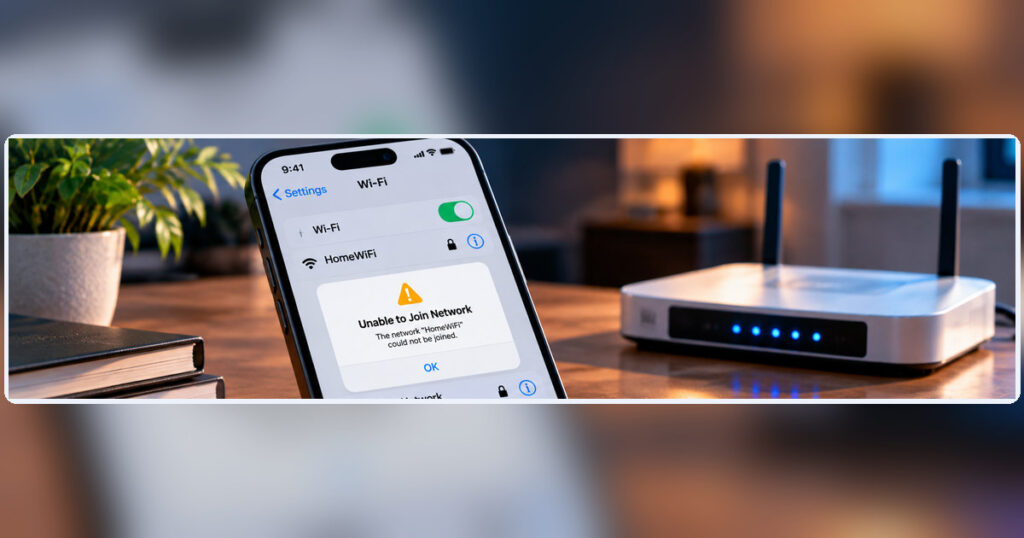
Is your iPhone unable to join network even when you enter the correct Wi-Fi password? Maybe your iPhone displays an “Unable to Join Network” error, refuses to connect to your home router, or repeatedly asks for a password that worked before.
Sometimes the error appears immediately after you select a wireless network. In other situations, your iPhone connects to other networks but refuses to join one particular Wi-Fi connection.
This problem can interrupt downloads, video calls, online meetings, and ordinary internet access.
Fortunately, an iPhone that cannot join Wi-Fi does not necessarily have damaged wireless hardware.
Incorrect saved passwords, temporary router problems, device restrictions, incompatible security settings, and certain software configurations can prevent a successful connection.
In this guide, we’ll explain 12 practical fixes for iPhone unable to join network errors, including incorrect passwords, router compatibility issues, private Wi-Fi addresses, VPN conflicts, and problems after iOS updates.
We’ll begin with simple troubleshooting steps and leave network resets until the end.
Table of Contents
Quick Answer
If your iPhone displays “Unable to Join Network,” try these steps:
- Identify exactly when the connection fails.
- Move closer to your Wi-Fi router.
- Verify the correct Wi-Fi password.
- Check Wi-Fi and Airplane Mode.
- Test another device on the same network.
- Restart your iPhone and router.
- Forget the network and reconnect.
- Check router security and Wi-Fi bands.
- Review Private Wi-Fi Address settings.
- Check VPN software and network restrictions.
- Update iOS and router firmware.
- Reset Network Settings if necessary.
Important: Don’t factory reset your iPhone or disable router security just because one Wi-Fi connection fails.
First, determine whether the problem is with your iPhone, the selected network, or your router.
Why Is iPhone Unable to Join Network?
Your iPhone and wireless router must complete several steps before establishing a Wi-Fi connection.
The iPhone detects the network, negotiates compatible wireless settings, authenticates when required, and establishes the connection.
If one of these steps fails, iOS may display an error such as “Unable to Join Network.”
The message does not identify one guaranteed cause.
Incorrect Wi-Fi Password
The password saved on your iPhone may no longer match the router’s current password.
This can happen after changing router settings, replacing equipment, or connecting to a similarly named network.
Weak Wi-Fi Signal
If your iPhone is too far from the router, the signal may be insufficient for a reliable connection.
Thick walls, floors, large metal objects, and interference can make the problem worse.
Router Problems
A router may temporarily stop accepting new connections or experience configuration problems.
If other devices also fail to connect, the router deserves closer attention.
Incompatible Network Settings
Outdated security protocols, unusual access restrictions, or incorrectly configured wireless settings may prevent your iPhone from joining.
Software or Configuration Issues
VPN and security software can interfere with some network functions. In other cases, an incorrect saved configuration or temporary iOS problem may contribute.
However, a VPN problem is more likely to affect traffic after connecting than the initial Wi-Fi authentication itself.
Let’s identify the exact cause before changing multiple settings.
1. Identify the Error
The first step is determining what happens when you try to join Wi-Fi.
Open Settings → Wi-Fi and select the network you’re trying to use.
Pay attention to the message displayed.
Unable to Join Network
This generally means the iPhone could not complete the connection to the selected network.
The problem may involve authentication, wireless communication, or network configuration.
Incorrect Password
This points more directly toward a password or authentication problem.
Check the password before resetting anything else.
No Internet Connection
This is different.
Your iPhone may already be connected to the wireless network, but the router or internet service may not be providing working internet access.
If that describes your situation, read our iPhone Connected to Wi-Fi but No Internet guide.
Wi-Fi Switch Greyed Out
If you cannot enable Wi-Fi at all, use our separate iPhone Wi-Fi Greyed Out guide.
A disabled Wi-Fi switch requires different troubleshooting from a network that appears but cannot be joined.
What to do next: If you can see the network but cannot join it, continue with the following fixes.
2. Move Closer to the Router
Wireless signal strength affects whether your iPhone can communicate with a router.
A network may appear in the available network list even when the connection is too weak or inconsistent to complete successfully.
To investigate:
- Move your iPhone into the same room as the router.
- Avoid large obstacles between the devices.
- Open Settings → Wi-Fi.
- Select the affected wireless network.
- Enter the password if requested.
- Check whether the connection completes.
If your iPhone joins normally near the router but fails farther away, coverage or interference may contribute.
Improve Router Placement
If you manage your home network, consider positioning the router:
- In a reasonably central location.
- Away from large metal objects.
- Away from thick physical barriers where possible.
- Away from equipment that creates significant wireless interference.
Avoid placing the router inside a closed metal cabinet.
For larger homes, a properly configured mesh network or additional access point may improve coverage.
What If Distance Makes No Difference?
If the iPhone unable to join network error continues even when you’re standing beside the router, focus on passwords and network settings instead.
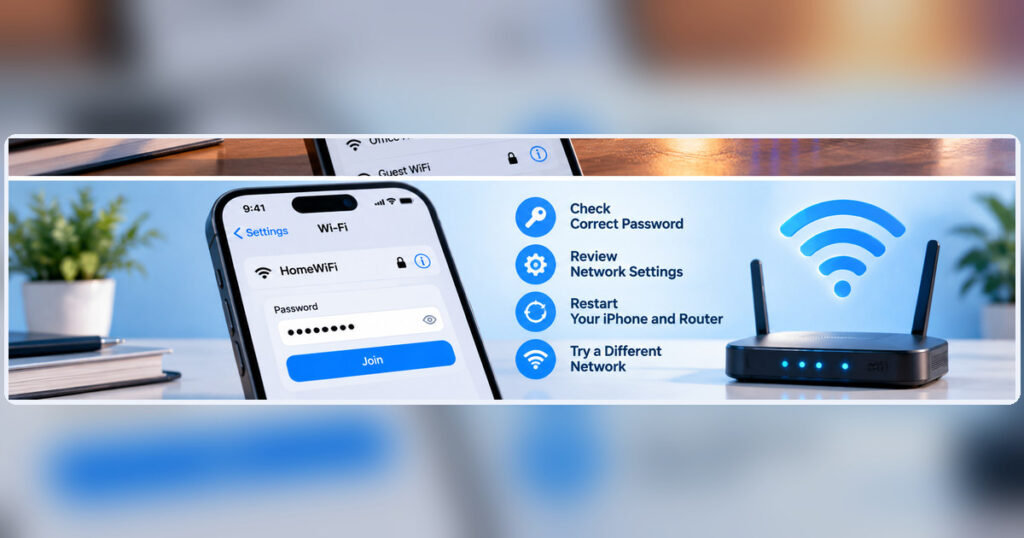
3. Check the Wi-Fi Password
An incorrect or outdated Wi-Fi password is one possible reason your iPhone cannot join a protected network.
This can happen even when you believe the password hasn’t changed.
For example, your router may have been replaced or reset, or you may be selecting a similarly named guest network.
Verify the Network Name
- Open Settings → Wi-Fi.
- Check the exact network name.
- Confirm that it belongs to your router.
- Avoid selecting unfamiliar networks with similar names.
- Enter the password carefully.
Wi-Fi passwords can be case-sensitive.
Check capitalization, numbers, and special characters.
Also watch for accidental spaces when copying and pasting.
Find a Saved Password
On supported iOS versions, Apple allows users to view previously saved Wi-Fi passwords.
For example:
- Open the Passwords app, if available.
- Authenticate using Face ID, Touch ID, or your passcode.
- Select Wi-Fi.
- Choose the relevant saved network.
- Review the stored password.
You can also view passwords for supported networks from Wi-Fi settings on compatible iOS versions.
Only access networks and passwords that belong to you or that you are authorized to use.
If the Password Is Correct
If another device connects using exactly the same password but your iPhone still fails, the issue may involve a saved configuration or router compatibility setting.
Continue troubleshooting.
Tip: Don’t repeatedly guess passwords on a school or workplace network. Contact its administrator for the correct credentials.
4. Check Wi-Fi and Airplane Mode
A simple wireless-settings check can help rule out temporary connection problems.
Use the Settings app rather than relying only on Control Center.
Turn Wi-Fi Off and On
- Open Settings.
- Tap Wi-Fi.
- Turn Wi-Fi off.
- Wait briefly.
- Turn Wi-Fi back on.
- Select the affected network.
- Try connecting again.
Apple explains that tapping the Wi-Fi button in Control Center may disconnect the phone from networks without fully turning off the Wi-Fi radio.
That’s why Settings is a better place for this check.
Review Airplane Mode
- Open Settings.
- Find Airplane Mode.
- Make sure it is turned off for normal network troubleshooting.
- Return to Wi-Fi settings.
- Try joining the network.
Airplane Mode can affect wireless connectivity, although an iPhone can also use Wi-Fi while Airplane Mode is enabled.
Turning it off is a simple way to rule out an unintended configuration.
What If the Problem Continues?
If the iPhone detects the network but still cannot join it, compare its behavior with another device.
5. Test Another Device
Testing another device on the same network helps determine whether the problem is specific to your iPhone.
Use a laptop, tablet, or another phone that you are authorized to connect.
Try joining the same Wi-Fi network.
Compare the results.
If Other Devices Also Fail
The router, network password, access restrictions, or wireless configuration may be responsible.
Check whether the router is functioning normally.
If your internet provider manages the router, contact the provider before making advanced changes.
If Other Devices Connect Normally
The issue may involve your iPhone’s saved network settings, software, or compatibility with the router.
However, another device connecting does not prove the router is perfectly configured for every client.
Try Another Trusted Network
If possible, test your iPhone on a second network you trust.
For example, connect to another household’s Wi-Fi with permission.
If the iPhone joins a different network successfully, that suggests its Wi-Fi hardware can establish at least some wireless connections.
Focus your investigation on the original router or its configuration.
If the iPhone fails to join every known working network, Apple Support may be useful.
6. Restart Your iPhone and Router
A normal restart can help resolve temporary software and network problems.
Apple recommends restarting the iPhone and router during Wi-Fi troubleshooting.
Restart Your iPhone
For most recent Face ID models:
- Press and hold the Side button and either Volume button.
- Wait for the power-off slider.
- Drag the slider to turn off the iPhone.
- Wait approximately 30 seconds.
- Press and hold the Side button to restart.
- Unlock the phone.
- Open Wi-Fi settings and try connecting again.
For older iPhone models, use the appropriate Side or Top power button.
A normal restart does not ordinarily delete personal data.
Restart Your Router
If it’s your router and you can safely interrupt the connection:
- Save any work that depends on the network.
- Use the router’s normal restart function, or follow its manufacturer’s power-restart instructions.
- Allow the router to finish restarting.
- Wait for the Wi-Fi network to become available.
- Try connecting your iPhone again.
If you use separate modem and router equipment, follow the manufacturer’s recommended restart sequence.
Important: Do not press a router’s factory-reset button unless you intend to restore its default configuration.
A factory reset can remove important internet and Wi-Fi settings.
If Restarting Works
Use the connection normally and observe whether the issue returns.
If repeated connection failures occur afterward, investigate saved network settings and router compatibility.
7. Forget and Rejoin Wi-Fi
If your iPhone unable to join network error continues, forgetting the saved network may help remove an outdated or incorrect configuration.
This is particularly useful when the router password or wireless security settings have recently changed.
Before starting, make sure you have the correct Wi-Fi password.
Forget the Saved Network
- Open Settings.
- Tap Wi-Fi.
- Tap the information button beside the affected network.
- Select Forget This Network, if available.
- Confirm the action.
- Return to the network list.
- Select the network again.
- Enter the correct password.
- Attempt to reconnect.
If the network isn’t currently visible, previously joined networks may be available through the Edit option in Wi-Fi settings on supported iOS versions.
What Happens When You Forget Wi-Fi?
Your iPhone removes its saved connection information for that network.
You may need to enter the password again.
Forgetting the network does not ordinarily erase your personal photographs, applications, or documents.
However, saved network information can synchronize between devices using the same Apple Account and relevant iCloud features.
What About Managed Networks?
If your device belongs to an employer, school, or organization, don’t remove a managed network configuration without checking with the administrator.
Some networks require certificates, special credentials, or configuration profiles that are not easy to recreate manually.
If forgetting and reconnecting doesn’t help, proceed to router settings.
8. Check Router Security and Bands
Your iPhone and router need compatible Wi-Fi settings to establish a connection.
Apple recommends modern wireless security protocols for reliability and protection.
If you manage the router, review its security configuration.
Recommended Security
Apple recommends:
- WPA3 Personal when supported.
- WPA2/WPA3 Transitional when compatibility with older devices is necessary.
- WPA2 Personal (AES) when stronger options are unavailable.
Avoid outdated protocols such as WEP, older WPA modes, and TKIP-based security.
Don’t turn off encryption merely to make your iPhone connect.
An unsecured network creates unnecessary privacy and security risks.
Check the Wi-Fi Band
Many routers support 2.4 GHz and 5 GHz networks.
Some newer routers and compatible iPhones also support 6 GHz.
If your router advertises separate network names for different bands, try another supported band.
For example, if the iPhone cannot join one 5 GHz connection, you can test the router’s separate 2.4 GHz network.
This is a diagnostic step, not a requirement to permanently disable a particular band.
Some modern routers use the same network name across multiple bands and manage them automatically.
In that case, don’t change advanced wireless settings without a clear reason.
Update Router Configuration Carefully
Use the manufacturer’s official application or administrator interface.
Back up important router settings before making changes, and avoid altering a shared network without permission.
If you don’t administer the router, contact the responsible person or internet provider.
9. Check Private Wi-Fi Address
Apple’s Private Wi-Fi Address feature helps reduce tracking of your device across different wireless networks.
On newer iOS versions, the feature can use different address behaviors depending on network security.
Most Wi-Fi networks work normally with private addressing enabled.
However, some networks use device-specific access controls that can create compatibility problems.
Check the Setting
- Open Settings → Wi-Fi.
- Tap the information button beside the affected network.
- Find Private Wi-Fi Address.
- Review the current configuration.
On iOS 18 and later, Apple provides options such as Off, Fixed, and Rotating.
Should You Turn It Off?
Not as a routine troubleshooting step.
Apple recommends keeping private addressing enabled on networks that support it.
If your network uses a system that restricts access based on device identifiers, the administrator may need to update its configuration.
On a personally managed router, you can review MAC address filtering and related restrictions.
Do not disable Private Wi-Fi Address across all networks to solve one isolated connection issue.
When Is an Exception Reasonable?
If an authorized network administrator confirms that a specific network requires a different address configuration, follow the approved setup instructions.
For ordinary home networks, use modern router settings rather than weakening privacy protections unnecessarily.
10. Review VPN and Network Restrictions
VPN applications and security tools can interfere with certain network functions.
Apple recommends checking third-party networking software when diagnosing connection problems.
However, a VPN problem usually affects traffic after the iPhone connects, rather than the initial Wi-Fi password negotiation.
Therefore, this step is especially relevant if the apparent connection failure occurs alongside other internet problems.
Review VPN Settings
- Open Settings.
- Go to General → VPN & Device Management, if available.
- Review any configured VPN or network profiles.
- Identify applications that manage network traffic.
- Check whether they are required by your workplace or school.
If you own the iPhone and control the VPN configuration, you may temporarily disconnect the VPN for a controlled test.
Then attempt the connection again.
If the issue disappears, contact the VPN provider or review its configuration.
Check Router Access Restrictions
Some routers use connection limits, access-control lists, or device-approval features.
If your iPhone is blocked by such a rule, the network administrator may need to authorize it.
Don’t attempt to bypass security restrictions on networks you do not own.
Public Wi-Fi Login Pages
Public Wi-Fi networks sometimes require you to sign in or accept terms after joining.
These are called captive networks.
If your iPhone successfully joins Wi-Fi but cannot browse until a login page appears, that is different from a true “Unable to Join Network” error.
Apple provides a separate procedure for using captive Wi-Fi networks.
11. Update iOS and Router Firmware
Software updates can fix bugs, improve security, and address compatibility problems.
If your iPhone recently started refusing Wi-Fi connections, check whether an update is available.
Update Your iPhone
- Open Settings.
- Tap General.
- Select Software Update.
- Review the available compatible releases.
- Back up important information before a major update.
- Install an appropriate stable update.
If Wi-Fi is unavailable, your iPhone may be able to update through supported cellular options, or you can use Apple’s official computer-based update process.
On modern Macs, Finder can manage iPhone updates.
On Windows, the Apple Devices app provides supported device-management functions.
Update Router Firmware
If you administer the router:
- Open the manufacturer’s official app or configuration page.
- Find the firmware update section.
- Verify the router model.
- Install an appropriate official update.
- Allow the router to restart if necessary.
- Test the Wi-Fi connection again.
Never install firmware intended for a different model.
Avoid unofficial downloads claiming to repair Wi-Fi instantly.
Did the Problem Start After an iOS Update?
Record the exact iOS version and which networks fail.
If your iPhone works on other networks, router compatibility may still be relevant even when the problem appeared after an update.
Don’t assume every post-update connection issue is necessarily an iOS bug.
12. Reset Network Settings
If your iPhone still cannot join known working Wi-Fi networks after completing the simpler checks, consider Reset Network Settings.
Apple includes this step in its official Wi-Fi troubleshooting guidance but recommends using it only after other solutions fail.
This is more disruptive than restarting or reconnecting.
What Does It Remove?
Reset Network Settings removes saved Wi-Fi networks and passwords and resets cellular, VPN, and APN-related configurations.
You may need to reconnect to your networks and reconfigure certain services afterward.
It does not ordinarily delete personal photos, applications, or messages.
How to Reset Network Settings
- Open Settings.
- Tap General.
- Select Transfer or Reset iPhone.
- Tap Reset.
- Choose Reset Network Settings.
- Enter your passcode if prompted.
- Confirm the reset.
- Allow your iPhone to complete the process.
Afterward, return to Settings → Wi-Fi and try joining a trusted network.
Important Precautions
Make sure you know the Wi-Fi passwords and network details you’ll need later.
If your iPhone is managed by a business or school, consult the administrator before resetting.
Do not select Erase All Content and Settings.
That is a different action that removes personal information.
What If the Error Still Appears?
If the iPhone cannot join any known working Wi-Fi network after appropriate troubleshooting, contact Apple Support.
If only one router fails, contact the router manufacturer or network administrator first.
Professional diagnosis may help identify whether the issue involves software, router compatibility, or hardware.
Unable to Join Network With Correct Password?
If your iPhone refuses to join even when the Wi-Fi password is correct, don’t assume the password is the only possible cause.
Try joining the same network from another authorized device.
If the second device works, restart your iPhone and forget the saved network before reconnecting.
If several devices fail, inspect router settings.
A router configured with incompatible security options or unusual access restrictions can prevent authentication.
Check whether the router recently received a firmware update or was reset.
Avoid disabling wireless encryption just to test connectivity.
Unable to Join Network After Update?
If the issue began immediately after an iOS update, check whether it affects one network or every network.
Restart the iPhone and router.
Review available software updates and the router’s firmware.
If the problem is limited to a particular router, check its security and compatibility settings.
If your iPhone cannot join any working network, Apple Support can help investigate.
Avoid downgrading iOS through unofficial utilities.
Unable to Join Network at School?
School and workplace Wi-Fi networks may require more than an ordinary password.
Some use individual accounts, security certificates, configuration profiles, or device enrollment.
An incorrectly configured profile can prevent a connection.
If your school uses an IT-managed network, contact its support team.
Ask whether your account and iPhone are authorized.
Don’t remove organization-installed profiles, change security settings, or attempt to bypass access controls without approval.
Unable to Join Network on Public Wi-Fi?
Public networks in hotels, airports, coffee shops, and similar locations sometimes use captive login pages.
If your iPhone joins the Wi-Fi network but asks you to sign in or accept terms, follow the legitimate network’s instructions.
If you cannot even join the network, try the ordinary wireless connection checks first.
Avoid entering passwords or personal information into suspicious login pages.
Confirm the correct network name with the business or location operator.
Router Works but iPhone Won’t Connect?
If other devices connect to your router but your iPhone cannot, try the following sequence:
- Restart the iPhone.
- Confirm the password and network name.
- Forget and rejoin the affected network.
- Test another trusted Wi-Fi network.
- Check router compatibility and access restrictions.
- Review available updates.
These results help identify whether the issue is specific to your iPhone or a particular network configuration.
If the iPhone connects successfully but repeatedly disconnects afterward, our iPhone Wi-Fi Keeps Disconnecting guidecovers that separate problem.
Frequently Asked Questions
Why is my iPhone unable to join network?
Possible causes include an incorrect saved password, weak signal, temporary router problems, incompatible security settings, or device-specific configuration issues. Start by identifying whether other devices can join the same network.
How do I fix Unable to Join Network on iPhone?
Move closer to the router, verify the password, restart your iPhone, and try reconnecting. If necessary, forget the saved network and review router compatibility before considering a network reset.
Why won’t my iPhone join Wi-Fi with the correct password?
A correct password doesn’t guarantee a successful connection. Router security settings, access restrictions, temporary errors, or a saved configuration problem may still prevent joining.
Does Airplane Mode cause Unable to Join Network?
Airplane Mode can affect wireless connections, but Wi-Fi can also be used while Airplane Mode is enabled. Check that Wi-Fi is turned on in Settings and use normal connection troubleshooting.
Will forgetting a Wi-Fi network delete my photos?
No. Forgetting a network removes saved connection information but does not ordinarily delete personal photos, apps, or messages.
Will resetting network settings fix the error?
It may help when saved network configurations are responsible. However, it is not guaranteed to resolve router problems, network restrictions, or hardware failures.
Why can my laptop connect but my iPhone can’t?
The devices may use different saved passwords, wireless capabilities, security configurations, or network identifiers. Test the iPhone on another trusted network to narrow down the cause.
Can VPN software cause Wi-Fi connection problems?
Yes, VPN and security applications can interfere with some network functions. However, they more commonly affect internet traffic after connecting rather than the initial Wi-Fi authentication itself.
Why does the error appear after an iOS update?
The timing may be related to a software or compatibility change, but it does not prove the update caused the problem. Check for newer updates and test whether the issue affects multiple networks.
Is Unable to Join Network a hardware problem?
Not necessarily. Many connection failures involve passwords, routers, or software settings. If your iPhone cannot join any known working network after appropriate troubleshooting, professional diagnosis may be useful.
Final Thoughts
If your iPhone is unable to join network, the best approach is to identify where the connection process fails.
Start by checking the Wi-Fi password and signal strength.
Then compare your iPhone with another device on the same network.
If the problem affects only your phone, restart it, review saved network settings, and test another trusted connection.
If the problem affects multiple devices, investigate your router’s configuration and firmware.
Avoid disabling wireless security, removing managed profiles, or performing unnecessary factory resets.
If simpler troubleshooting doesn’t work, Reset Network Settings may be appropriate, but understand the consequences first.
The goal is to restore a secure, reliable Wi-Fi connection without making unnecessary changes to your iPhone or network.
Official Apple References
- Apple Support: If You Can’t Connect to Wi-Fi on Your iPhone or iPad
- Apple Support: Connect to Wi-Fi on iPhone or iPad
- Apple Support: Recommended Wi-Fi Router Settings
- Apple Support: Use Private Wi-Fi Addresses
- Apple Support: Find Saved Wi-Fi Passwords
- Apple Support: Check VPN and Security Software
- Apple Support: Use Captive Wi-Fi Networks
Last reviewed: October 22, 2026. Some settings and menu labels may differ depending on your iPhone model, iOS version, router, and network administrator.