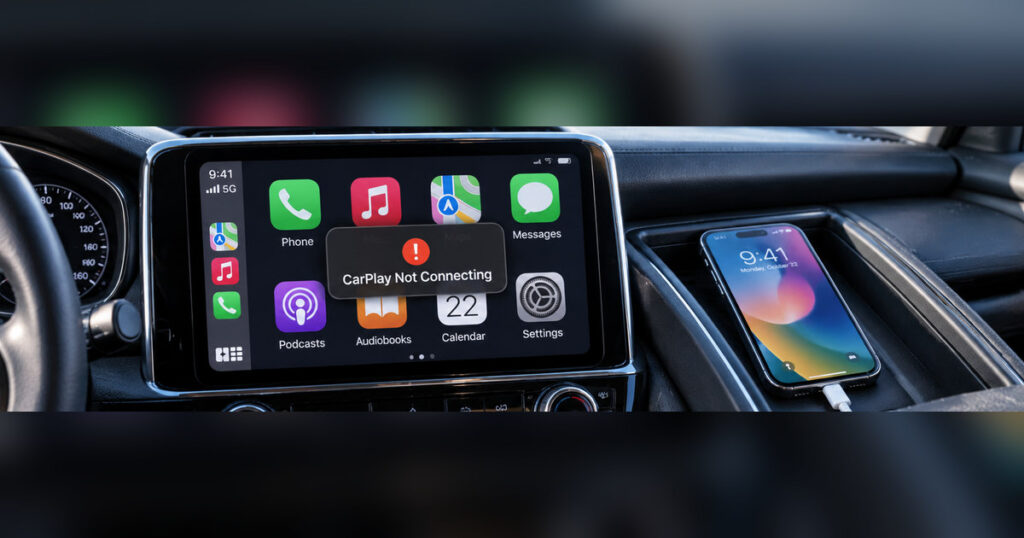
Is Apple CarPlay not working even though your iPhone is connected to your car? Maybe CarPlay suddenly stopped appearing on your dashboard, your phone connects through Bluetooth but CarPlay won’t launch, or the system keeps disconnecting after an iOS update.
Sometimes your iPhone charges when connected to the USB port, but the vehicle never displays CarPlay. Other times, wireless CarPlay works one day and refuses to connect the next.
The good news is that many CarPlay problems can be investigated without resetting your entire iPhone or changing complicated vehicle settings.
Apple recommends checking your connection, Siri, Screen Time permissions, iOS version, and vehicle compatibility before seeking additional support.
In this guide, we’ll explain 12 practical fixes for Apple CarPlay not working, including wired CarPlay failures, wireless pairing problems, USB cable issues, missing dashboard icons, and connection errors after updates.
We’ll start with the easiest checks and explain when the problem may require help from your vehicle manufacturer.
Table of Contents
Quick Answer
If Apple CarPlay isn’t working, try these steps in order:
- Confirm your vehicle and iPhone support CarPlay.
- Open CarPlay manually on your car’s display.
- Check the USB cable and correct USB port.
- Check Wi-Fi and Bluetooth for wireless CarPlay.
- Restart your iPhone and vehicle.
- Make sure Siri is enabled.
- Check Screen Time restrictions.
- Forget your car and pair it again.
- Update your iPhone’s software.
- Check your vehicle’s infotainment firmware.
- Investigate adapters and competing connections.
- Test another connection and contact the appropriate support provider.
Important: Perform all troubleshooting while safely parked. Don’t attempt to change pairing settings, inspect cables, or operate complicated menus while driving.
Why Is Apple CarPlay Not Working?
CarPlay allows a compatible iPhone to display supported apps and information through a vehicle’s infotainment screen.
Depending on your vehicle, CarPlay may connect through USB, wirelessly, or through either method.
Not every vehicle supports wireless CarPlay, even when it includes ordinary Bluetooth connectivity.
When CarPlay stops working, the problem may involve several different components.
USB Connection Problems
A damaged cable, incorrect USB port, faulty adapter, or poor connection may prevent wired CarPlay from starting.
Wireless Connection Problems
Wireless CarPlay depends on compatible vehicle hardware and wireless connectivity. Wi-Fi and Bluetooth settings can affect the connection.
Siri or Restrictions
CarPlay requires Siri to be available and can be restricted through Screen Time settings.
Vehicle Software
Your car’s infotainment system may need a manufacturer-approved software update or configuration change.
iOS Problems
A software update or temporary iPhone issue may affect the connection, although the timing alone doesn’t prove that iOS caused the problem.
The first step is identifying which type of CarPlay connection you’re using.
1. Check CarPlay Compatibility
Before trying to repair anything, confirm that your vehicle actually supports Apple CarPlay.
Some cars support it as standard equipment, while others offer it only with certain trim levels, software packages, or infotainment systems.
Some aftermarket receivers also support CarPlay.
Check Your Car
- Find your vehicle’s make, model, and model year.
- Review its official infotainment specifications.
- Check whether CarPlay is supported.
- Confirm whether the system uses USB, wireless connectivity, or both.
- Read the manufacturer’s pairing instructions.
Apple also provides information about supported CarPlay vehicles.
Wired Versus Wireless
Wired CarPlay: Requires a compatible USB connection between the iPhone and vehicle.
Wireless CarPlay: Requires the vehicle or aftermarket receiver to support wireless CarPlay specifically.
Ordinary Bluetooth audio support does not automatically mean wireless CarPlay is available.
Check Regional Availability
CarPlay also needs to be supported in the country or region where it’s being used.
Apple recommends checking regional and vehicle compatibility before troubleshooting.
If the car doesn’t support CarPlay, connecting an iPhone with a USB cable won’t necessarily activate the feature.
2. Open CarPlay on the Display
Sometimes the iPhone is connected correctly, but the car’s screen continues showing its normal home menu.
Apple recommends looking for the CarPlay logo on the vehicle’s display if CarPlay doesn’t activate automatically.
What to Do
- Park your vehicle safely.
- Turn on the infotainment system.
- Connect your iPhone using the supported method.
- Look for Apple CarPlay, Phone Projection, or a similar menu.
- Select the available CarPlay option.
- Check whether the interface opens.
The exact menu name depends on the manufacturer.
Some systems require the driver to approve CarPlay the first time a device connects.
Check the Vehicle’s Phone Settings
You may find CarPlay under menus such as:
- Smartphone Integration
- Device Connections
- Phone Projection
- Connectivity
- Apple CarPlay
These are examples, not universal menu names.
If the vehicle shows a prompt requesting permission to use CarPlay, review and accept it if appropriate.
If the CarPlay option is completely missing, check the vehicle’s manual and compatibility information.
3. Check the USB Cable
If Apple CarPlay is not working with a wired connection, the USB cable is one of the first things to examine.
Apple recommends trying a different cable and another USB port when available.
Try a Different Cable
- Disconnect your iPhone.
- Examine the cable for damage.
- Use a compatible cable capable of carrying data.
- Connect the cable directly to the supported CarPlay port.
- Unlock the iPhone if requested.
- Check the car display for CarPlay.
Some cables are designed mainly for charging and may not support the data connection needed for CarPlay.
Use the Correct USB Port
Some vehicles have multiple USB ports.
Only certain ports may support CarPlay, while others are intended for charging or media playback.
Look for a CarPlay or smartphone icon.
Consult your vehicle manual if you’re unsure.
iPhone Charges but CarPlay Doesn’t Work
Charging alone doesn’t prove the connection supports CarPlay.
The phone may receive power through a charging-only port even though the vehicle isn’t receiving the required data connection.
Try the manufacturer’s designated CarPlay port.
Check USB-C Adapters
Apple notes that some combinations of USB-C to Lightning adapters, cables, and vehicle systems can disrupt wired CarPlay.
If possible, test a compatible direct USB cable instead of a chain of adapters.
Don’t force connectors into damaged or incompatible ports.
4. Check Wireless CarPlay Settings
If wireless Apple CarPlay is not working, focus on your iPhone’s Wi-Fi and Bluetooth settings.
Apple recommends confirming that both wireless features are enabled.
Check Wi-Fi
- Open Settings on your iPhone.
- Tap Wi-Fi.
- Make sure Wi-Fi is enabled.
- Locate the CarPlay network if it’s listed.
- Tap the network information button.
- Confirm that Auto-Join is enabled when available.
Wireless CarPlay relies on a supported connection between the phone and vehicle.
Turning off Wi-Fi may prevent it from working correctly.
Check Bluetooth
- Open Settings.
- Tap Bluetooth.
- Make sure Bluetooth is enabled.
- Check whether your vehicle appears among paired devices.
- Follow the manufacturer’s pairing procedure if necessary.
Some vehicles require pairing through a specific infotainment menu rather than simply selecting the car in the normal Bluetooth list.
Set Up Wireless CarPlay Again
For supported vehicles:
- Put the car in the appropriate wireless pairing mode.
- Press and hold the steering-wheel voice-command button if your vehicle’s instructions require it.
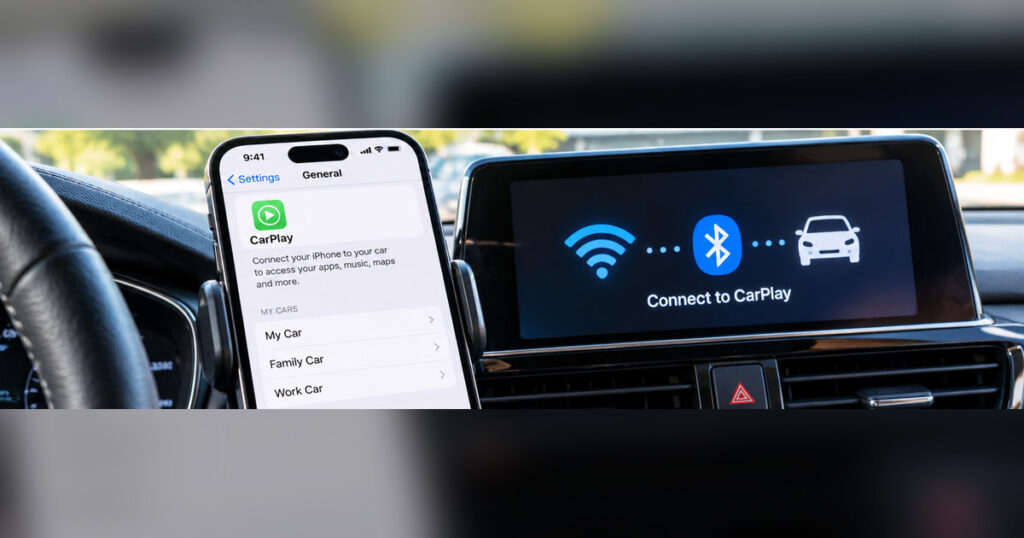
- Open Settings → General → CarPlay.
- Select the vehicle when it appears.
- Follow the onscreen instructions.
Some vehicles support initial USB pairing followed by wireless CarPlay on future trips.
If your iPhone cannot find Bluetooth devices generally, see our iPhone Bluetooth Not Finding Devices guide.
5. Restart the iPhone and Car
Temporary software problems sometimes resolve after a normal restart.
Apple specifically recommends restarting both the iPhone and car when troubleshooting CarPlay.
Restart Your iPhone
For most recent iPhones with Face ID:
- Press and hold the Side button and either Volume button.
- Wait for the power-off slider.
- Drag the slider to turn off the iPhone.
- Wait approximately 30 seconds.
- Press and hold the Side button to restart.
- Unlock your phone.
- Reconnect CarPlay.
For older models, follow the appropriate power-button procedure.
Restart the Vehicle System
Park your vehicle and turn off the infotainment system using the manufacturer’s normal procedure.
Depending on the car, this may involve turning the vehicle off and restarting it after the system shuts down.
Use the owner’s manual for model-specific instructions.
Important: Don’t disconnect a car battery or attempt an undocumented infotainment reset just to fix CarPlay.
That can affect vehicle settings and other systems.
Test Again
After both systems restart, connect your iPhone normally.
If CarPlay starts working, continue using it and observe whether the failure returns.
If it repeatedly disconnects, investigate the connection method rather than restarting indefinitely.
6. Make Sure Siri Is Enabled
Apple lists Siri as a requirement for CarPlay.
If Siri is disabled, CarPlay may not activate or behave as expected.
Check Siri
- Open Settings.
- Locate the Siri settings available on your iOS version.
- Confirm that Siri is enabled and configured.
- Complete any required setup.
- Reconnect CarPlay.
Depending on the iPhone and software version, the settings may appear under Siri or Apple Intelligence & Siri.
The available controls can differ.
Test Siri
Try using Siri normally on your iPhone while parked.
If Siri cannot be activated at all, investigate that issue before attempting more complicated CarPlay resets.
Why Siri Matters
CarPlay uses Siri to support voice-based interactions with compatible apps and functions.
This helps drivers perform supported tasks without handling the phone.
However, enabling Siri does not guarantee that an incompatible USB cable or unsupported vehicle will begin working.
If Siri already works normally, continue to the next step.
7. Check Screen Time Restrictions
Sometimes CarPlay is unavailable because the feature is restricted.
Apple specifically recommends checking Screen Time when the iPhone isn’t detected by CarPlay.
How to Check
- Open Settings.
- Tap Screen Time.
- Select Content & Privacy Restrictions.
- Open Allowed Apps, or the corresponding section shown on your iOS version.
- Find CarPlay.
- Make sure CarPlay is allowed if you’re authorized to change the setting.
Screen Time menus can differ between software versions and managed accounts.
What If the Setting Is Managed?
Some family, school, and employer configurations restrict device capabilities.
If the restriction is controlled by someone else, ask the authorized administrator for help.
Don’t attempt to bypass management settings.
Check CarPlay Again
After confirming that CarPlay is permitted, reconnect your iPhone.
If the car still doesn’t detect the phone, continue with the pairing reset.
8. Forget and Reconnect Your Car
Saved CarPlay pairing information can occasionally stop working properly.
Apple recommends forgetting the vehicle and setting up CarPlay again when simpler checks don’t resolve the issue.
Forget the Saved Car
- Open Settings.
- Tap General.
- Select CarPlay.
- Choose the affected vehicle.
- Tap Forget This Car.
- Confirm the action.
You may also need to remove the old phone pairing from the vehicle’s infotainment system.
Follow your car manufacturer’s instructions.
Pair the Devices Again
For wired CarPlay, reconnect using the designated USB port and a compatible data cable.
For wireless CarPlay, put the vehicle in pairing mode and follow the setup instructions.
Review any prompts asking permission to use CarPlay.
What Will Be Removed?
Forgetting the car removes its saved CarPlay association from your iPhone.
You may need to configure supported preferences again.
It does not ordinarily erase your personal photos, messages, or applications.
Avoid Repeated Pairing Attempts
If the vehicle cannot be found or rejects the pairing every time, check compatibility and firmware.
Repeatedly forgetting and pairing the same device may not resolve the underlying problem.
9. Update Your iPhone
Software compatibility matters when connecting an iPhone to an infotainment system.
Apple recommends using the latest compatible version of iOS.
Check for Updates
- Open Settings.
- Tap General.
- Select Software Update.
- Review available updates.
- Back up your important information before a major update.
- Install an appropriate stable release.
After updating, restart your iPhone if necessary and check CarPlay again.
CarPlay Not Working After Update?
If the problem began immediately after installing iOS, record the software version and affected connection method.
For example, determine whether wired CarPlay works but wireless CarPlay fails.
Check for subsequent compatible updates and review vehicle firmware availability.
A failure appearing after an iOS update doesn’t automatically prove that iOS is the only cause.
Should You Downgrade iOS?
Don’t install unofficial software or attempt unsupported firmware changes simply to restore CarPlay.
Use Apple’s supported update and troubleshooting methods.
If the problem continues across multiple compatible vehicles, contact Apple Support with the exact iOS version and symptoms.
10. Update Vehicle Software
Your vehicle’s infotainment system runs its own software.
Apple recommends checking whether the CarPlay stereo uses the latest firmware from the vehicle manufacturer.
Check the Manufacturer’s Guidance
- Identify the vehicle’s make, model, and year.
- Find the official owner’s manual.
- Review the infotainment software version.
- Check for available manufacturer updates.
- Follow the approved installation process.
Some manufacturers provide updates through dealerships, authorized service centers, USB media, or supported over-the-air systems.
Don’t Install Random Firmware
Vehicle software may be specific to its hardware, region, and configuration.
Installing incompatible firmware can create problems beyond CarPlay.
Use only manufacturer-approved instructions.
CarPlay Settings in the Vehicle
Some vehicles allow smartphone projection to be enabled or disabled in their own settings.
If CarPlay was accidentally disabled, restoring the appropriate setting may resolve the problem.
If you cannot locate the setting, contact the dealership or vehicle manufacturer rather than experimenting with hidden service menus.
11. Check Adapters and Other Phones
Third-party adapters, competing Bluetooth connections, and previously paired phones can complicate troubleshooting.
These issues don’t affect every vehicle, but they’re worth investigating when the basic connection appears correct.
Remove Unnecessary Adapters
If you’re using a wired-to-wireless CarPlay adapter, temporarily remove it and test the vehicle’s original supported connection.
A third-party adapter adds another device and software layer to the connection.
If direct CarPlay works but the adapter fails, investigate that accessory separately.
Check Other Paired Phones
Some vehicles automatically connect to a previously paired phone.
If multiple phones regularly use the same car, review the active device shown on the infotainment system.
Disconnect another phone temporarily if you are authorized to do so.
Then pair the intended iPhone again.
Review Wireless Interference
Wireless connection problems may sometimes be influenced by surrounding radio activity or vehicle-specific compatibility behavior.
However, interference should not be assumed without testing.
Try connecting in a safe, stationary location and compare the results.
Check the iPhone Port
For wired connections, examine the iPhone charging port for obvious damage or debris.
Don’t insert sharp or metallic objects into the port.
If the connector is loose or physically damaged, consult Apple Support.
12. Identify the Remaining Problem
If Apple CarPlay is not working after the recommended checks, identify which component still fails.
This can save time and prevent unnecessary repairs.
Test Another Compatible iPhone
If possible, connect another compatible iPhone to your vehicle with permission.
Use the same connection method.
If the second iPhone works normally, focus on the original phone’s settings, software, and port.
If neither phone works, the vehicle or its CarPlay connection may deserve closer attention.
Test Another Car
If you have access to another compatible vehicle, try connecting the affected iPhone.
If CarPlay works in the second car, investigate the first vehicle’s USB port, wireless pairing, firmware, or infotainment settings.
If it fails in both vehicles, contact Apple Support.
Contact the Right Provider
Contact Apple Support when the iPhone has problems with CarPlay settings, Siri, software, or its physical connection port.
Contact the vehicle manufacturer or dealership when the infotainment system fails to detect multiple compatible phones or requires a software update.
Contact an adapter manufacturer when the original wired connection works but its third-party wireless adapter does not.
Avoid replacing vehicle hardware before confirming what actually failed.
Wireless Apple CarPlay Not Working?
Wireless CarPlay problems need slightly different troubleshooting from wired failures.
Start with Wi-Fi and Bluetooth.
Confirm that your vehicle supports wireless CarPlay specifically.
Then check whether the car is in its correct pairing mode and whether the CarPlay Wi-Fi network has Auto-Join enabled.
If a wireless connection was previously working, forget the car and pair it again after checking the simpler settings.
If the iPhone’s Wi-Fi also repeatedly disconnects from ordinary networks, see our iPhone Wi-Fi Keeps Disconnecting guide.
Remember that wireless CarPlay is not identical to ordinary Bluetooth audio streaming.
A working Bluetooth connection doesn’t guarantee that wireless CarPlay is correctly configured.
Wired CarPlay Not Working?
For a wired connection, focus on the USB path.
Try the designated CarPlay port.
Use a compatible cable capable of transferring data.
Check the phone’s USB connector and avoid unnecessary adapters.
If the phone charges but CarPlay doesn’t appear, confirm that the vehicle’s USB port actually supports CarPlay.
Select the CarPlay interface manually on the dashboard if necessary.
If different phones and cables fail through the same port, the vehicle may need professional attention.
CarPlay Not Working After iOS Update?
If CarPlay stopped connecting after a software update, start by restarting your iPhone and vehicle.
Review Siri and Screen Time settings.
Then determine whether both wireless and wired CarPlay fail, or only one method.
Check for another compatible iOS update and an infotainment firmware update.
If the issue persists, forget the saved vehicle connection and set it up again.
Record the iOS version, vehicle model, and failure pattern before contacting support.
Avoid an unnecessary factory reset.
CarPlay Connected but No Sound?
If CarPlay appears normally but you can’t hear music or navigation instructions, the connection itself may already be functioning.
Check the vehicle’s media volume and selected audio source.
Some vehicles control navigation prompts and media audio separately.
Test more than one supported app to determine whether the issue is app-specific.
If phone calls are also silent, check the car’s call-volume settings and audio routing.
If only one music or navigation app fails, troubleshoot that application rather than resetting the entire CarPlay pairing immediately.
If your iPhone has general audio problems even outside the car, read our iPhone Speaker Not Working guide.
CarPlay Not Showing on the Screen?
If the vehicle detects the phone but the CarPlay interface never appears, look for a CarPlay or Phone Projection icon on its display.
Check whether smartphone integration is enabled in the vehicle settings.
On the iPhone, review Settings → General → CarPlay and confirm that the vehicle is recognized.
If your car normally asks permission during setup, complete the legitimate pairing prompts.
If the icon is still missing, consult the manufacturer’s instructions and verify that your particular infotainment system supports the feature.
Does CarPlay Need Internet?
The CarPlay connection itself is not the same as your iPhone’s cellular internet connection.
A compatible vehicle can display the CarPlay interface through a supported wired or wireless connection.
However, online navigation, streamed music, traffic updates, and certain apps may need working internet access.
If CarPlay appears normally but online content won’t load, check cellular service and the relevant app.
For broader connectivity issues, see our iPhone Cellular Data Not Working guide.
If the CarPlay interface never appears at all, an internet connection is unlikely to be the only issue.
Frequently Asked Questions
Why is Apple CarPlay not working?
Possible causes include an incompatible USB cable, disabled Wi-Fi or Bluetooth, Siri settings, Screen Time restrictions, outdated vehicle firmware, or incorrect pairing. Identify whether you use wired or wireless CarPlay first.
How do I fix Apple CarPlay not working?
Start by checking vehicle compatibility and opening CarPlay manually. Then test the USB cable or wireless settings, restart both devices, verify Siri and Screen Time permissions, and reconnect the vehicle if necessary.
Why is my iPhone charging but CarPlay not working?
The USB port may support charging without CarPlay, or the cable may not support the required data connection. Try the vehicle’s designated CarPlay port and a compatible data cable.
Why is wireless CarPlay not connecting?
Make sure your vehicle supports wireless CarPlay, Wi-Fi and Bluetooth are enabled, and the vehicle is in its supported pairing mode. Check Auto-Join for the CarPlay Wi-Fi network.
Can Bluetooth work while CarPlay doesn’t?
Yes. Ordinary Bluetooth audio connectivity and CarPlay are different features. A successful Bluetooth connection doesn’t guarantee that CarPlay has been configured or activated.
Does Siri need to be enabled for CarPlay?
Yes. Apple lists Siri among the requirements to check when setting up or troubleshooting CarPlay.
Why did CarPlay stop after updating iOS?
A compatibility or configuration issue may have appeared around the update, but the timing alone doesn’t establish the cause. Check available updates, restart both devices, and review pairing and vehicle firmware.
Does resetting network settings fix CarPlay?
It might affect some networking configurations, but Apple doesn’t recommend a network reset as the first CarPlay troubleshooting step. Use targeted connection, pairing, and software checks first.
How do I reset my CarPlay connection?
Open Settings → General → CarPlay, select your vehicle, and choose Forget This Car. Then follow the manufacturer’s instructions to set it up again.
Can I use CarPlay without a USB cable?
Yes, if your vehicle supports wireless CarPlay. A vehicle with wired CarPlay only requires its supported USB connection unless a compatible third-party solution is used.
Why is CarPlay not showing on my dashboard?
The vehicle may not have switched to the CarPlay interface automatically, smartphone projection may be disabled, or the connection may have failed. Look for the CarPlay icon and check the car’s settings.
Should I factory reset my iPhone to fix CarPlay?
Usually not. A factory reset is disruptive and unnecessary for many connection problems. Follow Apple’s targeted troubleshooting guidance and seek support before considering it.
Final Thoughts
If Apple CarPlay is not working, the best approach is to identify the connection method and the exact point of failure.
For wired CarPlay, test the designated USB port, a suitable data cable, and any adapters.
For wireless CarPlay, check Wi-Fi, Bluetooth, Auto-Join, and the vehicle’s pairing procedure.
Next, restart the devices, verify Siri and Screen Time permissions, and reconnect the car if necessary.
Keep your iPhone and vehicle’s software updated through official channels.
If CarPlay still won’t work, testing another phone or compatible vehicle may help reveal whether the problem lies with the iPhone or infotainment system.
Most importantly, make changes while parked and avoid unnecessary factory resets or unsafe vehicle-system modifications.
A careful sequence of checks is more useful than changing every setting at once.
Official Apple References
- Apple Support: If You Can’t Connect Your iPhone to CarPlay
- Apple Support: How to Connect Your iPhone to Your Car
- Apple iPhone User Guide: Connect to CarPlay
- Apple: CarPlay
Last reviewed: October 22, 2026. Available settings, connection procedures, and features can vary by iPhone model, iOS version, vehicle manufacturer, and infotainment system.