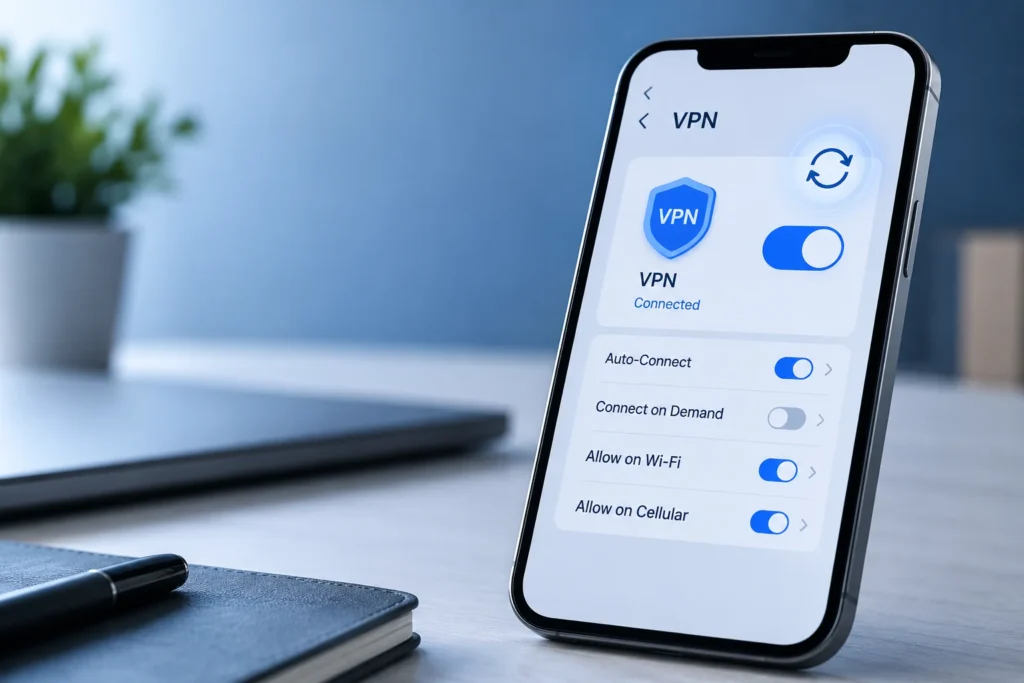
Does your iPhone VPN keep turning on even after you switch it off? You disconnect the VPN, but seconds later, the VPN icon returns. Sometimes it happens when you unlock your iPhone, connect to Wi-Fi, or switch to cellular data.
This can be confusing, especially when you aren’t trying to use a VPN.
Fortunately, the problem doesn’t always indicate a software bug or security issue. Many VPN applications are designed to reconnect automatically, while some security tools and workplace settings create their own VPN connections.
In this guide, we’ll explain 10 ways to stop an iPhone VPN from reconnecting automatically, starting with simple settings and moving to more advanced troubleshooting.
Table of Contents
Quick Answer: Stop VPN Auto-Connect
If your iPhone VPN keeps turning on automatically, try these steps first:
- Open your VPN application and look for Auto-Connect or Always On settings.
- Disable automatic reconnection if you don’t need it.
- Open Settings → General → VPN & Device Management → VPN.
- Check whether the VPN configuration has a Connect On Demand option.
- Turn that option off if the VPN belongs to you and the setting is available.
- Restart your iPhone and test whether the VPN stays disconnected.
If the VPN belongs to your employer or school, contact the administrator before changing its configuration.
Why Does My iPhone VPN Keep Turning On?
Your iPhone can reconnect to a VPN for several reasons.
The most common include:
- Your VPN application has an automatic connection feature.
- The VPN profile uses Connect On Demand.
- A security, filtering, or parental-control app is managing a VPN connection.
- Your iPhone has a work or school management profile.
- An old VPN configuration is still installed.
- The VPN reconnects when you switch between Wi-Fi and cellular data.
The timing often reveals the cause. For example, a VPN that reconnects whenever you join public Wi-Fi may have an automatic network-protection feature enabled.
A VPN that turns on when you open a work application may be controlled by an organization.
Identify the cause before deleting anything.
1. Check Your VPN Application
Start by identifying the application responsible for the connection.
Common VPN providers offer automatic connection features that can remain active even when you disconnect the VPN manually.
To investigate:
- Open Settings on your iPhone.
- Select General.
- Tap VPN & Device Management.
- Open VPN, if available.
- Review the VPN configurations listed.
- Note the name of the connected service.
Next, open the corresponding VPN application.
Look for its connection status and available connection preferences.
If you don’t recognize the listed service, investigate it before making changes. Some security applications use VPN technology without advertising themselves primarily as VPN apps.
2. Disable Auto-Connect in the VPN App
Many VPN applications have settings designed to reconnect automatically.
These settings may be called:
- Auto-Connect
- Automatic Connection
- Connect on Startup
- Always On
- Network Protection
- Trusted Networks
The exact wording depends on your VPN provider.
To change the setting:
- Open your VPN application.
- Go to its Settings or Preferences section.
- Find automatic connection options.
- Disable the options you don’t want.
- Disconnect the VPN.
- Close and reopen the app to check whether the change was saved.
Test the connection again after locking and unlocking your iPhone.
Important: Disabling auto-connect may leave your internet traffic outside the VPN connection. Only change this setting if you understand the protection you’re disabling.
3. Turn Off Connect On Demand
Apple supports a feature called VPN On Demand.
It allows a configured VPN to establish a connection automatically when particular network conditions are met.
This means your iPhone may reconnect even when you manually turn the VPN off.
To check:
- Open Settings.
- Tap General.
- Select VPN & Device Management.
- Open VPN.
- Tap the information icon beside the relevant VPN configuration, if available.
- Look for Connect On Demand.
- Turn it off if the option is present, editable, and not required by an organization.
Not every VPN configuration exposes this control.
If the setting is missing or locked, the application or organization managing the configuration may control it.
Apple explains how automatic VPN connections work in its VPN deployment documentation.
4. Check Security and Filtering Apps
Sometimes your VPN keeps turning on because another application manages network traffic.
Examples include:
- Antivirus applications
- DNS filtering services
- Parental-control tools
- Firewall applications
- Ad-blocking services that use VPN configurations
Some of these apps create a local VPN connection to filter traffic rather than sending everything through a traditional remote VPN server.
To investigate:
- Open your installed security or filtering applications.
- Review their network protection settings.
- Identify any automatic VPN or filtering options.
- If you manage the device and the feature is optional, temporarily disable it for testing.
- Check whether the VPN still reconnects.
If the VPN stops reconnecting after you change one application’s settings, you’ve identified a likely cause.
Restore protection if you need that application for security or parental controls.
Apple also recommends checking third-party VPN and security software when an iPhone experiences unexpected network behavior.
5. Review Work or School Profiles
Some iPhones have VPN settings managed by employers, schools, or other organizations.
These profiles can automatically connect devices to approved networks.
To check:
- Open Settings.
- Select General.
- Tap VPN & Device Management.
- Review any management or configuration profiles.
- Check whether the VPN belongs to an organization.
If your iPhone is managed, you may not be permitted to disable the connection.
Some organizations use Always On VPN or per-app VPN configurations to protect business data.
Do not delete a workplace or school profile just to stop the VPN. Removing it can affect work email, managed apps, certificates, and access to company resources.
Contact your IT administrator and explain when the VPN reconnects.
6. Remove an Unused VPN Configuration
An old VPN configuration may remain installed after you stop using a particular service.
If the profile belongs to you and is no longer needed, removing it may prevent unwanted reconnection.
Follow these steps:
- Open Settings → General → VPN & Device Management.
- Open the VPN section.
- Select the configuration you want to investigate.
- Look for an option to delete or remove the VPN configuration.
- Confirm only if you recognize the configuration and no longer need it.
- Restart your iPhone.
Some configurations must be removed through the application that installed them.
If the configuration is part of a larger profile, removing that profile can also remove associated settings or accounts.
Never delete an unfamiliar managed profile without checking who installed it.
7. Test Wi-Fi and Cellular Connections
Does your VPN reconnect only when you join Wi-Fi?
Or does it switch on when your iPhone moves from Wi-Fi to cellular data?
This distinction helps identify automatic connection rules.
Try this test:
- Disconnect your VPN.
- Connect to your trusted home Wi-Fi network.
- Check whether the VPN reconnects.
- Turn off Wi-Fi and switch to cellular data.
- Check the VPN status again.
- Compare the results.
If the VPN reconnects only on one type of network, check whether the VPN application has network-specific auto-connect preferences.
For example, some apps can connect automatically on untrusted Wi-Fi networks.
If your internet connection also fails when the VPN reconnects, read our guide to fixing an iPhone connected to Wi-Fi without internet.
8. Restart and Update Your iPhone
If you have disabled automatic connection features but the VPN still behaves unexpectedly, restart your device.
For an iPhone with Face ID:
- Press and hold the side button and either volume button.
- Drag the power-off slider.
- Wait approximately 30 seconds.
- Press and hold the side button until the Apple logo appears.
After restarting, review the VPN status.
You should also check for software updates.
Go to Settings → General → Software Update.
Install an appropriate update if one is available, preferably after backing up important information.
Next, open the App Store and check whether your VPN application has an update.
Updates may address compatibility problems, although they won’t override an intentionally configured automatic connection rule.
9. Contact Your VPN Provider
If your VPN keeps reconnecting despite changing the available settings, the VPN provider may need to investigate.
Before contacting support, record:
- Your iPhone model
- Your iOS version
- The VPN application and version
- Whether auto-connect is enabled
- Whether the connection returns on Wi-Fi, cellular data, or both
- Whether the iPhone has a management profile
Explain the pattern clearly.
For example:
“My VPN reconnects about 10 seconds after I disconnect it, even though I turned off automatic connection. This happens on both Wi-Fi and cellular data.”
This gives the support team more useful information than simply saying the VPN isn’t working.
If you use a managed VPN, contact your organization instead of the consumer VPN provider.
10. Reset Network Settings as a Last Resort
If nothing else works and the iPhone is personally managed, consider resetting network settings.
This is a more disruptive troubleshooting step and should not be your first solution.
Apple explains that a network reset removes saved network configurations, including Wi-Fi networks and passwords, along with certain cellular, VPN, and APN settings.
However, VPN settings installed through configuration profiles or mobile device management may remain.
Before resetting:
- Make sure you know your Wi-Fi passwords.
- Save any VPN configuration details you will need later.
- Check whether your device uses managed network settings.
To reset:
- Open Settings.
- Tap General.
- Select Transfer or Reset iPhone.
- Tap Reset.
- Choose Reset Network Settings.
- Confirm the action.
This does not normally erase photos, messages, or installed applications.
Afterward, reconnect to Wi-Fi and review your VPN configuration.
Warning: Do not choose Erase All Content and Settings. That is a different operation and is not necessary for normal VPN troubleshooting.
Is iCloud Private Relay the Same as a VPN?
No.
Apple’s iCloud Private Relay is a privacy feature available with iCloud+ in supported countries and regions.
It helps protect Safari browsing activity by routing supported traffic through two separate relays.
A traditional VPN can route traffic through a VPN service based on the provider’s configuration.
Private Relay is not the same as a device-wide VPN connection.
If you see a VPN indicator, check your VPN configurations and filtering applications rather than assuming Private Relay caused it.
You can review Private Relay under Settings → [your name] → iCloud → Private Relay when the feature is available on your account.
How to Check if the VPN Is Fixed
After changing the relevant settings, perform a simple test.
- Disconnect the VPN.
- Wait briefly and check its status.
- Lock and unlock your iPhone.
- Open Safari and load a trusted website.
- Switch between Wi-Fi and cellular data.
- Restart the iPhone once more if necessary.
If the VPN remains disconnected when you expect it to, the unwanted reconnection behavior may be resolved.
If the problem returns only after launching one application, investigate that application’s network settings.
If websites stop loading during testing, see our guide on Safari not loading websites on iPhone.
Frequently Asked Questions
Why does my iPhone VPN turn on by itself?
The most common causes include VPN auto-connect settings, Connect On Demand rules, security applications, and organization-managed VPN configurations.
Why won’t my iPhone VPN stay off?
An application or profile may be configured to reconnect automatically. Check the VPN app first, then review VPN & Device Management in Settings.
Does turning off Wi-Fi stop a VPN?
Not necessarily. Many VPNs work over both Wi-Fi and cellular data. Disconnecting Wi-Fi can cause the VPN to reconnect using the cellular network.
Can an iPhone have a VPN without a VPN app?
Yes. A VPN configuration can be installed through a configuration profile or a device management system. Some security and filtering applications also manage VPN connections.
Is it safe to turn off a VPN on my iPhone?
That depends on why you use it. Disconnecting a personal VPN may reduce privacy protection. Disabling a required work VPN can interrupt access to organizational services or violate your workplace’s security requirements.
Will resetting network settings remove my VPN?
It may remove VPN configurations that were not installed through a management or configuration profile. Managed VPN settings can remain. Resetting should be a last resort.
Does a VPN that keeps turning on mean my iPhone is hacked?
Not necessarily. Automatic VPN reconnection is often caused by legitimate app settings or managed configurations. However, an unfamiliar profile or application deserves investigation.
Final Thoughts
If your iPhone VPN keeps turning on, begin by checking the VPN application rather than immediately resetting your device.
Automatic connection options and Connect On Demand settings explain many cases of unexpected reconnection.
If the VPN belongs to another application or an organization, identify its purpose before changing anything.
Only remove configurations you recognize and control. If the VPN continues reconnecting, contact the provider or administrator with details about when the problem occurs.
The goal is to restore control over your connection without unnecessarily removing useful security protections.