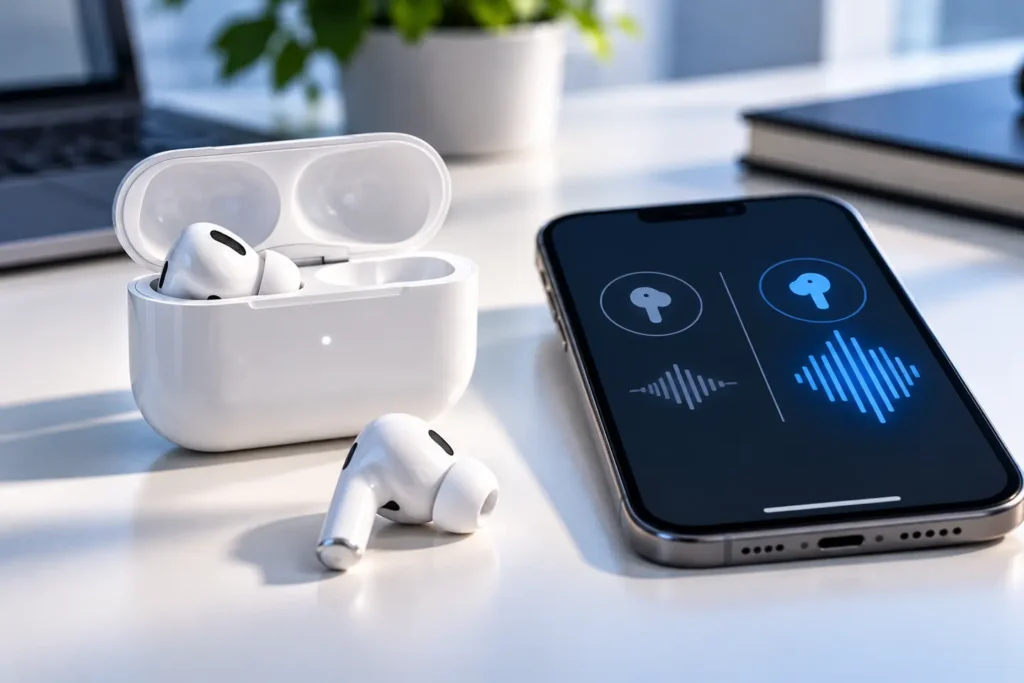
Are your AirPods one side not working even though the other earbud plays music normally? Maybe your left AirPod has suddenly gone silent, your right AirPod sounds much quieter, or one earbud stops working whenever you take it out of the charging case.
It’s a frustrating problem, especially when your AirPods still appear connected to your iPhone.
Fortunately, a silent AirPod doesn’t always mean the speaker is damaged. The problem can result from a drained battery, a poor charging connection, blocked speaker mesh, incorrect audio balance, or a temporary connection issue.
This guide explains 12 practical fixes for an AirPod that isn’t working on one side, including steps for regular AirPods and AirPods Pro. We’ll start with simple checks before moving to cleaning, settings changes, and model-specific resets.
Table of Contents
Quick Answer: How to Fix AirPods One Side Not Working
If only your left or right AirPod plays sound, try these steps first:
- Put both AirPods into their charging case.
- Make sure the case has sufficient battery power.
- Let both AirPods charge for at least 30 seconds.
- Open the case near your iPhone and check each earbud’s battery level.
- Put the silent AirPod in your ear while leaving the working one in the case.
- Close the case lid and play audio to test the silent earbud.
- Check Settings → Accessibility → Audio & Visual → Balance and center the slider.
- Inspect the speaker mesh for dirt or debris.
If the problem continues, restart or reset your AirPods using the correct method for your model.
These initial checks follow Apple’s recommended troubleshooting approach for an AirPod that doesn’t play sound.
Why Is Only One AirPod Working?
AirPods connect wirelessly to your iPhone, and each earbud has its own battery and internal components.
That means one AirPod may stop working while the other continues playing normally.
Common causes include:
- One earbud has a discharged battery.
- The AirPod isn’t making proper contact inside its charging case.
- Earwax or debris is blocking the speaker mesh.
- The iPhone’s stereo balance favors one side.
- Automatic Ear Detection isn’t behaving as expected.
- A temporary Bluetooth or firmware problem is affecting playback.
- One AirPod has experienced physical or liquid damage.
The symptoms can help identify the cause.
For example, an AirPod that works after charging likely had a power-related problem. An AirPod that plays very quietly may have blocked speaker mesh or an audio setting issue.
Let’s identify the problem before making changes.
1. Identify Which AirPod Has the Problem
Before troubleshooting, determine whether the left AirPod, right AirPod, or both are affected.
This is important because one-sided silence and a failed Bluetooth connection are different problems.
Follow these steps:
- Connect your AirPods to your iPhone.
- Play a familiar song or podcast.
- Listen through both earbuds.
- Remove the right AirPod and test the left one.
- Put the left AirPod back and test the right one.
- Note whether either side is completely silent, unusually quiet, or intermittently disconnecting.
You may notice one of three situations.
One AirPod is completely silent: Start by checking its battery and charging connection.
One AirPod is significantly quieter: Inspect the speaker mesh and audio balance settings.
One AirPod connects and disconnects: Investigate charging, Bluetooth stability, and automatic ear detection.
If both AirPods fail to connect, that’s a different issue. See our AirPods Not Connecting to iPhone troubleshooting guide.
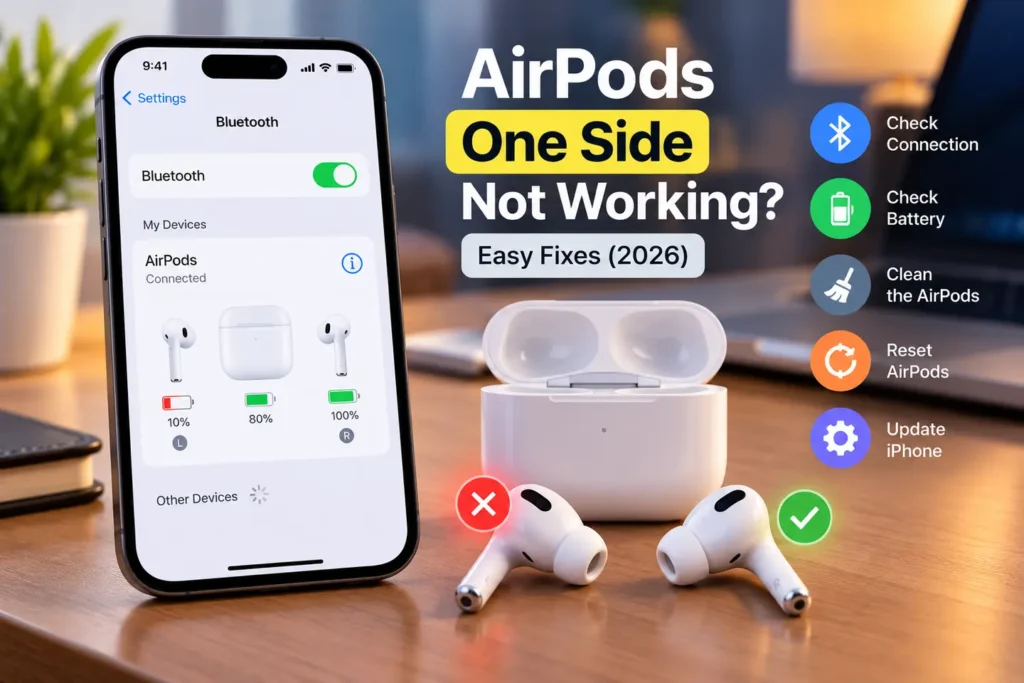
2. Charge Both AirPods and Check Their Battery Levels
The most useful early fix when your AirPods one side is not working is to check whether both earbuds have enough power.
One AirPod can run out of battery before the other. Different usage patterns, microphone activity, and charging behavior can contribute to uneven battery levels.
Apple recommends placing both earbuds in their charging case for at least 30 seconds before testing again.
Charge both earbuds
- Put both AirPods into the charging case.
- Check that each earbud sits properly in its slot.
- Close the lid.
- Connect the case to a compatible power source if needed.
- Allow both AirPods to charge.
- Open the case near your unlocked iPhone.
Check each battery
You can view AirPods battery information using the charging-case popup or the Batteries widget when supported.
Look for the left and right earbud battery readings.
If the silent AirPod is at 0% while the other has plenty of charge, the problem may be battery-related.
Leave the AirPods charging longer and test again.
If one side still reports an empty battery after the case has been charged, inspect its seating and charging connection.
Important: A charged case does not guarantee that both earbuds are charging properly.
3. Inspect the Charging Case and Reseat the Earbuds
Sometimes an AirPod doesn’t charge because it isn’t correctly seated inside the case.
A small amount of debris, an incorrectly positioned earbud, or a dirty contact area may interfere with charging.
Try the following:
- Remove both AirPods from the case.
- Inspect their charging ends for visible dirt or damage.
- Look inside the case for obvious debris.
- Gently wipe the exterior of each AirPod with a clean, dry, lint-free cloth.
- Put the earbuds back into their correct slots.
- Check that they sit securely.
- Close the lid and allow them to charge again.
Apple recommends using appropriate cleaning methods for the case and avoiding sharp objects or abrasive materials.
Do not insert metal tools, pins, or cotton swabs soaked in liquid into the charging slots.
Also avoid spraying cleaning solutions directly inside the case.
If only one AirPod consistently fails to charge, the problem could involve the earbud, its battery, or the corresponding charging slot.
At that point, additional testing may be necessary.
4. Test the Silent AirPod by Itself
This is one of Apple’s most useful diagnostic steps.
Instead of testing both earbuds together, isolate the one that isn’t working.
Here’s how:
- Place both AirPods in their charging case.
- Let them charge for at least 30 seconds.
- Open the case near your iPhone.
- Check whether both earbuds show charging status.
- Remove only the AirPod that wasn’t working.
- Put that AirPod in the appropriate ear.
- Leave the other AirPod inside the charging case.
- Close the case lid.
- Make sure the AirPod connects to your iPhone.
- Play music or another audio source.
If the previously silent AirPod plays normally, put both earbuds back into the case, charge them briefly, and test them together again.
If it remains completely silent, continue with the following checks.
Why this matters: Testing one AirPod at a time helps determine whether the issue is specific to the earbud or appears only when both are being used.
5. Clean the Speaker Mesh Safely
If one AirPod plays very quietly rather than remaining completely silent, the speaker mesh is worth inspecting.
Earwax, dust, and debris can accumulate around the sound outlet and reduce perceived volume.
To investigate:
- Remove the affected AirPod.
- Examine its speaker opening under good lighting.
- If using AirPods Pro, carefully remove the silicone ear tip when appropriate for your model.
- Look for visible debris around the speaker mesh.
- Follow Apple’s cleaning instructions for your exact AirPods generation.
- Allow the earbuds to dry completely before using them if the recommended cleaning method involves moisture.
Cleaning procedures vary between regular AirPods and AirPods Pro models.
Apple provides model-specific instructions, including particular cleaning supplies and drying times for certain models.
Do not push sharp objects into the speaker mesh or place the earbuds under running water.
Avoid using random cleaning liquids, excessive moisture, or compressed air unless your model’s official guidance specifically permits the method.
After cleaning, test the affected AirPod again.
Official instructions:
6. Check the iPhone’s Left and Right Audio Balance
If your AirPods one side is not working but both earbuds appear connected and charged, check the iPhone’s stereo balance setting.
Your iPhone allows you to adjust audio toward the left or right channel.
If the balance is moved too far to one side, the opposite earbud may sound extremely quiet or silent.
To check:
- Open Settings.
- Tap Accessibility.
- Select Audio & Visual.
- Find the Balance slider.
- Move the slider to the center.
- Play an audio track and test both AirPods.
Apple recommends centering the balance slider when one AirPod is louder or quieter than the other.
Check Mono Audio if necessary
On the same Audio & Visual screen, you’ll also find Mono Audio.
This combines left and right audio content into a single channel for playback on both sides.
You can temporarily enable it to test whether the issue depends on audio channel content, but it won’t repair an earbud with a defective speaker or battery.
Return Mono Audio to your preferred setting after testing.
If centering Balance restores normal playback, no hardware repair is necessary.
7. Check Bluetooth Connection and Audio Output
Sometimes your AirPods are connected, but the audio is being routed somewhere unexpected.
This usually affects the overall connection rather than a single earbud, but it’s worth checking before resetting anything.
To confirm the connection:
- Open Settings → Bluetooth.
- Make sure Bluetooth is enabled.
- Locate your AirPods under connected devices.
- Check whether the connection is active.
- Start playing audio.
- Open Control Center.
- Tap the audio-output selector.
- Choose your AirPods if they aren’t already selected.
Make sure your iPhone isn’t sending audio to a Bluetooth speaker or another device.
Next, try playing audio through a different app.
If only one app produces uneven sound, the content or application settings may be responsible.
If one earbud repeatedly loses connection, you can also review our iPhone Bluetooth Keeps Disconnecting guide.
8. Test Automatic Ear Detection
AirPods use sensors to detect when they’re being worn.
With Automatic Ear Detection enabled, audio can pause or switch to your device’s speakers when the AirPods are removed.
If ear detection isn’t responding properly, playback may behave unexpectedly.
To test:
- Wear both AirPods and connect them to your iPhone.
- Open Settings.
- Tap the name of your AirPods near the top of the Settings screen.
- Find Automatic Ear Detection.
- If you don’t see it, look under Audio & Routing, where available.
- Temporarily turn Automatic Ear Detection off.
- Play audio and check whether the previously silent side works.
When this setting is disabled, your iPhone can continue routing audio to the AirPods even when they aren’t being worn.
If turning it off changes the problem, ear detection could be involved.
Re-enable the feature if you prefer its normal automatic playback behavior.
This is a diagnostic test, not a guaranteed fix for every one-sided audio problem.
9. Restart Your AirPods and iPhone
Temporary connection issues can occasionally affect audio playback.
Restarting your AirPods is less disruptive than removing the Bluetooth pairing or resetting them.
Restart the AirPods
For regular AirPods and AirPods Pro:
- Put both earbuds in the charging case.
- Close the lid.
- Wait at least 10 seconds.
- Open the lid again.
- Reconnect them to your iPhone.
- Test both earbuds.
Restart the iPhone
For iPhones with Face ID:
- Press and hold the Side button and either Volume button.
- Drag the power-off slider.
- Wait approximately 30 seconds.
- Hold the Side button until the Apple logo appears.
- Unlock the iPhone and reconnect your AirPods.
For iPhones with a Home button, follow the appropriate Apple restart instructions for your model.
Restarting normally doesn’t erase your photos, messages, or applications.
After both devices restart, check whether the affected AirPod plays normally.
10. Update iOS and Allow AirPods Firmware Updates
Software compatibility and firmware can affect the way AirPods communicate with an iPhone.
Updating your iPhone is a reasonable troubleshooting step when the problem began after a software change or when other Bluetooth issues are present.
Check for an iOS update
- Open Settings.
- Tap General.
- Select Software Update.
- Review any compatible update available.
- Back up important data.
- Follow the update instructions.
Check AirPods firmware
AirPods firmware updates are delivered automatically under supported conditions.
According to Apple, you can help the update process by:
- Ensuring the AirPods are paired with a compatible iPhone, iPad, or Mac.
- Connecting that device to Wi-Fi.
- Placing the AirPods inside their charging case.
- Connecting the case to a power source.
- Closing the case lid.
- Keeping the case close to the paired device for at least 30 minutes.
Afterward, reconnect and test the AirPods.
There isn’t a standard manual Update Firmware button for AirPods in the iPhone Settings app.
Updating software may help with compatibility problems, but it can’t repair physical speaker or battery damage.
See Apple’s AirPods Firmware Update Guide.
11. Reset Your AirPods Using the Correct Method
If your AirPods one side is not working after charging, cleaning, and checking the settings, a reset may help resolve persistent connection problems.
However, not every AirPods generation uses the same reset method.
First, open Settings → Bluetooth, tap the information button next to your AirPods, and choose Forget This Device.
Remember that forgetting AirPods can also affect their saved pairing across other Apple devices associated with your Apple Account.
AirPods 1, 2, 3, and AirPods Pro 1 or 2
- Put both AirPods in the charging case.
- Close the lid and wait approximately 30 seconds.
- Forget the AirPods from your iPhone if they’re listed.
- Open the charging-case lid.
- Press and hold the setup button on the back of the case for about 15 seconds.
- Wait until the status light flashes amber and then white.
- Bring the case near your iPhone.
- Follow the onscreen instructions to reconnect.
AirPods 4, AirPods 5, and AirPods Pro 3
For these newer models, Apple documents a front-of-case tap sequence instead of the older rear-button procedure.
- Put the earbuds in the charging case.
- Close the lid for approximately 30 seconds.
- Forget the AirPods from Bluetooth settings if they’re listed.
- Open the lid.
- Double-tap the front of the case while its status light is on.
- Double-tap again when the status light flashes white.
- Double-tap a third time when the light flashes more quickly.
- Wait for the light to flash amber, then white.
- Reconnect using your iPhone’s setup instructions.
If your AirPods don’t respond to these controls, verify their exact model before repeating the procedure.
Important: Resetting AirPods is not the same as resetting your iPhone. You shouldn’t erase your iPhone or reset all network settings simply because one AirPod is silent.
See Apple’s Official AirPods Reset Instructions.
12. Test Another Device and Contact Apple Support
If one AirPod remains silent after the previous checks, test the pair with another compatible device if one is available.
This can help distinguish an iPhone-specific issue from a problem involving the AirPods themselves.
For example:
- Confirm that both AirPods are charged.
- Connect them to another compatible phone, tablet, or computer.
- Play a familiar audio track.
- Test each earbud separately.
- Check whether the same side remains silent.
If the problem follows the same AirPod across devices, the earbud itself may be at fault.
Possible causes include a failing battery, damaged speaker, charging component problem, or internal hardware issue.
However, these tests alone don’t establish a definite hardware diagnosis.
Contact Apple Support or an authorized service provider for an assessment.
Apple offers service and replacement options for AirPods. Availability and cost depend on your model, warranty coverage, and the results of the inspection.
You can start at Apple AirPods Service and Repair.
Left AirPod Not Working but Right AirPod Is Fine
If your left AirPod isn’t playing sound, begin by checking its battery level independently.
Put both AirPods in the case, allow them to charge, and confirm whether the left AirPod shows a charging status.
Then test only the left AirPod while the right stays in the charging case.
If the left AirPod plays very quietly rather than remaining completely silent, inspect its speaker mesh and center your iPhone’s audio balance slider.
If it consistently fails to charge or remains silent across different devices, consider getting the earbud inspected.
The same troubleshooting principles apply to a silent right AirPod.
Right AirPod Not Working After Charging
If the right AirPod remains silent after the charging case has been connected to power, don’t assume the earbud actually received a charge.
Check the right AirPod’s individual battery reading.
Remove it from the case, inspect for obvious debris, and reseat it properly.
Then allow more time for charging.
If the right battery never increases while the left one charges normally, the problem could involve its charging connection or battery.
If the right AirPod shows a healthy battery but remains silent, proceed to the independent audio test, cleaning checks, and audio balance settings.
One AirPod Is Much Quieter Than the Other
A quieter AirPod is not always suffering from the same issue as a completely silent earbud.
If audio is still audible, check the speaker mesh first.
Dirt or accumulated debris can interfere with sound output.
Next, open Settings → Accessibility → Audio & Visual and center the Balance slider.
You should also compare the sound using different audio tracks and applications.
If the issue happens with every audio source, including when the AirPods are used with another device, further cleaning or service may be necessary.
Follow the specific cleaning instructions for your model rather than improvising with sharp tools or excess liquid.
One AirPod Works for Music but Not Calls
If both earbuds play music normally but a problem appears during calls, the microphone configuration may be responsible.
Each AirPod contains a microphone, and supported models can switch between them.
To investigate:
- Wear your connected AirPods.
- Open Settings.
- Tap your AirPods name.
- Open Microphone, or find it under Audio & Routing if necessary.
- Review whether the setting is Automatically Switch AirPods, Always Left AirPod, or Always Right AirPod.
If you haven’t intentionally selected a particular microphone, try Automatically Switch AirPods.
This affects microphone input and won’t repair a silent speaker.
Test a normal voice call or voice recording to identify whether the actual problem is that other people cannot hear you.
Can You Use Only One AirPod?
Yes. Supported regular AirPods and AirPods Pro can be used one at a time.
You can put one AirPod in your ear and leave the other inside the charging case.
This is useful when you want to conserve battery or remain aware of your surroundings.
However, playing audio through one working earbud isn’t a repair for a defective second earbud.
If you notice missing instruments or unusual stereo separation when using only one AirPod, you can explore the Mono Audio accessibility setting.
Remember to restore your preferred audio configuration afterward.
Frequently Asked Questions
Why are my AirPods one side not working?
One-sided AirPods problems can result from low battery, poor charging contact, blocked speaker mesh, audio balance settings, connection issues, or hardware damage. Check battery and charging first.
How do I fix my left AirPod not working?
Charge both earbuds, confirm the left AirPod’s battery status, test it alone, clean it according to Apple’s instructions, and check the stereo balance. Reset only if the simpler steps fail.
Why is my right AirPod not working even though it’s charged?
The right AirPod could have a playback, sensor, or internal component issue. Test it alone, verify the audio balance, restart the AirPods, and compare with another device.
Why does one AirPod show 0% battery?
It may not be charging correctly or its battery may be depleted. Reseat it in the charging case and check whether the reported percentage increases after charging.
Why is one AirPod quieter than the other?
Debris on the speaker mesh, stereo balance settings, audio content, or a hardware issue can cause uneven volume. Check the mesh and center the audio balance first.
Will resetting my AirPods fix one side not working?
A reset may resolve software or pairing problems. It won’t repair a damaged speaker, failed battery, or defective charging component.
Can I replace only one AirPod?
Apple offers replacement options for individual AirPods, subject to model, availability, warranty status, and applicable service fees. Contact Apple Support for the appropriate option.
Does disabling Automatic Ear Detection fix one AirPod?
It may help identify an ear-detection-related problem, but it’s not a guaranteed fix. Turning it off changes how playback responds when you remove or wear your AirPods.
Can I fix one AirPod without resetting my iPhone?
Yes. Most appropriate troubleshooting steps involve charging, cleaning, audio settings, or restarting the AirPods. A factory reset of your iPhone is not a normal remedy.
How do I know if one AirPod is broken?
If the same earbud remains silent after charging, proper cleaning, independent testing, reconnection, and testing with another device, it may require professional inspection.
Final Thoughts
If your AirPods one side is not working, begin by charging both earbuds and checking their individual battery levels.
Next, test the affected AirPod alone, inspect the speaker mesh, and ensure the iPhone’s left-right audio balance is centered.
If the issue continues, restart your AirPods, check for software updates, and consider a model-specific reset.
A persistent problem affecting the same earbud across multiple devices may require Apple’s repair or replacement service.
Most importantly, avoid aggressive cleaning or unnecessary iPhone resets. A careful diagnosis is usually more useful than changing every available setting.