iOS 27 Face ID not working on your iPhone? You might see “Face ID Is Not Available,” have trouble unlocking your phone, or be repeatedly asked to enter your passcode.
Before resetting Face ID, identify what’s actually happening. A passcode request after restarting your iPhone is normal, while repeated Face ID setup failures or TrueDepth camera warnings may indicate a different problem.
Apple also addressed a specific Face ID-related restart issue on iPhone 18 Pro and iPhone 18 Pro Max with iOS 27.0.1. However, that update does not fix every possible Face ID problem.
This guide explains eight practical fixes, starting with simple settings checks and progressing to troubleshooting steps for persistent recognition failures. You won’t need to erase your iPhone to perform these checks.
Table of Contents
Quick Answer: How to Fix Face ID After iOS 27
If Face ID is not working after iOS 27, first unlock your iPhone with your passcode, check Settings > Face ID & Passcode, clean the TrueDepth camera area, and restart your device. If Face ID remains unavailable, install the latest compatible iOS update and try setting up Face ID again. If setup repeatedly fails, contact Apple Support because a hardware issue may require diagnosis.
- Enter your passcode and test Face ID again.
- Check your Face ID settings.
- Clean and inspect the TrueDepth camera.
- Adjust your face position and remove obstructions.
- Restart your iPhone.
- Install the latest available iOS update.
- Set up an alternate appearance.
- Reset Face ID and configure it again.
Face ID still not working after iOS 27.0.1? First, check whether your iPhone simply fails to recognize your face or restarts unexpectedly. Apple confirms that iOS 27.0.1 fixes an unexpected restart issue following failed Face ID authentication on iPhone 18 Pro and iPhone 18 Pro Max. However, other Face ID problems may require checking your settings, cleaning the TrueDepth camera, or resetting Face ID. Follow the troubleshooting steps below to identify the right solution.
Start with the simplest checks. You usually don’t need to erase your iPhone or change advanced settings to investigate a Face ID problem.
Face ID Not Working After iOS 27? Identify the Problem First
Face ID Asks for Your Passcode
If you recently restarted your iPhone, entering your passcode is normal. Unlock the device once, lock it again, and test Face ID.
Expected result: Face ID should resume working if the passcode request was part of normal security behavior.
Face ID Is Not Available
Open Settings > Face ID & Passcode and inspect your Face ID configuration.
Restart your iPhone and check for software updates.
If a TrueDepth camera warning appears or Face ID setup repeatedly fails, seek professional diagnosis.
Face ID Doesn’t Recognize Your Face
Check for obstructions around the TrueDepth camera. Remove sunglasses temporarily, clean the camera area, and hold your iPhone approximately 10–20 inches from your face.
Expected result: Recognition may improve when the camera has an unobstructed view of your face.
Face ID Works for Unlocking but Not Apps
Go to Settings > Face ID & Passcode > Other Apps, if available.
Check whether the affected application is permitted to use Face ID.
Some apps require you to sign in manually with your password before they offer Face ID authentication. Open the affected app, sign in normally, and check its security or sign-in settings for a Face ID option. Enable it if available, then test authentication again.
Expected result: A correctly configured application should be able to request Face ID authentication when supported.
Why Is iOS 27 Face ID Not Working?
Face ID uses Apple’s TrueDepth camera system to create a depth-based representation of your face. Unlike ordinary photo recognition, it uses specialized sensors to help authenticate you securely.
Several different issues can interfere with this process.
Software issues: A temporary system problem or outdated software may interfere with authentication.
Incorrect settings: Face ID might not be enabled for iPhone unlocking, purchases, or particular apps.
Camera obstruction: Dirt, certain screen protectors, or poorly positioned cases can obstruct the TrueDepth camera.
Changes in appearance: Glasses, masks, or other significant changes may affect recognition under certain conditions.
Hardware damage: A malfunctioning TrueDepth camera may prevent Face ID from working or completing setup.
Identifying your exact symptom helps you choose the most appropriate solution.
1. Enter Your Passcode and Try Again
Sometimes an iPhone requests a passcode even though Face ID is functioning normally.
For example, entering your passcode is expected after restarting your device. Apple also requires passcode authentication under certain additional security conditions.
If Face ID stopped working immediately after your iOS update, unlock your iPhone using its passcode first.
Then lock the screen and attempt to unlock it with Face ID again.
If recognition works normally afterward, the passcode request may have been expected behavior rather than a software problem.
If Face ID continues failing during normal use, move to the next step.
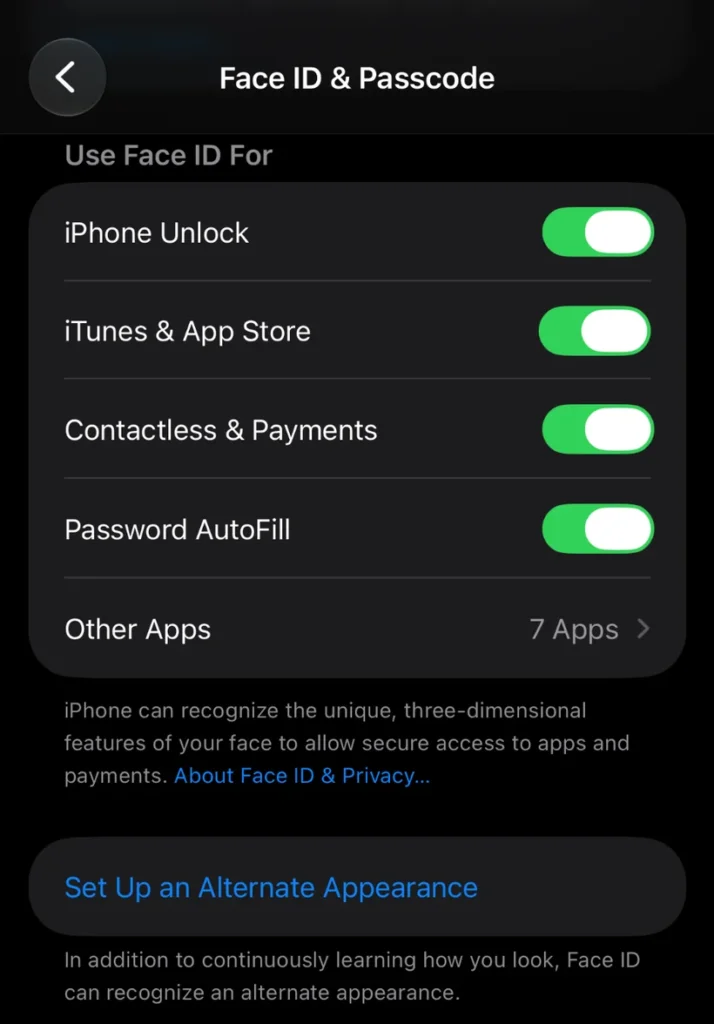
2. Check Your Face ID Settings
Before resetting anything, verify that Face ID is enabled correctly.
Follow these steps:
- Open Settings.
- Tap Face ID & Passcode.
- Enter your device passcode.
- Find the Use Face ID For section.
- Check whether the options you want are enabled.
For example, enable iPhone Unlock if you want to unlock your device with Face ID.
If Face ID works for unlocking but not for purchases, inspect the relevant purchase authentication settings.
Also confirm that Face ID has already been configured. If it hasn’t, select Set Up Face ID and follow the onscreen instructions.
3. Clean and Inspect the TrueDepth Camera
One of the simplest solutions is checking whether anything obstructs your iPhone’s TrueDepth camera.
Even a small obstruction can affect Face ID recognition.
Try these steps:
- Clean the front camera area using a soft, lint-free cloth.
- Check whether your phone case obstructs the sensors.
- Inspect any newly installed screen protector.
- Temporarily remove an incompatible privacy screen protector when testing Face ID.
On iPhone 18 Pro models, Apple has also highlighted the importance of keeping the newly positioned TrueDepth camera unobstructed, particularly when holding the phone in landscape orientation.
Avoid pressing sharp objects against the camera area or attempting to repair its components yourself.
If Face ID works after removing an accessory, you’ve identified a likely cause.
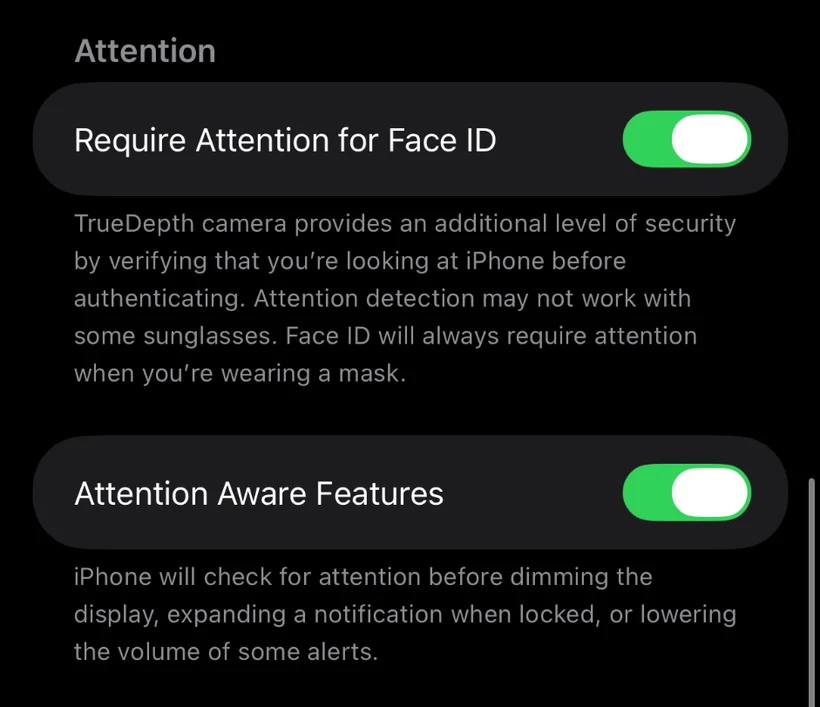
4. Adjust Your Face Position and Appearance
If your camera is clean but recognition is inconsistent, the problem may involve how your face is positioned.
Apple recommends keeping your iPhone approximately 10–20 inches (25–50 cm) from your face.
Try holding your phone at a comfortable viewing distance while looking toward the TrueDepth camera.
Also consider these adjustments:
- Remove sunglasses temporarily.
- Make sure your eyes are visible.
- Check that a mask isn’t positioned too close to your eyes.
- Avoid strong backlighting if recognition is unreliable.
- Remove accessories that may obscure important facial features.
Face ID works in landscape orientation on supported iPhone models, but Face ID with a Mask is limited to portrait orientation.
If recognition improves after removing glasses or adjusting your position, you may not need to reset Face ID.
5. Restart Your iPhone
Restarting your device can help resolve temporary software problems without changing your personal data.
To restart most modern iPhones with Face ID:
- Press and hold the side button and either volume button.
- Wait for the power-off slider.
- Drag the slider to switch off your iPhone.
- Wait until the device has shut down.
- Hold the side button to turn the device back on.
After restarting, enter your passcode and try Face ID again.
Remember that Face ID normally requires a passcode after a device restart.
If the problem persists, check for a software update.
6. Install the Latest Available iOS Update
Keeping your iPhone updated is an important troubleshooting step.
Apple releases software updates to address bugs, improve stability, and deliver security fixes.
To check for a newer update:
- Connect your iPhone to Wi-Fi.
- Back up important information.
- Open Settings > General > Software Update.
- Allow your iPhone to check for updates.
- Select Download and Install if an update is available.
You can also follow Apple’s official iPhone update instructions.
Important: iOS 27.0.1 and the iPhone 18 Pro
Apple confirmed that iOS 27.0.1 addresses a specific issue affecting the iPhone 18 Pro and iPhone 18 Pro Max.
Affected devices could unexpectedly restart when Face ID authentication failed.
This is different from an ordinary Face ID recognition failure. The update addresses the unexpected restart issue on those models, not every possible Face ID problem across all iPhones.
You can read the details in Apple’s official iOS 27 update notes.
For troubleshooting specific to this restart issue, see our guide: iPhone 18 Pro Face ID Reboot Glitch: The Definitive 2026 Fix Guide.
If your iPhone is already updated and Face ID still doesn’t work, continue with the remaining steps.
7. Set Up an Alternate Appearance
Face ID normally adapts to gradual changes in your appearance. However, an alternate appearance can help if you look significantly different in certain situations.
For example, if you regularly wear glasses or have made a substantial change to your appearance, this option may be useful.
To configure it:
- Open Settings.
- Select Face ID & Passcode.
- Enter your passcode.
- Tap Set Up an Alternate Appearance, if available.
- Complete the Face ID scanning process.
Once configured, lock your device and test recognition again.
This option is useful when Face ID already works in some situations. It will not repair a damaged TrueDepth camera or resolve every software problem.
8. Reset Face ID and Set It Up Again
If the earlier methods haven’t worked, resetting Face ID may help you start with a fresh enrollment.
This step removes your existing enrolled facial information, including any alternate appearance.
To reset Face ID:
- Go to Settings > Face ID & Passcode.
- Enter your iPhone passcode.
- Select Reset Face ID.
- Tap Set Up Face ID.
- Follow the onscreen instructions to scan your face again.
Resetting Face ID does not erase your photos, apps, or messages.
After completing setup, test Face ID by locking and unlocking your device.
If the enrollment process repeatedly fails or your iPhone displays a TrueDepth camera warning, further resets may not help.
What If Face ID Is Still Not Working?
If none of the eight troubleshooting methods resolves the issue, check for signs that professional assistance may be needed.
These include:
- Face ID setup repeatedly fails.
- The camera cannot properly detect your face during enrollment.
- Your iPhone displays a warning about the TrueDepth camera.
- Face ID stopped working after physical damage.
- Face ID remains unavailable even after updating and restarting.
Apple recommends professional service when a camera-related problem prevents Face ID setup.
Avoid attempting to dismantle or repair the TrueDepth camera yourself.
You can find further assistance through Apple’s official Face ID troubleshooting guide.
If Face ID has stopped working and you’re also unable to change certain security settings because of Stolen Device Protection, the two problems may be connected. Read our guide, Can’t Turn Off Stolen Device Protection? 7 Fixes (2026), to understand Apple’s security requirements and the available troubleshooting options.
Frequently Asked Questions
Does iOS 27 cause Face ID problems?
A Face ID problem that appears after installing iOS 27 is not necessarily caused by the update. Authentication can also fail because of camera obstructions, settings, recognition conditions, or hardware faults.
Why is my iPhone asking for a passcode instead of Face ID?
Apple requires passcode authentication in certain situations, including after restarting your iPhone. This is normal security behavior and doesn’t automatically indicate a malfunction.
Does resetting Face ID delete photos or apps?
No. Resetting Face ID removes enrolled facial recognition information, not your photos, apps, messages, or other ordinary personal data.
Can a screen protector interfere with Face ID?
Yes. Certain screen protectors may obstruct the TrueDepth camera. This is particularly worth checking if Face ID problems began immediately after installing a new protector.
Will iOS 27.0.1 fix Face ID on every iPhone?
No. Apple specifically documents a fix for unexpected restarts following failed Face ID authentication on iPhone 18 Pro and iPhone 18 Pro Max models. Other Face ID problems may have different causes.
What should I do if Face ID setup keeps failing?
Check for camera obstructions and software updates. If setup repeatedly fails, contact Apple Support or an Apple Authorized Service Provider for further diagnosis.
Conclusion
If Face ID is not working after iOS 27, begin with the simplest troubleshooting steps. Check your settings, clean the TrueDepth camera, confirm your face is unobstructed, and restart your iPhone.
Installing the latest available update, adding an alternate appearance, or resetting Face ID may help when recognition continues to fail.
However, if your device reports a TrueDepth camera problem or cannot complete Face ID setup, professional service may be necessary.
Following these steps in order can help you identify the likely cause without unnecessarily erasing your device or changing important settings.