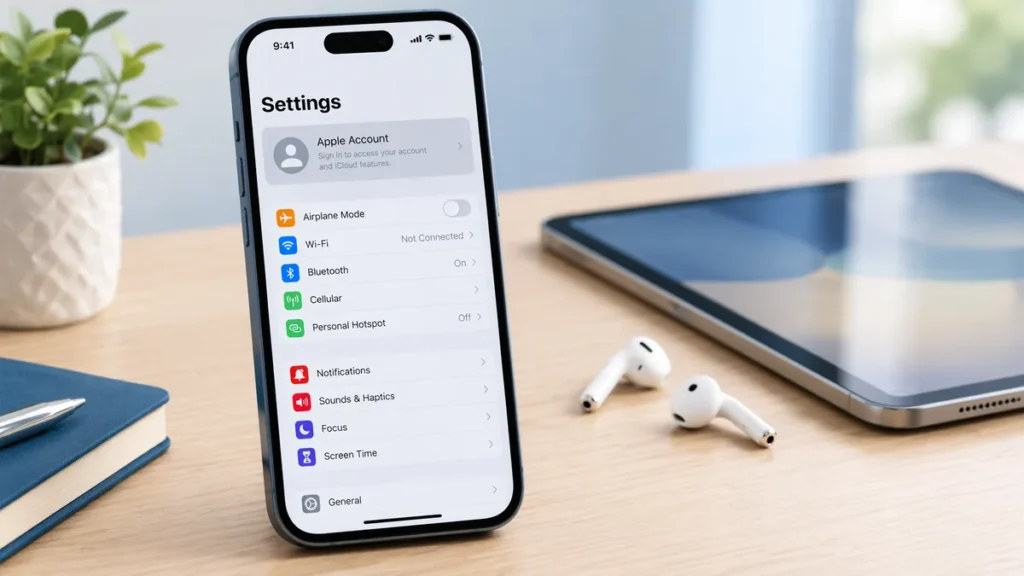
Is your Apple ID greyed out in settings on your iPhone or iPad? Maybe your name appears faded at the top of Settings, tapping your Apple Account does nothing, or you cannot access your iCloud and account settings.
This can be frustrating, especially when you need to manage iCloud, change your Apple Account password, update payment information, or sign out of your device.
Fortunately, a greyed-out Apple ID doesn’t necessarily mean your Apple Account is locked or compromised.
In many cases, the problem is caused by Screen Time restrictions that prevent changes to account settings. Family Sharing parental controls and device-management policies can also restrict certain options.
Apple now uses the name Apple Account instead of Apple ID, although both terms are commonly used to describe the same account.
In this guide, we’ll explain 10 practical fixes for Apple ID greyed out in settings, including Screen Time restrictions, disabled account changes, forgotten passcodes, Family Sharing, and problems following iOS updates.
The instructions apply to compatible iPhone and iPad models, although some menu names vary by software version.
Table of Contents
Quick Answer
If your Apple ID is greyed out in Settings, try these solutions:
- Allow account changes in Screen Time.
- Check other Content & Privacy restrictions.
- Review your Screen Time passcode.
- Recover a forgotten Screen Time passcode.
- Check Family Sharing parental controls.
- Review work or school device management.
- Restart your iPhone or iPad.
- Check your internet connection.
- Verify the date, time, and software version.
- Contact Apple Support if restrictions remain unresolved.
Most important: Start with Settings → Screen Time → Content & Privacy Restrictions and check whether account changes are allowed.
Apple identifies this as a primary troubleshooting step when an Apple Account is greyed out.
Why Apple ID Greyed Out in Settings Happens
Your Apple Account provides access to services such as iCloud, the App Store, iMessage, FaceTime, Find My, and Apple Music.
Normally, you can open Settings, tap your name, and manage account information.
When the Apple Account section becomes greyed out or unresponsive, the device may be preventing account changes.
Common explanations include:
- Screen Time restrictions: Account changes may be set to Don’t Allow.
- Screen Time passcode: A passcode may prevent changes to restrictions.
- Family Sharing: A parent or guardian may manage account settings.
- Device management: An employer or school may restrict account modifications.
- Temporary software problems: The Settings app may become unresponsive.
- Account connection problems: Certain account features may fail to load when internet access is unavailable.
- Outdated software: An iOS or iPadOS issue may affect account settings.
- Account security problems: These can affect sign-in, although they are different from a greyed-out Settings row.
It’s important to identify which situation you’re experiencing.
| Problem | What to investigate |
|---|---|
| Apple Account name greyed out | Screen Time account restrictions |
| Sign Out button disabled | Screen Time passcode or restrictions |
| Child cannot change Apple Account | Family Sharing controls |
| Work iPhone won’t allow account changes | Device management |
| Apple Account page loads incorrectly | Connectivity or temporary software issue |
| Apple Account locked message | Separate account security issue |
Let’s begin with the setting Apple recommends checking first.
1. Allow Account Changes
If your Apple ID is greyed out in settings, the first fix is checking whether Screen Time allows account changes.
Apple specifically identifies account-change restrictions as a common reason the Apple Account section becomes unavailable.
Follow These Steps
- Open Settings on your iPhone.
- Tap Screen Time.
- Select Content & Privacy Restrictions.
- If restrictions are enabled, find the controls for changing settings.
- On newer iOS versions, open Allow Changes to Settings under Privacy Restrictions.
- Find Accounts.
- Change the setting from Don’t Allow to Allow.
- Enter your Screen Time passcode if requested.
- Return to the main Settings screen.
- Try tapping your Apple Account again.
On older iOS versions, the path may be:
Settings → Screen Time → Content & Privacy Restrictions → Allow Changes To → Accounts
You may see slightly different labels depending on your installed iOS or iPadOS version.
Why This Works
Screen Time can restrict modifications to account settings.
When Accounts is set to Don’t Allow, certain Apple Account controls may become greyed out.
Changing the setting to Allow permits account modifications, provided no other restrictions are active.
What If It Already Says Allow?
If account changes are already allowed, don’t keep switching the setting repeatedly.
Continue with the next troubleshooting steps.
Important: Only modify restrictions on devices you own or are authorized to manage.
2. Check Other Restrictions
Screen Time includes several controls beyond account changes.
Some restrictions limit apps, purchases, privacy features, and changes to device settings.
If the Apple Account section remains disabled after changing Accounts to Allow, review the remaining restrictions.
Check Content & Privacy
- Open Settings.
- Select Screen Time.
- Tap Content & Privacy Restrictions.
- Open the relevant privacy or settings-change controls.
- Review options currently set to Don’t Allow.
- Identify whether a restriction affects the action you’re trying to perform.
- Change only settings you’re authorized to modify.
- Return to Settings and test again.
Apple recommends checking other restrictions if additional Settings options are unavailable.
Should You Disable Every Restriction?
Not necessarily.
Content & Privacy Restrictions may have been configured intentionally to protect a child’s device or limit certain activities.
Instead of disabling everything, identify the specific restriction affecting Apple Account changes.
This helps preserve useful security and parental-control settings.
What If Settings Are Locked?
If Screen Time asks for a passcode, you need the authorized passcode before making protected changes.
The next steps explain how that works.
3. Check the Screen Time Passcode
A Screen Time passcode protects restrictions from unauthorized changes.
It’s different from the passcode used to unlock your iPhone.
If the Apple ID greyed out in settings problem is caused by restrictions, you may need the Screen Time passcode to correct them.
Review Screen Time
- Open Settings.
- Tap Screen Time.
- Find Manage Screen Time, Passcode & Management, or the passcode controls shown on your iOS version.
- Check whether a Screen Time passcode is enabled.
- Return to Content & Privacy Restrictions.
- Enter the Screen Time passcode if requested.
- Allow account changes if appropriate.
Should You Turn Off the Passcode?
You don’t always need to disable the Screen Time passcode.
If you can enter it and change Accounts to Allow, you may leave the passcode enabled.
However, Apple notes that an enabled Screen Time passcode can be relevant when you cannot sign out of your Apple Account.
If you’re the authorized device owner and need to disable that passcode, follow Apple’s current Screen Time management instructions.
What If Sign Out Is Unavailable?
If your iPhone displays:
“Sign out is not available due to restrictions”
Check the Screen Time passcode and restrictions.
Apple provides dedicated instructions for this problem.
Avoid attempting to erase the device just because the Sign Out button is disabled.
4. Recover Your Screen Time Passcode
If you’ve forgotten the Screen Time passcode, you may be unable to change protected settings.
This can make the Apple Account section appear permanently unavailable.
Fortunately, Apple provides an official Screen Time passcode recovery process.
Recover the Passcode
- Open Settings.
- Tap Screen Time.
- Open the Screen Time passcode management controls.
- Select Change Screen Time Passcode.
- Choose the appropriate reset or change option.
- Follow the onscreen authentication instructions.
- Enter the Apple Account credentials used for Screen Time Passcode Recovery if requested.
- Set a new Screen Time passcode.
- Return to Content & Privacy Restrictions.
- Review the Accounts permission.
The exact procedure varies by iOS version and how Screen Time was configured.
Use the Correct Apple Account
Apple explains that the account used for Screen Time passcode recovery may be different from the account currently signed in on the device.
If you have several Apple Accounts, make sure you’re using the one originally associated with Screen Time Passcode Recovery.
What If Recovery Fails?
Don’t repeatedly guess passcodes or use third-party unlocking tools.
Follow Apple’s official recovery instructions or contact Apple Support.
If the restrictions were configured through Family Sharing, the parent or guardian may need to manage the passcode from their own device.
5. Check Family Sharing
Family Sharing allows parents and guardians to manage certain settings on a child’s iPhone or iPad.
These controls can prevent children from changing account information without permission.
If your Apple ID is greyed out in settings on a child-managed device, the restrictions may be intentional.
Check Who Manages the Device
- Determine whether the Apple Account belongs to a Family Sharing child account.
- Ask the family organizer or parent responsible for Screen Time.
- Have them review the child’s Screen Time restrictions.
- Check whether account changes are allowed.
- Make any authorized adjustments through the parent’s device.
Why Can’t the Child Change It?
Apple’s parental-control system can protect account settings from unauthorized modifications.
The child may not be able to change those restrictions directly.
Apple also specifies that changes to a child’s Screen Time passcode must be handled by the authorized parent or guardian.
What Should Parents Do?
If you’re the parent or guardian:
- Open the family-management settings on your device.
- Select the child’s account.
- Open the relevant Screen Time controls.
- Review Content & Privacy Restrictions.
- Allow account changes when appropriate.
Keep necessary child-safety settings enabled.
You don’t need to remove the child from Family Sharing to resolve a permitted account-setting problem.
6. Check Device Management
Some iPhones and iPads are managed by schools, employers, or other organizations.
These devices may use Mobile Device Management, commonly called MDM.
An administrator can configure policies that restrict account changes or other device features.
Check Management Settings
- Open Settings.
- Tap General.
- Select VPN & Device Management.
- Check whether a management profile is installed.
- Review the available profile information.
- Look for a device supervision message if one appears.
Apple explains that supervised devices can have settings controlled by their organization.
What If Your Device Is Managed?
If the device belongs to your employer or school, contact its IT administrator.
Explain that your Apple Account settings are greyed out and ask whether account changes are restricted by policy.
Should You Remove the Management Profile?
No, not without authorization.
Removing management information can affect access to work applications, certificates, network connections, and other services.
Some restrictions may also be reapplied automatically.
Important: Device management restrictions are not necessarily software bugs.
They may be intentional security policies.
7. Restart Your iPhone
If you’ve confirmed that account changes are allowed, restart your iPhone or iPad.
A restart can sometimes resolve temporary issues affecting the Settings app.
It won’t remove an authorized Screen Time or management restriction, but it is a reasonable step when settings appear unresponsive.
Restart an iPhone With Face ID
- Press and hold the side button and either volume button.
- Wait for the power-off slider.
- Drag the slider.
- Wait approximately 30 seconds.
- Hold the side button to turn the iPhone back on.
- Unlock the device.
- Open Settings again.
Restart an Older iPhone
For models with a Home button, use the appropriate side or top power button.
Shut down normally, wait briefly, and restart.
Check Apple Account Again
After restarting:
- Open Settings.
- Look at the Apple Account section.
- Check whether it remains greyed out.
- Try opening the account settings.
If the section becomes accessible, the issue may have involved a temporary software state.
If restrictions remain enabled, restarting alone will not bypass them.
8. Check Your Internet Connection
If the Apple Account section is tappable but account information doesn’t load, a network problem may be involved.
Apple Account settings use internet connectivity for services such as iCloud, account verification, and syncing.
However, an unavailable internet connection doesn’t necessarily explain a completely greyed-out account row.
That’s why Screen Time should remain your first check.
Test the Connection
- Open Safari.
- Visit a familiar website.
- Check whether the page loads.
- If it doesn’t, verify Wi-Fi or cellular data.
- Try another trusted network if available.
- Return to Settings and test the Apple Account page.
What If Wi-Fi Is Also Greyed Out?
A disabled Wi-Fi control is a separate problem from Apple Account restrictions.
For that situation, read our iPhone Wi-Fi Greyed Out troubleshooting guide.
What If iCloud Isn’t Syncing?
If your Apple Account settings open normally but your photos aren’t updating across devices, the issue may involve iCloud syncing rather than a disabled account control.
Our iCloud Photos Not Syncing guide covers that problem.
Don’t reset network settings simply because your Apple Account name appears greyed out.
First determine whether the network is actually failing.
9. Check Time and Software
An incorrect system date or outdated software can sometimes contribute to account verification and connectivity problems.
These are secondary troubleshooting checks, not Apple’s primary explanation for a greyed-out Apple Account section.
Check Date and Time
- Open Settings.
- Tap General.
- Select Date & Time.
- Confirm the displayed date and time are correct.
- Enable Set Automatically if appropriate and available.
Some managed devices may restrict changes to automatic date and time settings.
Check for Software Updates
- Open Settings.
- Tap General.
- Select Software Update.
- Wait for an update check.
- Review any compatible update.
- Back up important information.
- Install the update if appropriate.
After updating, test the Apple Account section again.
What If the Problem Started After an Update?
The timing of a problem after installing iOS or iPadOS doesn’t necessarily mean the update caused it.
Review Screen Time restrictions first.
Then check whether a compatible follow-up update is available.
If your Apple Account settings remain unavailable despite the correct permissions, Apple Support can investigate further.
10. Contact Apple Support
If your Apple ID greyed out in settings problem continues after these checks, contact Apple Support for help identifying the specific restriction or account issue.
Before contacting support, gather a few details:
- Your iPhone or iPad model.
- Installed iOS or iPadOS version.
- Whether the Apple Account name is greyed out.
- Whether the Sign Out button is disabled.
- Any restriction-related error message.
- Whether Screen Time account changes are set to Allow.
- Whether Family Sharing or device management is involved.
Avoid Unnecessary Factory Resets
Erasing your device isn’t a recommended first step for a greyed-out Apple Account section.
A reset may not remove parental controls or organization-managed restrictions.
It can also introduce account verification and Activation Lock requirements.
Before considering any destructive recovery process, make sure your data is backed up and follow official Apple guidance.
Avoid Third-Party Unlocking Tools
Don’t install unknown applications that promise to remove Apple Account restrictions instantly.
Be cautious of services requesting your Apple Account password, device passcode, or two-factor authentication codes.
Use official Apple websites and authorized support channels.
Apple ID Greyed Out in Settings on iPad
If the Apple Account section is greyed out on an iPad, the troubleshooting process is similar to that on iPhone.
Start with:
Settings → Screen Time → Content & Privacy Restrictions
Check whether account changes are allowed.
If the iPad belongs to a child in Family Sharing, ask the parent or guardian managing Screen Time.
If it’s a school-owned iPad, review the device-management information and contact the administrator.
Don’t assume that an iPad requires a different Apple Account recovery process simply because it has a larger screen.
The main difference is the device’s management configuration and installed software version.
Apple ID Greyed Out After iOS Update
If your Apple ID is greyed out in settings after updating iOS, begin by checking Screen Time.
Account-change restrictions may still be active even after the operating system changes.
Review the current Screen Time menu and make sure Accounts is set to Allow.
Then restart the iPhone and check for any newer compatible software updates.
If the device belongs to an organization, contact the administrator before attempting further changes.
Avoid repeatedly signing out of Apple services or resetting passwords when the actual problem is a device-level restriction.
Apple Account Sign Out Greyed Out
The Apple Account section being greyed out and the Sign Out button being unavailable are related but different symptoms.
If you can open your Apple Account settings but cannot tap Sign Out, check whether Screen Time restrictions are preventing the action.
Apple specifically documents the message:
“Sign out is not available due to restrictions.”
If you manage the device, review the Screen Time passcode and authorized restriction settings.
If a parent or organization controls the device, request assistance from the responsible administrator.
You don’t need to erase the device simply to investigate this message.
Apple ID Greyed Out but App Store Works
Sometimes you can continue downloading applications even when account settings cannot be changed.
This is possible because using an existing Apple Account for services is different from being permitted to modify account settings.
Screen Time can restrict account changes without necessarily disabling every Apple service.
If you cannot download apps at all, troubleshoot that separately.
See our iPhone App Store Not Downloading Apps guide for download, purchase, and App Store connection problems.
Greyed Out vs. Locked Apple Account
A greyed-out Apple Account in Settings is not the same as an Apple Account locked for security reasons.
Greyed-out settings: Usually investigate restrictions and device configuration first.
Locked or disabled account: You may see a specific security message when trying to sign in.
Incorrect password: The account may be accessible but authentication fails.
Account verification issue: Apple may require additional verification before certain services work.
If you receive an explicit security-lock message, follow Apple’s account recovery instructions rather than changing unrelated Screen Time settings.
Never enter your password on an unfamiliar account-recovery website.
Frequently Asked Questions
Why is my Apple ID greyed out in settings?
The most important cause to check is Screen Time restrictions preventing account changes. Open Settings → Screen Time → Content & Privacy Restrictions and set Accounts to Allow if you’re authorized to do so.
How do I ungrey my Apple ID on iPhone?
Check Screen Time account restrictions first. Then review passcode requirements, Family Sharing, or device management if applicable. Restart your device if the correct settings are already enabled.
Can Screen Time grey out Apple ID settings?
Yes. Apple confirms that Screen Time restrictions can make the Apple Account section greyed out and prevent account changes.
Why can’t I click my Apple ID in Settings?
Account changes may be restricted by Screen Time, Family Sharing, or device management. A temporary Settings problem is also possible, but restrictions should be checked first.
Why can’t I sign out of my Apple Account?
Screen Time restrictions or a Screen Time passcode may prevent signing out. Apple provides dedicated steps for the message saying sign-out is unavailable due to restrictions.
Can I fix a greyed-out Apple ID without resetting my iPhone?
Often, yes. If the cause is an account-change restriction you control, adjusting the relevant Screen Time setting may restore access without erasing the device.
What if I forgot my Screen Time passcode?
Use Apple’s official Screen Time passcode recovery process. You may need the Apple Account associated with Screen Time Passcode Recovery.
Why is my child’s Apple ID greyed out?
Family Sharing parental controls may prevent account changes. The authorized parent or guardian needs to review the child’s Screen Time settings.
Can a school disable Apple Account settings?
Yes. Organization-managed devices can have restrictions that prevent account modifications. Contact the administrator responsible for the device.
Does a greyed-out Apple ID mean my account is hacked?
No. A greyed-out Settings section by itself doesn’t establish that your account has been compromised. Check device restrictions before assuming an account security problem.
Final Thoughts
If your Apple ID is greyed out in settings, start with Screen Time rather than immediately changing passwords or resetting your device.
In many cases, account changes have been disabled through Content & Privacy Restrictions.
Setting Accounts to Allow may restore access when you’re authorized to change that restriction.
If the device belongs to a child or organization, the responsible parent or administrator may need to make the adjustment.
Other troubleshooting steps, including restarting your device, checking internet access, and updating software, can help when the issue involves a temporary Settings or account-loading problem.
Most importantly, don’t erase your iPhone or install third-party account-unlocking tools before identifying the cause.
If the Apple Account section remains unavailable after appropriate checks, contact Apple Support.
Official Apple Support Resources
- Apple Account Greyed Out or Sign Out Restricted
- Change or Recover a Screen Time Passcode
- Use Parental Controls on iPhone or iPad
- Check Whether an Apple Device Is Supervised
- Manage Your Apple Account on iPhone
The Synced Desk | Practical solutions for everyday technology problems.