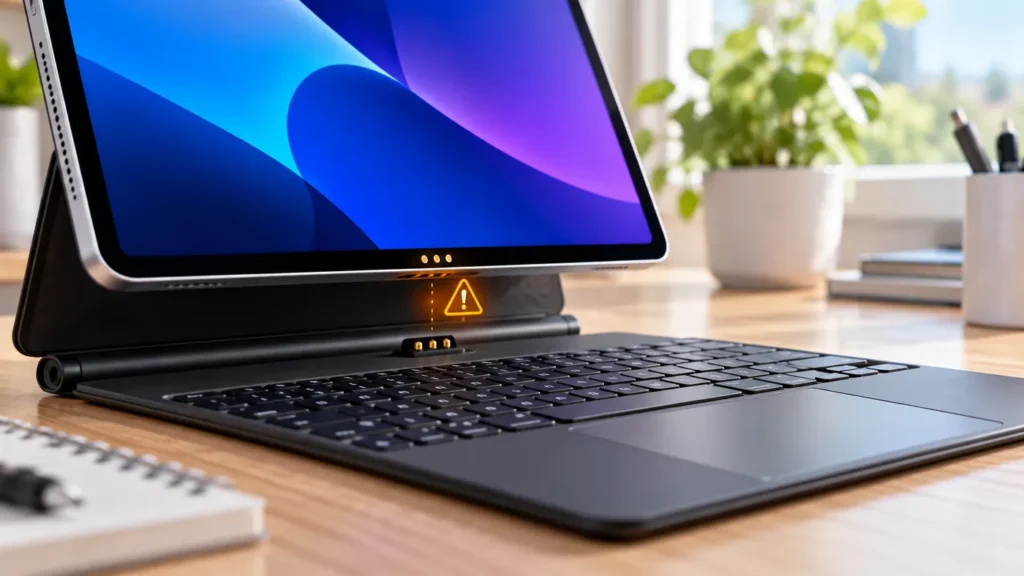
Is your iPad Magic Keyboard not working even though it’s attached properly to your iPad Pro or iPad Air? Maybe the keys suddenly stopped typing, the trackpad doesn’t respond, the keyboard backlight stays off, or your iPad doesn’t recognize the keyboard at all.
Apple’s Magic Keyboard turns a compatible iPad into a more comfortable workstation. It provides physical typing, trackpad navigation, and an adjustable viewing angle. Some models also include a USB-C port for pass-through charging.
However, even a well-designed accessory can occasionally stop responding.
The problem might involve dirty Smart Connector contacts, an incompatible keyboard model, an interfering case, outdated iPadOS software, or a temporary connection issue.
Fortunately, most problems can be investigated without replacing the keyboard or resetting your iPad.
In this guide, we’ll explain 12 practical fixes for iPad Magic Keyboard not working, including connection failures, unresponsive keys, trackpad problems, backlight issues, and errors after an iPadOS update.
Table of Contents
Quick Answer
If your iPad Magic Keyboard is not working, detach the iPad from the keyboard, remove any additional case, and gently clean the Smart Connector contacts on both devices with a soft, lint-free cloth. Reattach the iPad correctly and test typing in Notes.
If the keyboard still doesn’t respond, restart your iPad and install available iPadOS updates. Also confirm that your specific Magic Keyboard model is compatible with your iPad.
Remember that Apple’s Magic Keyboard for iPad uses the Smart Connector. It doesn’t require Bluetooth pairing, a separate battery, or a power switch.
Why Magic Keyboard Stops Working
Several issues can prevent your Magic Keyboard from communicating correctly with your iPad.
Common causes include:
- The keyboard isn’t compatible with your iPad model.
- The iPad is not positioned correctly on the magnetic attachment.
- Dust or dirt is interfering with the Smart Connector.
- An additional protective case prevents proper contact.
- Your iPad is running an outdated version of iPadOS.
- A temporary software issue has interrupted keyboard input.
- Hardware keyboard settings aren’t configured as expected.
- The trackpad is working but the keyboard keys aren’t responding.
- Keyboard backlighting is disabled or adjusted too low.
- The keyboard or iPad has physical or liquid damage.
The symptoms can help you narrow down the problem.
For example, if both the keyboard and trackpad stop working simultaneously, investigate the Smart Connector first.
If only a few keys fail while the trackpad works normally, the connection may be fine, and the issue could involve individual keys or software input settings.
1. Check Keyboard Compatibility
Before trying anything complicated, make sure your Magic Keyboard actually supports your iPad.
Apple makes several different Magic Keyboard models. They may look similar, but they aren’t universally interchangeable.
Identify Your iPad
- Open Settings on your iPad.
- Tap General.
- Select About.
- Review the model name.
- Tap the model number if you need its full hardware identifier.
Identify Your Keyboard
Check the Magic Keyboard’s model number or its original packaging.
Use Apple’s compatibility information to confirm that the keyboard is designed for your exact iPad generation and screen size.
For example, Magic Keyboard models designed for certain older iPad Pro devices may not fit newer iPad Pro designs.
The Magic Keyboard for iPad Air also has its own compatibility requirements.
Check Software Requirements
Apple specifies that Magic Keyboard for iPad Air requires iPadOS 18.3 or later, while other Magic Keyboard devices require iPadOS 14.5 or later.
Exact requirements may vary with the keyboard generation.
If the keyboard and iPad aren’t compatible, troubleshooting the connection won’t solve the mismatch.
2. Reattach Your iPad
A common explanation for iPad Magic Keyboard not working is that the iPad isn’t making proper contact with the keyboard.
Magic Keyboard for iPad connects through Apple’s Smart Connector rather than Bluetooth.
The keyboard relies on this connection for communication and power.
Reattach the Keyboard
- Place the Magic Keyboard on a stable, flat surface.
- Carefully remove your iPad.
- Check that nothing is obstructing the magnetic attachment area.
- Open the keyboard to a comfortable viewing angle.
- Position your iPad correctly against the magnetic back panel.
- Let it attach securely.
- Open Notes and test typing.
Avoid sliding the iPad aggressively against the connector contacts.
If the keyboard works after reattaching, the original issue may have involved poor alignment.
If both the keyboard and trackpad remain completely unresponsive, continue to the next fix.
3. Remove Additional Cases
Some people attach a thin protective case to their iPad and then try to use the Magic Keyboard with that case still installed.
Unfortunately, an additional case can prevent the iPad from sitting correctly against the Smart Connector.
Even a small gap can interfere with contact.
What to Do
- Remove your iPad from the Magic Keyboard.
- Take off any additional case or cover.
- Inspect the back of the iPad.
- Make sure nothing covers or obstructs the Smart Connector.
- Reattach the bare iPad to the Magic Keyboard.
- Test the keyboard and trackpad.
Apple specifically recommends removing extra cases when troubleshooting Magic Keyboard connection problems.
If the keyboard begins working without the protective case, the case was likely interfering with the attachment.
Choose a case designed to support your exact keyboard setup rather than forcing incompatible accessories together.
4. Clean the Smart Connector
The Smart Connector is one of the most important components to inspect when iPad Magic Keyboard is not connecting.
It uses small magnetic contacts to transfer power and data between the keyboard and iPad.
Dust, skin oils, and other debris can interfere with this connection.
Clean the Contacts Safely
- Disconnect the iPad from the Magic Keyboard.
- Find the Smart Connector contacts on the keyboard.
- Locate the corresponding contacts on your iPad.
- Use a clean, soft, lint-free cloth to gently wipe both surfaces.
- Check for visible dust or residue.
- Reattach the iPad.
- Test typing again.
What to Avoid
Don’t scrape the contacts with a knife, pin, or other sharp tool.
Avoid abrasive cleaning materials.
Don’t spray liquid directly onto the connector or allow moisture to enter the keyboard.
If the contacts appear bent, corroded, or physically damaged, stop troubleshooting and consider professional inspection.
Apple recommends cleaning the Smart Connector as part of its official troubleshooting procedure.
5. Restart Your iPad
Sometimes an iPadOS software issue can interrupt input from connected accessories.
If the Smart Connector looks clean and the keyboard is attached correctly, restarting the iPad is the next sensible step.
Restart an iPad Without a Home Button
- Press and hold the top button and either volume button.
- Wait for the power-off slider.
- Drag the slider to turn off the iPad.
- Wait until the device shuts down.
- Press and hold the top button until the Apple logo appears.
Restart an iPad With a Home Button
- Press and hold the top button.
- Drag the power-off slider.
- Wait for the iPad to shut down.
- Press and hold the top button to turn it on again.
After restarting:
- Unlock your iPad.
- Attach the Magic Keyboard.
- Open Notes.
- Try typing a short sentence.
- Test the trackpad.
If the keyboard starts responding normally, the problem may have been temporary.
Restarting doesn’t normally erase your personal data.
6. Update iPadOS
If iPad Magic Keyboard not working after an update is your problem, or your iPad hasn’t been updated recently, check the installed software version.
Apple recommends installing the latest compatible iPadOS updates when troubleshooting Magic Keyboard connection issues.
Check for Updates
- Open Settings.
- Select General.
- Tap Software Update.
- Check whether an update is available.
- Back up important data before a major update.
- Install the compatible update when your iPad has sufficient power.
- Restart if prompted.
After the update, detach and reattach the keyboard, then test it again.
If You Cannot Download an Update
Make sure the iPad has a working internet connection.
If your iPad is also struggling to connect to Wi-Fi, follow our iPad Not Connecting to WiFi guide before trying the update again.
An update may resolve software-related problems, but it cannot repair physically damaged Smart Connector contacts.
7. Test Typing in Notes
Sometimes users assume the entire keyboard has stopped working when the issue affects only one application.
Testing another app can help identify the difference.
Test Your Keyboard
- Attach your Magic Keyboard.
- Unlock the iPad.
- Open the Notes app.
- Create a new note.
- Tap inside the text area.
- Type a short sentence.
- Try the Space, Delete, Return, and arrow keys.
If typing works in Notes but fails in another application, investigate that application’s input settings.
Close and reopen the affected app.
If it supports custom keyboard shortcuts, review those settings.
Check Individual Keys
If most keys work but a few don’t, the keyboard connection may still be functioning.
Test the affected keys in more than one app.
Look for visible debris or physical damage around those keys.
Don’t remove keycaps or attempt an internal keyboard repair without appropriate service instructions.
If an individual key consistently fails across applications, Apple Support can help determine whether service is needed.
8. Check Hardware Keyboard Settings
If the keyboard connects but types unexpected characters, the problem may involve its layout or input settings.
For example, you might press one symbol and see another, or notice that certain shortcuts behave differently from what you expected.
Review Keyboard Settings
- Open Settings on the iPad.
- Select General.
- Tap Keyboard.
- Open Hardware Keyboard, if available.
- Review the selected keyboard layout.
- Check any customized modifier-key settings.
- Confirm the configuration matches your keyboard.
Some settings appear only when a compatible hardware keyboard is connected.
Test Language Layouts
If you regularly type in multiple languages, check which keyboard layout is active.
A mismatch between the physical keyboard and the selected software layout can make certain keys produce unexpected characters.
Select the correct layout and test again in Notes.
Avoid resetting all iPad settings just to resolve a keyboard layout problem.
9. Fix Magic Keyboard Trackpad
If your iPad Magic Keyboard trackpad is not working, first determine whether the keyboard itself is still responding.
A functioning keyboard with an unresponsive trackpad is different from a complete Smart Connector failure.
Test the Trackpad
- Place one finger on the trackpad.
- Move your finger slowly.
- Check whether the pointer appears on the iPad screen.
- Try clicking an item.
- Test scrolling using two fingers.
If the pointer moves but feels unusually slow, review the trackpad settings.
Adjust Trackpad Settings
- Open Settings.
- Select General.
- Tap Trackpad or Trackpad & Mouse, depending on your setup.
- Review Tracking Speed.
- Check Natural Scrolling.
- Review Tap to Click and Two Finger Secondary Click.
Move the tracking speed slider to a comfortable position and test the pointer again.
If the trackpad doesn’t work at all, detach and reconnect the keyboard and restart the iPad.
Avoid assuming the trackpad hardware is damaged until you’ve completed the basic connection checks.
10. Check Keyboard Backlighting
If your iPad Magic Keyboard backlight is not working, the keyboard may still be functioning normally.
Magic Keyboard adjusts its backlighting according to surrounding light conditions.
In a bright room, the keys may appear unlit because additional illumination isn’t needed.
Adjust Backlight Brightness
- Attach the Magic Keyboard.
- Open Settings.
- Select General.
- Tap Keyboard.
- Select Hardware Keyboard.
- Find the keyboard brightness control, if available.
- Adjust the brightness.
Try moving to a moderately dim environment to see whether the backlight responds.
What If the Brightness Setting Is Missing?
The setting may not appear if the iPad doesn’t recognize the keyboard or if the connected model doesn’t support that option.
Check compatibility and reconnect the Smart Connector.
Also remember that a backlight problem doesn’t necessarily mean the typing keys are defective.
If typing and the trackpad work but the backlight remains permanently unavailable, contact Apple Support for further diagnosis.
11. Check USB-C Pass-Through Charging
Some Magic Keyboard models include a USB-C port for charging the attached iPad.
This is useful because it leaves the iPad’s own USB-C port available for another accessory.
However, the Magic Keyboard’s USB-C port has limitations.
According to Apple, it is intended for power pass-through rather than data transfer.
You cannot use that port like an ordinary USB hub for connecting a mouse, storage drive, or other data accessory.
Test the Charging Connection
- Make sure your Magic Keyboard model supports pass-through charging.
- Attach the iPad correctly.
- Connect a compatible USB-C charging cable to the keyboard’s charging port.
- Plug the cable into a suitable power adapter.
- Check whether the iPad displays a charging indicator.
If charging doesn’t begin, try connecting the charger directly to the iPad.
Understand the Results
If the iPad charges directly but not through the keyboard, investigate the keyboard’s power pass-through connection and Smart Connector.
If the iPad won’t charge through either connection, the problem could involve the charger, cable, iPad port, or battery.
For those symptoms, follow our iPad Not Charging guide.
Remember that the Magic Keyboard itself doesn’t require separate charging.
Don’t connect a USB-C cable from the keyboard’s charging port back into the iPad’s USB-C port.
12. Test Another Compatible Keyboard
If iPad Magic Keyboard is still not working, try to determine whether the problem comes from the keyboard or the iPad.
This is particularly useful after the connector cleaning, software update, and restart steps have failed.
Test With Another Keyboard
If possible, attach another Magic Keyboard that is confirmed compatible with your iPad.
If the replacement works normally, the original keyboard may need service.
Test With Another iPad
You can also test your Magic Keyboard with another compatible iPad.
Be careful about compatibility, because many keyboard generations fit only particular iPad models.
If the keyboard fails with multiple compatible iPads, that increases suspicion of a keyboard-side problem.
If multiple known-working keyboards fail on one iPad, its connector or software deserves closer investigation.
Inspect for Damage
Look for:
- Bent Smart Connector contacts.
- Cracks near the keyboard hinge.
- Signs of liquid exposure.
- Broken or unusually loose keys.
- A damaged trackpad.
- Physical deformation.
If you find serious damage, stop using the affected accessory and contact Apple Support.
Don’t attempt to open the Magic Keyboard or replace its internal components without qualified repair guidance.
Magic Keyboard Not Working After Update
If your iPad Magic Keyboard stopped working after an iPadOS update, first restart the iPad.
Then detach the keyboard, check the Smart Connector, and reconnect it.
Open Notes to test whether typing works.
If the keyboard connects but certain features behave differently, review the hardware keyboard and trackpad settings.
Also check whether an additional compatible iPadOS update is available.
A recent update doesn’t automatically mean the keyboard hardware has failed.
Avoid factory-resetting your iPad or deleting personal information before checking these simpler possibilities.
Magic Keyboard Not Typing but Trackpad Works
When the trackpad works but the keys don’t type, the Smart Connector is at least communicating with the accessory.
This doesn’t prove every part of the keyboard is healthy, but it helps narrow the problem.
Start by opening Notes and tapping a text field.
Test several keys.
If typing fails only in one app, close and reopen that app.
If characters appear incorrectly, check the hardware keyboard layout.
If every key remains unresponsive across applications while the trackpad works, restart the iPad and reconnect the keyboard.
Persistent failure may indicate a keyboard-specific hardware or software issue.
Magic Keyboard Not Connecting at All
If both the keyboard and trackpad are completely unresponsive, start with the physical connection.
Detach the iPad and remove any additional case.
Clean the Smart Connector contacts with a soft, lint-free cloth.
Reattach the iPad correctly.
Then restart the iPad and check keyboard compatibility.
Do not search for the magnetic iPad Magic Keyboard in Bluetooth settings.
It doesn’t require Bluetooth pairing.
This differs from standalone wireless keyboards. If you’re troubleshooting a separate Bluetooth keyboard or other wireless accessory, our iPad Bluetooth Not Working guide covers that connection method.
Magic Keyboard vs. Bluetooth Keyboard
It’s important to identify which Apple keyboard you’re using.
| Feature | Magic Keyboard for iPad | Standalone Magic Keyboard |
|---|---|---|
| Connection | Smart Connector | Bluetooth or supported wired connection |
| Designed for | Compatible iPads | Macs and other supported devices |
| Pairing required | No | Usually yes for wireless use |
| Separate battery | No | Yes |
| Built-in iPad cover | Yes, on supported models | No |
If your iPad keyboard attaches magnetically as a cover, you generally need to troubleshoot its Smart Connector.
If you’re using a standalone Bluetooth Magic Keyboard, check Bluetooth pairing and battery power instead.
Using a Mac Keyboard With iPad
Some people expect their Mac’s keyboard and trackpad to control an iPad without connecting a separate keyboard case.
Apple offers another feature for that purpose: Universal Control.
Universal Control allows compatible Macs and iPads to share a keyboard and pointer while each device continues running its own applications.
It is separate from the physical Magic Keyboard for iPad.
If you’re having trouble controlling your iPad from a Mac, follow our Universal Control Not Working guide instead.
Frequently Asked Questions
Why is my iPad Magic Keyboard not working?
The most common explanations include an incompatible keyboard model, dirty Smart Connector contacts, an interfering protective case, outdated iPadOS software, or a temporary connection issue. Start by checking compatibility and reattaching the keyboard.
How do I reset Magic Keyboard on iPad?
The magnetic Magic Keyboard for iPad doesn’t have a conventional reset button or Bluetooth pairing record. Detach it, clean the Smart Connector, reconnect it, and restart your iPad if necessary.
Does iPad Magic Keyboard need Bluetooth?
No. The Magic Keyboard designed to attach magnetically to a compatible iPad uses Apple’s Smart Connector. It doesn’t need Bluetooth pairing.
Does iPad Magic Keyboard have a battery?
No. Apple’s Magic Keyboard for iPad receives power through the Smart Connector and doesn’t require separate charging.
Why is my Magic Keyboard trackpad not working?
Check whether the keyboard is correctly attached, then review Settings > General > Trackpad. Adjust tracking speed and test clicks. If the trackpad remains unresponsive, reconnect the keyboard and restart the iPad.
Why is my Magic Keyboard backlight not working?
The backlight adjusts automatically to ambient lighting. On compatible models, check Settings > General > Keyboard > Hardware Keyboard and adjust the brightness if the option is available.
Why does Magic Keyboard stop working after an update?
A software issue or interrupted connection may be involved. Restart the iPad, clean and reconnect the Smart Connector, and install any additional compatible updates.
Can I use any Magic Keyboard with my iPad?
No. Magic Keyboard compatibility depends on the exact keyboard model and iPad generation. Check Apple’s official compatibility list before purchasing or troubleshooting a keyboard.
Why does my Magic Keyboard work only sometimes?
Intermittent operation may result from poor Smart Connector contact, debris, improper alignment, or a hardware issue. Remove extra cases, clean the contacts, and test whether the connection changes when the iPad is reattached.
Should I replace my Magic Keyboard?
Not immediately. First verify compatibility, clean the Smart Connector, remove additional cases, reconnect the keyboard, restart your iPad, and update iPadOS. Consider service or replacement only after narrowing down the problem.
Final Thoughts
If your iPad Magic Keyboard is not working, the Smart Connector is the best place to start.
Make sure the keyboard is compatible with your iPad, remove additional cases, clean the connector contacts, and reattach the device correctly.
If typing or trackpad input still fails, restart the iPad, check software updates, and review the relevant keyboard settings.
Remember that Magic Keyboard for iPad doesn’t need Bluetooth pairing or its own battery.
Most connection problems can be investigated with simple, non-destructive checks.
If the keyboard continues failing after these steps, test another compatible keyboard if available or contact Apple Support for professional assistance.