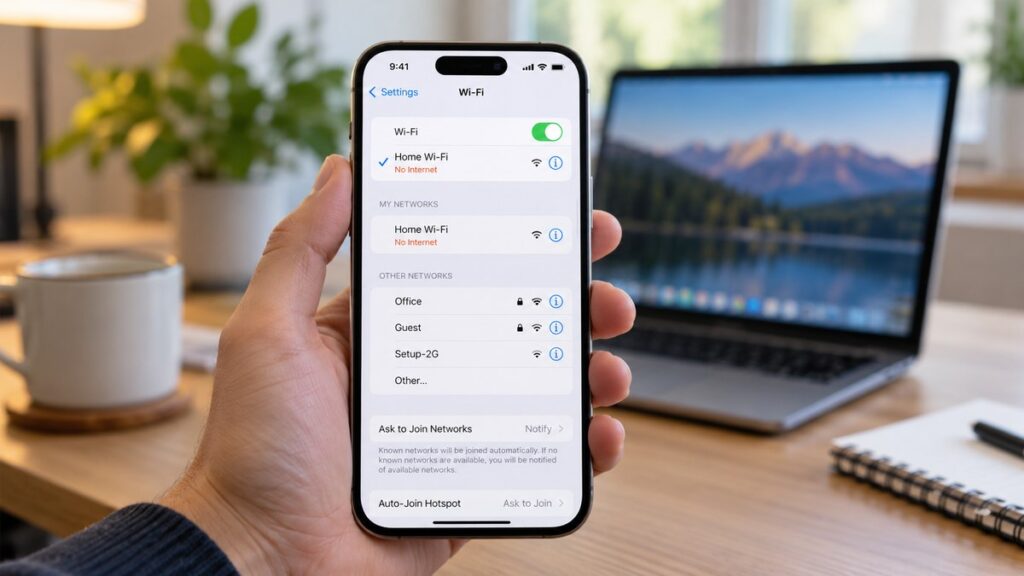
iPhone connected to Wi-Fi but no internet? This common connection problem can happen even when your phone shows a strong Wi-Fi signal. Here are 10 practical ways to identify the cause and restore internet access.
If your iPhone is connected to Wi-Fi but has no internet access, it can be frustrating. You might see a Wi-Fi symbol at the top of the screen, yet Safari refuses to load websites, apps cannot refresh, or videos stop playing.
The good news is that this problem doesn’t always mean your iPhone is damaged. Sometimes the router has lost its internet connection. Other times, incorrect network settings, VPN software, or a temporary iOS issue may be responsible.
This guide explains 10 practical ways to fix an iPhone connected to Wi-Fi but not accessing the internet. Start with the easiest solutions and test your connection after each step.
Table of Contents
Why Is My iPhone Connected to Wi-Fi but No Internet?
Your iPhone can connect successfully to a wireless router even when that router has no working internet connection.
Wi-Fi and internet access are not exactly the same thing. Wi-Fi connects your phone to a local wireless network. Your router then needs a functioning connection from your internet service provider (ISP) to access online services.
Common causes include:
- A temporary router or modem problem.
- An internet service outage.
- Incorrect or outdated network settings.
- VPN or security software interference.
- A public Wi-Fi network requiring sign-in.
- DNS configuration problems.
- Weak wireless signal or router compatibility issues.
Before making major changes, determine whether the problem affects only your iPhone or every device connected to the same network.
1. Check Whether Other Devices Have Internet Access
Start by connecting another device, such as a laptop, tablet, or second phone, to the same Wi-Fi network.
Try opening a website or playing an online video.
If every device fails to access the internet, the problem probably involves your router, modem, or internet provider.
If other devices work normally, the issue may be specific to your iPhone.
You can also connect your iPhone to a different Wi-Fi network. If that works, your original network deserves closer investigation.
Useful tip: When testing Wi-Fi, temporarily disable cellular data so your iPhone doesn’t silently use its mobile connection instead.
2. Turn Wi-Fi Off and Back On
A quick reconnection can sometimes resolve a temporary communication problem between your iPhone and router.
Follow these steps:
- Open Settings on your iPhone.
- Tap Wi-Fi.
- Turn Wi-Fi off.
- Wait approximately 10 seconds.
- Turn Wi-Fi back on.
- Reconnect to your network if necessary.
Try opening Safari again.
You can also briefly enable Airplane Mode and then disable it. Afterward, make sure Wi-Fi is enabled and connected.
This process refreshes the wireless connection without deleting saved networks or passwords.
3. Restart Your iPhone
Restarting your iPhone is another simple troubleshooting step.
A restart can clear temporary software problems that interfere with network connections.
On an iPhone with Face ID:
- Press and hold the side button and either volume button.
- Wait for the power-off slider.
- Drag the slider to turn off the device.
- Wait approximately 30 seconds.
- Hold the side button until the Apple logo appears.
On older iPhone models, the shutdown button combination may be different.
After restarting, reconnect to Wi-Fi and check whether Safari and other apps work.
If the problem began after an iOS update, restarting is a reasonable first step before changing more advanced settings.
4. Restart Your Wi-Fi Router and Modem
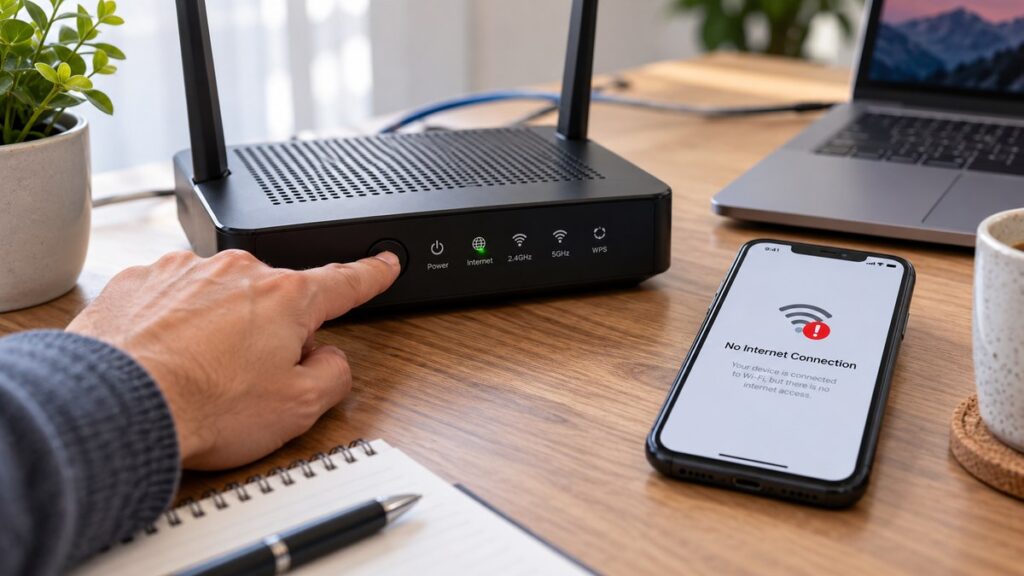
If your iPhone connects to the router but cannot reach the internet, restarting the network equipment may help.
For a typical home network:
- Disconnect the router and modem from power.
- Wait about 30 seconds.
- Reconnect the modem first, if it is separate.
- Wait for its connection indicators to stabilize.
- Reconnect the router.
- Allow the network to finish starting.
Some homes use a combined modem-router device, so only one device needs restarting.
Once the connection returns, test the iPhone again.
Avoid pressing the router’s factory reset button. A factory reset can erase your Wi-Fi name, password, and other configurations.
If the router continues showing an internet or WAN connection error, contact your ISP.
5. Forget the Wi-Fi Network and Reconnect
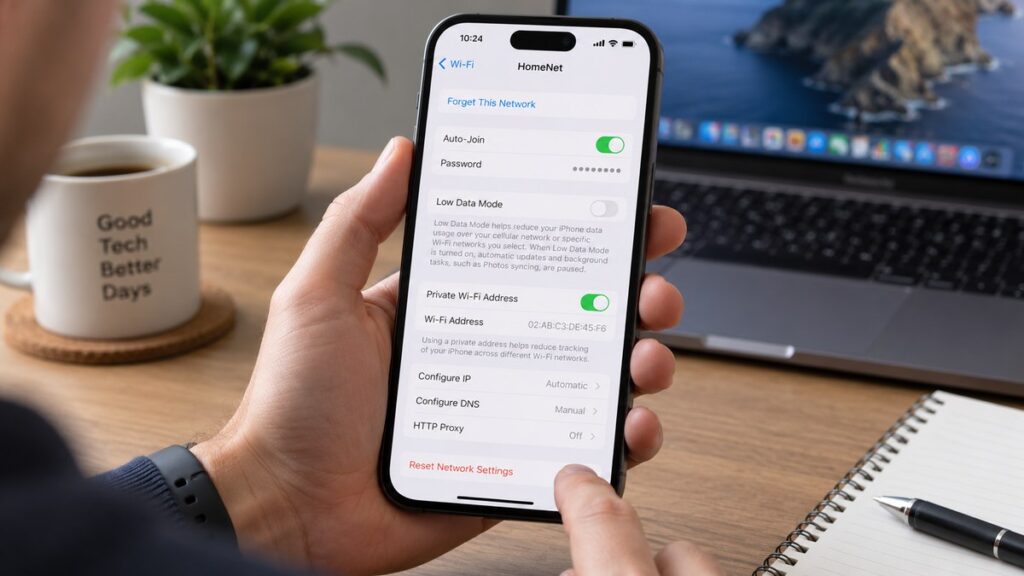
Your iPhone saves information about wireless networks it has previously joined.
Sometimes removing the saved connection and joining again can resolve configuration problems.
Here’s how:
- Open Settings.
- Select Wi-Fi.
- Tap the information icon beside your connected network.
- Choose Forget This Network.
- Confirm your choice.
- Select the same network again.
- Enter the Wi-Fi password.
Your iPhone will establish a new connection using the network’s current settings.
Important: Make sure you know the Wi-Fi password before forgetting the network. Otherwise, you might not be able to reconnect.
If you use a school or workplace network, check with its administrator before removing managed network configurations.
6. Check Whether Public Wi-Fi Requires a Login
Public Wi-Fi networks sometimes require users to complete an additional sign-in process before internet access becomes available.
This is common in hotels, airports, restaurants, and educational institutions.
You may successfully join the Wi-Fi network but remain unable to browse until you accept its terms or sign in.
To check:
- Open Settings → Wi-Fi.
- Select the public network.
- Wait for its login or welcome page to appear.
- Complete any required authentication.
- Return to Safari and test the connection.
If the login screen doesn’t appear, disconnect and reconnect to the network.
Some public networks have usage restrictions, session limits, or temporary outages. Contact the network operator if you still cannot connect.
Avoid entering sensitive information on unfamiliar public networks unless you trust the service and understand how it handles your data.
7. Temporarily Disable VPN or Network Filtering
VPN applications, security software, and filtering tools can occasionally interfere with internet access.
If you use a VPN, disconnect it temporarily and test the Wi-Fi connection again.
Open Settings and check the VPN configuration. Some applications also manage VPN connections directly.
If internet access returns after disabling a VPN, the issue may involve its server, configuration, or compatibility with your current network.
Try updating the application or contacting the VPN provider.
If necessary, Apple’s troubleshooting guidance also recommends testing without third-party VPN or security software.
Security reminder: Do not permanently remove organization-managed VPN or security software without checking with your IT administrator.
8. Check Your Wi-Fi Signal and Router Band
A weak or unstable Wi-Fi connection can cause websites and applications to time out.
If your iPhone repeatedly disconnects from Wi-Fi instead of remaining connected without internet access, follow our iPhone Wi-Fi Keeps Disconnecting guide for more targeted troubleshooting.
Move closer to your router and try loading a website again.
If you have access to both 2.4 GHz and 5 GHz Wi-Fi networks, test the alternative band.
The 2.4 GHz band generally provides greater range, while 5 GHz can offer better performance at shorter distances under suitable conditions.
Actual results depend on interference, walls, router capabilities, and nearby networks.
If your Wi-Fi router is older, check whether updated firmware is available from its manufacturer.
Router updates may resolve bugs and compatibility problems, but use the manufacturer’s recommended installation process.
Avoid changing advanced router settings randomly, especially when other household devices depend on the same connection.
9. Check DNS and Proxy Settings
DNS, or Domain Name System, helps your iPhone find the network addresses associated with websites.
Incorrect DNS settings can sometimes prevent websites from loading even when the Wi-Fi connection itself appears normal.
To review your settings:
- Open Settings → Wi-Fi.
- Tap the information icon beside the connected network.
- Find Configure DNS.
- If your network does not require a custom DNS provider, choose Automatic.
- Save the setting if prompted.
You can also review Configure Proxy on the same screen.
For most ordinary home networks, the proxy setting should remain Off unless your network administrator or service provider specifically requires another configuration.
If your workplace, school, or VPN service uses custom DNS or proxy settings, do not overwrite them without guidance.
Test Safari again after making changes.
10. Reset Network Settings as a Last Resort
If your iPhone still cannot access the internet, resetting its network settings may help.
However, this step is more disruptive than the previous solutions.
A network reset removes saved Wi-Fi networks and passwords along with certain cellular, VPN, and APN settings.
To reset network settings:
- Open Settings.
- Tap General.
- Select Transfer or Reset iPhone.
- Tap Reset.
- Choose Reset Network Settings.
- Follow the on-screen instructions.
Your iPhone may restart during the process.
Afterward, reconnect to your Wi-Fi network and enter the password again.
Important: Select Reset Network Settings, not Erase All Content and Settings. These actions are completely different.
If the iPhone is managed by your workplace or school, consult your IT administrator before resetting.
What If Your iPhone Still Has No Internet?
If none of these methods works, the next step is to identify where the connection is failing.
If every device connected to your router has the same problem, contact your internet service provider.
If your iPhone works on other Wi-Fi networks but fails only on your home network, check your router’s configuration, firmware, and device access restrictions.
If your iPhone cannot access the internet on multiple working networks, check for available iOS updates under Settings → General → Software Update.
Before updating, back up important data and follow Apple’s update instructions.
If the problem persists across different networks, consider contacting Apple Support for further diagnosis.
You can also consult Apple’s official Wi-Fi troubleshooting guide.
Frequently Asked Questions
Why does my iPhone show Wi-Fi but say No Internet Connection?
The Wi-Fi symbol indicates a wireless network connection. It doesn’t guarantee that the router has working internet access. A service outage, router problem, or network configuration issue can cause this message.
Will resetting network settings delete my photos?
Reset Network Settings does not erase your personal photos, apps, or ordinary personal files. However, it removes saved Wi-Fi information and resets certain network configurations.
Why does Wi-Fi work on my laptop but not my iPhone?
If your laptop connects normally, the router has at least some functioning internet access. The iPhone may have an incorrect saved configuration, VPN interference, or another device-specific issue. Try forgetting and rejoining the network.
Can an iOS update cause Wi-Fi problems?
Software changes can occasionally be associated with connectivity issues, although an update is not necessarily the cause. Check other devices and networks before assuming that iOS is responsible.
Should I change my iPhone’s DNS settings?
Usually, automatic DNS settings are sufficient. Change them only when troubleshooting a suspected DNS problem or when your network provider recommends a particular configuration.
Final Thoughts
When your iPhone is connected to Wi-Fi but has no internet, start with simple checks before resetting anything.
Test another device, reconnect to Wi-Fi, restart your iPhone, and restart the router. If those steps fail, investigate VPN software, login requirements, DNS settings, and network configurations.
Most importantly, identify whether the issue belongs to your iPhone, your Wi-Fi network, or your internet provider.
A systematic approach can save time and help you restore connectivity without making unnecessary changes.