Are your iPhone Messages not syncing with Mac even though both devices use the same Apple Account? Perhaps new messages appear on your iPhone but not your MacBook, or your Mac receives iMessages but misses ordinary text messages.
Before changing your settings, identify which type of message is missing.
Apple uses two related features: Messages in iCloud, which keeps conversation history synchronized, and Text Message Forwarding, which allows supported SMS, MMS, and RCS messages to appear on your Mac.
If new messages arrive but older conversations are missing, the issue may involve iCloud synchronization. If only green-bubble texts are missing, your messaging and forwarding settings deserve attention.
This guide explains how to identify the problem, check the appropriate settings, and restore message synchronization without unnecessarily deleting conversations or resetting your devices.
Table of Contents
Quick Answer
If messages aren’t appearing on your Mac, first check the following settings.
On your iPhone:
- Open Settings.
- Tap your name > iCloud.
- Tap See All if necessary.
- Select Messages in iCloud.
- Confirm that Use on this iPhone is enabled.
On your Mac:
- Open Messages.
- Select Messages > Settings > iMessage.
- Confirm that you’re signed in to the correct Apple Account.
- Enable Messages in iCloud.
- Click Sync Now if available.
If only SMS, MMS, or RCS messages are missing:
Open Settings > Apps > Messages > Text Message Forwarding on your iPhone and check whether your Mac is enabled.
When Messages in iCloud is enabled on both devices, separate text forwarding setup may not be required.
Avoid deleting conversations or repeatedly switching iCloud synchronization off and on while troubleshooting.
Identify Why Your Messages Aren’t Syncing
Before changing several settings, compare what appears on your iPhone and Mac.
1. New iMessages Don’t Appear on Mac
Open Messages > Settings > iMessage on your Mac.
Check that you’re signed in to the correct Apple Account and that your phone number or email address is enabled for receiving iMessages.
Expected result: New messages sent to an enabled address should also arrive on the Mac when the necessary messaging and network requirements are met.
2. New Messages Arrive but Old Conversations Are Missing
Check Messages in iCloud on both devices.
On your Mac, click Sync Now if the option is available.
Large conversation histories and attachments can take time to synchronize.
Expected result: Previously stored conversations should gradually appear once the Mac successfully retrieves the synchronized history.
3. Blue Messages Work but Green Messages Don’t
Check Text Message Forwarding on your iPhone.
Also confirm that iMessage is enabled on both devices and that you’re using the correct Apple Account.
SMS, MMS, and RCS availability depends on your carrier and region.
Expected result: Supported text messages should become available on your Mac when the appropriate syncing or forwarding configuration is working.
4. Messages Don’t Work on Either Device
This may not be a synchronization problem.
Check your internet connection, iMessage activation status, Apple Account settings, and carrier service.
For SMS or RCS problems affecting the iPhone itself, contact your carrier if necessary.
5. Messages Sync but Disappear From Both Devices
Messages in iCloud also synchronizes deletions.
Deleting a conversation on one device can remove it from other devices using the same synchronized message history.
Important: Do not delete conversations to force synchronization. First confirm that your important messages are safely available.
Why iPhone Messages Stop Syncing
Apple Messages supports several types of conversations, and understanding the difference can help you find the right solution.
iMessage: Apple’s messaging service for conversations between compatible Apple devices. These messages usually appear in blue bubbles.
SMS and MMS: Traditional carrier-based text and multimedia messages that typically appear in green bubbles.
RCS: A newer messaging standard supported by compatible carriers and devices. These conversations also appear in green bubbles.
Messages in iCloud can keep your conversation history synchronized across compatible Apple devices. Text Message Forwarding provides another way to send and receive SMS, MMS, and RCS messages on your Mac.
Common causes of syncing problems include:
- Messages in iCloud being disabled.
- Different Apple Accounts or iMessage addresses.
- A stalled iCloud synchronization.
- Incorrect Text Message Forwarding settings.
- Network connectivity problems.
- Insufficient storage or an outdated operating system.
Let’s work through the fixes.
1. Check Your Apple Account
First, confirm that your iPhone and Mac are signed in to the same Apple Account.
On your iPhone, open Settings and tap your name at the top.
On your Mac, open System Settings and select your name.
Compare the Apple Accounts shown on both devices.
Next, open Messages on your Mac, choose Messages > Settings > iMessage, and confirm that iMessage is using the intended account.
If one device uses another account, the conversations associated with the two accounts may not match.
Tip: Don’t immediately sign out of iCloud to troubleshoot. First confirm how your messages are stored and whether important conversations are synchronized.
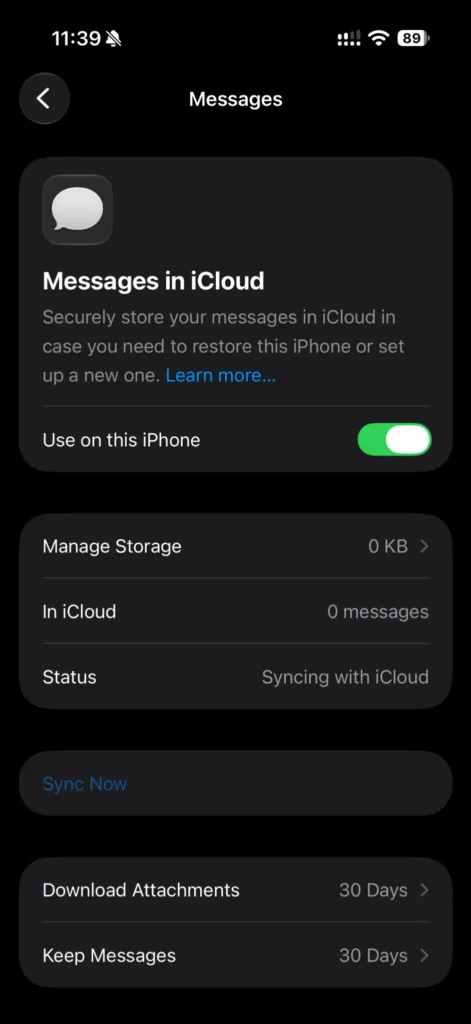
2. Enable Messages in iCloud on iPhone
One common reason for iPhone Messages not syncing with Mac is that Messages in iCloud isn’t enabled on the iPhone.
To check:
- Open Settings on your iPhone.
- Tap your name.
- Select iCloud.
- Tap See All under Saved to iCloud, if necessary.
- Open Messages in iCloud.
- Turn on Use on this iPhone.
On older iOS versions, the names or locations of these settings may differ slightly.
When Messages in iCloud is enabled, your supported message history can remain updated across devices signed in to the same account.
Keep your iPhone connected to the internet while synchronization takes place.
If you’ve recently enabled syncing or have years of conversations and attachments, the initial upload may take some time.
3. Enable Messages in iCloud on Mac
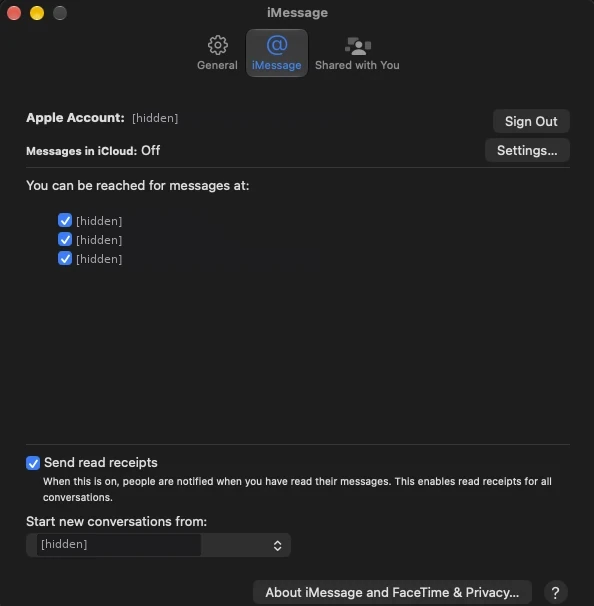
Even if Messages in iCloud is enabled on your iPhone, your Mac must also be configured correctly.
Here’s what to do:
- Open Messages on your MacBook or iMac.
- Click Messages in the menu bar.
- Choose Settings.
- Select the iMessage tab.
- Check Enable Messages in iCloud.
- Click Sync Now if the option appears.
Leave the Messages app open and keep your Mac connected to the internet.
If the Mac hasn’t synchronized in a while, older conversations may gradually begin appearing.
Don’t repeatedly toggle syncing off and on while the initial synchronization is running.
If other iCloud services are also failing, our guide to iCloud Keychain not syncing explains additional account-related checks.
4. Check iMessage Send & Receive
Messages might reach your iPhone but not your Mac because the devices aren’t configured to receive messages at the same addresses.
On your iPhone:
- Open Settings.
- Go to Apps > Messages.
- Tap Send & Receive.
- Check your selected phone number and email addresses.
On older iOS versions, Messages may appear directly in Settings.
On your Mac:
- Open Messages.
- Choose Messages > Settings.
- Click iMessage.
- Review the addresses enabled for receiving messages.
Make sure the relevant phone number or Apple Account email address is selected on both devices.
For example, if someone sends an iMessage to your phone number but your Mac only receives messages at an email address, that can explain why the conversation doesn’t appear as expected.
If your phone number isn’t available, check whether iMessage activation has completed successfully on your iPhone. Another reason for iPhone Messages not syncing with Mac is an incorrect Send & Receive configuration.
5. Check Text Message Forwarding
If blue iMessages appear on your Mac but green SMS, MMS, or RCS conversations do not, Text Message Forwarding may need attention.
Apple allows compatible text messages from your iPhone to appear on your Mac.
To check the setting:
- Open Settings on your iPhone.
- Tap Apps > Messages.
- Select Text Message Forwarding.
- Find your Mac in the device list.
- Turn it on if it isn’t already enabled.
Important: If Messages in iCloud is already enabled on both devices, separate Text Message Forwarding setup usually isn’t necessary because the feature is included.
If your Mac doesn’t appear in the forwarding list, check that iMessage is enabled on both devices and that they use the same Apple Account.
Your iPhone must also be turned on and connected to a network for the forwarding setup to work correctly.
For more details, see Apple’s official Text Message Forwarding instructions.
6. Check Internet Connectivity
Message synchronization requires a reliable connection.
If your iPhone or Mac loses internet access, new conversations and changes may not synchronize immediately.
On your iPhone:
- Open Safari and load a webpage.
- Check Wi-Fi or cellular connectivity.
- If necessary, switch between Wi-Fi and cellular data to test the connection.
On your Mac:
- Open Safari and check whether websites load.
- Reconnect to your Wi-Fi network if necessary.
- Temporarily disconnect an unreliable VPN to see whether connectivity improves.
Don’t reset your network settings before checking the simpler possibilities.
If your MacBook frequently loses its connection, read our MacBook Wi-Fi not working guide for additional troubleshooting.
You can also check Apple System Status to see whether Apple reports any relevant service interruptions.
7. Check iCloud Storage and Sync Progress
Messages in iCloud uses your available iCloud storage.
Large conversations, photos, videos, and other attachments can increase the amount of data that needs to synchronize.
On your iPhone:
- Open Settings.
- Tap your name.
- Select iCloud.
- Review your available storage.
If your storage is full, resolve the storage problem before expecting all new data to synchronize normally.
You can remove unnecessary files or review your storage plan, but avoid deleting important conversations just to create space.
Also check the available local storage on your Mac and iPhone.
If you recently restored an iPhone, switched to a new Mac, or enabled Messages in iCloud for the first time, allow additional time for your message history to download.
Note: Deleting messages while Messages in iCloud is enabled can delete those messages from your other synchronized Apple devices too.
8. Check iCloud Keychain and Security Settings
Apple’s Messages in iCloud setup requires compatible account security settings, including two-factor authentication and iCloud Keychain.
If your account isn’t fully configured, message synchronization may not behave as expected.
On your iPhone:
- Open Settings.
- Tap your name.
- Open iCloud.
- Find Passwords & Keychain, or the corresponding Keychain setting.
- Check that iCloud Keychain synchronization is enabled.
Also review the sign-in and security section of your Apple Account to confirm that two-factor authentication is active.
On your Mac, check the corresponding settings under System Settings > your name > iCloud.
Avoid changing your account security settings unnecessarily. The goal is to confirm that the required features are enabled.
If passwords and other iCloud information also fail to sync, resolving that account-level issue may help narrow down the Messages problem.
9. Restart and Update Both Devices
Sometimes Messages stops updating because of a temporary software or connectivity issue.
A normal restart can help restore communication between the app and Apple’s services.
Restart your iPhone using its usual power controls.
Then restart your Mac by opening the Apple menu and selecting Restart.
After both devices turn back on, reconnect to the internet and open Messages again.
If the issue continues, check for software updates.
On iPhone: Settings > General > Software Update.
On Mac: System Settings > General > Software Update.
Install an appropriate stable update after backing up important data.
Updates can include bug fixes, compatibility improvements, and security changes that may affect messaging features.
You should also confirm that both devices meet Apple’s requirements for Messages in iCloud.
10. Refresh iMessage Settings Carefully
If your account, network, and iCloud settings all look correct but messages still don’t arrive, try refreshing iMessage on your iPhone.
Before doing this, confirm that important conversations are available and that your message history isn’t relying solely on an unsynchronized local copy.
Then:
- Open Settings on your iPhone.
- Tap Apps > Messages.
- Turn iMessage off.
- Wait briefly.
- Turn iMessage back on.
- Open Send & Receive.
- Confirm your phone number and Apple Account are selected.
Allow time for iMessage to reactivate.
If the problem continues, check the iMessage account shown in Messages > Settings on your Mac.
Don’t delete message databases, erase devices, or sign out of your entire Apple Account as an early troubleshooting step.
If activation repeatedly fails, Apple Support or your mobile carrier may need to investigate, depending on which message type is affected.
Frequently Asked Questions
Why are my iMessages not showing up on Mac?
Your Mac may be using a different Apple Account, Messages in iCloud may be disabled, or the relevant phone number or email address may not be selected in iMessage settings.
Check Messages > Settings > iMessage on your Mac first.
How do I force Messages to sync on my Mac?
Open the Messages app, choose Messages > Settings > iMessage, and click Sync Now if available. Make sure Enable Messages in iCloud is selected.
Does Messages in iCloud sync SMS and RCS messages?
Yes. Apple supports synchronization of SMS, MMS, RCS, and iMessage history through Messages in iCloud on compatible devices.
Carrier and regional restrictions can still affect the availability of certain messaging services.
Why is my Mac receiving new messages but not old ones?
The initial Messages in iCloud synchronization may still be running, particularly if you have a large message history. Also confirm that both devices use the same Apple Account.
Will disabling Messages in iCloud delete my conversations?
Changing synchronization settings can affect where message history remains available. More importantly, deleting a conversation while Messages in iCloud is active can remove it from other synchronized devices.
Avoid disabling syncing or deleting conversations until you’ve confirmed where your messages are stored.
Final Thoughts
When iPhone Messages are not syncing with Mac, the most useful place to start is with the Apple Account, Messages in iCloud, and Send & Receive settings.
If only green-bubble texts are missing, inspect Text Message Forwarding. If new iMessages work but old conversations aren’t appearing, check iCloud synchronization and allow time for your history to update.
Most importantly, avoid deleting conversations or resetting devices before checking these settings.
For additional troubleshooting, consult Apple’s official support resources: