Is your iCloud Backup Stuck on Estimating Time Remaining even though your iPhone is connected to Wi-Fi? Maybe the backup screen keeps calculating the time, shows several hours remaining, or appears frozen without making progress.
This problem can be frustrating, especially when you’re preparing to update iOS, replace your iPhone, or make sure important information is safely backed up.
The good news is that a slow backup doesn’t always mean something is broken. A large backup, poor Wi-Fi upload speed, insufficient iCloud storage, or a temporary connection problem can delay the process.
In this guide, we’ll explain 9 practical fixes for an iCloud backup stuck on estimating time remaining, starting with simple checks and moving toward safer alternatives if the backup still won’t complete.
Table of Contents
Quick Answer
If your iCloud backup is stuck on estimating time remaining, first check whether the backup is still running or has actually failed.
- Open Settings > Your Name > iCloud > iCloud Backup.
- Check the status of the current backup and the last successful backup.
- Confirm that your iPhone has a reliable Wi-Fi connection.
- Check your internet upload speed, not just download speed.
- Review your available iCloud storage and Next Backup Size.
- If the backup is taking longer than expected, leave the iPhone connected to power and Wi-Fi for up to 24 hours, as Apple recommends.
- If the backup still cannot finish, protect important data and test another Wi-Fi network.
Important: Don’t delete your only completed backup or erase your iPhone while troubleshooting.
Is Your iCloud Backup Slow or Actually Stuck?
A changing time estimate doesn’t necessarily mean an iCloud backup has failed.
Before restarting anything, identify which situation applies.
The Backup Is Taking Several Hours
Check your upload speed and the amount of data being backed up.
A large first-time backup on a slow connection can take considerably longer than an ordinary daily backup.
What to do: Keep the device connected to reliable Wi-Fi and power. Apple recommends allowing up to 24 hours if the backup takes longer than expected.
The Last Backup Couldn’t Be Completed
This is different from a backup that is still calculating its remaining time.
What to do: Check Wi-Fi, available iCloud storage, software updates, and whether the backup succeeds on another network.
Not Enough iCloud Storage
Open Settings > Your Name > iCloud, then review Storage and the backup information for your iPhone.
Compare Next Backup Size with your available iCloud storage.
Expected result: You can identify whether your account has enough space to complete the next backup.
If the backup is too large, review unnecessary backup data carefully or consider additional storage.
The Backup Says It Finished
Check the date and time of your last successful backup.
If the timestamp has updated, the backup may have completed even if you previously saw an unusually long estimate.
Expected result: A recent successful backup time provides better evidence of completion than the estimated-time display alone.
The Backup Still Won’t Finish After 24 Hours
Preserve important data before taking additional troubleshooting steps.
Consider creating a computer backup using Finder on Mac or a supported Apple backup application on Windows.
A computer backup doesn’t fix the iCloud problem, but it can help protect your information while you investigate.
Why iCloud Backup Stuck on Estimating Time Remaining Happens
When you start an iCloud backup, your iPhone determines which information needs to be backed up and transfers that information to Apple’s servers.
Several factors can affect how long this takes.
Slow upload speed: Your internet connection might download files quickly but upload data much more slowly. Cloud backups depend heavily on upload performance.
Large backup size: If you have substantial app data, messages, documents, or other information not already synchronized to iCloud, the initial backup may take longer.
Unstable Wi-Fi: Brief connection interruptions can slow progress or prevent a backup from completing.
Insufficient iCloud storage: Your next backup may require more space than your account currently has available.
Temporary software or service issues: An iOS problem, network configuration issue, or Apple service interruption may also interfere with backup completion.
Before changing settings, let’s identify whether your backup is genuinely stuck or simply taking longer than expected.
1. Check Whether the Backup Is Progressing
When an iCloud backup seems frozen, the first step is to check its actual status.
The estimated time displayed on your screen is not necessarily an accurate prediction of when the upload will finish.
A large backup can take considerable time, particularly on a slow connection.
Check the Backup Status
- Open Settings on your iPhone.
- Tap your name.
- Select iCloud.
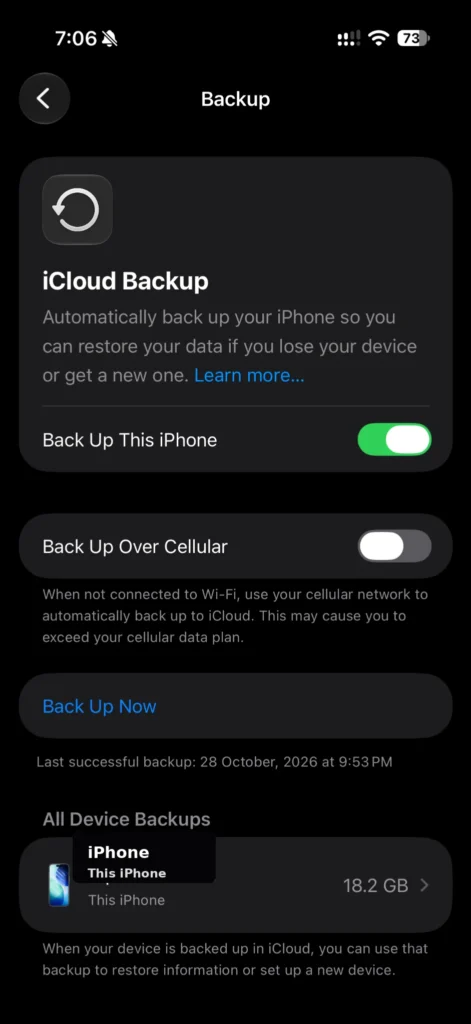
- Tap iCloud Backup.
- Look at the current backup activity or the date and time of the last successful backup.
If a backup is in progress, avoid repeatedly canceling and restarting it.
Also check whether the last successful backup timestamp has changed.
If your phone reports that a backup completed successfully, you may be looking at an outdated progress display rather than a failed upload.
How Long Should You Wait?
Apple recommends allowing up to 24 hours with Wi-Fi and power connected when a backup is taking longer than expected.
That does not mean every backup normally requires 24 hours. Smaller backups on reliable connections may finish much sooner.
If the iCloud Backup Stuck on Estimating Time Remaining problem continues after a full day, move to the next checks.
2. Fix Your Wi-Fi Connection
An unstable wireless connection is one of the first things to investigate when an iPhone backup stops progressing.
Your iPhone can remain connected to Wi-Fi while the actual internet connection becomes slow or unreliable.
Test Wi-Fi Stability
- Open Settings > Wi-Fi.
- Confirm you’re connected to your intended network.
- Open Safari and load a few websites.
- Move closer to your router.
- Check whether other devices can use the same network normally.
- Avoid switching between different Wi-Fi networks during the backup.
For troubleshooting, use a trusted home or office network rather than a congested public hotspot.
If your Wi-Fi frequently disconnects, see our detailed guide to iPhone Wi-Fi Keeps Disconnecting.
Restart the Router If Necessary
If several devices experience network problems, restarting your router may help.
Unplug the router from power, wait approximately 30 seconds, reconnect it, and allow the network to come back online.
Only do this when you can safely interrupt the connection for other users.
Reconnect your iPhone and test the internet before attempting another backup.
Don’t factory-reset your router just to troubleshoot an iCloud backup.
3. Check Your Internet Upload Speed
Your internet’s download speed is not the same as its upload speed.
For iCloud backups, upload speed is especially important because your iPhone must send data from your device to iCloud.
You might have a fast connection for streaming videos but a much slower connection for uploading files.
Test Your Connection
- Connect your iPhone to the Wi-Fi network you intend to use.
- Open a reputable internet speed-testing service.
- Run a speed test.
- Look specifically at the upload speed.
- Repeat the test if the result is unusually low.
If your upload speed is significantly lower than expected, contact your internet provider or test a different network.
Estimate Backup Time
For example, uploading 5 GB of data at a sustained 5 Mbps would take approximately 2 hours and 13 minutes under ideal conditions.
Real-world backups can take longer because of connection fluctuations, upload overhead, and additional processing.
The displayed time estimate can therefore change during the backup.
If your iCloud backup is stuck on estimating time remaining, checking upload speed can help determine whether slow internet is the primary cause.
4. Understand Manual and Automatic Backup Requirements
4. Understand Manual and Automatic Backup Requirements
Apple has different requirements for manual and automatic iCloud backups.
Manual Backup
To start a manual backup:
- Connect your iPhone to Wi-Fi.
- Open Settings > Your Name > iCloud > iCloud Backup.
- Tap Back Up Now.
- Remain connected to Wi-Fi until the backup finishes.
Automatic Backup
For a normal automatic iCloud backup:
- Enable Back Up This iPhone.
- Connect the iPhone to a power source.
- Connect it to Wi-Fi.
- Lock the screen.
These conditions allow automatic backups to run when appropriate.
If a Backup Is Taking Too Long
Apple recommends leaving the device connected to power and Wi-Fi for up to 24 hours when a backup takes longer than expected.
Don’t repeatedly cancel and restart a backup that may still be making progress.
5. Check Available iCloud Storage
An iCloud backup may fail if your account doesn’t have enough available storage for the next backup.
Apple provides 5 GB of free iCloud storage, which may be insufficient if you have substantial app data or multiple Apple devices using the same storage allowance.
Check Your Storage
- Open Settings.
- Tap your name.
- Select iCloud.
- Review the used and available storage.
- Open Storage or Manage Account Storage.
- Tap Backups.
- Select your current iPhone.
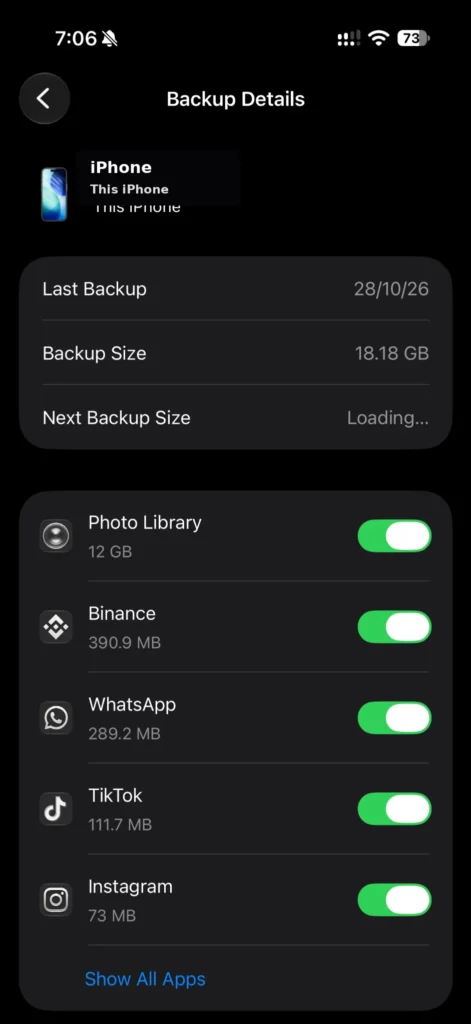
Look for Next Backup Size.
Your iPhone may need a few minutes to calculate this value.
Compare the required backup size with your available iCloud storage.
What If Storage Is Insufficient?
You have several options:
- Review which apps contribute to your backup.
- Remove unnecessary data you no longer need.
- Make copies of important files before deleting anything.
- Consider upgrading your iCloud storage plan if necessary.
Don’t delete your most recent working backup unless you have another reliable copy of your important data and understand the consequences.
For more guidance, read Apple’s instructions for managing iCloud storage.
6. Reduce Your Next Backup Size
A large backup can take much longer to upload than a smaller one.
If your iCloud backup is stuck on estimating time remaining, reviewing unnecessary backup data may help reduce the amount that needs to be transferred.
However, you should never remove important information just to make the backup finish faster.
Review Backup Data
- Open Settings.
- Tap your name.
- Select iCloud.
- Open Storage or Manage Account Storage.
- Tap Backups.
- Select your current device.
- Review the apps included in the backup.
Some apps store substantial amounts of local data.
If an app contains information you genuinely don’t need to preserve, you can consider excluding it from future backups.
Warning: Disabling backup for an app can remove that app’s existing backed-up information from iCloud. Only do this if you’re comfortable losing the ability to restore that information from the backup.
Understand What iCloud Already Syncs
Not everything stored on your iPhone is necessarily included in the regular iCloud backup.
For example, when iCloud Photos is enabled, your photos and videos are synchronized separately rather than included in the daily device backup.
Similarly, information already synchronized through services such as iCloud Notes or Messages in iCloud may not be duplicated inside the backup.
This distinction matters because an iCloud backup and iCloud synchronization are different processes.
If your Notes are missing across devices rather than the backup itself failing, read our iPhone Notes Not Syncing guide.
7. Check Apple’s System Status
Sometimes the issue may involve an Apple service rather than your iPhone.
Although not every temporary interruption appears on the public status page, it’s worth checking before making major changes.
Check for an Outage
- Open Safari.
- Visit Apple System Status.
- Look for relevant iCloud services.
- Check whether Apple reports an interruption.
- If there is a relevant outage, avoid unnecessary resets and try again after service is restored.
If Apple reports no problem, continue investigating your connection, storage, and device software.
Are Other iCloud Features Working?
Check whether services such as iCloud Drive, Photos, Notes, or saved passwords are updating as expected.
If several iCloud services fail simultaneously, you may need to investigate your Apple Account or internet connection.
For password-related syncing problems, see our iCloud Keychain Not Syncing guide.
Keep in mind that successful iCloud syncing does not necessarily guarantee that iCloud Backup is functioning correctly.
8. Restart iPhone and Update iOS
If the backup is no longer progressing and you’ve already checked the network, storage, and Apple’s system status, a normal restart may help.
Restarting can resolve temporary software problems without intentionally deleting your personal data.
Restart Your iPhone
For most recent iPhone models with Face ID:
- Press and hold the Side button and either Volume button.
- Wait for the power-off slider.
- Slide to power off.
- Wait approximately 30 seconds.
- Press and hold the Side button until the Apple logo appears.
After restarting, reconnect to Wi-Fi and check your iCloud Backup settings.
If a backup is actively transferring data, don’t interrupt it solely to perform this step.
Check for an iOS Update
- Open Settings.
- Tap General.
- Select Software Update.
- Check for an available compatible update.
- Install the update when appropriate.
Software updates may resolve known bugs or compatibility problems.
Ideally, maintain a reliable backup before installing major software updates. If your iCloud backup is unavailable, consider creating a computer backup first.
When the device restarts, check whether the iCloud Backup Stuck on Estimating Time Remaining issue continues.
9. Try Another Network or Make a Computer Backup
If the backup still won’t finish, test another reliable Wi-Fi connection.
Apple recommends trying a different Wi-Fi network when an iCloud backup cannot be completed.
Test Another Wi-Fi Network
- Connect your iPhone to another trusted Wi-Fi network.
- Confirm the internet connection works.
- Connect your device to power.
- Open Settings > Your Name > iCloud > iCloud Backup.
- Start a backup if another backup isn’t already running.
- Monitor whether the process advances.
If the backup completes on another network, your original internet connection may be contributing to the issue.
Back Up to a Mac Instead
If you need to protect your data urgently, a computer backup offers an alternative.
On a Mac running a modern version of macOS:
- Connect your iPhone using a compatible USB cable.
- Open Finder.
- Select your iPhone in the sidebar.
- Open the General tab.
- Choose to back up your iPhone data to the Mac.
- Select Encrypt local backup if you need to preserve supported sensitive information such as Health data.
- Create and securely save the encryption password.
- Click Back Up Now.
Important: If you forget the password for an encrypted computer backup, you may not be able to restore that backup.
On Windows, you can use the Apple Devices app or supported iTunes versions.
A successful computer backup doesn’t repair iCloud Backup, but it gives you another way to protect your information while you investigate.
See Apple’s backup methods guide.
What Not to Do When iCloud Backup Gets Stuck
Some troubleshooting actions can create unnecessary data-loss risks.
Avoid:
- Erasing your iPhone without a verified backup.
- Deleting your only existing iCloud backup.
- Repeatedly canceling a backup that’s still progressing.
- Signing out of your Apple Account without a clear reason.
- Disabling backup for essential apps without understanding what will be removed.
- Factory-resetting your router as an initial troubleshooting step.
- Installing unofficial tools that claim to repair or recover iCloud backups.
The safest approach is to identify the actual problem while preserving existing data.
Frequently Asked Questions
Why is my iCloud backup stuck on estimating time remaining?
The most common possibilities include slow upload speed, unstable Wi-Fi, a large backup, or insufficient iCloud storage. Check your network connection and backup size before trying more advanced fixes.
How long should an iCloud backup take?
The duration depends on the amount of data being transferred and your internet upload speed. Apple recommends leaving the device connected to power and Wi-Fi for up to 24 hours when a backup takes longer than expected.
Can I use my iPhone while iCloud is backing up?
You can use your iPhone normally, but a stable connection is important. For automatic backups, Apple specifies that the phone should be connected to Wi-Fi and power with its screen locked. Avoid unnecessary interruptions when trying to complete a delayed backup.
Does iCloud backup use Wi-Fi or cellular data?
iCloud Backup typically uses Wi-Fi. On compatible iPhone models and supported cellular plans, Apple may offer a Back Up Over Cellular option. Availability depends on the device, carrier, and settings.
Will restarting my iPhone delete the iCloud backup?
A normal restart does not intentionally delete your existing completed iCloud backups. However, it can interrupt a backup currently in progress, so wait if the backup is still making progress.
Can I cancel a stuck iCloud backup?
You may be able to stop an ongoing backup, but doing so means that particular backup attempt won’t finish. Check whether you have another reliable completed backup before interrupting the process.
Why does my iCloud backup say several hours remaining?
The estimate depends heavily on the amount of information to upload and your connection speed. A slow upload connection can make an otherwise normal backup take many hours.
What should I do if the backup never completes?
Check your Wi-Fi upload speed, iCloud storage, software updates, and Apple’s system status. Try another network and consider creating an encrypted computer backup. Contact Apple Support if the problem persists.
Final Thoughts
An iCloud Backup Stuck on Estimating Time Remaining message does not necessarily mean your iPhone or iCloud account has failed.
Start by checking your Wi-Fi connection, upload speed, and available iCloud storage. Keep the iPhone connected to power and allow adequate time for the backup to complete.
If the backup remains unfinished after following Apple’s recommended checks, try another trusted network and preserve your important information with a computer backup.
The goal is not simply to make the progress indicator disappear. It’s to finish with a reliable, restorable backup of your important data.
For further assistance, consult these official Apple resources: