iPhone Mirroring not working on MacBook? Your Mac might fail to detect your iPhone, display an “Unable to Connect” message, or disconnect unexpectedly during a mirroring session.
Although these symptoms look similar, they can have different causes.
For example, an unsupported Mac cannot use iPhone Mirroring, while a compatible Mac might fail to connect because the iPhone is unlocked, Bluetooth is disabled, or another Continuity feature is active.
Before resetting your devices, we’ll identify which situation applies and check Apple’s compatibility requirements.
This guide explains nine practical fixes for iPhone Mirroring connection problems on supported MacBook Air and MacBook Pro models.
Table of Contents
Quick Answer
If iPhone Mirroring isn’t working on your MacBook, try these steps first:
- Confirm that your Mac supports iPhone Mirroring and runs macOS Sequoia 15 or later.
- Make sure your iPhone runs iOS 18 or later and has a passcode.
- Sign in to the same Apple Account on both devices with two-factor authentication enabled.
- Turn on Wi-Fi and Bluetooth on both devices.
- Lock your iPhone and place it near your MacBook.
- Stop using AirPlay, Sidecar, or Internet Sharing on your Mac.
- Restart both devices and reopen the iPhone Mirroring app.
If the connection still fails, check VPN and firewall settings or reset your existing iPhone Mirroring setup.
Note: iPhone Mirroring is currently unavailable in the European Union. This is a regional restriction, not necessarily a hardware problem.
Identify Why iPhone Mirroring Isn’t Working
Before changing several settings, determine which problem you’re experiencing.
1. iPhone Mirroring App Is Missing
First, open the Applications folder on your Mac or search for iPhone Mirroring using Spotlight.
The application is included with macOS Sequoia 15 and later.
If it isn’t available, check your installed macOS version under Apple menu > About This Mac.
Your Mac must also have Apple silicon or the Apple T2 Security Chip.
Expected result: A compatible Mac running supported software should have access to the iPhone Mirroring application.
2. Your Mac Cannot Find Your iPhone
Check these requirements:
- Both devices use the same Apple Account with two-factor authentication.
- Wi-Fi and Bluetooth are enabled on both devices.
- Your iPhone is locked and nearby.
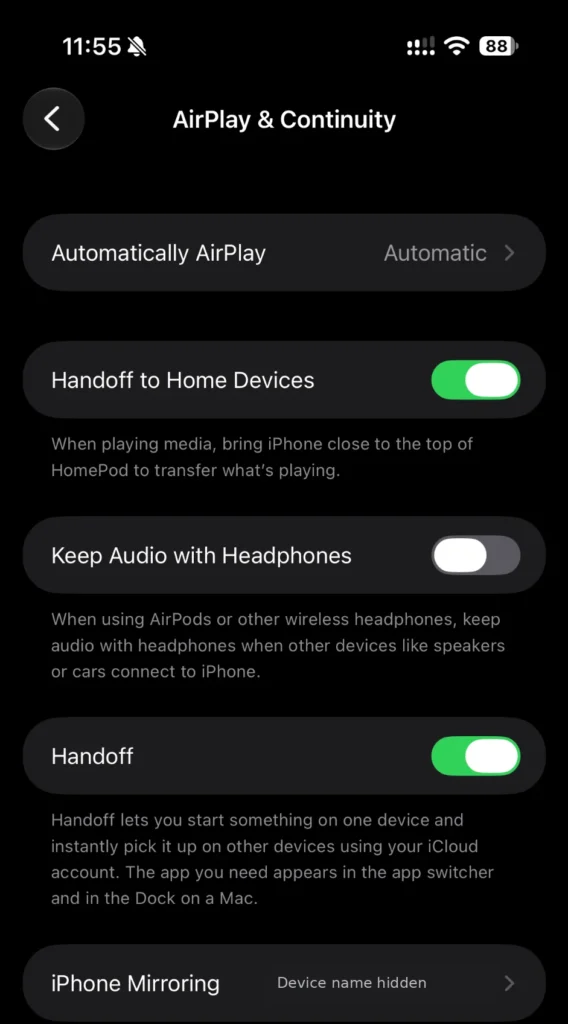
- Handoff is enabled.
- Your Mac isn’t actively using AirPlay, Sidecar, or Internet Sharing.
Expected result: If the devices meet the requirements, iPhone Mirroring should be able to discover the eligible iPhone.
3. iPhone Mirroring Says Unable to Connect
If your iPhone is detected but the connection fails:
- Follow any instructions in the iPhone Mirroring window.
- Check whether a VPN or security application restricts local networking.
- Confirm that your Mac firewall isn’t set to block all incoming connections.
- Restart both devices if the connection continues to fail.
If the error explicitly mentions regional availability, check whether iPhone Mirroring is supported in your country or region.
4. Mirroring Connects but Disconnects
If the connection starts successfully and then stops:
- Confirm your iPhone remains locked.
- Keep the devices within approximately 30 feet (10 meters).
- Reduce intensive wireless activities on either device.
- Check for Wi-Fi or Bluetooth interference.
- Test again.
Unlocking the iPhone normally ends the mirroring session. This is expected behavior, not necessarily a connection failure.
5. Your Mac Connects to the Wrong iPhone
If you have multiple eligible iPhones, check the selected device.
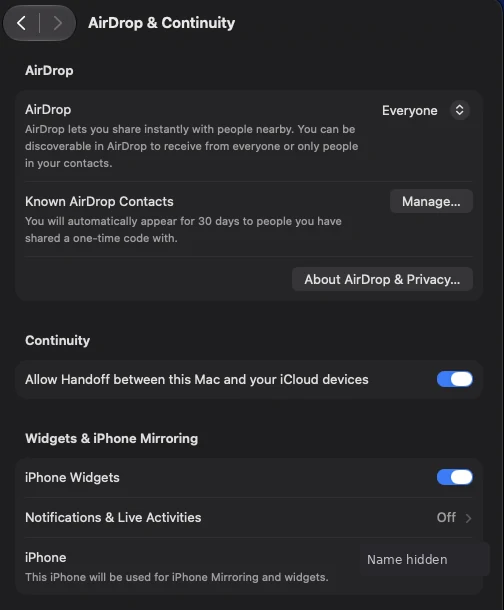
On macOS Tahoe 26.4 or later:
System Settings > General > AirDrop & Continuity
On earlier supported versions:
System Settings > Desktop & Dock
Look for the iPhone selection menu, if available, and choose the intended device.
If no other solution works, you can revoke iPhone Mirroring access and complete the setup again.
Why iPhone Mirroring Stops Working
Unlike ordinary screen sharing, iPhone Mirroring allows you to interact with an iPhone directly through a compatible Mac.
Apple uses several hardware, software, account security, and wireless requirements to establish the connection.
Common reasons the feature doesn’t work include:
- Unsupported Mac: Your Mac doesn’t have Apple silicon or the Apple T2 Security Chip.
- Outdated software: Your iPhone or Mac is running an unsupported operating system.
- Unlocked iPhone: Your iPhone must be locked for mirroring to begin.
- Different Apple Accounts: Both devices must use the same account.
- Disabled connectivity: Wi-Fi or Bluetooth isn’t enabled.
- Conflicting features: AirPlay, Sidecar, or Internet Sharing is active on the Mac.
- Network restrictions: VPN, firewall, or security software interferes with the connection.
- Incorrect device selection: Your Mac attempts to connect to another iPhone.
The good news is that most of these issues can be checked without deleting data or resetting either device.
1. Check iPhone Mirroring Compatibility
Before changing any settings, confirm that both devices meet Apple’s requirements.
iPhone Mirroring isn’t available on every MacBook, even if the computer can run an older version of macOS.
Mac Requirements
Your Mac must meet both conditions:
- Run macOS Sequoia 15 or later.
- Have Apple silicon or an Apple T2 Security Chip.
Compatible Apple silicon Macs include supported MacBook Air and MacBook Pro models with M-series chips.
Some Intel-based Macs with the T2 chip also support this feature.
However, an older Intel Mac without the T2 chip won’t become compatible simply by installing a newer operating system.
Check Your Mac
- Click the Apple menu.
- Choose About This Mac.
- Check the macOS version.
- Review your Mac’s processor or chip information.
- If necessary, look up the model’s security chip specifications.
iPhone Requirements
Your iPhone must run iOS 18 or later and have a passcode enabled.
To check:
- Open Settings.
- Tap General.
- Select About.
- Review the iOS version.
Check that your device meets Apple’s current Continuity feature requirements.
If your equipment is incompatible, move to a supported device rather than attempting unsupported system modifications.
2. Lock Your iPhone and Keep It Nearby
One of the simplest explanations for iPhone Mirroring not working on MacBook is that the iPhone is unlocked.
This might seem unusual because many Apple features require devices to be unlocked during setup.
However, iPhone Mirroring is designed to let you operate the phone from your Mac while its physical screen stays locked.
What to Do
- Turn on your iPhone.
- Confirm the battery isn’t depleted.
- Lock the screen using the Side button.
- Place the iPhone near your MacBook.
- Open the iPhone Mirroring app on your Mac.
- Follow any authentication instructions displayed.
Apple recommends keeping the devices within approximately 30 feet (10 meters) of each other.
For initial troubleshooting, placing the iPhone beside the MacBook is sensible.
What If My iPhone Is Charging?
You can use iPhone Mirroring while your iPhone is charging.
The phone can also be in StandBy mode.
However, if you unlock your iPhone and begin using it directly, the mirroring session stops.
If the connection fails immediately after starting, confirm that your phone hasn’t been unlocked.
3. Use the Same Apple Account
iPhone Mirroring requires both devices to be signed in to the same Apple Account with two-factor authentication enabled.
Simply connecting both devices to Wi-Fi isn’t enough.
Check the Account on iPhone
- Open Settings.
- Tap your name at the top.
- Check the Apple Account email address or account identity.
- Open Sign-In & Security.
- Verify that two-factor authentication is enabled.
Check the Account on Mac
- Open System Settings.
- Click your name in the sidebar.
- Review the Apple Account details.
- Confirm that you’re using the same account as your iPhone.
Your iPhone must also have a passcode configured.
If your MacBook uses a different Apple Account, it won’t meet the requirements for iPhone Mirroring with that iPhone.
Avoid Unnecessary Sign-Outs
Don’t immediately sign out of your Apple Account as a troubleshooting step.
Signing out can affect access to synchronized files, passwords, photos, and other account services.
Apple lists signing out and signing back in as a last-resort troubleshooting option when simpler fixes fail.
Try the remaining solutions first.
4. Enable Wi-Fi, Bluetooth, and Handoff
Both Wi-Fi and Bluetooth must be enabled on your iPhone and Mac for iPhone Mirroring to function.
You don’t necessarily need to connect both devices to the same Wi-Fi network, but the wireless features must be available.
Check Your iPhone
- Open Settings.
- Select Wi-Fi.
- Make sure Wi-Fi is on.
- Return to Settings.
- Open Bluetooth.
- Make sure Bluetooth is on.
- Go to General > AirPlay & Continuity.
- Check that Handoff is enabled.
Check Your MacBook
- Open System Settings.
- Select Wi-Fi and confirm it’s enabled.
- Open Bluetooth and confirm it’s enabled.
- Go to General.
- Open AirDrop & Continuity, or AirDrop & Handoff on older macOS versions.
- Enable the option that allows Handoff between your Mac and iCloud devices.
After checking these settings, lock your iPhone and reopen iPhone Mirroring.
What If Bluetooth Isn’t Working?
If Bluetooth cannot be enabled or your Mac experiences broader Bluetooth problems, our MacBook Bluetooth Not Working guide explains additional troubleshooting steps.
Similarly, if your Mac frequently loses wireless connectivity, see our MacBook Wi-Fi Not Working guide.
Avoid resetting network settings until you’ve ruled out basic connectivity problems.
5. Stop AirPlay, Sidecar, and Internet Sharing
Certain Mac features cannot operate simultaneously with iPhone Mirroring.
According to Apple, your Mac shouldn’t be using AirPlay, Sidecar, or Internet Sharing when you attempt to mirror your iPhone.
Check for AirPlay
If your Mac is currently streaming or mirroring content through AirPlay, stop the session temporarily.
Then reopen iPhone Mirroring.
Disconnect Sidecar
Sidecar lets you use a compatible iPad as a second display for your Mac.
If Sidecar is active, disconnect the iPad from that display session before testing iPhone Mirroring.
For specific Sidecar connection issues, read our Sidecar Not Working guide.
Disable Internet Sharing
- Open System Settings on your Mac.
- Select General.
- Open Sharing.
- Find Internet Sharing.
- Turn it off if it’s enabled.
Only change this setting if you don’t need to share your Mac’s internet connection with another device.
Now try iPhone Mirroring again.
Important: iPhone Mirroring and AirPlay screen mirroring aren’t the same feature. AirPlay can display content on another screen, but it doesn’t provide the same interactive iPhone controls.
6. Restart and Update Both Devices
An outdated operating system or temporary software problem can interrupt iPhone Mirroring.
Apple recommends installing compatible software updates and restarting both devices when connections fail.
Restart Your iPhone
For a recent iPhone with Face ID:
- Press and hold the Side button and either Volume button.
- Drag the power-off slider.
- Wait approximately 30 seconds.
- Hold the Side button until the Apple logo appears.
Restart Your MacBook
- Click the Apple menu.
- Select Restart.
- Allow your Mac to finish restarting.
- Sign in again if prompted.
Check for Updates
On your iPhone, open:
Settings > General > Software Update
On your Mac, open:
System Settings > General > Software Update
Install an appropriate compatible update after making sure your important information is backed up.
When both devices are ready, enable Wi-Fi and Bluetooth, lock the iPhone, and reopen iPhone Mirroring.
If iPhone Mirroring not working on MacBook began immediately after an update, these checks are a sensible starting point.
7. Check VPN, Firewall, and Wireless Interference
Sometimes your devices meet every compatibility requirement but still cannot establish a stable connection.
VPN services, network-filtering applications, and restrictive firewall configurations may interfere with local device communication.
Test Without a VPN
If you’re using a VPN on either device:
- Save any important work requiring that connection.
- Temporarily disconnect the VPN, if appropriate.
- Confirm that Wi-Fi and Bluetooth remain enabled.
- Lock your iPhone.
- Try iPhone Mirroring again.
If the feature works after disconnecting the VPN, inspect that VPN’s local network or device discovery settings.
You may be able to allow local network traffic without permanently disabling the VPN.
Check the Mac Firewall
- Open System Settings.
- Select Network.
- Open Firewall.
- Review the available settings.
Apple advises that the firewall shouldn’t be configured to block all incoming connections when troubleshooting iPhone Mirroring.
Don’t permanently disable necessary security protections. If your Mac is managed by an employer or school, ask the administrator before changing security settings.
Reduce Wireless Interference
Try placing your devices close together and away from sources of interference.
Apple also recommends stopping intensive Bluetooth or Wi-Fi activity, such as streaming audio or video to another device, when troubleshooting Mirroring.
If the connection works after these changes, restore your normal settings one at a time to identify the cause.
8. Select the Correct iPhone
If you own more than one iPhone, your MacBook may try to mirror a different device.
This can cause confusion when the iPhone you want to use is nearby but doesn’t appear in the Mirroring window.
Check the Selected Device
On newer supported macOS versions, including macOS Tahoe 26.4 or later:
- Open System Settings.
- Select General.
- Choose AirDrop & Continuity.
- Look for the iPhone selection menu.
- Choose the intended iPhone if multiple devices are available.
On earlier versions of macOS:
- Open System Settings.
- Select Desktop & Dock.
- Locate the iPhone selection menu near the iPhone Widgets setting.
- Choose the intended iPhone.
The selection menu may appear only when your Mac detects multiple eligible iPhones.
Check for Another Active Session
iPhone Mirroring supports only one Mac and one iPhone in a mirroring session at a time.
If your iPhone is being used through another Mac, close the active session before trying again.
Then lock the iPhone and start a new connection from the desired MacBook.
9. Reset iPhone Mirroring Access
If all previous solutions fail, resetting the existing iPhone Mirroring connection can help clear an unsuccessful setup.
Apple provides an option to revoke access and establish a fresh connection.
This removes the existing Mirroring authorization, so you’ll need to complete setup again.
Revoke Access on Your Mac
- Open the iPhone Mirroring app.
- Click iPhone Mirroring in the menu bar.
- Choose Settings.
- Select Revoke Access to your iPhone, or the similarly named option.
- Confirm the action.
The exact wording can vary by macOS version.
Set Up Mirroring Again
- Confirm the iPhone is nearby and locked.
- Check that both devices are signed in to the same Apple Account.
- Make sure Wi-Fi and Bluetooth are enabled.
- Open iPhone Mirroring on the Mac.
- Follow the setup instructions.
- Enter your iPhone passcode if requested.
- Choose your preferred authentication settings.
Revoking access also resets associated iPhone notification permission on the Mac, so you may need to enable notifications again.
If the feature remains unavailable, consult Apple’s official iPhone Mirroring guide.
Frequently Asked Questions
Why is iPhone Mirroring not working on MacBook?
The problem may involve an unsupported Mac, outdated software, an unlocked iPhone, different Apple Accounts, disabled Wi-Fi or Bluetooth, a conflicting Continuity feature, or a regional restriction.
Does iPhone Mirroring work on Intel MacBooks?
Yes, but only on Intel-based Macs that meet Apple’s T2 Security Chip requirement and run macOS Sequoia 15 or later. Not every Intel MacBook is compatible.
Does iPhone Mirroring work with the iPhone unlocked?
No. Your iPhone must be locked to establish a mirroring session. Unlocking it while mirroring generally ends that session.
Does iPhone Mirroring need the same Wi-Fi network?
Apple requires Wi-Fi and Bluetooth to be enabled on both devices. Its published system requirements don’t state that both devices must be connected to the same Wi-Fi network.
Why can’t I find the iPhone Mirroring app on my Mac?
iPhone Mirroring is included with macOS Sequoia 15 and later. If you’re using an older macOS version, check compatibility and available updates. On a supported system, look in Applications or search using Spotlight.
Is iPhone Mirroring available in the European Union?
According to Apple’s current documentation, iPhone Mirroring is unavailable in the European Union. This restriction may change in future releases, so consult Apple’s latest regional availability information.
Can I mirror my iPhone to more than one MacBook?
You can configure supported devices, but iPhone Mirroring operates with only one Mac and one iPhone at a time.
Can I use the iPhone camera and microphone through Mirroring?
Not all iPhone features are supported. In particular, Apple’s documentation states that the iPhone camera and microphone aren’t available in iPhone Mirroring in the same way as ordinary apps.
Is AirPlay the same as iPhone Mirroring?
No. AirPlay can display or stream content to a compatible screen. iPhone Mirroring allows interactive access to supported iPhone apps from a Mac while the physical iPhone remains locked.
Final Thoughts
When iPhone Mirroring is not working on MacBook, the best first step is to verify compatibility instead of changing random settings.
Confirm that your devices meet Apple’s requirements, use the same Apple Account, and have Wi-Fi and Bluetooth enabled. Your iPhone must also be locked and nearby.
If the feature still fails, stop conflicting AirPlay or Sidecar sessions, inspect VPN or firewall restrictions, and restart both devices.
Finally, reset the iPhone Mirroring setup if the existing connection remains broken.
These steps should help you identify whether the issue involves compatibility, connectivity, account settings, or the Mirroring configuration itself.
Official Apple resources: