Are your iPhone Lock Screen widgets not updating even though the apps themselves show current information? Perhaps your Weather widget displays an old temperature, your Calendar widget shows the wrong event, or your Batteries widget doesn’t reflect a connected accessory.
These symptoms don’t always have the same cause.
Some widgets depend on location permissions or internet connectivity. Others may display information from the wrong account, calendar, or device. iOS also controls when widgets receive new information, so they don’t necessarily refresh continuously.
Before resetting anything, we’ll compare the affected widget with its source app, check the relevant settings, and determine whether the problem involves one widget or several.
This guide covers 10 practical troubleshooting methods for supported iPhones, including devices running iOS 27.
Table of Contents
Quick Answer
If iPhone Lock Screen widgets aren’t updating, try these steps first:
- Open the app associated with the frozen widget and check whether its information is current.
- Confirm that your iPhone has a working internet connection.
- Check Location Services if the widget displays weather or location-based information.
- Review Background App Refresh for the affected app.
- Temporarily disable Low Power Mode for testing.
- Check the widget’s selected location, calendar, or other configuration.
- Remove and add the affected widget again.
- Restart your iPhone and check for app and iOS updates.
Important: Apple doesn’t guarantee continuous real-time updates for every Lock Screen widget. The system and individual applications determine when new widget content becomes available.
If a widget updates less frequently than the main application, that doesn’t automatically mean it is broken.
Find Out Why Your Lock Screen Widget Is Not Updating
Before changing multiple settings, identify which of these problems matches your situation.
Weather Widget Shows an Old Temperature
Open the Weather app and compare its information with the Lock Screen widget.
If Weather displays current information but the widget doesn’t, check the widget’s selected location and its location permissions.
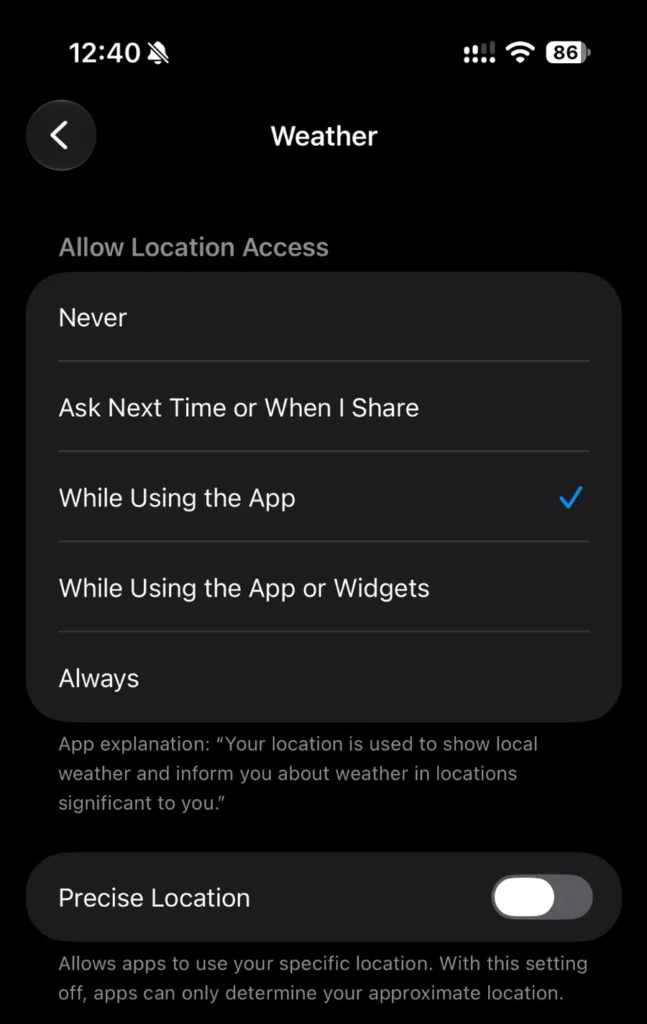
Open Settings > Privacy & Security > Location Services > Weather and review the available permissions.
Expected result: The widget should display information for its selected location when updated weather data becomes available.
Calendar Widget Shows the Wrong Event
Open Calendar and verify that the event appears correctly.
Check the calendar account, event date, and time zone.
Then inspect the Lock Screen widget’s configuration, if available.
Expected result: The widget should display events from its intended source according to the widget’s design.
Batteries Widget Doesn’t Show AirPods
Confirm that your AirPods are connected to your iPhone.
Open Settings > Bluetooth and check their connection status.
If the accessory isn’t connected or isn’t reporting battery information, its battery level may be unavailable to the widget.
Expected result: The Batteries widget should display supported battery information when the relevant device is available.
Only One Third-Party Widget Is Frozen
Open the application associated with that widget.
Check whether it displays current information and whether an application update is available.
If the app works normally, try removing and re-adding its Lock Screen widget.
Expected result: The newly added widget should display the information provided by the application, although refreshing may not happen immediately.
Several Unrelated Widgets Are Outdated
Check internet connectivity, Low Power Mode, location permissions where relevant, and available software updates.
Then restart your iPhone if necessary.
If multiple widgets remain unresponsive, investigate the broader iOS configuration rather than repeatedly reinstalling individual applications.
Remember: Widgets Aren’t Always Live
A widget doesn’t necessarily update every second.
iOS and individual applications manage widget refresh behavior, and some information updates less frequently than the main application.
A short delay isn’t always evidence of a malfunction.
Why iPhone Lock Screen Widgets Stop Updating
Lock Screen widgets display information provided by iOS or a supported application.
Some widgets show information that changes relatively infrequently, such as an upcoming event. Others display changing values, such as weather conditions or connected-device battery levels.
Several factors can affect their accuracy.
Common causes include:
- The underlying application hasn’t received new information.
- The iPhone doesn’t have a working internet connection.
- Location Services are disabled or restricted.
- Background App Refresh is unavailable or disabled.
- Low Power Mode limits background activity.
- The widget is configured to show the wrong location or calendar.
- A different Focus-linked Lock Screen is active.
- The widget or application has a temporary software problem.
- An app or iOS update introduces a compatibility issue.
The most useful approach is to determine whether the problem affects one widget or several.
If only a single third-party widget is frozen, investigate that application first.
If Weather, Calendar, and other unrelated widgets all appear outdated, look more closely at iOS settings and device connectivity.
1. Check Whether the App Itself Is Updating
Before changing your iPhone settings, open the app associated with the frozen widget.
This simple test can help you determine whether the problem involves the widget or the information it displays.
Compare the Widget With Its App
For example, if the Weather widget shows an old temperature:
- Unlock your iPhone.
- Open the Weather app.
- Check the selected location.
- Wait for the latest available information to appear.
- Return to your Lock Screen.
- Compare the widget with the app.
Repeat this process for Calendar, Reminders, or another affected application.
Understand the Results
App shows current information, but the widget is outdated:
The issue may involve widget refreshing, configuration, or how iOS schedules updates.
Both the app and widget show outdated information:
Check the app’s connectivity, permissions, account synchronization, or data provider.
Widget updates after opening the app:
The application may be retrieving fresh data when opened, while the widget receives less frequent updates.
This distinction matters because changing widget settings won’t necessarily solve an application-level synchronization problem.
Remember that opening an app doesn’t guarantee an immediate widget refresh.
2. Check Wi-Fi and Cellular Connectivity
Many Lock Screen widgets depend on information retrieved from an online service.
Weather forecasts, upcoming events from cloud calendars, and information from third-party services may require internet access.
An iPhone can show a strong Wi-Fi signal while still experiencing connection problems.
Test Your Internet Connection
- Open Safari.
- Visit a trusted website.
- Check whether the page loads normally.
- Open the affected application’s main interface.
- Check whether it can retrieve updated information.
- If appropriate, test another trusted Wi-Fi connection.
If you use cellular data, confirm that cellular service is available and the relevant application’s cellular access isn’t restricted.
Check Low Data Mode
Low Data Mode reduces network usage and may restrict some background network activity.
To review it on Wi-Fi:
- Open Settings.
- Tap Wi-Fi.
- Tap the information button beside your connected network.
- Find Low Data Mode.
- Temporarily turn it off for testing, if appropriate.
You don’t need to permanently disable Low Data Mode if you rely on it to conserve data.
What If Wi-Fi Has No Internet?
Fix the internet connection before troubleshooting individual widgets.
For a more detailed explanation, read our iPhone Connected to Wi-Fi but No Internet guide.
Once the connection is stable, reopen the source app and check whether the widget eventually displays updated information.
3. Check Location Services for Weather Widgets
A stale Weather widget is one of the most noticeable Lock Screen widget problems.
Weather information depends on the location selected for the widget and the data available from the weather service.
If Location Services are disabled, the widget may be unable to retrieve information for your current location.
Check Location Permissions
- Open Settings.
- Tap Privacy & Security.
- Select Location Services.
- Make sure Location Services is enabled.
- Scroll to Weather.
- Review the available location permissions.
- Choose an appropriate permission, such as While Using the App or Widgets, if available.
You don’t necessarily need to give Weather unrestricted location access.
Choose the level of access that matches how you want to use the feature.
Check the Widget’s Location
A Weather widget may be configured to display a particular city instead of your current location.
To investigate:
- Open the Lock Screen customization interface.
- Select the Weather widget.
- If the widget offers location configuration, review the selected location.
- Choose the intended city or current-location option.
- Save the changes.
The exact options depend on the widget and iOS version.
What If Weather Still Shows an Old Temperature?
Open the Weather app and compare its information with the widget.
If both show stale information, consider a temporary internet, location, or weather-service problem.
If the app updates correctly but the widget doesn’t, try removing and re-adding the widget later in this guide.
Apple documents app-specific Location Services permissions in its privacy and location guidance.
4. Review Background App Refresh
Background App Refresh allows supported applications to check for updated information when they aren’t actively being used.
However, widget updates aren’t controlled entirely by this feature.
iOS and the app’s widget extension may use their own update schedules.
That means enabling Background App Refresh won’t force every widget to update immediately, but it is still worth checking when an app depends on background activity.
Check Background App Refresh
- Open Settings.
- Tap General.
- Select Background App Refresh.
- Tap Background App Refresh again.
- Check whether it is enabled for Wi-Fi or Wi-Fi & Cellular Data.
- Return to the app list.
- Find the affected application if it appears.
- Enable background refreshing for that app if appropriate.
Not every application appears in the list.
Why This Can Matter
Background App Refresh can help supported applications retrieve information while they aren’t actively open. However, widget updates also depend on scheduling managed by iOS and the application.
Enabling Background App Refresh doesn’t guarantee that a Lock Screen widget will update immediately.
If the source application displays current information but its widget remains outdated, check the widget configuration and application updates before assuming Background App Refresh is responsible.
Also remember that Low Power Mode turns off Background App Refresh. You can temporarily disable Low Power Mode to investigate background activity, but this alone won’t force every widget to refresh.
Avoid Closing Apps Constantly
Force-closing an application isn’t a reliable way to make its widget update.
Apple explains that an app manually closed through the App Switcher might not resume certain background activities until you open it again.
If you’re experiencing iPhone Lock Screen widgets not updating, avoid repeatedly force-closing every application as a troubleshooting method.
5. Turn Off Low Power Mode Temporarily
Low Power Mode is designed to reduce battery consumption by limiting selected background processes and system activity.
Apple confirms that Background App Refresh is turned off while Low Power Mode is active.
Therefore, testing without Low Power Mode can help determine whether reduced background activity is contributing to stale widget information.
Check Low Power Mode
On iPhone 15 and newer supported models:
- Open Settings.
- Select Battery.
- Tap Power Mode.
- Find Low Power Mode.
- Temporarily turn it off.
On iPhone 14 and earlier models, Low Power Mode is typically available directly under Settings > Battery.
You can also check the battery icon. A yellow battery indicator generally means Low Power Mode is active.
Test Your Widgets
After switching off Low Power Mode:
- Open the app associated with the stale widget.
- Confirm that its information is current.
- Return to the Lock Screen.
- Allow time for a normal widget update.
- Compare the information again.
Don’t expect an instant refresh simply because Low Power Mode was disabled.
Should You Leave Low Power Mode Off?
Not necessarily.
If you depend on Low Power Mode for battery life, you can turn it back on after troubleshooting.
The goal is to identify whether background activity restrictions contribute to the problem.
For related battery guidance, see our iOS 27.0.1 Battery Drain guide.
6. Check Widget Configuration
Some widgets have their own configuration settings.
For example, a widget may display a specific calendar, location, task list, or connected device rather than automatically choosing the information you expect.
If a widget displays outdated or seemingly incorrect information, it may simply be configured to show the wrong source.
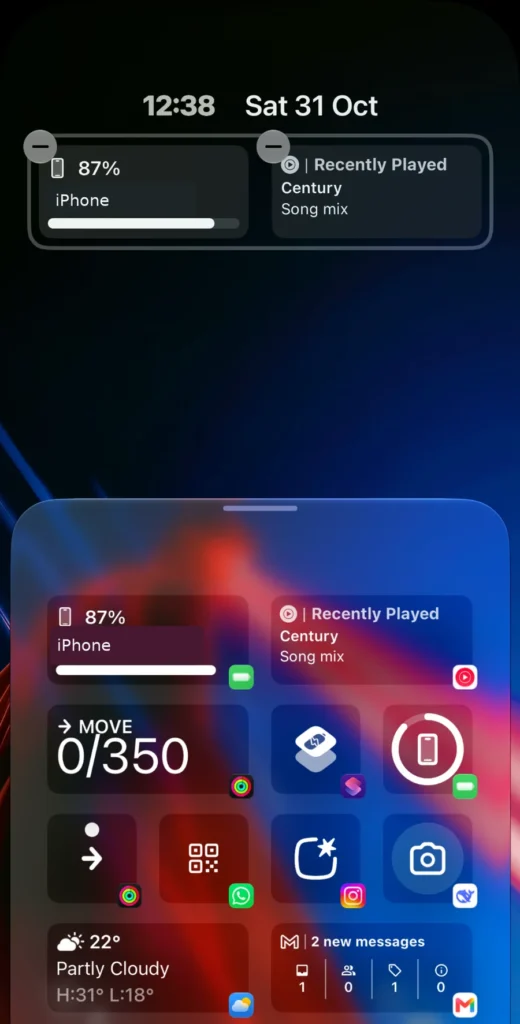
Review Lock Screen Widgets
- Wake your iPhone.
- Touch and hold the Lock Screen.
- Unlock or authenticate if prompted.
- Tap Customize.
- Select Lock Screen.
- Tap the widget area.
- Review the available widget options.
Depending on the application, tapping an existing widget in the editor may reveal additional configuration options.
Not every Lock Screen widget supports custom settings.
Check the Selected Data Source
If the widget offers configurable settings, confirm that it uses the correct:
- City or weather location.
- Calendar account.
- Reminder list.
- Connected device.
- Application account.
- Data category.
Save your changes and check the Lock Screen.
Don’t Confuse Different Widget Types
Widgets on the Lock Screen, Home Screen, and Today View aren’t always configured in exactly the same way.
A widget’s settings may also depend on the app developer.
Apple’s official widget customization guide explains how to add and edit supported widgets.
7. Check Your Focus-Linked Lock Screen
Apple allows you to create multiple Lock Screens and link them to different Focus modes.
This feature is useful for separating work, sleep, personal time, and other routines.
However, it can also cause confusion when you expect the same widgets to appear on every Lock Screen.
Check the Active Lock Screen
- Wake your iPhone.
- Touch and hold the Lock Screen.
- Authenticate if necessary.
- Swipe through your available Lock Screens.
- Compare their widgets.
- Select the Lock Screen you intended to use.
Check Focus Settings
- Open Settings.
- Select Focus.
- Choose the relevant Focus mode.
- Review its linked Lock Screen or customization settings.
- Confirm that the intended Lock Screen is assigned.
A different Focus-linked Lock Screen may contain a different set of widgets or widget configurations.
Why This Is Important
Suppose your Work Lock Screen has a calendar widget for one account, while your Personal Lock Screen displays another widget.
Switching Focus modes can change which Lock Screen you see.
This is not necessarily a synchronization error.
If your iPhone Lock Screen widgets are not updating as expected, confirm that you’re viewing the intended widget and data source before changing background settings.
8. Check Date and Time Settings
Some widgets rely on the current date, time, or time zone.
Calendar widgets, countdowns, reminders, and scheduled information may display unexpected results when an iPhone’s clock or time zone is configured incorrectly.
Check the Device Clock
- Open Settings.
- Tap General.
- Select Date & Time.
- Review the displayed time zone.
- Enable Set Automatically when appropriate and available.
- Return to the affected application.
Why Time Zone Settings Matter
Imagine a meeting scheduled for New York time while your iPhone is displaying another time zone.
The appointment may appear at a different local time.
This can make a Calendar widget seem incorrect even when the event has synchronized properly.
Compare With the Calendar App
Open Calendar and find the event displayed by the widget.
Check the event’s date, time, and account.
If the Calendar app also shows incorrect information, investigate the underlying calendar data before changing the widget.
For missing appointments or calendar synchronization issues, read our iPhone Calendar Not Syncing guide.
9. Update the App and iOS
Sometimes a widget stops working correctly after an application or operating system update.
This doesn’t automatically mean the update is defective.
The widget may require an updated application version, a compatible iOS release, or a temporary software issue may need to be resolved.
Check for App Updates
- Open the App Store.
- Tap your account picture.
- Find the available app updates.
- Update the application associated with the frozen widget.
- Open that application afterward.
- Return to your Lock Screen and check the widget.
Third-party app developers may release fixes for widget compatibility problems.
Check Your iOS Version
- Open Settings.
- Tap General.
- Select Software Update.
- Check for available updates.
- Install an appropriate compatible update after protecting important data.
What If the Problem Started After Updating iOS?
First, check whether the app itself has an update available.
Next, restart the iPhone and review widget configuration.
Avoid resetting your entire phone merely because a widget stopped refreshing after an update.
If only one third-party widget is affected, contacting that application’s developer may be more useful than resetting system settings.
10. Restart iPhone and Re-Add the Widget
If the previous checks don’t help, try restarting your iPhone.
A normal restart can resolve certain temporary software problems without intentionally deleting your apps or personal information.
Restart Your iPhone
On most recent iPhones with Face ID:
- Press and hold the Side button and either Volume button.
- Wait for the power-off slider.
- Drag the slider.
- Wait approximately 30 seconds.
- Press and hold the Side button until the Apple logo appears.
After restarting, open the affected application and verify that its information is current.
Then check the Lock Screen.
Remove and Re-Add the Widget
If the widget remains frozen:
- Wake your iPhone.
- Touch and hold the Lock Screen.
- Tap Customize.
- Select Lock Screen.
- Tap the widget area.
- Remove the affected widget.
- Choose the same widget from the available list.
- Configure it if prompted.
- Save the Lock Screen changes.
Does Removing a Widget Delete App Data?
Removing a Lock Screen widget normally removes the widget from the display, not the underlying application or its stored data.
However, the widget’s individual configuration may need to be restored.
What If the Widget Still Doesn’t Work?
Check whether the issue affects:
- Only one third-party widget.
- Multiple widgets from the same app.
- Several unrelated Apple and third-party widgets.
If only one application is affected, look for its support documentation or contact its developer.
If several unrelated widgets remain broken after checking iOS, connectivity, and settings, consider contacting Apple Support.
Don’t erase your iPhone as an initial troubleshooting step.
iPhone Battery Widget Not Updating
The Batteries widget may display the battery level of your iPhone or supported connected accessories.
If an accessory’s battery reading appears outdated, check whether the accessory is connected and reporting information correctly.
For a Bluetooth accessory:
- Open Settings.
- Select Bluetooth.
- Check its connection status.
- Reconnect the accessory if necessary.
- Compare the battery information again.
Not every third-party accessory reports battery information in the same way.
A missing battery reading doesn’t necessarily mean the widget itself has failed.
Lock Screen Widgets Not Updating but Home Screen Widgets Work
If Home Screen widgets work while their Lock Screen counterparts remain stale, check whether both widgets use the same settings and data source.
They may differ in supported features or configuration options.
Also check the active Focus-linked Lock Screen.
Next, remove and re-add only the affected Lock Screen widget.
If the problem involves a third-party application, compare both widget types after installing the latest app update.
Frequently Asked Questions
Why are my iPhone Lock Screen widgets not updating?
Possible causes include outdated app information, network problems, location restrictions, Low Power Mode, widget configuration, and temporary software issues. Some widgets also refresh less frequently by design.
How do I force Lock Screen widgets to refresh?
Apple doesn’t provide a universal button that forces every Lock Screen widget to update immediately. You can open the source app, check connectivity, and remove and re-add a frozen widget. The system still controls refresh timing.
Does Background App Refresh control Lock Screen widgets?
Background App Refresh can help supported apps retrieve information, but widget refreshing also uses system-managed scheduling. Enabling the feature doesn’t guarantee instant widget updates.
Why is my Weather widget showing the wrong temperature?
Check the selected location, Weather app data, Location Services permission, and internet connection. The weather service’s normal update interval can also explain some differences.
Does Low Power Mode stop widgets from updating?
Low Power Mode disables Background App Refresh and reduces certain background activities. It can affect how promptly some apps retrieve information, but it doesn’t universally stop every widget from updating.
Will deleting a widget delete its application?
Removing a widget from the Lock Screen doesn’t normally delete the associated app. You can add the widget again, although its configuration may need to be restored.
Why does my Calendar widget show an old event?
The widget may use an incorrect calendar, the Calendar app may not have updated, or the device’s date and time settings may be wrong. Compare it with the Calendar app first.
Why is my battery widget not showing AirPods?
The accessory may be disconnected, unavailable, or not currently reporting battery information. Check Bluetooth connectivity and compare the available battery information.
Are Lock Screen widgets available on older iPhones?
Lock Screen widgets were introduced with iOS 16. Availability depends on your iPhone model, supported iOS version, and the individual widget or application.
Should I reset my iPhone to fix frozen widgets?
A factory reset is not a reasonable first step. Start with the app, connectivity, permissions, updates, and re-adding the widget. Contact Apple Support if several unrelated widgets remain broken.
Final Thoughts
If your iPhone Lock Screen widgets are not updating, begin by checking whether their associated applications contain current information.
Then verify connectivity, location permissions, background activity settings, and the widget’s configuration.
Remember that widgets aren’t designed to provide a constant live data stream. iOS controls how frequently many widgets can refresh, and their behavior may differ between apps.
If a particular widget stays frozen despite having current information in its source app, try removing and re-adding it.
With these checks, you can usually narrow the problem down without resetting your iPhone or risking your personal data.