Is your iPad battery draining fast, even when you aren’t doing anything particularly demanding? Maybe the battery percentage drops quickly while watching videos, taking notes, or browsing Safari. Or perhaps your iPad loses a noticeable amount of charge overnight while the screen is off.
A battery that drains faster than expected doesn’t always mean it needs replacing. High screen brightness, background activity, poor network connections, recent iPadOS updates, and aging battery cells can all affect battery life.
The important thing is to identify what is using the battery before turning off features you actually need.
This guide explains 10 practical ways to fix excessive iPad battery drain, including settings you can check yourself, signs of temporary software activity, and when battery service may be necessary.
Table of Contents
Quick Answer: How to Fix an iPad Battery Draining Fast
Start with these steps:
- Check Settings → Battery to identify apps or system activities using the most power.
- Reduce screen brightness and shorten Auto-Lock time.
- Enable Low Power Mode when longer battery life is important.
- Restrict unnecessary background app activity.
- Review frequent notifications and unnecessary location access.
- Check Wi-Fi and cellular connectivity, especially in weak-signal areas.
- Install available iPadOS and app updates.
- Restart your iPad and reduce unusually demanding workloads.
- Compare battery drain while actively using the iPad and while it is idle.
- Check Battery Health on supported models and consider service if necessary.
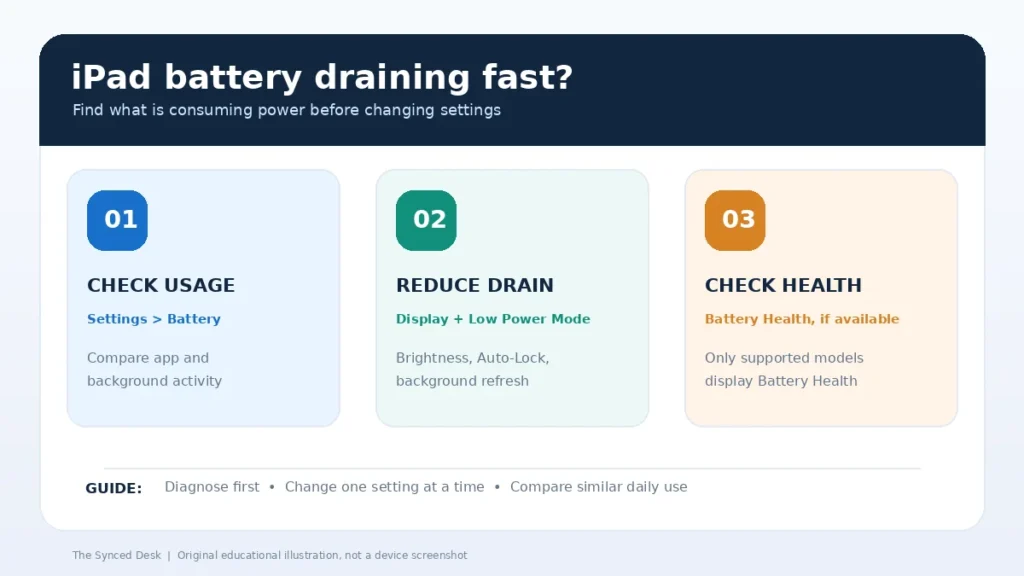
Start with the Battery settings screen. It often reveals the cause faster than changing several unrelated settings.
Why Is My iPad Battery Draining So Fast?
An iPad’s battery life depends on more than its age. Your screen brightness, the apps you use, background processes, and network activity all affect how much power the device consumes.
Common causes include:
- High display brightness or long screen-on periods.
- Games, video editing, video calls, or graphics-intensive apps.
- Background photo syncing, downloads, and app updates.
- Poor Wi-Fi or cellular coverage.
- Frequent notifications and unnecessary background activity.
- Temporary processing following an iPadOS update or new setup.
- An aging battery with reduced capacity.
An iPad that becomes warm during a demanding task may also use energy faster than one performing basic reading or note-taking.
These factors can overlap, which is why checking battery usage is the best first step.
Fix 1: Find Which Apps Are Draining Your iPad Battery
Before changing anything, open your iPad’s battery information.
- Open Settings.
- Select Battery.
- Review the battery usage information.
- Look for apps or system activities consuming an unusually high share of power.
- On supported iPadOS versions, tap View All Battery Usage to inspect earlier days.
- Select an app to see more information about its on-screen and background activity.
On newer iPadOS versions, the Daily Usage section may indicate whether battery consumption is higher than usual.
Pay attention to these activity types:
On Screen: The app was actively displayed. High battery use may be normal if you spent hours watching videos, gaming, or editing documents.
Background: The app performed tasks while it wasn’t actively visible. Photo syncing, downloads, and other background processes can contribute to battery drain.
Cellular Coverage: On cellular iPad models, weak signal conditions can increase energy consumption.
Notifications: Frequent notifications can wake the device and contribute to power use.
A high battery percentage beside an app does not automatically indicate a malfunction. It represents that app’s share of the measured battery consumption.
For example, if Safari accounts for most battery use during a day spent browsing, that may be completely normal. The concern is unusual consumption relative to how you actually used the iPad.
Apple explains how to interpret these measurements in its iPad battery usage and health guide.
Fix 2: Lower Screen Brightness and Adjust Auto-Lock
The display can be one of the biggest contributors to battery consumption, especially on larger iPads.
Try reducing brightness to a comfortable level rather than keeping it near maximum.
To adjust brightness:
- Open Settings → Display & Brightness.
- Lower the brightness slider.
- Test whether the new level is comfortable for reading or working.
You can also adjust brightness directly from Control Center.
Enable Auto-Brightness
For automatic brightness adjustment, go to:
Settings → Accessibility → Display & Text Size → Auto-Brightness
Enable Auto-Brightness if it is available and currently disabled.
Reduce Auto-Lock Time
Open Settings → Display & Brightness → Auto-Lock and choose a shorter interval, such as two minutes, if that suits your usage.
This prevents the screen from remaining active unnecessarily when you’ve stopped using the iPad.
If the screen remains awake for long periods because of an application or accessory, investigate that behavior as well.
Fix 3: Turn On Low Power Mode
Low Power Mode is one of Apple’s built-in ways to reduce battery consumption.
It reduces certain background processes and visual effects, allowing the iPad to conserve power.
To enable it:
- Open Settings → Battery.
- Enable Low Power Mode.
- Return to your normal activities and compare battery performance.
You can also add Low Power Mode to Control Center.
Depending on the iPad model and software version, Low Power Mode may reduce display brightness, background refresh, automatic downloads, and certain visual effects.
On iPad models with ProMotion displays, it can limit refresh rates to 60 Hz.
Important: Low Power Mode may slow some activities or delay background tasks. You do not need to leave it enabled permanently if you prefer normal performance.
Apple provides additional details in its Low Power Mode guide.
Fix 4: Reduce Unnecessary Background App Activity
Some apps continue performing tasks even after you switch to another app.
Background activity can include syncing content, refreshing feeds, downloading files, and updating information.
To check Background App Refresh:
- Open Settings → General.
- Select Background App Refresh.
- Review the apps allowed to refresh in the background.
- Disable refresh for apps that do not need it.
For example, a rarely used shopping app probably doesn’t need to refresh as frequently as an app you rely on for communication.
Avoid disabling every background feature indiscriminately. Some applications need background activity to keep important information current.
Also, repeatedly force-closing ordinary apps is not a reliable battery-saving technique. Close an app when it is frozen, malfunctioning, or clearly behaving abnormally.
If one app consistently consumes excessive power, try updating it. Reinstalling the app may be appropriate if the issue persists, but first ensure any important app data is backed up or synced.
Fix 5: Review Notifications and Location Permissions
Frequent notifications can wake your iPad or interrupt other activity.
To reduce unnecessary notifications:
- Open Settings → Notifications.
- Select an app that sends frequent alerts.
- Turn off notifications you don’t need.
- Keep important communication, security, and reminder notifications enabled.
Next, review location permissions.
Open Settings → Privacy & Security → Location Services.
Select individual apps and consider whether they genuinely need access to your location.
Where available, choosing While Using the App instead of Always can reduce unnecessary background location access.
Don’t disable Location Services entirely just to save battery. Doing so can interfere with Find My, Maps, and other useful features.
The objective is to reduce unnecessary background activity without breaking features you rely on.
Fix 6: Check Wi-Fi and Cellular Signal Strength
A weak or unstable connection can contribute to increased battery usage.
On Wi-Fi + Cellular iPad models, searching for a mobile signal in areas with poor coverage can consume extra energy.
If you’re using a cellular iPad where reception is consistently weak, consider connecting to a stable Wi-Fi network.
If you don’t need cellular service temporarily, you can disable cellular data in Settings.
For Wi-Fi connectivity:
- Open Settings → Wi-Fi.
- Check whether the iPad is connected to a reliable network.
- Move closer to the router if the connection is weak.
- Test a different trusted network if necessary.
Don’t repeatedly reset your network settings simply because the battery drains quickly. Network resets remove saved network configurations and should be reserved for genuine connection problems.
If your iPad frequently disconnects or cannot connect at all, see our related guide:
iPad Not Connecting to Wi-Fi? 12 Best Fixes
Fix 7: Check for iPadOS Updates and Temporary Background Processing
Did the battery problem begin immediately after an iPadOS update?
A recent update can temporarily increase background activity while the iPad completes setup, processes content, or updates system components.
Apple notes that ongoing software updates and device setup can affect battery life and thermal performance until the related activity finishes.
Check Settings → Battery for any displayed suggestions or insights about recent updates or background work.
If you recently updated the iPad:
- Keep the device connected to reliable Wi-Fi.
- Charge it normally when needed.
- Allow pending downloads and setup tasks to finish.
- Compare battery behavior over subsequent usage periods.
There’s no need to repeatedly restart the device while an update is installing.
Check for New Software Updates
Open Settings → General → Software Update.
Install an available compatible update when appropriate. Back up important data first and ensure the device has sufficient power.
Software updates may contain bug fixes, but an update is not guaranteed to resolve every battery issue.
If your iPad is unable to complete an update or becomes stuck during startup, investigate that issue separately.
Our iPad Stuck on Apple Logo article covers startup recovery scenarios.
Fix 8: Restart Your iPad and Check Demanding Apps
If battery use seems unusually high and the Battery report doesn’t reveal an obvious cause, try a normal restart.
For iPads Without a Home Button
- Press and hold the top button and either volume button.
- Drag the power-off slider.
- Wait for the device to shut down.
- Press and hold the top button until the Apple logo appears.
For iPads With a Home Button
- Press and hold the top button.
- Drag the power-off slider.
- Wait for the device to turn off.
- Press and hold the top button to start it again.
After restarting, test your usual apps.
If the battery drains quickly only while running one demanding application, the workload may be the primary cause.
Activities such as video editing, 3D gaming, extended video calls, and high-resolution streaming can consume substantially more energy than reading documents.
Look for unusual behavior, such as an application becoming unresponsive, continuously syncing, or running tasks you did not initiate.
Update affected apps through the App Store if updates are available.
Fix 9: Investigate Battery Drain Overnight or While Idle
If your iPad loses a significant amount of charge while you’re not using it, the problem may be different from normal screen-on battery consumption.
Before troubleshooting, distinguish sleep mode from a fully powered-off iPad. An iPad with its screen off is usually still running and may perform background tasks.
Try this comparison:
- Charge the iPad to a reasonable battery level.
- Note its battery percentage and the time.
- Leave the screen off for a consistent period.
- Check the percentage afterward.
- Open Settings → Battery and review the activity during that period.
- Repeat on another day under similar conditions if the result seems unusual.
Watch for background syncing, repeated notifications, downloads, and poor network coverage.
Avoid using a single battery percentage drop to diagnose battery health. Usage patterns, network conditions, and temperature can affect the result.
If Your iPad Drains While Completely Powered Off
Repeated, unusually large losses while the device is fully shut down deserve closer investigation, especially if they occur alongside charging problems, unexpected shutdowns, or reduced battery capacity.
Confirm the iPad was actually powered off rather than asleep.
If the issue persists, seek professional battery assessment.
Fix 10: Check Battery Health and Consider Service
Rechargeable batteries gradually lose capacity through age and use.
A worn battery may provide less runtime than it did when new, even when the iPad is functioning normally.
How to Check iPad Battery Health
On supported iPad models:
- Open Settings → Battery.
- Select Battery Health.
- Review the available battery condition and capacity information.
- Check the cycle count and other history details if provided.
Not every iPad has a Battery Health menu. Apple currently lists support for models including iPad Pro (M4 and M5), iPad Air (M2, M3, and M4), iPad mini (A17 Pro), and iPad (A16).
If the Battery Health option is missing, do not assume your battery is damaged.
Apple provides model information in its iPad Battery Health guide.
When Should You Contact Apple Support?
Consider professional service if your iPad:
- Shuts down unexpectedly despite showing substantial charge.
- Repeatedly loses battery power unusually quickly during light use.
- Becomes excessively hot during ordinary activities.
- Shows a battery service warning.
- Has visible swelling or physical damage.
- Continues experiencing severe battery problems after reasonable software and usage checks.
Battery safety: If the iPad is swollen, physically damaged, or unusually hot, stop using and charging it and arrange qualified inspection. Do not attempt to open or replace the battery yourself.
For help, visit Apple Support.
iPad Battery Draining Fast: Common Scenarios
| Problem | Possible cause | First check |
|---|---|---|
| Battery drains during games | High processor and graphics activity | Settings → Battery |
| Battery drains overnight | Background processes or network activity | Battery activity while idle |
| Battery drains after an update | Temporary background setup or a software issue | Battery insights and software updates |
| Battery drains with the screen on | High brightness or demanding apps | Display settings and app usage |
| Battery drains on cellular | Low signal coverage | Cellular coverage and Wi-Fi |
| Battery dies unexpectedly | Battery degradation or another fault | Battery Health, if supported |
| Battery drains while plugged in | Power adapter, cable, or charging problem | Charging accessories |
These examples help identify where to begin. They are not definitive diagnoses.
If your iPad cannot maintain its battery level while charging or the battery percentage never increases, read our separate iPad Not Charging guide.
Frequently Asked Questions
Why Is My iPad Battery Draining Fast Even When I’m Not Using It?
An iPad can continue syncing content, checking notifications, or performing other background tasks while the screen is off. Review Settings → Battery to identify activity during idle periods.
Is It Normal for an iPad Battery to Drain After an Update?
Some temporary increase in battery usage can occur while background processes finish after a software update. If unusually high drain persists, review Battery settings, apps, network activity, and available software updates.
Does Low Power Mode Damage an iPad Battery?
No. Low Power Mode is an Apple-supported feature designed to reduce energy consumption. It may reduce performance or delay certain background activities, but it is safe to use as intended.
Why Does My iPad Battery Drain Faster Than My iPhone?
Battery life depends on screen size, processor workload, display brightness, apps, network conditions, and battery condition. A larger battery does not guarantee longer runtime under every workload.
How Do I Check Battery Health on an Older iPad?
Many older iPad models do not display Battery Health information in Settings. If you are concerned about battery condition, contact Apple Support or an authorized service provider for assessment.
Should I Replace My iPad Battery If It Drains Quickly?
Not immediately. First identify abnormal app activity, background processes, network problems, and settings that affect battery life. Battery replacement becomes more relevant when there is evidence of battery degradation or persistent hardware symptoms.
Final Takeaway
If your iPad battery is draining fast, don’t start by resetting everything or replacing the battery.
Begin with Settings → Battery and identify what is consuming power. Adjust screen brightness, manage unnecessary background activity, use Low Power Mode when appropriate, and check for software-related issues.
If the battery continues to drain abnormally during light use or while idle, review Battery Health on supported models and consider professional service.
The most useful fix depends on the cause. Understanding your iPad’s battery usage helps you solve the right problem without sacrificing features you need.
Official Apple References
- Apple: If Your iPhone or iPad Battery Drains Too Quickly
- Apple: Understand iPad Battery Usage and Health
- Apple: Use Low Power Mode
- Apple: Check Battery Health on iPad
The Synced Desk | Practical solutions for everyday technology problems.