Is your iPhone Siri not working, even though the rest of your phone seems normal? Maybe “Hey Siri” no longer responds, holding the side button does nothing, or Siri appears on the screen but never answers your question.
These symptoms can have different causes. Siri might be disabled, unable to access the internet, set to respond silently, or struggling to recognize your voice. In some cases, a connected audio accessory or a restriction in iPhone settings is responsible.
The quickest way to narrow down the problem is to compare voice activation with button activation. If the side button opens Siri but “Hey Siri” does not, focus on voice recognition and microphone checks. If neither method works, start with Siri settings, network access, and restrictions.
This guide covers 12 troubleshooting methods for iPhone models running recent versions of iOS, including iOS 27. Settings names can differ on earlier versions, so alternative menu paths are included where useful.
Quick Answer: How to Fix Siri Not Working on iPhone
Try these steps first:
- Confirm your iPhone has a working internet connection.
- Open Settings → Siri → Requests and enable voice activation.
- Turn “Siri” or “Hey Siri” off and back on to retrain voice recognition.
- Hold the side button to check whether Siri can open without voice activation.
- Test your microphone with Voice Memos.
- Check Siri → Responses if Siri appears but remains silent.
- Disconnect Bluetooth headphones and test again.
- Restart your iPhone and check for an available iOS update.
On older iOS versions, you may need to open Settings → Apple Intelligence & Siri → Talk & Type to Siri instead.
Important: Siri needs an internet connection for normal operation. A working Wi-Fi symbol doesn’t necessarily mean your iPhone can reach the internet.
Why Is Siri Not Working on My iPhone?
Several problems can prevent Siri from working correctly, but the symptom provides an important clue.
| What happens | What to investigate first |
|---|---|
| “Hey Siri” gets no response | Voice activation settings and microphone |
| Side button doesn’t open Siri | Siri activation and button settings |
| Siri opens but won’t answer | Internet connection and service availability |
| Siri shows an answer but doesn’t speak | Siri response preferences and audio output |
| Siri works only when unlocked | Lock Screen permissions |
| Siri disappeared from Settings | Restrictions, VPN profiles, or software problems |
| Siri works on another Apple device | Which device responds to your voice |
Before changing multiple settings, try one simple test.
Hold the side button to activate Siri on an iPhone with Face ID. On an iPhone with a Home button, press and hold that button. Ask Siri a short question.
Then try activating Siri with your voice.
If one method works and the other fails, you have already narrowed down the likely source of the problem.
1. Check Your iPhone’s Internet Connection
Siri can appear to be broken when the underlying problem is actually internet access.
Apple states that Siri requires an internet connection. If your phone is offline, Siri may display a connection-related message instead of completing your request.
To check:
- Open Safari.
- Visit a website you haven’t recently opened.
- Try a second website to rule out a temporary site problem.
- If you’re using Wi-Fi, test cellular data where available.
- If you’re using cellular data, try a reliable Wi-Fi network.
What the result means: If Siri works on cellular data but not on Wi-Fi, investigate the Wi-Fi network before changing Siri settings. If neither connection can load websites, resolve the internet problem first.
For more network troubleshooting, see our guide: iPhone Connected to Wi-Fi but No Internet? 10 Fixes.
2. Make Sure Siri Is Enabled
Siri may have been turned off during setup or while changing privacy and accessibility settings.
On iOS 27:
- Open Settings.
- Tap Siri.
- If prompted, select Turn On Siri and complete setup.
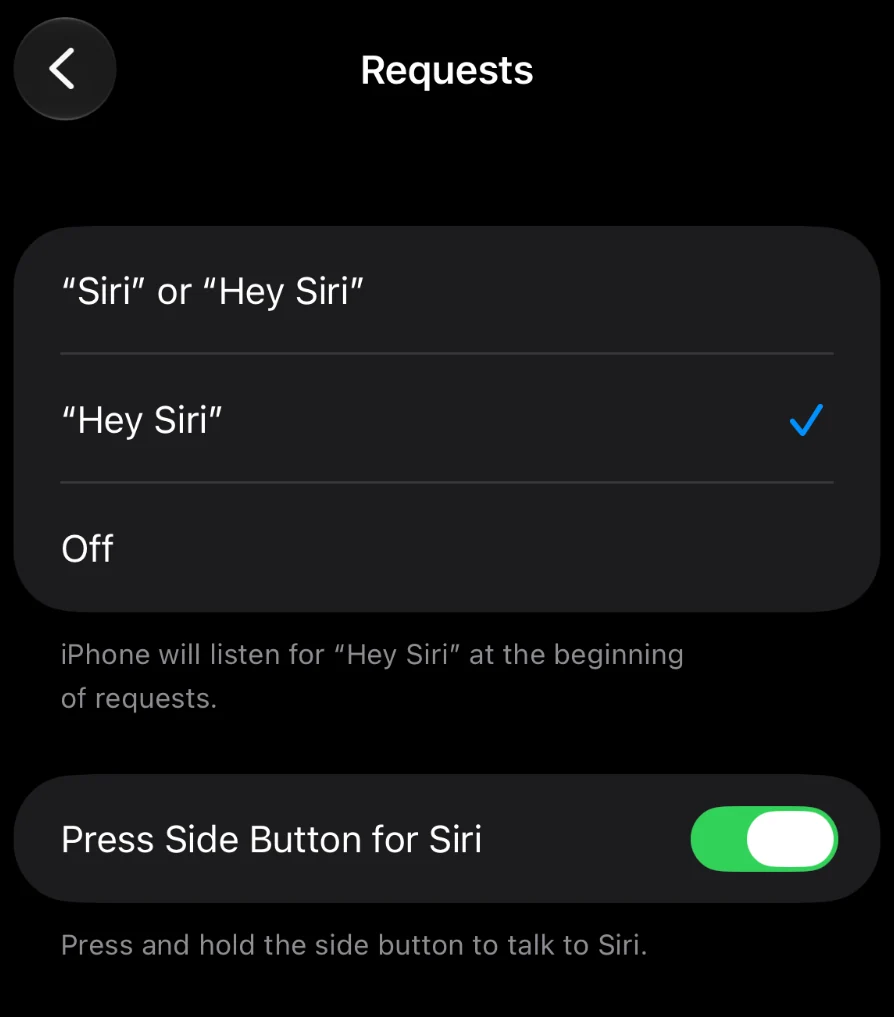
- Open Requests.
- Select the available “Siri” or “Hey Siri” voice activation option.
- Make sure Press Side Button for Siri is enabled if you want button activation.
On older versions of iOS, the menu may be called Apple Intelligence & Siri, Siri & Search, or Talk & Type to Siri.
Try saying “Hey Siri” after making the change.
What to expect: Siri should activate and listen for a request. If it still doesn’t recognize your voice but opens with the side button, continue to the next fix.
3. Retrain Siri to Recognize Your Voice
If Siri responds to the side button but ignores “Hey Siri,” retraining its voice recognition is one of the most relevant fixes.
Apple specifically recommends turning voice activation off and back on to repeat the setup process.
On iOS 27:
- Open Settings → Siri → Requests.
- Change voice activation to Off.
- Select “Siri” or “Hey Siri” again.
- Follow the voice setup prompts if they appear.
- Speak the requested phrases in your normal voice.
- Complete the setup and test Siri again.
For earlier iOS versions, look under Talk & Type to Siri or Talk to Siri.
Perform the test in a reasonably quiet room. Avoid covering the microphone openings or placing your iPhone face down.
What the result means: If Siri now responds, its previous voice activation setup may have been the issue. If not, test the microphone next.
4. Check Siri’s Side Button Activation
A failed side-button shortcut does not always mean Siri itself is broken. The button may be assigned a different press-and-hold action.
First, open Settings → Siri → Requests and check whether Press Side Button for Siri is enabled.
Then review the accessibility setting:
- Open Settings.
- Go to Accessibility.
- Select Side Button or Home Button, depending on your iPhone.
- Find Press and Hold to Speak.
- Confirm the appropriate Siri option is selected if you want the button to activate Siri.
Try holding the button again.
What the result means: If button activation starts working but voice activation still fails, return to the voice recognition and microphone checks. There is no reason to reset your entire iPhone.
5. Test Whether Your iPhone Microphone Works
Siri cannot recognize spoken requests reliably if the microphone audio is obstructed, distorted, or missing.
A useful test is to record your own voice.
- Open Voice Memos.
- Start a short recording.
- Speak clearly near the bottom of your iPhone.
- Stop the recording.
- Play it back and listen carefully.
Your voice should sound reasonably clear.
If the recording is faint or distorted, remove your case or any accessory that might cover the microphone openings. Check for visible debris without inserting sharp objects or liquids.
You can also record short videos using the front and rear cameras. Different iPhone functions may use different microphones, so one successful recording does not prove that every microphone works.
What the result means: If recordings are consistently unclear across apps, the problem may extend beyond Siri. If recordings sound normal but Siri still ignores your voice, investigate Siri activation settings and connected accessories.
For a more detailed hardware check, see iPhone Microphone Not Working on Calls? 10 Fixes.
6. Fix Siri When It Responds Without Speaking
Sometimes Siri understands a request and displays a result but doesn’t answer aloud.
This may be a response preference rather than a microphone or internet failure.
On iOS 27:
- Open Settings.
- Tap Siri.
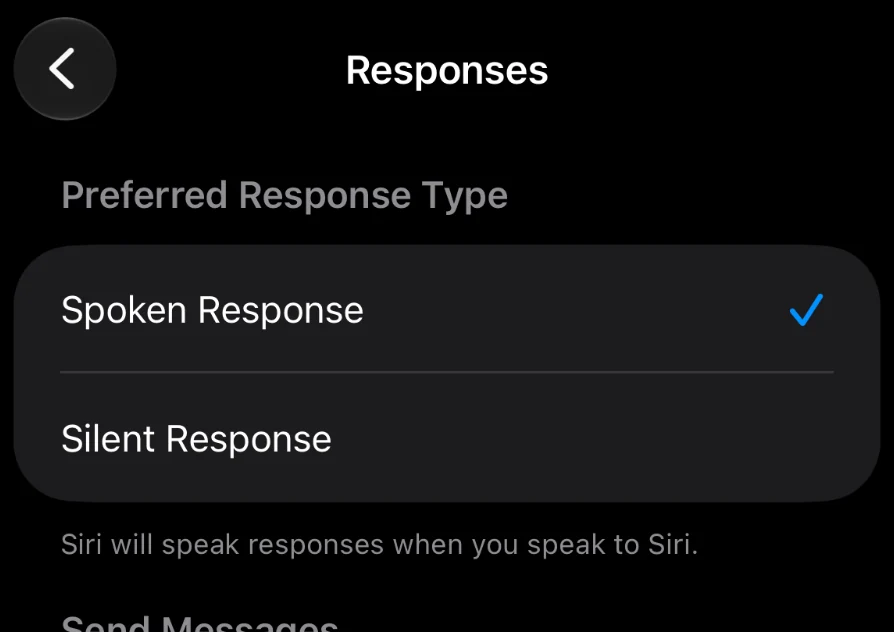
- Select Responses.
- Choose Prefer Spoken Responses or Speak Back for Voice Input, depending on your Siri version.
- If you’re using Siri AI, select the available spoken-response option.
- Ask Siri another question.
You can also enable options that show your request or Siri’s response on the screen. These can help you determine whether Siri is receiving the words correctly.
Check your volume while Siri is responding.
What the result means: If you can see Siri’s answer but cannot hear it, examine response settings and audio output. If ordinary music and videos are also silent, the issue may involve your speaker.
See iPhone Speaker Not Working? 12 Fixes if sound is missing throughout the phone.
7. Disconnect Bluetooth Audio Accessories
Your iPhone may be connected to AirPods, headphones, or a Bluetooth speaker without you realizing it.
This can complicate troubleshooting because you’re no longer testing only the iPhone’s built-in microphone and speaker.
To isolate the problem:
- Open Settings → Bluetooth.
- Identify any connected audio accessories.
- Disconnect the accessory temporarily.
- Try Siri using the iPhone’s built-in microphone.
- Check whether Siri’s response comes from the iPhone speaker.
Avoid forgetting or resetting every Bluetooth device unnecessarily.
What the result means: If Siri works normally after an accessory is disconnected, investigate that accessory’s microphone, audio output, and connection settings.
8. Check Siri When Your iPhone Is Locked
Does Siri work after you unlock the phone but ignore requests on the Lock Screen?
That suggests a permission or security-setting difference, not necessarily a broken assistant.
To check:
- Open Settings.
- Select Face ID & Passcode or Touch ID & Passcode.
- Enter your passcode.
- Review Allow Access When Locked.
- If a Siri control is available, check whether it is enabled.
Some requests can still require your iPhone to be unlocked, especially when accessing protected personal information.
What the result means: If Siri works while unlocked but a specific request fails on the Lock Screen, try a simple request such as asking for the weather before changing security settings.
Only enable Lock Screen access if you’re comfortable with the associated privacy implications.
9. Verify Siri Language and Availability
Voice activation and Siri features depend on language, region, and device support.
In particular, saying just “Siri” is not available for every supported language and region. Some users need to say “Hey Siri” instead.
To check:
- Open Settings → Siri.
- Tap Language.
- Confirm that it matches the language you intend to speak.
- Review available voice activation options under Requests.
- Test a short command using the selected language.
Do not change language settings at random. First confirm that the selected language is actually the one you’re speaking.
Siri and Siri AI are not identical. The newer Siri AI features introduced with iOS 27 have additional device, language, and regional requirements. If a particular AI feature isn’t available, that does not automatically mean classic Siri is malfunctioning.
10. Check Screen Time Restrictions
On managed, shared, or family-controlled devices, Siri access may be restricted.
Apple provides Screen Time controls that can limit Siri and related Apple Intelligence features.
To investigate on recent iOS versions:
- Open Settings → Screen Time.
- Tap Content & Privacy Restrictions.
- Review the Siri or Intelligence & Siri controls, depending on the software version.
- Check whether Siri is blocked or limited to a particular version.
- If you manage the device and are authorized to do so, adjust the restriction appropriately.
If the device belongs to a school or workplace, the restriction may be intentional. Contact the device administrator instead of trying to bypass management controls.
What the result means: A restriction is particularly worth checking if Siri is missing entirely or cannot be enabled.
11. Check VPN and Network Filtering
Some VPN configurations can interfere with Siri.
Apple specifically recommends examining VPN settings when Siri-related settings don’t appear as expected after a restart.
If you use a VPN:
- Open Settings → VPN, or find the VPN connection under General → VPN & Device Management.
- If it’s your own VPN and safe to disconnect, turn it off temporarily.
- Test Siri using a working internet connection.
- Reconnect the VPN afterward.
- If the problem returns only with the VPN enabled, check that provider’s settings or support documentation.
Do not remove workplace or school management profiles without authorization.
What the result means: If Siri works without the VPN but fails when it is active, you have identified a useful cause to investigate. That does not mean all VPN services are incompatible with Siri.
12. Restart Your iPhone and Update iOS
If Siri remains unresponsive after the targeted checks, restart your iPhone before considering broader changes.
On an iPhone with Face ID:
- Press and hold the side button and either volume button.
- Drag the power-off slider.
- Wait for the phone to shut down.
- Hold the side button until the Apple logo appears.
- Unlock the device and test Siri again.
For iPhones with a Home button, the shutdown method may differ by model.
Next, check software updates:
- Open Settings → General.
- Tap Software Update.
- Review any available compatible update.
- Back up important data before installing.
- Install the update when convenient and test Siri again.
Updates can include software fixes, but they are not guaranteed to resolve every Siri issue.
Avoid erasing your iPhone or resetting all settings as an early troubleshooting step. The checks above are more targeted and easier to reverse.
What If Siri Still Isn’t Working?
If none of the fixes helped, identify exactly what continues to fail.
- Voice activation fails, but the button works: Focus on microphone tests, language selection, and voice recognition.
- Siri opens but cannot answer: Confirm internet access and check for service or network restrictions.
- Siri answers silently: Review response settings and audio output.
- Siri is missing or cannot be enabled: Check Screen Time, device management, VPN configuration, and software updates.
- Voice recordings are distorted: A microphone issue may require professional assessment.
Before contacting Apple Support, note your iPhone model, iOS version, whether button activation works, and the results of the Voice Memos test. These details can make troubleshooting more efficient.
Frequently Asked Questions
Why is Hey Siri not working, but the side button works?
The most likely areas to investigate are voice activation settings, Siri’s voice recognition setup, microphone quality, and language selection. Retrain Siri and compare its response with a clear Voice Memos recording.
Why is Siri not talking on my iPhone?
Siri may be configured for silent responses, or its sound may be routed through a connected accessory. Check Settings → Siri → Responses, your volume, and Bluetooth connections.
Does Siri work without internet?
Siri requires an internet connection for normal operation. If your iPhone is offline, Siri may show a connection-related error or fail to complete the request.
Why did Siri stop working after an iOS update?
A change in settings, an interrupted setup, a temporary software issue, or a compatibility difference may be involved. Check the current Siri menu, restart your device, and install any available compatible software updates.
Why is Siri responding on my Mac instead of my iPhone?
When multiple Apple devices are nearby, they can coordinate which device responds to a voice request. To use Siri specifically on your iPhone, activate it with the side button. Apple also recommends checking Bluetooth connectivity and software versions when multiple devices respond unexpectedly.
Is Siri AI required to use Siri on iOS 27?
No. Classic Siri and Siri AI have different features and availability requirements. A device that does not support a particular Siri AI capability may still support ordinary Siri requests.
Is Siri the same as iPhone Dictation?
No. Siri is a voice assistant for requests and actions, while Dictation converts spoken words into text in supported text fields. If the microphone works with Siri but keyboard Dictation fails, read our separate guide: iPhone Dictation Not Working? 12 Fixes.
Final Thoughts
If your iPhone Siri is not working, begin by identifying whether the failure involves voice activation, button activation, internet access, or spoken responses.
Testing these separately is more useful than repeatedly restarting the phone or changing unrelated settings.
For most initial troubleshooting, start with a working internet connection, enable Siri, retrain voice recognition, and test the microphone. Then check response settings, Bluetooth accessories, restrictions, and software updates only as your symptoms suggest.
If Siri remains unavailable despite those checks, Apple Support can help investigate a device-specific software or hardware issue.