Ever copied something important on your iPhone, copied something else a few minutes later, and realized you needed the original text?
You might start looking for iPhone clipboard history, hoping there’s a list of everything you’ve recently copied.
Unfortunately, Apple’s clipboard doesn’t work quite like the clipboard history features available on some Android phones or Windows PCs.
The iPhone has a built-in clipboard for copying and pasting text, links, images, and other compatible content. However, it does not offer a native clipboard history screen where you can browse previously copied items.
You can usually access your most recently copied content by pasting it into another app. If you want to keep multiple copied items, you’ll need to save them deliberately using Notes, Shortcuts, or another suitable app.
In this guide, we’ll explain exactly how clipboard history works on iPhone, where to find your latest copied item, and how to save important text before it disappears.
Quick Answer: How to See Clipboard History on iPhone
You cannot view a complete history of previously copied items using Apple’s built-in iPhone clipboard. You can, however, check the content currently available.
Here’s the quickest method:
- Open the Notes app.
- Create a new note.
- Touch and hold an empty area.
- Tap Paste.
- Your currently available copied text, link, or compatible content should appear.
If you recently copied something else, the earlier item has probably been replaced.
To maintain your own clipboard history, save important text in Notes or use a Shortcuts workflow designed to store copied content.
Does iPhone Have Clipboard History?
No. As of 2026, iOS does not provide a built-in clipboard history viewer comparable to the Windows + V clipboard panel on Windows.
When you copy text on your iPhone, that content becomes available through the system clipboard.
For ordinary copy-and-paste use, copying another item replaces the content available for pasting.
For example, imagine you copy the following three phrases:
- First: Your meeting address
- Second: A website link
- Third: A phone number
If you open Notes and tap Paste after copying the third item, you should see the phone number, not a list containing all three items.
That’s why searching through Settings won’t reveal a hidden archive of everything you’ve copied.
Important: A third-party app cannot reliably reconstruct clipboard items that were already replaced before the app saved them.
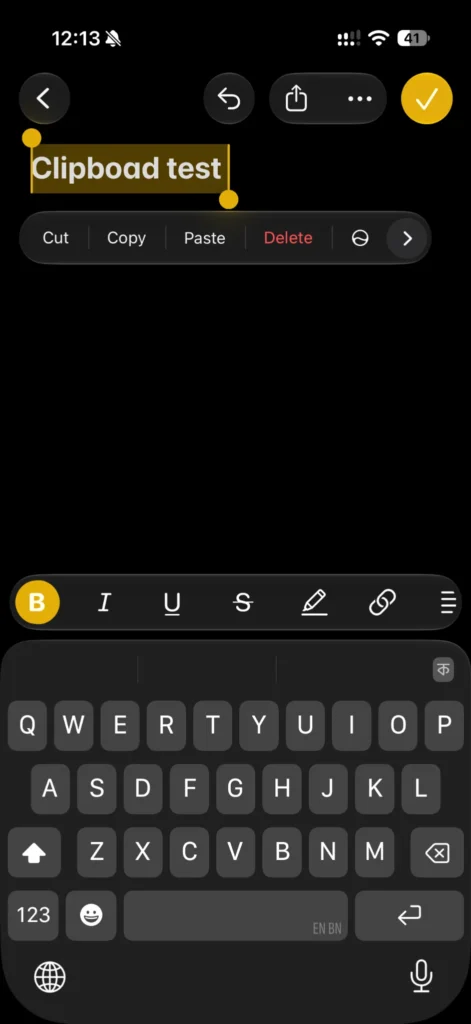
1. How to View Your Current Clipboard on iPhone
The easiest way to check your iPhone clipboard is by pasting its contents into an app.
You don’t need to download anything.
Use the Notes App
Follow these steps:
- Open Notes on your iPhone.
- Tap the compose button to create a new note.
- Touch and hold inside the blank note.
- Select Paste from the editing menu.
- Review the pasted content.
If you copied text, the text should appear. If you copied an image, Notes may allow you to paste the image as well.
This method works on recent iPhones, including the iPhone 17 Pro, and doesn’t require a separate clipboard application.
What If Paste Doesn’t Appear?
The Paste option may not be available if there’s no compatible clipboard content.
Try this simple test:
- Open Safari.
- Find a short piece of ordinary text on a webpage.
- Select the text.
- Tap Copy.
- Open Notes.
- Touch and hold the editing area and tap Paste.
If the text appears, your basic clipboard functionality is working.
If Safari itself isn’t loading pages, see our iPhone Safari Not Loading Websites troubleshooting guide before assuming the clipboard is the problem.
Apple also explains selection, copying, and pasting in its official iPhone text editing guide.
2. How to Save Clipboard History Using Apple Notes
Although iOS doesn’t automatically keep a browsable clipboard history, Apple Notes provides a simple way to create your own collection of saved text.
This method is useful for frequently used messages, reference links, addresses, and other nonsensitive information.
Create a Clipboard History Note
- Open Notes.
- Create a new note.
- Give it a title such as My Saved Clipboard.
- Copy some text from Safari, Messages, or another app.
- Return to your saved note.
- Paste the copied text.
- Add a new line or separator.
- Repeat whenever you want to save something else.
You can organize your note like this:
Saved Clipboard
Website link
Meeting reminder
Submit the report before Friday.
Useful text
Thank you for your message. I’ll get back to you shortly.
Each entry remains in Notes until you edit or delete it, subject to your Notes storage and synchronization settings.
Why This Method Works
You’re not recovering the system clipboard’s history. You’re creating a separate record of information you intentionally save.
That’s a crucial difference.
Because the items are stored inside a note, copying another item won’t remove earlier saved entries.
You can also search Notes later to find a saved phrase.
Tip: Avoid saving passwords, one-time passcodes, banking information, or other sensitive clipboard contents inside an ordinary collection of snippets. Use a suitable secure storage method instead.
3. How to View the Clipboard Using Shortcuts
Apple’s Shortcuts app provides another way to inspect whatever is currently available on the clipboard.
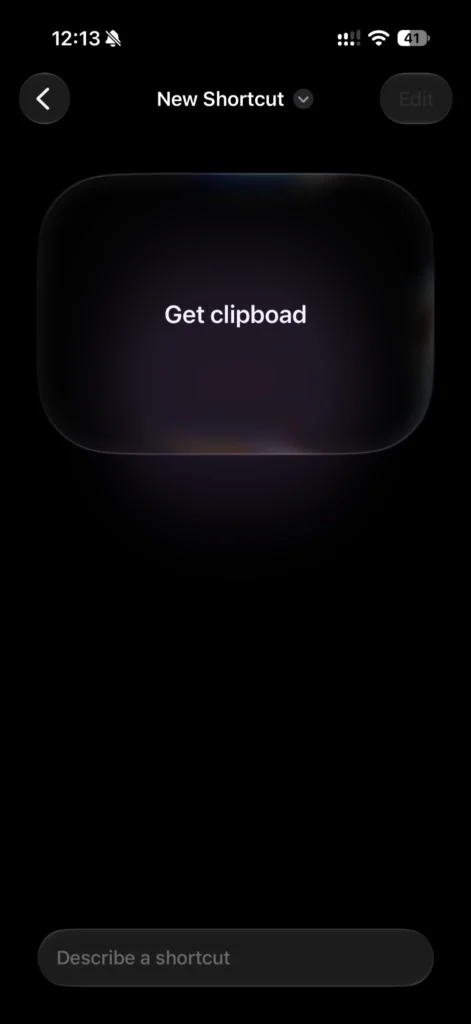
Shortcuts includes an action called Get Clipboard, which retrieves clipboard content for use in a shortcut.
This can be convenient if you frequently copy text and want a quick way to preview it.
Create a Clipboard Viewer Shortcut
- Open the Shortcuts app.
- Tap + to create a new shortcut.
- Tap Add Action or use the action search field.
- Search for Get Clipboard.
- Add that action.
- Search for Quick Look.
- Add Quick Look after Get Clipboard.
- Give your shortcut a name such as View Clipboard.
- Save the shortcut.
- Copy a short piece of sample text and run it.
The shortcut should retrieve the available clipboard content and display it through Quick Look when the content type is supported.
Apple documents the Get Clipboard action in its Shortcuts User Guide.
Can Shortcuts Show Previously Copied Text?
Not automatically.
The Get Clipboard action reads the content available when the shortcut runs.
It doesn’t reveal an archive of items that were previously copied and overwritten.
You could create a more advanced shortcut to save copied information into a note or another supported destination, but the shortcut must actually capture and store that content.
Simply creating a shortcut doesn’t activate a permanent background clipboard history.
If your shortcut runs inconsistently, see our iPhone Automation Not Working guide for help with Shortcuts permissions, triggers, and execution problems.
4. Can You Recover Old Clipboard History on iPhone?
Usually, no.
If you copied something and then copied new content, the previous item is generally no longer available through the ordinary iOS clipboard.
There isn’t a built-in Recently Deleted clipboard folder, a clipboard timeline, or a hidden Settings page for restoring earlier entries.
However, you may still find the original information elsewhere.
Check the App Where You Copied It
If you copied text from Notes, Messages, Mail, Safari, or another app, return to the original location.
For example:
- If it was copied from Notes, search your notes.
- If it came from a webpage, check the original webpage or your browsing history.
- If it was copied from a message, look at the original conversation.
- If it was saved in a document, reopen the document.
This doesn’t recover clipboard history. It retrieves the original content from its source.
Check Whether You Saved It Somewhere
You may previously have pasted the text into Notes, a draft email, a document, or a third-party clipping app.
Searching those saved locations may help.
What About iCloud Backups?
An iCloud backup isn’t a browsable clipboard-history archive.
You shouldn’t restore or erase your iPhone simply to try to recover an ordinary overwritten clipboard item.
There’s no dependable built-in process for using an iPhone backup to retrieve a previous unsaved copy.
5. How to Keep Multiple Copied Items on iPhone
If you copy text frequently, manually pasting each item into Notes might become inconvenient.
There are several ways to organize information more effectively.
Option 1: Use Notes for Important Snippets
This is the simplest option.
Save only text you expect to reuse, such as standard replies, addresses, reference links, and useful instructions.
The advantage is that you don’t need another app.
Option 2: Use Shortcuts to Save Selected Content
You can design a shortcut that retrieves the current clipboard and passes it to a storage action supported by your device.
For example, a shortcut might take the content from Get Clipboard and save it to a file or append it to a note using compatible actions.
The exact available actions and permissions can vary by iOS version.
Test the shortcut with harmless sample text before relying on it.
Remember: A manually run shortcut can only save information it retrieves. It cannot recreate previously overwritten items.
Option 3: Consider a Clipboard Manager App
Some third-party clipboard applications let you organize text snippets or save items you explicitly send to them.
However, iOS places restrictions on how applications can interact with clipboard information.
Don’t assume that a third-party clipboard manager can silently record every item copied across every app.
Before using one, check:
- Whether it requires manual pasting or sharing.
- Whether copied information is stored locally or uploaded.
- Whether it supports your iOS version.
- How it handles sensitive data.
- Whether it offers a way to delete stored information.
For many people, Notes and Shortcuts are sufficient.
6. How to Use Universal Clipboard Between iPhone and Mac
If you use an iPhone with a Mac, Apple’s Universal Clipboard can make copying and pasting more convenient.
It allows you to copy compatible content on one Apple device and paste it on another nearby device.
For example, you can copy a paragraph on your iPhone and paste it directly into Notes on your MacBook.
Requirements for Universal Clipboard
Both devices generally need:
- The same Apple Account.
- Wi-Fi enabled.
- Bluetooth enabled.
- Handoff enabled.
- Compatible software and hardware.
- Physical proximity.
How to Copy from iPhone and Paste on Mac
- Open an app on your iPhone.
- Select the text you want to copy.
- Tap Copy.
- Move to your nearby Mac.
- Open Notes or another compatible text editor.
- Press Command + V.
If Universal Clipboard is working, the content should paste on your Mac.
The feature can also work in the opposite direction.
Apple explains the process in its official Universal Clipboard documentation.
Does Universal Clipboard Save Clipboard History?
No.
Universal Clipboard shares recent clipboard content between compatible Apple devices for a limited time.
It doesn’t create a permanent history of everything copied across your iPhone and Mac.
If it isn’t working, our Handoff Not Working on Mac guide explains how to check Handoff, Bluetooth, Wi-Fi, account settings, and other Continuity problems.
7. How to Copy Text from Photos on iPhone
Sometimes the information you want to save is inside an image rather than ordinary selectable text.
On supported iPhones, Apple’s Live Text feature can recognize text in compatible photos and images.
Copy Text from a Photo
- Open Photos.
- Select a photo containing readable text.
- Touch and hold recognized text, or use the Live Text control when available.
- Adjust the selection if necessary.
- Tap Copy.
- Open Notes and paste the text.
You can then save it inside your manually maintained clipboard note.
If Live Text doesn’t recognize text as expected, see our iPhone Live Text Not Working guide.
This is particularly useful for copying reference numbers, printed instructions, and other non-sensitive text from images.
8. Is iPhone Clipboard History Private?
Clipboard content can contain personal information.
For example, you might copy an email address, a private message, an authentication code, or a link containing sensitive information.
Apple uses privacy protections for clipboard access between apps, including permission prompts in applicable situations.
If an app asks permission to paste content from another app, review whether the paste is necessary before allowing it.
You may also find a Paste from Other Apps preference in an individual app’s Settings after that app has requested clipboard access.
The available options and placement can vary.
Ways to Reduce Clipboard Privacy Risks
Avoid using clipboard-management apps that request more permissions than their functions require.
Don’t save sensitive credentials in ordinary text snippets.
If you copied confidential text and no longer need it available for pasting, copying harmless replacement text can replace the current ordinary clipboard item.
However, that is not a guaranteed secure-erasure method for every copy of the information that might exist elsewhere.
For passwords, prefer a password manager rather than relying on clipboard history.
Why Can’t I Find Clipboard History in iPhone Settings?
Because iOS doesn’t include a native clipboard-history page.
You can search Settings for accessibility, privacy, keyboard, or continuity options, but none of those provides a complete list of previously copied items.
Similarly, Apple’s keyboard doesn’t provide a built-in searchable history panel equivalent to Windows clipboard history.
If a tutorial claims you can open a hidden iPhone clipboard archive with one tap, check whether it is actually demonstrating a third-party app or manually saved content.
Frequently Asked Questions
Where is the clipboard on iPhone?
The clipboard is a system feature rather than a standalone app. To see the currently copied content, open Notes, touch and hold an editable area, and tap Paste.
Does iPhone 17 Pro have clipboard history?
The iPhone 17 Pro supports ordinary copying and pasting, but iOS doesn’t provide a native list of previously copied clipboard items. You can save text manually using Notes or an appropriate shortcut.
Can I recover something I copied yesterday?
Not directly from the system clipboard if it has been overwritten or is no longer available. Check the original app, saved notes, drafts, or any clipboard-management tool that previously stored the item.
How do I see everything I’ve copied on my iPhone?
There’s no built-in way to see everything you’ve copied in the past. You can create a saved collection going forward with Notes, Shortcuts, or a suitable third-party application.
Does iPhone clipboard history disappear after copying something new?
For normal copy-and-paste operations, new copied content replaces the previous item available for pasting. Items explicitly saved in Notes or another app remain separate from the temporary clipboard.
Can Shortcuts recover deleted clipboard items?
No. The Get Clipboard action retrieves currently available clipboard content. It doesn’t restore earlier text that wasn’t saved.
Is Universal Clipboard the same as clipboard history?
No. Universal Clipboard transfers recent copied content between compatible nearby Apple devices. It doesn’t keep a browsable archive of previous items.
Can I save copied images on iPhone?
Yes. You can paste supported copied images into compatible apps, such as Notes, or save the original image using the appropriate app controls. This is separate from maintaining a clipboard history.
Final Thoughts
If you’re looking for iPhone clipboard history, the most important thing to understand is that Apple’s built-in clipboard doesn’t offer a browsable record of everything you’ve copied.
You can quickly inspect your most recent copied content by pasting it into Notes.
For information you’ll need again, save it deliberately before copying something else.
Apple Notes provides a simple manual solution, while Shortcuts can help you build more customized ways to view and store selected clipboard content.
Universal Clipboard is useful for moving content between your iPhone and Mac, but it isn’t a clipboard-history manager.
The best approach is to save important snippets as you copy them, rather than expecting iOS to recover earlier clipboard items later.