
Is Facebook taking up too much storage on your iPhone? Maybe the app has become noticeably slower, photos take longer to load, or your feed keeps showing outdated content.
If you’re wondering how to clear Facebook cache on iPhone, the process is different from clearing an app’s cache on Android.
Apple doesn’t provide a universal Clear Cache button for individual iPhone apps. And although Facebook includes an option to clear its in-app browser data, that option doesn’t remove every temporary file stored by the Facebook app.
There are two main approaches:
- Clear Facebook’s in-app browser data when links opened inside Facebook are behaving incorrectly.
- Delete and reinstall Facebook when you need to remove its local app data more thoroughly.
The right method depends on what you’re trying to fix.
In this guide, we’ll explain both approaches, show you how to check Facebook’s storage usage, and clarify what happens to your account, photos, messages, and other information.
Quick Answer: How to Clear Facebook Cache on iPhone
If you want to clear Facebook’s browsing data without removing the entire app:
- Open the Facebook app.
- Tap Menu → Settings & privacy → Settings.
- Look for Browser under Preferences, if available.
- Find Cookies and cache or Your Browsing Data.
- Tap Clear and confirm.
If that option isn’t available, open a webpage link inside Facebook, open its browser options, and look for the browser’s settings.
Important: This removes Facebook’s in-app browser data, not necessarily the cache and other files used by the main Facebook application.
To remove the app’s local data more thoroughly, go to Settings → General → iPhone Storage → Facebook → Delete App, then reinstall Facebook from the App Store.
Before deleting the app, make sure you can sign in again and that any important locally stored information is protected.
Table of Contents
What Is Facebook Cache on iPhone?
Facebook stores information on your iPhone to help the application load and function efficiently.
This can include temporary files associated with previously viewed content, images, webpage data, and other information used by the app.
For example, when you scroll through Facebook, images and other content may need to be downloaded from Meta’s servers.
Keeping certain information locally can reduce repeated downloading and improve the experience.
However, locally stored data can grow over time.
That doesn’t necessarily mean the cache is damaged. In many situations, caching is a normal and useful part of how an application works.
Why Would You Clear Facebook Cache?
You might consider clearing Facebook-related data when:
- Facebook is taking up unexpectedly large amounts of storage.
- Webpages opened inside Facebook aren’t loading correctly.
- You keep encountering an outdated webpage.
- Facebook is repeatedly freezing or behaving incorrectly.
- You want to troubleshoot possible problems with locally stored app information.
Clearing cache isn’t guaranteed to improve Facebook’s performance.
A slow feed can also be caused by a weak internet connection, a Facebook service problem, or an outdated app.
If Facebook and several other applications are crashing, our iPhone Apps Keep Crashing guide provides broader troubleshooting steps.
Method 1: Clear Facebook’s In-App Browser Cache and Cookies
Facebook has its own built-in browser for opening certain website links from posts, Pages, and other content.
That browser can retain website-related data, including cookies and cached information.
Clearing this data is the less disruptive option when you’re having trouble opening websites inside Facebook.
Steps to Clear Facebook Browser Data
- Launch the Facebook app on your iPhone.
- Tap Menu.
- Open Settings & privacy → Settings.
- Look for Browser, usually within the Preferences section.
- Open the browser settings.
- Find Cookies and cache, Your Browsing Data, or similarly named controls.
- Tap Clear.
- Confirm the action if requested.
Facebook changes its interface periodically, so the wording and location may vary.
What If You Can’t Find the Browser Option?
Try accessing the settings through Facebook’s in-app browser:
- Open Facebook.
- Find a post containing an ordinary, trusted website link.
- Tap the link.
- Make sure it opens inside Facebook rather than switching to Safari.
- Open the browser’s options menu, often represented by three dots.
- Look for Go to Settings.
- Find the browsing-data controls.
- Select Clear and confirm if available.
If Facebook opens all external links in Safari or another browser, this particular option may not be relevant to how you browse.
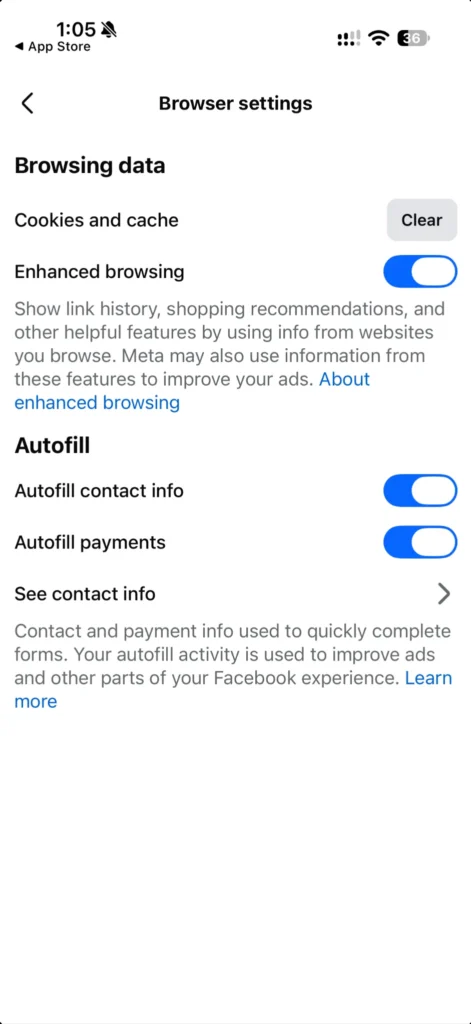
What Does This Method Remove?
This method targets data associated with websites opened inside Facebook’s built-in browser.
It may remove locally saved cookies and cached webpage information.
As a result, some websites may require you to sign in again or reload information.
It doesn’t delete your Facebook profile, posts, friends, or uploaded photos.
It also doesn’t guarantee that every temporary file belonging to the main Facebook application has been removed.
For reference, see Facebook’s Help Center instructions for clearing browsing data. Access to the Help Center may require signing in.
Method 2: Delete and Reinstall Facebook to Remove Local App Data
If Facebook is using a substantial amount of local storage, clearing the in-app browser data may not make much difference.
A more thorough option is to delete Facebook from your iPhone and install it again.
This removes the installed application and its related local data.
However, deleting the app is not a cache-only operation. It may also remove other information stored locally by Facebook.
For this reason, use this method only after considering the consequences.
Step 1: Check Facebook’s Storage Usage
First, see how much space Facebook occupies.
- Open Settings on your iPhone.
- Tap General.
- Select iPhone Storage.
- Allow the storage information to load.
- Scroll through the application list.
- Tap Facebook.
You should see information about the app’s storage usage.
Depending on your iOS version, this may include App Size and Documents & Data.
App Size generally represents the installed application itself.
Documents & Data can include locally stored information associated with that application.
However, the displayed figure isn’t a precise measurement of cache alone.
Apple notes that some cached and temporary information may not be included in the reported usage.
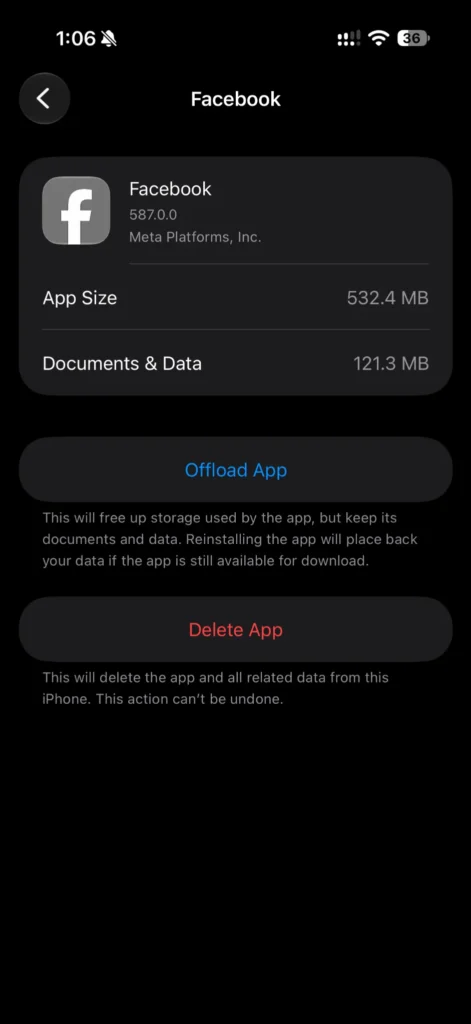
If Facebook is using a large amount of space, that may justify investigating further.
But don’t assume that all of its Documents & Data is unnecessary.
For related storage troubleshooting, see our iPhone System Data Taking Up Storage guide.
Step 2: Prepare Before Deleting Facebook
Before deleting Facebook, make sure you can access your account again.
Check that:
- You know your Facebook login credentials or can use your normal account recovery method.
- You can complete any required two-factor authentication.
- Any important local drafts or unsaved information have been preserved.
- Your internet connection works.
- You can access the App Store to reinstall the application.
Most ordinary Facebook posts, uploaded photos, and account information are stored on Meta’s servers rather than depending solely on the installed iPhone app.
Deleting the application doesn’t delete your Facebook account.
However, certain locally stored information may not return after reinstalling.
Avoid deleting Facebook if you’ve been relying on an unsaved draft or other important local content that you haven’t protected.
Step 3: Delete the Facebook App
Once you’re prepared:
- Return to Settings → General → iPhone Storage.
- Select Facebook.
- Tap Delete App.
- Read the confirmation message.
- Confirm only if you’re comfortable removing Facebook’s local app data.
- Allow iOS to complete the removal.
Do not select Offload App if your goal is to remove Facebook’s retained local documents and data.
Offloading removes the installed application while preserving associated documents and data.
We’ll explain that distinction in the next section.
Step 4: Reinstall Facebook
After deleting the app:
- Open the App Store.
- Search for Facebook.
- Select the official Facebook application published by Meta.
- Tap the download or redownload button.
- Wait for installation to finish.
- Open Facebook.
- Sign in if requested.
- Check whether the original problem has improved.
You can then return to Settings → General → iPhone Storage → Facebook to review its new storage usage.
The app may initially occupy less space because its local data was removed.
However, Facebook will begin storing new information as you use it.
A fresh installation isn’t a permanent way to stop the cache from growing.
If Facebook won’t download after you remove it, see our iPhone App Store Not Downloading Apps guide for help with app installation problems.
Apple confirms the different effects of deleting and offloading apps in its official iPhone storage documentation.
Why Offloading Facebook Doesn’t Fully Clear Its Cache
When you open Facebook’s storage settings, you may see two options:
- Offload App
- Delete App
They may look similar, but they serve different purposes.
What Offload App Does
Offloading removes the installed application while retaining its documents and data.
This can free up the space used by the application itself.
When you reinstall the app, iOS may restore its preserved local information.
Because documents and data are retained, offloading isn’t a reliable way to remove all Facebook cache and local data.
What Delete App Does
Deleting Facebook removes the installed app and its related local data from your iPhone.
Reinstalling it gives you a fresh application installation, although account-based information can become available again after signing in.
This is more thorough than offloading, but it’s also more disruptive.
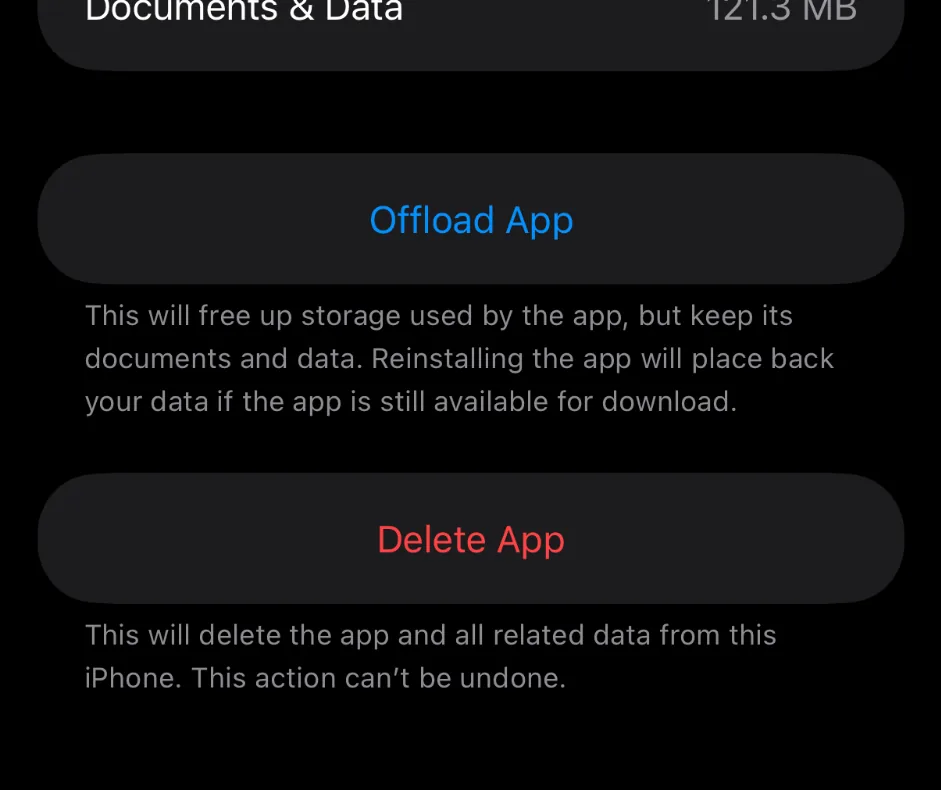
If your only objective is recovering a small amount of storage, start by checking whether the iPhone is actually low on space.
You may not need to delete Facebook at all.
How to Clear Facebook Website Cache in Safari
Some people access Facebook through Safari rather than installing or regularly using the Facebook app.
If you use facebook.com in Safari, the website’s cached information is managed by Safari.
Clearing Facebook’s in-app browser data won’t clear Safari’s website data.
Likewise, clearing Safari data doesn’t remove the Facebook app’s own local storage.
Clear Safari Website Data
If Facebook’s website isn’t working correctly:
- Open Settings.
- Tap Apps → Safari.
- Select Advanced.
- Open Website Data.
- Review the available website-data controls.
- Remove the relevant website data if your iOS version offers that option.
Apple also provides Remove All Website Data, but this is broader and can affect saved website logins and other browsing data.
Use the broader option only if you understand those consequences.
If you’re having trouble with other websites too, read our iPhone Safari Not Loading Websites guide.
For Apple’s official instructions, see Delete Safari History, Cache, and Cookies on iPhone.
Will Clearing Facebook Cache Delete Your Photos, Messages, or Account?
This is an important distinction.
Clearing Facebook’s in-app browser data does not delete your Facebook account or remove your ordinary Facebook posts and uploaded photos from Meta’s servers.
Deleting and reinstalling the Facebook application also doesn’t constitute a request to delete your Facebook account.
However, removing the app can erase local app information.
This may include information that wasn’t synchronized with Facebook’s servers.
Before reinstalling, make sure any important unsaved content is protected.
What About Facebook Messenger?
Facebook and Messenger are separate applications.
Deleting Facebook doesn’t automatically delete Messenger.
Similarly, clearing Facebook’s browser data doesn’t clear all Messenger application data.
If you have a Messenger-specific storage or performance problem, investigate Messenger separately.
Will You Lose Your Facebook Login?
You may need to sign in again after deleting and reinstalling the app.
You could also be asked to complete account verification or two-factor authentication.
Make sure you can access those authentication methods before deleting Facebook.
Facebook Still Slow After Clearing Cache? Try These Fixes
If clearing browsing data or reinstalling the app doesn’t resolve the problem, don’t repeat the same process endlessly.
Other causes may be responsible.
1. Check Your Internet Connection
Facebook needs a stable connection to retrieve content.
Try loading another trusted website or application.
If the problem affects multiple apps, test a different Wi-Fi or cellular connection.
2. Update the Facebook App
Open the App Store and search for Facebook.
If an Update button is available, review and install the update.
An application update may contain fixes for previously reported bugs.
3. Restart Your iPhone
If Facebook is frozen or behaving unexpectedly, try a normal restart.
On an iPhone with Face ID:
- Press and hold the Side button and either Volume button.
- Drag the power-off slider.
- Wait approximately 30 seconds.
- Press and hold the Side button to turn the phone on.
- Reopen Facebook.
A restart doesn’t normally erase your personal information.
4. Check Available Storage
Open Settings → General → iPhone Storage.
Apple advises maintaining at least some free space to avoid performance problems.
Very limited storage can affect ordinary app operations.
If storage is nearly full, consider removing unnecessary downloads or apps you no longer use.
5. Check Whether Facebook Is Experiencing a Service Problem
If Facebook stops loading on multiple devices or networks, the problem might involve Meta’s services.
Check whether other users are reporting a similar interruption and try again later.
Clearing your iPhone cache cannot fix an unavailable Facebook server.
How Often Should You Clear Facebook Cache on iPhone?
You generally don’t need to clear Facebook-related data on a fixed schedule.
Caching helps applications work efficiently, and iOS already manages some temporary storage automatically.
Consider clearing Facebook’s browsing data when a link repeatedly fails or displays incorrect saved information.
Consider deleting and reinstalling the app only when a meaningful problem persists and you’ve confirmed that losing local app data is acceptable.
If Facebook is functioning normally and your iPhone has adequate storage, there may be no reason to clear anything.
Frequently Asked Questions
Does Facebook have a Clear Cache button on iPhone?
Facebook can offer controls to clear data from its built-in browser. However, it doesn’t provide a universal button for clearing all cached files and local data belonging to the Facebook app.
How do I clear Facebook cache without deleting the app?
Use Facebook’s in-app browser settings to clear its browsing data. This is useful for website-related problems, but it won’t necessarily remove all cache and data stored by the main Facebook application.
Does deleting Facebook clear its cache?
Deleting the Facebook app removes its related local app data from the iPhone, which can include cached information. However, deletion is more extensive than clearing cache alone and can remove other locally stored information.
Does Offload App clear Facebook cache?
Not completely or reliably. Offloading preserves the app’s documents and data, so it’s not equivalent to deleting the application and its local data.
Will clearing Facebook cache delete my Facebook account?
No. Clearing browsing data or removing the Facebook app from your iPhone doesn’t delete your Facebook account from Meta’s servers.
Why does Facebook take up so much storage on iPhone?
App storage can include the application itself, temporary content, downloaded information, and other locally stored data. Large Documents & Data figures don’t necessarily represent cache alone.
Can clearing Facebook cache make the app faster?
Sometimes, particularly if problematic local information is contributing to an issue. However, it won’t resolve every problem. Slow network connections, server issues, outdated software, and other factors can affect Facebook performance.
Is clearing Facebook cache on iPhone the same as Android?
No. Many Android devices offer an application-specific Clear Cache function. iOS doesn’t provide the same universal cache-clearing control for every installed app.
Will Facebook cache return after reinstalling the app?
Yes. Facebook can generate new temporary files and other local information as you use it. That behavior is normal and doesn’t automatically indicate a problem.
Final Thoughts
If you’re trying to clear Facebook cache on iPhone, first identify whether you’re dealing with a problem in Facebook’s built-in browser or the main application.
For website-related issues, clearing Facebook’s in-app browser data is the less disruptive approach.
For a more thorough removal of local Facebook app data, deleting and reinstalling the application may help, provided you’ve protected any important local information and can sign back in.
Remember that offloading the app isn’t the same as deleting it, and neither method guarantees a performance improvement.
Start with the least disruptive solution, verify the result, and avoid deleting information unless you have a clear reason to do so.