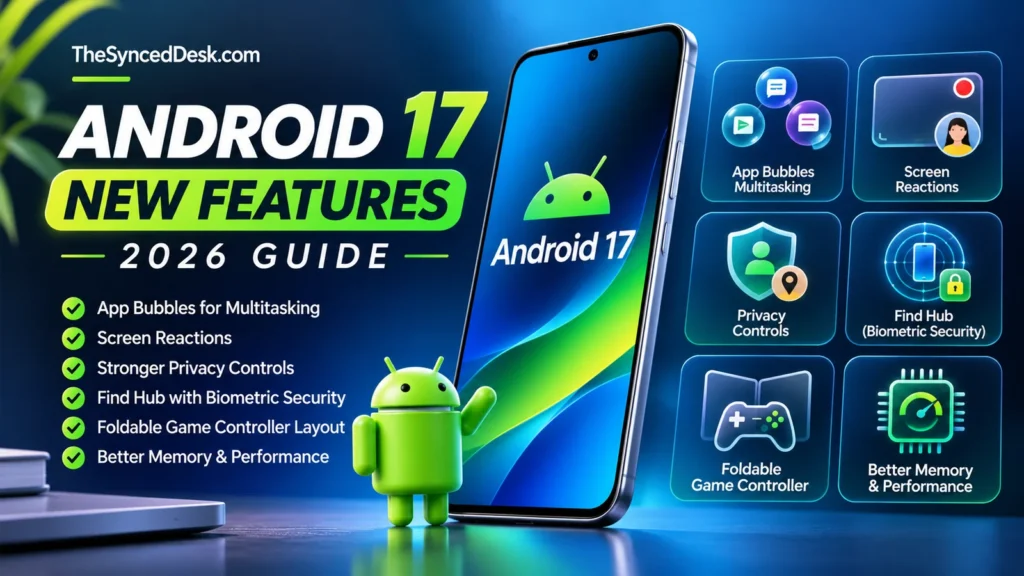
Android 17 new features bring some meaningful changes to how your phone handles multitasking, screen recording, privacy, security, gaming, and everyday performance.
Google officially released Android 17 on June 16, 2026, beginning with eligible Pixel devices before expanding to supported phones from other manufacturers.
Among the biggest improvements are floating app bubbles, Screen Reactions that combine screen recordings with selfie video, better control over contact and location sharing, stronger protection for lost phones, and improvements to system memory management.
But not every feature works on every Android 17 phone. Some are limited to Pixel devices, require support from individual apps, or are arriving gradually.
In this guide, The Synced Desk breaks down 12 of the most useful Android 17 features, explains which ones you can actually try, and shows you how to check whether your device has received the update.
Table of Contents
Android 17 New Features: Quick Overview
The biggest Android 17 improvements are floating app bubbles, Screen Reactions, better privacy controls, stronger Find Hub security, foldable gaming tools, and more efficient memory management.
Here’s what changed:
| New feature | What it does |
|---|---|
| App Bubbles | Opens supported apps in floating windows |
| Screen Reactions | Records your screen and selfie camera together |
| Foldable gaming | Adds improved layouts and gamepad support |
| Contact Picker | Shares selected contacts instead of entire contact lists |
| Temporary location access | Gives supported apps precise location for a session |
| Enhanced Find Hub | Adds stronger biometric protection for lost devices |
| Security upgrades | Improves threat detection and PIN protections |
| Memory management | Limits excessive memory use and reduces some system overhead |
| Hidden app labels | Offers a cleaner home screen on supported devices |
| Expanded dark theme | Gives users more control over dark appearance |
| Assistant volume | Supports separate volume handling for compatible assistants |
| Network privacy | Improves protection for local networks and encrypted connections |
Availability note: Android 17 is the operating-system release. Pixel Drops, Android Drops, and manufacturer-specific additions are separate updates, so their features may arrive at different times.
Android 17 Release Date and Availability
Google released the stable version of Android 17 on June 16, 2026.
The rollout began with eligible Google Pixel devices.
Other Android phone manufacturers, including Samsung, Motorola, OnePlus, Xiaomi, and others, follow their own software-release schedules.
For that reason, two phones running Android 17 may have different interfaces or feature availability.
A Pixel running Google’s version of Android 17 will not necessarily display exactly the same Settings menus as a Samsung Galaxy running a version of One UI based on Android 17.
The easiest way to determine whether your phone is eligible is to check your manufacturer’s official software-update information.
Source: Google’s official Android 17 announcement
1. Floating App Bubbles Make Multitasking Easier
One of the most noticeable Android 17 new features is the expanded Bubbles system.
Earlier Android versions supported floating chat bubbles for certain conversations.
Android 17 extends the idea to applications more generally, allowing supported apps to appear in compact floating windows.
This means you can keep one activity accessible while working in another application.
How to try App Bubbles
On a supported Android 17 device:
- Open your app drawer or home screen.
- Find the application you want to use.
- Touch and hold its icon.
- Look for an option to open the app as a bubble.
- Select the option if it’s available.
The app can then appear as a floating window over your other activities.
You can return to it without navigating through the usual full-screen app-switching process.
Why this matters
App Bubbles can be particularly useful when you want to:
- Keep a calculator accessible while working.
- Refer to notes while writing a message.
- Switch between supported productivity apps.
- Multitask more easily on larger screens.
On supported large-screen devices, Android 17 also introduces a dedicated bubble bar.
The bubble bar helps you organize multiple floating apps and move between them.
Availability: Google’s implementation and individual app support determine whether the bubble option appears. Don’t assume every manufacturer exposes identical controls.
2. Screen Reactions Let You Record Your Screen and Face Together
Android 17 introduces an improved screen-recording experience called Screen Reactions.
This feature allows you to record your device’s display while simultaneously capturing video through the front-facing camera.
It’s particularly useful for:
- Creating app tutorials.
- Recording gameplay reactions.
- Explaining settings to someone.
- Making instructional videos.
- Producing content for social media.
Google introduced Screen Reactions as a Pixel-first experience.
How to use Screen Reactions on a supported Pixel
- Swipe down from the top of your screen twice.
- Tap Screen record.
- Choose the entire-screen recording option when prompted.
- Enable Show selfie camera, if available.
- Select your audio-recording preferences.
- Tap Start.
Your screen recording can now include a live front-camera view.
Google also provides controls for adjusting the position and appearance of the selfie view.
When you’re finished, stop recording using the recording controls.
What makes this useful?
Normally, making a reaction video requires recording your screen and camera separately, then combining the videos.
Screen Reactions brings those functions together on supported devices.
You should still check that no private notifications, messages, or sensitive information will appear in your screen recording.
For more methods, see our How to Screen Record on Google Pixel guide.
Source: Google Pixel Screen Recording Help
3. Better Foldable Gaming and Controller Support
Android 17 also introduces improvements for gaming on supported foldable devices.
Google has highlighted a foldable gaming mode designed to make better use of the available display area.
The concept includes a split layout, with gameplay occupying one part of the screen and an on-screen gamepad occupying another.
This can make certain games more comfortable to play on compatible folding devices.
Android 17 also introduces native controller-remapping capabilities.
What is controller remapping?
Controller remapping allows supported games and devices to change how controller inputs correspond to actions.
For example, a player might prefer swapping the functions assigned to two buttons.
The exact options depend on the controller, game, and device implementation.
Will every Android 17 phone have foldable gaming mode?
No.
Foldable-specific functionality requires compatible hardware.
Google also announced that some foldable gaming improvements would become available gradually.
A regular non-folding smartphone will not gain a physical foldable layout simply by installing Android 17.
4. A More Private Way to Share Contacts
Android 17 introduces a redesigned system-level Contact Picker.
This is an important privacy improvement.
Traditionally, some apps requested permission to access an entire contact list even when they only needed information for one person.
Android 17 allows compatible apps to request access to selected contacts or specific contact fields.
How it works
Imagine you’re using an application that needs to send an invitation to a friend.
Instead of providing the app access to your complete address book, you may be able to select the exact contact information you want to share.
The app receives the selected details through the system interface.
Why this is better
The newer system can:
- Reduce unnecessary contact sharing.
- Limit how much personal information an app receives.
- Support choosing specific phone numbers or email addresses.
- Provide a more consistent contact-selection experience.
The feature is built into Android 17, but its appearance depends on how the application accesses contacts.
Important: Installing Android 17 does not automatically revoke permissions you’ve already granted to applications. You should still review existing app permissions.
Source: Android Developers Contact Picker documentation
5. Temporary Precise Location Access
Another Android 17 privacy improvement allows supported applications to request precise location access for a specific session.
Google introduced a system-rendered location button that developers can use inside their applications.
When implemented, the button can allow users to grant precise location access only when it’s needed.
A practical example
Imagine an app needs your precise location to identify a nearby pickup point.
Instead of asking for ongoing access to your precise location, the app can use the temporary-access mechanism for the current activity.
This provides more control over when and how precise location information is shared.
Does this replace all location permissions?
No.
Android’s existing permission system remains relevant.
Applications may continue using other permitted location-access methods, depending on their implementation and the user’s choices.
You can review location permissions through your phone’s privacy settings.
On many Android devices, you’ll find them under:
Settings > Security & privacy > Privacy > Permission manager > Location
The exact path may vary by manufacturer.
If location-based apps stop working, our Google Maps Not Working on Android guide covers additional troubleshooting.
6. Stronger Find Hub Security for Lost Phones
Android 17 improves Google’s Find Hub lost-device protection.
One important addition is stronger biometric verification associated with the enhanced Mark as lost process.
Google’s documentation explains that this protection is designed to make it harder for someone with your passcode to access a lost phone or interfere with tracking.
The updated experience also includes protections for sensitive information such as Google Wallet data.
Why this matters
A stolen or lost phone can contain valuable information:
- Saved accounts.
- Personal photographs.
- Private messages.
- Payment information.
- Authentication applications.
- Work-related data.
Stronger device protection can reduce the risk of unauthorized access.
What should you do?
Before you ever lose your phone:
- Use a strong screen-lock method.
- Set up fingerprint or facial authentication if supported.
- Make sure Find Hub is configured for your device.
- Review your Google Account recovery options.
- Keep your device updated.
Do not wait until the device is missing to review your security settings.
Availability: Enhanced Find Hub protections can depend on device support, services, and rollout status.
7. Improved Malware and Theft Protection
Android 17 includes several security changes intended to make everyday device use safer.
Google highlighted improvements to Live Threat Detection and protections against repeated PIN guessing.
Live Threat Detection
Live Threat Detection is designed to identify suspicious application behavior using signals collected on supported devices.
It helps protect users against potentially harmful software and malicious activity.
However, no detection system can guarantee that every harmful application will be stopped.
You should still install applications from trustworthy sources and review unusual permission requests.
Stronger protection against repeated PIN attempts
Android 17 also adds restrictions intended to make repeated incorrect PIN attempts less effective.
These changes are designed to help protect devices against unauthorized access attempts.
A strong screen lock remains important even with these improvements.
For practical device-security adjustments, see our Android Lock Screen Settings guide.
8. Improved Memory Management and Performance
Some Android 17 new features aren’t visible in the Settings app.
One example is improved memory management.
Google introduced new app memory limits based on device RAM.
The system can restrict applications that consume excessive memory rather than allowing them to use resources without appropriate limits.
Android 17 also includes improvements to garbage collection, the process Android uses to reclaim memory.
What does this mean for everyday users?
Potential benefits include:
- Less unnecessary memory pressure.
- Reduced interruptions from certain memory-management tasks.
- Smoother application behavior in some situations.
- More consistent multitasking.
- Better efficiency in supported workloads.
These improvements are built into the operating system.
You don’t need to enable a special performance switch.
Does Android 17 improve battery life?
The efficiency changes may reduce some processing overhead, but that doesn’t guarantee a specific battery-life improvement.
Your actual results depend on the device, battery condition, applications, and usage.
After installing a major Android update, the device may also perform background optimization tasks.
Therefore, immediate battery behavior after installation may not represent long-term performance.
Source: Android Developers’ Android 17 technical overview
9. Hide App Names for a Cleaner Home Screen
Android 17 introduces an option to hide application names on supported home-screen implementations.
This can make your home screen look cleaner by reducing text beneath app icons.
It’s mainly a customization feature rather than a performance improvement.
Who might find this useful?
It can appeal to people who:
- Prefer minimalist home screens.
- Organize applications visually.
- Want a less cluttered display.
- Use a small set of familiar apps.
The option’s location can vary by device and launcher.
If you don’t see it, check the home-screen customization settings provided by your phone manufacturer.
Keep in mind that third-party launchers can behave differently.
10. More Control Over Expanded Dark Theme
Android 17 includes additional control over its expanded dark-theme experience.
Dark mode can make supported interfaces easier to view in dimly lit environments and is a popular appearance preference.
Google’s expanded dark-theme capabilities aim to bring darker appearances to more application interfaces.
How to check your dark-theme settings
On many Android devices:
- Open Settings.
- Select Display & touch or Display.
- Look for Dark theme.
- Review the available customization options.
If your device offers expanded dark-theme controls, configure them according to your preference.
Not every app will necessarily look identical in dark mode.
Some applications use their own color themes, and manufacturer interfaces may offer different controls.
11. Separate Volume Handling for Digital Assistants
Android 17 introduces a dedicated audio stream for compatible digital-assistant applications.
This is a technical platform improvement that can let supported assistant experiences handle volume separately from ordinary media playback.
Why is this useful?
Consider a situation where you’re watching a video at a relatively high volume but want a voice assistant to respond more quietly.
Separate assistant-volume handling can provide more flexibility when the assistant and device support it.
However, this doesn’t guarantee that every Android 17 phone will show a new assistant-volume slider.
The feature requires compatible software and application implementation.
It’s best understood as a platform capability that developers and manufacturers can use.
12. Better Network Privacy and Local Device Protection
Android 17 also introduces additional network-security protections.
Two notable improvements are Encrypted Client Hello support and stronger local-network permission requirements.
Encrypted Client Hello
Encrypted Client Hello, or ECH, helps protect some information about the websites you connect to.
When properly supported by the application, network stack, and destination, it can reduce the visibility of certain connection metadata to network observers.
This is not the same thing as a full VPN, and it does not make every online activity anonymous.
Local Network Protection
Android 17 also strengthens controls around applications communicating with devices on your local network.
This can matter for apps that interact with smart televisions, speakers, printers, or other network-connected devices.
Developers can use supported system interfaces or appropriate permissions to access local devices.
Will this affect casting?
Some applications may need to adapt how they discover or connect to devices.
If an app suddenly can’t find a nearby television or speaker after an update, check the app’s permissions and whether an application update is available.
Avoid disabling broad security protections unnecessarily just to restore connectivity.
Source: Google’s Android 17 network-security announcement
Bonus: Android 17 Features Introduced Through Later Updates
Google continues delivering improvements after the initial Android 17 release.
However, it’s important to distinguish these updates from the base operating system.
Android Drops
Android Drops deliver features through Google applications and system services.
Some Android Drop features work on older Android versions.
For example, Google’s September 2026 Android Drop introduced Motion Assist for supported Android 17 devices.
Motion Assist displays visual motion cues intended to help some passengers feel more comfortable when using their phones in moving vehicles.
Pixel Drops
Pixel Drops are additional updates aimed at specific Google Pixel devices.
Some Pixel features require supported hardware or applications and are not included on every Android 17 phone.
Gemini Intelligence
Gemini Intelligence is also expanding to selected Android devices.
It’s not accurate to assume that every Android 17 phone automatically receives all Gemini Intelligence capabilities.
Google announced additional device support in November 2026, with availability depending on the model and feature.
The key point is that Android 17 compatibility does not guarantee access to every Pixel-exclusive or AI feature.
How to Check Whether Your Phone Has Android 17
Before attempting to use a new feature, check the Android version installed on your device.
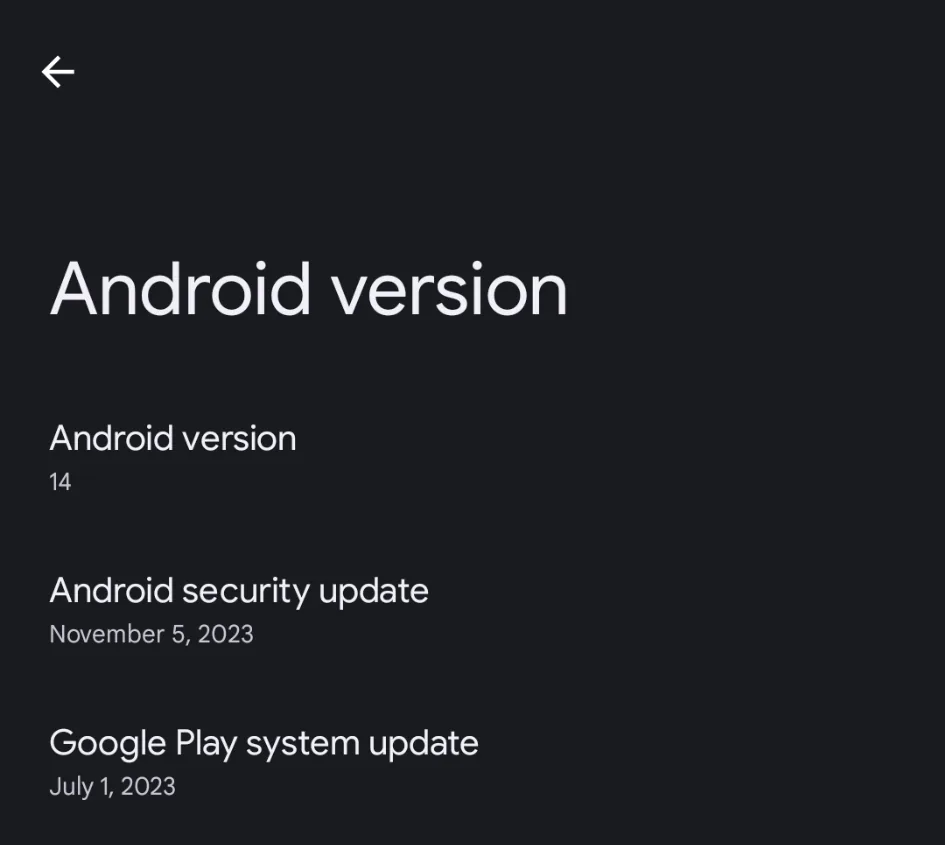
On Google Pixel
- Open Settings.
- Tap About phone.
- Select Android version.
- Check the version number.
If the screen displays Android 17, your phone has the Android 17 operating system installed.
You can also review the security patch and Google Play system-update information.
On Samsung and other Android phones
The menu may look different.
Many devices provide this information under Settings > About phone > Software information or an equivalent menu.
If you can’t find it, use your Settings search field to locate Android version.
How to Update to Android 17
On a supported Google Pixel:
- Connect to Wi-Fi.
- Back up important information.
- Charge the phone sufficiently.
- Open Settings.
- Select System.
- Tap Software updates or System update, depending on the interface.
- Follow the instructions if an update is offered.
Google recommends having a sufficiently charged device before updating.
Updates can take time to download and install, and some devices complete installation in the background before applying the changes after a restart.
What if Android 17 isn’t available?
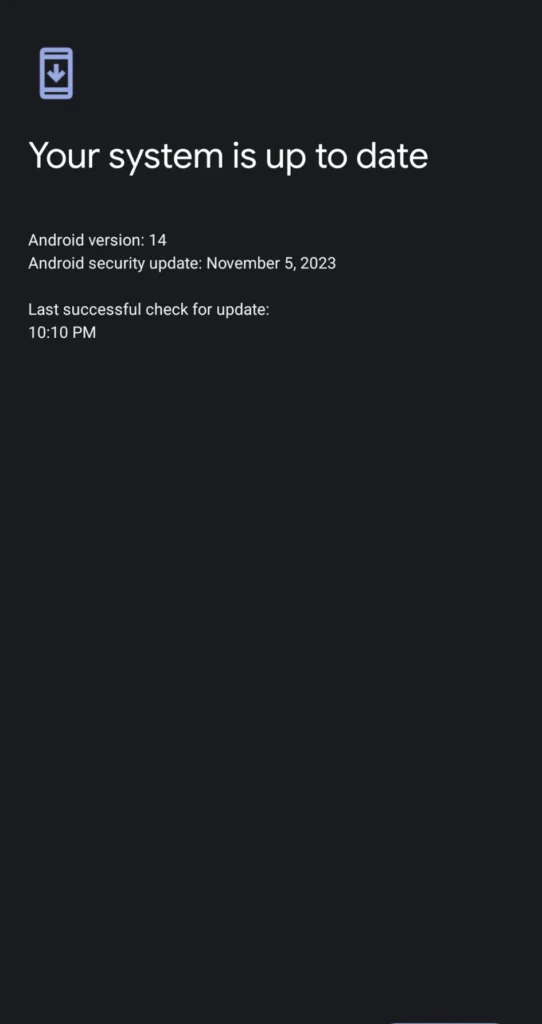
There are several possible reasons:
- Your phone is not eligible.
- The manufacturer hasn’t released the update for your model.
- Your carrier’s release schedule differs.
- The update is still rolling out.
- You already have the latest supported version for your device.
Don’t download unofficial firmware from unknown websites merely because an update hasn’t appeared.
Check your manufacturer’s published update schedule instead.
Source: Google Pixel’s official Android update instructions
Android 17 vs. Android 16: What’s Actually Different?
The differences most readers will notice are concentrated in multitasking, content creation, and privacy.
| Area | Android 16 | Android 17 |
|---|---|---|
| App bubbles | More limited floating conversation experience | Expanded floating-app capabilities |
| Screen recording | Existing recording tools | Enhanced reactions with selfie recording on supported devices |
| Contact sharing | Existing contact permissions and pickers | New privacy-preserving Contact Picker |
| Foldable gaming | Existing large-screen gaming support | New gaming layout and controller capabilities |
| Lost-device security | Existing Find Hub protections | Additional biometric safeguards |
| Memory management | Existing Android memory-management systems | New limits and runtime improvements |
This comparison focuses on Google’s platform changes. Individual Android 16 phones may already include manufacturer-specific features that resemble some Android 17 additions.
Should You Update to Android 17?
For an eligible device, the stable Android 17 update offers useful improvements, particularly for security, privacy, and multitasking.
The benefits are more compelling if you use:
- A compatible Pixel with new recording tools.
- A foldable Android device.
- Apps that support floating windows.
- Features involving contact or location sharing.
Security updates also remain an important reason to keep your device current.
However, there’s no reason to install an experimental beta build solely to access a feature that your manufacturer hasn’t released.
Use the supported stable update provided for your specific phone.
Frequently Asked Questions
What are the best Android 17 new features?
Android 17 introduces expanded app bubbles, Screen Reactions, better contact and location privacy, enhanced Find Hub protection, foldable gaming improvements, and more efficient memory management.
When was Android 17 released?
Google released Android 17 on June 16, 2026. It began rolling out to eligible Pixel devices, with other manufacturers following different schedules.
Is Android 17 available on Samsung phones?
Android 17 availability depends on the Samsung model and Samsung’s software-update schedule. Check your phone’s Software update section and Samsung’s official information for your model.
Does Android 17 improve battery life?
Android 17 includes efficiency-related improvements, but Google does not guarantee a specific battery-life increase for every device.
Is Screen Reactions available on every Android 17 phone?
No. Google introduced it as a Pixel-first experience, and availability varies by device and rollout.
Can Android 17 turn every app into a bubble?
Android 17 expands app bubbles, but actual availability depends on device implementation and application support.
Does Android 17 include Gemini AI?
Android 17 can run on devices that support various Gemini features, but advanced Gemini Intelligence capabilities have separate device, software, and regional requirements.
Will Android 17 make my phone faster?
It introduces memory-management and runtime improvements that may improve performance in certain conditions. Actual results vary by device and app.
Can I install Android 17 on an unsupported phone?
There is no official method to make unsupported hardware eligible. Use the software updates offered by your manufacturer.
What’s the difference between Android 17 and an Android Drop?
Android 17 is an operating-system upgrade. Android Drops deliver additional features through Google apps and services, sometimes without requiring the newest Android version.
Final Thoughts
The biggest Android 17 new features are not just cosmetic changes.
Google has introduced more useful multitasking, easier screen-reaction recording, stronger privacy controls, improvements to lost-device protection, and lower-level performance enhancements.
For everyday users, App Bubbles and Screen Reactions are among the most noticeable additions.
For privacy-conscious readers, the new Contact Picker, temporary location access, and additional security protections are particularly important.
Not every feature appears on every Android 17 phone, so check your device’s compatibility and software version before trying a specific feature.
The Synced Desk editorial note: This article is based on Google’s official Android 17 announcements, technical documentation, and Pixel support instructions. It does not claim that every feature has been personally tested on every Android manufacturer or phone model.
Published/fact-checked: November 19, 2026.
Official References
- Google: Check Out What’s New in Android 17
- Android Developers: Android 17 Is Here
- Google: Android 17 Features and Changes
- Android Developers: Privacy-Preserving Contact Picker
- Google: New Android Network-Security Protections
- Google: Check and Update Your Android Version
- Google: Screen Recording on Pixel
- Google: November 2026 Gemini Intelligence Device Support